

Navigate your contact portal
A portal is the participant’s side of Sessionboard — the page a speaker, sponsor or exhibitor lands on from the link in your email. This is the short version to send to them; you configure everything it shows from Program → Portals. See Portals 101.
Why use it
Section titled “Why use it”Participants who know where things are in the portal finish their tasks without emailing you. Send them this page with the invitation, so they can find their sessions, confirm their participation and upload what you need on their own.
Signing in
Section titled “Signing in”The invitation email carries a personal link. Opening it signs the person straight in; if they come back later without the link, they sign in with the same email address on the portal’s login page. Someone who belongs to more than one portal or event can move between them with Switch Portals and Switch Events in the header menu.
The pages
Section titled “The pages”| Page | What is on it |
|---|---|
| Home | Cards for My Participation, My Profile and Tasks, a Calendar of the person’s upcoming sessions, and any files you have shared. Each card has View All. |
| My Participation | Every session, abstract and application the person is on, grouped by status, with search — see below. |
| Profile | The person’s contact fields — bio, headshot, title, company and whatever else you have made visible. They can edit anything you have not locked. |
| Tasks | Everything they owe you, split into My Tasks (about them) and Submission Tasks (about a session they are on, which any participant on that session can complete). Submission Tasks shows only when the person has at least one. Incomplete and Due This Week filters narrow the list. A portal with Show Tasks Widget off has no Tasks card or page. |
| Resources | The pages you published to the portal — travel details, speaker guidelines, FAQs. |
| Files | Files you shared with the portal, to download. |
Clicking a submission on Home or under Tasks opens it in a panel with Details, Tasks, Files and Messages tabs — that panel is where they confirm participation, edit session details (its button reads Edit Submission while the submission form is open, View Submission once it has closed), upload a presentation and complete anything you asked for on that session.
My Participation
Section titled “My Participation”The My Participation card on Home, and the My Participation tab, list everything the person is on. Chips across the top — All, Abstracts, Sessions, Applications — narrow the list; only the types they have appear, and All shows when there are two or more.
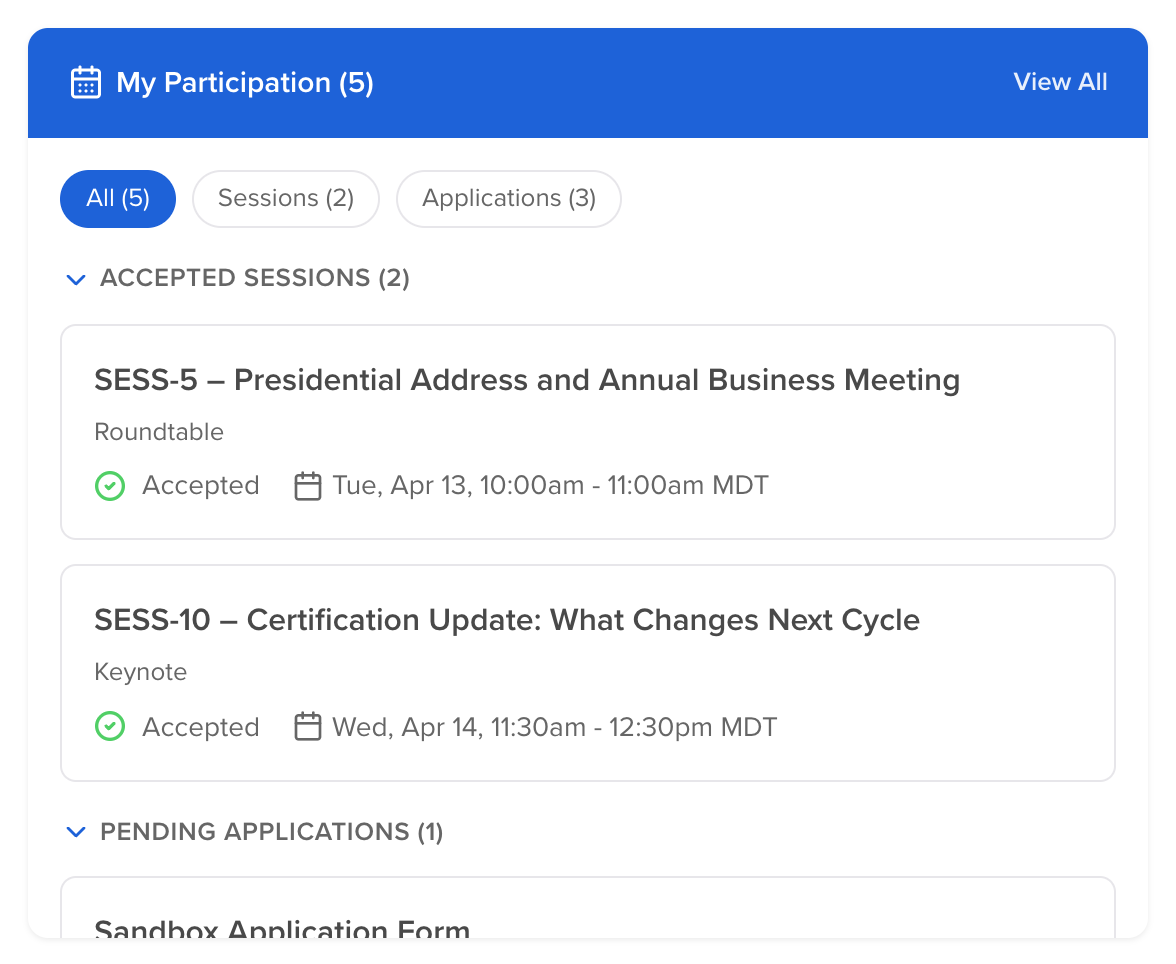
Rows are grouped, and each group can be collapsed:
| Group | What it holds |
|---|---|
| Pending Participant Confirmation | Accepted sessions — and abstracts, when the event asks for them — waiting for the person to confirm, each with a Confirm button. Split into Sessions and Abstracts when both are present. Shown only when participant acceptance is on. |
| Pending, Declined and Accepted Sessions | Sessions by the status your team set. Custom statuses that are still in progress sit under Pending. |
| Pending, Declined and Accepted Abstracts | The same for abstracts. |
| Pending, Declined and Accepted Applications | The same for applications. |
| Withdrawn Sessions / Withdrawn Abstracts | Withdrawn submissions, collapsed by default. |
Each row shows the status name your team uses, including custom statuses. A row waiting on a confirmation is listed once, in the confirmation group. Subsessions stay with their parent: when only a subsession is in a group, its parent appears above it as a muted heading.
Once the person has confirmed or declined, the row’s button reads Participant Confirmation Completed. It opens their answers, read-only; to change one, they contact the event team.