

ON24

Connect ON24 once and run your webinars from Program → Webinars: Sessionboard creates the webcast in ON24, registers people, and after it ends brings back who attended and everything they did, from poll answers and questions to the resources they opened, plus the recording. See Run webinars from Sessionboard for the webinar side. The same connection can also import past ON24 events into Speaker CRM.
Why use it
Section titled “Why use it”ON24 reports more about each attendee than most webinar platforms: engagement score, chat, questions, reactions, call-to-action clicks and the resources they downloaded. Connected to Sessionboard, all of it lands on the same contact record as the rest of your program, feeds Pathways, and shapes each attendee’s recap.
What syncs
Section titled “What syncs”| ON24 | |
|---|---|
| Create and update the webcast in ON24 | Yes. Title, time zone, start and length; the description is set when the webcast is created |
| Speakers | No. Add them in ON24 Presentation Manager (Open in ON24) |
| Registrants to ON24 | Yes. ON24 has no personal join link: everyone gets the webcast’s audience link and signs in with their email |
| Registrants from ON24 | Yes |
| Attendance and minutes | Yes, live attendance, plus ON24’s engagement score and live and on-demand minutes |
| Poll answers, Q&A (with answers), group chat, reactions | Yes |
| CTA clicks | Yes, including meeting, demo, free-trial and contact-us widgets |
| Survey answers as feedback | Yes |
| Resources viewed | Yes, recorded as content the attendee opened |
| Ratings | No, ON24 reports no per-attendee rating |
| Recordings into Media | Yes, the webcast’s archive MP4. Media → Discover also lists archived webcasts from about the last three years |
Before you connect
Section titled “Before you connect”You need an ON24 API access token from ON24 Elite: go to Analytics → API Dashboard → Provision a New API Access Token. It shows the Client ID, Access Token Key and Access Token Secret. One token covers webinars, registrants, attendance, engagement and recordings.
Connect ON24
Section titled “Connect ON24”Open the app
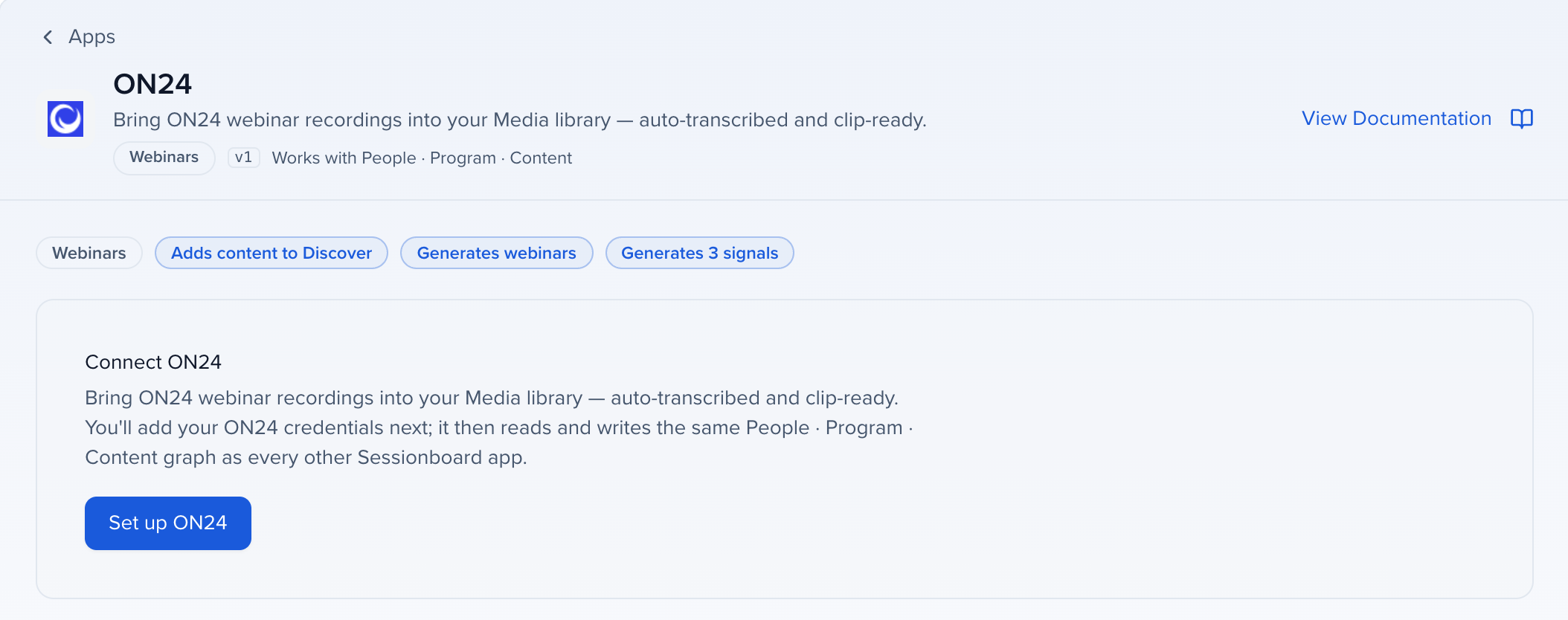
Open Apps in the organization sidebar, go to the Webinars category and click ON24.
Enter the token
Pick your Data center (North America or Europe), turn on Include sub-accounts if you need them, and enter the ON24 Client ID, Access Token Key and Access Token Secret. Click Connect.
Pick webinars
Import ON24 webcasts from Import webinars on the Webinars page, or create new ones and choose ON24 as the provider.
If your organization already used the ON24 import below, you do not need to connect again: the saved credentials are used the first time a webinar needs ON24.
How it stays in sync
Section titled “How it stays in sync”ON24’s API sends no notifications, so Sessionboard checks every published webinar every 15 minutes, from 90 days before it starts until two days after it ends. Click Sync now on the webinar to check right away.
Limits
Section titled “Limits”- Start time: ON24 refuses to move a webcast within two hours of its start.
- Length: ON24 books webcasts in 15- or 30-minute slots, so a 50-minute webinar in a 60-minute ON24 slot is not reported as a change.
- Import list: upcoming and past webcasts from the next and last 180 days.
- Transcripts: Sessionboard transcribes the recording itself rather than using ON24’s transcript.
- People who joined without registering are added to the webinar as checked-in registrants when ON24 reports their email address.
Troubleshooting
Section titled “Troubleshooting”- Sign-in expired: ON24 rejected the access token, usually because it was revoked. Provision a new token in ON24 and enter it in the ON24 app in Apps.
- ON24’s API cannot invite presenters: publishing marks the speaker step as still to do. Add your speakers in ON24 Presentation Manager (Open in ON24).
- ON24 did not return the new event id: check ON24 for the webcast before you publish again.
- Chat or engagement not available from ON24: ON24 refused that report for this webcast. It comes back on the next sync once ON24 allows it.
Import past ON24 events into Speaker CRM
Section titled “Import past ON24 events into Speaker CRM”This one-time import brings past ON24 webinars and their speakers into Speaker CRM, each webinar as a session in a synced event.
Set up the import
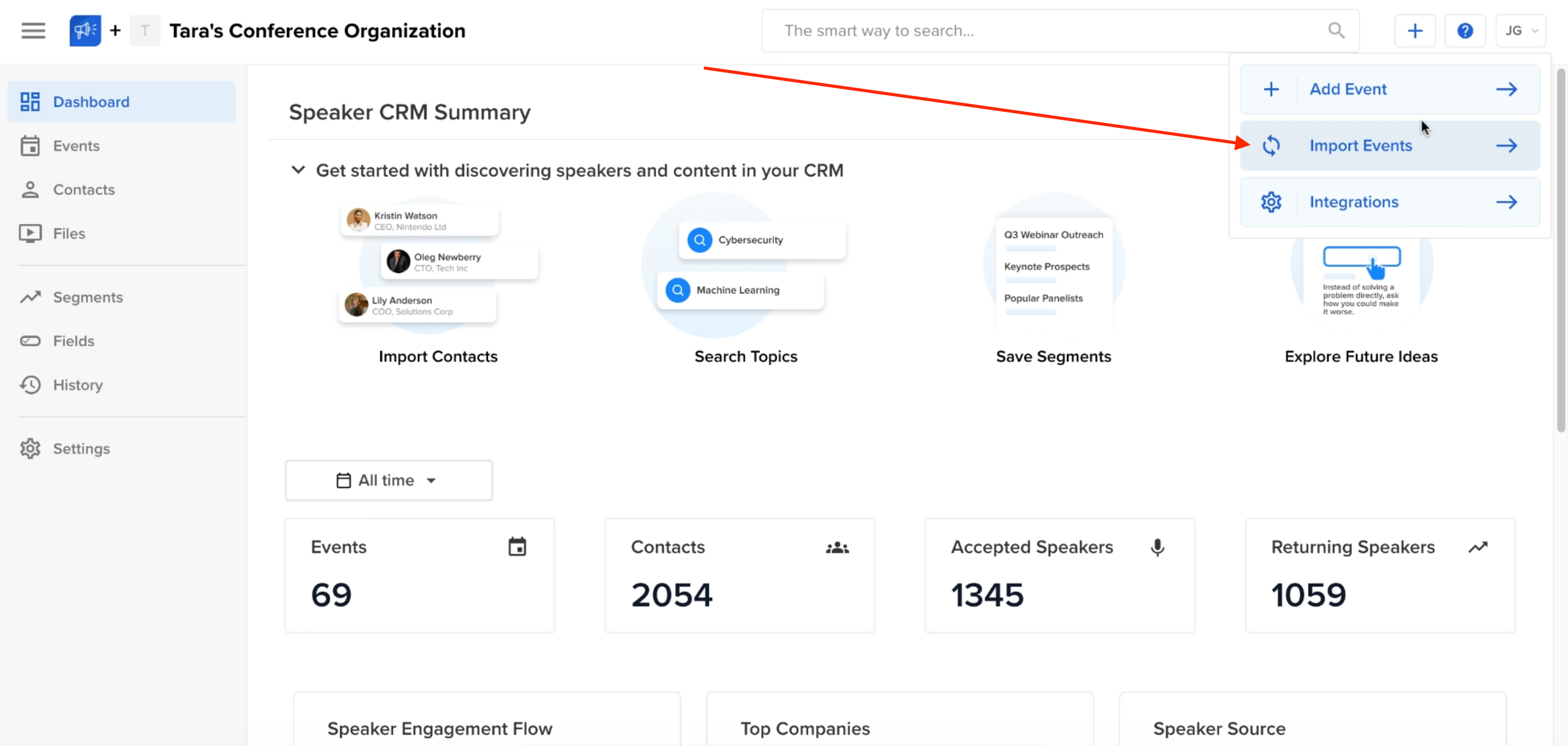
Section titled “Set up the import”1. Navigate to your organization page
Section titled “1. Navigate to your organization page”- Go to your Organization page in Sessionboard.
- In the top navigation bar, click Import Events.
2. Choose ON24 as your integration source
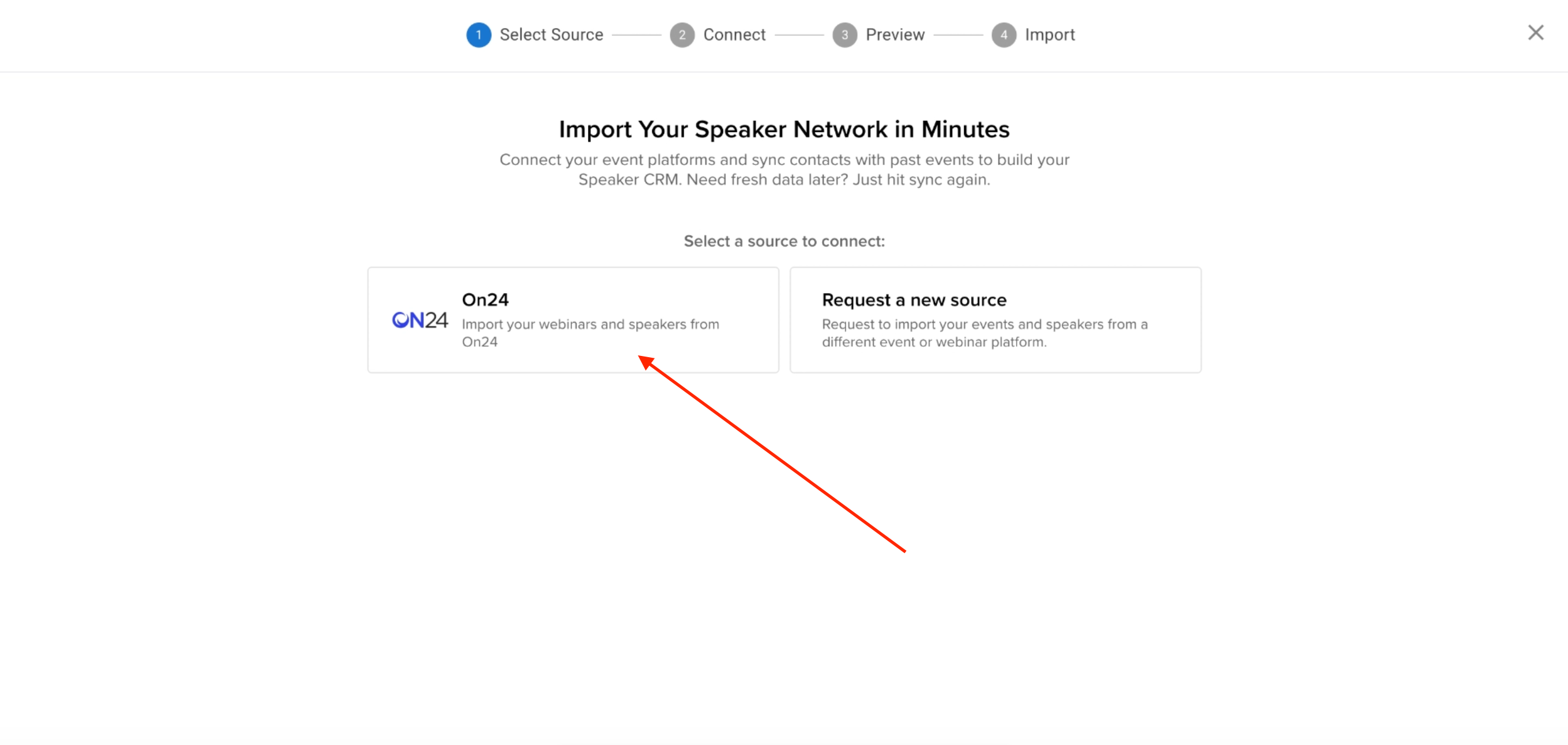
Section titled “2. Choose ON24 as your integration source”- Select ON24 from the list of available platforms to import Webinars(sessions in Sessionboard) and Speakers
3. Gather Your ON24 API Credentials
Section titled “3. Gather Your ON24 API Credentials”To connect ON24, you will need:
- Client ID
- Access Token Secret
- Access Token Key
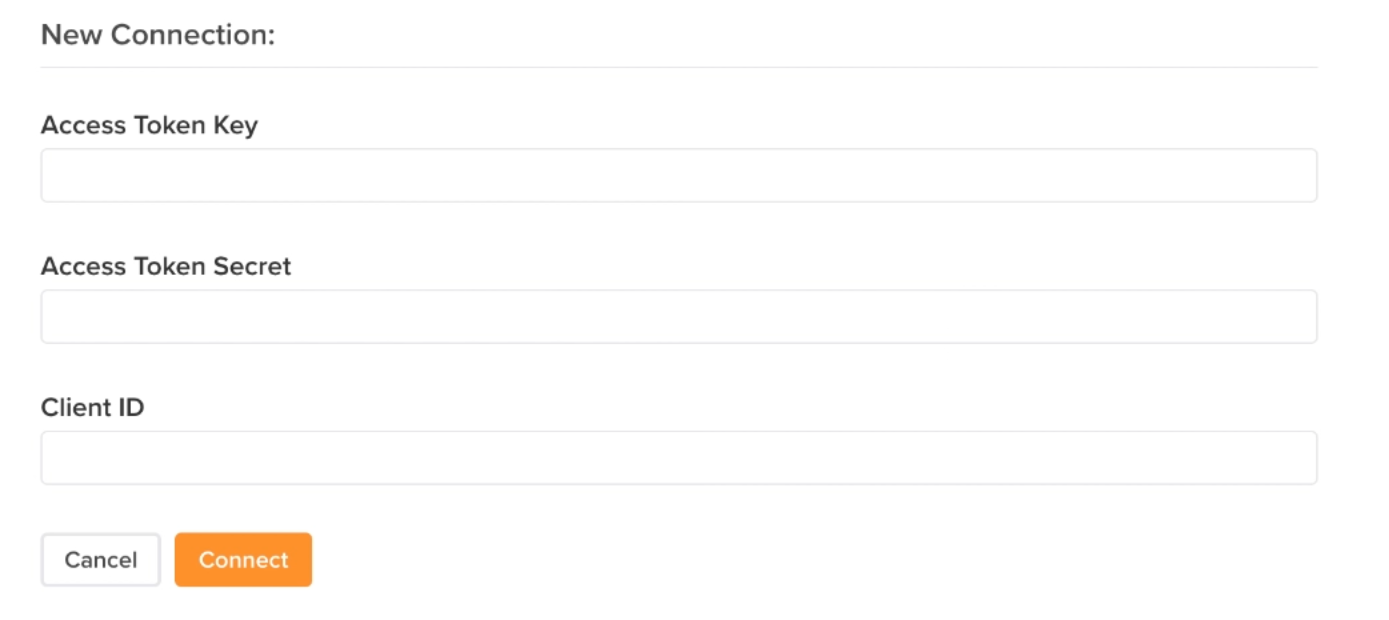
4. Connect your ON24 account
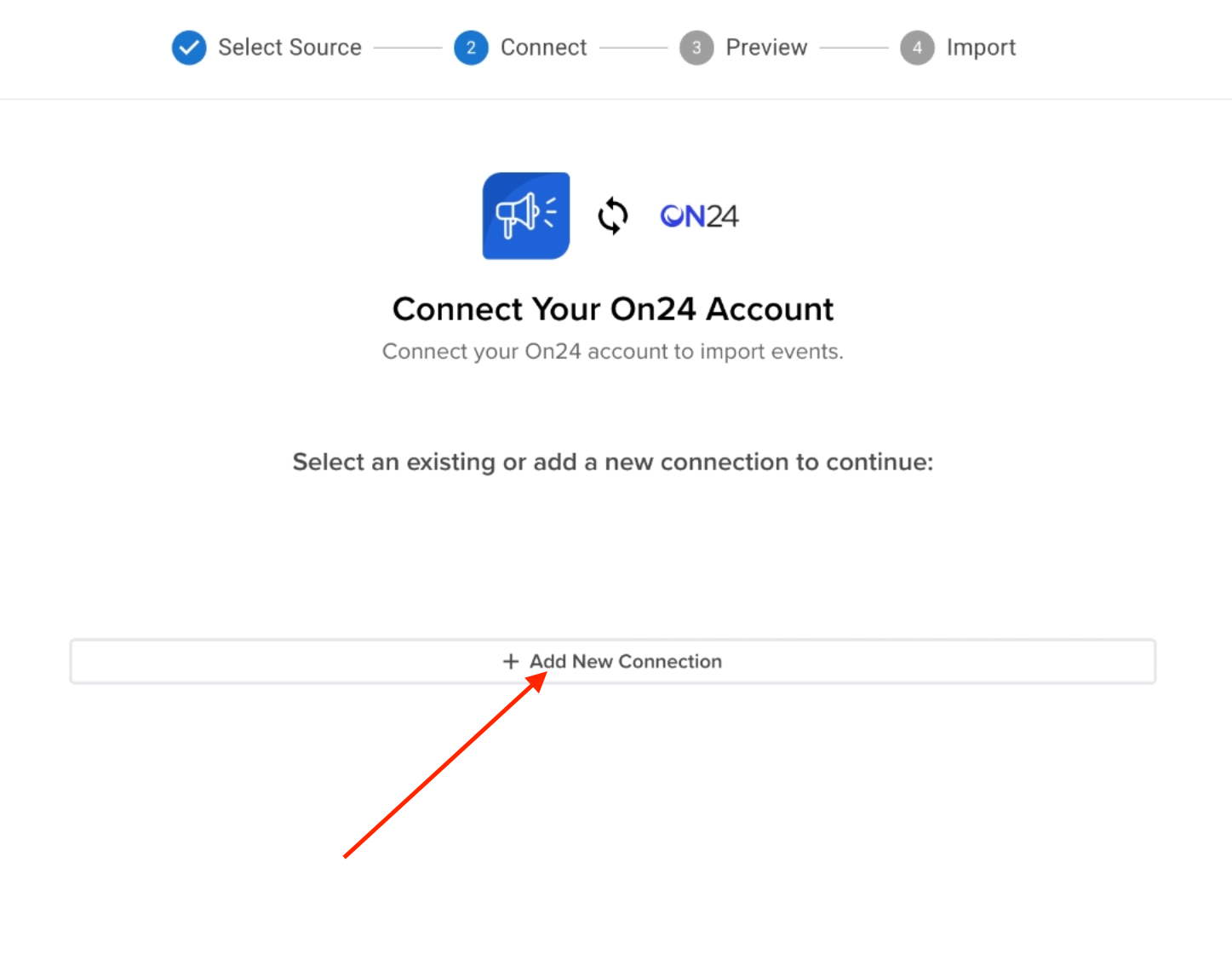
Section titled “4. Connect your ON24 account”Click Add New Connection.
-
Enter your ON24 Access Token Key, Access Token Secret, and Client ID.
-
Click Connect.
5. Select events to import
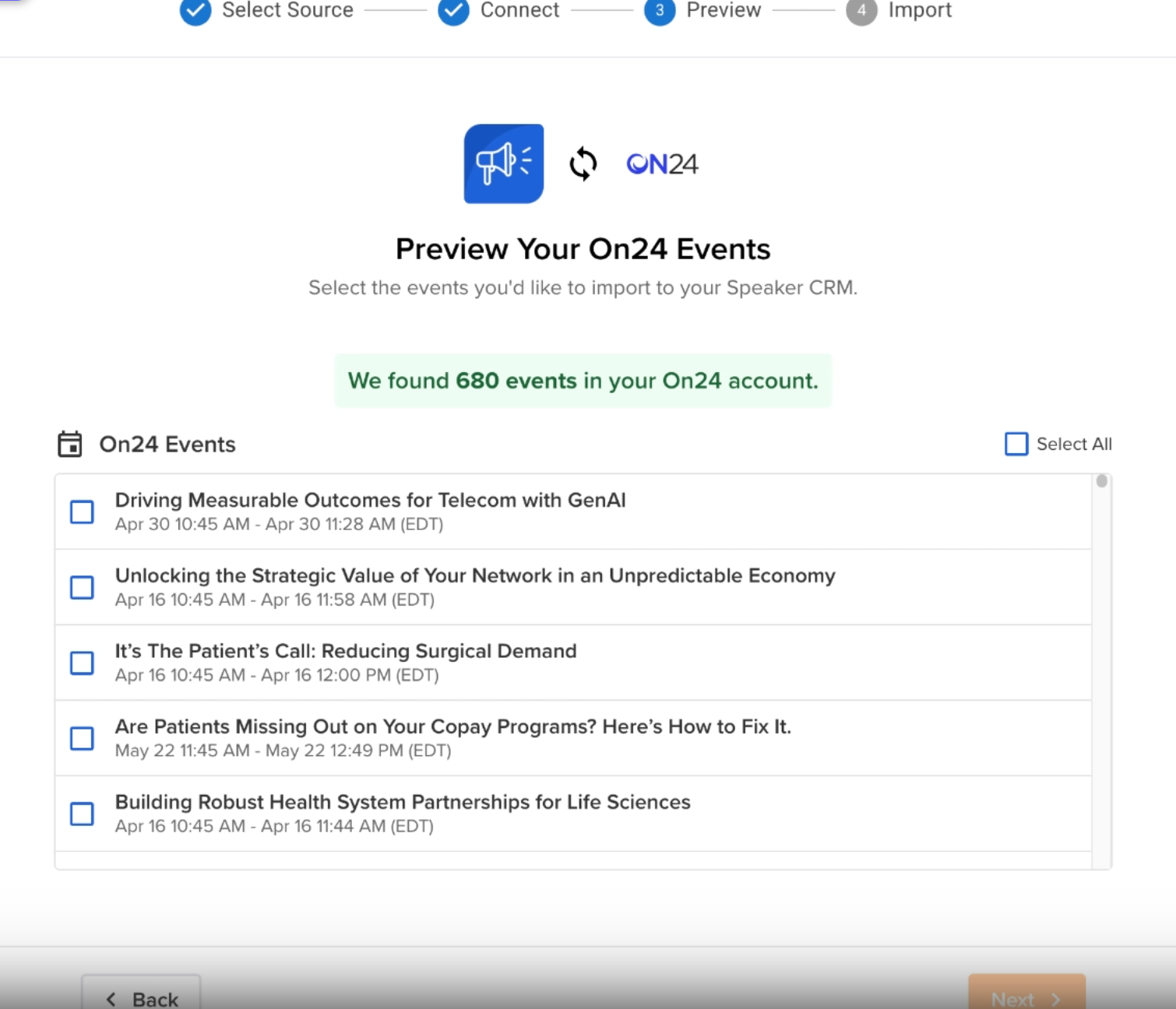
Section titled “5. Select events to import”- After connecting, you will see a list of your ON24 webinars.
- Select the events you wish to sync to Sessionboard.
- If you want to connect an ON24 event to an existing Sessionboard event, click the mapping option below the event name.
- This will add any speakers in ON24 that are not already in Sessionboard to your event.
- Click Next to proceed.
6. Data Sync Progress
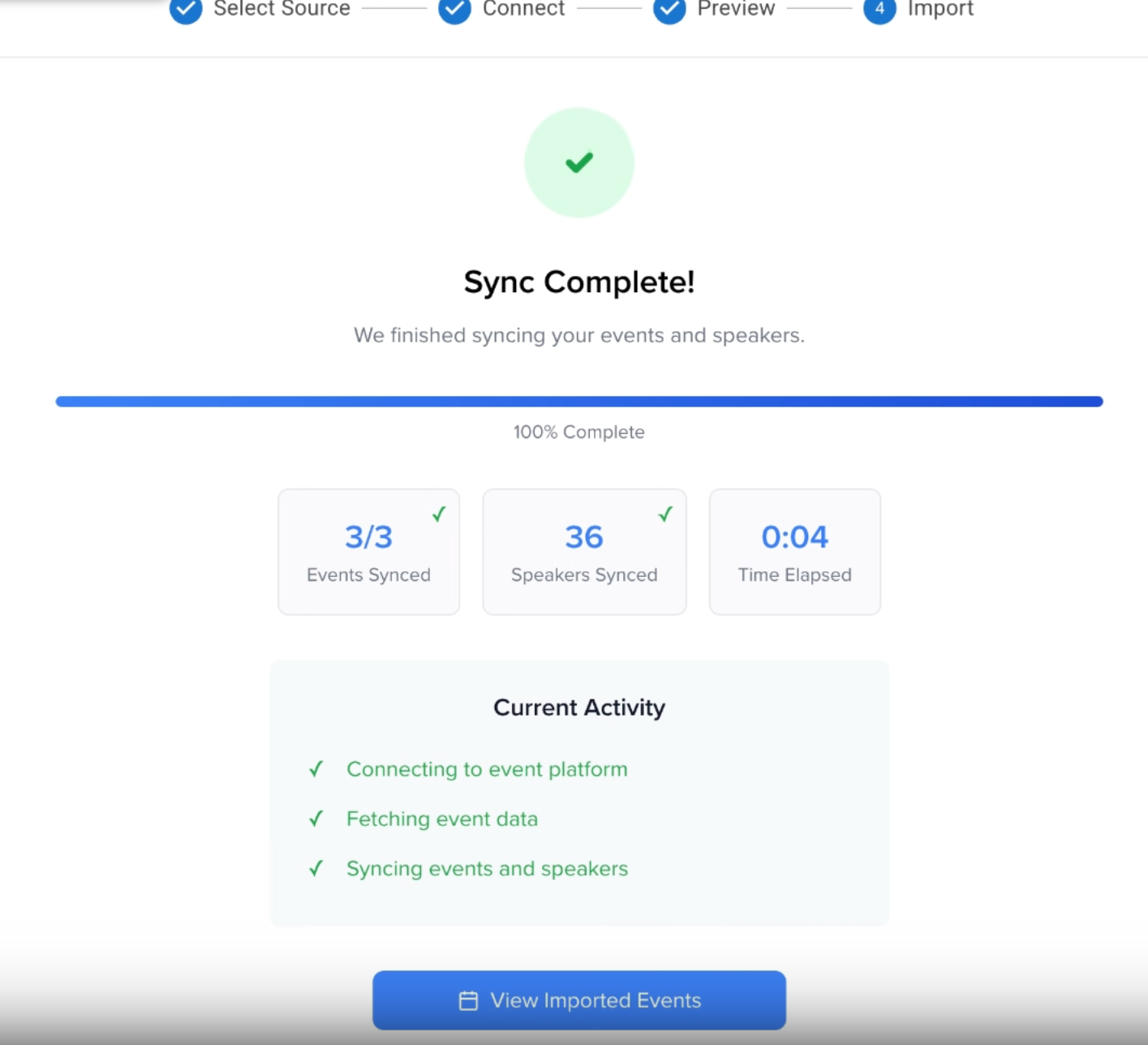
Section titled “6. Data Sync Progress”- A progress bar will display the sync status.
You’ll see:
- Number of Events Synced
- Number of Speakers Imported
- Time Duration of Sync
What Happens After Import
Section titled “What Happens After Import”Review synced data in Sessionboard
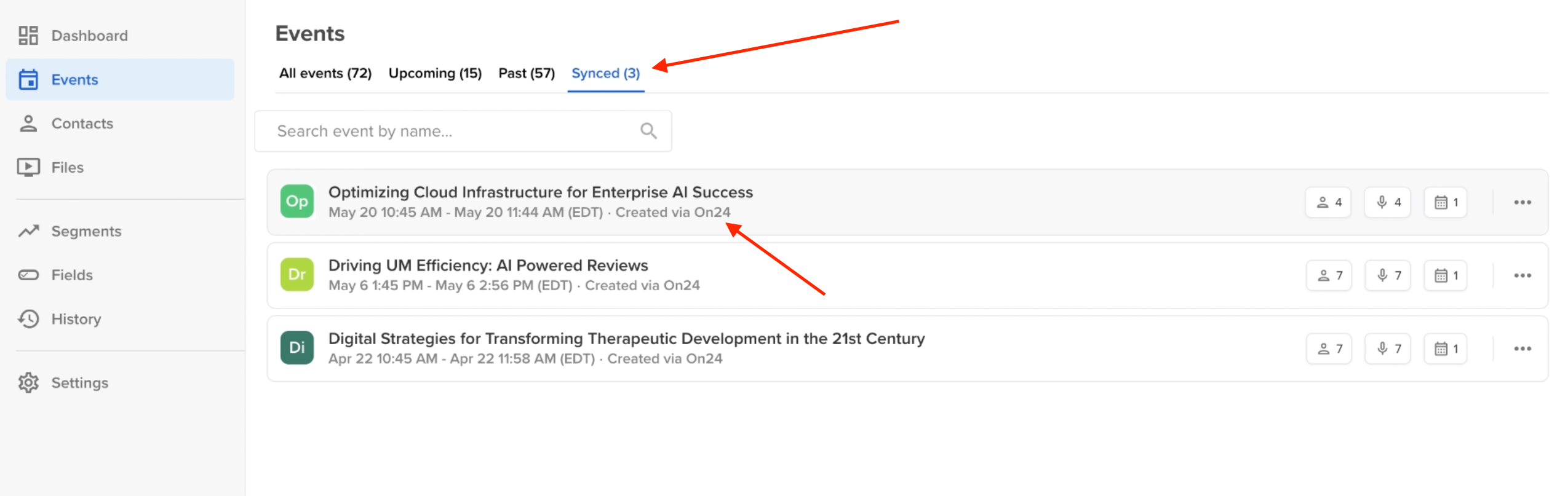
Section titled “Review synced data in Sessionboard”- Imported ON24 webinars will appear under the Synced tab in your Sessionboard account.
- Key details available include:
- Event Name
- Event Date & Time
- ON24 Source Indicator (a special icon signifies ON24 imports)
How ON24 Data Appears in Sessionboard
Section titled “How ON24 Data Appears in Sessionboard”- Each ON24 webinar becomes a Session within a Synced Event in Sessionboard.
- Each ON24 speaker has a Contact Profile created in your CRM with the history of the sessions that have spoke at.
Viewing and managing synced data
Section titled “Viewing and managing synced data”- Synced Events:
- Read-Only Mode: You cannot edit event details, add speakers, or modify sessions within ON24-imported events.
- Speaker Profiles:
- First Name, Last Name, and Email will sync to Sessionboard from ON24
- Full Edit Access: You can enrich speaker profiles by:
- Adding Speakers to existing events/sessions you are managing in Sessionboard
- Updating speaker attributes
- Editing core information
Managing existing connections
Section titled “Managing existing connections”-
If needed, you can allows delete an existing connection and remove the integration.

-
The sync to Sessionboard is a one time sync. If you wish to resync an event, please repeat the process and select the event you wish to update/resync.
One-Way Sync: ON24 data imports into Sessionboard, but changes in Sessionboard do not sync back to ON24.
Questions about the import
Section titled “Questions about the import”If you encounter any issues or have questions about the ON24 integration:
- Contact our support team at support@sessionboard.com.