

App marketplace
The App Marketplace connects Sessionboard to the rest of your event stack — or lets you build your own. Every app reads and writes the same People · Program · Content graph, so data stays in sync without manual export.
Video transcript
Integrations. This is the chapter where the work you’ve done so far leaves the building. Registrations coming in, and accepted sessions and speakers going out to your registration platform, your website and your mobile app. Three ways to do it, and most teams use two.
One rule to hold onto first. Almost everything that goes out of Sessionboard is the accepted set. Accepted sessions, and the speakers on them. Pending and declined never leave. So your review process, the Review and evaluation chapter, is also your publishing control. Accept a session and it flows to the website and the app on the next sync. Un-accept it, and many of the connectors can pull it back too.
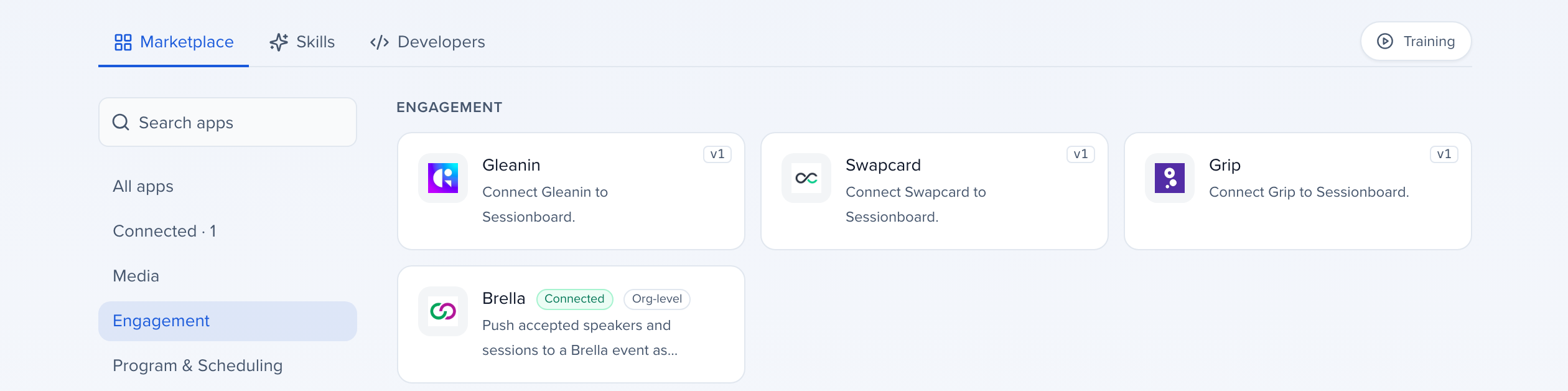
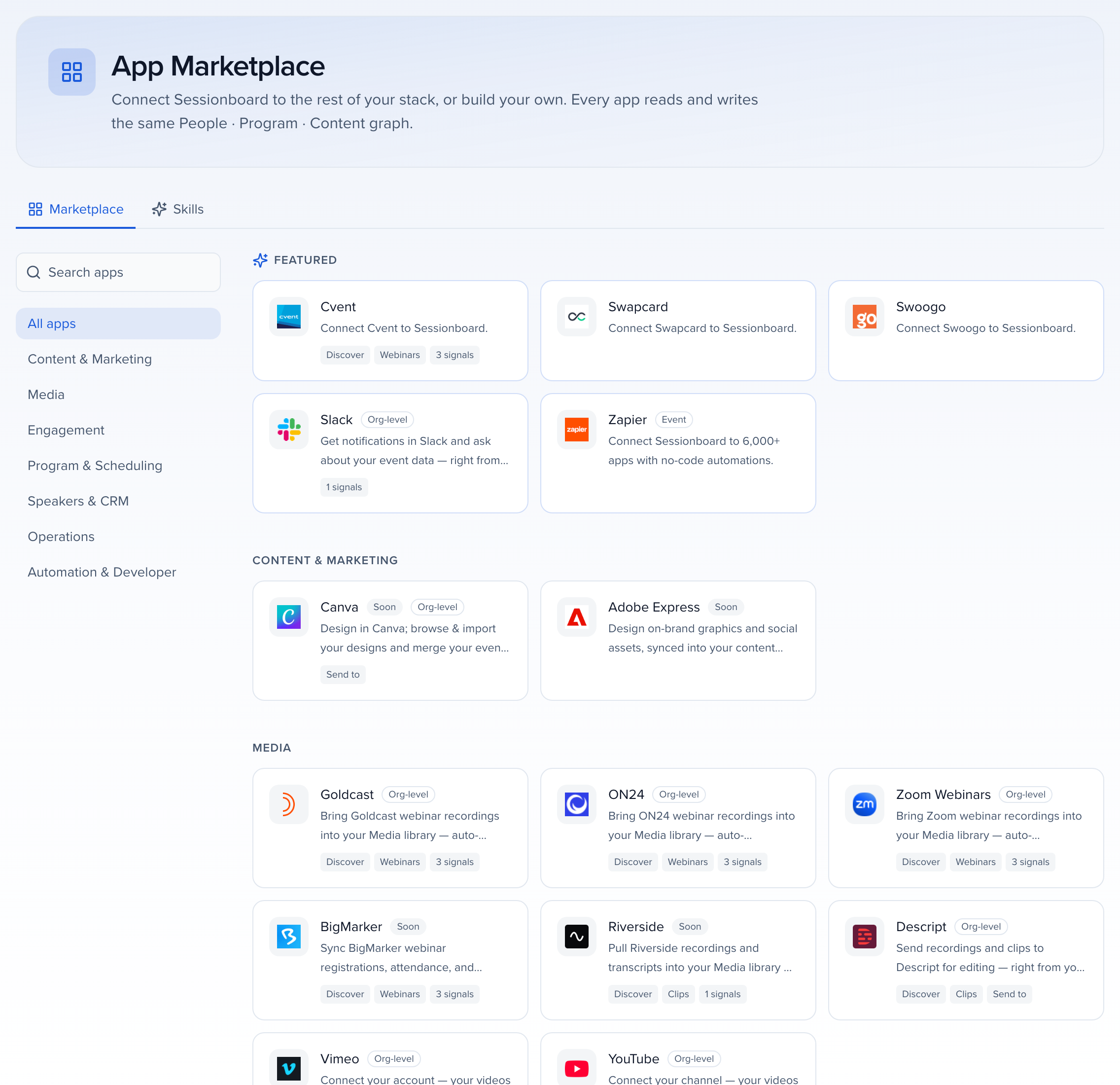
Apps. This is the marketplace, and it’s organised by what you’re trying to do. Media, for bringing webinar recordings in. Engagement, that’s the networking and matchmaking platforms, plus the audience advocacy tools. Program and Scheduling is the one most of you came for, the registration platforms, event apps and website builders. Operations is Slack and Teams. Some apps connect once for the whole organisation, some per event, the badge on each card tells you which.
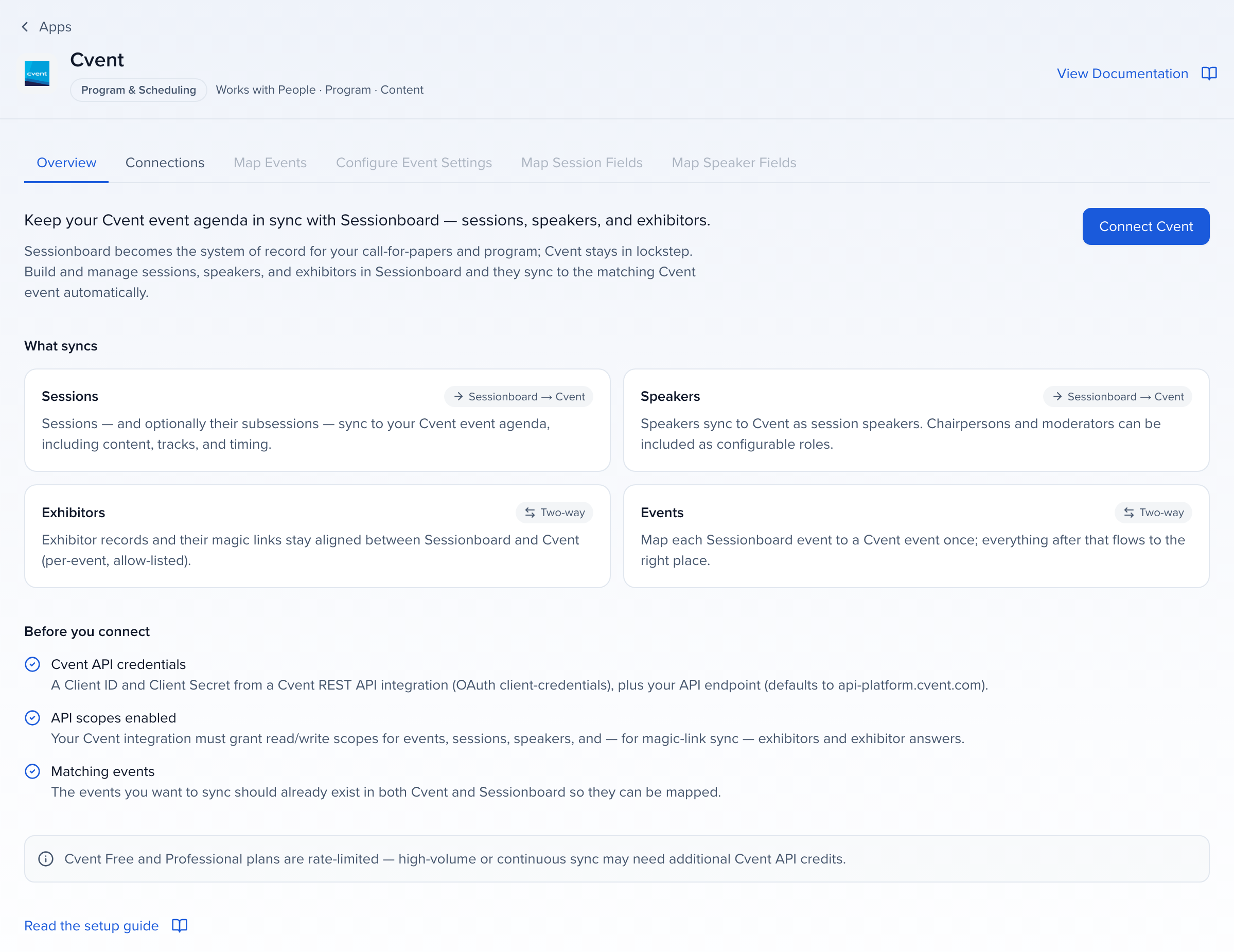
Let’s open one, a registration platform. Every app page opens with what syncs and which way. Sessions and speakers, from Sessionboard to the platform. Exhibitors and events, two ways. Down the side is the setup order, connections, map events, configure, map session fields, map speaker fields. Those stay greyed out until you’ve connected. And there’s a read the setup guide link before you connect, please use it, the field mapping is where every integration call we get comes from.
Now the way that needs no connector and no developer. CMS, Embeds. An embed is a live feed of your agenda and speakers that you paste onto your website as one line of code. It updates itself every hour, no sync, no push. Five widgets to pick from, a schedule itinerary with search and filters, an agenda grid, a session list, a speaker gallery and a speaker list. And if you’d rather feed an app, the same thing comes out as JSON, XML or an iCal calendar.
Add Embed. Name it for where it lives, agenda page, speakers page. The Enabled switch is your kill switch, turn it off and the widget goes blank on your site without touching the code. Then the format. Styled HTML is the interactive one you drop in as is. Plain HTML is for a developer who wants to style it. And then the data feeds. Style options next, theme, your primary colour, date format, language, and which participant roles show, speakers, chairs, moderators.
Filters does two different jobs, and this is the one people mix up. Attendee filters are the dropdowns your visitors get, format, track, location, level. Included sessions is what’s in the feed at all. Status is Accepted is the default rule, and you can add a track, so the pre-conference page only ever shows pre-conference sessions. Watch the count at the bottom, twelve sessions and fifteen speakers match. That’s your sanity check.
Field Options is what shows on each card. Title and times are required. Everything else, speakers, description, track, format, location, tags, is your choice, and you can rename a field for this embed only. On the Agenda tab, the pop-up takes up to nine, and a counter keeps score, four of nine fields selected. Sort Order at the bottom, new embeds follow the speaker order on the session, or you can go alphabetical. It saves as you go, so there’s no Save button to hunt for, and the code is one click away.
Here’s a saved one. Get Code, and you get a snippet for each of the five widgets, schedule itinerary, speaker gallery, agenda, sessions, speaker list. Copy, and those two lines go to whoever runs your website. Preview shows the widget before it goes anywhere. Two things to remember. It refreshes every sixty minutes, and if you need it faster there’s Refresh Cache in the card menu. And the format is locked once saved, you can change style and fields, but a JSON feed can’t become a widget, make a new one.
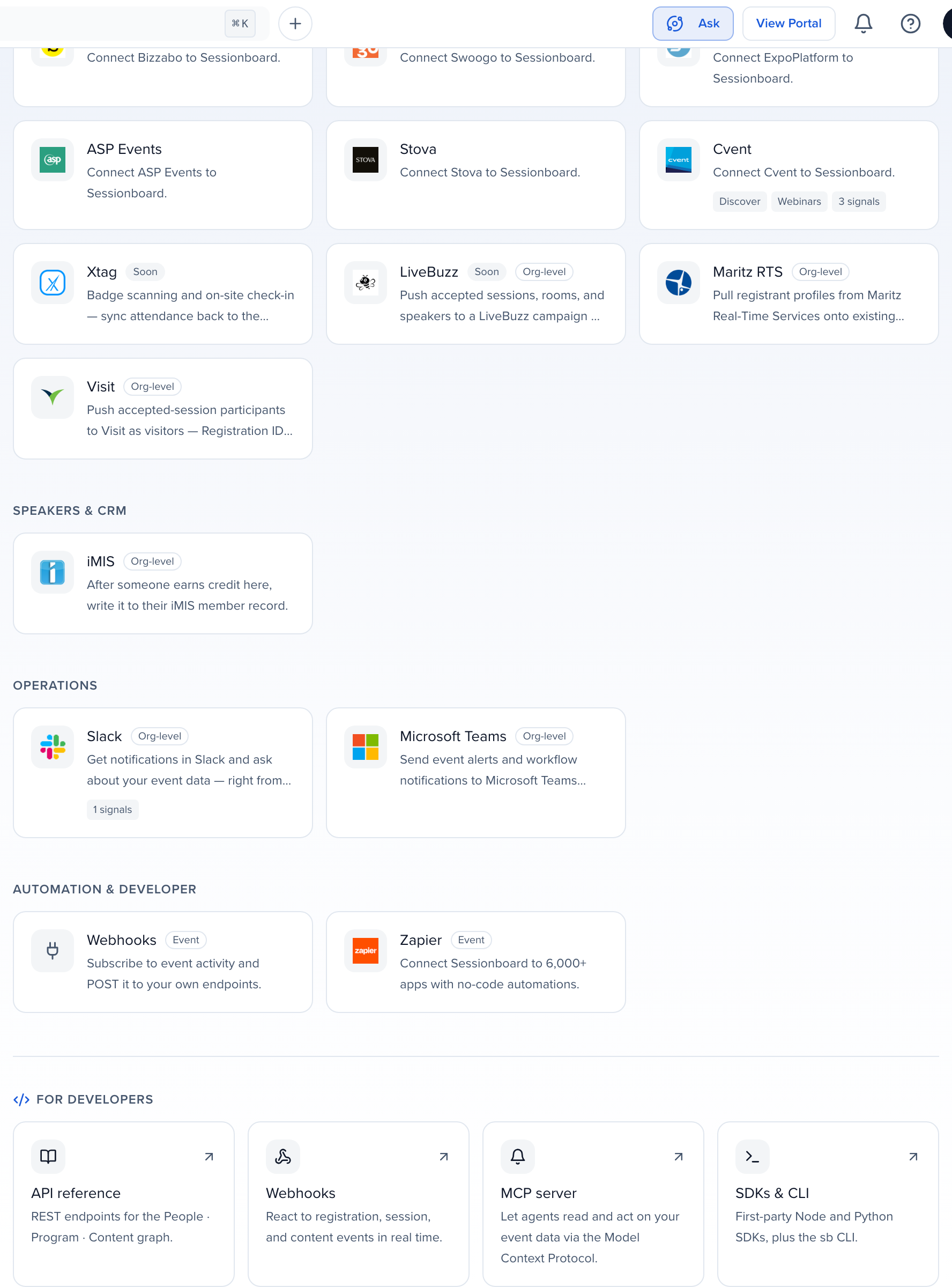
The bottom of the marketplace is for when someone technical joins the call. Automation and Developer has Webhooks and Zapier, and under For developers, the API reference, webhooks, which is how your systems hear about changes in real time, the MCP server, which Claude or ChatGPT reach by signing in, no token needed, and the SDKs and command line. A token is for a script or integration that calls the API directly. You don’t need any of this to run an event. It’s there when your IT team asks.
Last one, at the organisation level. Settings, Single Sign On. If your staff sign in everywhere with Okta or Microsoft Entra, they can sign in here the same way, SAML or OIDC, and it can cover portal users and submitters too. It’s an add-on, so this page is where you ask, and we set it up with your identity team.
So, three ways out. Connect an app, paste an embed, or hand a token to a developer. All of them run on the accepted set. The Sessions and agenda chapter is how sessions get made, subsessions, and building the schedule those embeds will show. The Help Center home for all of this is App marketplace, with a what each integration syncs table one click in.
Why use it
Section titled “Why use it”The App Marketplace is where you connect Sessionboard to the other tools your event runs on, from registration platforms and event apps to webinar platforms and Slack. Each app reads and writes the same records, so the sessions and speakers you accept reach your website and event app without an export. Start here when you are choosing a connector, mapping its fields, or pointing your IT team to the developer options.
Where to find it
Section titled “Where to find it”- Apps in the left sidebar lists every connector your organization can switch on, with a View Documentation link on each one. Organization Settings > Integrations now opens Apps. Anyone who can view integrations for the organization sees it.
- Inside an event, Apps sits below the modules for the same people and opens on the apps connected to that event.
- Event → Settings → Integrations holds the two event-level developer connectors, Webhooks and Zapier, and links to Apps for everything else.
- Connect links around the product — in Media → Discover, in the Canva picker, in Webinars, and in the onboarding import step — open Apps directly.
The App Marketplace
Section titled “The App Marketplace”The Marketplace is organized by what you are trying to do. Use the category rail on the left, or search by name.
| Category | Apps |
|---|---|
| Content & Marketing | Canva, Adobe Express |
| Media | Zoom Webinars, ON24, Goldcast, BigMarker, Riverside, Descript, Vimeo, YouTube |
| Engagement | Gleanin, Swapcard, Grip, NoteAffect, Snöball, InGo, Brella, Map Your Show |
| Program & Scheduling | Cvent, Swoogo, Bizzabo, ExpoPlatform, ASP Events, Stova, Xtag, LiveBuzz, Maritz RTS, Visit |
| Speakers & CRM | iMIS |
| Operations | Slack, Microsoft Teams |
| Automation & Developer | Webhooks, Zapier |
Each card carries a badge for where the app connects — Org-level apps connect once for the whole organization; Event apps connect per event — and for what it contributes: Discover, Webinars, Clips and Send to capabilities, or signals to the graph. Apps with a Soon badge are listed in the catalog but cannot be connected. Featured at the top collects the most-used apps.
Open a card and the app page starts with what syncs and in which direction, then the setup steps down the side — for a registration platform, that is Connections, Map events, Configure, Map session fields and Map speaker fields. The steps stay locked until you have connected, and a Read the setup guide link sits above the Connect button. What syncs has the per-app table.
The Skills tab lists the skills your connected apps give to Ask and the other agents.
Sync log and retrying one record
Section titled “Sync log and retrying one record”For an app that writes from Sessionboard into another system — a CRM such as HubSpot or Salesforce, or an AMS such as Nimble or iMIS — each saved connection has a Sync log. Open it to see every write attempt, newest first: the result, the reason, the record’s id in the other system, and the other system’s Response, which you can expand to read exactly what it answered.
When a record’s newest attempt failed, Retry sends that one record again. The new attempt appears as its own row within a minute, and earlier attempts stay as history. Retrying one record never re-sends the rest, so fixing one rejected order doesn’t push every other unposted payment again.
Per-app guides
Section titled “Per-app guides”Cvent
Sessions and speakers to Cvent; exhibitors and events both ways.Swapcard
Event platform sync.Swoogo
Registration sync.Bizzabo
Event platform sync.ExpoPlatform
Event platform sync.ASP Events
Sessions and speakers to your ASP site.Stova
Sessions and speakers to your site and app.LiveBuzz
Sessions, rooms and speakers to a campaign.Visit
Participants as visitors.Map Your Show
Exhibitors and booth contacts for Advocacy.Maritz RTS
Registrant profiles onto contacts.Brella
Speakers and content timeslots.Grip
Networking and matchmaking.Gleanin
Social sharing and advocacy.Snöball
Referral marketing.InGo
Social advocacy.ON24
Webinar recordings into Media.Docusign
Pre-filled agreements from CRM records.Field mapping
Section titled “Field mapping”Every connector that pushes people or sessions has a field map: a table that pairs a Sessionboard field on the left with the destination’s field on the right. The app’s Map Speaker Fields and Map Session Fields tabs show it once an event is mapped. Each connector ships with a default map covering the fields the destination requires; those rows are starred and cannot be removed. Add a row for anything else the destination should receive — a field with no row is simply not sent — and the pickers only offer pairs whose types can sync. The full explanation, including why a mapped field can still arrive empty, is in Before you connect.
For developers
Section titled “For developers”The bottom of the Marketplace links out to the developer surface: the API reference, Webhooks, the MCP server and the SDKs & CLI. You do not need any of it to run an event; it is there when your IT team asks.
API tokens
Public API and SbQL for scripts and integrations.AI assistants
Claude, ChatGPT, Copilot, and Gemini sign in with OAuth.Webhooks
Real-time notifications on data changes.Zapier
No-code automations to 6,000+ apps.Single Sign-On is set up separately, under Organization → Settings → Single Sign-On.