

Before you connect: readiness, IDs and field mapping
Most integration tickets are not about the connection. They are about what was — or was not — in Sessionboard before the first sync ran, and about a field that was mapped to the wrong place. This page is the checklist to run before you connect anything, and the reference to come back to when a sync does not look right. The per-app articles under Apps & connectors carry the click-by-click setup for each connector; this page is what they all have in common.
Video transcript
Integrations. The Integrations overview shows what leaves Sessionboard and the three ways to do it. This is the half that comes up on support calls. What has to be true before you connect anything, how a field gets from here to the other system, and how to read the log when a sync looks wrong. One connector, nothing saved.
Every connector opens the same way. What it does, which direction, and the setup tabs across the top. Those tabs are the order of operations. Connections, map events, event settings, map speaker fields, map session fields. A tab stays greyed out until the one before it is done.
And before any of that, the thing people skip. Fields exist in Sessionboard first. If the destination wants a job title, your event needs a field for it, and your form or portal needs to fill it. Then the accepted set. Only accepted sessions and the people on them go out. Accept first, connect second.
Connections. The credentials here are the other vendor’s, their API key or account token, pasted in once for the whole organisation. Nothing from Sessionboard is needed at this step. The connection is named after the app, or after the account it connects to; rename it from the pencil icon on its row so your team recognises it. On the card, map events, sync, check drift, which compares the other side with the last sync and writes nothing, and edit connection.
Map events. One Sessionboard event maps to one event on the other side, and everything on the later tabs belongs to that one pairing. Pick the Sessionboard event, pick the destination event, save. When a partner asks for your Event ID, it’s the number after slash event in your address bar while you’re in the event. The Organisation ID is the long identifier after slash org in organisation settings. Neither is secret, and neither changes.
Event settings, and these are per mapping, so two events on the same connection can differ. The registration form and type the destination needs. Continuous sync, off until your first manual run looks right, then about every thirty minutes. Whether sessions go too. Remove when un-accepted, which makes accept and decline your publishing control. Session roles to sync, and an unchecked role is not sent. And participant consent, to hold someone until a portal task or consent field is complete.
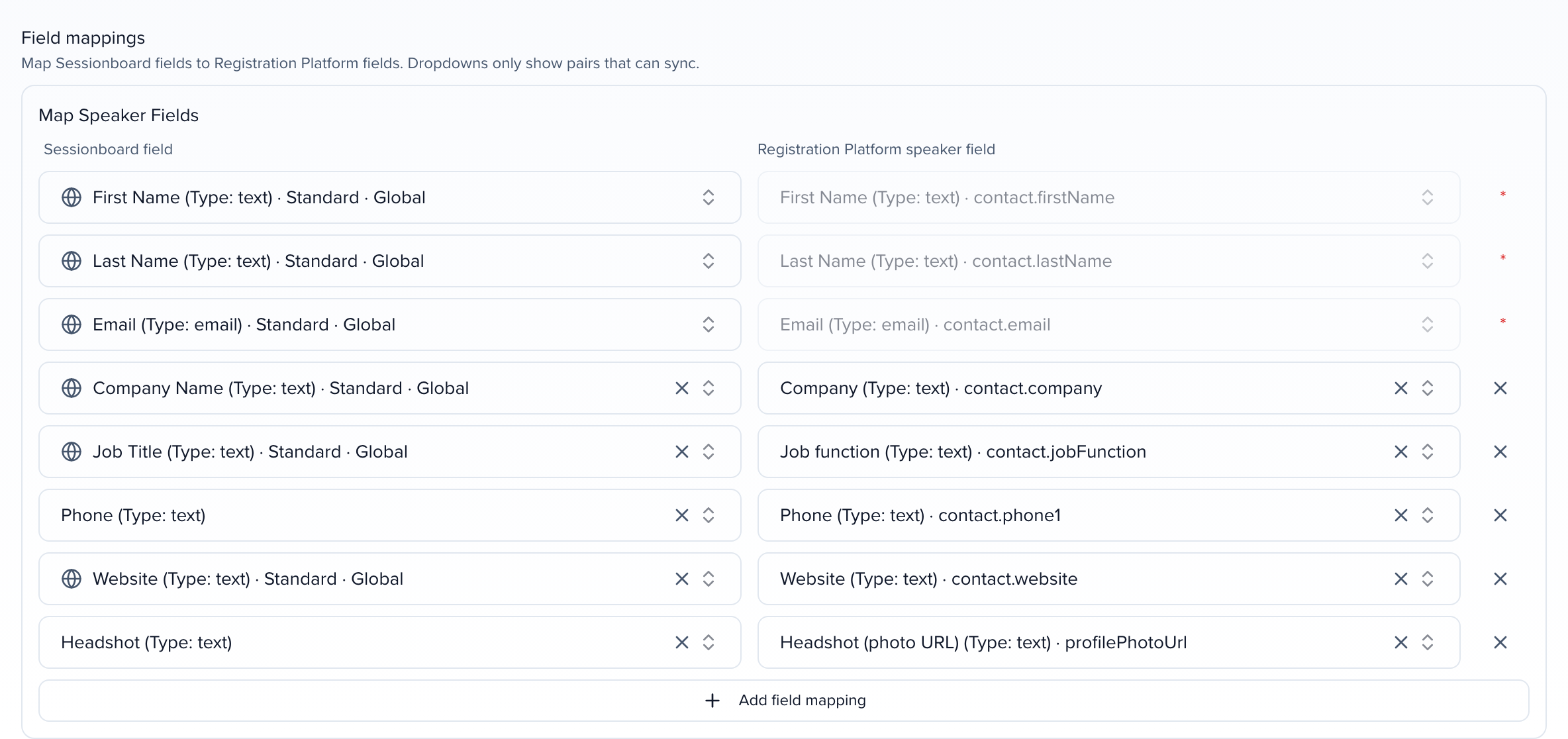
Map speaker fields. This is the table every integration ticket comes back to. Each row reads left to right. A Sessionboard field on the left, labelled with its type, standard or custom, global or event. The destination’s field on the right, with its type and the vendor’s own field key. The starred rows are what the destination requires to create a record, first name, last name, email, and they can’t be removed. Everything else is optional. And the pickers only offer pairs that can sync, so a date can never land in a checkbox.
Now, why a mapped field turns up empty on the other side. Look at these two rows. Phone and Headshot have no standard or custom label, because the default map named a field this event doesn’t have. The row has nothing behind it, so nothing is sent. Point it at the field that holds the data, or remove it.
The other causes are quieter. The field is empty on the record. There’s no row at all, and unmapped means not sent. Or the whole person was skipped, which the sync log tells you. Add field mapping sends anything the default left out, and write back is where the destination’s registration ID lands on your contact.
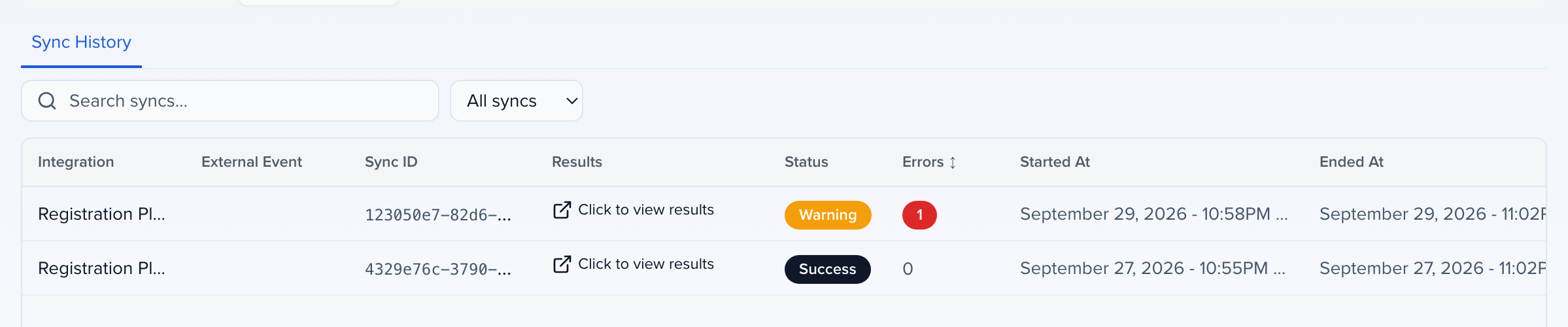
History, Integrations, Sync history. Every run is a row. Manual, scheduled, or a drift check. The integration, the destination event, when it started and ended, a status and an error count. Success means everything it tried was created, updated or deliberately skipped. Warning means it finished but something needs reading. Error means it stopped early. Read the newest warning first, not the newest success.
Click to view results opens the summary for that run. The sync ID at the top is what you quote to support. Then counts for sessions and speakers, to sync, created, updated, failed, ignored. Ignored is a skip with a reason, not a failure.
Errors summary names the record and the destination’s reason, a required field empty on this contact, say. Fill it in, sync again, the rest of the run is unaffected. And warnings list each skip reason with the people it applied to. Consent not complete is the usual one, and that’s a workflow fact, the speaker still has a portal task to finish.
The other direction. When a developer or a partner wants to pull your program rather than connect an app, you give them an API token. Organisation settings, API tokens, create token. Choose the scopes, and restrict it to one event if that’s all they should see. Copy it when it’s shown, it can’t be shown again. Then they read the public API, events, sessions, speakers, participants, files on a session, and webhooks tell them the moment something changes. Send the token separately, one per partner, so you can revoke one without touching the rest.
So. Fields first, accept, connect, map one event, set the roles, check the field map, run once and read the log. Then turn on continuous sync. The Help Center page is Before you connect, under Apps, with the field type table, every reason a field can be missing, and the API endpoints for your developer. The Integrations overview is the wider tour.
Why use it
Section titled “Why use it”Most failed syncs trace back to setup: a field that did not exist yet, a session that was not accepted, a map pointing at the wrong place. Running this checklist first prevents them. When a sync still fails for a reason only you can fix, such as a rejected API key or a deleted destination event, the app’s page tells you what is wrong. You do not have to find it in the sync log or wait for support to notice.
Order of operations
Section titled “Order of operations”Every outbound connector reads the same things from your event, in the same order. Get these in place first and the connection itself takes ten minutes.
- Fields exist in Sessionboard first. A connector can only send data that lives on a Sessionboard field. If the destination needs a job title, a bio, a dietary requirement or a consent checkbox, make sure your event has a field for it — on the contact for people, on the session for program items — and that your submission form or portal actually fills it. Standard fields are already there; add custom fields for anything else before you open the connector.
- Decide who leaves Sessionboard. Outbound connectors send accepted sessions and the people on them. Pending, declined and draft sessions never go. So your accept / decline decision is the publishing control: accept what should appear downstream before the first sync.
- Check participant roles. Each session role — Speaker, Chairperson, Moderator, Co-author and any custom role — can be turned on or off per connector in its Event Settings step. A person in an unchecked role is not sent, and on connectors that remove un-accepted records, leaving a role unchecked later can remove people who were sent before.
- Agree the boundary with the other system. Sessionboard is the record of who is speaking and what they are presenting. The registration platform, website or app owns who is attending. Decide which side creates a person first, and what “removed” should mean on the other side — see What each integration syncs.
- Connect. Open the app from Apps (or Organization → Settings → Integrations), save the credentials the other vendor gave you, and give the connection a name your team will recognise.
- Map the event. One Sessionboard event maps to one event, expo or campaign on the other side. Pick the Sessionboard event and the destination event in the Map Events step. The settings and field maps on the later tabs belong to that one pairing.
- Set the Event Settings for the mapping — registration form, registration type, which roles sync, what happens on un-accept, and whether sessions go too. These are per mapping, so two events on the same connection can differ.
- Review the field maps. Every connector ships with a default map that covers the fields the destination requires. Open Map Speaker Fields and Map Session Fields, confirm each row points at the field that really holds your data, add rows for anything else the destination should receive, and save. How field mapping works below explains the screen.
- Run one manual sync and read the result before you turn on continuous sync. See Reading the sync history.
- Turn on continuous sync when the first result looks right. Most connectors then push changes about every 30 minutes while the event has an accepted session that has not ended.
Where to find your IDs and token
Section titled “Where to find your IDs and token”Integration partners and developers usually ask for three things. None of them is secret except the token.
| They ask for | Where it is |
|---|---|
| Event ID | The number in the address bar after /event/ while you are inside the event — app.sessionboard.com/event/12345/.... It never changes. Developers can also list it with GET /v1/events, which returns every event the token can see with its id and name. |
| Organization ID | The long identifier after /org/ in the address bar while you are in organization settings — app.sessionboard.com/org/a1b2c3d4-…/settings. |
| API token | Organization → Settings → API Tokens → Create Token. Choose the scopes and, for a token that should only see one event, restrict it to that event. Copy it when it is shown; it cannot be displayed again. Full steps: Generating API tokens. |
See also Where to find your Event ID and Organization ID on the API tokens page.
A connector in the App Marketplace never needs an API token from Sessionboard. It needs the other vendor’s credentials — their API key, client ID and secret, or account token — which you paste into the Connections step. The Sessionboard token is for the reverse case: your developer, your website or a partner pulling data out of Sessionboard with the public API.
How field mapping works
Section titled “How field mapping works”Field mapping is the table that decides which Sessionboard field fills which field on the other side. You will meet it on the Map Speaker Fields and Map Session Fields tabs of an app, and on the Field Mappings panel of connectors that do not use the event wizard.
A row is one field pair
Section titled “A row is one field pair”Each row reads from the Sessionboard field on the left to the destination field on the right. The left dropdown lists the fields on your event — labelled with the field’s type and whether it is a Standard or Custom field and Global (organization-wide) or Event-only. The right dropdown lists the fields the destination accepts, labelled with its type and the vendor’s own field key.
Rows the destination requires to create or update a record — typically first name, last name and email for a person; title, start and end for a session — are starred and cannot be removed. Everything else is optional: Add field mapping adds a row, the × removes one.
Only pairs that can sync are offered
Section titled “Only pairs that can sync are offered”The pickers are filtered by type so you cannot map a date into a checkbox. The rule reads from the Sessionboard type to the destination type, and it is not symmetrical:
| Sessionboard field type | Can map to a destination field of type |
|---|---|
| Text, text area, rich text, email, phone | Text (email fields also accept an email target) |
| Date, date and time | Date |
| Number | Number or text |
| Checkbox (yes / no) | Boolean or text |
| File, image | File or text — the file’s URL is sent to a text field |
| Dropdown (single select) | Text, or a multi-answer field (the one picked option becomes one answer) |
| Dropdown with multiple selection | A multi-answer field, or text (keeps one answer) |
If a field you expect is missing from a picker, check its type: a dropdown whose multiple selection is off is a single-select and will not be offered for a multi-answer destination question.
Unmapped fields are simply not sent
Section titled “Unmapped fields are simply not sent”A Sessionboard field with no row is ignored by the sync. A destination field with no row is left as the destination leaves it. Nothing fails — the data just does not travel. When a stakeholder says “the bio didn’t come across”, the first thing to check is whether the bio has a row at all.
Dropdown values can need their own map
Section titled “Dropdown values can need their own map”When a Sessionboard dropdown is mapped to a destination question that has its own list of answers, the row shows a Map values button and a count of unmapped values. Open it to say which destination answer each Sessionboard option registers as. Options whose label already matches an answer are filled in for you. An option you leave unmapped is skipped on sync — the rest of the record still goes, and the sync result names the skipped value so you can come back and map it.
Write-back fields
Section titled “Write-back fields”Some connectors write something back after a successful create — the destination’s registration ID, a registration URL, an activity ID. The Write back to Sessionboard panel on the field-map screen asks which event field should hold each value. Pick an existing event-only text or URL field, or leave the slot empty and Save field mappings creates the field for you. Organization-wide fields are not offered, so two event mappings cannot overwrite the same record. Add the field to your contact or session layout if you want to see it on the record.
Maps belong to the event mapping
Section titled “Maps belong to the event mapping”Field maps and event settings are saved per event mapping, not per connection. Two events on the same connection can map different fields. Reinstalling the app from the Marketplace does not wipe your maps. Changing the destination event ID on a live mapping does: the connector then treats every record as new and can create duplicates — add a second mapping instead.
Why a mapped field can be missing in the destination
Section titled “Why a mapped field can be missing in the destination”Work down this list; the first match is almost always the cause.
The field is empty on the Sessionboard record
The sync sends what is on the record. If the contact’s Job Title is blank, nothing arrives. Open the person or session in Sessionboard and check the field itself. If your speakers fill it in through a portal or form, confirm that form includes the field and that the submission went through.
The row points at a field your event does not have
The default map ships with field names the connector expects. When one of those names does not exist in your event — the row’s Sessionboard field shows without a Standard · Global or Custom · Event label — the row has nothing behind it. Pick the field that really holds that data in your event, or remove the row.
There is no row for that field
Unmapped means not sent. Check the field-map tab for the entity (speaker or session) and add a row with Add field mapping.
The whole record was skipped
A field cannot arrive if the record did not. The sync result lists skipped records with a reason: the session is not accepted, the person’s role is unchecked in Event Settings, a consent field or portal task is not complete, or nothing changed since the last sync. Fix the reason, then sync again.
A dropdown option has no mapped answer
The record arrives but that one answer does not, and the sync result carries a note such as skipped 1 unmapped value. Open Map values on the row and map the option.
The field was mapped after the record was created, and the destination does not update it
Most connectors update the records they created on the next sync, so a newly mapped field fills in on the next run. A few destination systems treat certain fields as create-only — check the per-app article for the connector.
The destination rejected the record
A required destination field that is empty on the Sessionboard record, a value longer than the destination allows, or a value the destination does not accept makes that one record fail. The sync result’s Errors list names the record and the reason. Fill or fix the field in Sessionboard and sync again; the other records are unaffected.
Reading the sync history
Section titled “Reading the sync history”Open the event and go to History → Integrations → Sync History. Every run — manual, scheduled or a drift check — is a row with the integration, the destination event, when it started and ended, its status and an error count.
| Status | Meaning |
|---|---|
| Success | Every record it attempted was created, updated or deliberately skipped. |
| Warning / Completed with errors | The run finished; some records failed or were skipped for a reason you should read. |
| Error | The run stopped before it finished. The reason is the first line of the results. |
| In Progress | Still running. A Cancel button stops it after the record it is sending. |
| Cancelled | Stopped on request. Everything already sent stays; the rest is listed as skipped. |
Click to view results opens the Sync Results summary for that run:
- Integration Metadata — the sync ID (quote it when you contact support), the status, the number of API calls made and the time elapsed.
- Sessions, Speakers (and Rooms where the connector sends them) — counts to sync, created, updated, failed, ignored and deleted. Ignored is a skip with a reason, not a failure.
- Warnings — each skip reason with its count, then the first skipped records by name; also any note about a value that could not be sent, such as an unmapped dropdown option.
- Errors Summary — one entry per failed record, with the record’s name and the destination’s reason. A run that failed before reaching any record shows the run-level reason here.
A drift check row is read-only: Sessionboard compared the destination to the last sync and wrote nothing. It is the safe way to see what a sync would change.
When a sync stops
Section titled “When a sync stops”When a sync keeps failing for a reason you can fix yourself, the app’s page says so in an amber box at the top. On an event’s page for the app it covers that event; on the organization’s page it lists every event the connector is failing for. Each line names the integration, says what is wrong, and counts the failed syncs since the first one.
| The box says | What to do |
|---|---|
| …doesn’t have real credentials yet | The connection was saved with placeholder values. Edit the connection and paste in the credentials from your account with the other vendor. |
| …rejected the saved credentials | The vendor no longer accepts the saved API key or token — it was rotated, revoked or expired on their side. Reconnect with a current key. |
| …doesn’t recognise the event this one is linked to | The destination event was deleted or archived, or the mapping points at the wrong event ID. Check the pairing on Map events. |
After you fix it, run a sync. The box clears on the next sync that finishes without that error.
If the box also says Scheduled syncs are paused until this is fixed, Sessionboard support paused the schedule so the failures stop piling up. A sync you start yourself still runs. Once it succeeds, tell support and they turn the schedule back on.
Failures that are on Sessionboard’s side, not yours, do not show in this box. Our team is alerted to them automatically.
What to send your integration partner
Section titled “What to send your integration partner”When the other system’s team, or a middleware vendor, asks what they need to start, send this. None of it requires a developer on your side.
- Which Sessionboard event — its name and Event ID, and the event’s time zone.
- Which records and when — accepted sessions and the people on them; whether sessions, people or both; which participant roles; and whether removal on un-accept is wanted.
- The field list — for each piece of data they expect, the Sessionboard field it lives on and its type. Export the field list from Organization → Settings → Fields, or send the field map screenshot once you have mapped it.
- Who owns what — which system creates people first, and which system is the source of truth for each field after that.
- How they will reach the data — a connector from the Marketplace (you connect it with their credentials), the public API (you create them an API token with read scopes, restricted to the event), or webhooks (they give you an HTTPS endpoint and you add it under Event → Settings → Integrations → Webhooks).
- The developer documentation — API Docs covers authentication, every endpoint, the webhook payload and event catalogue, rate limits and the MCP server.
Do not send the API token in the same message as the rest. Share it through your password manager or a one-time link, and create a separate token per partner so one can be revoked without affecting the others.
Pulling data with the public API
Section titled “Pulling data with the public API”For a developer who wants to read the program rather than connect an app, these are the endpoints that answer the common asks. Every call carries the token in the x-access-token header and uses the base URL for your region — https://public-api.sessionboard.com for US-hosted organizations, -eu for EU and -me for the Middle East. Reads are cached for three minutes; webhooks are real time.
| To get | Call |
|---|---|
| The events the token can see, with their IDs | GET /v1/events |
| Sessions in an event, with filters, sorting and expansions | POST /v1/event/{eventId}/sessions (search) or GET /v1/event/{eventId}/sessions |
| One session | GET /v1/event/{eventId}/sessions/{sessionId} |
| Speakers in an event, with the same filters | POST /v1/event/{eventId}/speakers (search) |
| One speaker, or one contact | GET /v1/event/{eventId}/speakers/{contactId} · GET /v1/event/{eventId}/contacts/{contactId} |
| Everyone on sessions, in any role | GET /v1/event/{eventId}/participants |
| Sponsors and exhibitors | POST /v1/event/{eventId}/sponsors · POST /v1/event/{eventId}/exhibitors |
| The fields on the event (names, types, options) | GET /v1/event/{eventId}/fields |
| Rooms, tracks, tags, formats, levels, languages, statuses | GET /v1/event/{eventId}/rooms and the same shape for each |
| Files attached to a session | GET /v1/event/{eventId}/sessions/{sessionId}/files |
| Recordings, transcripts and generated content for a session | GET /v1/event/{eventId}/sessions/{sessionId}/recordings · …/transcriptions · …/content |
Request and response schemas, code samples and the webhook payload are in the API reference. The webhook event catalogue — session.created, session.updated, session.speaker.attached, contact.updated and the rest — is on the Webhooks page there.
Related
Section titled “Related”- What each integration syncs — direction, trigger and setup owner for every connector
- App marketplace — every app, grouped by what it does
- Generating API tokens — scopes and event restriction
- Webhooks — real-time notifications on data changes
- Accept or decline submissions — the status that drives every outbound sync