

Review plan Rounds step: rounds, voting, funnel or parallel
A round is one pass of review with its own dates, scorecard and reviewers, for example Initial screen → Peer review → Committee decision. A plan starts with Round 1; add more when submissions need more than one look.
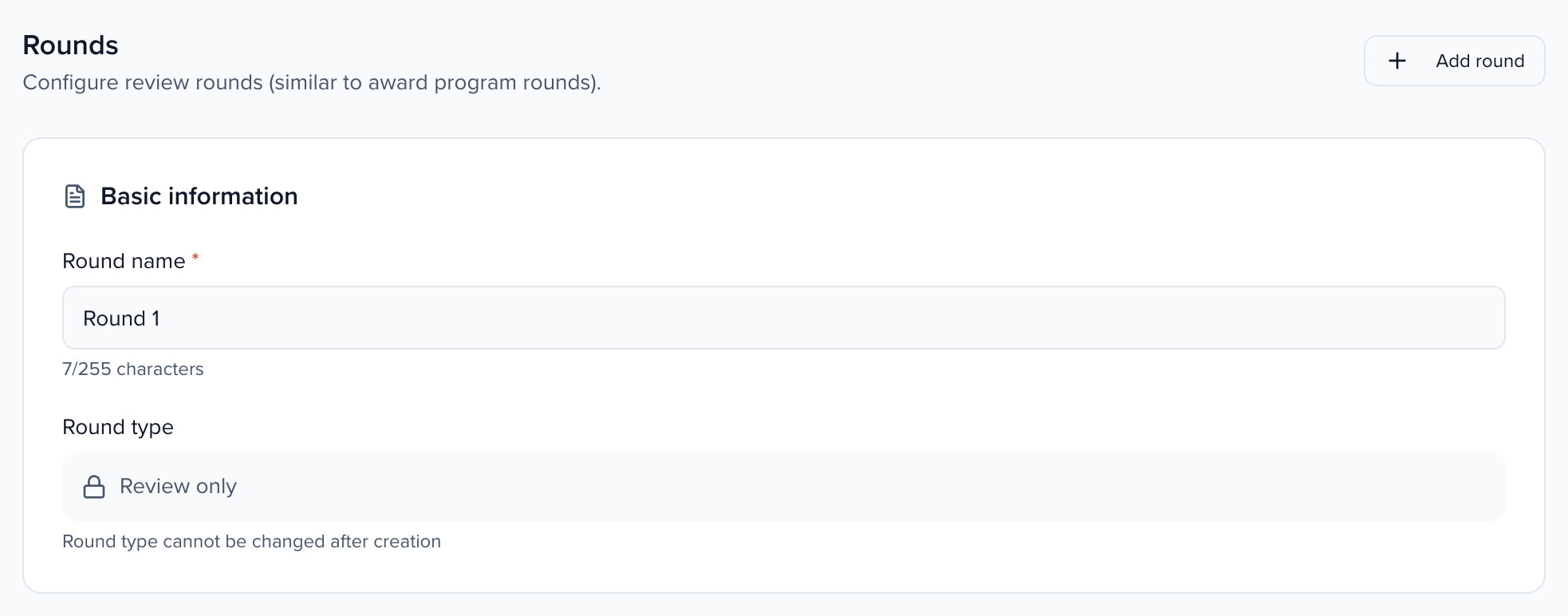
The Rounds step (labeled “Review rounds” in the sidebar) is where you configure review rounds (similar to award program rounds). A default Round 1 is created automatically. Click + Add round to add additional stages.
To remove a round, open it, expand Dangerous at the bottom of its settings and click Delete round. Its submissions move back to the previous round, its reviews and assignments drop out of reports, and you can restore it from Event History → Trash. Round 1 can’t be deleted, so for a single-round review simply don’t add more rounds.
Why use it
Section titled “Why use it”Rounds let one plan mirror how your committee actually works: a quick triage pass, then a deeper read of what survived, then a final decision, each with its own dates, scorecard and reviewers. Without rounds, every reviewer scores everything the same way at the same time.
Basic Information
Section titled “Basic Information”- Round Name: A descriptive label (e.g., “Round 1,” “Peer Review,” “Final Selection”).
- Round Type: Select the round type (e.g., “Review Only”). This setting cannot be changed after creation.
Voting
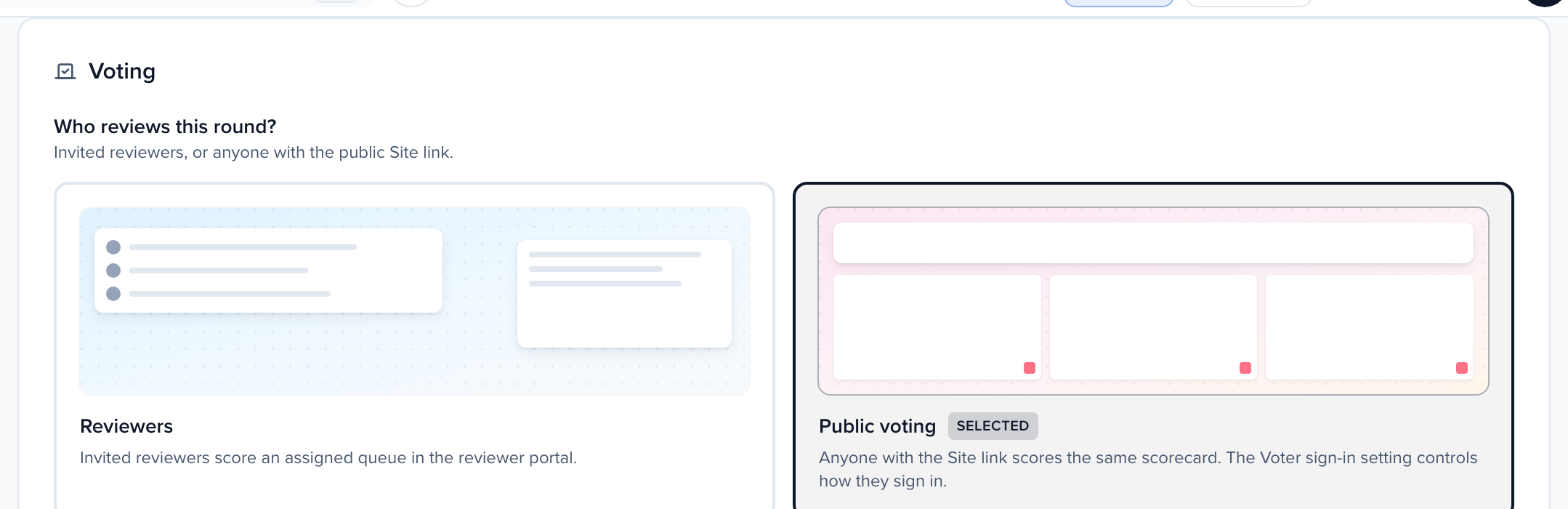
Section titled “Voting”- Who reviews this round: Choose Reviewers or Public voting for each round (one audience per round; a plan can mix both across rounds).
- Reviewers: Invited reviewers score an assigned queue in the reviewer portal.
- Public voting: Anyone with the Site link scores the same scorecard. Whether they sign in first depends on the round’s Voter sign-in setting (below). Public voters are not added as invited reviewers — they join when they save a score.
- Voting Type: Choose the voting method (e.g., “Score Voting”). Review plans use scorecard scoring.
Voter sign-in and vote limits
Section titled “Voter sign-in and vote limits”Selecting Public voting reveals two more settings under the audience picker:
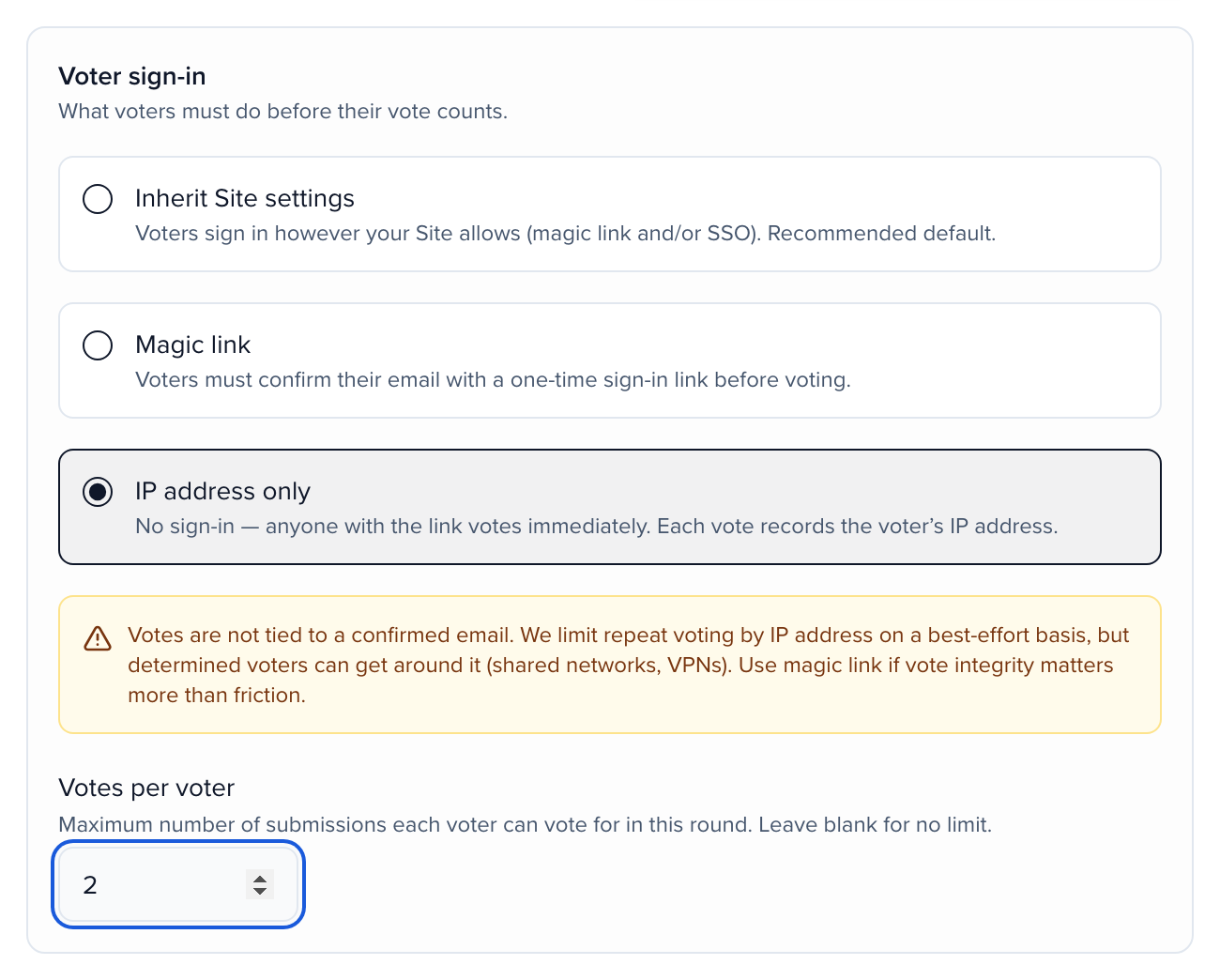
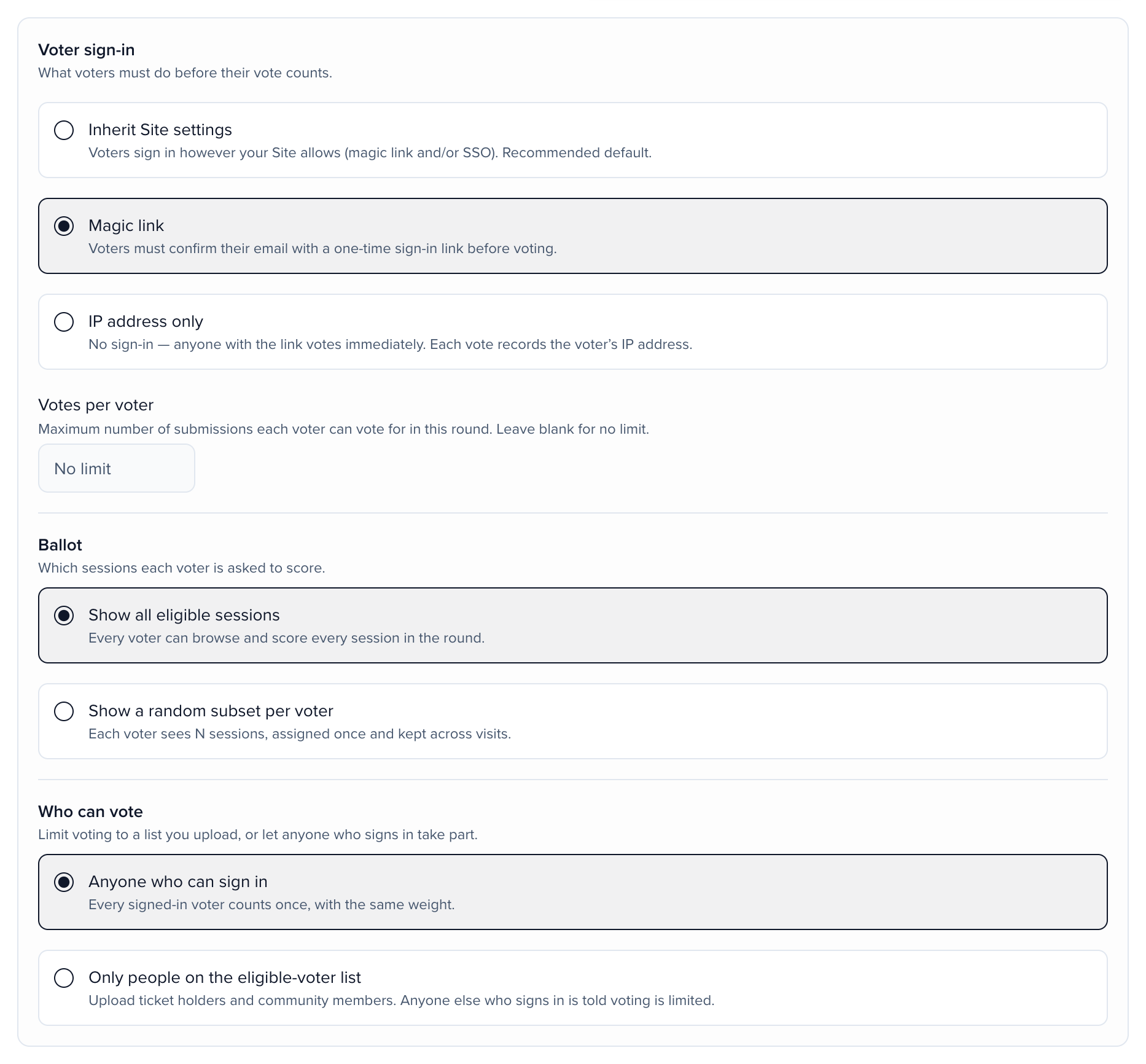
- Voter sign-in — what voters must do before their vote counts:
- Inherit Site settings (default): Voters sign in however your Site allows (magic link and/or SSO).
- Magic link: Voters must confirm their email with a one-time sign-in link before voting, even if the Site also allows SSO.
- IP address only: No sign-in — anyone with the link votes immediately. Each vote records the voter’s IP address.
- Votes per voter — the maximum number of submissions each voter can vote for in this round. Leave blank for no limit. Voters see their budget on the ballot (for example, “2 of 2 votes used”), and revising a score on a submission they already voted for does not use another vote.
Ballot: show all sessions or a random subset
Section titled “Ballot: show all sessions or a random subset”Under Ballot, choose which sessions each voter is asked to score:
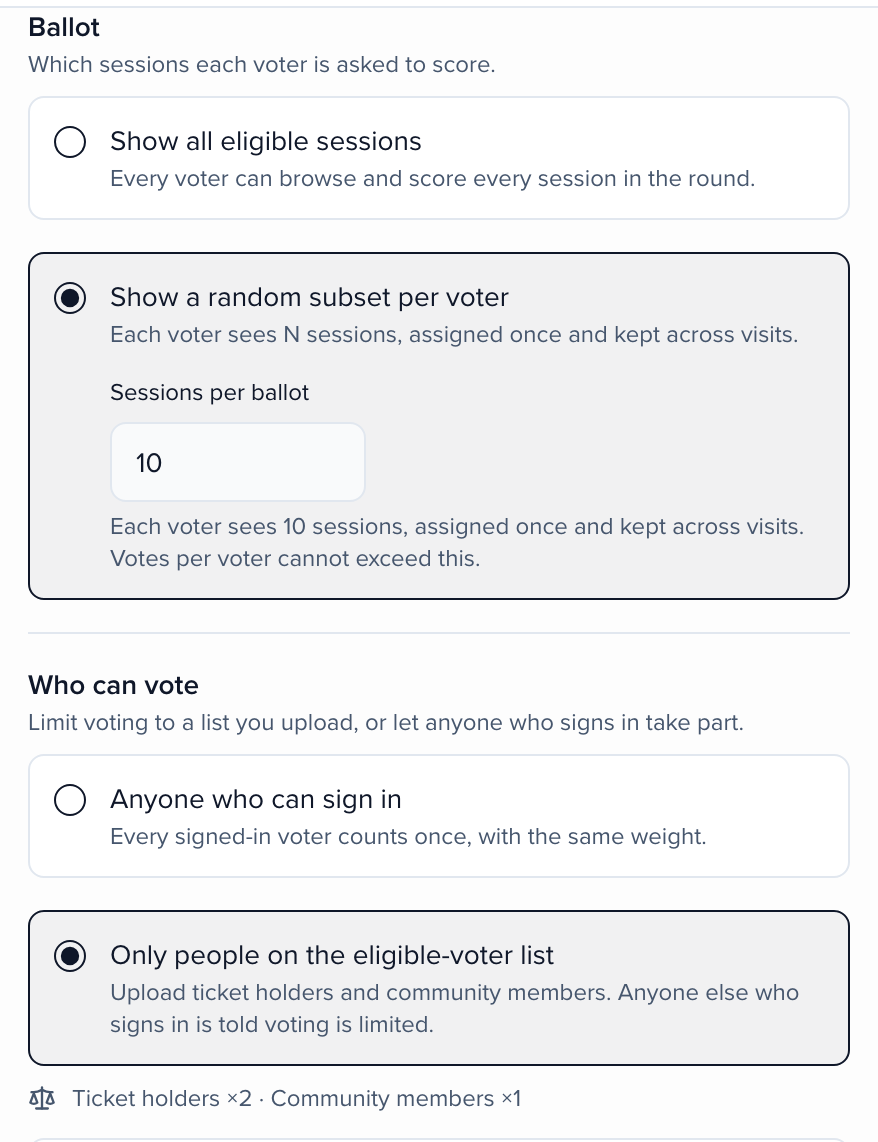
- Show all eligible sessions (default): every voter can browse and score every session in the round.
- Show a random subset per voter: each voter sees a fixed number of sessions (Sessions per ballot, up to 10,000), assigned the first time they open the ballot and kept across visits. Sessionboard spreads sessions evenly, so with 50 sessions and 20 per ballot each session is shown to roughly the same number of voters. If the round has fewer sessions than the ballot size, voters see all of them.
Votes per voter still applies inside the subset and cannot exceed the ballot size.
Which sessions are on the ballot at all is set on the wizard’s Ballot step. A voter’s random subset is dealt from that list the first time they open a round that has sessions on it; a round with nothing on the ballot deals no ballots, so voters are not locked into an empty page.
When you add sessions to the round later, voters whose subset is still short of Sessions per ballot are dealt the new sessions on their next visit — including after voting has started. Voters who already have a full subset keep it. Sessions removed from the round disappear from every ballot.
Reset ballots (in the round’s Ballot settings) re-deals everyone the next time they open the ballot. It is only available before the first vote is saved; once a vote exists the button is replaced by a notice showing how many ballots have been dealt and how many votes have been cast.
Who can vote: eligible-voter lists
Section titled “Who can vote: eligible-voter lists”Who can vote limits the ballot to a list you upload, or lets anyone who signs in take part:
- Anyone who can sign in (default): every signed-in voter counts once, with the same weight.
- Only people on the eligible-voter list: under Eligible voters, click Upload list and choose a CSV or paste rows of
email, group, where the group is Ticket holder or Community member. Uploading replaces the previous list; someone on both lists is kept as a ticket holder. Download list exports what is currently loaded.
Voters confirm their email with a magic link. If that email is not on the list they see Voting is limited to current event ticket holders and Pro community members. — on the ballot, on direct links to a submission, and when saving a vote.
Random ballots and eligible-voter lists both need a signed-in voter, so IP address only is not available while either is on.
Weighted results
Section titled “Weighted results”On rounds with an eligible-voter list, ticket-holder votes count twice (×2) and community-member votes once (×1). A voter on both lists counts ×2, not ×3. The weight is recorded with a voter’s first vote and kept for the round.
The round’s results table adds Weighted avg and Distinct voters, with a filter for All voters / Ticket holders / Community. Participation counts are always distinct people. The cumulative export adds Submitter, Weighted average, Distinct voters and per-group voter counts and averages; the individual export adds Voter email, Voter group and Vote weight.
When the round is set to Public voting, a Public voting banner on the round includes Copy link and Open. Share that Site URL. If the event does not have a Site yet, Create a Site to share creates one. Voters land on the Program Site ballot — not on My Reviews. See Program site.

Pasting the vote URL into Slack, LinkedIn, or similar shows a branded preview of the round. A link to one submission shows that item. Blind review rounds never put a name or headshot in the preview. Search engines and AI assistants do not index these URLs.
Round Mode: Funnel vs. Parallel
Section titled “Round Mode: Funnel vs. Parallel”When configuring your review plan, you can now choose how submissions move between rounds:
- Funnel (default): Submissions must be explicitly promoted from one round to the next. Only promoted submissions appear in subsequent rounds. This is the traditional peer-review model where you triage first and advance only qualifying submissions.
Parallel: Submissions are reviewed across all rounds simultaneously — no promotion required. This is useful when every submission should go through every review stage regardless of earlier scores.
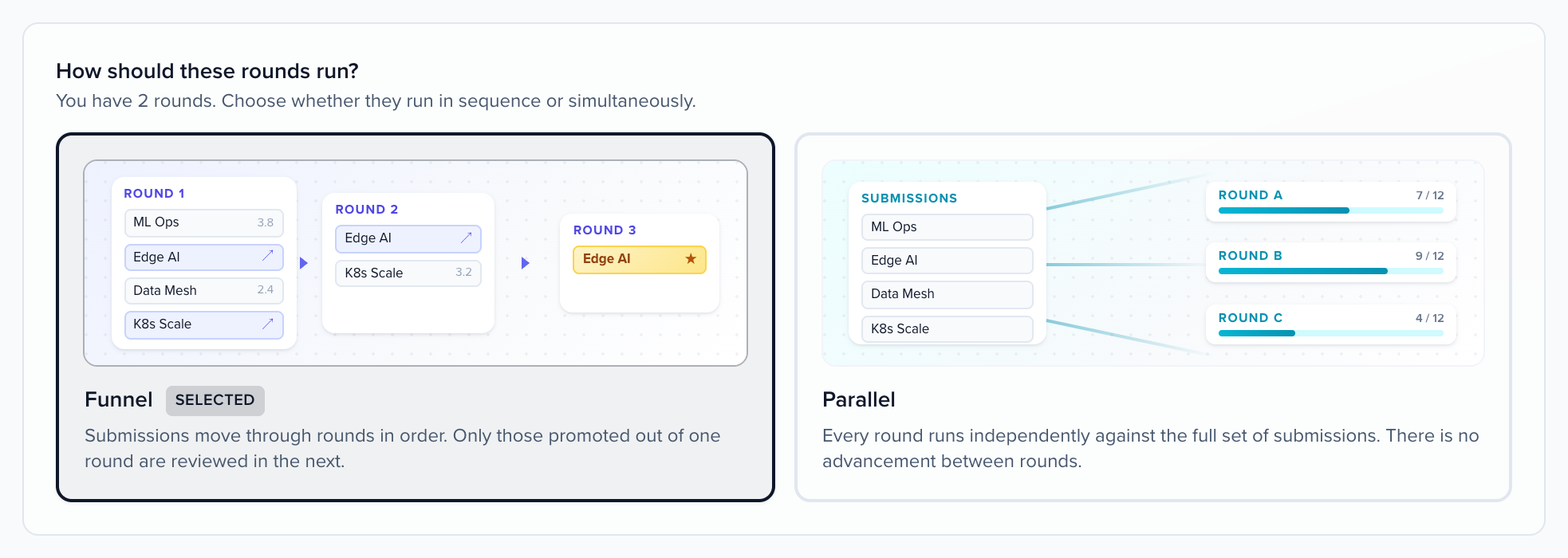
Round mode also decides how you move submissions between rounds. Promote and Demote in Sessions → Submissions work on funnel plans only. For parallel plans, open the review plan’s Rounds tab and move submissions between round buckets there.
Promoting needs the Can promote sessions permission (Event Team → Permissions → Review plans). Admins have it by default; give it to a custom role to let a session manager advance submissions. A team member with a session filter on their role can only promote sessions inside that filter. Demoting is not gated by this permission. See Invite and manage event team members.
Abstaining
Section titled “Abstaining”Reviewers can mark a submission as abstained when they have a conflict of interest or cannot review it. Configure this per round, under Abstaining:
| Setting | What it does |
|---|---|
| Allow reviewers to abstain | On by default. When off, reviewers cannot mark submissions as abstained in the review portal. |
| Require a reason when abstaining | Prompts the reviewer for a reason whenever they abstain. They cannot save the abstention without one. |
When a reason is required, choose how reviewers give it:
- Free text — the reviewer types their own reason.
- Select from a list of options — the reviewer picks from Reason options you define.
The same settings exist on Awards round settings, and behave identically there.
By default an abstain counts as a completed review in progress and review counts. To leave abstains out of those counts for every plan in the event, turn off Count abstains as completed reviews in Program settings → Reviews.
Reviewer recommendations and session builds are not round-based only
Section titled “Reviewer recommendations and session builds are not round-based only”The two settings below live on a round, but they are not limited to plans with several rounds. A plan with a single round has them too, in the same place — open the round and they are in its settings alongside abstaining.
Everything described in the next two sections therefore applies whether your plan runs one round or five.
Reviewer recommendations
Section titled “Reviewer recommendations”Turn on Enable Reviewer Recommendations to add a Recommend row to every submission card in the reviewer portal: reviewers mark each submission Accept, Decline, or Alternate alongside their scores.
The field picker under the toggle controls what Alternate means. Check the submission fields a reviewer may propose a different value for — Format and Track are typical — and the Alternate form in the portal shows exactly those fields, plus an optional note. Only dropdown-type fields are eligible.
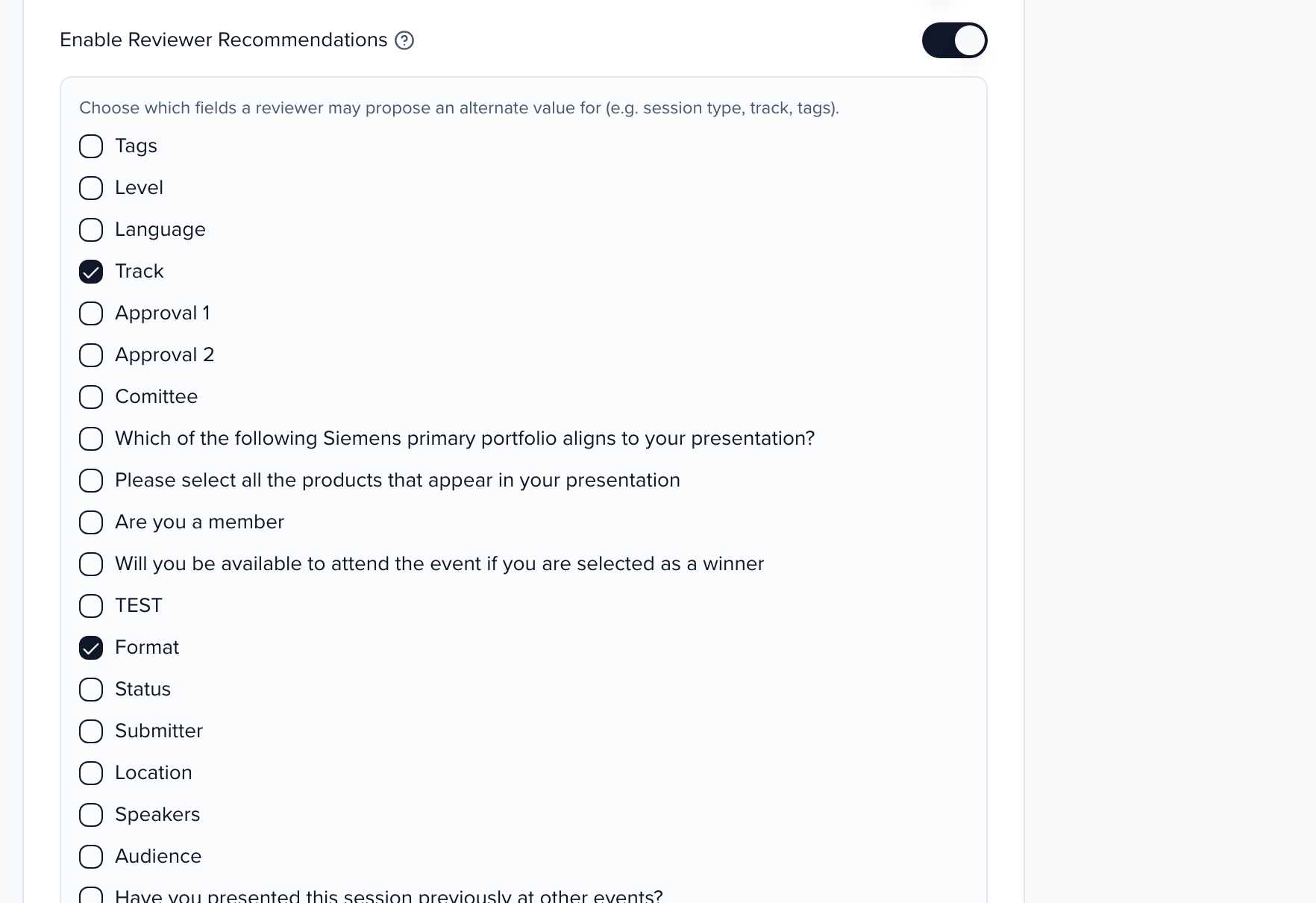
Recommendations are advisory. They never change the submission — they roll up in a Recommendations column on the plan’s Submissions tab (accept / alternate / decline counts per submission, with each reviewer’s suggested values in the tooltip) so your committee can act on them.

Applying recommendations to submission statuses
Section titled “Applying recommendations to submission statuses”When the committee is ready to act, you can turn recommendations into statuses in bulk. Two optional settings under Enable Reviewer Recommendations control this:
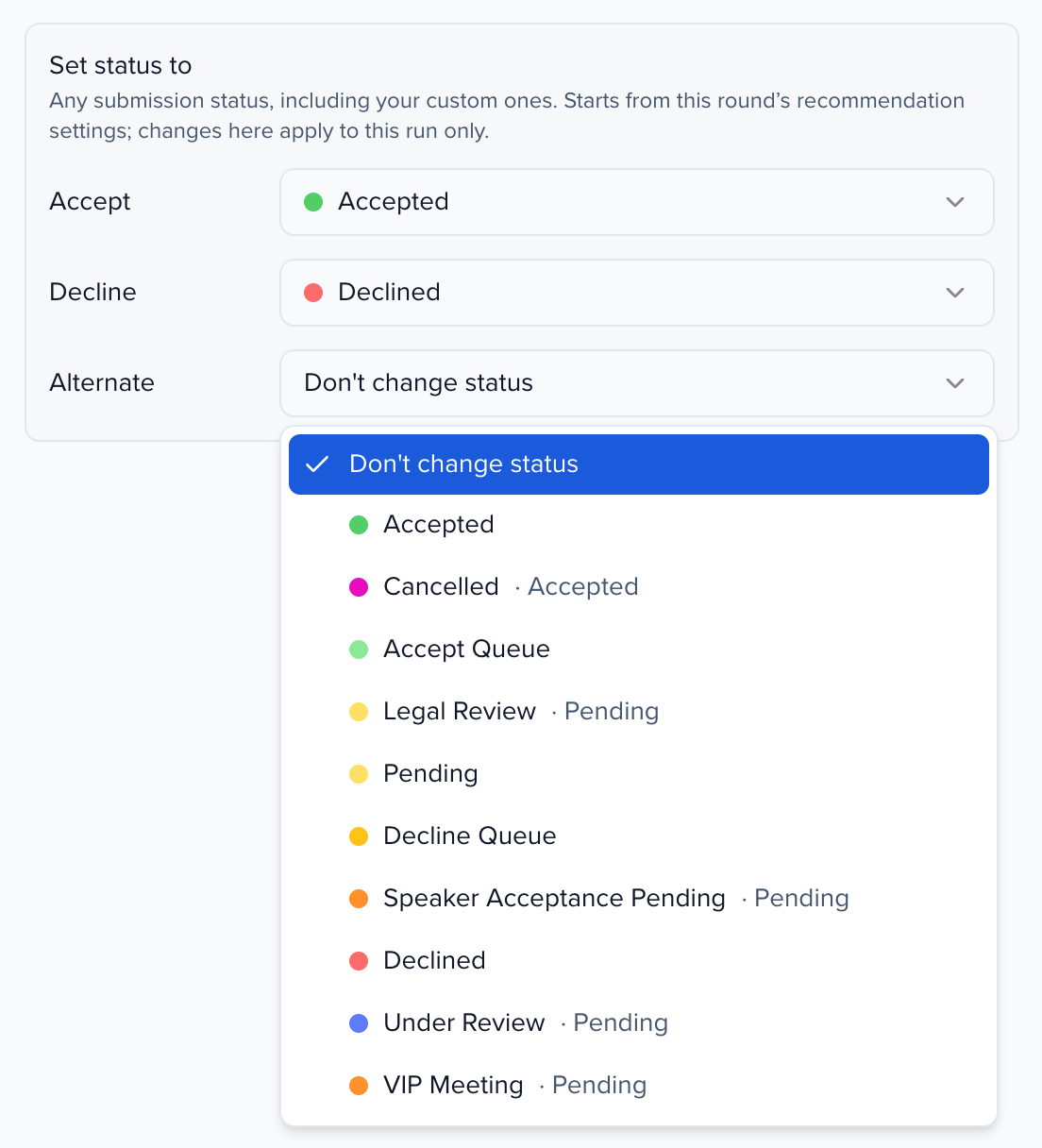
- When applied, set status to — pick the submission status that Accept, Decline, and Alternate each map to, or leave one on Don’t change status. Nothing changes until you apply.
- Acceptance targets — how many sessions of each type you want accepted. Add a row per Session type, optionally narrowed to one Track (or Any track), with a Target and a Weight. Set Group total cap (weighted, optional) to limit the weighted total across all rows. Targets are guidance only: progress shows on the Submissions tab, and they never block a recommendation.
On the plan’s Submissions tab, click Apply recommendations to open the apply sheet:
- Each submission starts on its reviewers’ majority recommendation, and ties go to Alternate. Change any row before you apply.
- Check Also apply alternate session type/track to write the values reviewers proposed with their Alternate recommendations onto the submission.
- Optionally add Proposed tags, choosing Add to existing tags or Replace existing tags.
- Under Set status to, choose the status each decision sets — Accept, Decline and Alternate each take any status in the event, including your custom ones (for example Preliminarily Accepted), or Don’t change status. It starts from the round’s recommendation settings and applies to this run only; the round’s saved settings are not changed. A warning shows when your choices would not change any status.
- Click Preview to see every status change, then Apply to N to commit them. Changing a status choice clears the preview, so preview again before applying.
When acceptance targets are set, an Acceptance targets panel on the Submissions tab shows accepted counts against each target. Reviewers see the same progress in an Acceptance progress strip in the portal.
Reviewer session builds
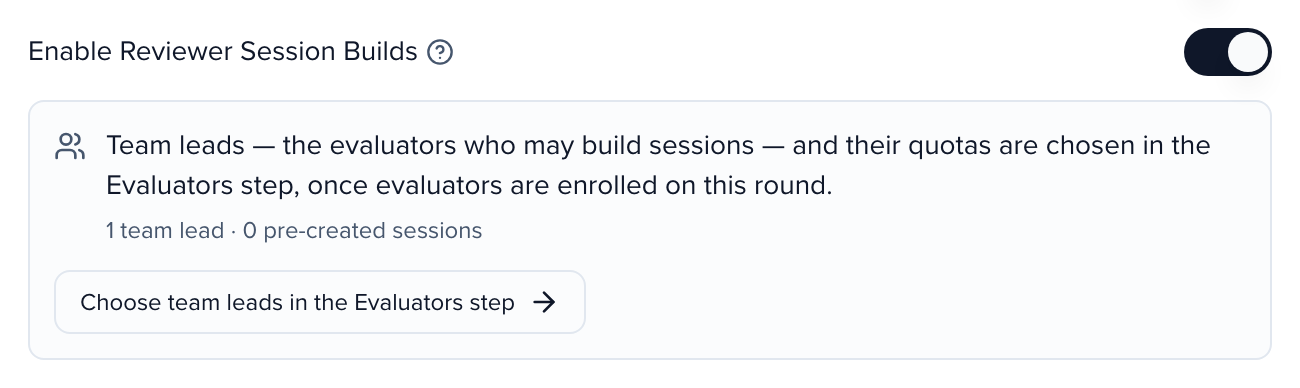
Section titled “Reviewer session builds”Turn on Enable Reviewer Session Builds in the round’s settings (the Rounds step) to let reviewers propose combining their assigned abstracts into full sessions — for example, grouping three related abstracts into one panel. A Build sessions button appears in their round view.
Reviewers who build sessions are called team leads, and a team lead is simply a reviewer on the round who has been given a session-build quota. Because team leads are picked from the round’s reviewers, you choose them on the Reviewers step — after the reviewers are enrolled — not on the Rounds step. Under the toggle, the round shows how many team leads and pre-created sessions it has so far, and Choose team leads in the Reviewers step takes you straight there.
On the Reviewers step, every round with session builds turned on gets a Team leads (session builds) section. Pick the round’s tab (or stay on All rounds to see every such round), enroll the reviewers first, then:
- Under Allocations, click Add allocation and add a row per team lead and session type: which reviewer, which session type they may build, how many Sessions, how many presenting Abstracts fit in each, and how many Alternates each session may hold. Only reviewers enrolled on that round are listed. Click Save allocations.
- Under Pre-created sessions, you can add program sessions you have already scheduled for team leads to fill. Click Add pre-created session, pick the session, and either pin it to one team lead or leave it on Any team lead — an unpinned session is open to every team lead with an allocation for that session type. Each pre-created session counts as one session of that type’s allocation.
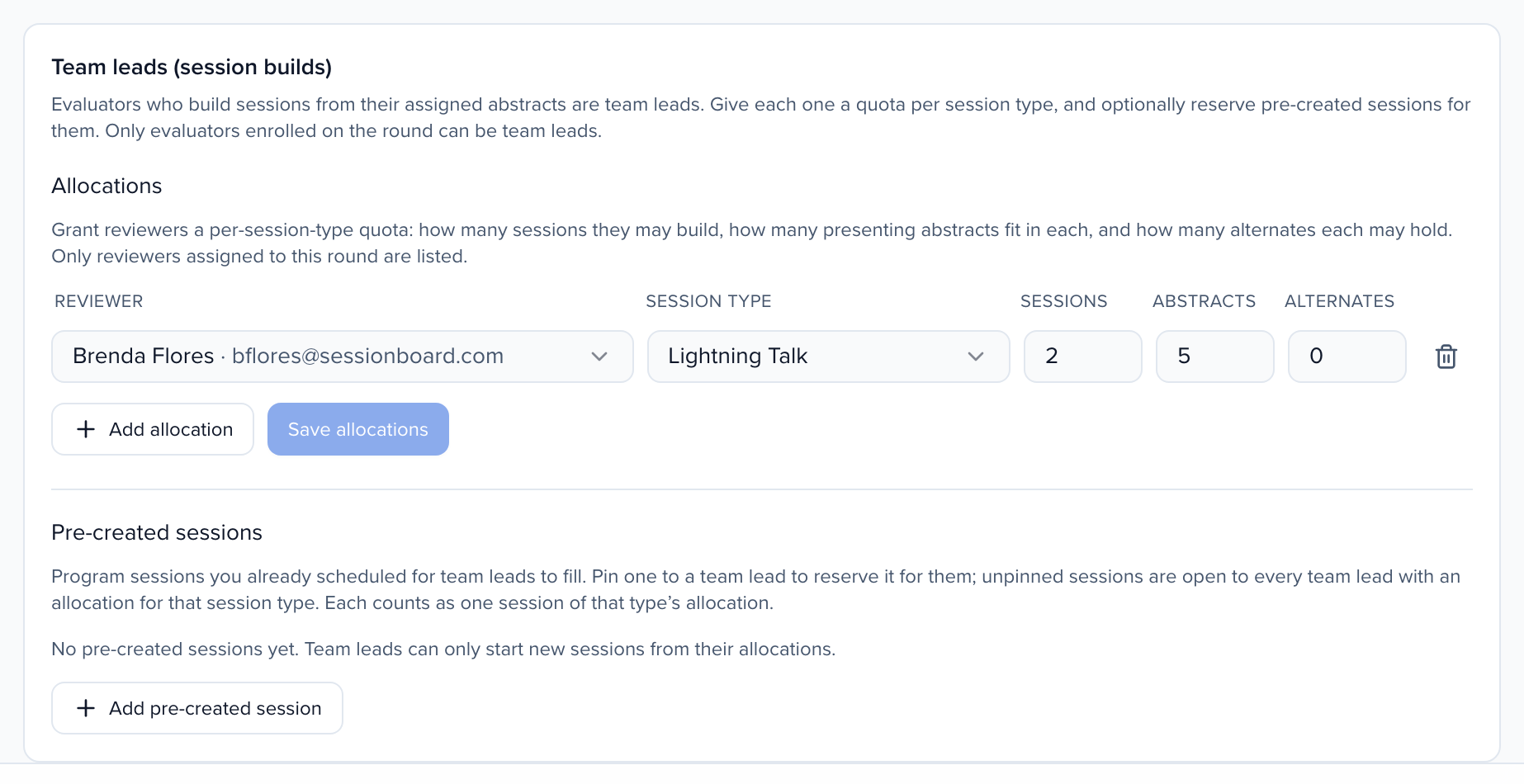
If the round has no reviewers yet, the section says Enroll reviewers on this round first — add them from the list above it and the pickers appear. You can also reach this section later from the plan’s Builds tab with Manage team leads.
Submitted builds land on the plan’s Builds tab, where you approve, decline, or return them — nothing is created until you approve. See Managing your review plans below.