

Set up a review plan
In pictures 5
Why use it
Section titled “Why use it”Reviewing hundreds of abstracts fairly means the right reviewers see the right submissions, conflicts are kept out, and nobody reviews forty while someone else reviews four. A review plan writes those rules down once — who reviews what, in which round, with what workload cap — and applies them to the whole round, with a preview and counts before anything is committed. When a submission’s track or category is corrected, re-running the rule with Replace not-yet-reviewed takes it away from reviewers who should not have it and have not started their review.
How a review plan works
Section titled “How a review plan works”A review plan is a set of submissions, the reviewers who score them, and how their scores add up. It runs in rounds: one round for a single committee read, or several for a multi-stage process such as Initial screen → Peer review → Committee decision.
Each round has its own dates, scorecard, anonymization settings and reviewers, so a triage committee can use a short pass/fail scorecard in Round 1 while expert reviewers use a detailed rubric in Round 2. Rounds run as a funnel (submissions are promoted from one round to the next) or in parallel (every round reviews at the same time); see Rounds.
The review plan wizard
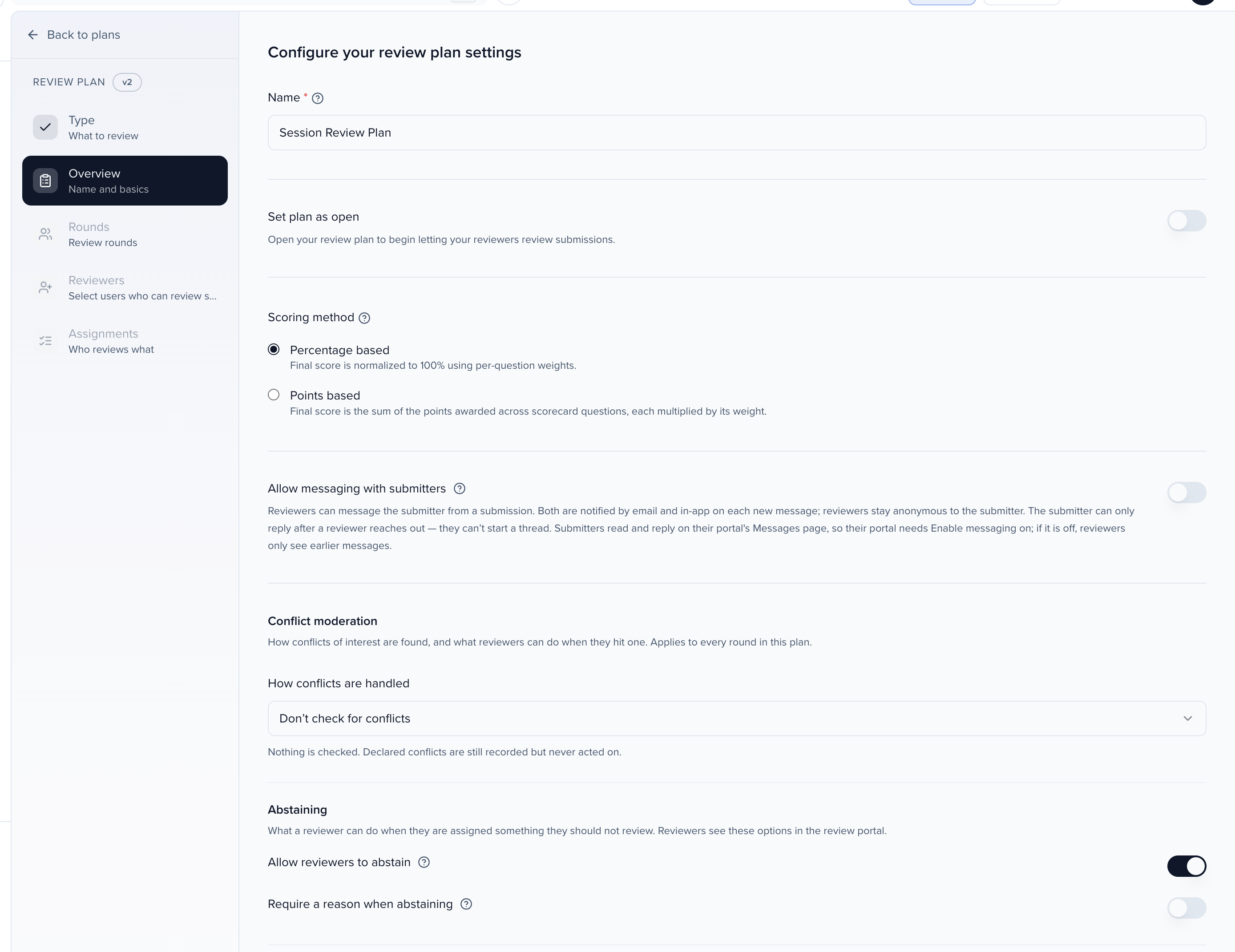
Section titled “The review plan wizard”When you create or edit a review plan, Sessionboard opens a wizard with these steps down the left:
- Type — what to review (parent submissions or subsessions).
- Overview — name and basics (plan name, instructions, review period, and global toggles).
- Rounds — review rounds (round names, types, voting, and scorecards).
- Reviewers — select users who can review submissions in this plan.
- Assignments — who reviews what (filter submissions and set the distribution logic).
- Ballot — what voters can see. Shown only when a round uses Public voting.
The steps follow the rounds you set up. Public voting rounds have no invited reviewers, so a plan whose rounds are all Public voting shows Type, Overview, Rounds, Ballot and skips Reviewers and Assignments. A plan that mixes both audiences shows every step, with Ballot last.
Each step has its own article with every setting explained:
| Step | What you decide | Article |
|---|---|---|
| Type | Whole submissions or each sub-session | Choose what to review |
| Overview | Name, instructions, review period, scoring method | Overview step |
| Rounds | Rounds, voting, funnel or parallel, recommendations | Rounds step |
| Rounds → scorecard | The questions and what reviewers can see | Scorecard & reviewer view |
| Reviewers | Who reviews, in which rounds | Reviewers step |
| Assignments | Which reviewer reviews which submission | Assignments step |
| Ballot | What public voters see | Ballot step |
Move between steps with the sidebar or the Continue and Back buttons at the bottom. Your progress is saved as you work.
To create a new plan, open Program → Review, click the Review plans tab, then Add Plan. A new plan first asks what it should review (below), then the wizard opens to the Overview step.
Choose what to review
Section titled “Choose what to review”A new plan starts by asking What would you like to review?
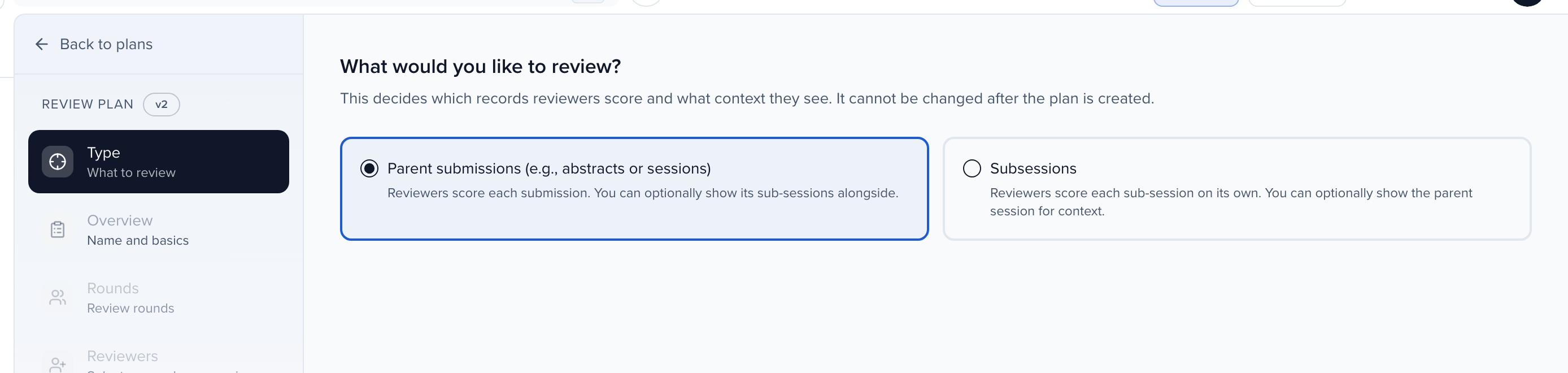
- Parent Submissions (e.g., abstracts or sessions) — the default. Reviewers score each top-level submission, and you can optionally show its sub-sessions alongside. Existing plans work this way and nothing changes for them.
- Subsessions — reviewers score each sub-session on its own. Use this when the scoring unit is the individual talk or poster inside a larger block rather than the block itself. You can optionally show the parent session for context.
The review target is set when the plan is created and cannot be changed. To review something else, create a new plan.
What changes in a Subsessions plan:
- Overview shows Include Parent Session instead of Include Sub-Sessions. Turn it on to show reviewers the parent session’s details (and its participants, unless the round is anonymized) above the subsession they are scoring. Each round carries the same switch.
- Assignments → Which submissions? lists only subsessions, with the parent title under each one. Parent sessions cannot be assigned, and public voting rounds list subsessions only.
- Builds is not available: session builds work on parent sessions only.
- Grade exports add a Parent session column, and the Summary page ranks subsessions.
Managing your review plans
Section titled “Managing your review plans”From the Review plans list, you can perform the following actions on any plan:
- Review: If you’re an admin & a reviewer, you’ll be able to review.
- Edit: Re-open the plan wizard to modify settings, rounds, reviewers, and assignments.
- Open / Close: Control whether reviewers can currently access and submit reviews.
- Export Results: Download review data in three formats: Individual Grade Report (every reviewer’s responses per submission), Cumulative Grades Report (aggregated scores per submission), or Score Summary Report (one row per submission with each reviewer’s score, the average, the standard deviation and the reviewers’ comments).
- Duplicate: Create a closed copy of the plan with the same configuration and round dates, useful for running similar reviews across multiple tracks. It never copies scores. Duplicate asks whether to Copy reviewers and their assignments; that starts unchecked, so the copy has no reviewers until you add them. See the frequently asked questions for what to change.
- Notify: Notify reviewers.
- Delete: Permanently remove the plan and all associated data.
Deep-Dive View
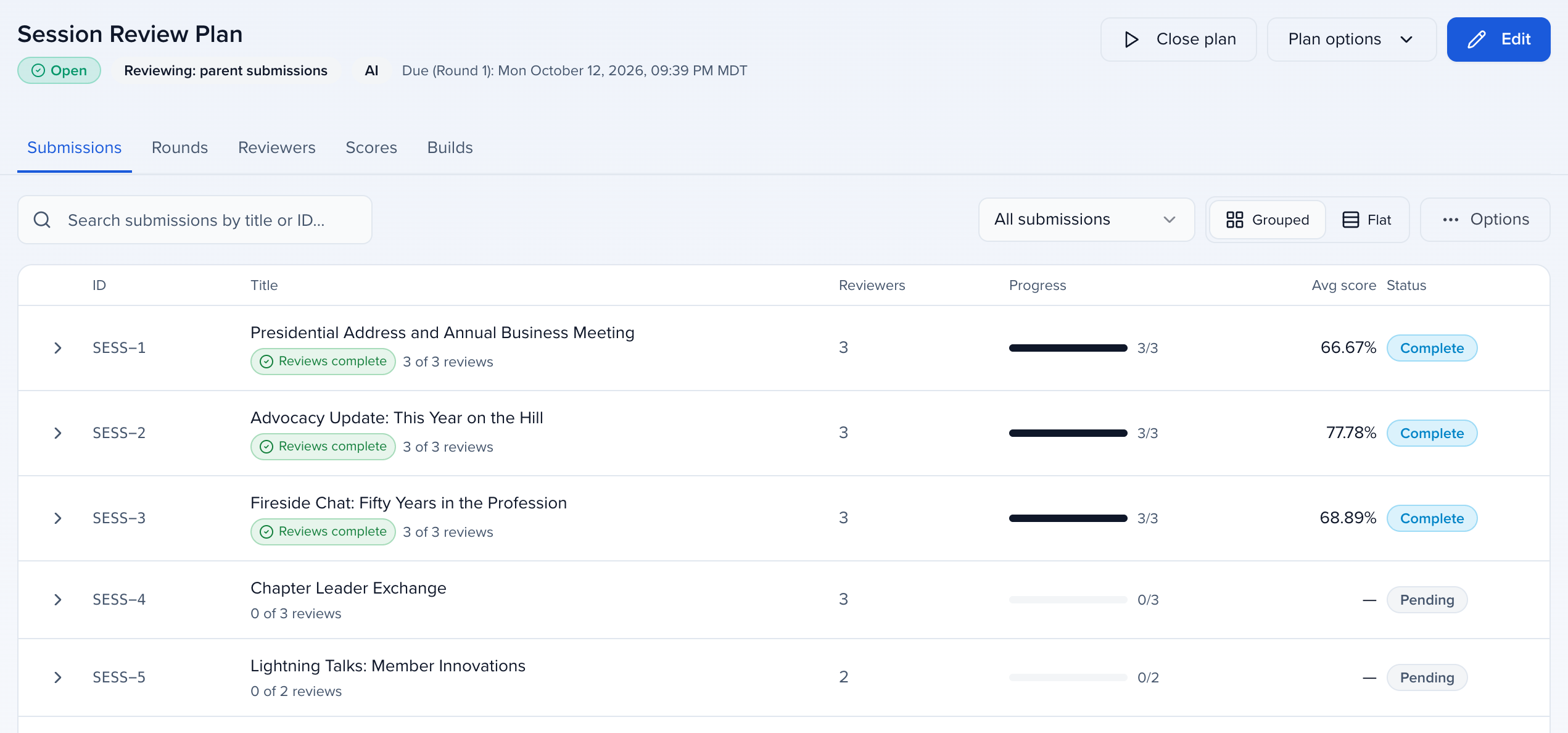
Section titled “Deep-Dive View”Clicking on a review plan now opens a dedicated deep-dive view with these tabs:
- Submissions: See all submissions in the plan with their review status (ID, Title, Reviewers, Progress, Avg score, Status). Supports Grouped and Flat views. When reviewer recommendations are enabled, a Recommendations column shows accept / alternate / decline counts per submission, with each reviewer’s suggested alternate values in the tooltip.
- Rounds: View submissions grouped by round. Select submissions and use the Bulk action dropdown to Promote to next round or Demote to previous round.
- Reviewers: Monitor individual reviewer progress across all rounds. Use the ⋯ menu next to each reviewer to preview the portal as them, resend the invite email, edit their assignments, tags, details or organization, view conflicts, or Remove from all plans, which takes them off every review plan in the event along with their scores there. To remove an AI persona and its scores from every plan, delete the persona in Program Settings. Taking a persona off a single round leaves completed reviews on the submission.
- Scores: Every submission with its average, and each reviewer’s answers and comments behind it.
- Builds: The Session Builds queue for reviewer session builds, grouped by team lead. Details are below the screenshot.
The Builds tab
Section titled “The Builds tab”The Status filter defaults to Submitted & draft; switch it to Submitted, Draft, Approved, Declined, or All, or to one of your own build statuses under Your statuses. Each build row shows its title, session type, and how full it is (for example “2 / 2 presenters · 1 / 1 alternates”), with a pill when it needs a look: Complete, Overfilled, or Needs attention. A build that fills a pre-created session says Fills and names that session, and a build you have changed is marked Edited by an admin.
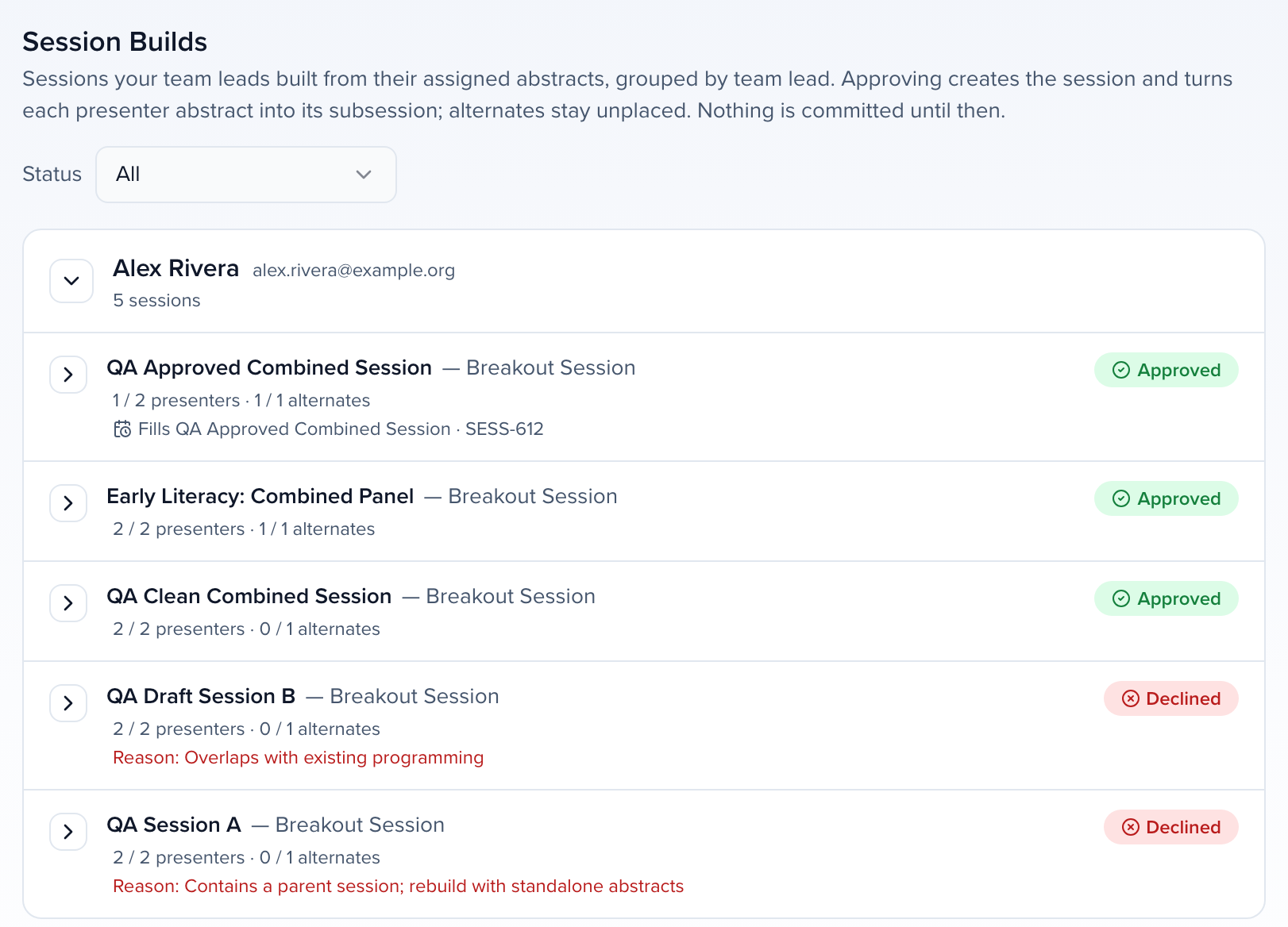
Expand a row to see its Presenters and Alternates, each with the team lead’s score and recommendation. You can edit a build in place — rename it, change its session type, or move abstracts between presenters and alternates — then click Save changes (or Discard changes). The team lead sees that you edited it.
For each build, choose one of:
- Approve — creates the session and turns each presenter abstract into its own subsession. Alternates stay unplaced so they can step in later.
- Return for changes — sends the build back to the team lead with a reason, so they can revise and resubmit it.
- Decline — requires a reason, which the team lead sees, and releases the allocation it used.
To label a build for your team without the team lead seeing it, use the tag button next to its status and pick one of your build statuses; Manage statuses at the top of the tab opens the list. Labels are offered only for the build’s current status, and a label comes off when the status changes.
To export the builds, click Options, then Export .CSV or Export .XLSX (you need permission to export review plans). The export panel shows its progress and downloads the file when it is ready. The file has the builds the Status filter shows, one row per abstract in each build: the team lead, session type, round, status and label, the session the build fills, submitted and decided times, any decline or return reason, the abstract’s ID, title, presenters and role, and the team lead’s score and recommendation counts.
To approve every submitted build of one team lead at once, use Finalize sessions on their group. When you approve or finalize, Participants shown on the session controls which subsession participants also appear on the new session — All, Presenting author only, or None. It starts on the event’s agenda setting.
Summary Page Metrics
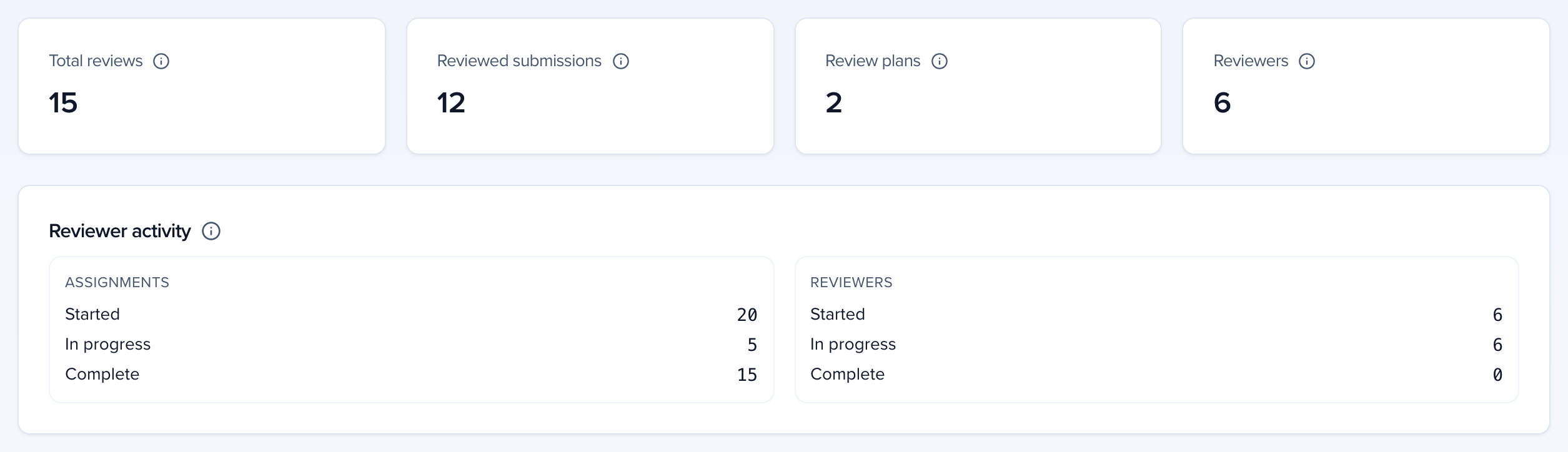
Section titled “Summary Page Metrics”The review summary page (Program → Review → Summary tab) now shows enhanced metrics. Metrics are shown separately for Assignments and Reviewers:
- Started: Assignments/reviewers that have begun but not completed all reviews.
- In progress: Assignments/reviewers actively in the middle of a review.
- Complete: Finished reviews.
Additional metrics on the Summary page include: Total Reviews, Reviewed Submissions, number of Review plans, and number of Reviewers. Average Submission Score By Plan and Top 10 Submissions are also available.
Best practices
Section titled “Best practices”- Start simple, add complexity: If this is your first round-based review, start with a single round. You can always add more rounds in future programs.
- Choose your round mode intentionally: Use Funnel when you want to triage submissions before advancing them. Use Parallel when all submissions should be reviewed at every stage simultaneously.
- Use anonymization strategically: Enable anonymized review for peer review rounds to reduce bias, but consider disabling it for committee decision rounds where context matters.
- Set clear instructions: Use the rich-text Instructions field on the Overview step to clearly describe review criteria, scoring guidelines, and expectations.
- Customize the reviewer view: Hide irrelevant submission fields and configure card fields so reviewers can quickly scan and prioritize their assigned sessions.
- Enable weekly reminders: Turn on weekly reminder emails to keep reviewers on track without manual follow-up.
- Use field filtering for targeted assignments: Take advantage of the new field filtering in the Assignment Wizard to route specific types of submissions (by language, format, level, etc.) to the most relevant reviewers.
- Preview assignments before saving: Use the Impact Preview panel to verify session counts and reviewer workload before anything goes live.
- Monitor progress via the Summary page: Use the Started / In progress / Complete metrics to spot reviewers who are behind, and follow up before your close date.
- Export early and often: Download interim reports to track trends, even before all reviews are complete.
Frequently asked questions
Section titled “Frequently asked questions”How do I check a plan before I open it?
Check the numbers, then look at it as a reviewer.
- On the Assignments step, the Current state panel shows each round’s Submissions in round, With reviewers and Existing assignments. Before you click Assign, the preview lists the new assignments By submission and By reviewer.
- On the plan’s Reviewers tab, choose Preview as reviewer in portal from a reviewer’s ⋯ menu to open the Program Site as that person.
- To click through a review yourself, add yourself as a reviewer on a round (turn off Send invite email to new reviewers first), assign yourself a submission or two, and open the event’s Program Site. While the plan is closed your queue is view-only. When you’re done, Remove from plan takes you off and deletes your scores on that plan.
My plan shows 0 submissions. What's wrong?
The submission count on a plan’s card only includes submissions that have at least one reviewer assigned in a round, so a plan shows 0 until you assign.
- Save changes at the bottom of the wizard doesn’t assign anything. On the Assignments step, click the Assign… button.
- If the preview’s Filtered submissions is 0, the rule selects nothing. Loosen its filters, or switch to All submissions in plan scope to see what the plan covers. Draft submissions are never included.
I duplicated a plan for another track. What do I change?
A copy starts closed, with the original plan’s rounds, scorecards, submissions and round dates, and no scores. Whether it has reviewers depends on Copy reviewers and their assignments in the Duplicate dialog, which starts unchecked. Before you open it:
- Add its reviewers on the Reviewers step. If you copied the roster, trim it instead: on the plan’s Reviewers tab, remove reviewers in bulk.
- On the Assignments step, run the rule for the new track. If you copied the assignments, use Replace not-yet-reviewed: that removes the copied assignments that don’t match and leaves the round holding only what the rule selects.
- Set the round dates when you open it — the Open plan dialog has Review opens and Review closes for each round.
Next steps
Section titled “Next steps”With your review plan configured, continue setting up your review process:
- Review sessions: Share this guide with invited reviewers and with people using a public vote link.
- Automations: Assign reviewers when a session field changes — for example, when status becomes Accepted.
- Session submission forms: Review how submissions are collected and what fields reviewers will see during their review.
- Program site: Publish your forms and reviews to a branded portal so reviewers and submitters have a single access point.