

Access your portal
Congratulations🎉! You are one step closer to being a part of an amazing event. Let’s help you get logged in to your portal to complete tasks, submit files, and view important information about the upcoming event.
To access your portal, use the portal link that has been shared with you.
How to locate the event portal link & login?
Section titled “How to locate the event portal link & login?”This link can be found in your session submission confirmation email (if you are the submitting individual).
If you need the portal link resent, contact the event team.
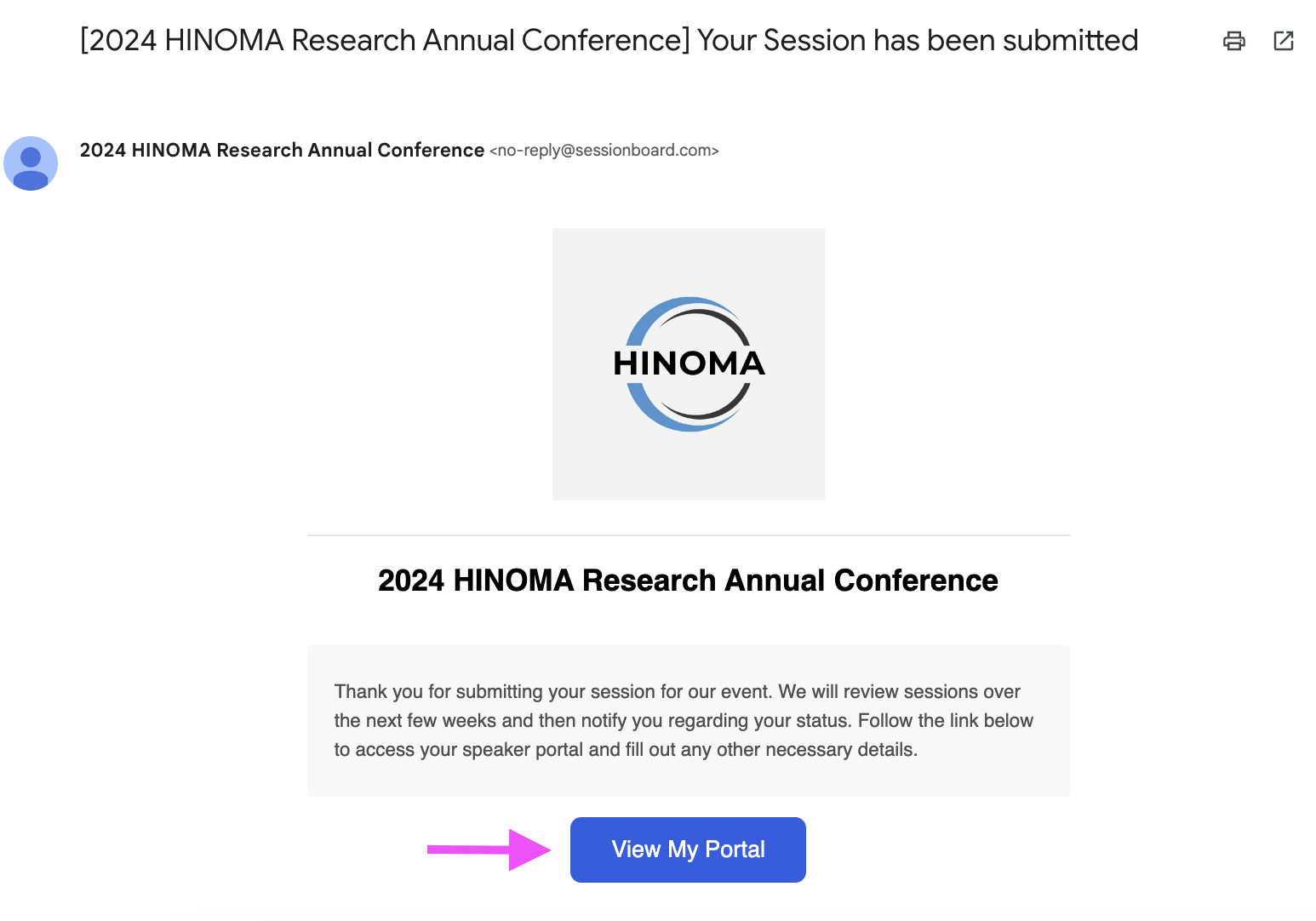
- NEW USERS: You will be prompted to create a password for your account.
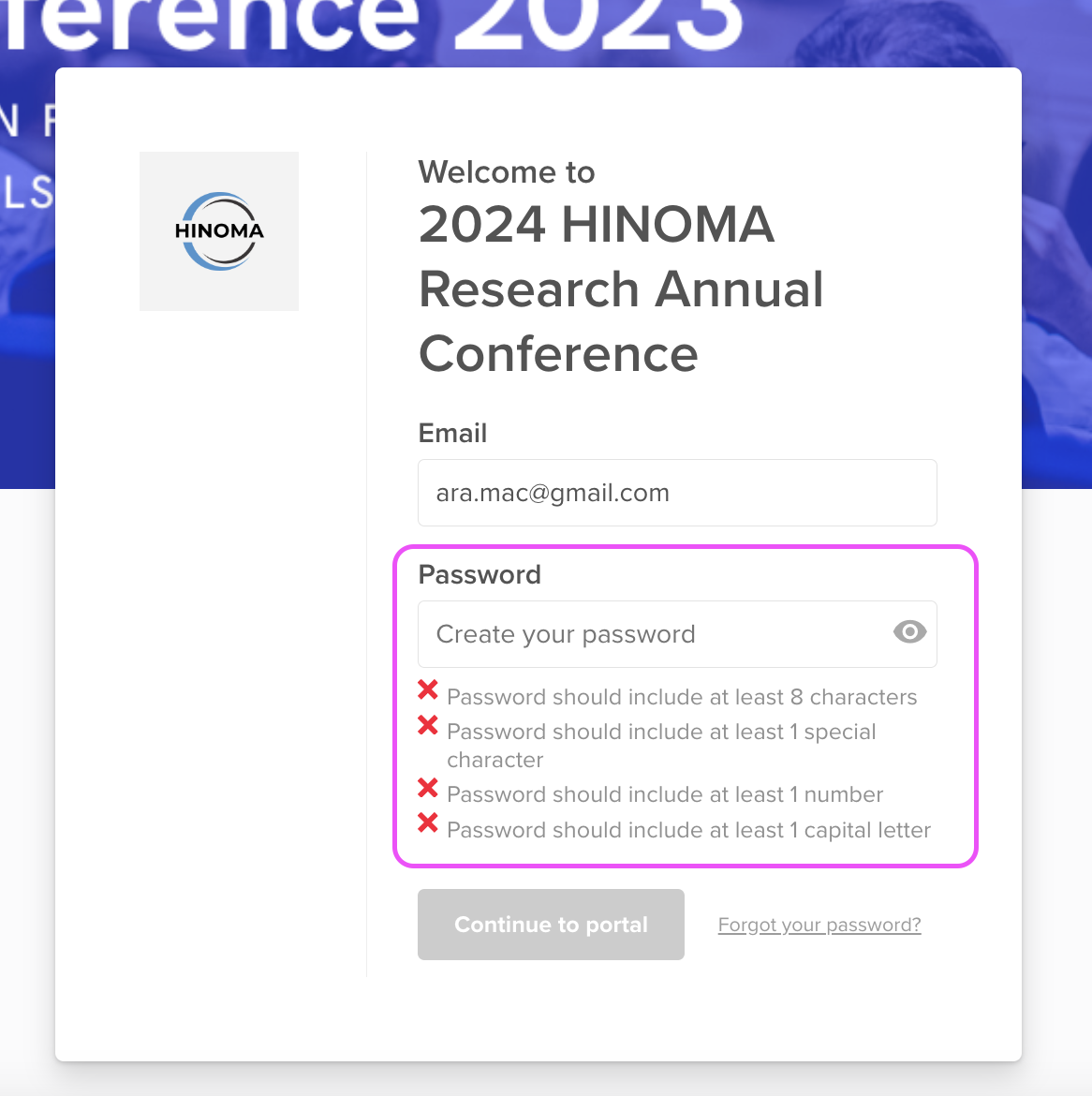
- EXISTING USERS: Type the password you have created for your account.
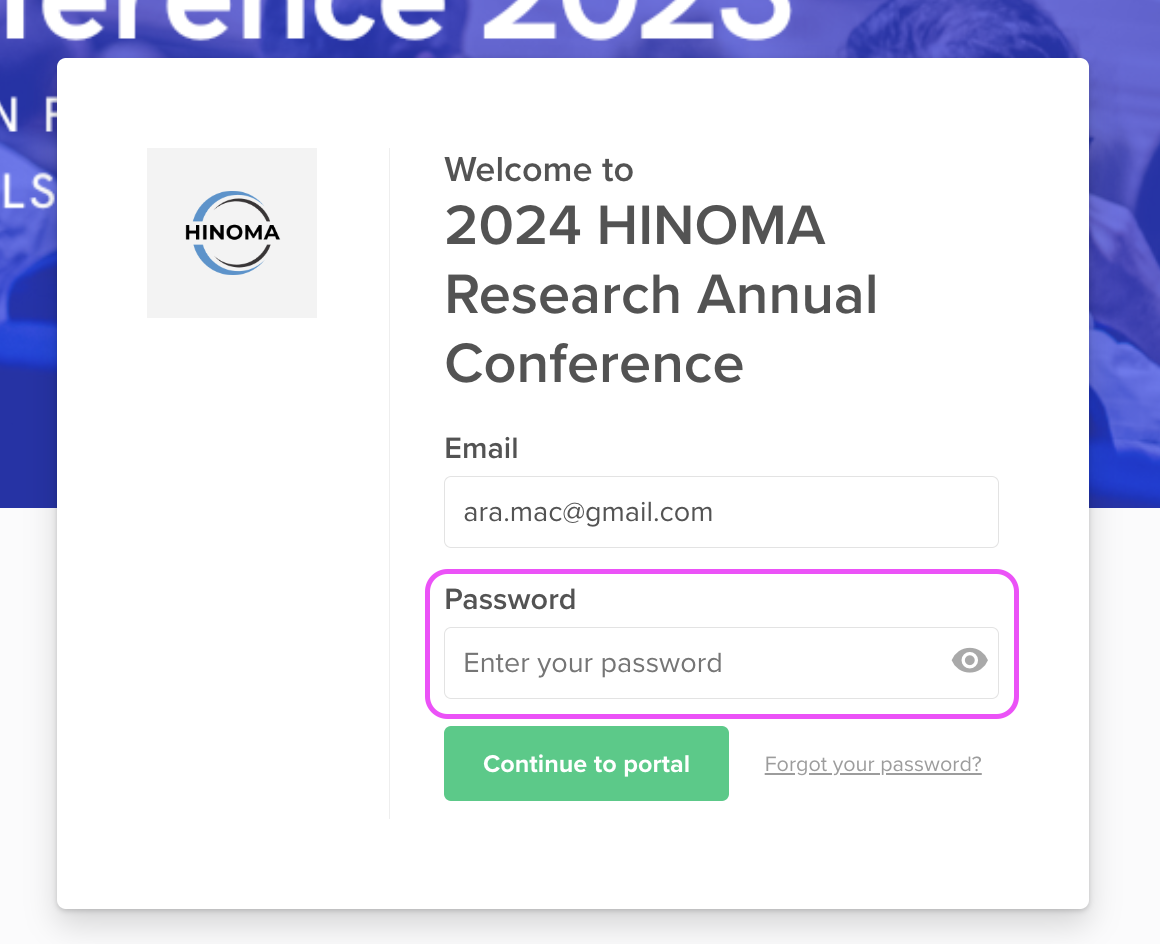
Once you have provided your email and password, select the “Continue to portal” button.
Sign in with a magic link
Section titled “Sign in with a magic link”Some events let you sign in without a password. After you enter your email, look for Or, email me a sign-in link below the password field — or, if the event uses sign-in links only, Email me a sign-in link appears as the main button and no password is asked for.
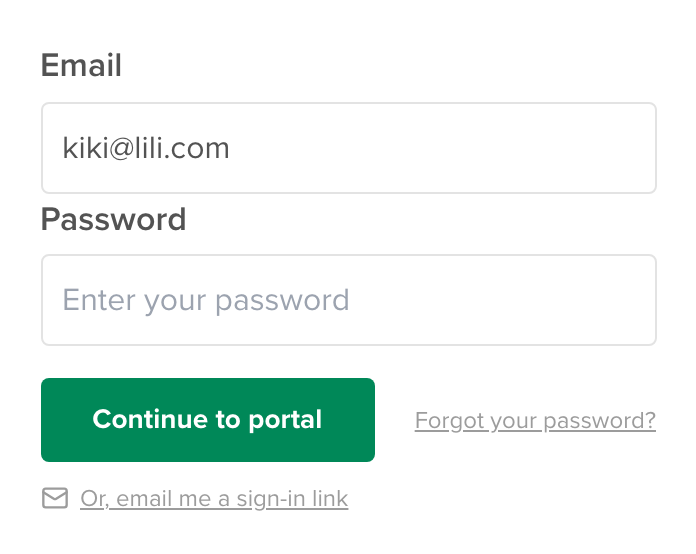
Select it and we’ll email you a sign-in link:
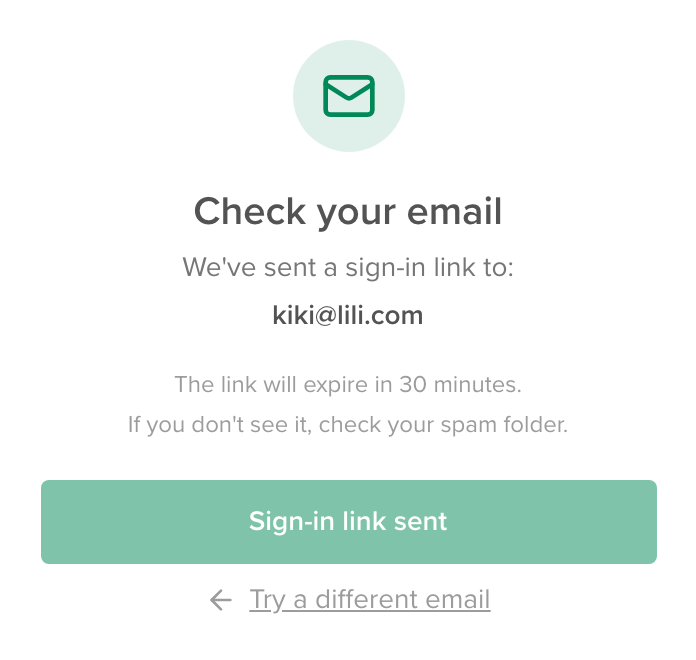
- The link expires after 30 minutes. If it expires, you’ll land back on the login page with your email pre-filled — just request a new one.
- If the email doesn’t arrive, check your spam folder, or select Try a different email if you may have used another address.
- Opening the link signs you straight in to the portal — no password needed.
Continue to your portal
Section titled “Continue to your portal”Next, you will see a list of portals to which you have access. Select the portal you would like to continue within to complete tasks and view resources.
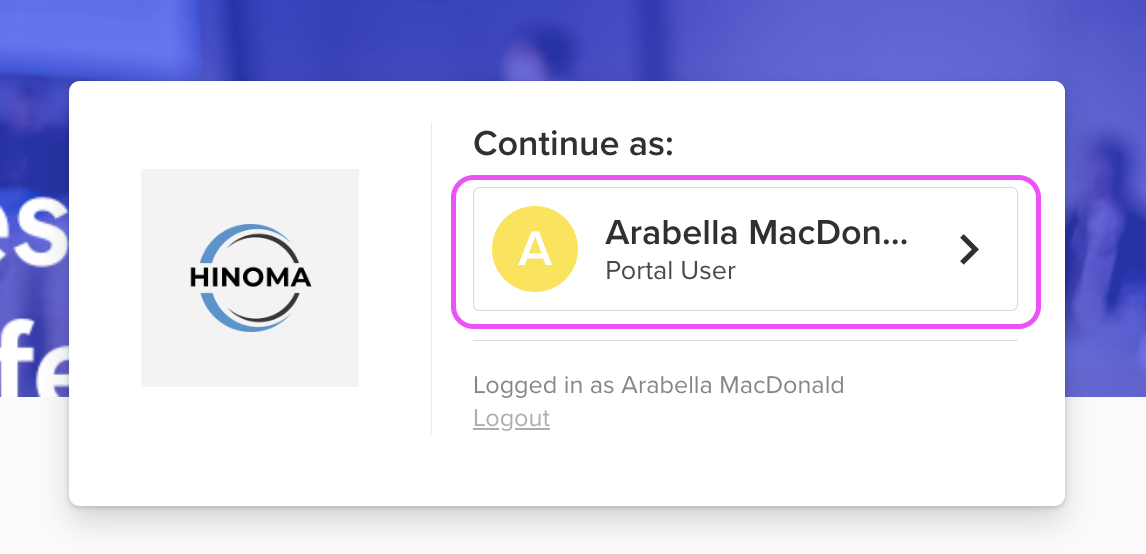
Error Message Accessing the Portal
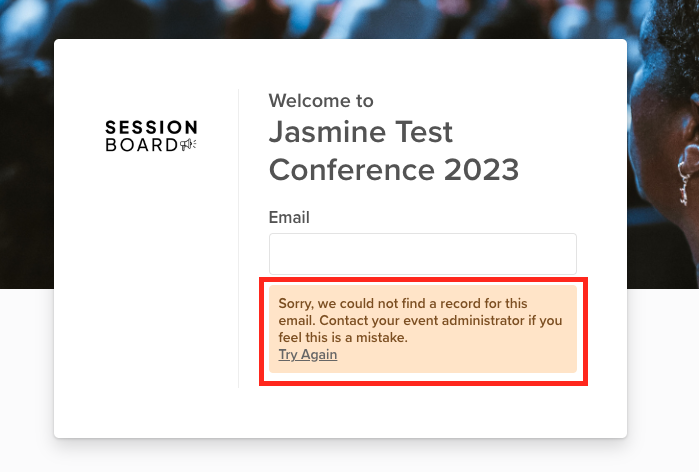
Section titled “Error Message Accessing the Portal”If you receive the below error message, then you are using the wrong email address to log into your portal.
Contact the event team to retrieve the email associated with your account.
Forgot Your Password?
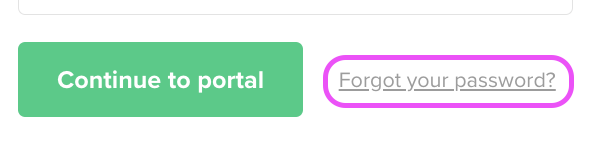
Section titled “Forgot Your Password?”If you forgot your password and need to reset it, select “Forgot your password?” at the bottom right-hand corner of the login box.
You will receive an email from no-reply@sessionboard.com with instructions to reset your password.
Frequently asked questions
Section titled “Frequently asked questions”What does my password need?
At least 8 characters, with at least 1 capital letter, 1 number and 1 special character, such as ! or #. The hints under the password box tell you which rule is still missing.
I was never asked to create a password
You already have a Sessionboard account with that email, perhaps from another event, so the password box reads Enter your password instead of Create your password. Type the password you used before, or select Forgot your password? to set a new one. If the page says Your account doesn’t have a password yet, select Create your password (or Email me a sign-in link) and follow the email.
My login works for one event but not another
Events can be hosted in different regions, such as the United States or Europe, and each region has its own address. Always start from the portal link the event team sent you for that event, not from a bookmark for another event.