Converting a session to a subsession
A session does not have to be created as a subsession to become one. If the sessions already exist — a poster session that was accepted as its own record, three talks that should sit inside one workshop — you can link them under a parent without rekeying anything. There are two ways in, depending on where you start.
To create a brand-new subsession instead, or to turn a batch of abstracts into subsessions, see Create a subsession. To undo a link, see Reverting a subsession back to a parent session.
From the parent session
Section titled “From the parent session”Use this when you know the parent and want to pick its subsessions.
Open the parent
Go to Program → Sessions and click the pencil on the session that will hold the others.
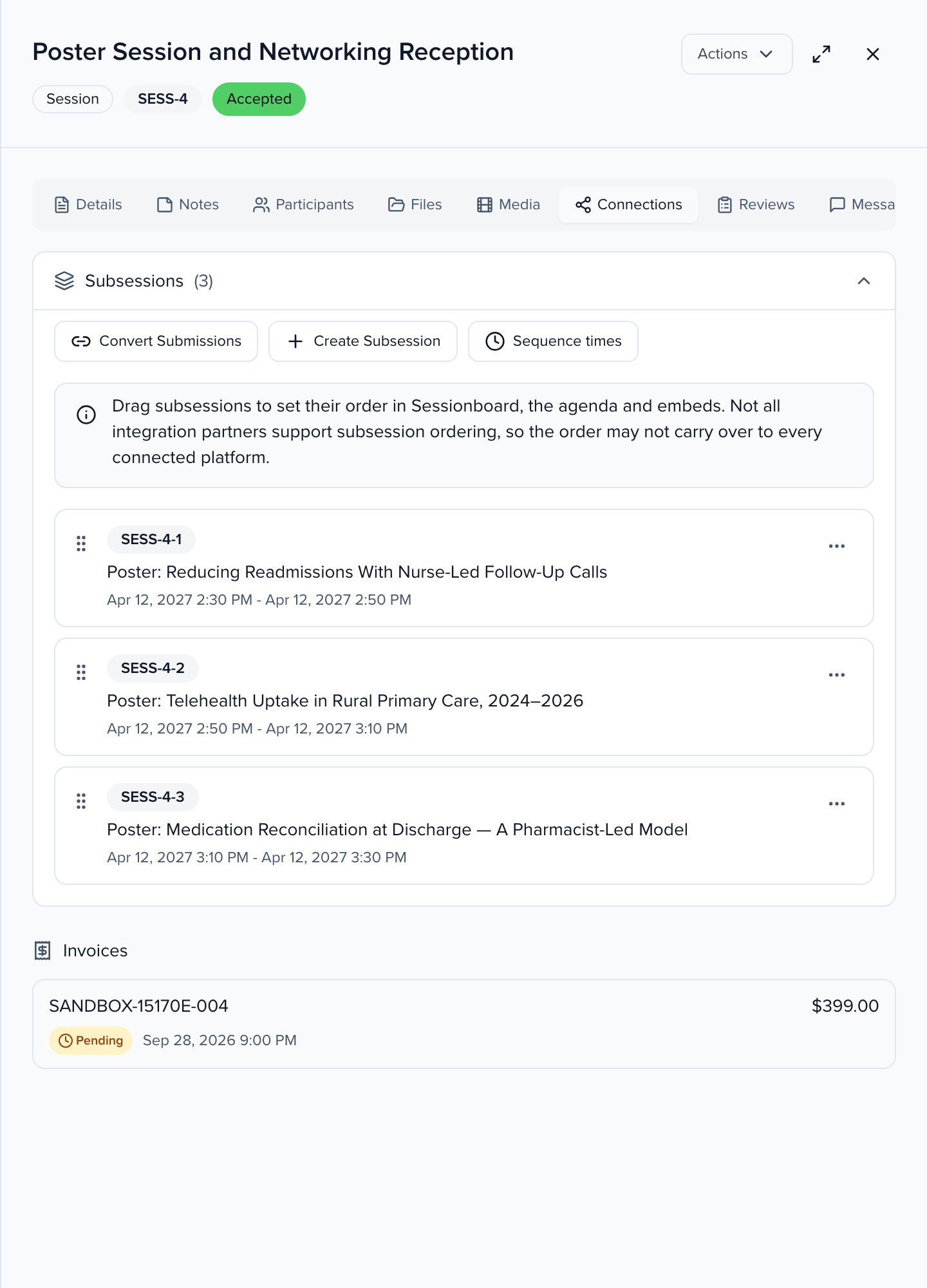
Connections → Convert Submissions
Select the Connections tab. In the Subsessions panel, click Convert Submissions.
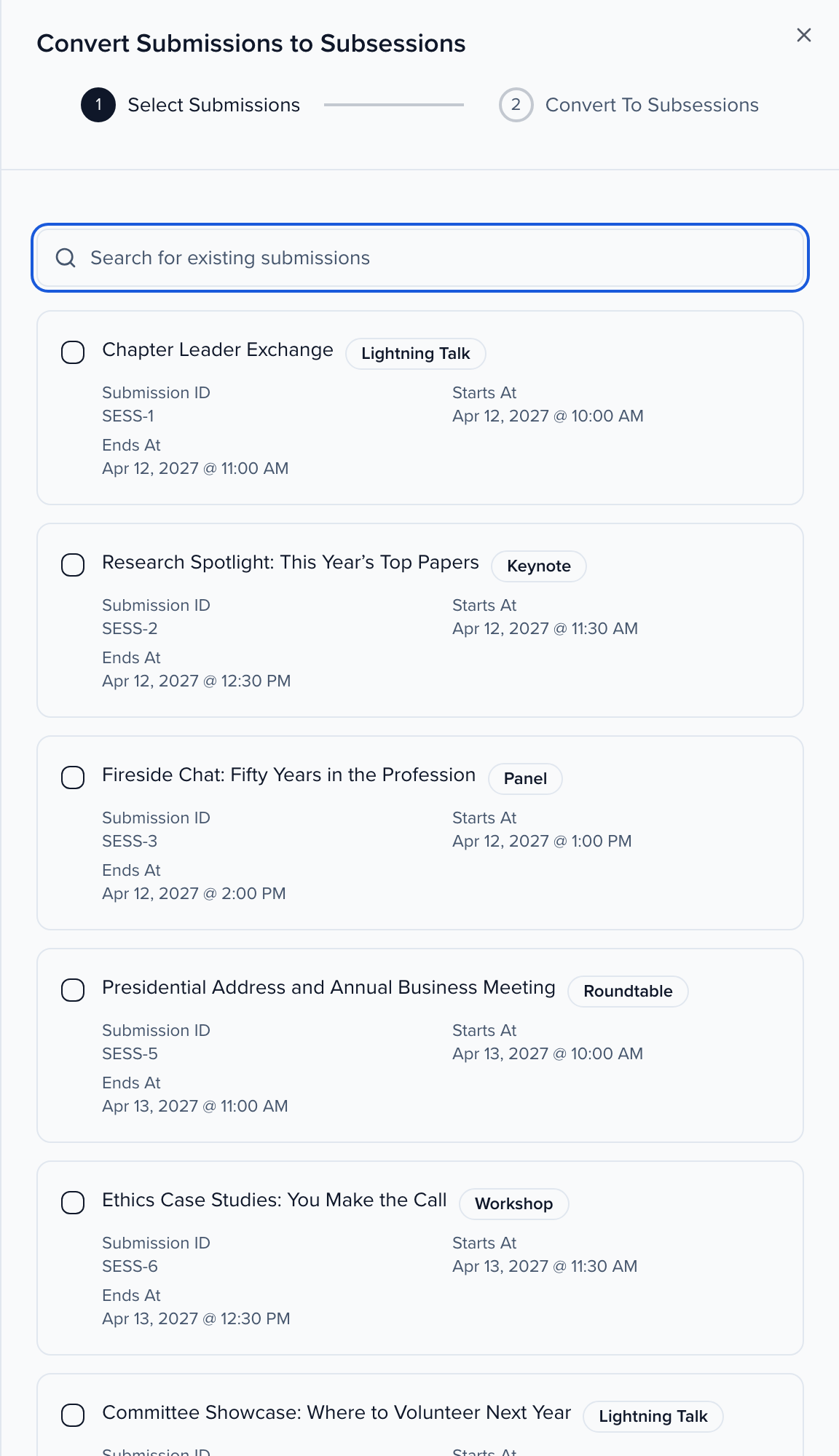
Select Submissions
The Convert Submissions to Subsessions panel lists every session on the event that can be linked, with its ID, format, and start and end. Search by title if the list is long, tick the sessions you want, and click Confirm.
Convert To Subsessions
The second step shows the Primary Session and the Submissions to convert. Click Convert Submissions to link them. Sessionboard confirms with Submissions converted, and the new subsessions appear in the parent’s list numbered after the parent’s ID — SESS-4-1, SESS-4-2, and so on.
From the Sessions list
Section titled “From the Sessions list”Use this when you have the sessions in front of you and want to send them to a parent.
- Go to Program → Sessions and select the sessions using the checkbox on each row.
- In the action bar, open More and, under Sessions, choose Assign to Parent Session.
- Search for the parent by title or ID and select it. The panel checks each selected session and tells you which Will be assigned and which Will be skipped — a session is skipped if it already has subsessions of its own, is already a subsession of another parent, or is the parent you chose.
- Click the Assign button — its label shows how many sessions will be assigned.
What happens when a session is converted
Section titled “What happens when a session is converted”- Dates. A subsession must start and end inside the parent’s time slot. If the session you convert already fits, it keeps its own times; if it does not — or has no times — it takes the parent’s start and end. Adjust it afterwards from the subsession’s Details tab, or use Sequence times on the parent to lay all subsessions out back to back (see Schedule subsessions back to back).
- Speakers roll up. The converted session’s participants are added to the parent as well, following Participants shown on the parent session in agenda settings: All adds its speakers, moderators and chairpersons, so the parent lists everyone in the room; Presenting author only adds just its primary speaker (or its first speaker when none is marked primary); None adds nobody, and the participants stay on the subsession only. Assign to Parent Session on the Sessions list follows the same setting.
- The ID changes. The session becomes
PARENT-nin the parent’s list and on the agenda, and keeps that number even if you reorder the subsessions later. - Position. A newly linked subsession lands at the end of the parent’s list. Drag it into place on the Connections tab — see Reorder subsessions.
- Limits. A parent can hold up to 500 subsessions, or the lower limit you set under session settings. When the parent is at its limit, Convert Submissions is disabled and its tooltip says so; from the list, the panel tells you how many slots remain before you assign.
Where the subsessions show up
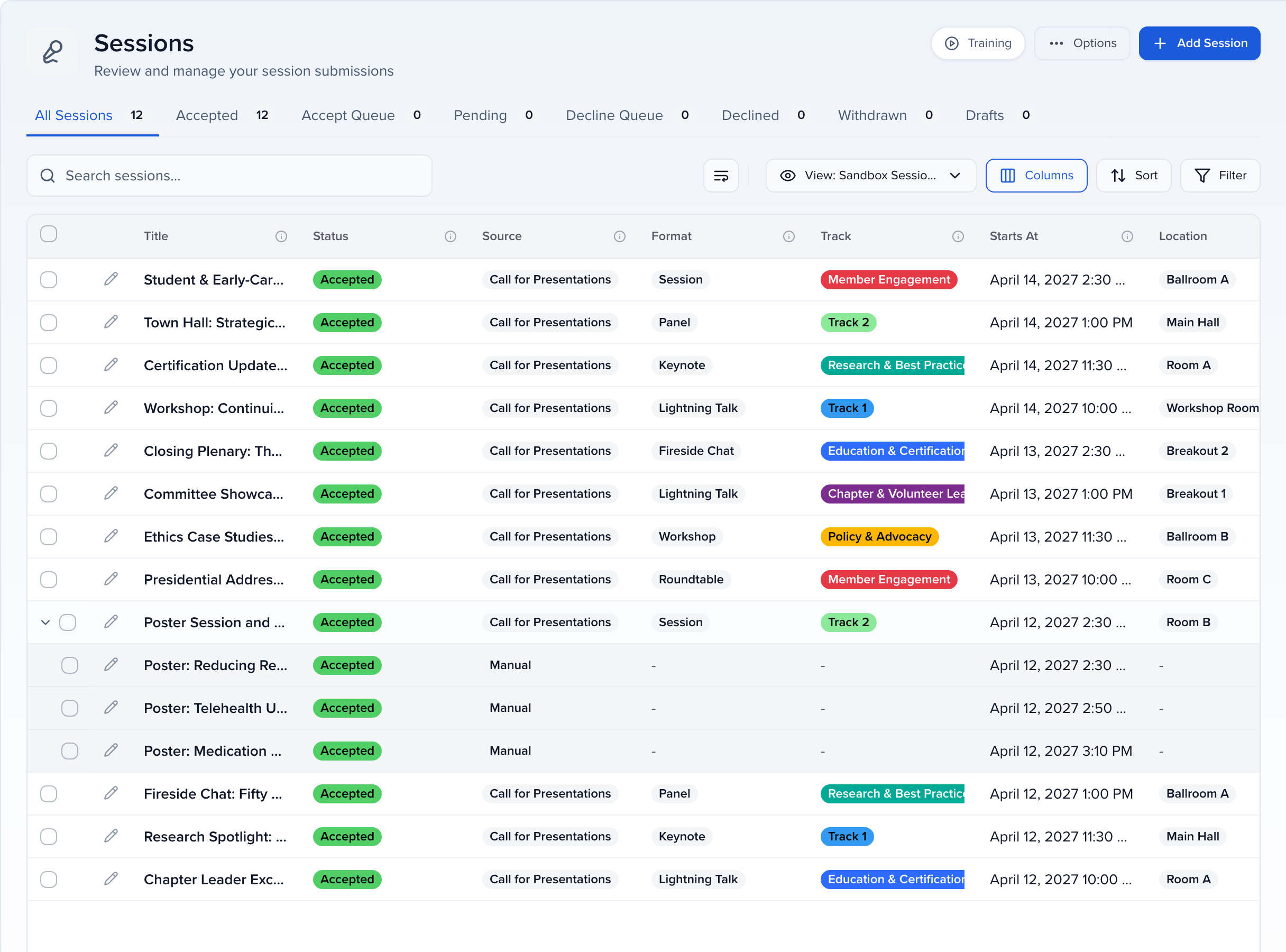
Section titled “Where the subsessions show up”On the Sessions list the parent gets an expand arrow, and its subsessions nest underneath it. They also appear on the agenda inside the parent’s block, in the agenda embed, and in the speaker portal — see Viewing subsessions within the agenda.