

Create a subsession
A parent session is the block on your agenda. A subsession is a segment inside it — three papers in one poster session, five talks in a lightning round, the individual presentations within a full-day workshop. Subsessions are grouped under the parent but have their own titles, speakers, times, and details, and a subsession speaker sees the parent and its other subsessions in their portal.
You can create subsessions from scratch, create them in bulk from submitted abstracts, or convert existing sessions into subsessions. A subsession can also be reverted to a parent session.
Why use it
Section titled “Why use it”Subsessions let a panel, a symposium or a poster block keep one slot on the agenda while each talk inside it has its own title, speakers and files. Filters, roles and exports treat the people on a subsession as part of the parent, so a track chair scoped to a track or language still sees everyone who presents in it.
Create a subsession
Section titled “Create a subsession”Open the parent session
Go to Program → Sessions and click the pencil on the session that will be the parent.
Connections
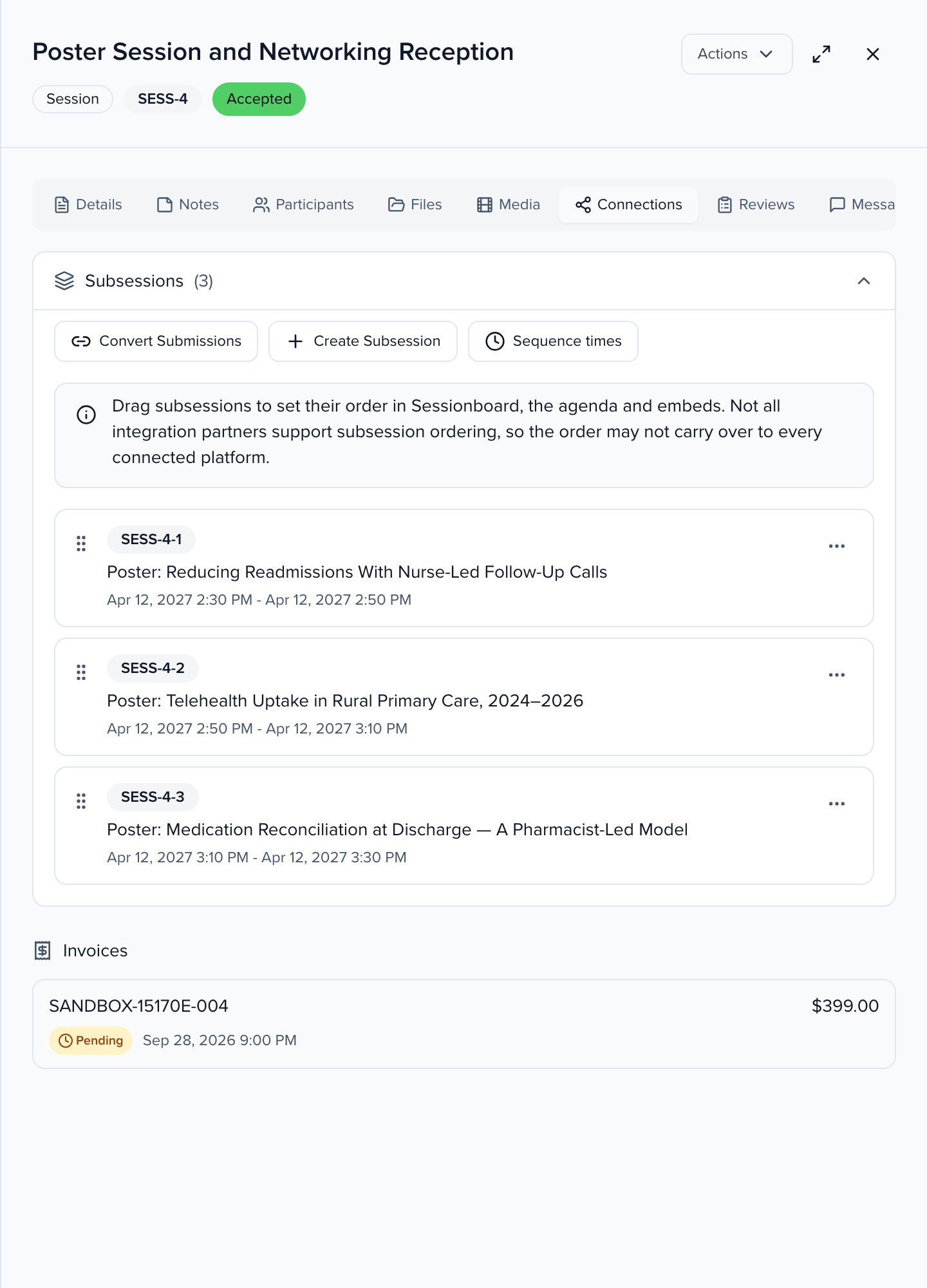
Select the Connections tab. The Subsessions panel lists any existing subsessions, with Convert Submissions and Create Subsession at the top.
Create Subsession
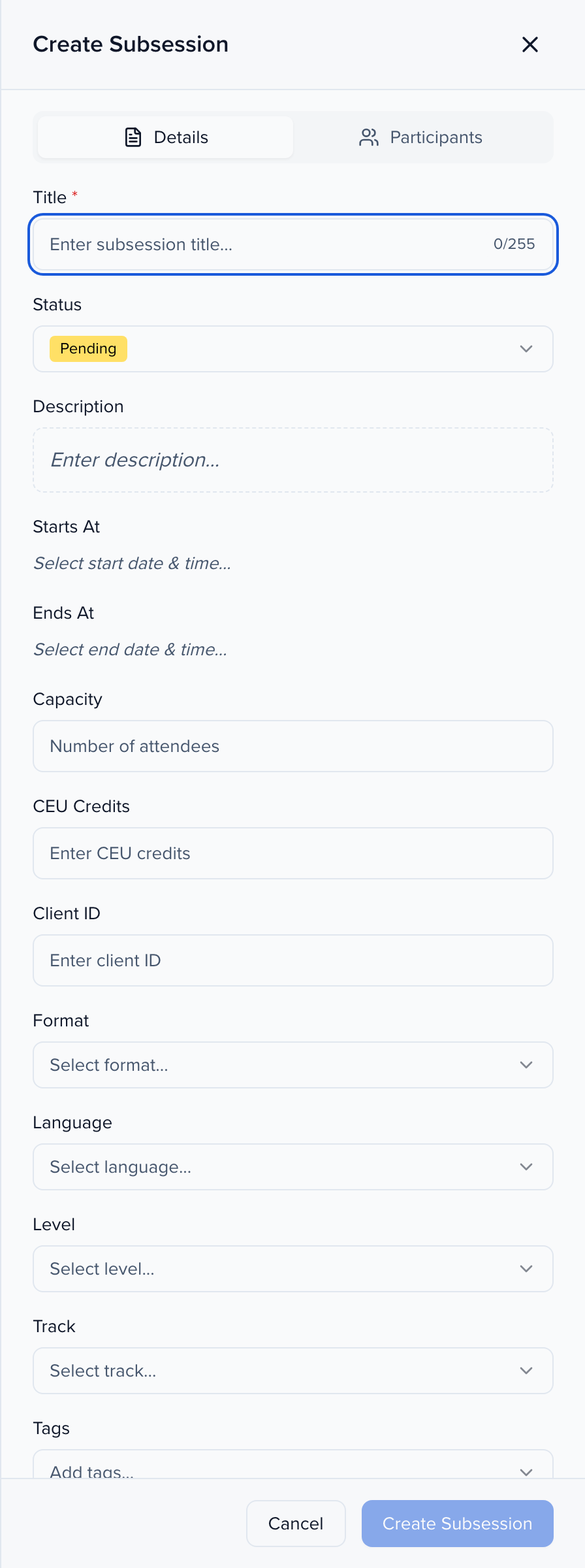
Click Create Subsession. The panel has the same Details and Participants tabs as a new session — title, status, description, start and end, format, track, and speakers.
Save
Click Create Subsession at the bottom of the panel.
Two rules apply:
- The subsession’s date and time must fall within the parent session’s date and time.
- Speakers on the parent and its subsessions are linked. Add a speaker to a subsession and they are added to the parent too — following Participants shown on the parent session in agenda settings — so the parent always knows who is in the room.
Create subsessions from abstracts
Section titled “Create subsessions from abstracts”If you collect abstracts through a call for papers, you can turn a batch of them into subsessions in one step instead of rekeying each one.
- Go to Program → Abstracts and select the abstracts using the checkbox on each row.
- In the action bar, click More and, under Abstracts, choose Create a subsession.
- Under Parent session, choose where the subsessions should live: Create a new parent session (enter a title and Sessionboard creates it) or Add to an existing session (search and select the parent). Click Continue.
- Check the preview and click Confirm. Each selected abstract becomes its own subsession under that parent, inheriting the abstract’s title, description, track, format, level, and language, and taking the parent’s date and time.
Collect and review abstracts covers how abstracts are collected and reviewed before this step.
A few things to know about this flow:
- The abstract is not consumed. Each abstract stays in your Abstracts list, marked with a Linked badge, and remains fully editable — including its presenters. Open it any time to make corrections.
- Participants roll up. Speakers on each abstract are added to the new subsession. Which of them also appear on the parent follows Participants shown on the parent session in the side panel, which starts on the event’s agenda setting: all participants, the presenting author only, or none.
- Linked abstracts cannot be deleted, withdrawn, or duplicated while the link exists, so the subsession never points at a missing record. Remove the link from the abstract’s Connections tab first. If you try to delete a linked abstract, the delete fails with a message saying why.
- If your selection would push the parent past its subsession limit, Sessionboard tells you before creating anything — nothing is created partially.
To combine several abstracts into a single abstract instead, use Merge into one abstract in the same menu.
Reorder subsessions
Section titled “Reorder subsessions”By default subsessions are listed in the order they were created, with start time as the tie-break. To set your own order, open the parent’s Connections tab and drag a subsession by the grip handle on its left edge (the handle appears once there is more than one subsession). Sessionboard saves the new order immediately and confirms with Subsession order saved; if the save fails, the previous order is restored.
The list can be reordered with the keyboard, too: Tab to the handle, press Space or Enter to pick the subsession up, move it with the arrow keys, and press Space or Enter again to drop it (Escape cancels).
- Display IDs do not change. A subsession keeps its number and its ID whatever position you drag it to, so references in exports and emails stay valid.
- The agenda and embeds follow the admin order. The parent’s pop-out in the agenda, the Agenda embed, and the session detail view list subsessions in the order you set.
- New subsessions land at the end. A subsession created or linked after you reordered has no position yet, so it is listed after the ordered ones, by start time. Drag it into place to include it. Unlinking a subsession, or moving it to another parent, clears its position.
- Integration partners receive the order. Subsessions read through Sessionboard’s public API include their position and come back in the same order.
Schedule subsessions back to back
Section titled “Schedule subsessions back to back”Instead of setting each subsession’s time by hand, you can schedule them in sequence.
- Open the parent’s Connections tab and click Sequence times.
- Set First subsession starts (…) — shown in the event’s time zone —, a Default duration (minutes), and an optional Gap between subsessions (minutes). Under Duration by session type (minutes), give a type its own length; leave it blank to use the default.
- Reorder the subsessions if needed, then click Preview to see each one’s start and end time.
- Click Apply.
The parent session’s times are not changed. If the last subsession would end after the parent ends, the preview warns you before you apply.
Many parent sessions at once
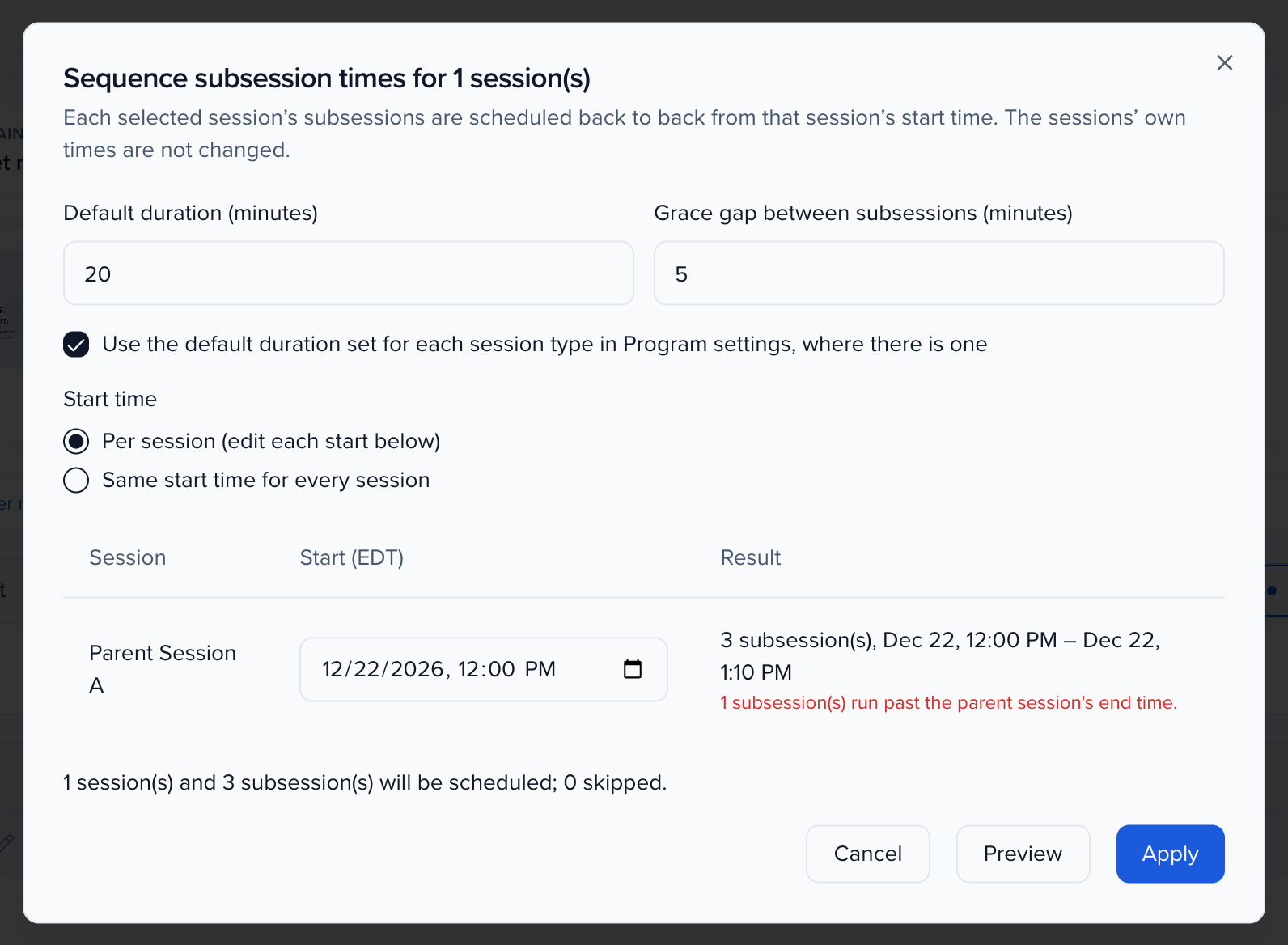
Section titled “Many parent sessions at once”To schedule the subsessions of several parents in one go, select the parents in the Sessions list or Agenda → List and choose More → Sequence subsession times…. Set a Default duration (minutes) and a Grace gap between subsessions (minutes) (or use the default duration set for each session type in Program settings), and a Start time — Per session, starting from each parent’s own start, or Same start time for every session. Session types you tick under Exclude session types are skipped (a type named Forum is excluded by default). The preview lists every parent with its subsessions’ times, and any it will skip and why: no subsessions, no start time, an excluded type, or a selection that is itself a subsession. Click Apply; parent times are never changed. You need permission to update sessions.
Common questions
Section titled “Common questions”Can I email subsession speakers only? Yes. In Sessions, select the parent sessions — or every session matching a filter — and click Send Emails. Set Sessions to include to Subsessions only, or to Selected sessions and their subsessions to reach the parents’ people as well, then choose the role under Who should receive this email?. Each speaker’s email carries their own subsession’s merge tags. See create & send emails.
Can I add a moderator, chairperson, sponsor, or exhibitor to a subsession? No — those roles belong to the parent session.
Are subsessions shown in embeds and the portal? Yes. The agenda embed and the session detail view list a parent’s subsessions in the admin order, and a subsession speaker sees the parent and its other subsessions in their portal — see viewing subsessions within the agenda.
Do subsessions sync to integrations? It depends on the app. Cvent has a Sync Subsessions to Session Programs setting; see Cvent and the article for your app under Apps. Subsessions are always available through Sessionboard’s public API, including their order.