

Collect and review abstracts
An abstract is a short proposal — a paper, a poster, a case study — that you review before the program takes shape. A session is a full proposal with program details: format, length, the slot it needs. Both are records in your program and share the same editor, statuses, evaluation plans, and emails. The difference is what the submission form asks for and where the record lands afterwards, and it is what lets a scientific or research program accept two hundred abstracts first and decide how to group them into sessions later.
Video transcript
Program, Abstracts. If you run a scientific or research program, this is where the call for papers lands. An abstract is a short proposal, a paper, a poster, a case study, that you review before the program takes shape. A session is a full proposal with program details: format, length, the slot it needs. Both are records in your program, with the same editor, the same statuses, the same emails. The difference is what the form asks for, and what happens after you say yes.
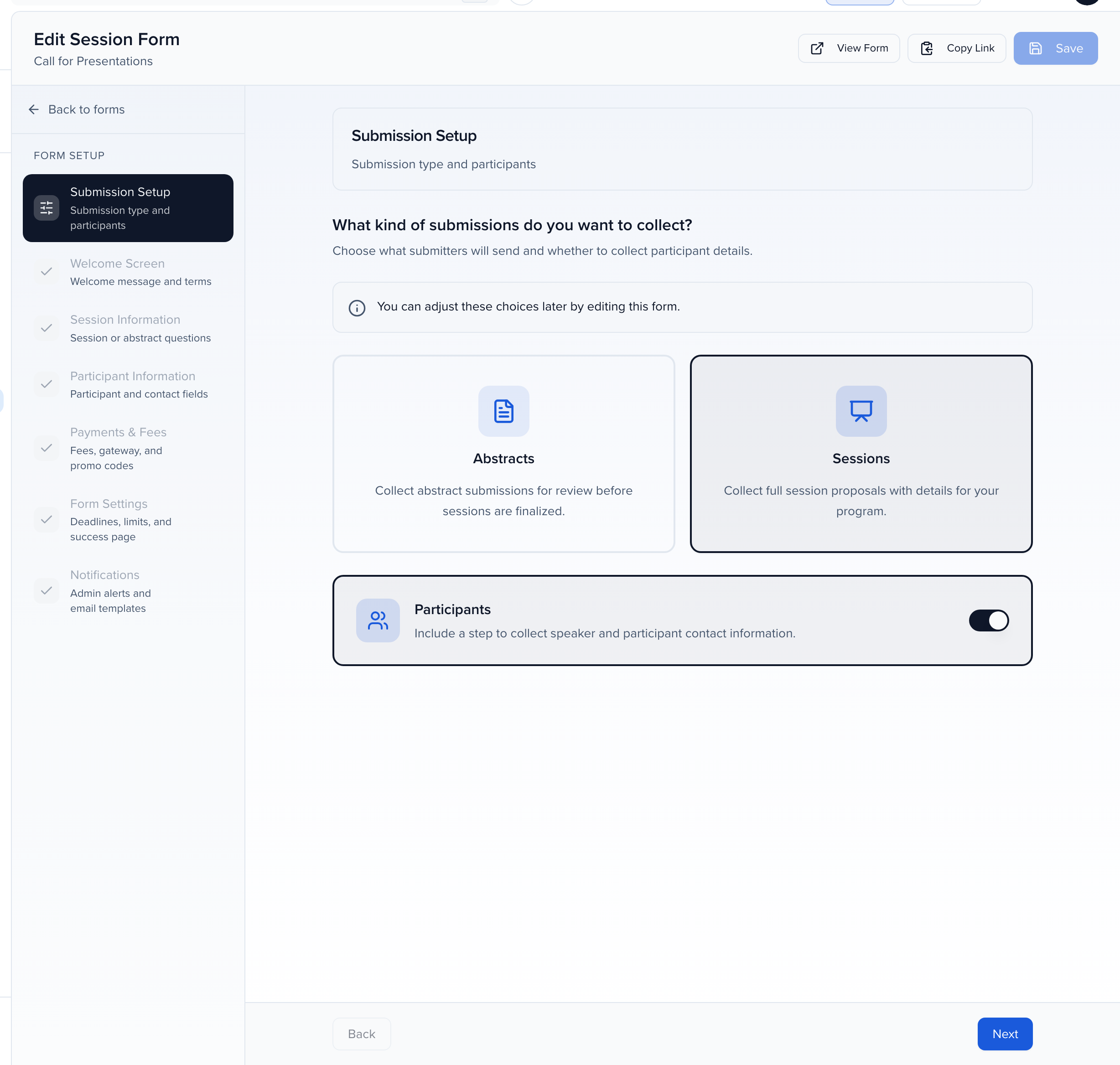
What a form collects is decided on its opening screen. Program, Forms, and this event runs two: a call for presentations, and a call for abstracts and posters. Open the abstracts one. Submission Setup asks, what kind of submissions do you want to collect? Abstracts, for review before sessions are finalized. Or Sessions, full proposals with details for your program. Everything submitted through a form set to Abstracts is an abstract. The Participants switch adds a step for author and presenter details. Leave it on unless you already know the submitters.
On an abstracts form, the questions step is called Abstract Information. Put the abstract text here with a word limit, the track, the presentation preference. Keep headshots, full bios and disclosures for portal tasks after acceptance, when the author has a reason to finish them. Everything else in the builder, the welcome screen, fees, deadlines, notifications, works the same as any submission form, and you can change the choice later by editing the form.
Back to the list. The tabs are the five status categories with a count on each: All Abstracts, Accepted, Accept Queue, Pending, Decline Queue, Declined, and then Withdrawn and Drafts. Six abstracts here, five still Pending. The Source column shows which form each one came through. Add Abstract keys one in by hand, for an invited paper or one that arrived by email. And in the navigation, View All shows abstracts and sessions together, while Sessions shows sessions only.
Reviewing an abstract is reviewing a submission. The pencil opens it in the side panel, labelled Abstract next to its ID. Details has every answer. Participants has the presenting author. Reviews is where an evaluation plan puts its scores. The status button moves it between the queues, and submitters see Accept Queue and Decline Queue as Pending until you move it on. To write to the authors, select rows and use Send Emails from the action bar.
Here is the part that makes abstracts worth collecting separately. Once they are accepted, you group them: these two readmissions studies belong in one session. Select them. In the action bar, More, and under Abstracts, Create a subsession. Each abstract becomes its own subsession under one parent session. Under Parent session, either Create a new parent session and type a title, or Add to an existing session. Continue.
The preview lists the subsessions about to be created, one per abstract. Participants shown on the parent session starts from the event’s agenda setting: all participants, the presenting author only, or none. Confirm. Two subsessions, one new parent, and nothing was rekeyed.
The abstracts are still here, and that matters. Each one now carries a Linked badge. It stays editable, including its presenters, and its Connections tab points at the subsession it created. While the link exists the abstract cannot be deleted, withdrawn or duplicated, so the subsession never points at a missing record. Unlink from Connections if you change your mind. And when two groups submit the same study, Merge into one abstract in the same menu combines them, with the sources kept and linked.
Program Settings, Agenda. Agenda content decides what the agenda shows: sessions only, abstracts only, or both. Most teams schedule the parent sessions and leave this on Sessions, so the subsessions appear under their parent. A poster program might schedule accepted abstracts directly, and that is what Both is for.
What the author sees. View Portal, View portal as, and pick a submitter. My Submissions keeps abstracts on their own tab, separate from sessions, with the status of each. Speaker acceptance applies to sessions, not abstracts, so an author is not asked to confirm a paper that is still under review.
So: a form set to Abstracts, the queues to decide, Create a subsession to build the program from what you accepted, and Agenda content to choose what the agenda shows. The parent sessions you just made now need rooms and times, and that is the Sessions, scheduling and the agenda chapter.
Why use it
Section titled “Why use it”Abstracts let a call for papers collect short research summaries and run the whole review on them, separately from the sessions on your program. Once the committee has decided, each accepted abstract can go where it belongs: onto the agenda as it is, into a larger session as a subsession, or into a standalone session of its own. The reviews, files and author order stay with it, so nobody has to re-enter what the submitter already gave you.
Abstracts and sessions
Section titled “Abstracts and sessions”| Abstract | Session | |
|---|---|---|
| Collected by | A submission form whose Submission Setup is set to Abstracts | A submission form set to Sessions, or Add Session by hand |
| Listed under | Program → Abstracts (and Program → View All) | Program → Sessions (and Program → View All) |
| Typical content | Title, abstract text, track, authors | Title, description, format, track, level, speakers, times |
| After acceptance | Scheduled on the agenda as is, converted into a standalone session, or grouped into a session as subsessions | Scheduled on the agenda |
Every record opens in the same side panel. An abstract is labelled Abstract next to its ID in the panel header, so you always know which kind you are looking at.
Collect abstracts with a submission form
Section titled “Collect abstracts with a submission form”What a form collects is decided on its first step.
Open the form
Go to Program → Forms, open the three dots on the form, and click Edit. Each event starts with one form, and you can run several — a call for abstracts and a call for sessions, say — each with its own questions, deadline, and notifications.
Submission Setup
Under What kind of submissions do you want to collect?, choose Abstracts (“Collect abstract submissions for review before sessions are finalized.”) or Sessions (“Collect full session proposals with details for your program.”). Everything submitted through a form set to Abstracts is an abstract.
Participants
Leave the Participants switch on to include a step that collects author and presenter contact details. Turn it off when you already know the submitters and only want the abstract itself.
Questions
The next step is named Abstract Information on an abstracts form. Add the fields a reviewer needs — the abstract text with a word limit, the track, the presentation preference — and leave headshots, full bios, and disclosures for portal tasks after acceptance.
The rest of the builder — welcome screen, participant fields, fees, deadlines, notifications — works the same as any submission form. You can change the choice later by editing the form.
The Abstracts list
Section titled “The Abstracts list”Program → Abstracts lists every abstract in the event, with Add Abstract to key one in by hand — for an invited paper, or one that arrived by email. The tabs across the top are the five status categories with a count on each: All Abstracts, Accepted, Accept Queue, Pending, Decline Queue, Declined, plus Withdrawn and Drafts.
The list is a table view like the Sessions list. The Source column shows which form each abstract came through, and you can add any question from the form as a column, then sort, filter, and save the view — see dashboard views. The pencil on a row opens the abstract in the side panel, with the same Details, Participants, Files, Reviews, and Connections tabs a session has.
Program → View All shows abstracts and sessions together in one list; Program → Sessions shows sessions only.
Review abstracts
Section titled “Review abstracts”Reviewing an abstract is reviewing a submission:
- Status. Click the status on a row to move it, or select several and use Edit in the action bar to change Status in bulk. Queues let the committee sort as it goes; submitters see Accept Queue and Decline Queue as Pending until you move the abstract on. See accept or decline submissions.
- Scores. An evaluation plan can score the abstracts from a form against your criteria, and the results land on each abstract’s Reviews tab.
- Email. Select abstracts and click Send Emails to write to their authors from the list, using the built-in Accept and Decline templates when decisions are final.
Create subsessions from abstracts
Section titled “Create subsessions from abstracts”Once abstracts are accepted, the usual next step is to group them: five posters in one poster session, four papers in one symposium. Create a subsession does this in one step, keeping each abstract intact.
Select the abstracts
In Program → Abstracts, tick the abstracts that belong together. The action bar shows how many are selected.
Create a subsession
Click More in the action bar. Under Abstracts, choose Create a subsession — “Each abstract becomes its own subsession under one parent session”. From an open abstract, the same action is under Actions in the panel header.
Choose the parent
Under Parent session, either Create a new parent session and type its title, or Add to an existing session and search for the parent. Click Continue.
Confirm
The preview lists the subsessions that will be created and shows Participants shown on the parent session, which starts from the event’s agenda setting — all participants, the presenting author only, or none. Click Confirm.
Each abstract becomes its own subsession under the parent, taking its title, description, track, format, level, and language. The abstract itself is not consumed: it stays in the Abstracts list with a Linked badge, remains editable, and its Connections tab points at the subsession it created. A linked abstract cannot be deleted, withdrawn, or duplicated while the link exists — unlink it from Connections first. The full rules, including subsession limits and reordering, are in create a subsession.
To combine several abstracts into a single abstract instead — two groups who submitted the same study, say — choose Merge into one abstract in the same menu. The sources stay linked to the merged record and remain editable.
Can I attach an abstract to a session I created by hand? Yes — that is the Add to an existing session choice above. Select the abstract in Program → Abstracts, choose More → Abstracts → Create a subsession, search for the session you built, and confirm. The abstract becomes a subsession of it and stays in the Abstracts list with a Linked badge. It does not have to become a subsession, though: an accepted abstract can be scheduled on the agenda as it is when Agenda content includes abstracts (below), with no parent session at all, or turned into a standalone session with Convert to session.
Convert an abstract into a session
Section titled “Convert an abstract into a session”Sometimes an accepted abstract should simply become a session of its own — one abstract, one talk — rather than a subsession inside a larger block. Convert to session does that without nesting anything.
Select the abstracts
In Program → Abstracts, tick one or more accepted abstracts. Abstracts that already carry a Linked badge can’t be converted again.
Convert to session
Click More in the action bar and, under Abstracts, choose Convert to session — “Each abstract becomes its own standalone session”. From an open abstract, the same action is under Actions in the panel header.
Choose how to convert
Pick one of the two options, then click Convert:
- This abstract becomes a session — the same record is reclassified as a session. Everything on it stays where it is: field values, participants and their roles and order, tags, files, status, history, and its evaluation scores, comments and decisions. It leaves the Abstracts list and appears under Sessions, and resubmitting it through its form keeps it a session.
- Keep the abstract and create a linked session — a new standalone session is created from the abstract, with the same participants in the same order and roles, tags and files. The abstract stays in the Abstracts list with its evaluation, carries a Linked badge, and its Connections tab points at the new session. The new session keeps the abstract’s status.
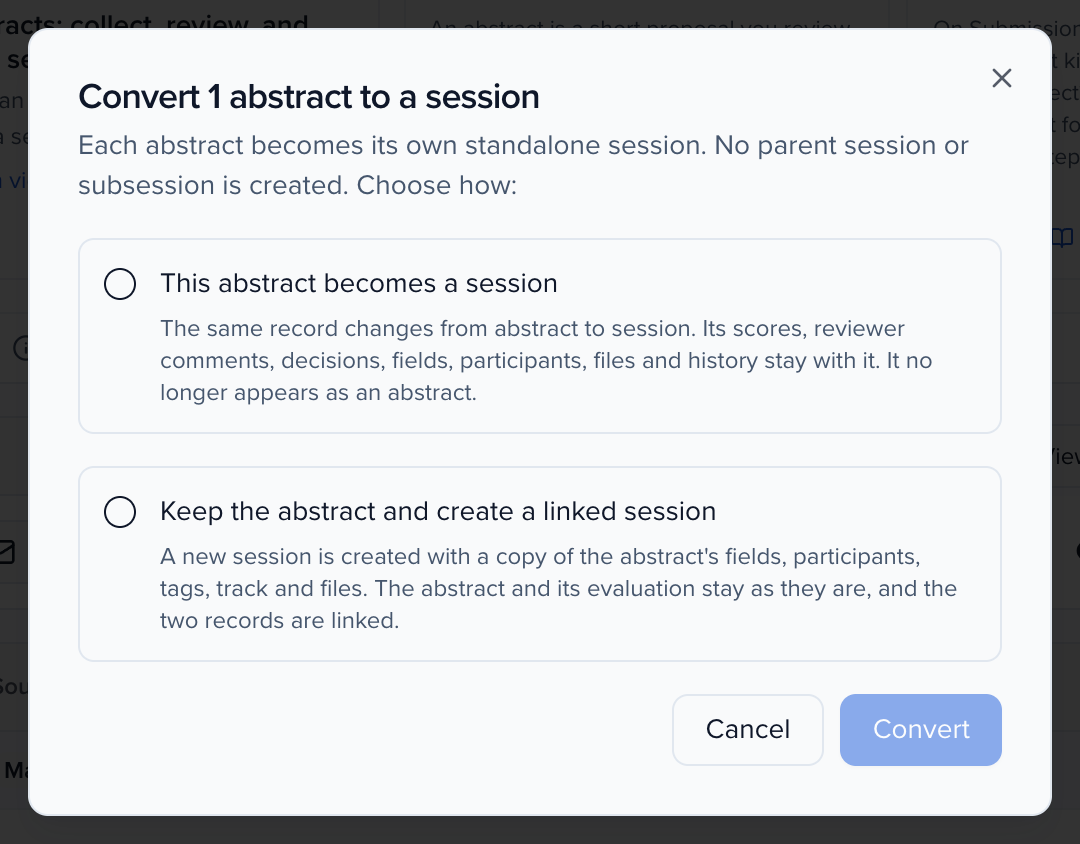
Neither option creates a parent session or a subsession. Converting needs permission to update sessions, and a role limited by session filters can only convert abstracts that match its filters.
Where abstracts show
Section titled “Where abstracts show”- Agenda. Program settings → Agenda has an Agenda content setting: Sessions (non-abstract program items), Abstracts, or Both sessions and abstracts. Accepted abstracts are scheduled like any other program item when the setting includes them. Subsessions created from abstracts appear under their parent session.
- Portals. My Participation in the portal lists a submitter’s abstracts in their own groups (Pending, Declined, Accepted Abstracts), separate from sessions, and the Abstracts chip shows only abstracts. Participant acceptance asks for confirmation on sessions; to ask the participants on accepted abstracts too, turn on Enable Participant Acceptance for Abstracts in Record Settings. A presenter on a subsession sees the parent session and its other subsessions — see viewing subsessions within the agenda.
- Exports. Options at the top of the Abstracts list has Export .CSV, Export .XLSX, and Download files bundle… for the abstracts in the current view, plus Import Sessions and Copy from another event… to bring abstracts in — see copy sessions from another event.