

Get around with the Ask page guide
Ask is the guide to every part of Sessionboard. Open it from the top bar and it reads the page you are on before you type anything: what the page is called, what your event already has configured there, and where to go next. Every answer is grounded in your event’s own data, not a generic description of the product. This is the assistant for your team.
Video transcript
Team Lead. Every screen in Sessionboard has a guide standing next to it, and this is how you open it. Ask, in the top bar, on any page. It slides in on the right and stays there while you work, so you never leave the screen you had a question about.
Before you type anything it reads where you are. The guide names the page the way the sidebar does, the event you’re in, and what’s already configured here, real counts from your event. Then the questions worth asking about this page. Walk me through it. What’s already set up here. What should I set up next. And read the Help Center for this page, which jumps to the matching article. Under that, the neighbouring pages your event already has, only what you can open today, never features to turn on.
Or just ask. Type a question in your own words, which sessions still don’t have a room, who hasn’t accepted their speaker agreement, and the answer comes from your event’s own records, not a description of what the page usually does. It calls pages what the sidebar calls them, and when your event doesn’t have something, it says so plainly and points you to your account manager. The microphone is the same conversation out loud, handy when your hands are on a spreadsheet.
It follows you. Move to another page mid-conversation and a card marks the change in the transcript, so the answers that follow are about the new page. New conversation at the top clears the thread and re-reads wherever you’re standing.
There’s no separate place for making things. Ask for what you want in the conversation, a report on review completion by reviewer, a LinkedIn post for one of your sessions, and Team Lead drafts it right there. Anything that would change your event comes back as a card to approve or reject first.
Learn is the Help Center, filtered to this page. Read is the articles, searchable, with the video tutorials and standard field lists alongside. So when read the Help Center for this page is the prompt you pick, this is where you land.
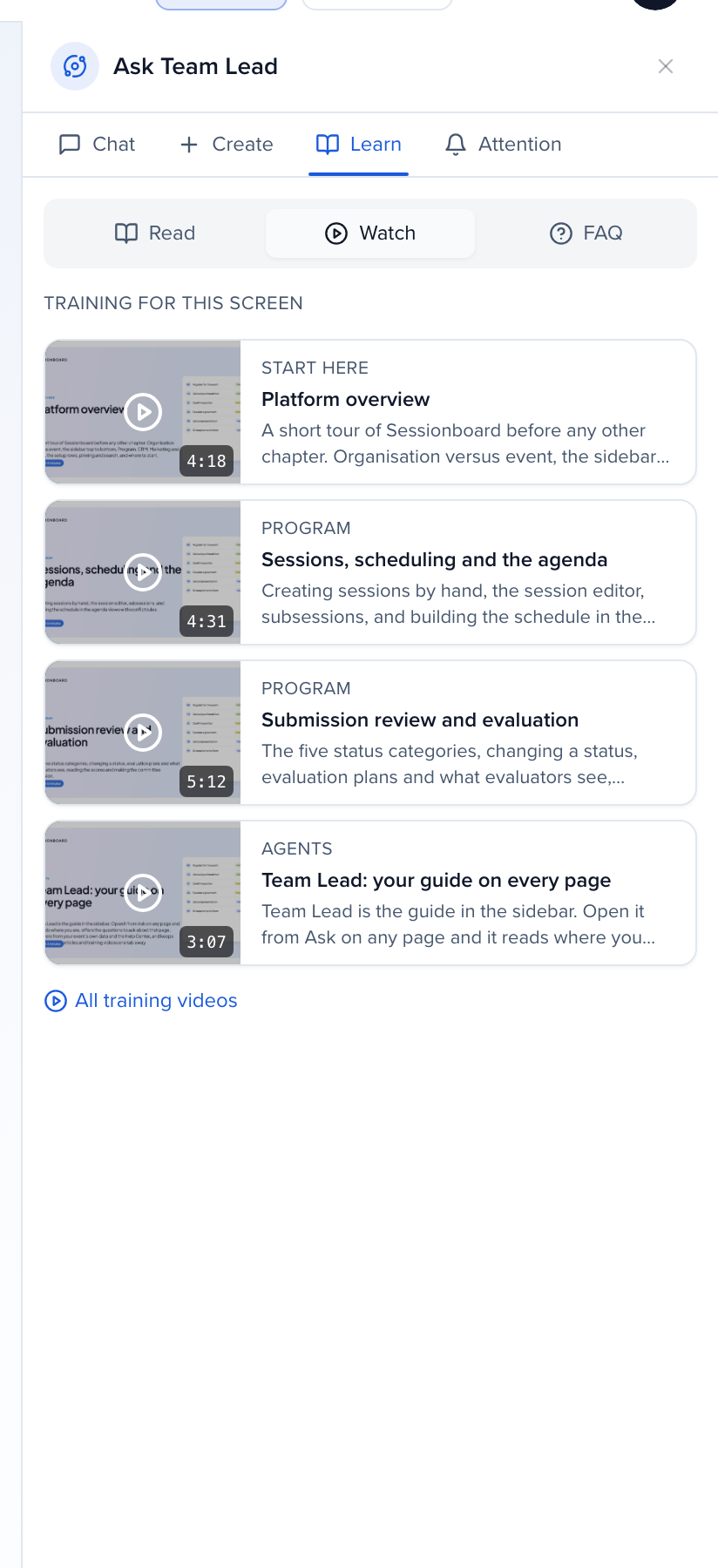
Watch is the training videos for this page, the same ones as Training in the sidebar. On Sessions that’s the platform overview, sessions and the agenda, and review and evaluation, with their running times, and all training videos takes you to the full set.
F A Q collects the questions for this screen, and until there are some, it hands you back to Team Lead. Attention is the one tab that comes to you, anything an agent needs a decision on, a review to approve, a draft to look at. Whatever needs you now sits at the top, and the rest waits underneath.
If you take one thing from this, it’s the habit. Stuck on a page, press Ask before you open a ticket. The Help Center article on the Team Lead page guide has the detail. The Platform overview video is the tour of everything Team Lead can point you to, and every other video in this set is one tab away under Watch.
Why use it
Section titled “Why use it”Ask answers “where is this and what do I do here?” without a support ticket. It knows which page you are on, what is already set up in your event, and which Help Center articles and training videos cover it — on busy list pages like Contacts, Send and Reports too — so you get an answer grounded in your own event in the moment you need it.
The page guide
Section titled “The page guide”When you open Ask with no conversation running, the Chat tab shows a guide for the current page.
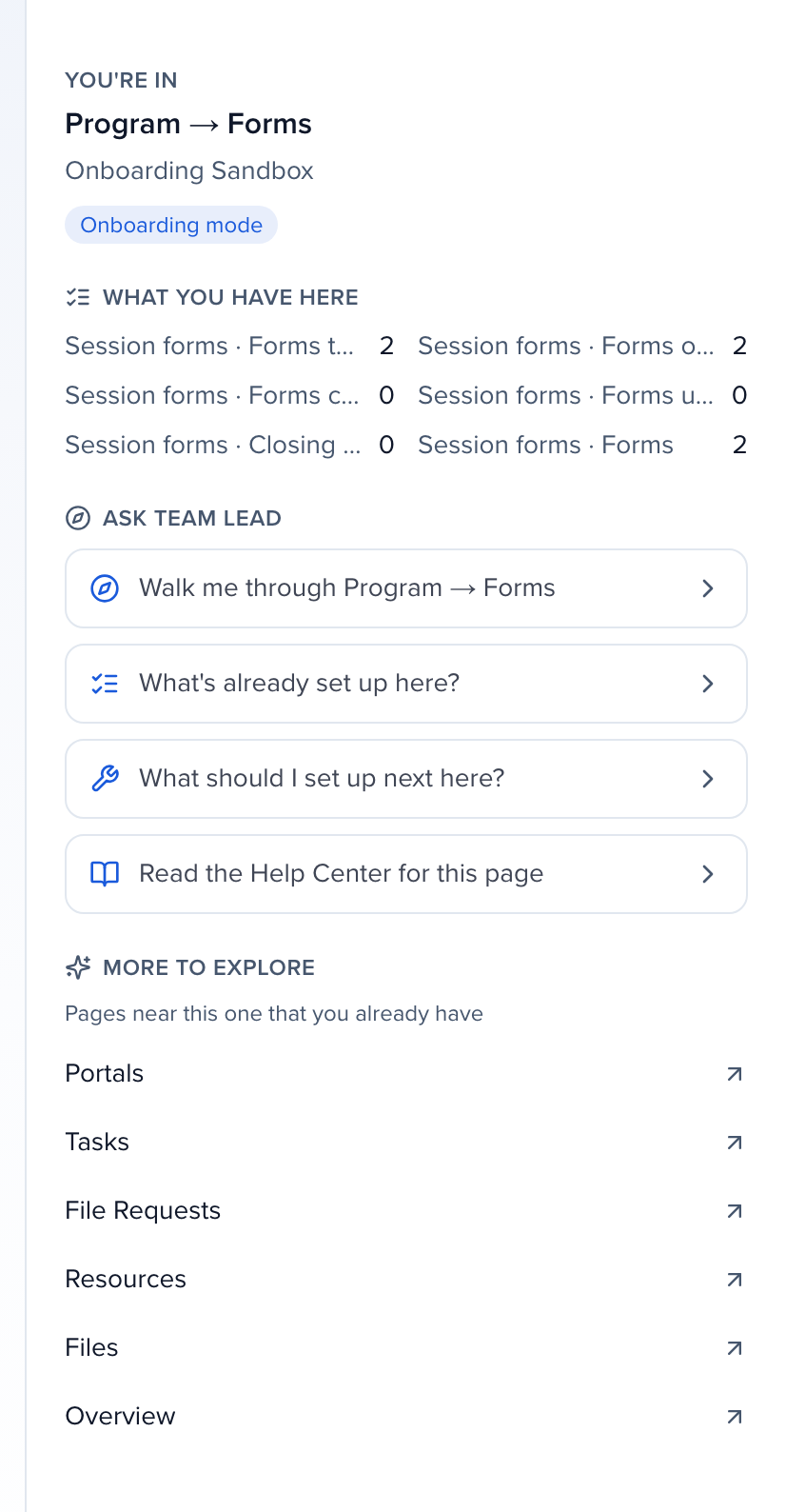
- You’re in — the page’s name as it appears in the sidebar (for example Program → Forms), the event you are working in, and a badge when the organization is in onboarding mode, a sandbox, or a trial.
- What you have here — counts and settings already configured on this page: how many forms are open, how many have notifications or closing dates, and so on. When nothing is configured yet, the card says so rather than showing an empty list. List pages summarize what is on them too: Contacts (contacts by record type and how many have a portal login), Applications (forms open and closed, submissions), Send campaigns (by status, with automations counted separately), Reports (custom reports, saved queries, scheduled reports), and Sponsors and Exhibitors (by tier, and how many have a logo, website, contacts or sessions). These summaries are counts only — no names, email addresses, subjects or message bodies. On a page the guide cannot summarize yet, the card reads “I can’t summarise this page’s settings yet — ask and I’ll look.”
- Next — the next open setup step for this event, with how many are done, when there is one. Click it to get help with that step in the conversation.
- Ask — prompts that start a conversation about this page: Walk me through …, What’s already set up here?, and What should I set up next here?. Read the Help Center for this page opens the Learn tab on the matching article.
- More to explore — pages near this one that your event already has, from the same part of the sidebar. Each one is a link. The guide only lists pages you can open today; it never lists features that are not turned on for your event.
Moving between pages
Section titled “Moving between pages”Ask follows you. When you change pages during a conversation, a card marks the change in the transcript so the answers that follow are about the new page.
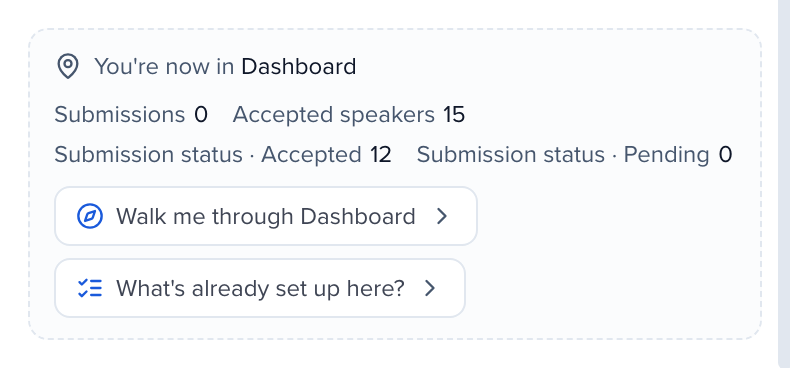
The card shows the new page’s name, its configured counts, and the same Walk me through … and What’s already set up here? prompts as the guide. Ask a question with no page named and the answer is about the page you are on now.
Starting over
Section titled “Starting over”Click New conversation at the top of the panel to clear the transcript. Ask re-reads the current page and shows its guide again.
The panel’s tabs
Section titled “The panel’s tabs”The guide and the conversation live on the Chat tab. Two more tabs sit beside it:
- Learn — the Help Center, filtered to the page you are on. Read lists the matching articles and is searchable; Watch lists the training videos for this page, the same ones as Training in the sidebar, with their running times; FAQ collects the questions for this screen. When a page has no video or FAQ yet, the tab offers to ask in the conversation instead. Read the Help Center for this page on the guide card lands here.
- Attention — anything an agent needs a decision on: a review to approve, a draft to look at. You’re all caught up means exactly that.
On pages that have their own agent, a fourth tab named for it appears at the end.
There is no separate place for creating things. Ask for what you want in the conversation — a report on review completion by reviewer, a LinkedIn post for a session, a summary of a talk, a submission form with the questions you describe — and it is drafted or built for you there. Anything that changes your event appears as a card with Approve and Reject first.
A few requests Ask handles end to end:
- Email everyone in a time block, day or room. “Email the speakers in Wednesday’s 10:45 breakout block” finds the sessions in that window, in your event’s timezone, and builds the campaign draft for their participants. You still review and send it.
- Who has not opened an email. Ask can list the people who received a campaign but have not opened it, found by subject, sender or send date, and save the list as a report.
- Briefings come with their numbers. When a briefing card appears, the reply also states the figures you asked for, so you have them even if the card is collapsed.
How Ask names things
Section titled “How Ask names things”Ask calls pages what the sidebar calls them — Advocacy, Print, Program → Forms — and describes what you have in terms of your own records: “you have 2 open forms, neither with a closing date”. It does not describe what a page “typically” contains, and it does not mention Early Access, previews, betas, or plan tiers unless you ask about one directly.