

Add & delete a contact
Everything in an event hangs off a contact. A speaker is a contact on a session, a sponsor’s representative is a contact, an evaluator is a contact with a login — so before anyone can be assigned to a session, a booth or a task, they exist in CRM > All Contacts.
Why use it
Section titled “Why use it”The Add Contact form is the first place a contact’s data enters an event, and gaps created at that moment are hard to chase down later. Marking fields required ensures every contact record starts with the information your team depends on — whether that is a job title, company, or custom field — before the record is saved. First Name, Last Name and Email are always required; you choose which additional fields to enforce. This applies only to the event’s Add Contact sidebar, so import, submission, and portal form rules stay independent, and contacts created through the Public API are not checked against it either.
The Contacts module
Section titled “The Contacts module”All Contacts is everyone attached to this event, whatever their role. The entries under it in the sidebar — Speakers, Chairpersons, Moderators, Submitters, Additional Contacts — are views of the same people filtered by role, not separate lists. Assign a contact to a session as a speaker and they appear under Speakers; nothing is copied.
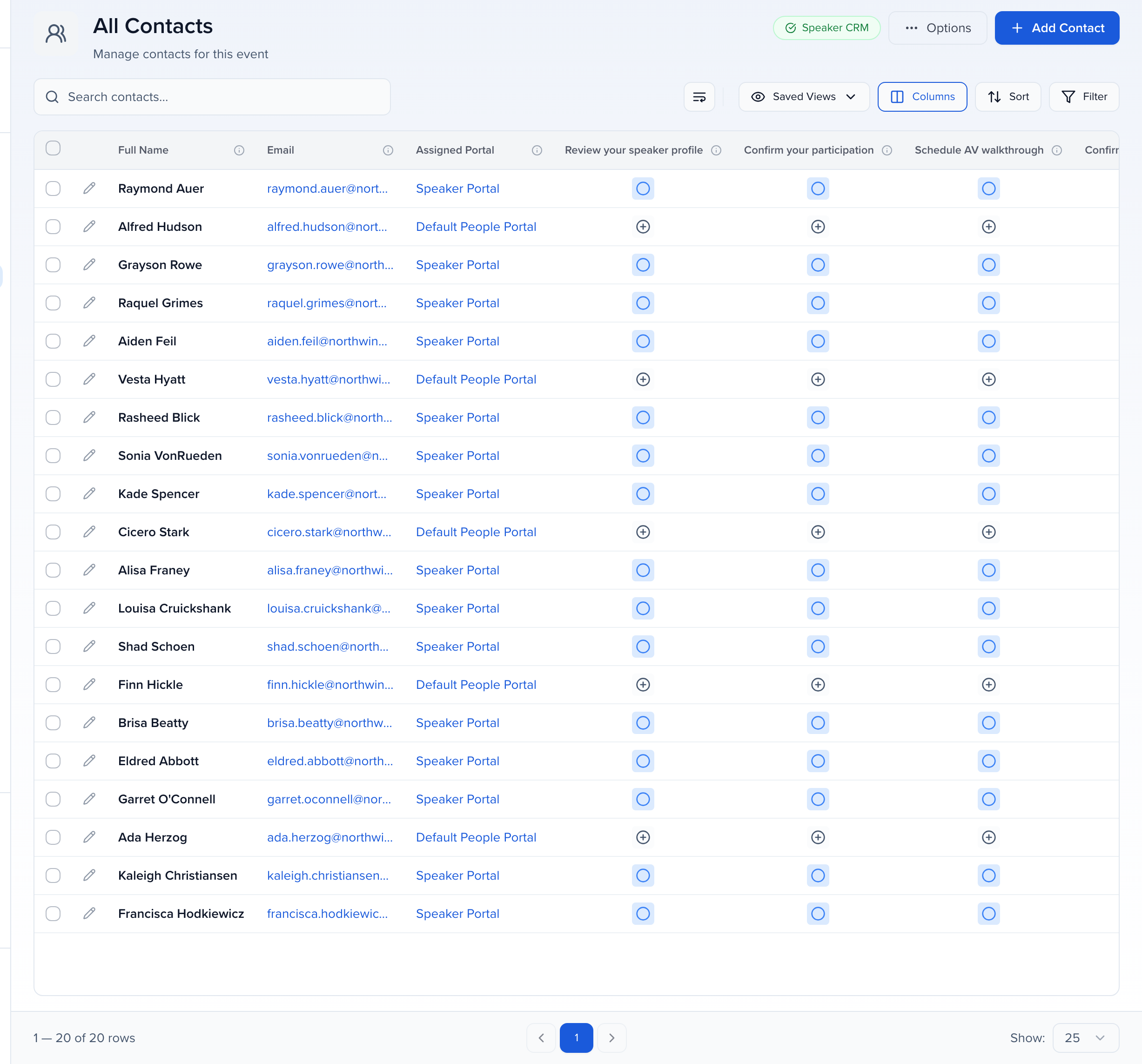
Contacts belong to your organization, not to one event. The person who spoke last year is the same record this year, which is why adding a contact starts with a search.
Add a contact
Section titled “Add a contact”- In All Contacts, click Add Contact at the top right.
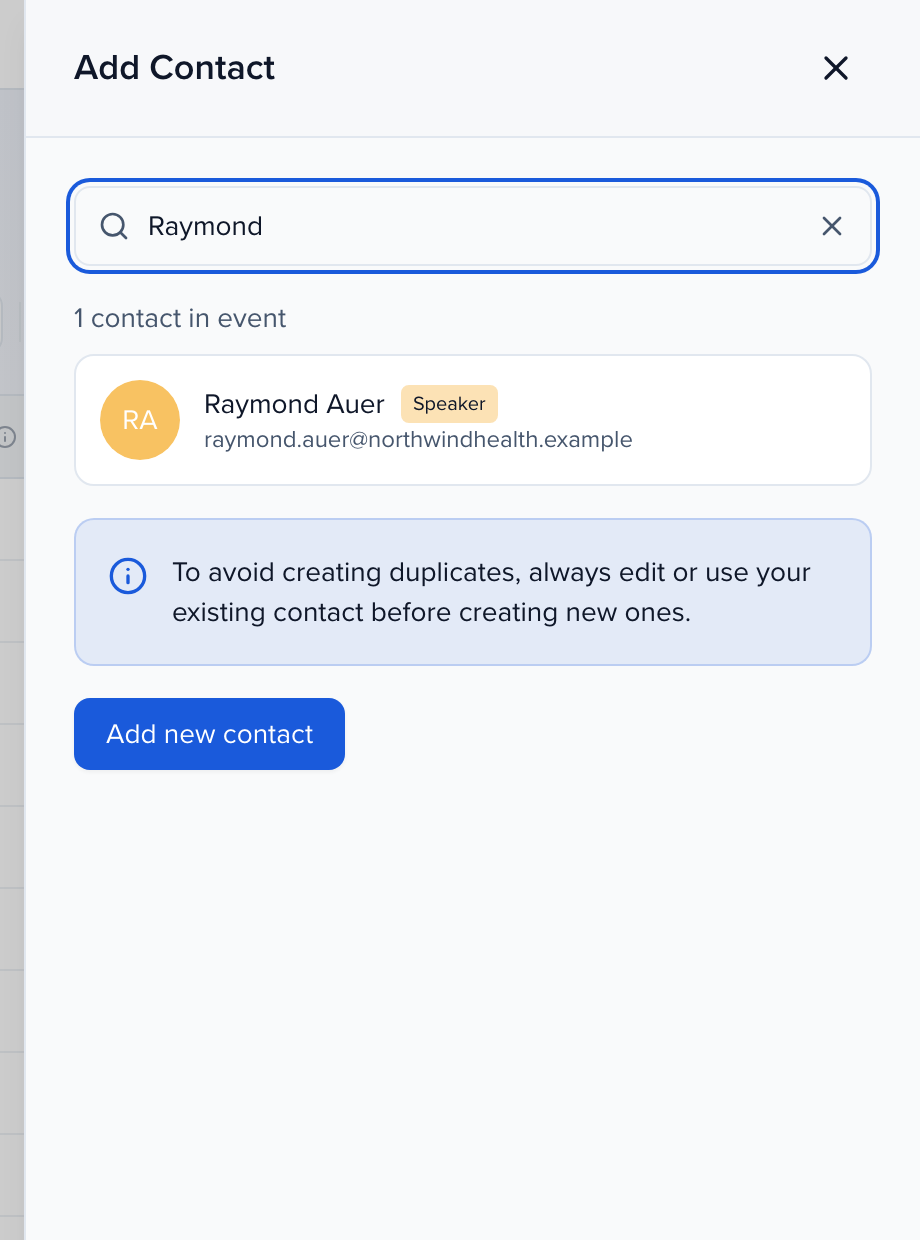
- The panel opens on a search, not a form. Type a name or email. Matches are grouped into contacts already in event and contacts elsewhere in organization.
- Someone already in the event: click View contact to open them — there is nothing to add.
- Someone in your organization but not this event: tick them and click Add to Event at the bottom of the panel. See Adding existing contacts to a new event.
- Only when nobody comes back, click Add new contact.
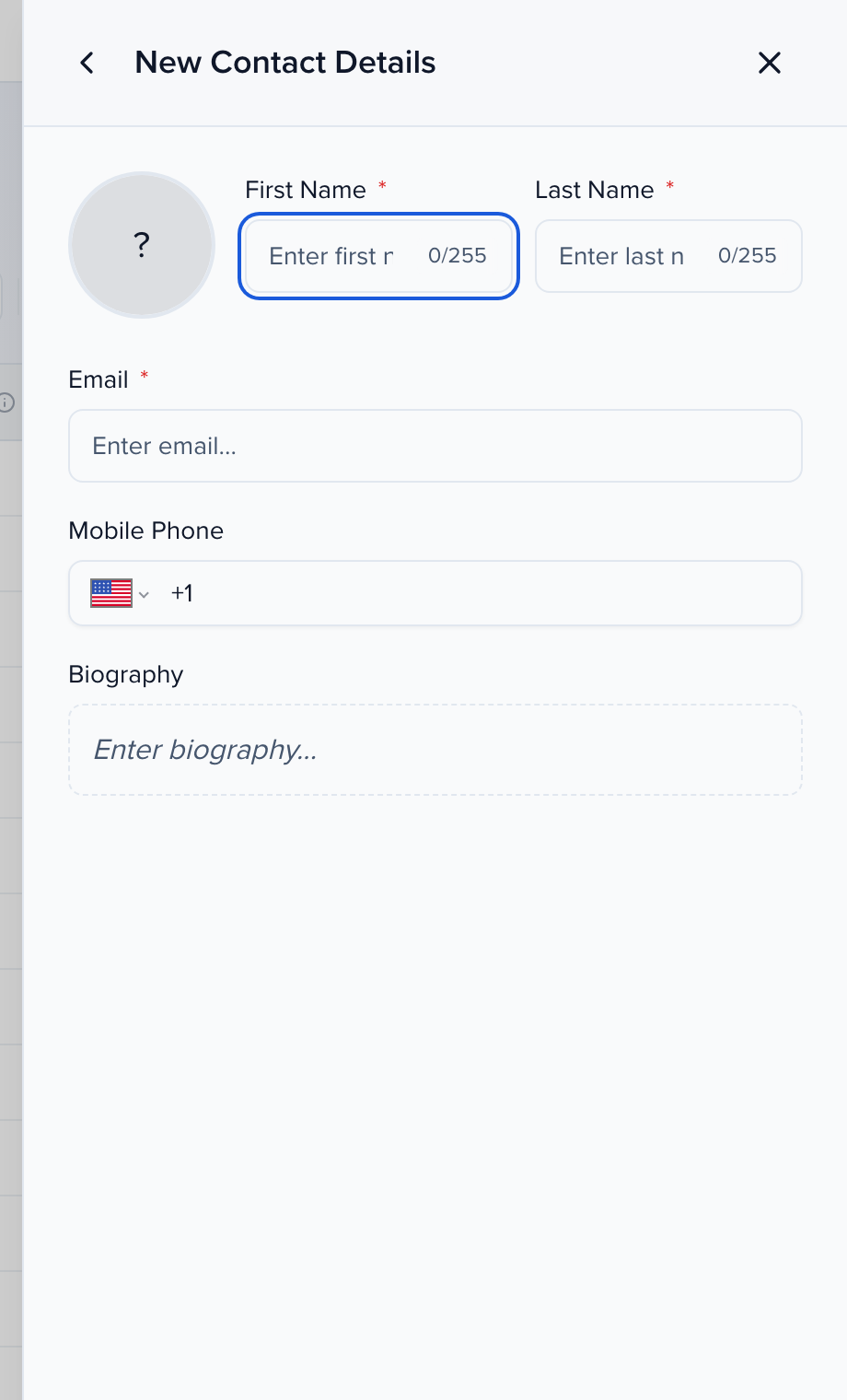
- Fill in New Contact Details. First Name, Last Name and Email are always required, plus any fields your event marks required in Record Settings. The rest can be completed later, by the contact in their portal or by an import.
- Click Create Contact.
Delete or remove a contact
Section titled “Delete or remove a contact”-
Tick the box to the left of the contact. The bulk bar appears above the table with Edit, Send, Assign, More and Delete.

-
Click Delete. The dialog asks the question that matters:
- Remove from this event takes the contact off this event only. Their record, history and every other event they are part of are untouched, and you can add them back later from the organization.
- Remove from all events deletes the contact from your organization, including every other event. This cannot be undone.
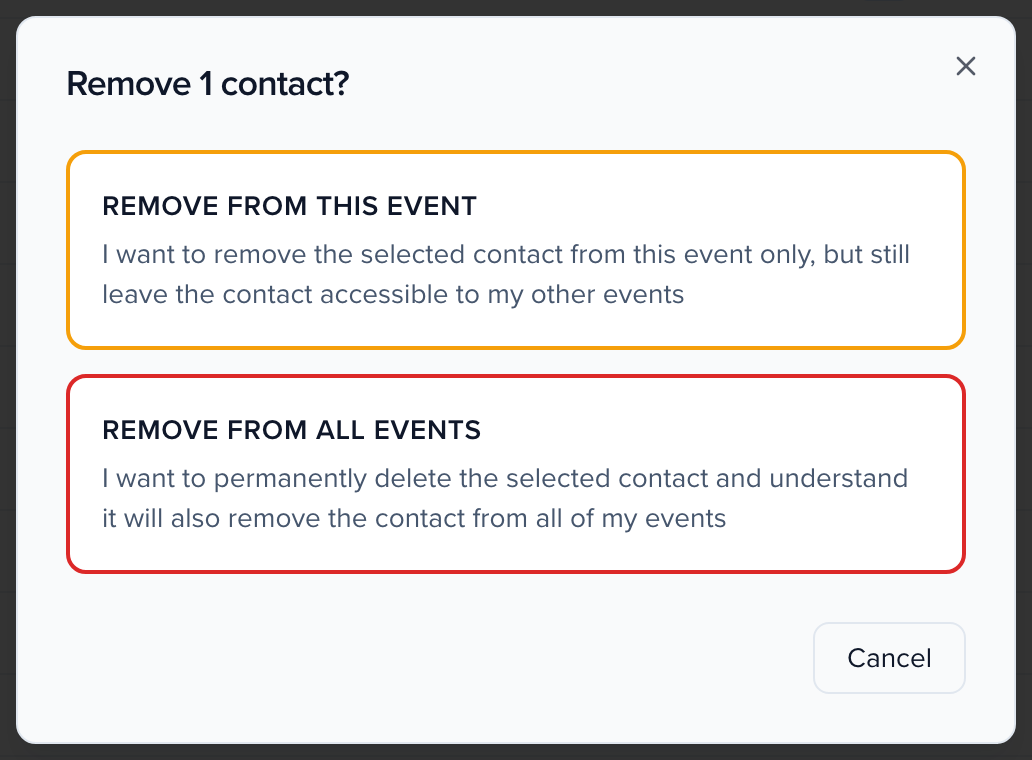
Removing from this event is the right choice almost every time. Use Remove from all events for genuine mistakes — a test record, or a duplicate you would rather delete than merge.
Common questions
Section titled “Common questions”It says "This email address is already in use by another account" (or that a contact with this email already exists), but I cannot see them in the event. Why?
Both messages mean the same thing, and neither is about logins: an email address is unique across your whole organization, not just this event. An active contact with that address already exists somewhere in your organization — usually in another event, or removed from this event but not from the organization. Deleted contacts do not block the address.
Instead of creating the person again, click Add Contact, type the email, and look under in organization — tick the match and click Add to Event. To find them outside any event, open CRM → Contacts at the organization level and search by email. If two records do exist for the same person under different addresses, merge them.
Can I add a speaker without an email address, or use one placeholder address for several people?
Every contact needs an email address, and Sessionboard uses it to tell people apart: portal logins, imports, interest forms and duplicate checks all match on it. One shared placeholder such as tbd@yourorg.com makes those people collide. The second contact may be blocked, a portal login moves to whichever contact was given access last, and duplicate checks flag them as each other.
If you don’t have a speaker’s email yet, give each person their own address you control, for example events+lastname@yourorg.com, and replace it with the real one as soon as you have it. Hold off on invitations and reminders until then, because they go to that address.
Can I make more contact fields required, or take fields off the Add Contact form?
Yes. Open the event’s Settings > Record Settings > Layouts, stay on Contact Fields and click Show/Hide Fields. Untick the fields your team doesn’t fill in at creation time, drag the rest into order, and tick Required on any field the team must fill in before Create Contact works. First Name, Last Name and Email are always required and pinned at the top. Calculated and read-only fields can’t be required. A required checkbox must be ticked.
This applies to the event’s Add Contact form only. Imports, submission forms and portal forms keep their own rules. To require a field where the person fills it in themselves:
- On a submission form, switch on Required for the question on the Participant Information step.
- On a contact portal form, switch on Required for the question and assign the form on the person’s portal.
Where do I see my speakers?
Speakers are contacts with the Speaker role on at least one session, so they are a view of the same records as All Contacts. In the event, open CRM → People → Speakers; the same row exists for Chairpersons, Moderators and Submitters. A person appears there once they are on a session in that role — until then they are only in All Contacts. See Create and assign speakers and why a new contact isn’t in the Speakers view.
Related
Section titled “Related”- The contact profile — what is on a contact’s record and where to edit it
- Importing data — add or update many contacts from a spreadsheet
- Merge duplicates — when the same person exists twice