

Importing data
Every module with a table — Contacts, Sessions, Sponsors, Exhibitors and Event Team — takes a CSV or Excel file through Options → Import, and the event’s Attendees page through Import attendees. The same import, run on a file you exported first, updates records that already exist. This article covers the file rules, the three-step importer and the update flow.
Video transcript
Contacts and imports. Everything in Sessionboard hangs off a contact. A speaker is a contact on a session, a sponsor’s primary contact is a contact, an evaluator is a contact with a login. So getting people in cleanly, and keeping them clean, is worth ten minutes. It all lives in CRM, in the left nav, under All Contacts.
All Contacts is everyone attached to this event, whatever their role. The sub items are views of the same people, speakers, chairpersons, moderators, submitters, and additional contacts, the assistants and PR people who aren’t on stage but need the emails. Contacts are shared across your organisation, so a speaker from last year is the same record this year. That Speaker CRM badge is the organisation-wide side of it.
Add Contact. Notice it doesn’t open a form first, it opens a search. Type a name or email and if the person already exists anywhere in your organisation, you attach that record instead of making a new one, which is how most duplicates start. Only if nobody comes back do you go to add new contact. First name, last name and email are required, the rest can come later. Which fields show up here, and in what order, is a layout setting under record settings. I’ll cancel, we have plenty of people.
The table itself. Columns opens preferences, and this is every field on the contact, standard and custom, tick what you want to see. Sort and filter are the other two tabs. Once you’ve built a view you like, say accepted speakers missing a headshot, saved views keeps it so you’re not rebuilding the filters every morning. The search box up top is for the quick lookups.
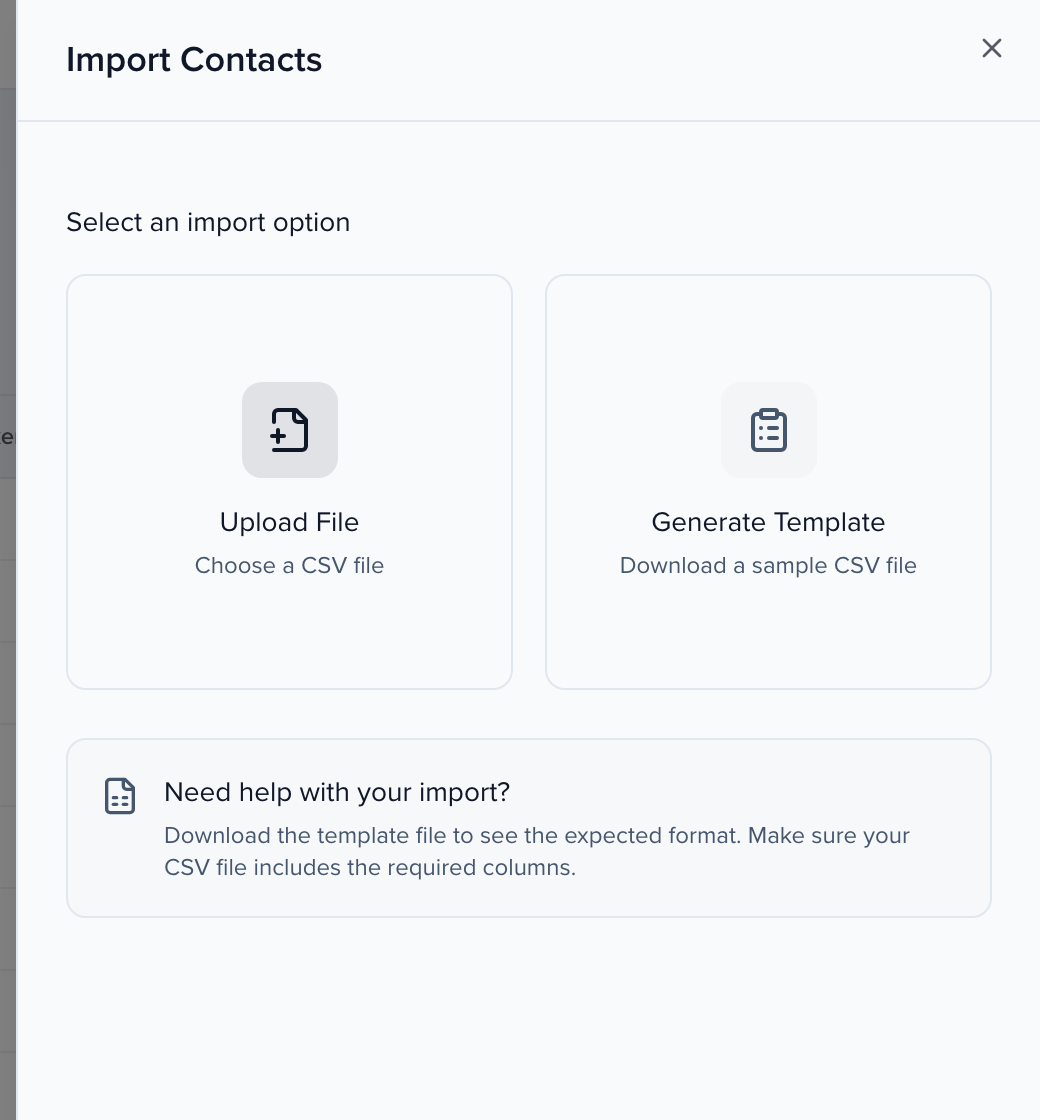
Now bulk. Options, import. Two choices. Generate template downloads a CSV with a column for every field in your current view, so add your custom fields to the view first and they’ll be in the file. Upload file takes a CSV or Excel, up to a thousand rows at a time. Column headers stay in English, that’s how Sessionboard matches them. I’ll close this rather than run an import on a demo event.
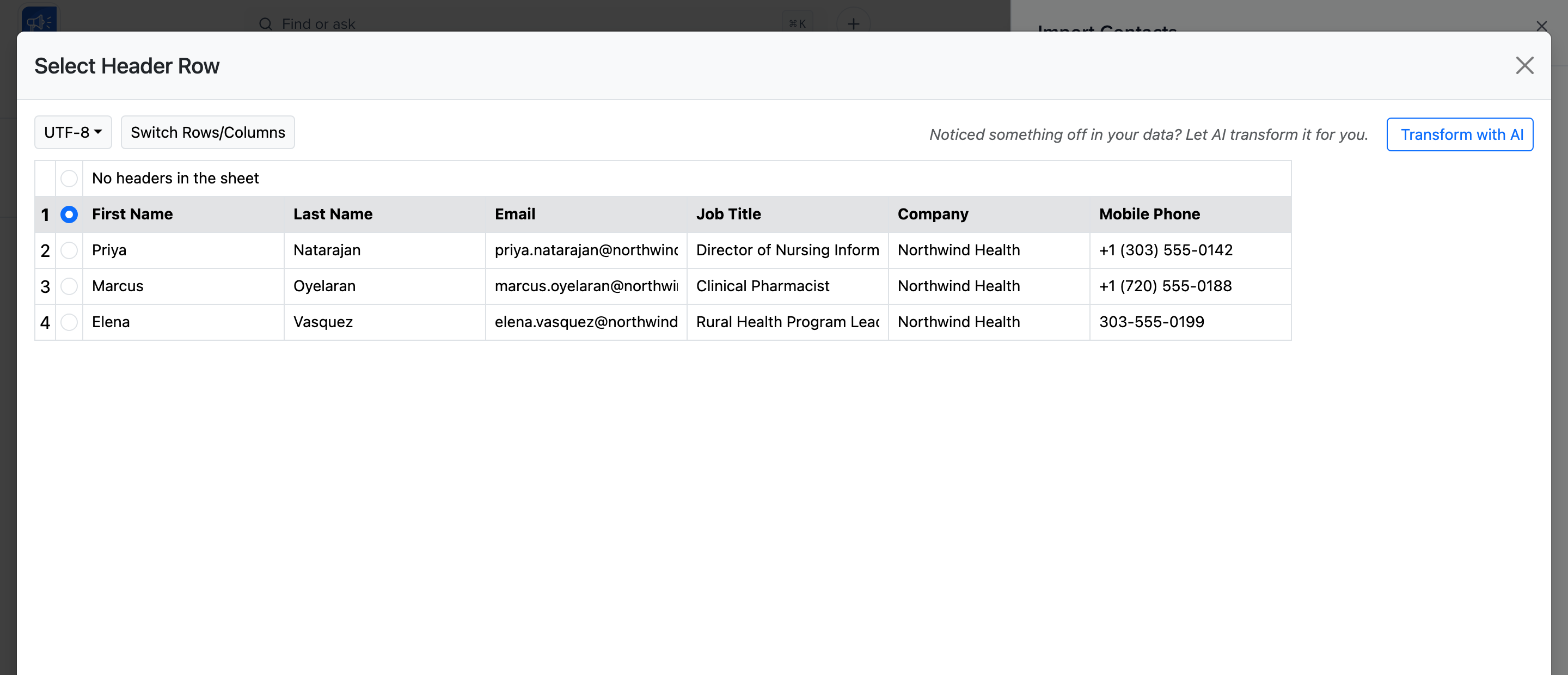
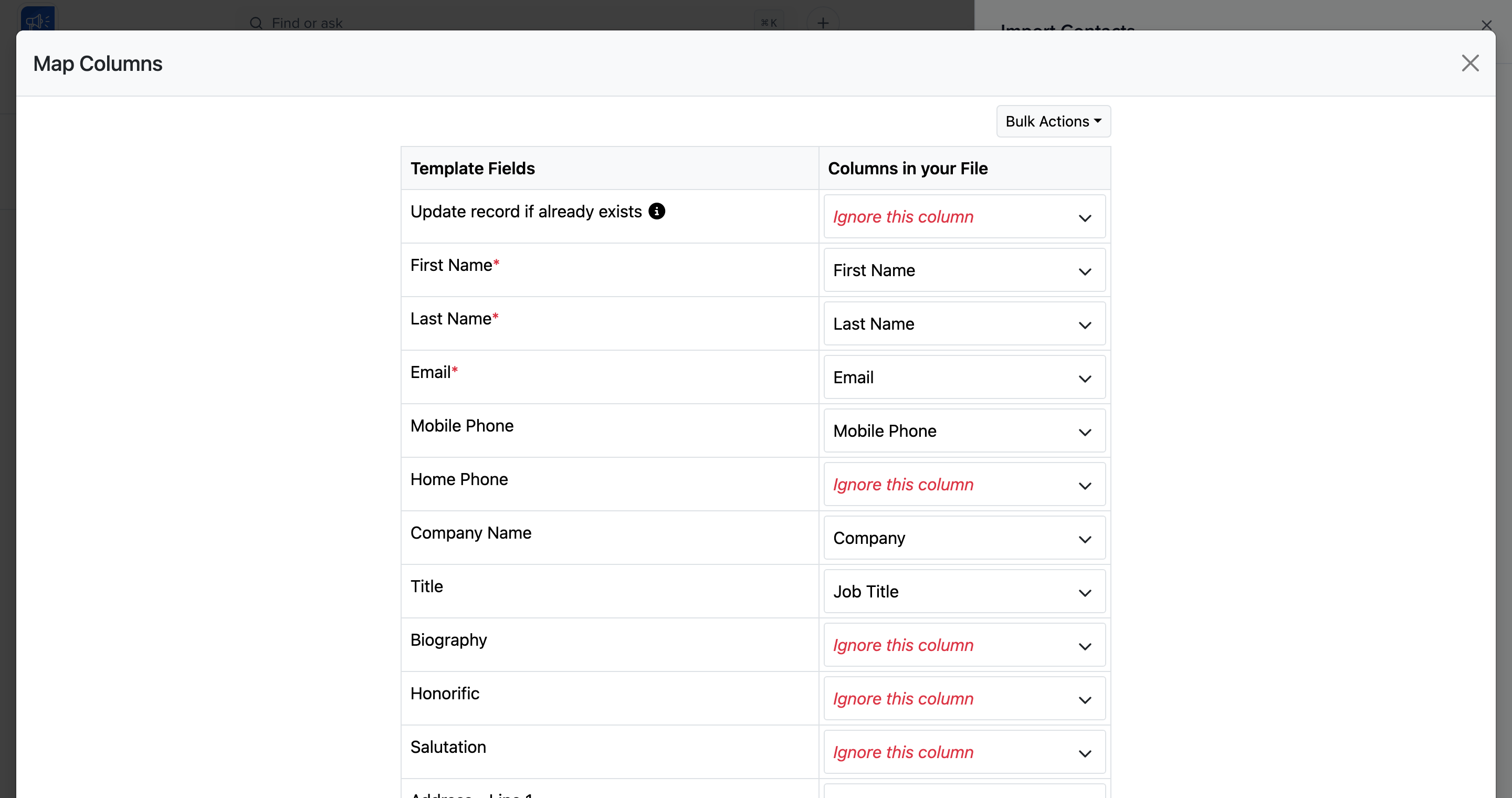
The steps once you upload. Tell it whether the first row is headers, then map your columns to Sessionboard fields, ignore the ones you don’t want to touch. Then validation, any cell it can’t accept goes red, click it for the reason, usually a phone number without a country code, a date Excel reformatted, or a multi select without the pipe separator. Fix, submit, and you get a confirmation once the rows are in.
The trick people miss is that import also updates. Export first, with email in the view, because email is how a contact row finds its existing record. Change what you need, add a column called update record if already exists, set it to true, and re import. Same for sessions, matched on session friendly ID, and groups, matched on name. Mapped blank columns overwrite, so choose ignore this column for anything you’re not changing.
Order matters. People first. The session import’s speakers, moderators and chairpersons columns take email addresses, and a row fails if that email isn’t already a contact on the event. So contacts, then sessions with their participants, then sponsors and exhibitors. And if last year’s event is in the same organisation, skip the spreadsheet, options, copy from another event, over in sessions.
Taking someone out. Tick the row and the bulk bar appears, edit, send, assign, and delete. Delete asks the question that matters, remove from this event, the record stays for your other events, or remove from all events, which is permanent. Nine times out of ten you want the first one. I’ll cancel.
Duplicates still happen, two emails for one person, a name typed twice. Open a contact and, when the platform has spotted lookalikes, a banner at the top of the profile says we found potential duplicates, merge duplicates. That takes you to a two step wizard, pick up to three records and which one is primary, then compare the fields side by side and choose the values to keep. Sessions, events and content come from all of them, notes and event level fields from the primary. It can’t be undone, so export first.
That’s contacts. They are the foundation, search before you add, import people before sessions, and merge rather than delete when two records are one person. The chapters together cover everything the onboarding calls do, and the Help Center article for this one is Importing data, with common CSV issues linked from the bottom.
Why use it
Section titled “Why use it”Importing brings hundreds of records in at once instead of typing them one by one: speakers and their sessions from last year’s spreadsheet, sponsors and exhibitors from a sales list, or the attendee list from a registration platform that isn’t connected to Sessionboard. Re-importing an edited export updates records in bulk, and the importer tells you exactly which rows it could not take and why, so you can fix just those and import them again.
Before you build the file
Section titled “Before you build the file”- Save as UTF-8. Excel does this by default in North America; elsewhere use File → Save As → CSV (Comma delimited) and set Tools → Web Options → Encoding to UTF-8. Google Sheets’ Download → CSV is already UTF-8.
- 1,000 rows per file. Split larger lists.
- Keep the column headers in English. Sessionboard matches your columns to its fields by their English labels, even when your admin language is German, Spanish or French. The template’s notes row is in your language; the header row is not, on purpose.
- Phone numbers need the country code:
+1 (303) 555-0142. - URLs (website, LinkedIn, headshot) start with
https://. - Multi-select values are separated by a pipe:
Cardiology | Pediatrics. - Session dates and times are
YYYY-MM-DD HH:mm(2027-04-12 09:30). Date-only fields on Award and Interest form submission imports areYYYY-MM-DD. If Excel keeps reformatting a date column, select it, press Ctrl + 1, choose Text and re-enter the values. - Currency fields take an amount in the field’s currency (
1500.00orSAR 1500); a negative amount fails the row with an error naming the column. - Formula fields are calculated, so import their source fields instead (Fee and Paid, not Balance). Formatting, Calculation and Assignment Field Rules run on the imported values.
- File fields take a hosted
https://URL per file, pipe-separated when the field allows several (up to 10 per cell, 50 MB each); Sessionboard downloads them after the row lands. Blank file cells leave existing files alone. Headshots use the Headshot URL column.
Custom fields first
Section titled “Custom fields first”The template only contains fields that are on the module — so create any custom fields you want to fill before you generate it, and add them to the module view’s Columns so they are included.
Required columns and session values
Section titled “Required columns and session values”Only Title is required on a Sessions import; on a Contacts import, First Name, Last Name and Email are. Every other column is optional — leave it out or set it to Ignore this column.
Some session columns point at things that already exist on the event, and the cell has to match them:
| Column | What the cell takes |
|---|---|
| Track, Format, Level, Language | One existing value, matched ignoring case and extra spaces. An unknown value fails the row with Dropdown value does not match an option. |
| Tags | Existing tags, pipe-separated. Each one must match a tag in Program settings → Tags, ignoring case — the import does not create tags, so add new ones there first. A session can’t take more tags than the event allows. |
| Location | A room name. A room that doesn’t exist yet is created. |
| Speakers, Chairpersons, Moderators | Contact emails, comma-separated. Each person must already be a contact on the event. |
| Sponsors, Exhibitors | Existing sponsor or exhibitor names, pipe-separated. |
Translated values (language variants)
Section titled “Translated values (language variants)”When a field has a language variant switched on for the event, the template and Map Columns include one extra column per language, named after the field and the language, right after the field’s own column: First Name (Arabic), Job Title (Arabic), Abstract (French). This covers the standard contact columns (First Name, Last Name, Company, Job Title, Biography and the rest) as well as custom fields; Email and Headshot URL never take a variant. A blank variant cell leaves any translation already saved alone. Variants belong to an event, so an organization-level import has no variant columns.
Get the template
Section titled “Get the template”Open the importer
In the module you are importing into, click Options → Import. On Event Team the ⋯ menu beside Add has the same Import entry.
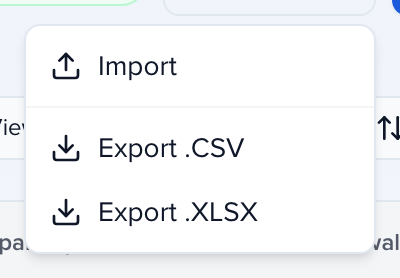
Generate Template
Click Generate Template. A CSV downloads with one column for every field in your current view plus a notes row that states each column’s format. Fill it in — or match your own file’s headers to it — and delete the notes row before uploading.
Import new records
Section titled “Import new records”Upload File
Click Options → Import → Upload File, then drop your CSV or Excel file on the importer (or click to browse). The importer states the row limit and what the module accepts.
Select Header Row
Confirm which row holds your column names — normally row 1 — or tick No headers in the sheet. Change the encoding here if accented characters look wrong. Click Next.
Map Columns
Every Sessionboard field is listed under Template Fields; required ones carry a red asterisk. Columns whose headers match are mapped for you under Columns in your File; pick the rest from the drop-downs and leave anything you are not importing as Ignore this column. Update record if already exists is the first row — leave it ignored for a new-records import. Click Next.
Verify Data
The importer checks every cell. Invalid cells are highlighted, the Invalid tab filters to those rows, and Find and Replace fixes a repeated mistake in one go. Edit in place, remove a row with its X, then click Submit.
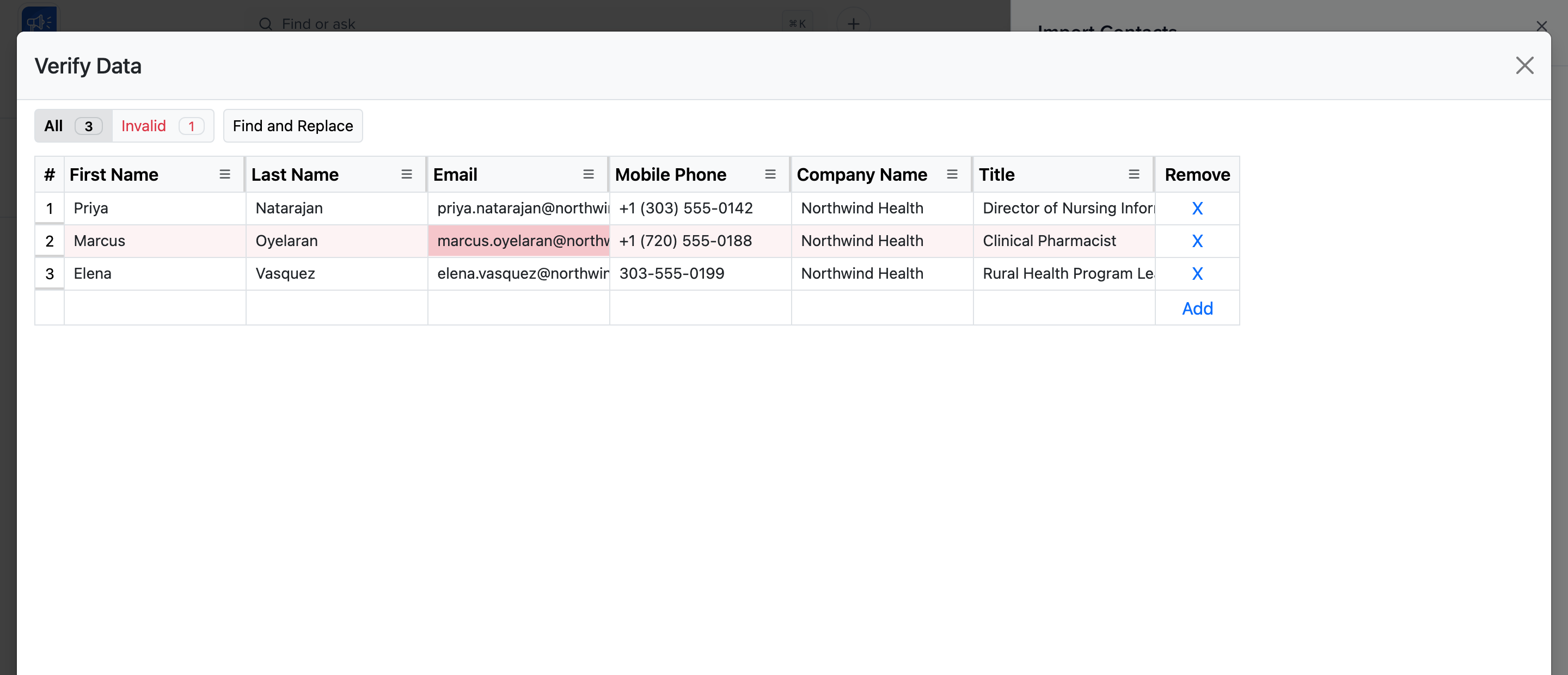
The import runs on the server; you get a confirmation on screen and the new rows appear in the table.
Import to update existing records
Section titled “Import to update existing records”The importer finds an existing record by one column per module, and only overwrites it when the row says so:
| Module | Matched on | Switch column |
|---|---|---|
| Contacts (speakers, moderators, chairpersons…) | Update record if already exists | |
| Sponsors and Exhibitors | Name | Update record if already exists |
| Sessions | Session Friendly ID, or Client Session ID | Update session if already exists |
| Attendees | Registrant ID, or Email when the row has none | None — choose When a row already exists in the importer |
Export first
Add the match column and the fields you plan to change to the module view, then click Options → Export .CSV (or Export .XLSX). Starting from an export guarantees the identifiers are exactly what Sessionboard holds.
Edit the file
Change the values you need. Add a column named Update record if already exists (Update session if already exists for sessions) and put TRUE in every row you want updated. Delete the rows you are not changing.
Import it
Run the import as above. On Map Columns, map the switch column and the match column, and choose Ignore this column for anything you are not changing — a mapped column with an empty cell clears the value.
Which column matches a session
Section titled “Which column matches a session”- Session Friendly ID is the
SESS-123ID Sessionboard assigned. It identifies exactly one session, including subsessions, and wins when both ID columns are mapped. - Client Session ID is your own system’s identifier. It is used when Update session if already exists is true and no Session Friendly ID is mapped. If more than one session on the event carries that Client Session ID, the row fails with an error naming the column instead of updating one at random.
Attendees
Section titled “Attendees”Import an attendee list on the event’s Attendees page with Import attendees — for example when your registration platform isn’t connected, or to add attendees your sync missed. Imported attendees can share Advocacy cards and show up in Pathways like synced ones.
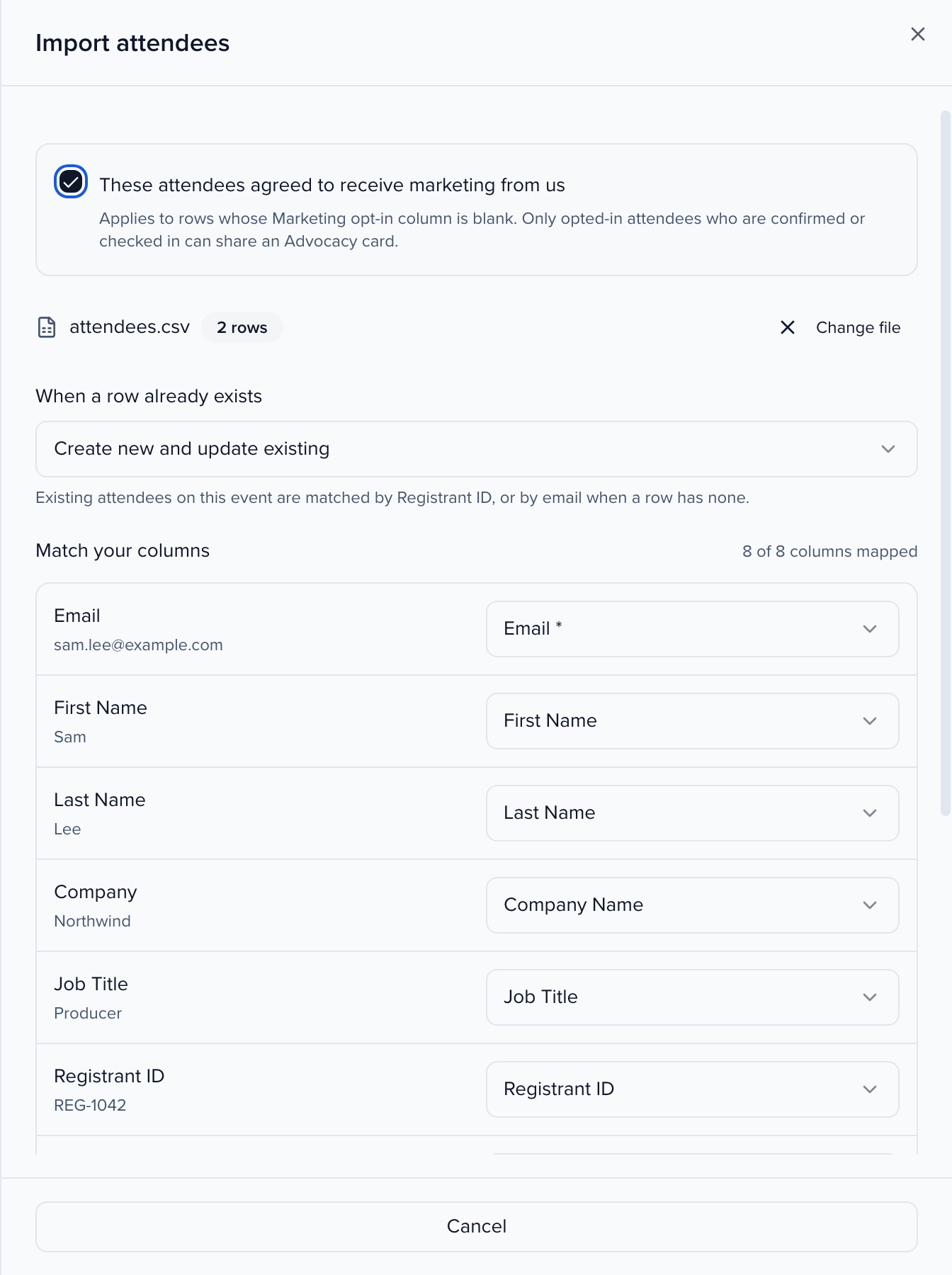
- Email is the one required column. The rest are your attendee fields (name, company, job title, Headshot as an image URL, and any custom attendee fields) plus three import columns:
- Registrant ID — your registration platform’s id. It decides which row a re-import updates; without it, the email does.
- Registration Status —
Confirmed(the default when blank),Checked in,WaitlistedorCancelled. - Marketing Opt-in —
YesorNo. A blank cell takes the box above the importer, These attendees agreed to receive marketing from us, which starts unticked.
- When a row already exists chooses whether a re-import creates new attendees, updates existing ones, or both.
- Only confirmed or checked-in attendees who opted in can share an Advocacy card. An attendee who withdrew consent stays opted out whatever the file says.
- A row with a value the field can’t take is skipped whole — nothing from it is saved — and listed with its reason, so you can fix the file and import just those rows again.
Common questions
Section titled “Common questions”Can I import language variants (translations)?
Yes, in an event-level import. For every field that has a language variant switched on, the template and Map Columns add a column per language, such as First Name (Arabic) or Abstract (French). Fill those columns alongside the main ones. A blank cell leaves any translation already saved. An organization-level import has no variant columns, because variants belong to an event. Details: Translated values.
Will importing create duplicates?
Not when you map the identifier. Contacts match on Email, groups on Name, and sessions on Session Friendly ID (or Client Session ID), and a row with Update record if already exists set to TRUE updates the existing record instead of creating one. Rows without the switch create new records, so export first and start from that file when you are updating. Contacts are shared across your organization, and a speaker who already exists is reused rather than duplicated. If duplicates already exist, merge duplicate contacts.
What order should we import in — speakers first or sessions first?
Contacts first. The session import’s speakers, moderators and chairpersons columns take contact email addresses, separated by commas, and a row fails with does not exist as a contact when an email is not already a contact on the event. Import or create the people, then import sessions with their participants, then sponsors and exhibitors.
Can we import last year's speakers and sessions?
Yes. For events in the same organization, copy sessions from another event moves sessions or abstracts with optional participants and field mapping, and contacts are already shared through the organization. From another system, export to CSV and import contacts, then sessions. With Speaker CRM, past speakers stay in the CRM and can be added to events without a spreadsheet.
The file uploads but rows fail — what do I check?
Verify Data highlights the cells it cannot accept; the Invalid tab lists just those rows. The usual causes are a header that does not match the English field label, a phone number without a country code, a date Excel reformatted, a multi-select without the pipe separator, more than 1,000 rows, or a CSV that is not UTF-8. See common CSV and XLSX import issues.
Our importer looks different — an upload box with a progress bar and a results table
Your account has Sessionboard Imports turned on, Sessionboard’s own importer. The steps are the same in a different order: drop the file, Match your columns (each of your columns against a Sessionboard field, with a preview of its values), choose what happens When a row already exists — Create new and update existing, Create new rows only or Update existing rows only — and click Import N rows. For awards and interest form submissions, Update existing rows only changes just the columns you map, so it does not ask for the form’s required fields: map a column that finds each row (UUID, Friendly ID or Submitter Email) plus the columns to change. In a Self-nomination only awards program the nominee columns are not offered, because the nominee is filled from the submitter. The result lists rows Created, Updated and Failed; rows that passed are imported, and Download or retry failed rows gives you just the rest to fix and re-import. You can close the panel and keep working while it runs.
Can I add tags to existing sessions with an import?
Yes, with an update import — but the Tags cell replaces the session’s tags rather than adding to them. Export the sessions with Session Friendly ID and Tags in the view, add the new tag to the existing ones in each cell (pipe-separated), set Update session if already exists to TRUE, and map only those columns. Every tag must already exist in Program settings → Tags.
How do I move values from a custom field into a standard field?
Re-import them into the standard field, then point your forms at it. Nothing is lost along the way, because the custom field keeps its values.
- Add Email and the custom field to the Contacts view and click Options → Export .CSV.
- In the file, rename the custom field’s column header to the standard field’s label, add an Update record if already exists column set to
TRUE, and delete any other columns. - Import the file, mapping Email, the switch and the renamed column.
- On each submission form’s Participant Information step, add the standard field and remove the custom one. Keep the custom field rather than deleting it until you have checked the values arrived.
Can we undo an import?
Export before every update import so you have a copy to restore from. If an import went wrong, contact support@sessionboard.com with the event and the time of the import.