

Language variants
What are language variants?
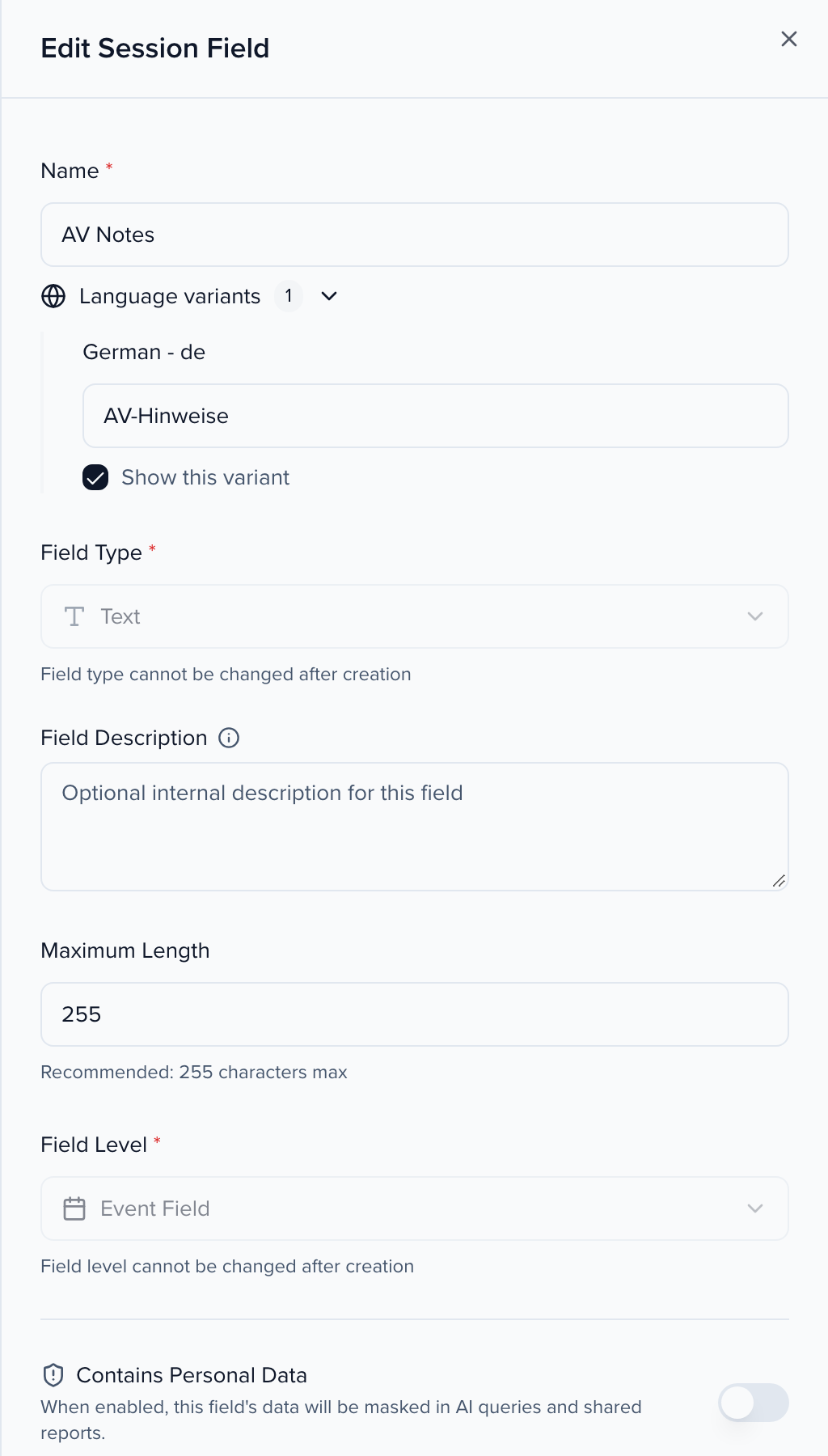
Section titled “What are language variants?”A language variant is a second copy of a field for another language: a translated field name (so “AV Notes” can read “AV-Hinweise” to a German speaker) and, on each record, a translated value. The default language stays English (United States) — admins keep collecting and managing data in it — and variants sit beside it.
Variants are available on text, text area, rich text and dropdown fields, standard or custom, for sessions, contacts and groups (sponsors and exhibitors). For dropdown-style standard fields such as Track, Format, Level and Language, the option labels themselves can be translated.
Which languages are supported?
Section titled “Which languages are supported?”An event can add any of thirty-one additional languages: English (United Kingdom), French, French (Canada), German, Spanish, Portuguese, Portuguese (Brazil), Dutch, Italian, Polish, Turkish, Swedish, Danish, Finnish, Norwegian Bokmål, Russian, Chinese, Chinese (Simplified), Chinese (Traditional), Japanese, Korean, Thai, Vietnamese, Indonesian, Malay, Hindi, Arabic, Arabic (Saudi Arabia), Arabic (United Arab Emirates), Arabic (Egypt) and Hebrew. The default language is always English (United States) and cannot be changed.
Important considerations
Section titled “Important considerations”- Labels and values, not the interface. Variants translate field names and the values stored in them. Sessionboard’s own buttons, menus and system text stay in English for admins.
- Embeds: Website embeds can display your language variants. When an embed is set to (or requested in) a language you have enabled, translated session titles, descriptions and field values appear automatically, and untranslated fields fall back to the default language. See Embeds.
- Integrations: Not every integration syncs language variants. If you rely on one, ask support@sessionboard.com to confirm before you translate at scale.
- Translated fields are available through Sessionboard’s open API. For Track, Format, Level and Language, the API returns the translated option label when the field’s variant is enabled and that option has a translation; otherwise it returns the default label.
- Forms: On the older forms interface, variant fields are admin-only and cannot be placed on portal, submission, intake or application forms. The v2 form builder can place an enabled variant on the form beside its default-language field — see multi-language submissions.
Turn on languages for the event
Section titled “Turn on languages for the event”- Open Settings → Event Details and scroll to Supported Languages. Default Language shows English (United States) and is locked.
- Under Language Variants, click Add Language and pick a language from the Select Languages list. It is added as a chip; repeat for each language you need.
- Click Save at the bottom of the page.
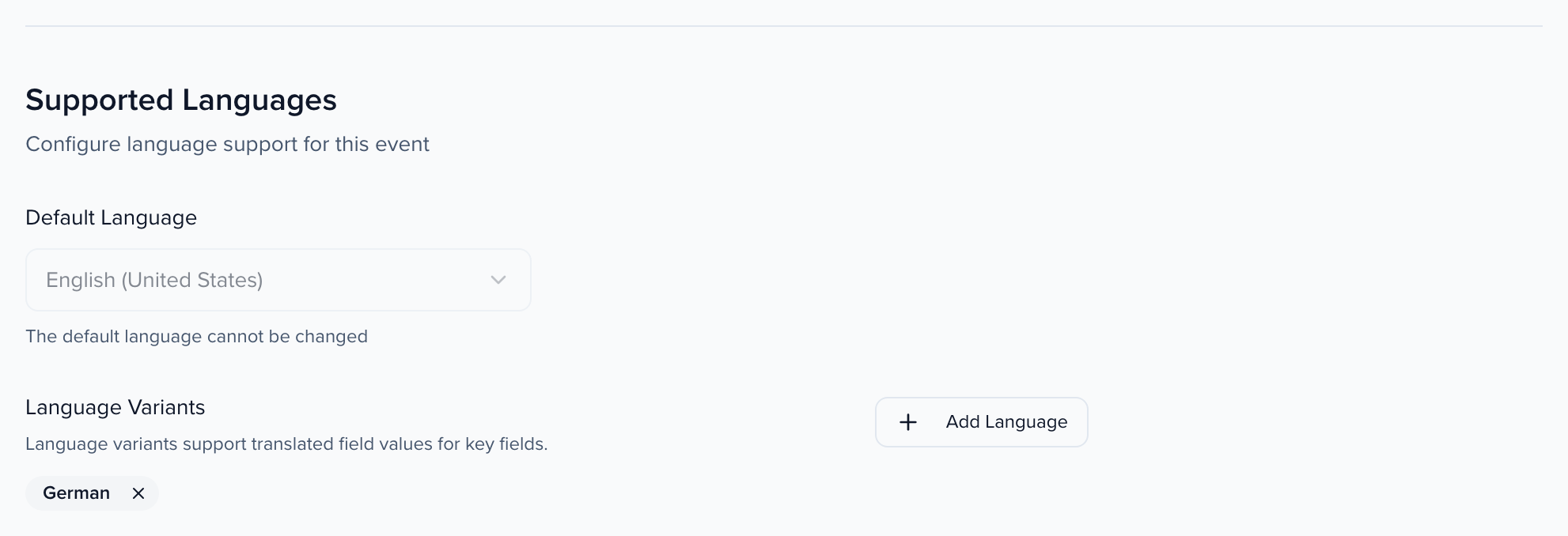
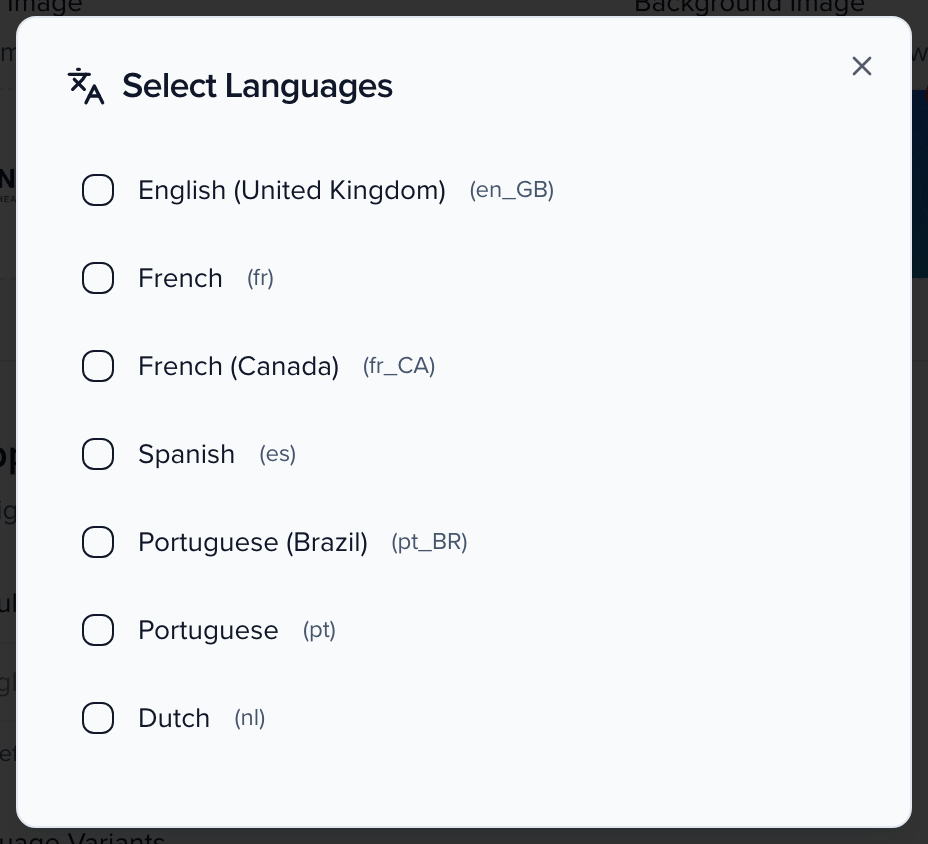
To drop a language later, click the × on its chip and save. Any translations already entered for that language stop showing.
Enable a variant on a field
Section titled “Enable a variant on a field”Adding a language does not translate anything by itself. Turn the variant on field by field:
- Open Settings → Library → Fields (or the organization’s Fields library for a global field) and pick the tab for the record type — Contact, Group or Submission.
- Find the field, open its ⋯ menu and choose Edit.
- Expand Language variants. Each enabled language has a box for the translated field name — type it, then tick Show this variant.
- Click Save Changes.
Enter translated values on a record
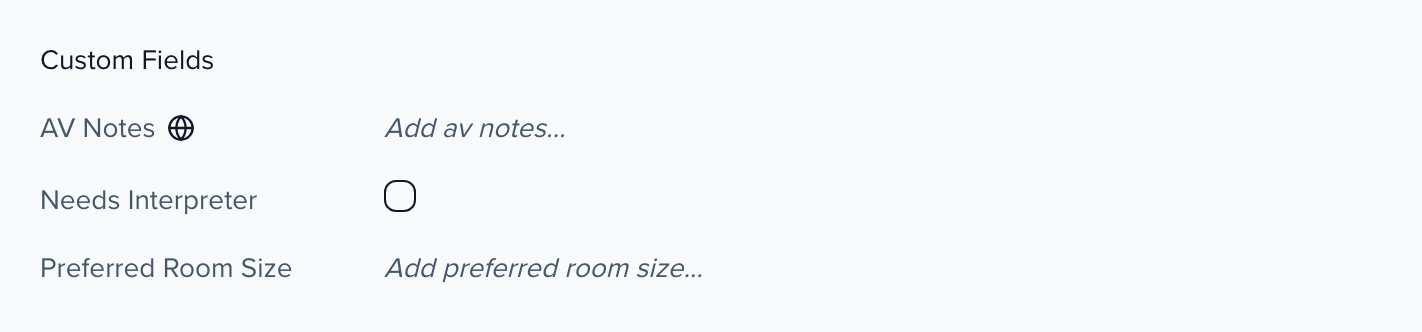
Section titled “Enter translated values on a record”Once a field has an active variant, every record of that type shows a small globe beside the field:
-
Open the record — a session, contact, sponsor or exhibitor — in its sidebar or profile page.
-
Click the globe icon next to the field. The tooltip reads Edit language variants for “<field>”.
-
In Edit Language Variants, the default-language value is shown read-only at the top; type the translation in the box for each language and click Done.
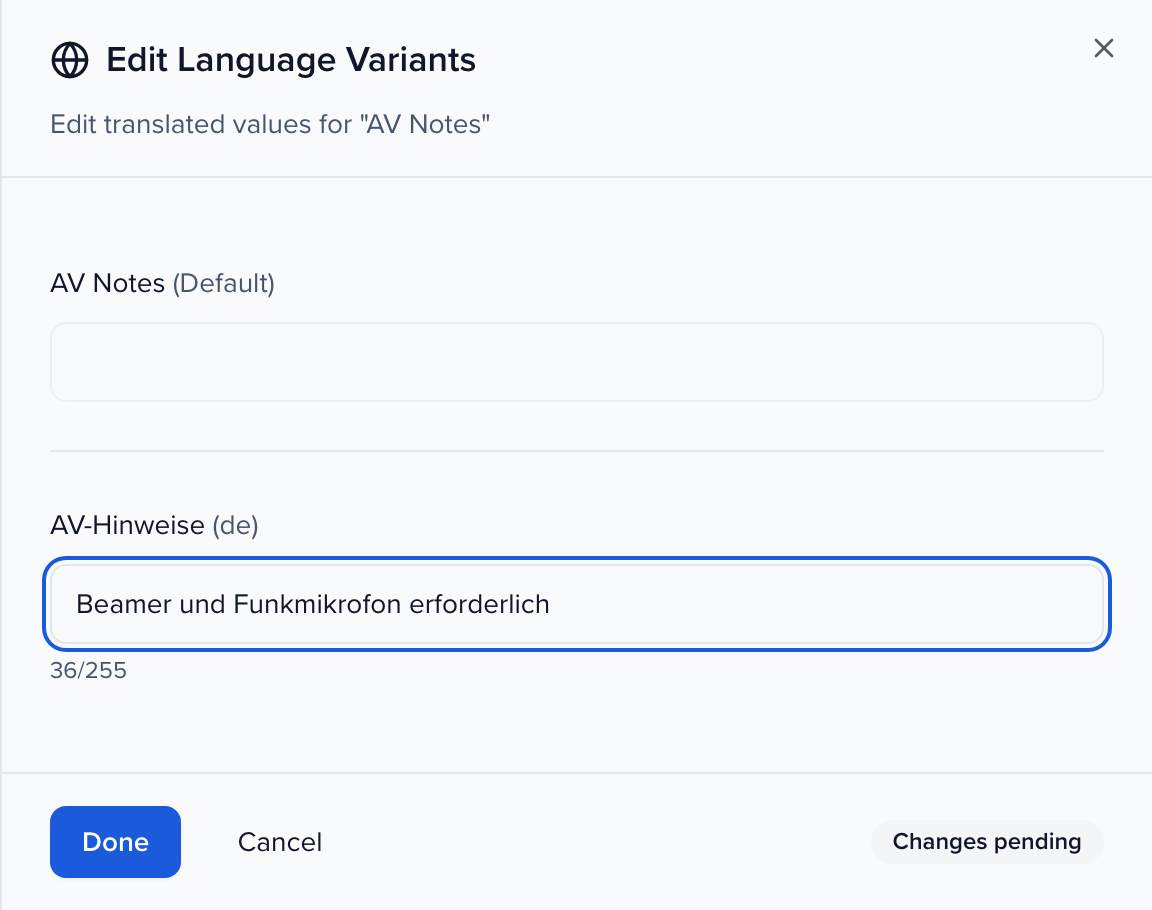
The panel offers each language whose variant is switched on for the field, plus any language that already holds a value on this record — for example one written by Update language values — even if that language is off for the field.
-
Done queues the change — the globe shows Changes pending — and it is written when you save the record.
On a contact, First Name, Last Name, Salutation and Honorific sit in the name at the top of the profile rather than in the field list. When any of them has a variant, a globe appears beside the name: click it (or the name) to open the name editor, where each of those fields with a variant has its own globe.
To fill translations for many contacts at once, add a column per language to an import: the template lists First Name (Arabic) and the like for every field with a variant switched on.
To fill one language from another without editing each record, add the Update language value action to an automation. It translates or copies a field into an enabled language whenever the record changes. For sessions that already exist, fill them all at once instead.
Fill a language for many sessions at once
Section titled “Fill a language for many sessions at once”Use this to translate every English description into French before a portal opens, or to give German-only submissions a real English title. A German-only submission arrives with its German text copied into the English Title and Description (see below). To replace that with a translation, translate Title (German) into Title (English) and choose Replace existing values.
- On the Sessions list or the Submissions view, select the sessions. To take every session on the page, tick the checkbox in the header.
- In the bulk actions bar, open More and choose Update language values.
- Set Copy from to a field and its language, and Write to to the field and language it goes into. The two can be the same field in different languages, such as Title (German) into Title (English), or two different text fields.
- Under How, pick Translate to translate the text, or Copy as-is to move it over unchanged.
- Under If the target already has a value, pick Only fill empty values to leave anything already written alone, or Replace existing values to overwrite it.
- Click Continue, check the summary, then click Update N sessions.
The update runs in the background, up to 5,000 sessions at a time, and the dialog shows how many are done. When it finishes you see how many sessions were updated, and how many were skipped because the source was empty, the target already had a value, or the session no longer exists. You can close the dialog while it runs; a message appears when the update finishes.
- Which fields. Title, Description, and custom text fields (single-line, paragraph, and rich text), including fields whose column is hidden in the current view. Read-only and dropdown fields are not offered. Rich-text formatting such as bold and lists is kept when translating. Copying rich text into a plain text field keeps the words and drops the formatting.
- Which languages. The event’s default language and any language turned on for the event. If no extra language is on, Update language values is greyed out, and its info icon says why.
- Automations. These updates do not trigger field-change automations, so filling 2,000 titles does not start 2,000 automation runs.
- Edits made during the update. With Only fill empty values, each session is checked again just before it is written. A value someone types in while the update is running is kept.
Which language a submission came in
Section titled “Which language a submission came in”Every session submitted through a form records the language the submitter used. With multi-language submissions on, that is the language they picked on the form; otherwise it is the event’s default language. Sessions submitted before September 2026 have it filled in where Sessionboard can tell from the saved translations, and left blank where it can’t.
- On the session. The session sidebar shows Submitted via <form> · <language> under the session title.
- In the Public API. Add
submission_sourcetoexpandon the session search or get endpoint (?expand=submission_source, or"expand": ["submission_source"]in a search body). Each session then carriessubmission_source: { form_id, form_name, language }.languageis a locale code such asde-DE, ornullwhen it is unknown.submission_sourceisnullfor sessions that were not submitted through a form.
This matters when the only text a submitter entered was in a translated field. Sessionboard copies it into the default-language Title and Description so the session is never untitled, and submission_source.language tells an integration that the text is really German, say.
Role and track names in other languages
Section titled “Role and track names in other languages”Participant roles and tracks are names your team set up once for the whole event, so they are translated where they are defined rather than on each record:
- Roles — Program → Settings → Roles, edit the role, open Language variants, and enter a singular and plural name for each language. See Role names in other languages.
- Tracks (and levels, formats, languages, rooms and tags) — edit the Track field (or the matching field) here, turn on its variant, and fill in the translated value for each track in the rows that appear.
Both are shown wherever a reviewer, submitter or speaker picks a language: the Review portal (cards, filters, Print all, the submission page), the submission form and the speaker portal. A language without a translation shows the default name. Removing a language from the event stops its translations from showing, and the next save of the role drops them.
Multi-language portals
Section titled “Multi-language portals”Language variants cover admin-facing field labels. A multi-language portal covers the other side: what participants read.
Turn on Enable multi-language portal in Portals → [portal] → Configuration, under Multi-language. A language picker appears in the portal toolbar. Profile, submission, and form fields that have language variants are captured in the selected language, and anything without a saved translation can be auto-translated.
Choose what gets auto-translated:
- Page headers, titles and descriptions
- Field labels without a saved translation
- Placeholders and dropdown values
- Confirmation and success messages
Which languages are available is set under Settings → Event Details → Supported Languages (see Turn on languages for the event).
Where a variant is the same language as your default — English (United Kingdom) alongside English (United States), say — auto-translate leaves the text alone and shows exactly what you authored. Putting text through machine translation into its own language rewrites wording that was already right: an abbreviation such as Dr came back expanded to Doctor, which is why dropdown values could read differently in the variant than in the form you built.