

Invite people to the event portal
Every portal on the event shares one login link — https://app.sessionboard.com/portal-login/<event-slug>/…. Whoever signs in with it lands in the portal their filters put them in, so you never need a different link per portal. Copy it from Program → Portals: open the ⋯ menu on any portal card and choose Copy Link.
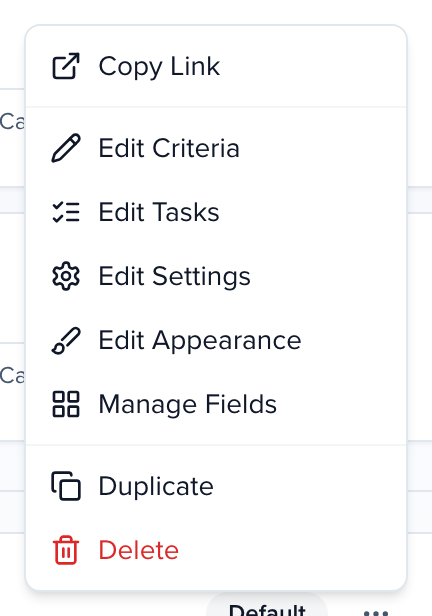
There are two ways to get it to people.
Send an email with the link
Section titled “Send an email with the link”Write the email from Contacts, Speakers, Sponsors, Exhibitors or Sessions — see Create & send emails. Rather than pasting the URL, insert the Portal Login Link (Hyperlink) merge tag (or Portal Login Link (Raw URL) if you want the address spelled out). Group emails carry the same tags.
Grant access and share login details
Section titled “Grant access and share login details”Use this for a new contact who has never signed in, or for someone who has lost the link.
Select the people
In Contacts, Sponsors or Exhibitors, tick the records. In the bulk action bar choose More → Manage Portal Access.
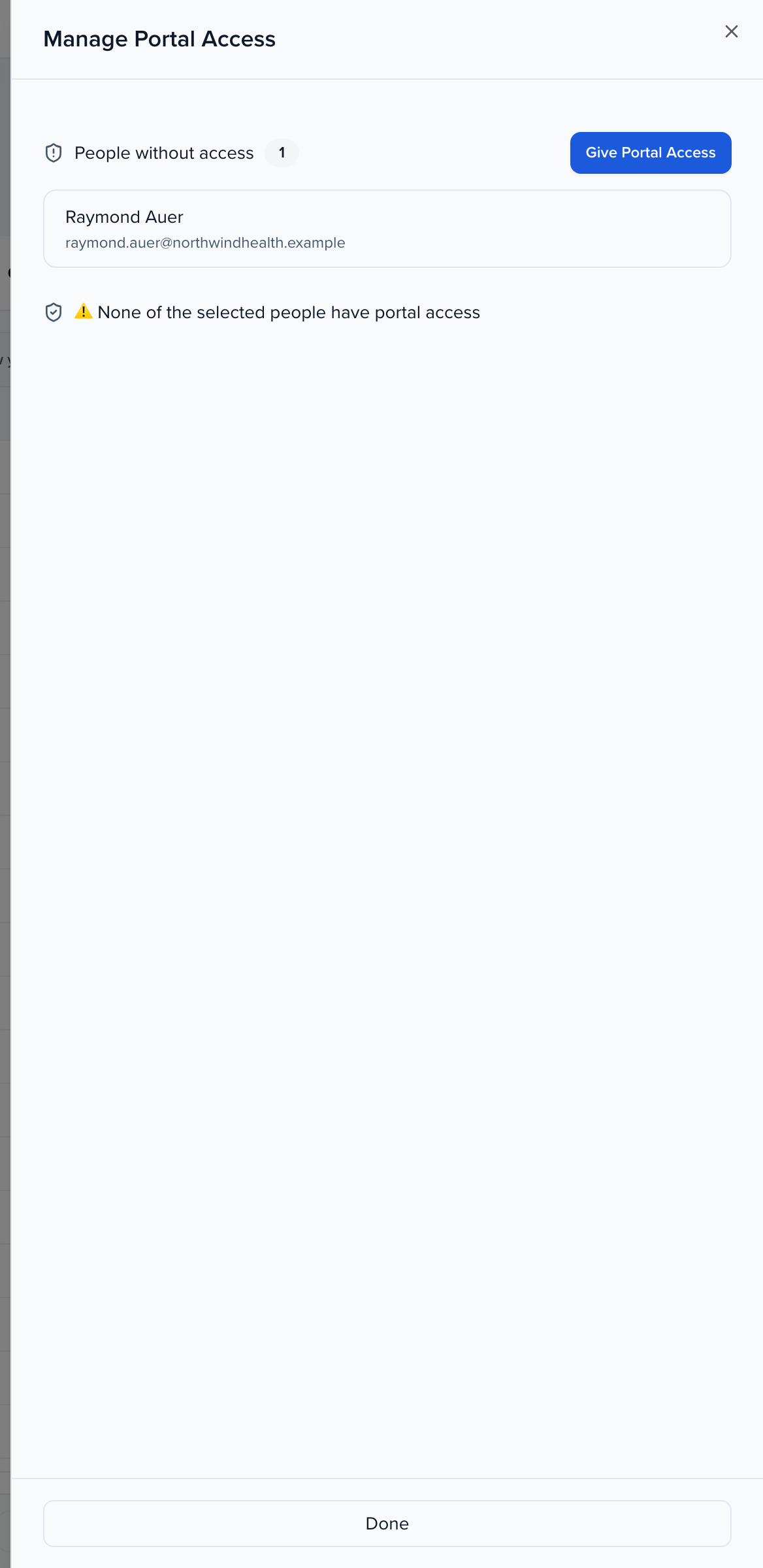
Give access to anyone who lacks it
The panel splits your selection into People without access and People with access. Click Give Portal Access for the first group; they become portal users on the spot. Anyone with an invalid email address is listed separately so you can fix the record first.
Share Login Details
Click Share Login Details, then either Send Email — a portal invitation carrying the login link, with an optional personal message — or Get Link to copy the invitation link and send it yourself.
If some of the emails cannot be sent, the rest still go out. The panel then says Sent N of M emails and lists the addresses it skipped. An address is skipped when it does not belong to a contact in this organization, so correct the contact record’s email and send again.