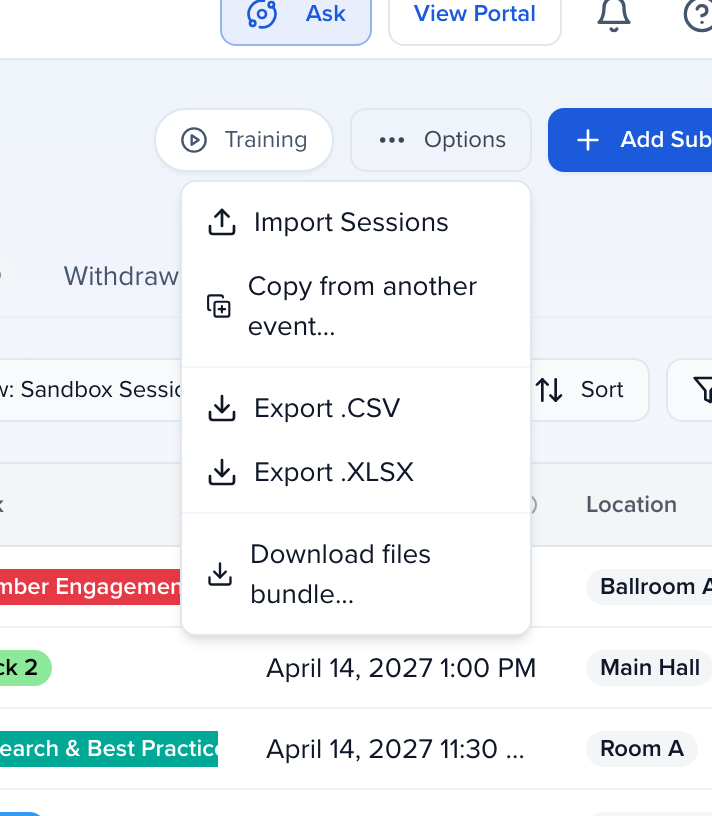
Every module table can be downloaded as a CSV or Excel file from its Options menu. The examples below use the Sessions module; Contacts, Speakers, Sponsors and Exhibitors export the same way.
Training video · 6:41Finding your way: the new sidebar, the dashboard, and the five things people ask where they wentThe event Dashboard as a map (the countdown, the Need attention pill and Ask's Attention list, the Ask box, Top picks, stat cards that open filtered lists), the sidebar's five zones, where each old row lives now (Program for the old Sessions row, CRM for Contacts, Sponsors and Exhibitors, Settings → Library for fields, tags and personas), Rooms under Program Settings and on the Agenda's Rooms tab, where campaigns live (Send), finding who hasn't finished a task or a headshot, Export .CSV versus Download files bundle, Add Contact's in event / in organization search and the "already exists" message, pinning a page, and typing an old name into Find or ask.
Training video · 6:19Reports, table views and exportsThe Reports page and the Report Builder, from a gallery example to filters, grouping, saving, scheduling and sharing. Then the Preferences drawer on any module table, sorting from a column header, saved views, and exporting a module to CSV or Excel.
Open the module and shape the table first — the export contains the columns of the view you are looking at, in that order, with the current filters applied. See Module table views.
Click Options in the top-right corner of the module.
Choose Export .CSV or Export .XLSX.
The file is generated in the background and downloads when it is ready.
On the Sessions module, Download files bundle… is also here. It opens the Download Files wizard: choose which sources to include (form uploads, file requests, headshots and so on) and how to organise them inside the zip, then Generate download. The bundle is built in the background and you get an email with a download link when it is ready; large bundles can take several minutes. Looking for headshots specifically? See How to download headshots.
Exporting is a permission. A role needs Can export sessions (or the matching export permission for contacts, speakers, sponsors and exhibitors) under Event Team → Permissions; otherwise the export items in the Options menu are disabled.
Every date and time in a downloaded file is written in the event timezone from Event Details. Exports that aren’t scoped to one event — organization-wide Awards exports, for example — use your organization’s timezone instead. That is often not the timezone of the person opening the file, and it is not the timezone the on-screen grid uses either, which renders in the reader’s own browser.
So every exported value names the zone it belongs to:
In the file
Means
2026-04-01 18:30 PDT
The zone has an abbreviation, so the abbreviation is used
2026-04-01 18:30 UTC-04:00
The zone has no standard abbreviation, so the offset is spelled out
2026-04-01 18:30 UTC
No timezone is set, so the value is UTC
On-screen report grids are deliberately left unlabelled. The marker is for files that leave Sessionboard and get read somewhere else.
Pick a format with AM/PM in Export date format, such as MM/DD/YYYY hh:mm AM/PM. Both settings are in Event Details. Time Format controls times on screen. Export date format controls downloaded files, including downloads from the Reports page. Changing one does not change the other.