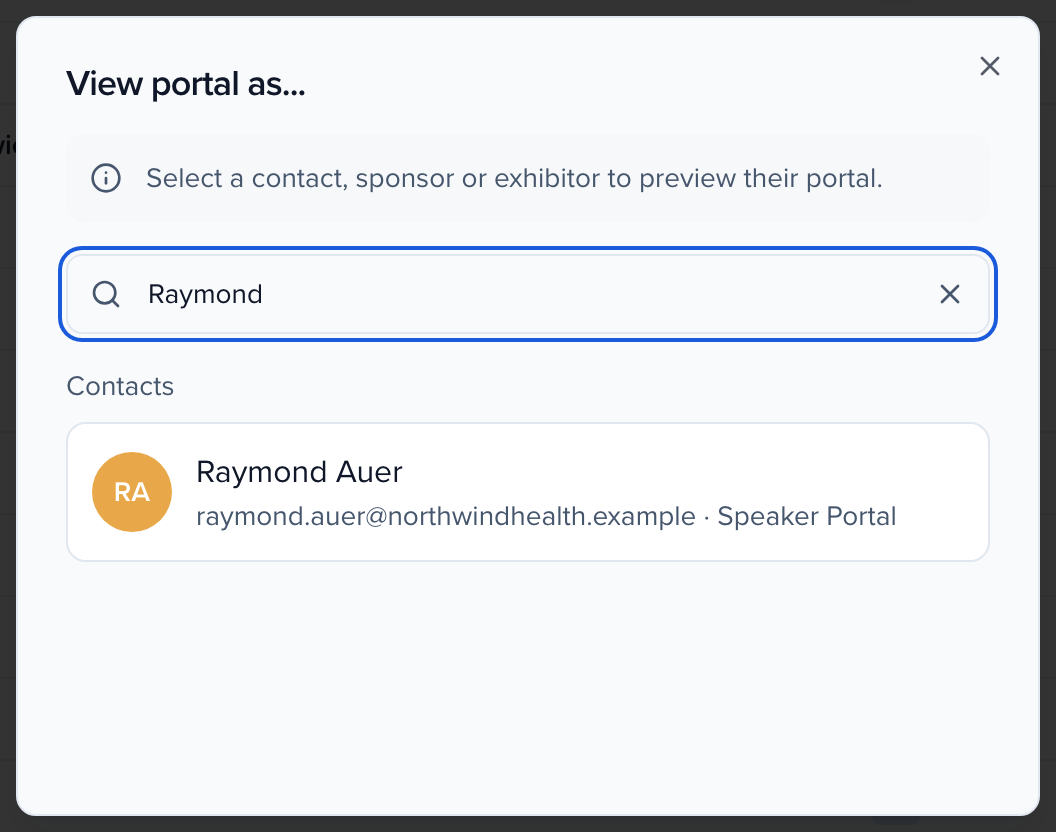
To see what a portal looks like for one of your speakers, sponsors or exhibitors — the same tasks, order and due dates they get — open it as them.
Training video · 6:30The speaker's side: signing in, getting unstuck, finishing tasksThe invitation a speaker receives (Share Login Details, Get Link), the event's portal sign-in page and the Continue as chooser, what a speaker sees on Home, Tasks, Profile and Files, the two sign-in calls (You do not have access to the portal for this event, and the locked account after five wrong passwords) with the speaker's fix and the admin's Unlock account on Event Team, Change Portal Username and Reset Password from the contact's Details card, the Assigned Portal column and the three checks when a task is invisible, Due Date and Extended Due Date in Edit Settings, filtering a task to Incomplete and writing to just those people, and View portal as.
Training video · 5:21Speaker portal & tasksWhere accepted speakers land, what you ask them to do there, and how you see who has done it.
Open the portal under Portals, and click Preview as… in the editor toolbar to pick anyone assigned to that portal. This is the quickest check after changing assigned tasks or fields. See Portals 101.