Mark tasks complete for portal users
When a speaker confirms by phone or emails you the answer instead of using the portal, you can close the task for them.
Why use it
Section titled “Why use it”Participants often finish a task outside the portal, and an open task that is really done skews everything that reads it: the participant’s portal, the task columns in your contacts table, and your reports. Closing it for them keeps those numbers true. When a whole group finished the same task offline, such as speakers who all signed a paper agreement on site, the bulk actions close it for everyone in one pass instead of one profile at a time.
Mark a task complete for one person
Section titled “Mark a task complete for one person”- Open CRM → All Contacts (or Speakers) and click the pencil next to the person. Their Contact Profile slides in.
- On the Profile tab, expand Portal Tasks. The badge shows how many tasks they hold; the bar shows the percentage done, and All / Pending / Done plus a search box narrow the list.
- Each card shows the task name, its description, a required marker and an Open or completed badge. Click Mark as complete on the card. Click the same control again to reopen it.
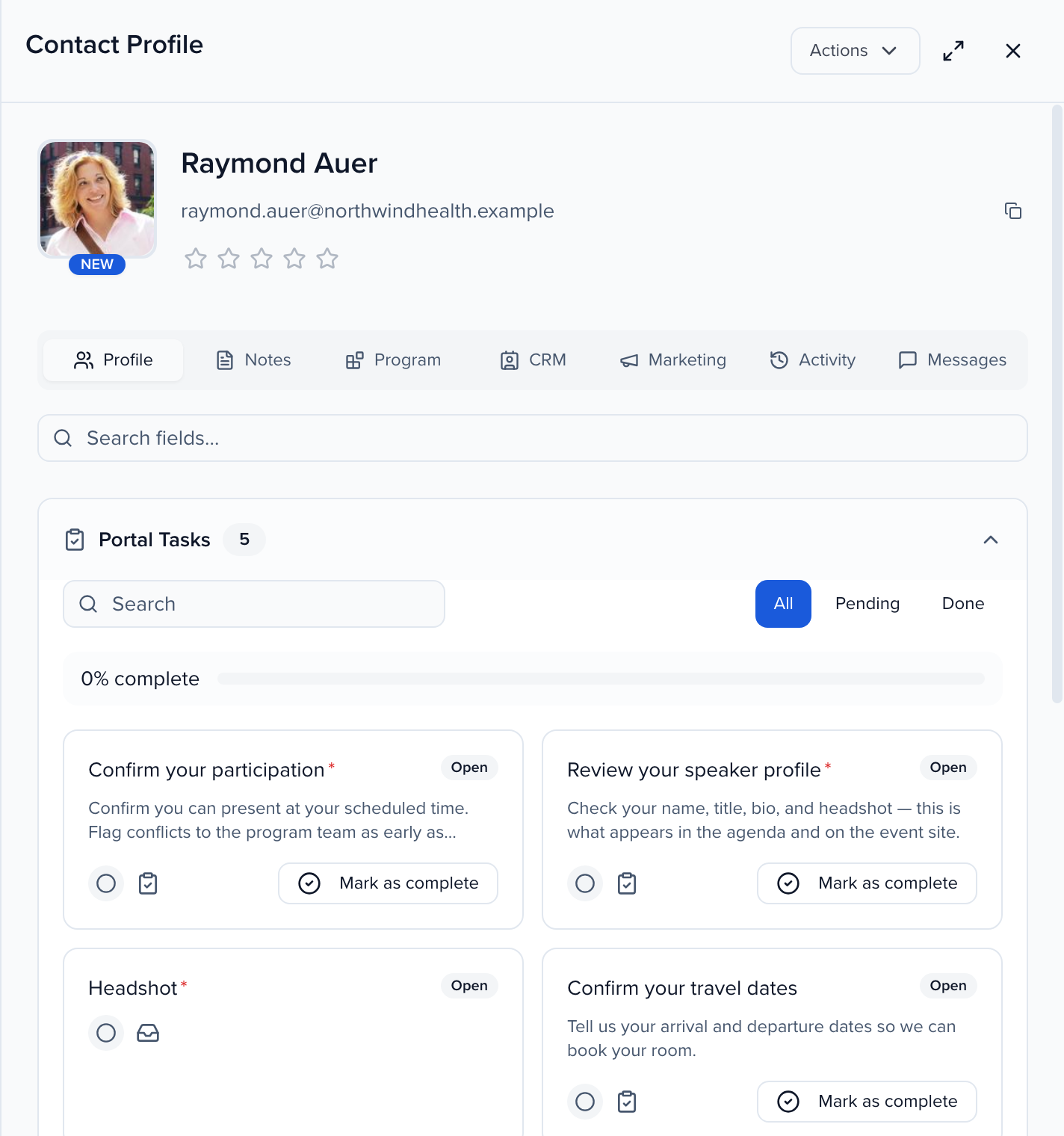
The status you set here is what the participant sees in their portal, and what the task columns in the contacts table and your reports read.
Only plain tasks have Mark as complete. A file request or a form is completed by its submission, so those cards have no button — upload the file or record the form on the participant’s behalf instead. See track task completion for the table-level view.
Mark tasks complete for many people
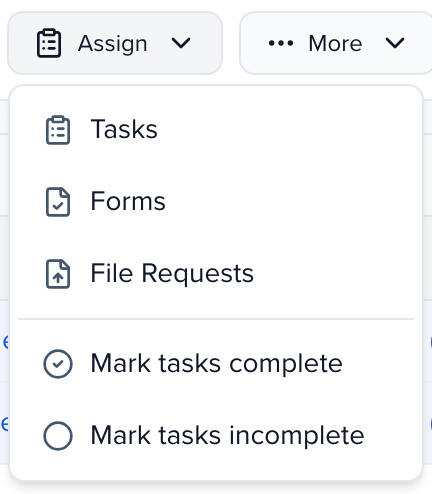
Section titled “Mark tasks complete for many people”To close tasks for many people at once, select them in CRM → Contacts (or Speakers) and choose Assign → Mark tasks complete (or Mark tasks incomplete), then pick the tasks. Sessions have the same two actions under More in the Sessions list. Each change is recorded in the record’s History.