

Follow up after a webinar
The webinar’s After tab turns the recording into everything that comes next. Recording & clips brings the recording into Media, transcribes it, finds the chapters and the best moments, and writes the posts. Publish the recording puts it on your own YouTube or Vimeo with chapters and captions. Share with your team sends the clips and posts to your colleagues as a team campaign. Advocacy gives speakers and attendees their own share links. Personalised follow-up sends each person a recap built from what they said they wanted and what they did.
Why use it
Section titled “Why use it”The week after a webinar is when the recording is worth the most and gets the least attention. The After tab does the production work for you: clips are cut from the transcript, the posts are written, and each attendee gets the two or three moments that match their interests and their own questions answered, while no-shows get the recording. You review it and send it.
Recording, chapters and clips
Section titled “Recording, chapters and clips”When the provider reports a cloud recording after the webinar, the next sync brings it into Media, linked to the webinar. It is transcribed from its audio, split into chapters, and the best moments are suggested as clips. On the After tab you see where it is:
- No recording in Media yet.
- Bringing the recording into Media…
- Transcribing and finding the best moments…
- Recording, transcript and clips are in Media.
- The recording could not be processed.
If the recording is there but no clips or posts are, click Generate clips & posts. The posts are written in the background, so you can leave the page: the card fills in when they are ready, and clicking again while they are being written does not start a second run.

- Chapters lists each chapter with its start time and summary.
- Clips lists the suggested clips and any you have cut. Suggested clips are moments picked from the transcript: cut them in Media to get a video file. Each clip has its own copy for LinkedIn, X, Instagram and Threads.
- Watch opens the recording.
The social pack
Section titled “The social pack”Social pack sits folded under the clips, with a count of the drafts in it. Click it to open the LinkedIn, X, Instagram and Newsletter tabs of ready-to-post copy written from the recording: three LinkedIn posts, three for X, two for Instagram and a newsletter paragraph. Click Copy on a post or Copy all. Click Rewrite posts for a new set. The current posts stay on the card until the new ones replace them.
Every post Sessionboard writes for you, here, in team campaigns and in Advocacy share copy, follows the same house rules so it reads like a person wrote it:
- No em or en dashes.
- No emoji.
- None of the stock phrases that give AI copy away.
- Hashtags last, on one line, with no repeats.
Copy you type yourself is never changed.

Publish the recording to YouTube or Vimeo
Section titled “Publish the recording to YouTube or Vimeo”Publish the recording puts the recording on your organization’s own YouTube channel or Vimeo account, connected once in Apps (see YouTube and Vimeo). Each one shows Connect, Reconnect to allow uploads, or Publish to YouTube / Publish to Vimeo once the recording file is in Media.
Check what goes with it
Click Publish to YouTube or Publish to Vimeo. The title is the webinar’s; the description is the webinar’s description followed by the chapter timestamps; the tags are the recording’s topics. Edit any of them, then choose the privacy and a playlist (YouTube) or folder (Vimeo).
Choose the extras
Upload captions from the transcript adds a caption track. On Vimeo, Add the chapters to the Vimeo player adds the chapters there too; on YouTube the timestamps in the description become the chapters. Use this video as the on-demand link is described below.
Publish
Click Publish. The upload runs in the background: you can leave the page. The row shows Uploading with its progress, then On YouTube or On Vimeo with Open on YouTube / Open on Vimeo.
If the upload is interrupted it carries on by itself; if it fails, the row says why and Try again continues from where it stopped. If the video went up but its captions, chapters or playlist did not, the row says which. Publish again uploads a new copy and leaves the first one where it is.
Use it as the on-demand link
Section titled “Use it as the on-demand link”Turn on Use the YouTube video as the on-demand link (or Vimeo) on a published video. The recording link in the personalised recaps and their CSV, the Watch on-demand button in the team share kit, the Watch button on this tab and the recording in your Content Gallery then point at that video, which plays there in the YouTube or Vimeo player. A private video cannot be the on-demand link. For now YouTube keeps videos Sessionboard uploads private while it reviews our access (see YouTube), so use Vimeo for the on-demand link.
Publish automatically
Section titled “Publish automatically”Turn on Publish automatically when the recording arrives and pick the host and the privacy. Once the recording has come into Media and been transcribed, it is published with the filled-in title, description, tags and captions. It is off until you turn it on, for each webinar.
Share with your team
Section titled “Share with your team”Once clips exist, Share with your team sends them to your colleagues as a team campaign with the posts ready to share. Pick how it reaches them: Slack, Email or Slack + email.

The team campaign opens inside the webinar, already filled in: the goal is on-demand views, the call to action is Watch on-demand with the recording link, there is one LinkedIn post per clip (up to three) plus one post from the social pack. You add:
- Who’s it for and the teammates who should get it, under How it reaches them.
- Why we’re sharing this: a line or two that appears at the top of every teammate’s share kit. Say what it is for and how to post.
Click Create team campaign, review it, then send. Each webinar keeps one on-demand team campaign draft: clicking Slack, Email or Slack + email again opens that same draft instead of making another. Each teammate gets a Slack message and an email with one button to their own share kit, where they post. See Post from your team share kit.
Anyone who can open the webinar can create and send its team campaign.
Personalised follow-up
Section titled “Personalised follow-up”Personalised follow-up gives every registrant their own recap.
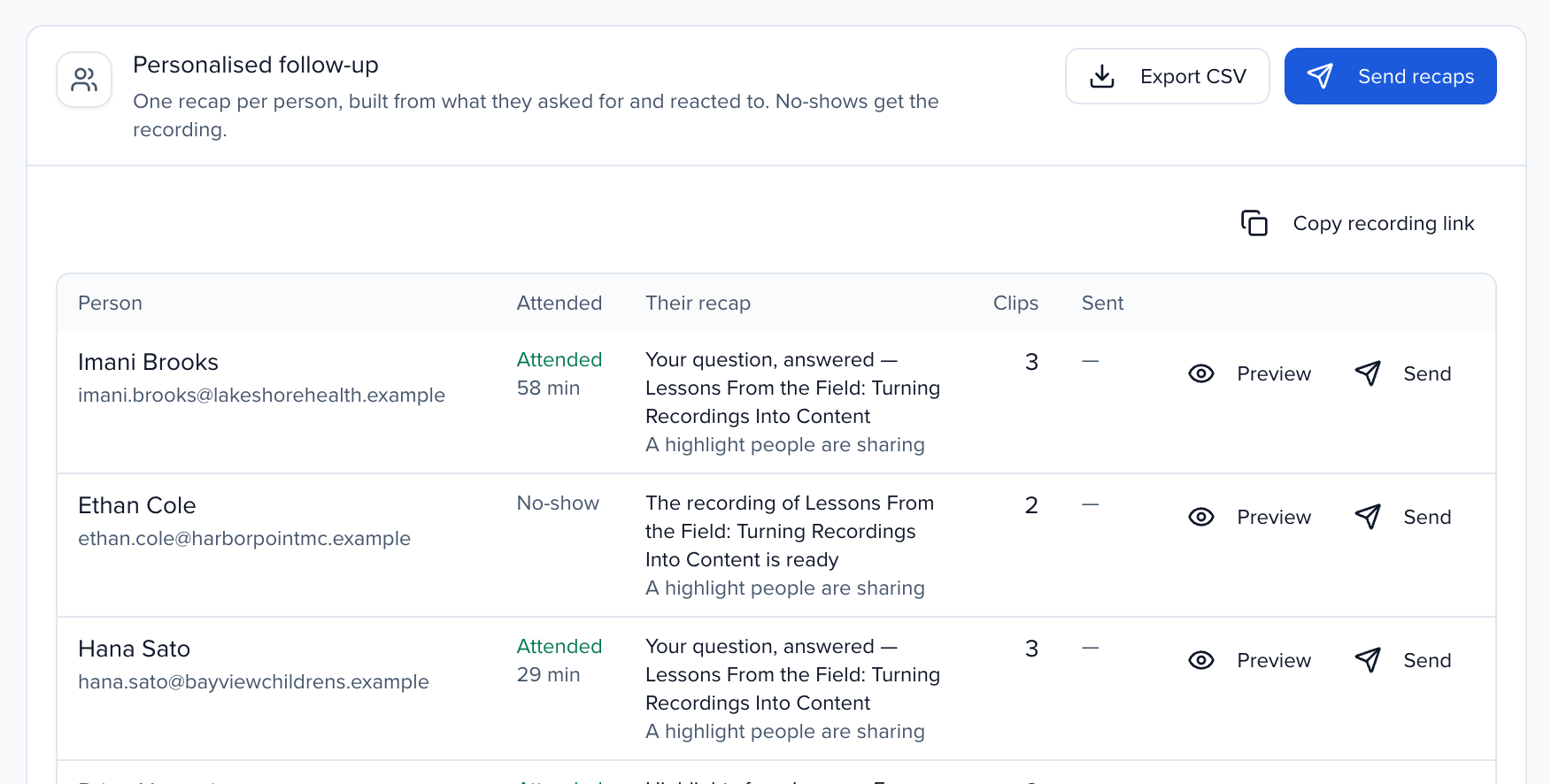
How each recap is put together:
- Attendees get up to three clips: the moment they asked a question or answered a poll, then the clips closest to the interests they gave in the pre-webinar survey, then the best clips.
- No-shows get the recording, plus the two clips closest to their interests.
- Their questions come back with the answer from the webinar when there is one.
The headline and intro are written from their interests and questions with a template, not with AI, so every recap says exactly what it is based on.
Check a recap
Click Preview on a row to see what that person gets: Clips for them, More on their interests and Their questions.
Send
Click Send recaps, choose who gets them, and confirm. Recaps go out in batches of 200 from your organization’s sending address. If there are more, click Send next batch. Each person gets their recap once: anyone already sent is skipped unless you pick them and click Resend.
To send from your marketing tool instead, click Export CSV. The file has each person’s email, name, whether they attended, minutes, interests, intro, up to three clip links and the recording link.
The recap is a webinar email you can edit, in the Emails section of the webinar’s Settings. The clips and answered questions are added below your text.