

Content galleries
A content gallery is a hosted page for the content your program produces — session recordings and clips, white papers and slide decks, lessons that award credit, webinar recordings, and the program itself as a browsable catalog. Visitors get a curated Hub of collections, an Explore page with search and filters, and a My list to save things to. You get plays, watch time, saves, downloads and, when the gallery is gated, leads.
Every gallery starts from a template. Templates pre-wire the collections, filters and auto-fill rules for a job, so the gallery fills itself from content you already have and stays current without anyone adding items by hand.
Not sure a content gallery is the right surface? Compare it with a Site, an Embed and a Poster Gallery in Which one do I need?.
Why use it
Section titled “Why use it”Your program produces more content than one event can show: recordings, clips, slides, white papers, lessons. A content gallery gives all of it a home that visitors can browse, search and save from — and My list lets them take what they saved to their calendar or inbox, which is the moment a library turns into attendance and a captured email.
Pick a template
Section titled “Pick a template”| Template | Build it when… | What it sets up |
|---|---|---|
| On-Demand Hub | The event is over and the recordings deserve a real home | Open to all, dark video-first theme. Featured, Latest, Highlights & clips, Most watched and Keynotes rails. Fills from the Media Hub as recordings land. |
| Session Catalog | Attendees should search the program, filter it and build an agenda — before, during and after the event | Open to all, your brand colours, a Program page in one of three layouts — Catalog, Timetable or Agenda (see Program layout) — plus a People directory and a session panel with presentations, speaker bios and Add to calendar. Filters for Day, Track, Session type, Level, Topic, Speaker, Location, Language, Credits and Recording available. Sorted in program order. My agenda replaces My list. Needs an event. |
| Learning Catalog | Courses, webinars and recordings should live in one catalog with credit, format and price filters | Open to all, light reading-first theme, catalog rows with credit chips and Free / Paid. Featured, Continue learning, New this month, Courses with credit, By credit type, Series & bundles and Webinar recordings. Fills from published lessons and imported webinar recordings. |
| Resource Library | White papers and decks should capture a lead before download | Email gate, light theme. New this month, White papers, Guides & documents and Articles grids. Fills from files marked visible on sessions. |
| Webinar Library | You run a year-round webinar program and want every recording published as it lands | Email gate, your brand colours, landscape cards. Latest webinars, Most watched, Continue watching and By speaker. Fills from recordings imported by a connected webinar platform. |
| Speaker Spotlight | You want everything organized by the people who said it | Open to all, light theme. Featured speakers, By speaker and Latest, with a Speaker filter front and centre. |
| Year-Round Archive | Members should have one home for every event, every year | Members-only (portal login), your brand colours. Continue watching, Latest additions, By event and Earn credit, with an Event filter. Fills from every event in the organization. |
| Start from scratch | You know exactly what you want | An open gallery with one Latest rail and sensible defaults. |
You can change everything after creating the gallery — the template only decides where you start.
Create a gallery
Section titled “Create a gallery”Open Publish → Sites and click New gallery
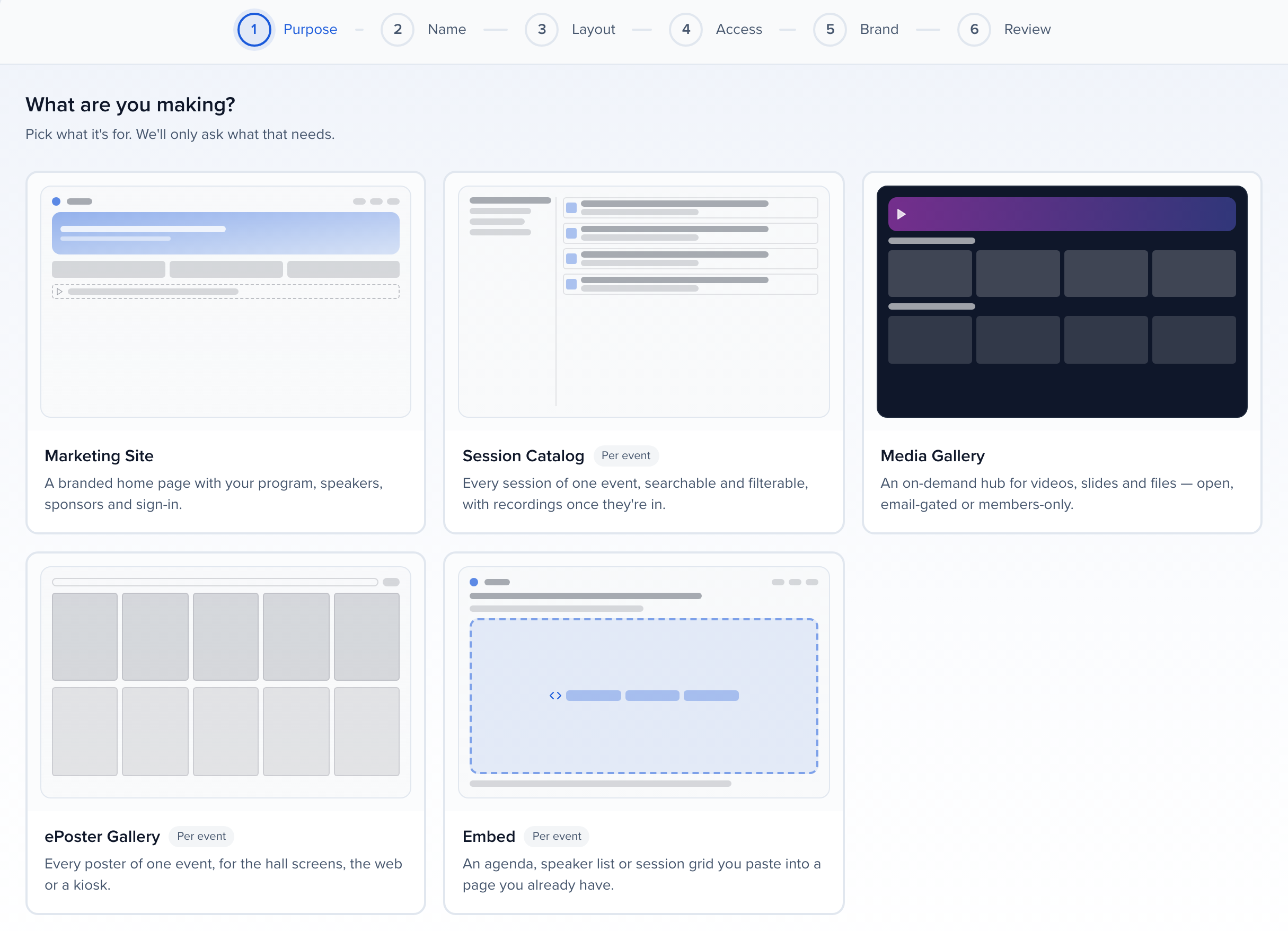
The create wizard opens. Pick Media Gallery for recordings, clips and resources, or Session Catalog for one event’s searchable program. Session Catalog is marked Per event: at the organization level the next step asks which event it shows.
Name it and choose its web address
The Name is what visitors see in the browser tab. The Web address shows the host your gallery is served from, followed by the part you type; the wizard checks the address is free as you type.
Pick a layout, who can see it, and a look
Pick a layout offers the templates above, each with a small sketch of how it lays out. Who can see it? sets the gallery’s access, and Pick a look its theme — you can change all three in the builder later. Review shows what you chose; click Create to open the builder.
Work through Getting started
The builder opens on the Content tab with a Getting started checklist tuned to the template — for example Sync accepted sessions, Pick your keynotes or Connect your webinar platform in Integrations. Each step names what it unlocks. Optional steps are marked.
Publish
The gallery is a Draft until you click Publish in the header. While it is a draft, the public link shows a holding page and the builder’s preview shows the real gallery, so you can share the link ahead of time. Copy public link and View live are in the same header; Unpublish takes it down again without losing anything.
Content: what is in the gallery
Section titled “Content: what is in the gallery”The Content tab lists every item and where it came from. Drag to set the curated order, star an item to Feature it (eligible for the hero and Featured collections), or Hide it to keep it configured but out of every collection and search.
Add content by hand
Section titled “Add content by hand”Add content offers five sources:
| Source | What it pulls in |
|---|---|
| Recordings & clips | Videos, clips and podcasts from the Media Hub. |
| Files & links on sessions | PDFs, slides and links attached to sessions. Only files marked visible on the session appear. |
| Lessons | Published lessons from Learning — the credit statement shows on the card. |
| Sessions | Accepted sessions with speakers, time and track. Recordings attach automatically. |
| External link | A link to a video, podcast episode or article hosted anywhere. |
You can also add a recording from the Media Hub itself: Add to gallery on the recording offers your organization’s galleries and the gallery of the recording’s own event. It tells you whether the item was Added, is already in the gallery, or can’t be added there — an event gallery only takes that event’s media. See Media library.
Auto-fill rules
Section titled “Auto-fill rules”Rules keep the gallery current: anything new that matches is added the next time the rule syncs. A rule chooses what to Pull from, which Event (or any event, for organization-level galleries), and narrows it down:
- Sessions — Which sessions: all, upcoming only or past only.
- Recordings & clips — Include clips cut from recordings, and Webinar recordings only for recordings imported from a connected webinar platform.
- Lessons — Free lessons only skips lessons with a paid price plan.
- Any source — Only with tags and Published since.
Each rule shows how many items it last pulled in and when. Sync now runs one rule; Sync all runs every rule. Turn a rule off with its switch to stop it adding items without deleting the ones it already added.
Edit an item
Section titled “Edit an item”Click an item to change its Title, Description, Thumbnail, Format, Published date and Tags (tags power the Tags filter and tag-based rules). Access and Embargo until override the gallery’s settings for this one item; leave Access on Inherit unless the item needs its own rule.
For a video or audio item, the editor also has Captions & transcript, where you upload or generate the captions the gallery player shows. See Captions and transcripts. When you publish, Sessionboard checks the gallery’s videos. If any have no captions, a dialog lists them, with Add captions beside each one. Choose Go back to add them first, or Publish anyway and add them later.
Collections: the Hub
Section titled “Collections: the Hub”Collections are the rows on the Hub page. Each has a Title, optional Subtitle, a Cover image, and a Layout:
| Layout | Use it for |
|---|---|
| Rail — horizontal scroller | Most rows: Latest, Keynotes, By track. |
| Grid — every item at once | Document libraries and small, complete sets. |
| Spotlight — large featured cards | Two to four things you want everyone to see. |
| Hero — full-width banner | One item that leads the page. |
A collection either lists hand-picked items or follows a rule — With any of these tags, Published in the last (days), Featured items only, an Order and an Item limit. A Group label joins adjacent rows under one heading, for example By track. Access can be stricter than the gallery’s, and Hidden keeps a collection configured but off the Hub.
Design
Section titled “Design”Theme and brand
Section titled “Theme and brand”Three presets set the mood: Dark cinematic (video-first, deep backgrounds), Light editorial (reading-first, white space) and Your brand, which keeps a neutral light (or, with a light text colour, dark) canvas and uses your Primary colour for the navigation, buttons and selected states, with the Accent, Text colour, Font family and Logo you set below it.
The banner at the top of the Hub. Featured item shows a starred item’s art and title with a Play button; Custom banner uses your own Title, Subtitle, Banner image and buttons.
Program layout
Section titled “Program layout”Session Catalog galleries only. The Program page (the template’s Explore page) can lay the program out three ways; the Hub, My agenda and the session pages are the same whichever you pick, and switching is instant in the preview before you save.
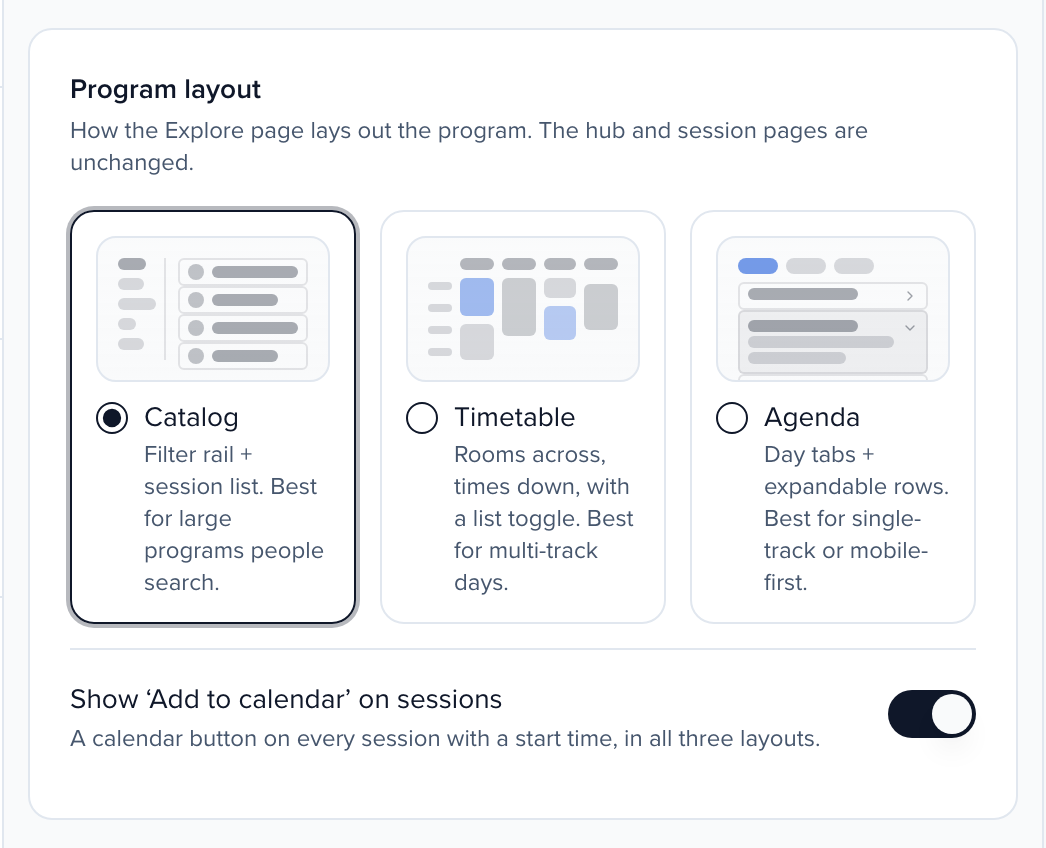
| Layout | Best for | What visitors get |
|---|---|---|
| Catalog | Large programs people search | A filter rail (Track, Format, Level, Room, Topics — each option with its count) beside session rows grouped by day and start time, with a sticky search bar, active-filter chips, page numbers and a Per page choice of 10, 25 or 50 sessions. |
| Timetable | Multi-track days | Rooms across, start times down: each session is a card spanning its slot, colour-coded by track, with a legend, a sticky room header and time column, and a Grid / List toggle. Narrow screens and the TBA day always show the list. |
| Agenda | Single-track programs and phones | Day tabs and one expandable row per session. Open a row for the abstract, the speakers with their bios and the presentations inside it; Expand all opens every row. On the day, rows carry Now, Next and Ended chips. |
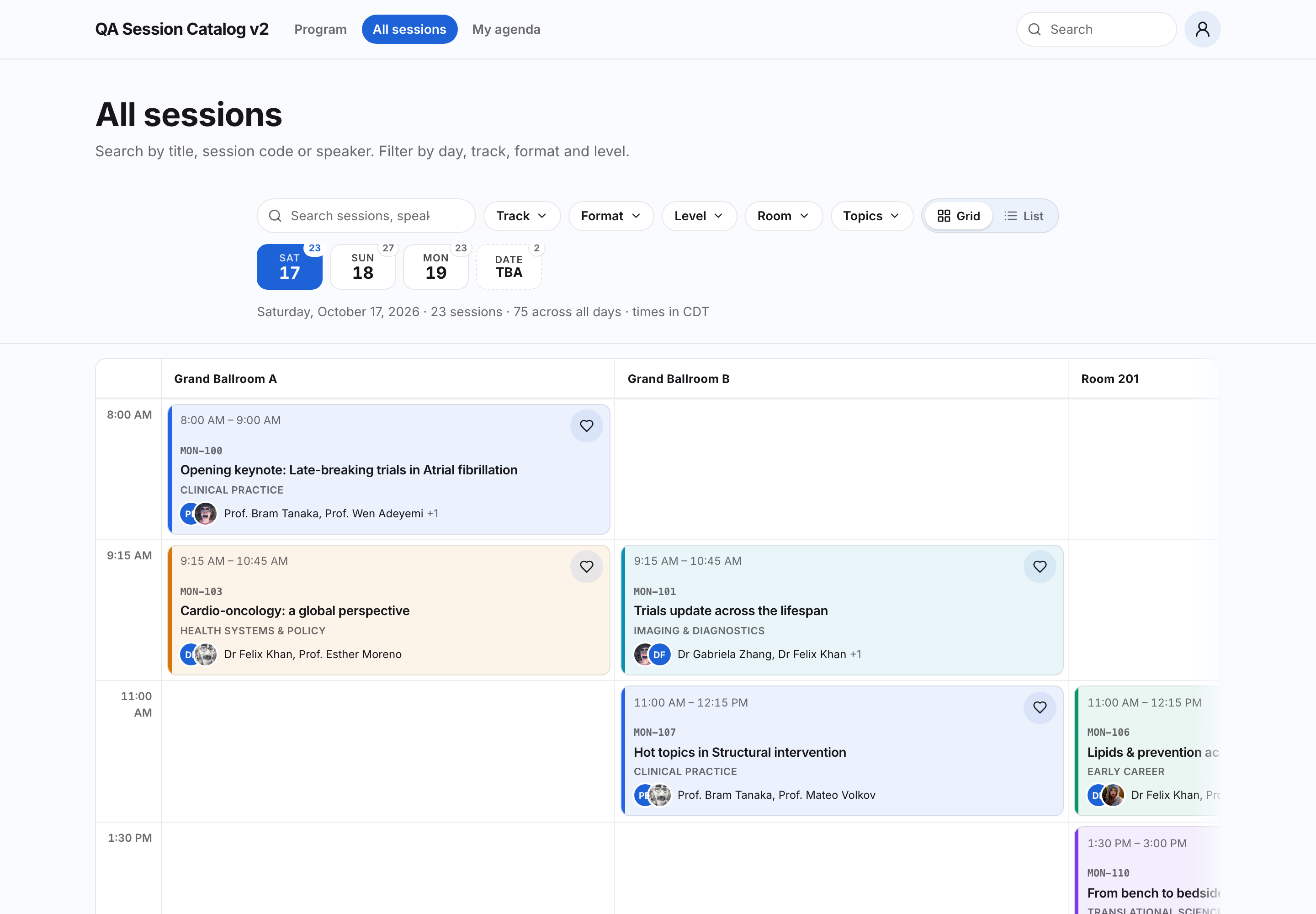
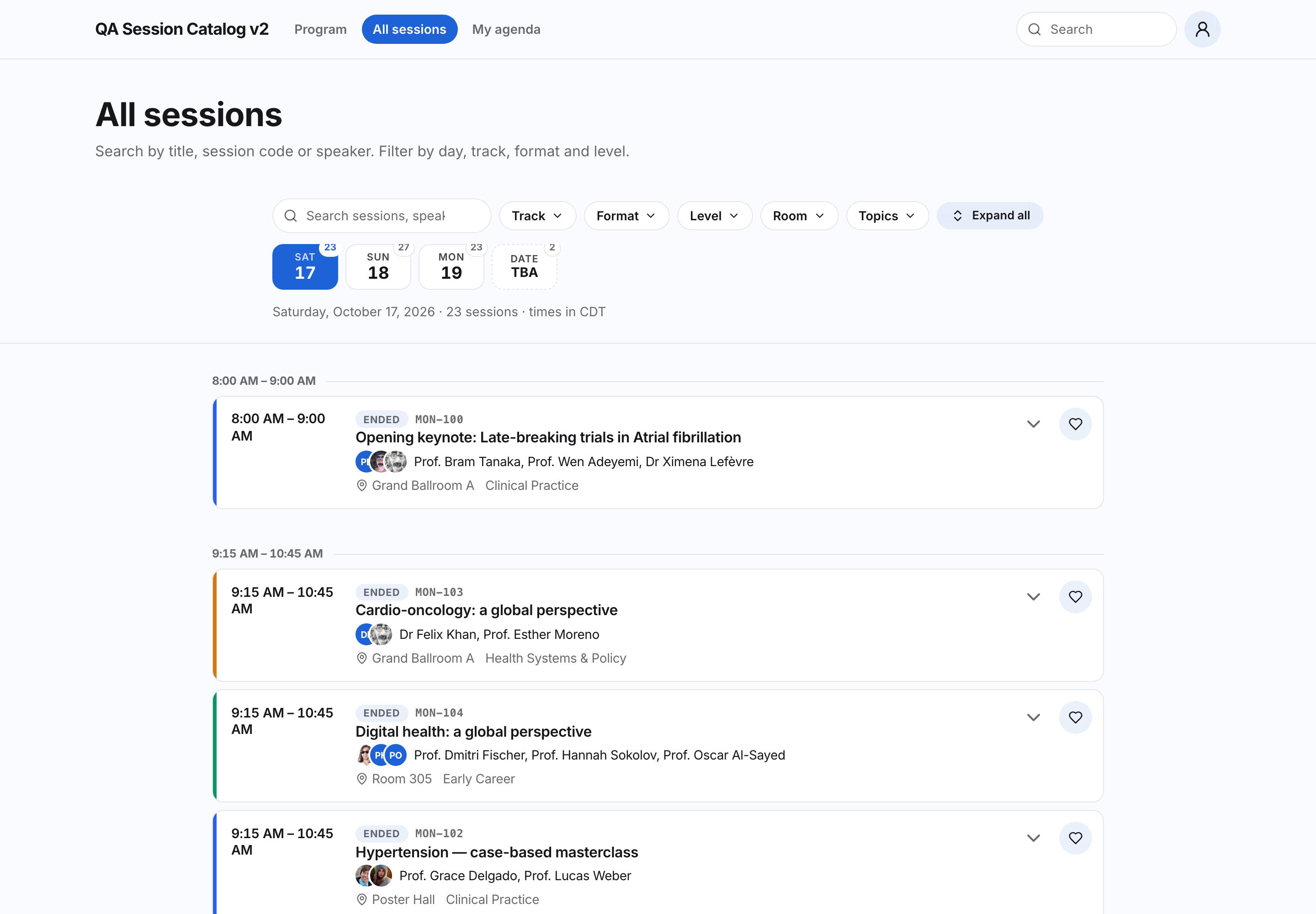
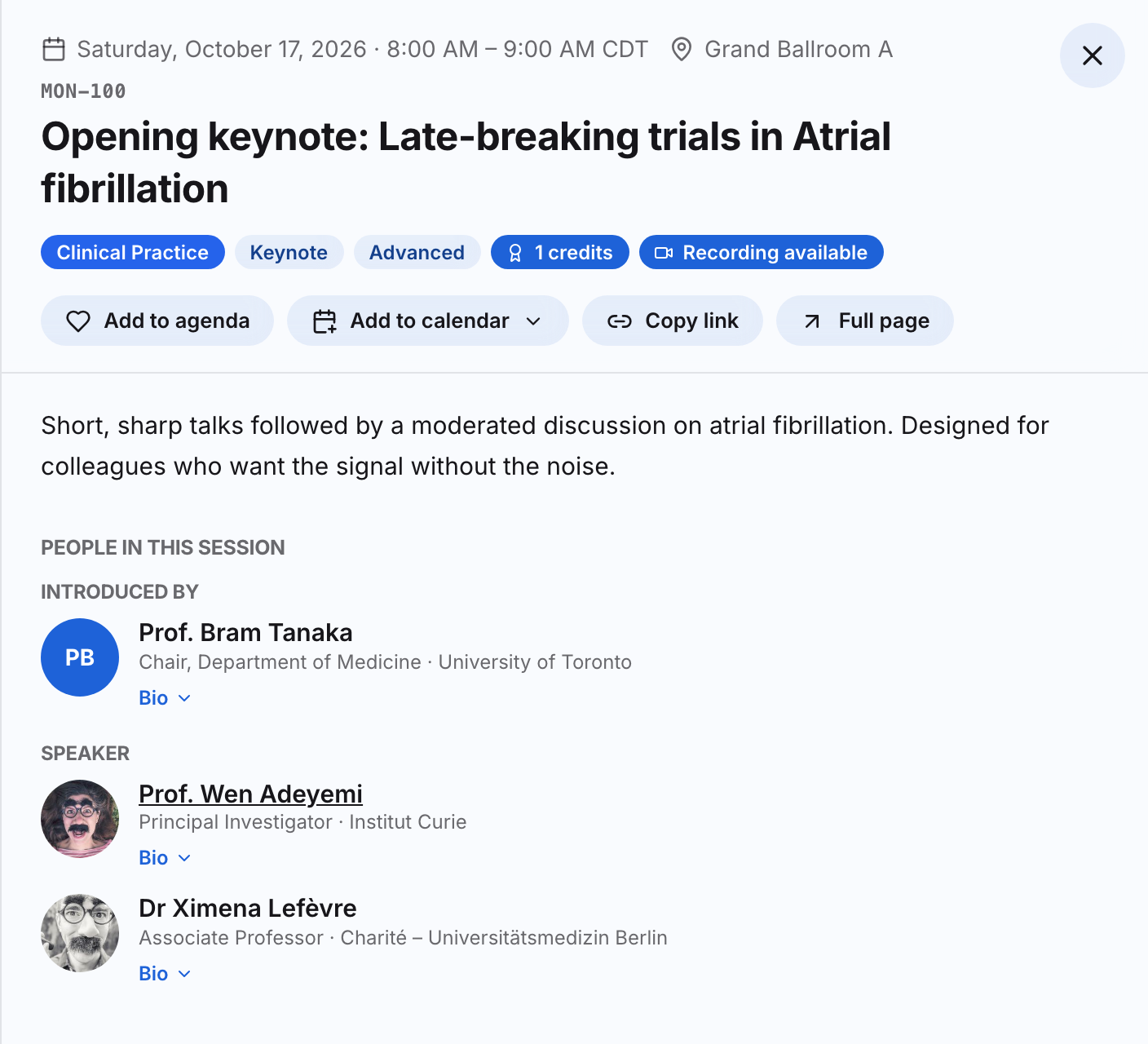
All three share the same session panel: click any session and it opens beside the program with the date, time, room and time zone, the abstract, the speakers (with Read more for bios), the presentations inside a symposium or poster session (searchable, with Show only presenters), Save, Copy link and — when Show ‘Add to calendar’ on sessions is on — Add to calendar as a calendar file, Google Calendar or Outlook. Links carry the open session, the day and every filter, so a pasted URL lands on the same view. Sessions without a start time collect under a TBA day rather than disappearing. Times are shown in the event’s time zone.
Add People under Navigation tabs (below) for a faculty directory: everyone who chairs, speaks or presents, grouped by surname with a role filter and search; each person has a page with their photo, bio and sessions by day.
Layout and cards
Section titled “Layout and cards”| Setting | What it does |
|---|---|
| Card style | Poster (2:3) and Landscape (16:9) for video-first galleries, Compact tiles for dense libraries, and Catalog rows for programs and learning catalogs — each row shows the session code, title, abstract, speakers, time and the chips that matter (track, level, room, language, credits, Recording available). On a Session Catalog this applies to the Catalog program layout; Timetable and Agenda bring their own cards. |
| Rail size | How large the cards in a rail render. |
| Show format badges on cards, Show duration on cards | The small Video / Document badge and the running time. |
| Show session codes | The program code before the title in catalog rows; the code is searchable too. |
| Show speaker title and company | Adds Title, Company after each speaker name in catalog rows. |
| Show credit chips | Credit designations on lessons and credit amounts on sessions. |
| Show Free / Paid on lessons | A price chip on lesson cards. |
| Hub page / Explore page | Turn either page off — a pure searchable library needs no Hub. |
| Navigation tabs | Which of Hub, Explore, My list — and, on a Session Catalog, People — appear in the header. |
Visitor features and copy
Section titled “Visitor features and copy”Every toggle under Visitor features removes a control from the public gallery: Search, My list (saves), Share buttons, Downloads, Transcripts, Related items and Continue watching. Under Copy, rename the Hub title, Explore title, Explore intro, the “My list” and “Save” labels — the Session Catalog template calls them My agenda and Add to agenda — and the Empty state shown when a search finds nothing.
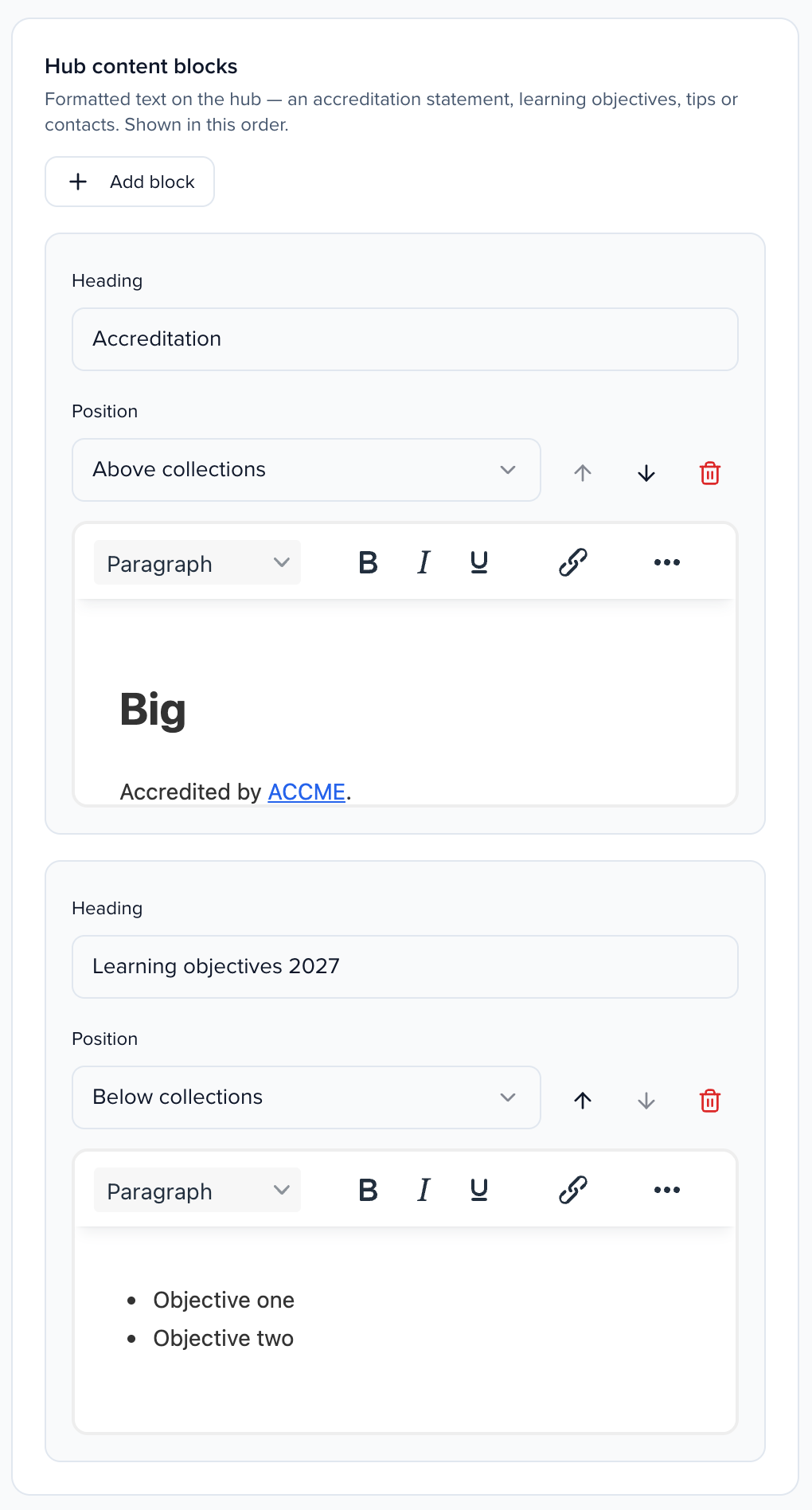
Hub content blocks add formatted text to the Hub: an accreditation statement, learning objectives, tips for using the program, or who to contact. Click Add block, give it a Heading, write the text, and choose a Position — Above collections or Below collections. Blocks show in the order you set with the arrow buttons, up to 12. Scripts and unsafe markup are removed when you save, and links stay.
The Call-to-action band at the foot of every page carries a heading and a button; Capture emails instead of linking out swaps the button for an email field whose submissions land in Leads.
On My list, visitors can take their saves with them. Add to calendar downloads a calendar file with every saved item that has a start time; the button appears once at least one saved item has one. Email me my list sends every saved item with its link, and the calendar file attached, to the signed-in member or the address they gave at the email gate; anyone else types an address. Embargoed details stay hidden in the email, and a visitor can send it a few times in a short window before they have to wait.
Search engines
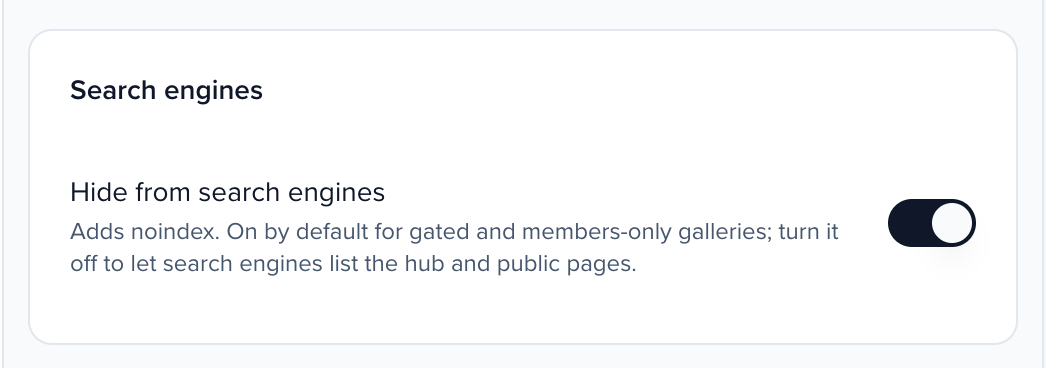
Section titled “Search engines”A published gallery is indexable unless its access mode is Private: search engines can crawl the Hub, Explore, every collection and every item a visitor could open without signing in, and those pages are listed in the Site’s sitemap. Item pages carry structured data for search results (a session with CE credit is marked as an education event), and Explore and each collection list their items. Embargoed sessions appear by title and time only — their withheld details are never in what search engines read. Locked items — behind a gate or a login — are left out, and My list is never indexed. Hide from search engines adds noindex to every page of the gallery and drops it from the sitemap. It is on by default for any gallery with an access restriction — Email gate, Share link, Members, Registrants only or SSO only — so turn it off on the Design tab only if you want search engines to list a gated gallery’s Hub and public pages. On a public gallery it is off until you turn it on.
Share previews
Section titled “Share previews”When someone pastes a gallery link into LinkedIn, Slack, Teams or iMessage, the preview card is built from the gallery: the Hub and Explore use the gallery name, hero subtitle and hero image (or the first item’s thumbnail); an item link uses the item’s title, description and thumbnail. An embargoed item shares the gallery’s card instead, so nothing withheld leaks into a preview, and a private or draft gallery shares a generic Sessionboard card. Previews work even when Hide from search engines is on. LinkedIn caches a card for about a week — use its Post Inspector to refresh one after you change a thumbnail.
Access: who can watch
Section titled “Access: who can watch”Set once for the gallery on the Access tab; collections and items can be stricter.
| Access mode | Who gets in |
|---|---|
| Open to all | Anyone with the link can watch, read and download. |
| Email gate | Visitors see titles and thumbnails, then enter an email to unlock. Every unlock becomes a lead you can export from Analytics. |
| Share link only | Hidden unless the visitor arrives through one of your share links. Each link can have a password, an expiry date and a view cap. |
| Members (portal login) | Visitors sign in to the Site (password or SSO) before anything unlocks. |
| Registrants only | Visitors sign in, and only people registered for the gallery’s event get in. Offered only on a gallery that belongs to an event. |
| SSO only | Only your identity provider lets people in — no passwords, no email gate. |
| Private | Nobody outside the builder can open it. Use while you curate. |
Site sign-in turns Email and password login and Single sign-on (SSO) on or off for the gallery, so visitors on an open gallery can still sign in to keep their list across devices.
Embargo
Section titled “Embargo”Withhold abstracts and recordings until a session has been presented — scientific programs use this so nothing leaks before the room hears it.
- Off — abstracts, players and downloads are available as soon as an item is visible.
- Until each session’s presentation time — each session lifts on its own schedule. Items without a start time are never embargoed.
- Fixed date & time — everything in the gallery lifts at the same moment.
What to withhold decides what stays hidden until the lift: Description (abstract), Player and downloads, Speakers (names and photos on the listing) and Tags. With nothing ticked, the gallery withholds the description and the player. Embargoed items still appear in the catalog with their title and an Available … chip, so attendees can plan around them — and anything you withhold stays out of the Explore filters, their counts and search until the lift, so a withheld speaker or topic cannot be found by filtering for it.
Where it applies decides which places honor the embargo: Gallery site (the gallery’s own pages, and gallery blocks on your other Sites), Website embed (the gallery widget pasted on your own website) and Mobile app (the event app reading the gallery feed). With all three ticked, the embargo covers everywhere. Untick a place to show everything there as soon as the item is visible — anyone can read the abstract there before the lift. At least one place stays ticked.
Explore filters
Section titled “Explore filters”The filter rail on the Explore page, with a count next to every value. Values come from the items themselves, so a filter with nothing behind it simply does not show. Each filter has a Label, a Display style (Chips, Dropdown or Checkboxes) and a switch to hide it without deleting it. Choose the Filter source:
| Filter source | Values |
|---|---|
| Custom values (set per item) | Pick from the built-in keys — Topic, Track, Session type, Level, Location / room, Language, Speaker / faculty, Credits offered, Credit type, Format (live / on demand), Price (free / paid), Series / bundle, Webinar platform, Event, Item type — or type a custom key. |
| Custom session field | A dropdown or checkbox field from your Sessions module, such as Audience, Industry or Product. Pick the field and its values become a filter; existing items refresh automatically. |
| Day of the event | One value per program day, in date order. Days follow each session’s event time zone, so a 7 PM Pacific session is on its own day, not the next one. |
| Recording available | A single value that matches sessions with a recording bound to them. |
| Format, Tags, Speaker, Event, Year | Computed from every item. |
The filter rail, the sort menu, the active-filter chips and the day names follow the visitor’s language: English, French, German or Spanish.
Share links
Section titled “Share links”Hand a partner, sponsor or the press a tracked link even when the gallery is open. Each link has a name, an optional password, an expiry and a view cap, and shows how many views it has driven.
Settings
Section titled “Settings”Gallery name, URL slug and the Default order in Explore — Newest first, Oldest first, Title A–Z, Most watched, Curated order (your drag order on the Content tab) or Program order (date & time), which lists timed sessions in schedule order. Visitors can change the sort themselves; search results always rank by relevance. About this gallery shows the template and event the gallery was created from. Embed on your website gives you the code to paste on your own site — under Show, pick All items or one collection, then Copy code (see Put a gallery on your own website). Danger zone deletes the gallery — type the slug to confirm.
Analytics
Section titled “Analytics”Pick a time window and read Views, Unique viewers, Plays, Watch time, Saves, Downloads & clicks, Searches and Gate leads, with a Daily views and plays chart, a Funnel from visit to play to save, a breakdown by Collection, Top items and Top searches. Zero-result searches tell you what content to add next. Under Leads, every email captured by the gate or the call-to-action band can be exported.
Use your own domain
Section titled “Use your own domain”A gallery has its own address, sites.sessionboard.com/s/your-slug, and can be served from a domain you own instead, such as library.yourassociation.org. Open the gallery’s Domain tab and pick a domain your organization (or, for an event’s gallery, the event) has connected in Settings > Domains, or Sessionboard address to go back. A domain another Site uses asks you to confirm the move. Connect a new domain… opens Settings > Domains. The tab appears once Sessionboard has turned on Site Domains and you can update settings. The full steps are in Use your own domain.
Put a gallery on a Site
Section titled “Put a gallery on a Site”A gallery has its own address, and it can also live inside a regular Site. In the Site builder, add a Content gallery block, pick the gallery, then choose Whole gallery or one collection, a Rail, Grid or Spotlight layout, how many Items to show, and whether to show a See all link or a search box. The block reads the gallery live, so new items appear on the Site without republishing it. Visitors who click through land in the gallery itself, where its access rules apply. A draft gallery shows nothing until it is published.
Put a gallery on your own website
Section titled “Put a gallery on your own website”The gallery can also sit on a website you already run — the same way an agenda embed does. There is no row to create under Publish → Embeds. Open the gallery’s Settings tab and copy the code from Embed on your website — it already has your slug and your region. Written by hand, it looks like this, with acme-library replaced by the gallery’s URL slug:
<script src="https://embeds.sessionboard.com/v0/sessionboard-content-gallery-embed.js"></script><sessionboard-embed widget-type="content-gallery" site-slug="acme-library" language="en" theme="auto"></sessionboard-embed>The widget shows search, filters, sort and a page of cards. Opening a card plays or downloads the item when the visitor is allowed to; an email-gated item collects the address in the widget and unlocks it. Members-only and SSO galleries send the visitor to the gallery Site to sign in. A ?share= on the host page unlocks a share-link gallery.
| Attribute | Required | What it does |
|---|---|---|
site-slug | Yes | The gallery Site’s slug. |
gallery-id | No | The gallery’s id, only needed when one Site hosts more than one gallery. |
collection | No | A collection slug, to show just that rail. |
page-size | No | Cards per page (1–100; default 12). |
language | No | Widget chrome: en, de, fr or es. |
theme | No | light (default), dark, or auto to follow the visitor’s system. |
Do not load this script on the same page as another Sessionboard widget script — they all define <sessionboard-embed>. EU events use embeds-eu.sessionboard.com instead of embeds.sessionboard.com; the code from Embed on your website already points at your region. A draft gallery shows an error in the widget until it is published.
How content flows in
Section titled “How content flows in”- Recordings — upload to the Media Hub, or connect your webinar platform under Integrations. Imported webinar recordings land in the Media Hub and then in every gallery whose rule matches them, so a Webinar Library or Learning Catalog publishes the recording without anyone touching it. Rules with Webinar recordings only take just those.
- Sessions — accepted sessions arrive with their speakers, time, track, format, level, language, room, tags and credits. When a recording is bound to a session, the session shows a Watch button and matches the Recording available filter. When you publish a session’s recap, its item page shows it under the description — only the recap you published, never the unreviewed AI summary — and it stays hidden while the item is embargoed.
- Lessons — published lessons arrive with their credit designations, series and price, which power the Credit type, Series / bundle and Price filters.
- Files — a file attached to a session appears once it is marked visible on that session.