

Field types: session, people & group
When creating a form (i.e. Session submission form, intake form, or portal form) you have the ability to add fields to collect information. The data retrieved is then stored in one of three areas:
Below, you will learn the difference between the three fields and where you can retrieve the stored data.
Session Fields
Section titled “Session Fields”Session fields are used when creating your session submission form on the page “Session Information”. These are fields that relate back to the session such as:
-
Title
-
Description
-
Tags
-
Tracks
-
Location
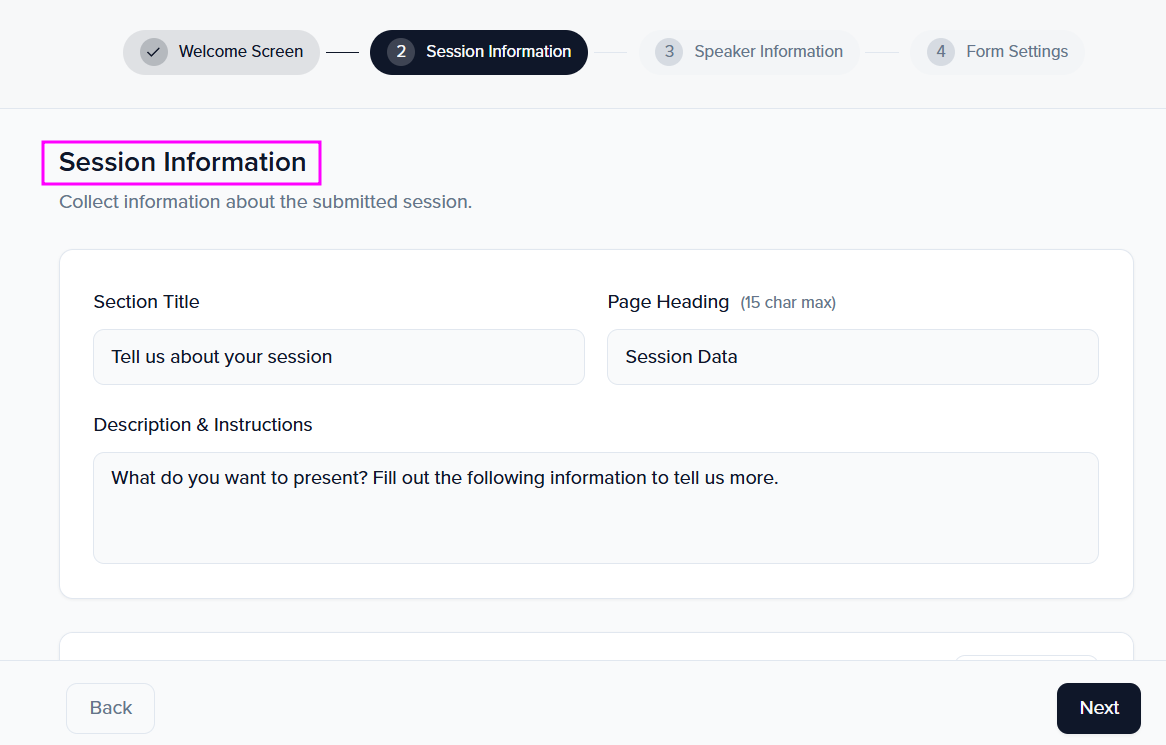
Data from these fields can be retrieved by navigating to the Sessions module. To easily access this information, we recommend creating a dashboard view that includes the questions/fields on your session submission form.
Speaker/Individual Fields
Section titled “Speaker/Individual Fields”Speaker/Individual fields are used when creating your session submission form (on the page “Speaker Information”), Intake Form (on the page “Contact Information”), or portal form. These are fields that relate back to the speaker contact profile, such as:
-
Name
-
Email
-
Social Media Handles (i.e. Twitter, LinkedIn, Facebook)
-
Address
-
Bio
-
Photo
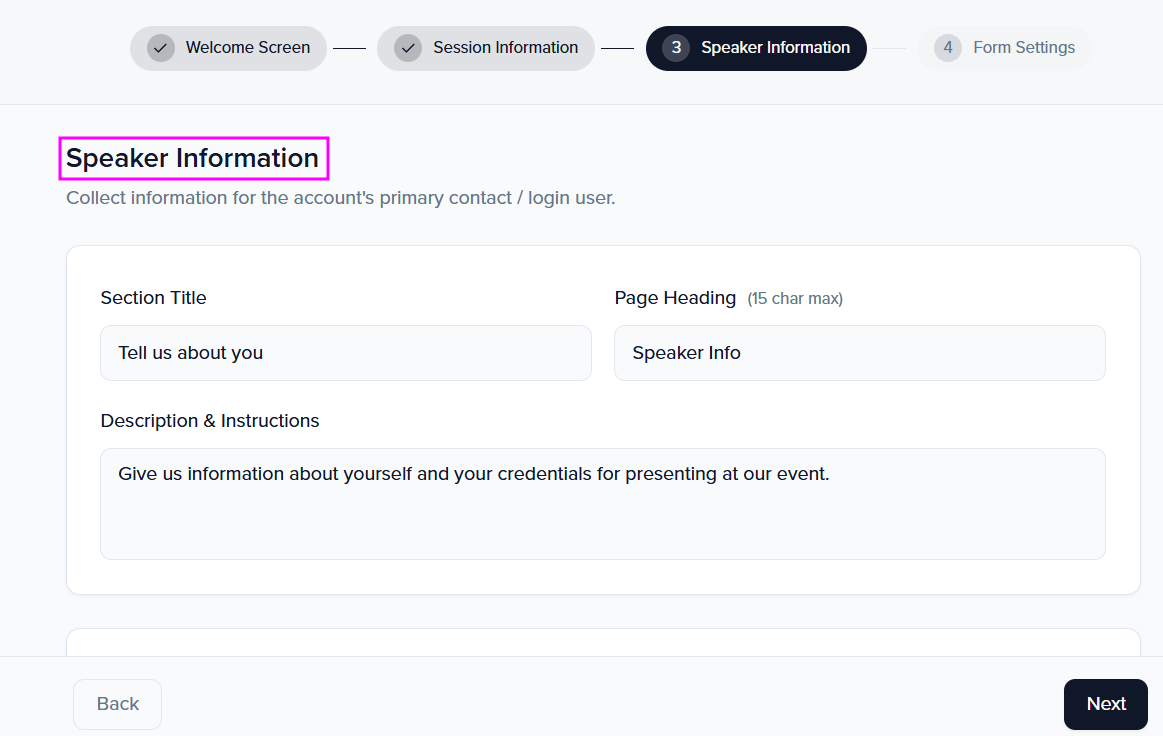
Data from these fields can be retrieved by navigating to the Contacts module. We recommend creating a dashboard view that includes the questions/fields included on your form(s) to easily access this information.
Group Fields
Section titled “Group Fields”Group fields are used when creating your sponsor/exhibitor intake form (on the page “Group Information”) or portal form. These are fields that relate back to the group (i.e. sponsor and exhibitor organization) such as:
-
Name
-
Description
-
Address
-
Social Media Handles (i.e. Facebook, Instagram, LinkedIn)
-
Logo
-
Website
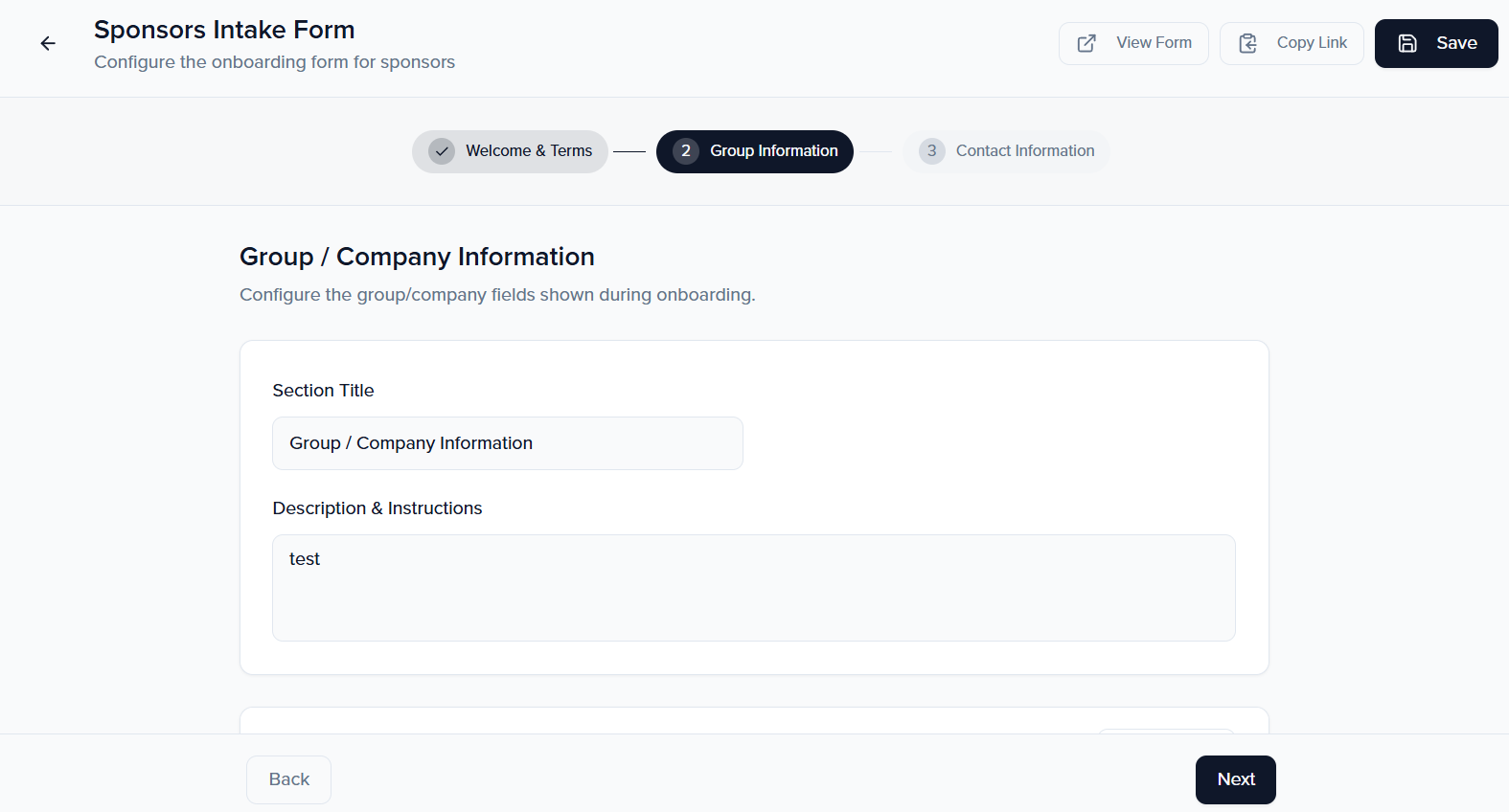
Data from these fields can be retrieved by navigating to either the Sponsor or Exhibitor module. We recommend creating a dashboard view that includes the questions/fields included on your form(s) to easily access this information.
Copy fields from another event
Section titled “Copy fields from another event”Rather than recreating the same custom fields event after event, copy them: in the event, go to Settings → Library → Fields, click Add Field → Copy from…, and pick fields from any other event you have access to. Filter by source event or search by name, select one or more fields, and click Import.
Copied fields land as event-level fields in the current event. If a field with the same name and type already exists here, Sessionboard reuses the existing field instead of creating a duplicate. If a field with the same name exists but as a different type, that item is skipped with an explanation — rename one of the two first, since attaching answers of a different shape would corrupt data.