

Review plan Assignments step: who reviews what
Video transcript
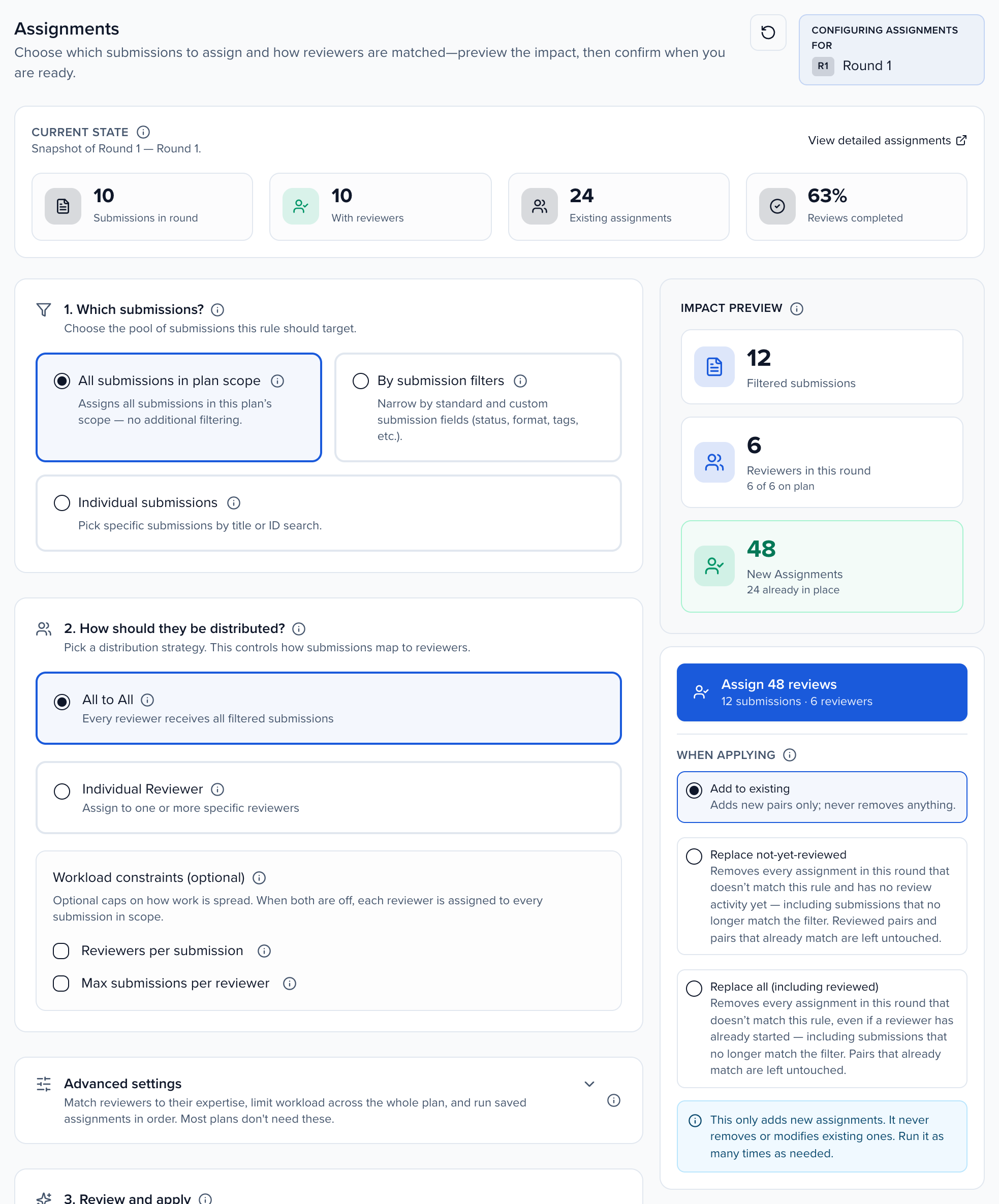
Assignments. This is where a review plan decides who reads what. A reviewer only ever sees the submissions assigned to them, so this screen turns “the research committee reads the research abstracts, two reviewers each” into an exact list, and shows you that list before anything is saved. You build it in three parts, top to bottom: which submissions, how they’re shared out, and then review and apply.
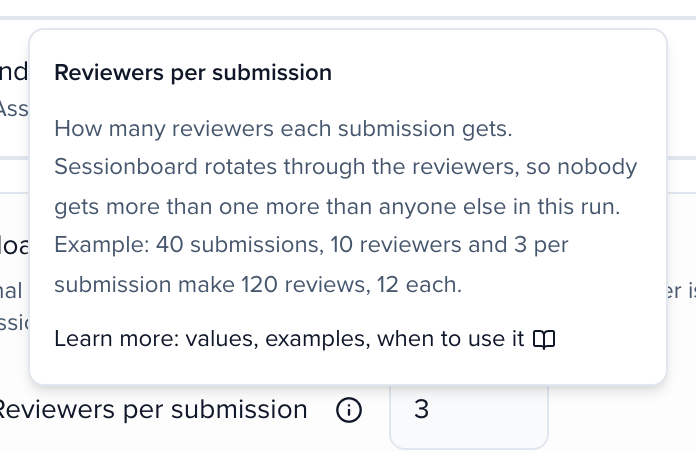
Every setting has a little info icon. Hover or click it and you get a sentence on what it does, with an example. Learn more opens the part of the Help Center article that covers that one setting, values, when to use it, and worked examples.
At the top, the current state of the round you’re configuring. Submissions in the round, how many already have a reviewer, how many reviewer and submission pairs exist, and how much of the reviewing is done. View detailed assignments opens the full list in a new tab.
Which submissions. All submissions in plan scope takes everything the plan covers. Individual submissions lets you search by title or ID and tick a few, handy for late arrivals or a second opinion.
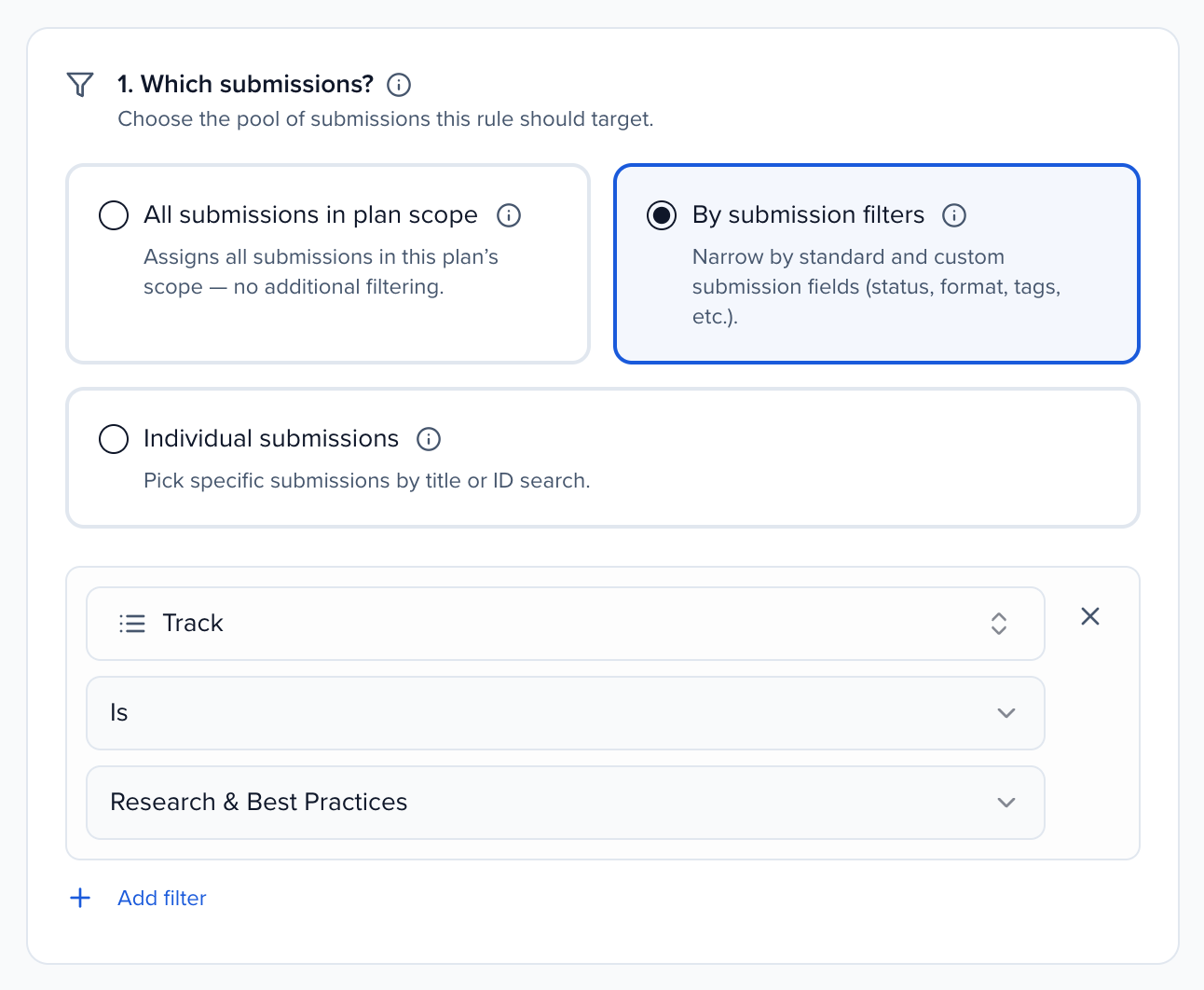
By submission filters is the one you’ll use most. Pick a field, here Track, is, Research and Best Practices. Run one assignment per track, each going to that track’s reviewers. And a filter on a standard status like Pending also picks up your custom statuses underneath it.
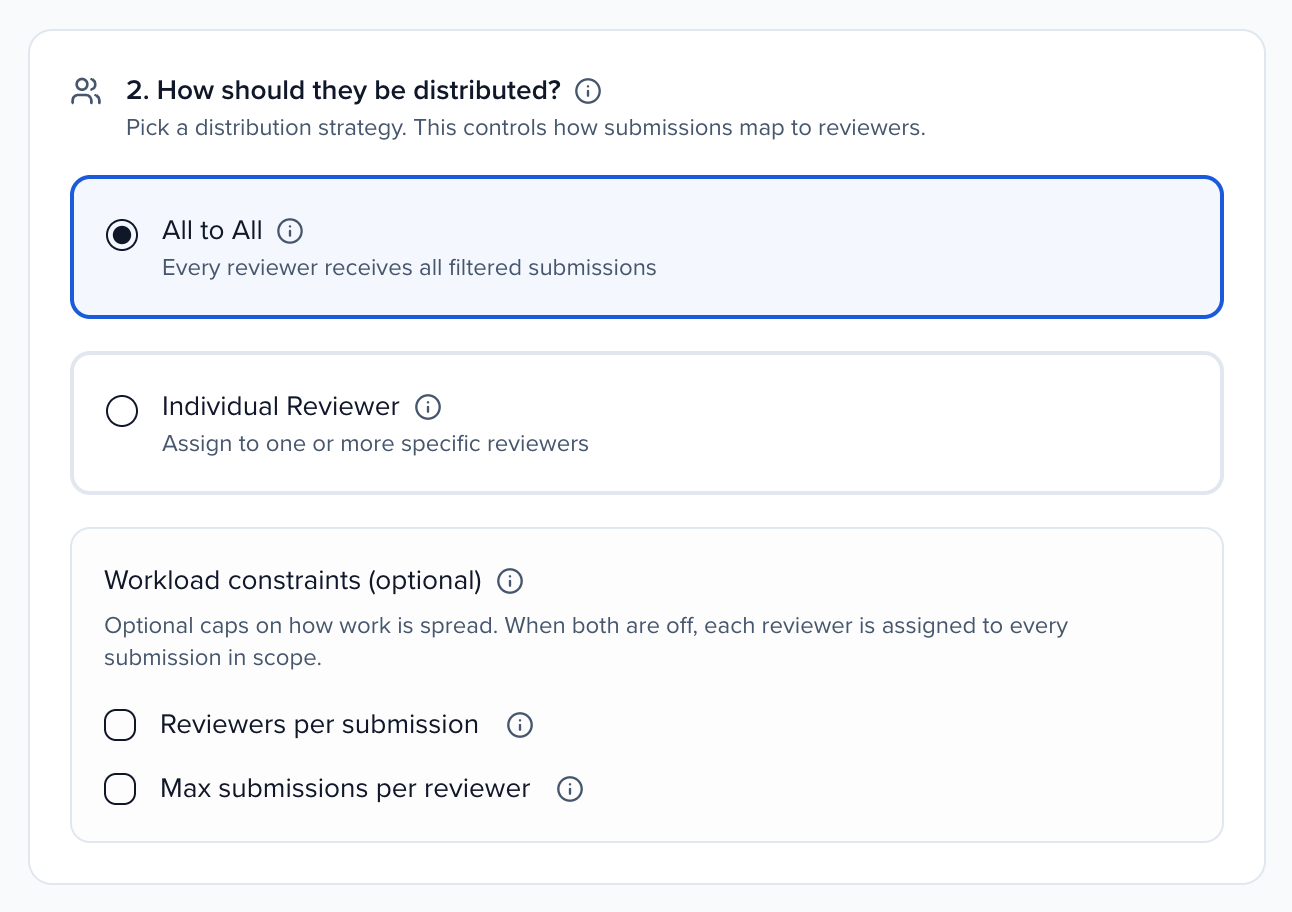
How should they be distributed. All to All draws from every reviewer enrolled in this round. Individual Reviewer is only the people you tick, and you can filter that list by reviewer tag, which is the easy way to send a track to its subcommittee.
Then the workload limits. With both off, every reviewer you chose gets every submission you chose. Reviewers per submission is how many people read each one, three here, and Sessionboard rotates through the reviewers so the work comes out even. Max submissions per reviewer caps anyone’s share of this assignment. The line underneath spells out what the rule will do.
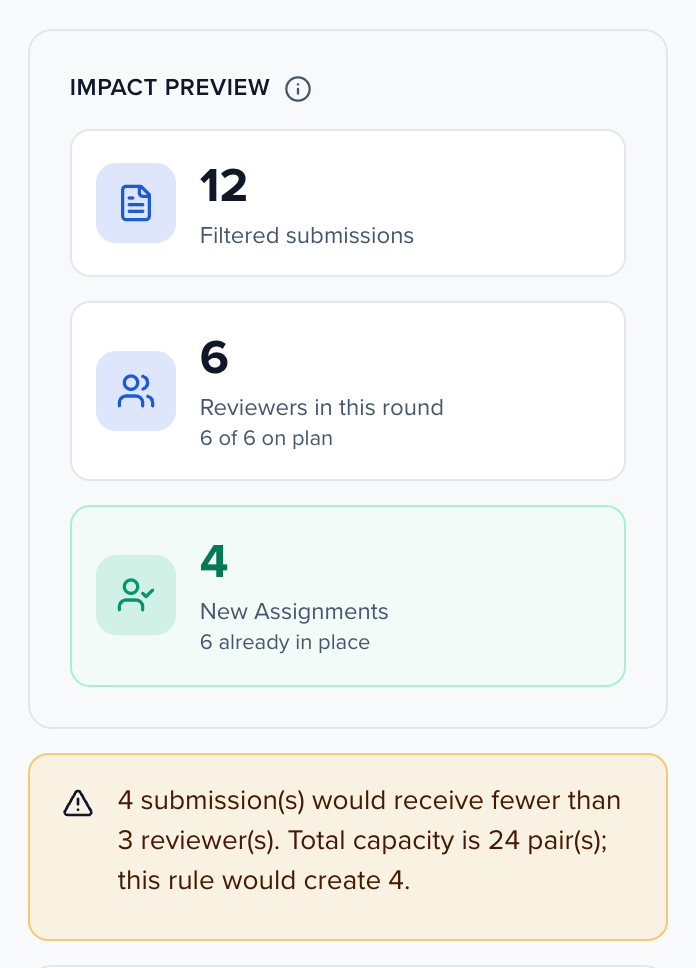
The impact preview keeps score as you go. Filtered submissions, the reviewers it can use, and the new reviews it would create, with anything already assigned counted as already in place, never duplicated. If your limits can’t all be met, it tells you, here four submissions would end up with fewer than three reviewers.
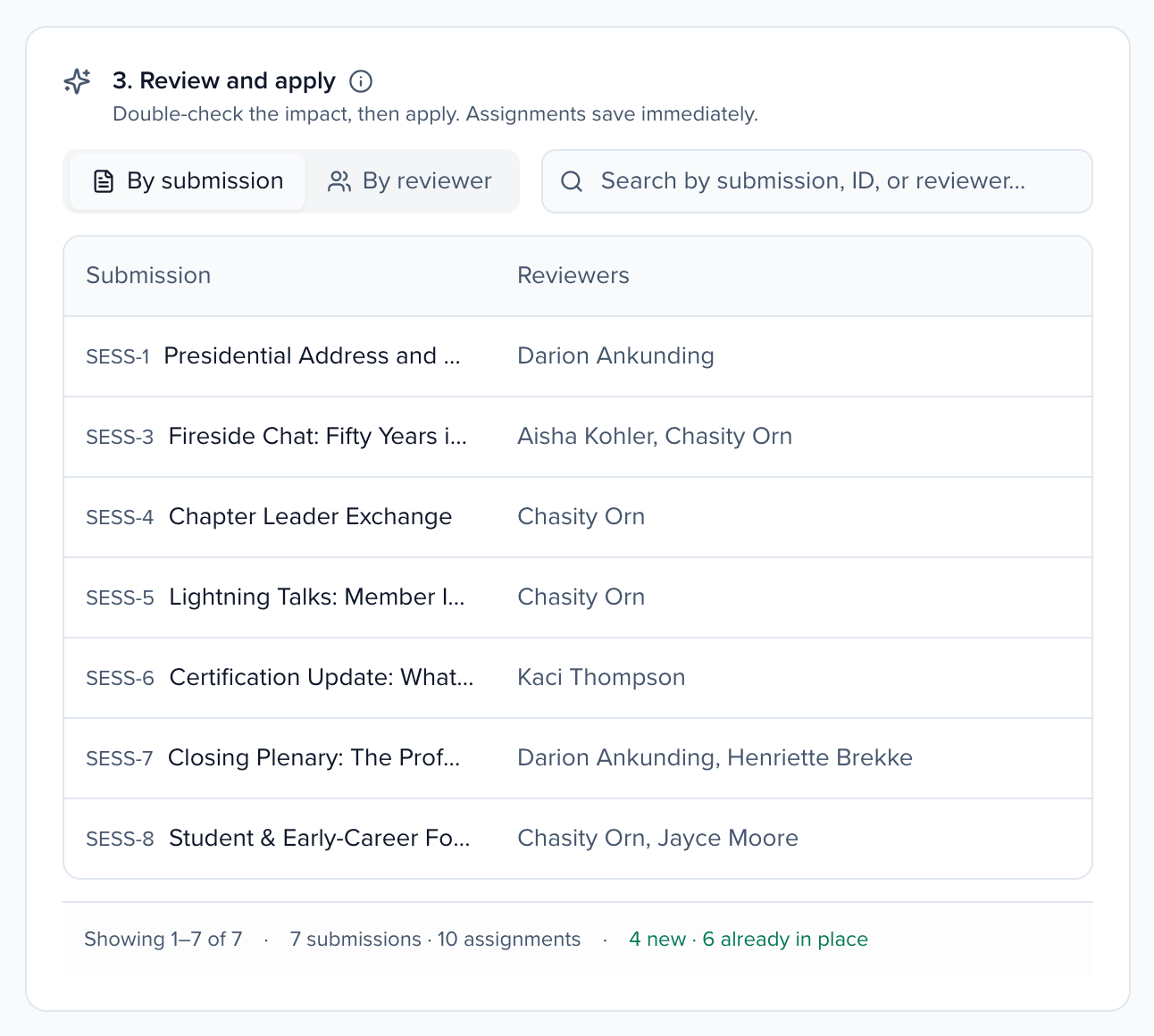
And below, the actual pairs. Each submission with its reviewers, or switch to By reviewer to see everyone’s list. Search for a submission, an ID or a person. Nothing has been saved yet.
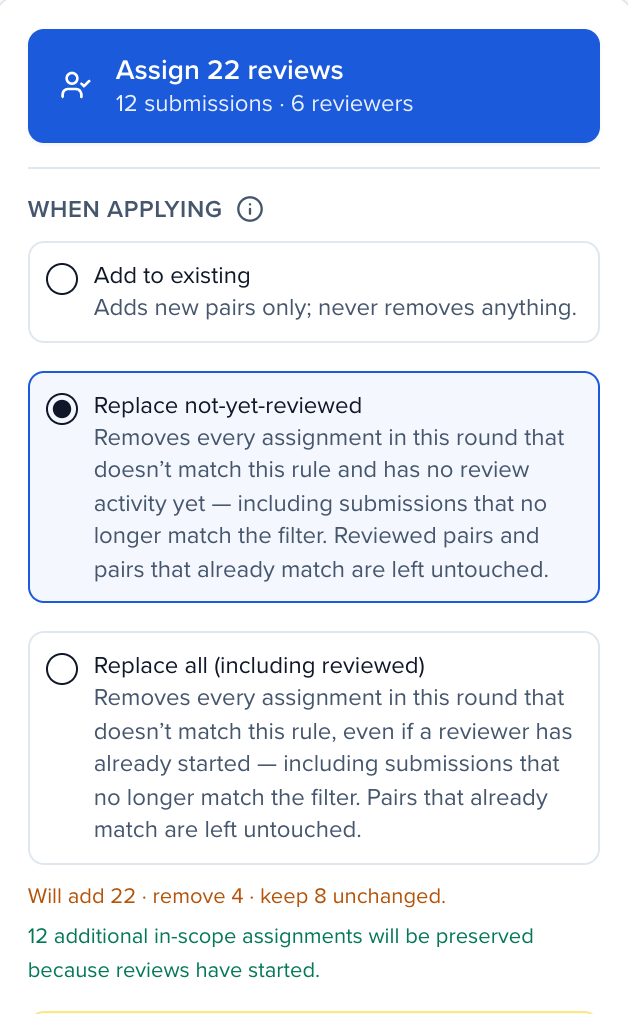
When applying decides what happens to assignments already in the round. Add to existing only adds, so it’s safe to run again and again. Replace not-yet-reviewed makes this rule the round, and takes away unstarted assignments that no longer match, say after a track was corrected. Replace all also removes reviews already started, so read the counts before you confirm. The Assign button tells you exactly how many reviews it’s about to create.
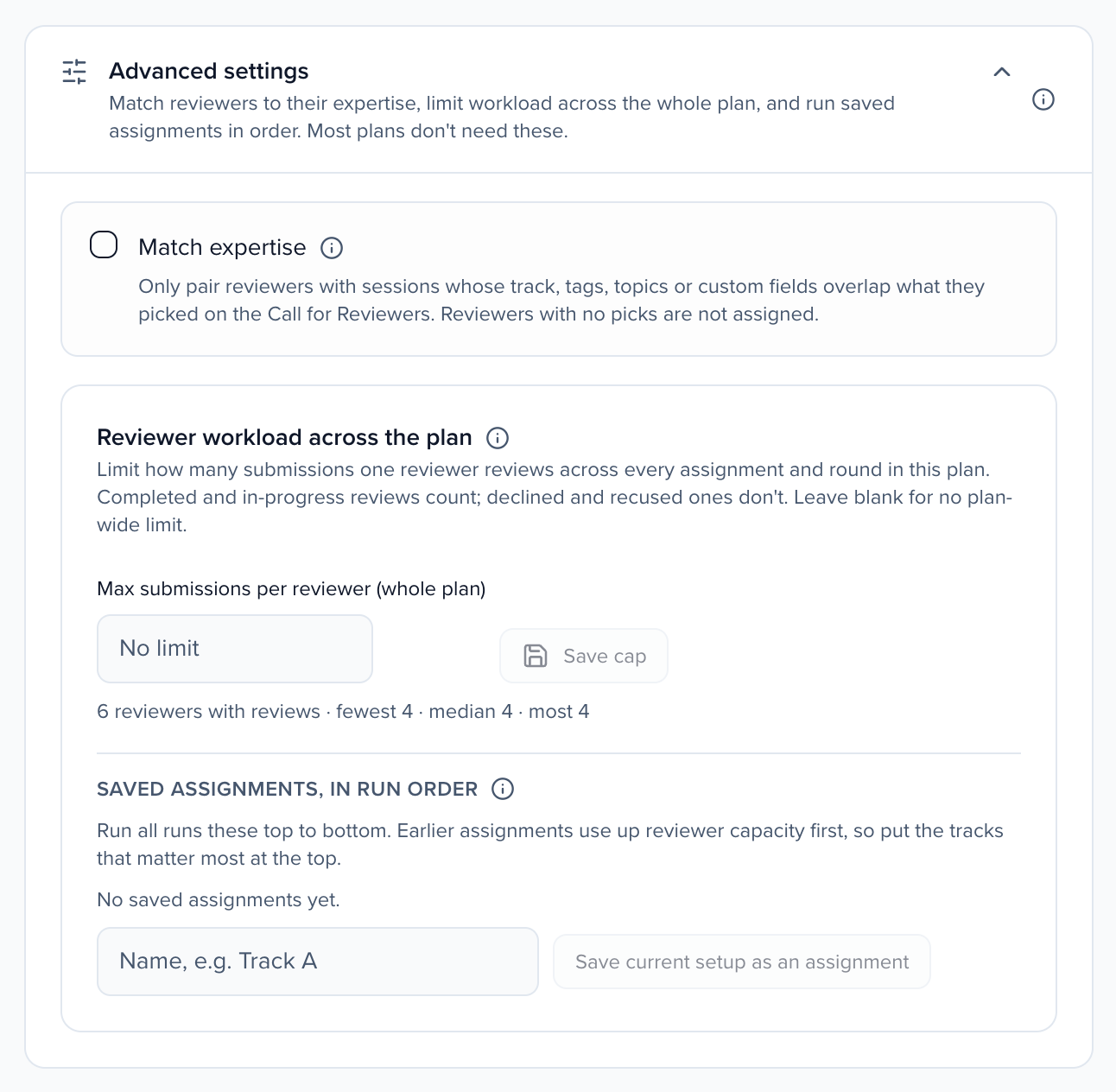
Advanced settings is collapsed, because most plans never need it. It opens by itself, marked In use, whenever something in it is switched on, so a closed section never hides a limit that’s changing the result.
Match expertise only pairs reviewers with submissions in the areas they picked when they answered your Call for Reviewers. Reviewers who picked nothing get nothing from this rule, and the preview warns you about any submission nobody matches.
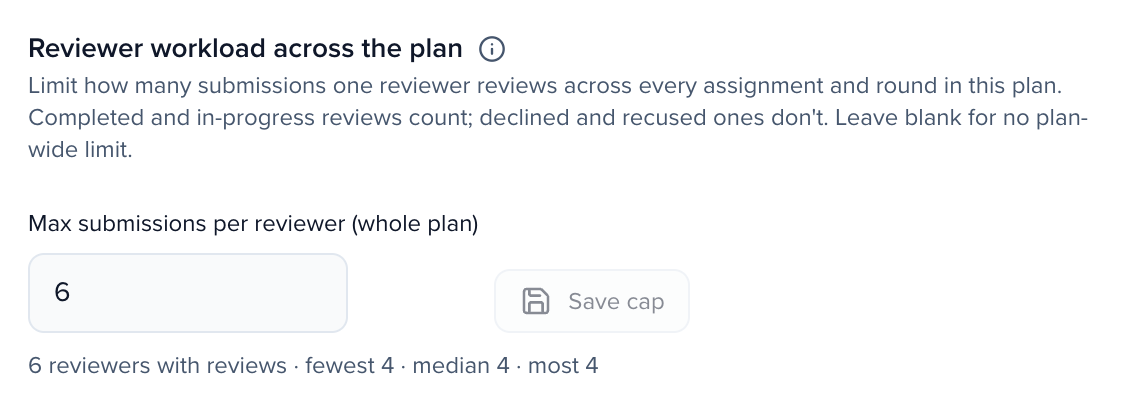
The plan-wide limit caps a reviewer across every assignment and round in the plan. Use it when the same people sit on several tracks. Completed and in-progress reviews count, the line underneath shows the spread today, and lowering it never removes anything.
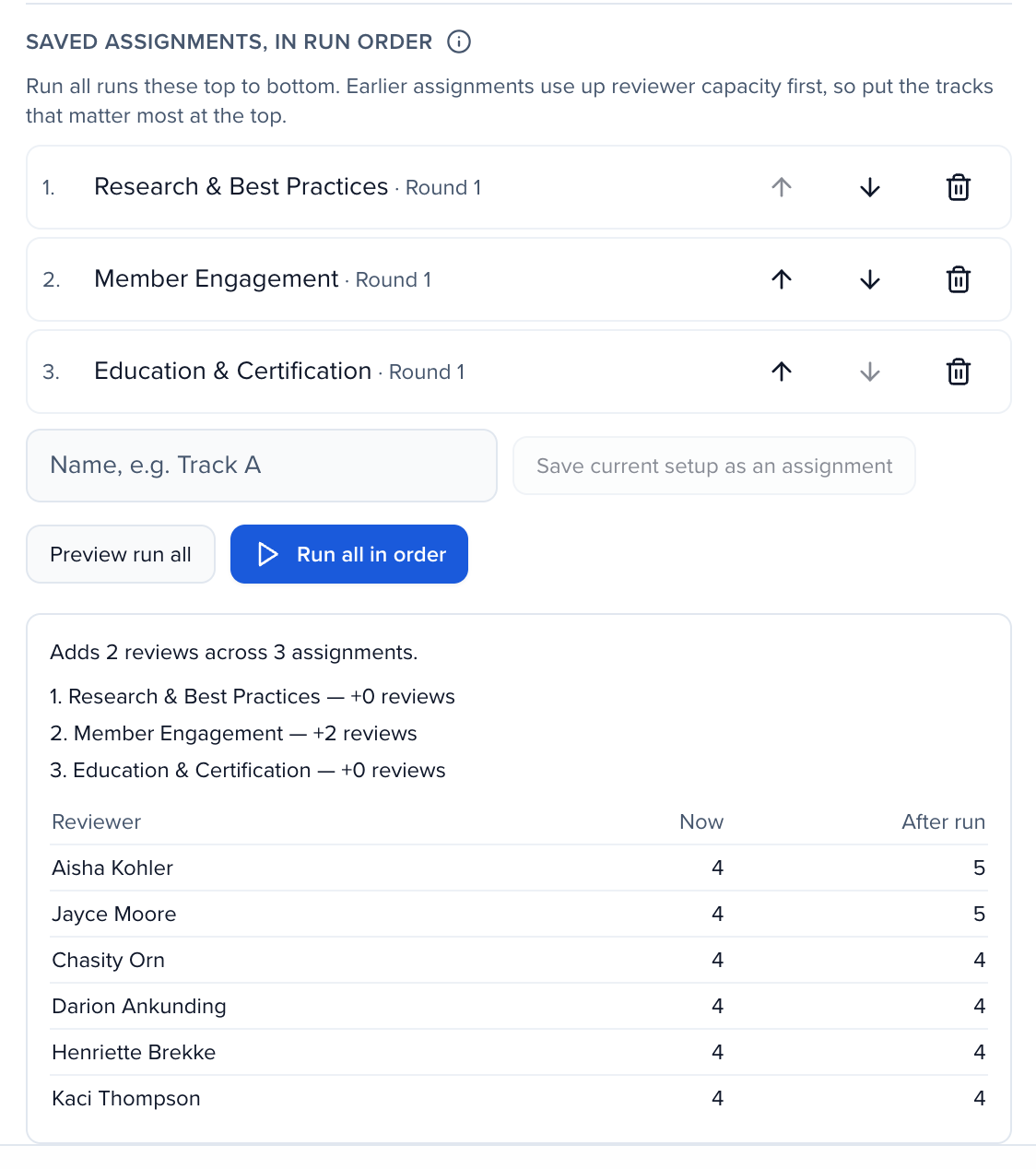
Saved assignments let you set up each track once, give it a name, and put them in order. Earlier ones get reviewer capacity first, so the thinnest track goes at the top. Preview run all shows each reviewer now and after the run, then Run all in order does the lot.
That’s assignments. Choose the submissions, choose the reviewers and how much each one takes, check the preview, and assign. The Help Center article has every setting in detail, with recipes for the common setups.
Why use it
Section titled “Why use it”A reviewer only sees the submissions assigned to them. The Assignments step turns “the oncology committee reads the oncology abstracts, three reviewers each, nobody more than fifteen” into the exact list of who reviews what, and shows you that list before anything is saved.
You build an assignment in three parts, top to bottom:
- Which submissions?: the submissions this assignment hands out.
- How should they be distributed?: which reviewers take part, and how much each one gets.
- Review and apply: check the preview, choose what happens to assignments already in the round, and click Assign.
Rarely needed settings (matching on reviewer expertise, a limit across the whole plan, and saved assignments that run in order) are under Advanced settings, collapsed until you need them.
Every setting has an ⓘ beside it. Hover or click it for a short explanation with an example, and Learn more opens the matching section of this article.
Before you start
Section titled “Before you start”- Assignments are per round. The banner at the top right, Configuring assignments for, names the round. When a plan has several rounds, tabs above the form switch between them. Public voting rounds are not listed, because they have no reviewers; choose what voters see on the Ballot step.
- Only enrolled reviewers can be assigned. A reviewer must be on the plan and enrolled in this round on the Reviewers step.
- Assigning is a one-off action. Clicking Assign creates the reviews right away. It does not run again when new submissions arrive. Run it again, or use an automation to assign new submissions as they come in.
- Conflicts of interest follow the plan’s Conflict moderation setting. Conflicted pairs are either flagged in the preview and still assigned, or kept out of the assignment. When a pair is excluded, the submission gets the next available reviewer, and the preview warns you if that leaves it short.
Current state
Section titled “Current state”The Current state strip shows the round as it is right now:
| Count | What it means |
|---|---|
| Submissions in round | Submissions currently in this round. In a funnel plan, later rounds only contain what was promoted into them. |
| With reviewers | Submissions with at least one reviewer assigned. |
| Existing assignments | Reviewer–submission pairs, one per review owed. |
| Reviews completed | The share of those pairs with a finished review. |
View detailed assignments opens the plan’s submission list in a new tab, where you can see and remove individual pairs. The counts refresh after every apply.

Plan scope
Section titled “Plan scope”A plan copied with Add plan ▸ Copy from… keeps its source plan’s scope: it covers only the submissions that match the source’s filters. The Plan scope card above the form shows those filters. Change a rule and click Save scope, or click Remove scope to cover every submission. Everything on this step chooses from that set.
Rules the copy could not keep are listed under Not carried over from, with the reason: the field was deleted, it belongs to another event, or a track or tag has no match of the same name here. Add them again if you still need them, then click Dismiss.
Which submissions?
Section titled “Which submissions?”Choose the submissions this assignment hands out. Build one assignment per group that needs different reviewers, for example one per track, and run them one after another.
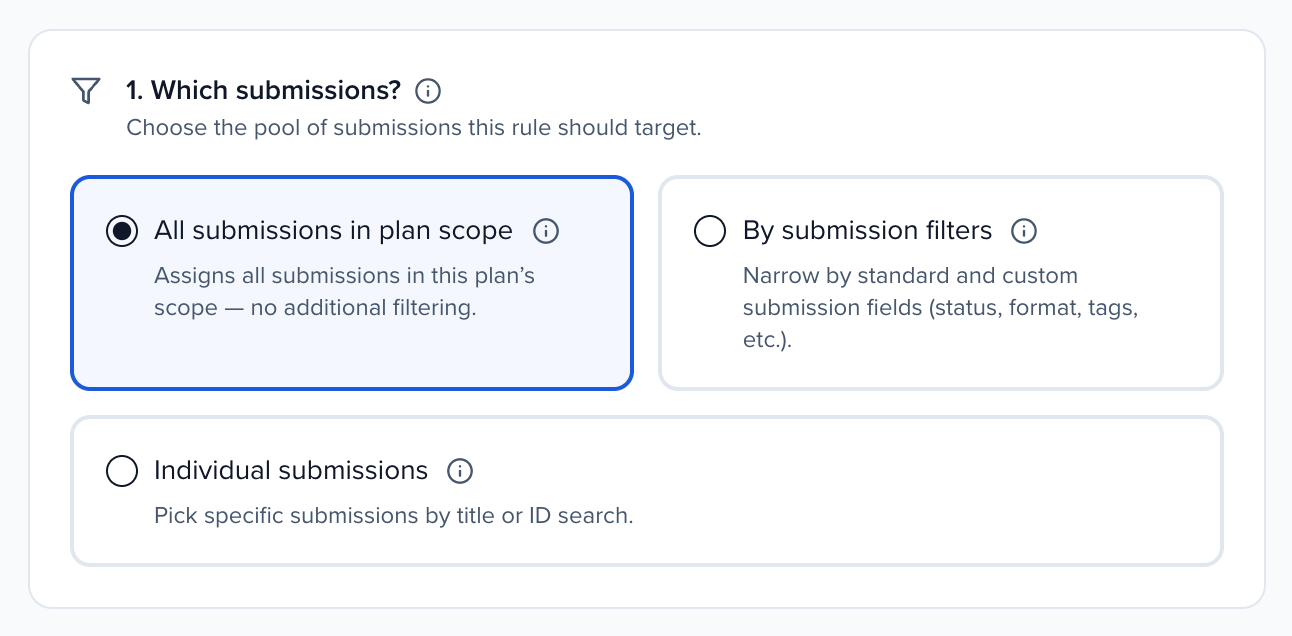
All submissions in plan scope
Section titled “All submissions in plan scope”Every submission the plan covers.
- Use it when one committee reads everything, or with Reviewers per submission to spread a whole program evenly across all reviewers.
- Watch out: without a plan scope this includes submissions from every submission form. To take one form’s submissions, use By submission filters with a Source filter.
By submission filters
Section titled “By submission filters”Only submissions whose fields match the filters you add: standard fields (status, format, track, tags, language, level, source) and your custom submission fields. Add up to six filters.
- Use it when different groups of submissions need different reviewers, for example Track is Oncology to the oncology committee and Format is Poster to the poster judges.
- Statuses: a filter on one of the five standard statuses also matches the custom statuses under it. Status is Pending includes submissions in In Review, for example. A filter on a custom status matches only that status.
- Example: a summit with four tracks runs four assignments, one per track, each with Track is … and that track’s reviewers under Individual reviewers.
Individual submissions
Section titled “Individual submissions”Pick submissions one by one. Search by title or ID (for example SESS-123, or SESS-123-2 for a sub-session), tick them, and page through the list. Your picks are kept when you search again, so you can build a set across several searches. Select all … in plan scope ticks every submission at once.
- Use it when a few late submissions need reviewers, a submission needs a second opinion, or one needs a particular expert.
How submissions are distributed
Section titled “How submissions are distributed”Choose which reviewers take part, then optionally limit how much each one gets.
All to All
Section titled “All to All”Every reviewer enrolled in this round can be given the submissions above.
- With no workload limits, every reviewer gets every submission. That suits a small committee that reads everything.
- With Reviewers per submission on, the submissions are shared out across all of them instead.
Individual reviewers
Section titled “Individual reviewers”Only the reviewers you tick. Search by name or email, or filter the list by reviewer tag. Only reviewers enrolled in the current round are listed; the note above the list says how many that is out of everyone on the plan. AI reviewer personas are marked Persona.
- Use it when a track goes to its own subcommittee, or to bring in a specialist for a handful of submissions.
- Example: tag your oncology reviewers Oncology on the Reviewers step, then filter by that tag here and tick them all.
The bar above the list works on the reviewers the search and tag filter show: Select all N shown, Invert selection (flips their ticks) and Clear (unticks them). Ticks on reviewers the filter hides stay as they are, so you can tick one tag’s reviewers, switch to another tag and add those too; the count says how many selected reviewers are hidden by filters.
Remove reviewers from these submissions
Section titled “Remove reviewers from these submissions”Bulk action next to the list switches between Assign reviewers and Remove reviewers. Remove takes the ticked reviewers off the submissions chosen under Which submissions?, in the round selected at the top, without assigning anything:
- Choose the submissions, then Individual reviewers, and tick the reviewers to take off. A tag filter is a quick way to pick a whole group.
- Set Bulk action to Remove reviewers. In place of the impact preview, the Removal preview counts the Open assignments to remove, the Submissions affected, and the Completed reviews kept and Reviews in progress kept.
- Click Remove N reviewers and confirm.
Only assignments nobody has started are removed. Completed reviews, reviews in progress and declines stay with the reviewer, and the reviewers stay on the plan; to take people off the plan itself, see remove reviewers from a plan in bulk.
Workload limits for this assignment
Section titled “Workload limits for this assignment”Workload constraints (optional) holds two limits. They apply to this assignment only. With both off, every chosen reviewer gets every chosen submission. To limit a reviewer across every assignment and round, use the plan-wide limit.
When a limit is on, a line under the boxes spells out what the rule will do, and the preview warns you if the limits can’t all be met.
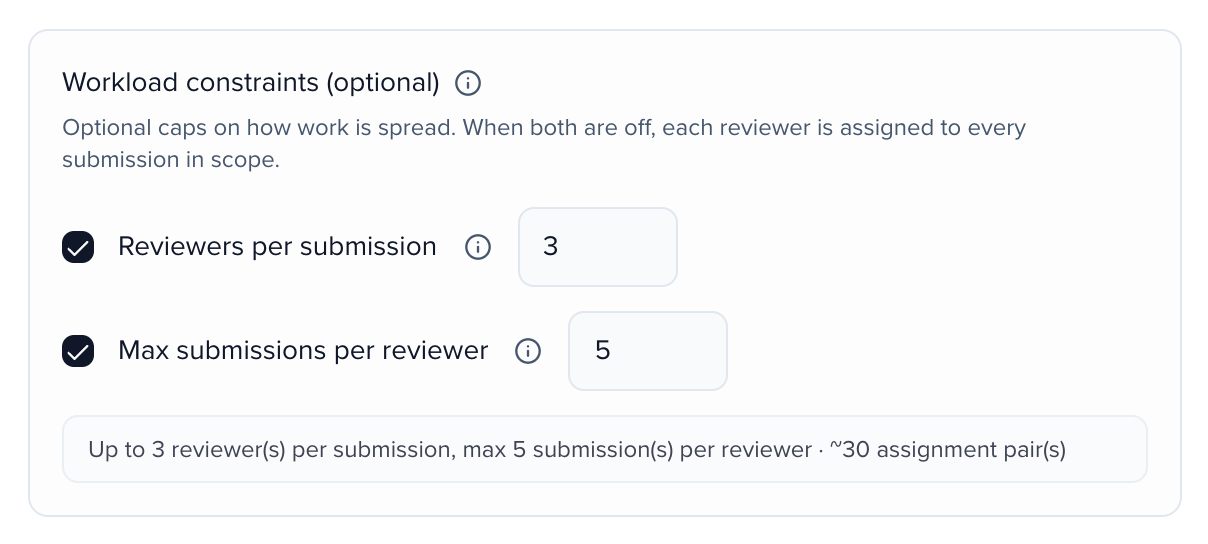
Reviewers per submission
Section titled “Reviewers per submission”How many reviewers each submission gets. It can’t be more than the reviewers you are drawing from.
- How it shares out the work: Sessionboard rotates through the reviewers, so in one run nobody gets more than one review more than anyone else.
- Topping up: with Add to existing, reviewers a submission already has count toward the number. Running the same rule again fills in submissions that are short and leaves full ones alone.
- Use it when every submission must be read by the same number of people, which is the most common setup.
- Example: 40 submissions, 10 reviewers and 3 per submission make 120 reviews, 12 for each reviewer.
Max submissions per reviewer
Section titled “Max submissions per reviewer”The most submissions one reviewer gets from this assignment.
- On its own, each submission gets one reviewer, shared out evenly, and nobody gets more than the number.
- With Reviewers per submission, it caps that. If the cap is too low for every submission to get its reviewers, some submissions get fewer, and the preview says how many before you assign.
- Example: 3 reviewers each for 40 submissions is 120 reviews. With 10 reviewers that needs a cap of at least 12; a cap of 10 leaves 20 reviews unassigned.
Review and apply
Section titled “Review and apply”See exactly what the assignment would do, then apply it. Nothing is saved until you click Assign.
Impact preview
Section titled “Impact preview”The Impact Preview panel on the right updates as you change the form:
| Card | What it counts |
|---|---|
| Filtered submissions | Submissions chosen in Which submissions? |
| Reviewers in this round / Reviewers in this rule | The reviewers the assignment can use. |
| New Assignments | Reviews it would create. Pairs that already exist are shown as already in place and are never duplicated. |
Warnings appear under the cards, for example when submissions would get fewer reviewers than you asked for, or when no reviewer’s expertise matches a submission.
Filtered submissions is worked out by the server from what the plan reviews, its scope and your filters, on every round, so it matches what Assign creates. A plan that reviews subsessions counts subsessions only: when none match, the card says No eligible subsessions match this round’s scope and filters. This plan reviews subsessions only. What a plan reviews can’t change after it is created, so to review the parent submissions instead, create a new plan that reviews submissions.
Under 3. Review and apply, the preview lists the actual pairs. Switch between By submission (each submission and its reviewers) and By reviewer (each reviewer and their submissions), and search by submission, ID or reviewer. The footer counts the new pairs and those already in place.
When applying
Section titled “When applying”What happens to assignments that already exist in this round:
| Option | What it does | Use it when |
|---|---|---|
| Add to existing | Adds new pairs only and never removes anything. Safe to run again. | Almost always: first assignment, topping up, adding late submissions. |
| Replace not-yet-reviewed | This rule becomes the round. Removes every assignment in the round that doesn’t match the rule and has no review activity, including assignments on submissions that no longer match the filter. Started and abstained reviews stay. | A submission’s track or category was corrected and the wrong reviewers still have it. |
| Replace all (including reviewed) | Same, but also removes reviews already started. | Starting the round over. Rarely right once reviewing has begun. |
With either Replace option, a submission that no longer matches and is left with no reviewers is removed from the round, so Submissions in round drops to what the rule selects. In a funnel plan, Round 2 and later only remove assignments; submissions promoted into the round stay in it.
Before a Replace runs, a confirmation lists New assignments to create, Existing assignments to remove, Submissions removed from the round and what is left unchanged. Scores already entered are never deleted: if the same reviewer is assigned the same submission again later, their earlier answers reappear.
Assign
Section titled “Assign”The Assign button counts reviews, one per reviewer per submission. Assign 15 reviews with “5 submissions · 3 reviewers” underneath means each of 5 submissions goes to 3 reviewers. A confirmation appears once the reviews are created, with Assign more submissions to start the next assignment.
To leave without creating anything, click Close without assigning. If the form would create reviews, Sessionboard asks first, You haven’t assigned these submissions yet, with Assign now, Leave without assigning and Cancel. The same question appears when you change step or round. Leaving through the main sidebar or the browser’s Back button does not ask.
Advanced settings
Section titled “Advanced settings”Three settings for larger programs sit in Advanced settings, collapsed by default. Most plans don’t need them.
The section opens by itself, marked In use, whenever one of them is in force: Match expertise is on, the plan has a plan-wide limit, or it has saved assignments. That way a collapsed section never hides a limit that is changing who gets what.
Match expertise
Section titled “Match expertise”Pairs a reviewer only with submissions whose track, tags, topics or custom fields overlap what that reviewer picked when they answered your Call for Reviewers.
- Reviewers who picked nothing get nothing from this assignment.
- Use it when reviewers chose their own areas of expertise and you want each submission read by people who know the field.
- Combine it with Reviewers per submission: a reviewer whose expertise doesn’t match is replaced by the next matching one. If a submission matches nobody, the preview says how many submissions would get no reviewer.
- It applies only to the assignment you’re building. All to All and Individual Reviewer assignments without it are unaffected.
Max submissions per reviewer (whole plan)
Section titled “Max submissions per reviewer (whole plan)”Under Reviewer workload across the plan, one limit for every assignment and round in the plan. Enter a number and click Save cap; leave it blank for no limit.
- What counts: completed and in-progress reviews, in every assignment and round. Declined and recused reviews don’t.
- Who gets the work: with a plan-wide limit, new reviews go to the reviewers with the fewest reviews across the whole plan first.
- Lowering it removes nothing. Reviewers already over it are listed as over the cap and get no new assignments. Unassign by hand to rebalance.
- It wins over the assignment limit. If an assignment’s own Max submissions per reviewer is higher, the plan limit applies.
- It also limits saved assignments and Assign reviewers automations.
- Use it when you run one assignment per track and the same reviewers are in several tracks, so per-assignment limits can’t stop them collecting work from every track.
- Example: with 12, no reviewer gets a 13th submission anywhere in the plan. The line beside Save cap shows the spread today, for example “18 reviewers with reviews · fewest 4 · median 9 · most 15”.
Saved assignments, in run order
Section titled “Saved assignments, in run order”Save the assignment you have set up, give it a name, and run all saved assignments together, top to bottom.
Save each assignment
Set up an assignment in the form, enter a name such as the track it covers, and click Save current setup as an assignment. Repeat for each track.
Put them in order
Use the arrows under Saved assignments, in run order. With a plan-wide limit, earlier assignments use reviewer capacity first, so put the track with the fewest qualified reviewers, or the one that matters most, at the top.
Preview
Click Preview run all. Nothing is saved. You see the reviews each assignment would add, each reviewer’s total Now and After run (anyone Over cap is flagged), assignments that need more reviews than the reviewers have room for, the submissions that would end up short, and reviewers left out because they are no longer on the round.
Run
Click Run all in order. Each assignment gives its new reviews to the reviewers with the fewest reviews across the whole plan first.
- Use it when a program has several tracks sharing reviewers and you want a repeatable, ordered run instead of assigning track by track by hand.
Import assignments from a spreadsheet
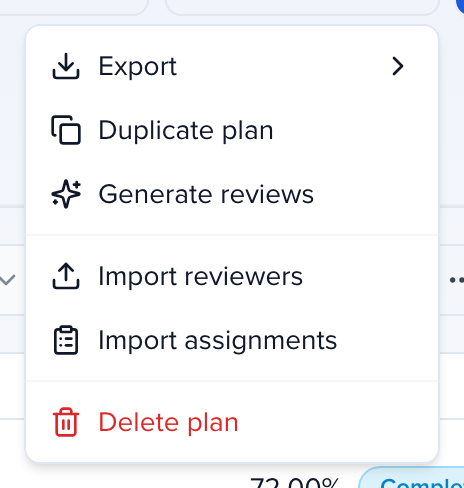
Section titled “Import assignments from a spreadsheet”When you already know who reviews what (a committee chair’s spreadsheet, or dozens of subtracks), import the pairs instead of building an assignment for each. Open the plan, choose Plan options → Import assignments, click Generate Template for a file pre-filled with this plan, fill it in, then Upload File.
Each row assigns one reviewer to one or more submissions:
| Column | Required | What goes in it |
|---|---|---|
Email | Yes | The reviewer’s email. Someone who isn’t a user yet is invited. |
First Name, Last Name | For new users | The reviewer’s name. |
Evaluation Plan Name | Yes | The plan, matched without regard to capitals. One file can cover several plans. |
Round Name | No | The round. Leave it blank for the plan’s first round. |
Organization | No | The reviewer’s employer or affiliation, used to spot same-organization conflicts of interest. |
Submission ID | To assign | The submission’s ID as shown in the grid, for example SESS-123, or SESS-123-2 for a sub-session. Separate several IDs with commas, semicolons or pipes: SESS-101, SESS-102, SESS-123-2. |
Send Invite Email | No | true (the default) emails reviewers the import newly enrolls; false sends nothing. |
Tags | No | Reviewer tags separated by pipes, such as Cardiology|Board. Missing tags are created; existing tags are kept. |
Update record if already exists | No | FALSE skips a row whose email belongs to a reviewer already on the event; TRUE or blank updates them. See import reviewers. |
If any ID in a row is wrong, the whole row is skipped and the error names every such ID, so nothing from it is half-applied. Fix the ID and import the row again. A Round Name must match one of the plan’s rounds exactly (case doesn’t matter); if it doesn’t, the error lists the plan’s round names to copy from.
Reviewers who aren’t on the event, plan or round yet are enrolled automatically. An import only adds: existing pairs are left alone and nothing is removed. It doesn’t check the plan-wide limit or the round’s conflict settings, so check the plan’s Submissions and Reviewers tabs afterwards. To try it out, import a few rows into a closed plan.
Recipes
Section titled “Recipes”Three reviewers per abstract, spread evenly
- Which submissions? → All submissions in plan scope.
- How should they be distributed? → All to All.
- Tick Reviewers per submission and enter 3.
- When applying → Add to existing, then Assign.
Each track to its own committee
- On the Reviewers step, tag each reviewer with their track.
- By submission filters → Track is Oncology. Individual Reviewer → filter by the Oncology tag, tick them all. Reviewers per submission → 3. Assign.
- Click Assign more submissions and repeat for each track.
If reviewers sit on several committees, set a plan-wide limit first, and use saved assignments so the order is deliberate.
Reviewers chose their own topics on the Call for Reviewers
All submissions in plan scope → All to All → Reviewers per submission 2 → open Advanced settings and tick Match expertise. The preview warns about any submission no one picked; assign those with Individual submissions.
A few submissions arrived after the deadline
Individual submissions → search and tick them → All to All with Reviewers per submission → Add to existing. Existing assignments are untouched.
Frequently asked questions
Section titled “Frequently asked questions”Reviewers got more submissions than the maximum I set. Why?
Max submissions per reviewer limits only the one assignment you’re running, and only while its box is ticked. Every Assign run, every saved assignment and every Assign reviewers automation counts on its own, so three runs of 20 can give someone 60. An Assign reviewers automation gives each session to every reviewer it names.
To bring workloads back down:
- Under Advanced settings → Reviewer workload across the plan, enter Max submissions per reviewer (whole plan) and click Save cap. Reviewers at or over it get no new assignments from the wizard, saved assignments or automations. The cap removes nothing.
- Remove the extras. On the plan’s Reviewers tab, find the submissions under that reviewer and choose Remove assignment from the ⋯ menu of the ones they haven’t started.
- Make further changes while the plan is closed. Assignments made to a closed plan send no email; reviewers hear about the whole batch when you open the plan and notify them.
I moved submissions to another track or category. How do I refresh assignments?
Assignments don’t follow a track change on their own. An Assign reviewers automation adds the submission to the new track’s plan, but it never takes it out of the plan or round it was in before.
For each plan the submissions left, open the Assignments step and run its rule again with Replace not-yet-reviewed. Assignments that no longer match and haven’t been started are removed, and submissions left with no reviewers leave the round. Assignments a reviewer has already started stay; remove those by hand with Remove assignment on the Reviewers tab if they should go too.
Why does the preview show more than my number of submissions?
It’s counting reviews, not submissions: one per reviewer per submission, so 5 submissions and 3 reviewers reads Assign 15 reviews.
If Filtered submissions itself is higher than you expect, All submissions in plan scope includes submissions from every submission form unless the plan’s scope is limited. To assign one form’s submissions only, choose By submission filters and add a Source filter for that form.
Will new submissions be assigned automatically?
No. Assign runs once. Run the assignment again with Add to existing to pick up new submissions, or set up an Assign reviewers automation that assigns a submission when, for example, its status becomes Accepted.
Next steps
Section titled “Next steps”- Ballot step: choose what public voters see, if a round uses public voting.
- Set up a review plan: open the plan and notify reviewers.
- Review sessions: the guide to share with your reviewers.