

Open a call for reviewers
A Call for Reviewers is how you recruit reviewers for your review plans. You create the call on the event, choose which expertise lists applicants pick from, and enroll accepted people into the review-plan rounds you name. The same call can invite a named list, import people you already know as reviewers, and take public applications.
The tab sits next to Reviewers and Reviewer Tags on Program → Review. It appears when the Sessions 2.0 Early Access feature is on for the event, or when the event already has a round-based review plan.
The Training · Feature spotlight on this tab walks these steps.
In pictures 7
Why use it
Section titled “Why use it”Today a reviewer is someone you already have an email for. Societies also need a public call, an accept step, and an expertise questionnaire that assignment can use. A call collects that once, flags co-author and affiliation conflicts before you assign work, and writes the picks onto the same reviewer-tag rows the assignment wizard already filters on.
Create a call
Section titled “Create a call”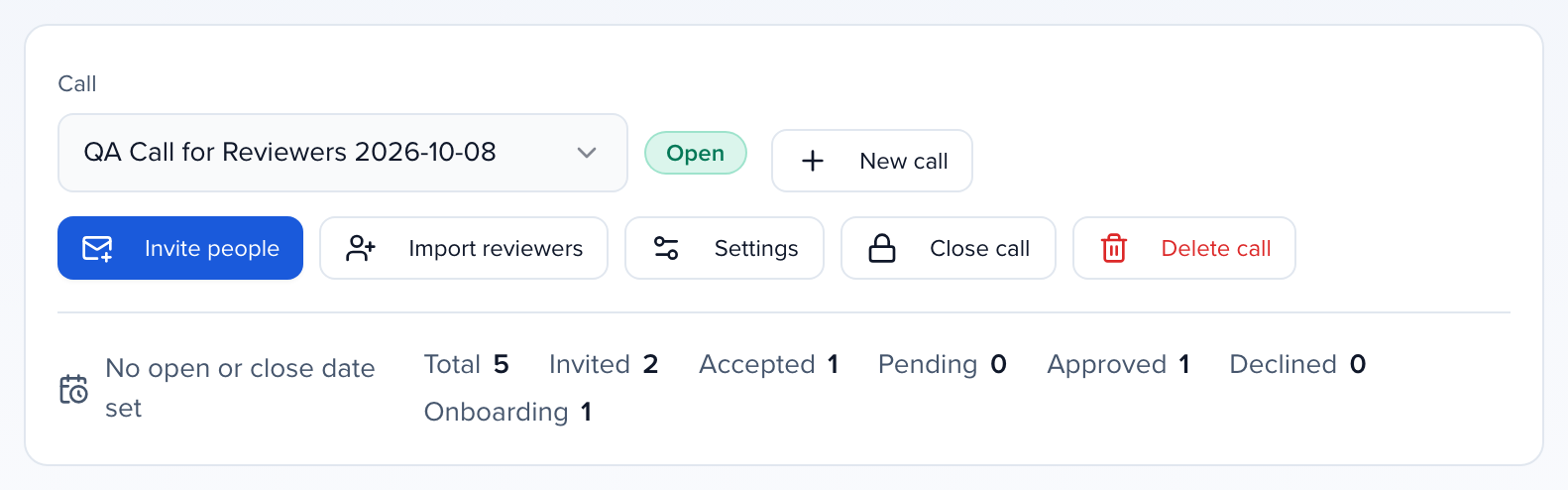
Open the tab
Open Program → Review, then Call for Reviewers. If you have not created one yet, the empty state offers Create call.
Name it and set the window
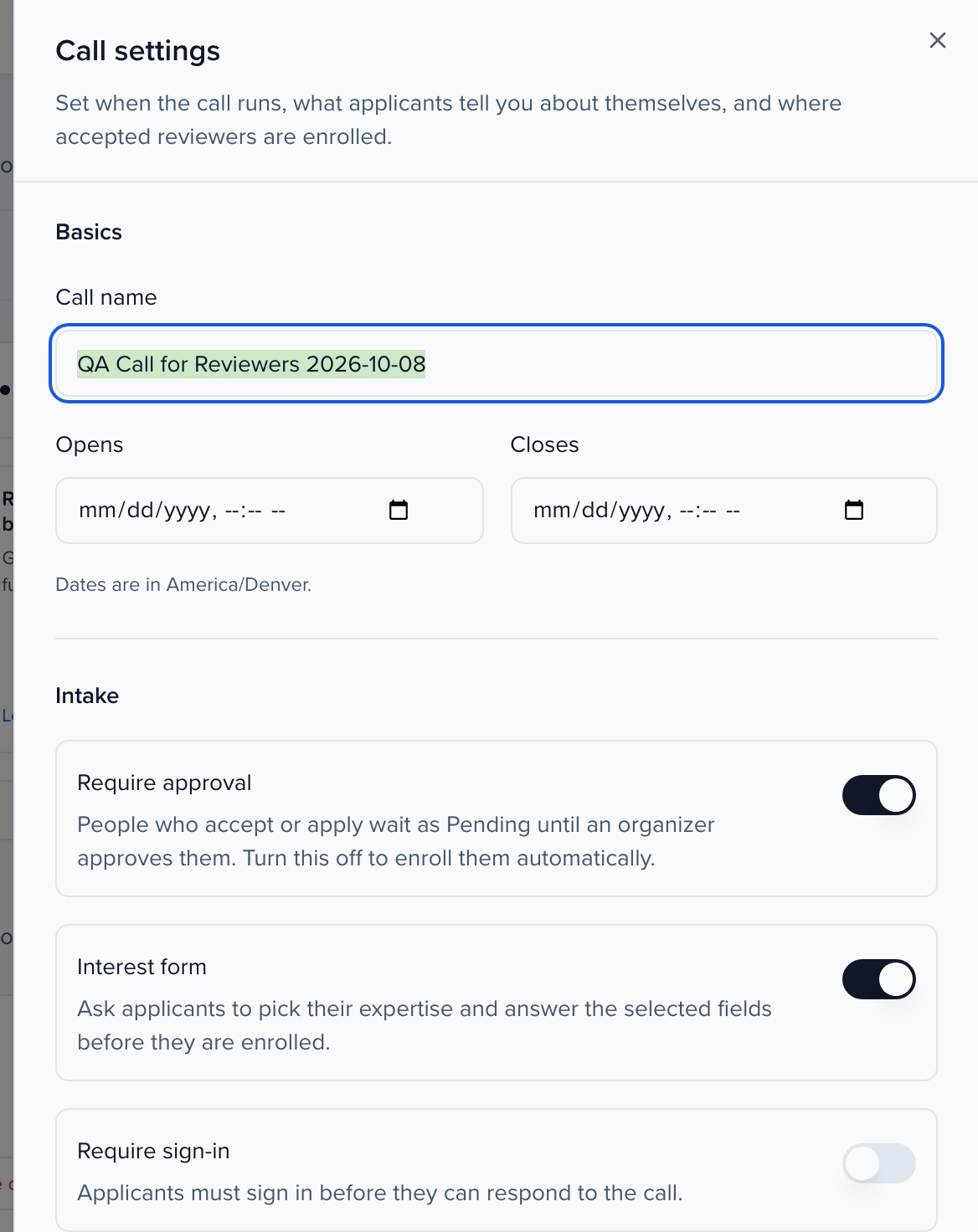
Call name is required (up to 255 characters), for example “2027 Program Committee reviewers”. Opens and Closes are optional. Dates use the event timezone shown under the fields. An explicit Close call later overrides the dates.
Choose how people join
Click Settings. Under Intake:
- Require approval — people who accept or apply wait as Pending approval until you approve them. Turn this off to enroll them automatically when they finish.
- Interest form — publish a public application link so people can apply without an invitation.
- Require sign-in — applicants must sign in before they can respond. Turn this off to allow anonymous apply.
Pick expertise lists and enrollment
Under Expertise applicants can select, turn on the catalogs this call should offer. Sessions can offer Tracks, Tags, Topics, Reviewer tags, and any custom session field of the Dropdown type. Each dropdown field appears under its own name, and applicants pick from its options. Other field types (text, number, date, and so on) and contact fields are not offered, because there is no list of options to match on. Awards catalogs do not appear here.
On the public form, sub-topics are listed under their parent topic. Picking a sub-topic is a narrower pick than picking the parent.
Under Enroll accepted reviewers into, pick the review-plan rounds they should join. Create a plan with rounds first if the list is empty.
Ask your own questions
Under Questions, click Add question for anything the standard fields do not cover, such as years of judging or a specialty. Pick the answer type: Short text, Long text, One choice, or Several choices. Choice questions need at least one option. Turn on Required to make applicants answer, and add Help text to show under the question. Use the arrows to reorder and the bin to remove. A call holds up to 20 questions.
Renaming a question or an option keeps the answers already given. Removing a question hides its answers.
Write the portal copy
Title, Introduction, Success message, and Closed message appear on the public call page. Leave a field empty to use the default wording.
You can run more than one call per event. Use the Call selector at the top of the tab to switch.
Invite people
Section titled “Invite people”Invite people is for a named list you do not want on the roster until they accept.

- Click Invite people.
- Paste a list — one person per line, or separate addresses with commas or semicolons. Accepted formats: a bare email,
Name <email>, oremail, First, Last, Affiliation. - Or Upload CSV with a header row. Recognized columns: email, first name, last name (or a single name column), and affiliation or organization.
- Leave Send invitation emails now on, or turn it off and Resend invitation later from the people list.
- Click Send invitations.
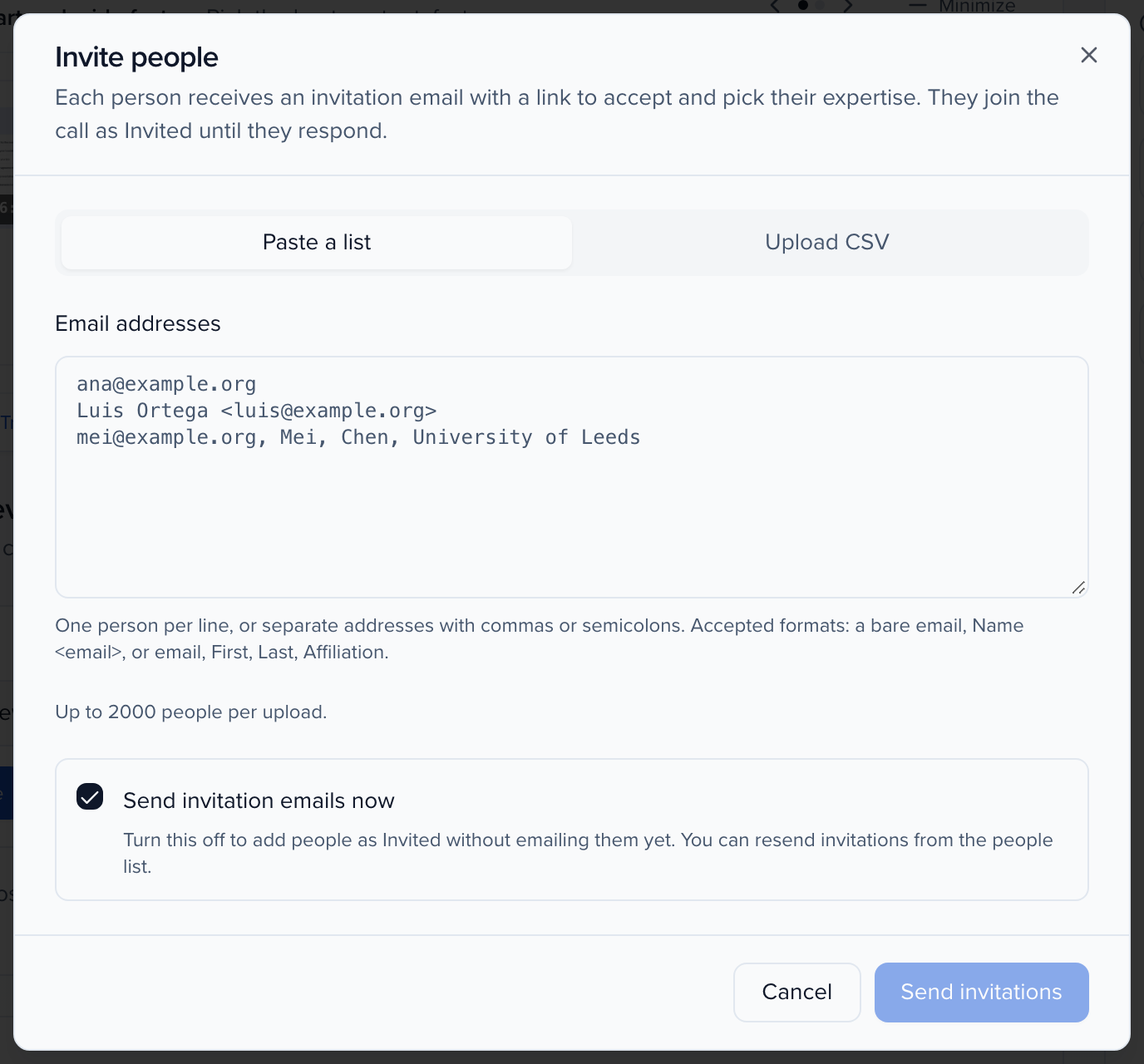
Each person lands as Invited. They are not on the review-plan roster yet. A repeated email is reported as skipped and does not send a second invite. Up to 2000 people per upload.
The invitation email uses a seven-day magic link to the event’s Program Site. The event needs an organization-level Site for that link to be minted — if the Public link card says there is no portal site yet, set one up first.
Import reviewers
Section titled “Import reviewers”Import reviewers is for people you already know as reviewers — last year’s committee, a society list. They are enrolled immediately, then asked to finish onboarding.
- Click Import reviewers.
- Paste or upload the same formats as invite.
- Leave Send onboarding emails now on, or turn it off.
- Click Add reviewers.
Each person lands as Onboarding. They appear on the Reviewers tab with an Onboarding incomplete badge and can still be selected when you assign. Re-importing the same email does not create a second roster row. They get the call’s onboarding email, not the standard “you have reviews” invitation.
Publish the interest form
Section titled “Publish the interest form”Turn Interest form on in Settings. The Public link card shows the application URL. Anyone with the link can apply. With Require approval on they wait as Pending approval; with it off they enroll as soon as they complete the form.
The form collects name, email, the expertise catalogs you turned on, Organization when the Site asks reviewers for affiliation, an optional conflict note, and your own Questions (under More about you). Each applicant is added to your organization’s Contacts, matched by email so a known contact is not duplicated. The CRM write needs a default contact record type in your organization, which every organization has unless it was removed; without one the application still saves but no contact is added. Submitting twice with the same email updates the pending application instead of creating another. Each applicant gets a Call for Reviewers application received email confirming their application arrived, every time they apply; reword it on the event’s Settings → Email Templates → System tab.
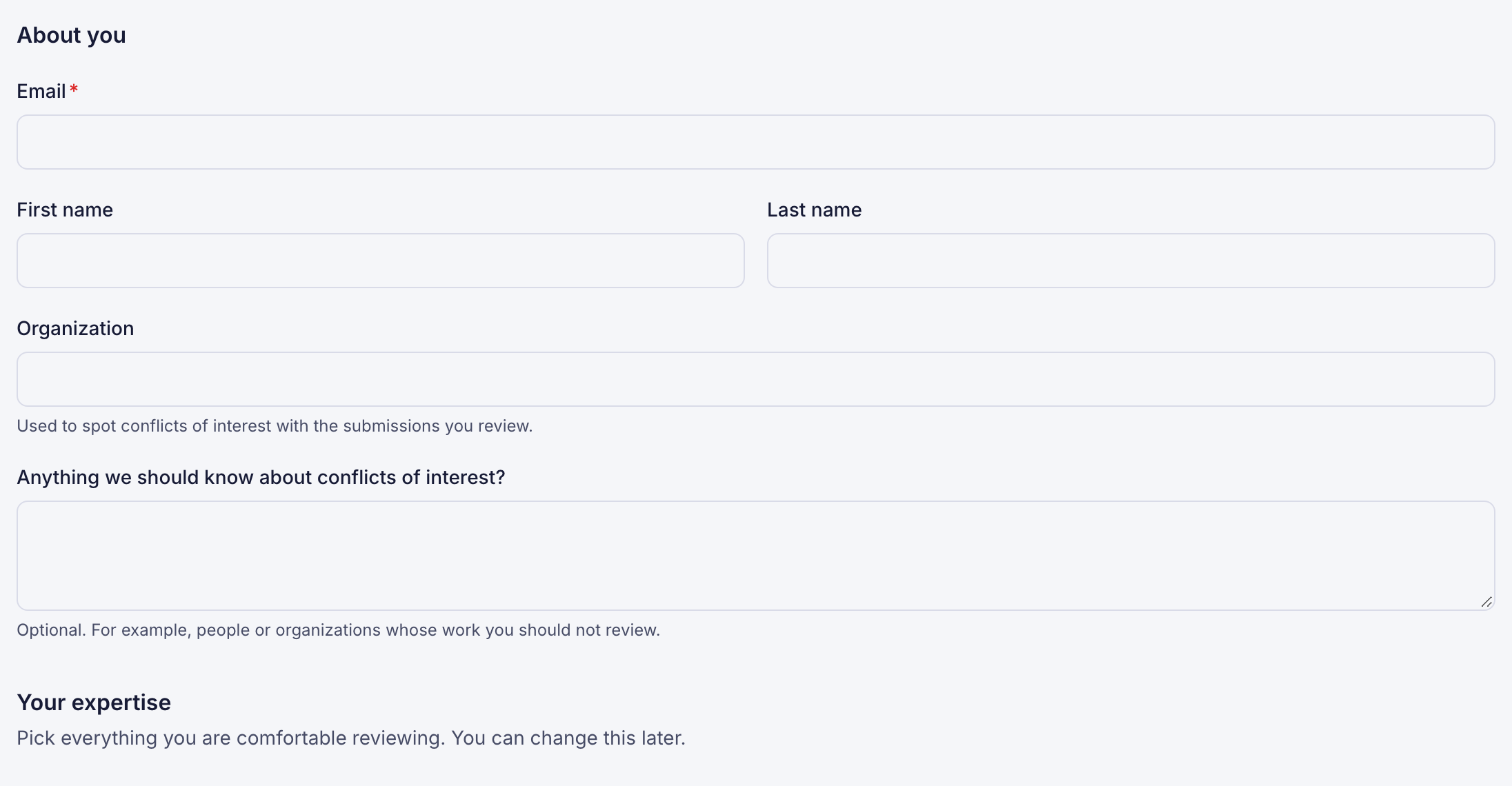
A closed call rejects new submissions and shows Applications closed. You can still approve someone who applied before it closed.
The people list
Section titled “The people list”The table lists Name, Email, Source (Invited, Imported, or Applied), Status, Affiliation, Expertise, Conflicts, and Added. Search by name or email. Filter by status or source. Expertise lists each value the person picked, such as a track or tag, in the order they picked them; hover a value from a custom field to see which field it belongs to. It shows — when they picked nothing. A value picked from a list you later turn off for the call keeps its name; only a value deleted from the event shows its id. Someone who applied more than once with the same email is one row with an Applied N times badge next to their status. When the call has questions, an Answers column shows how many each applicant answered; click it to read them.
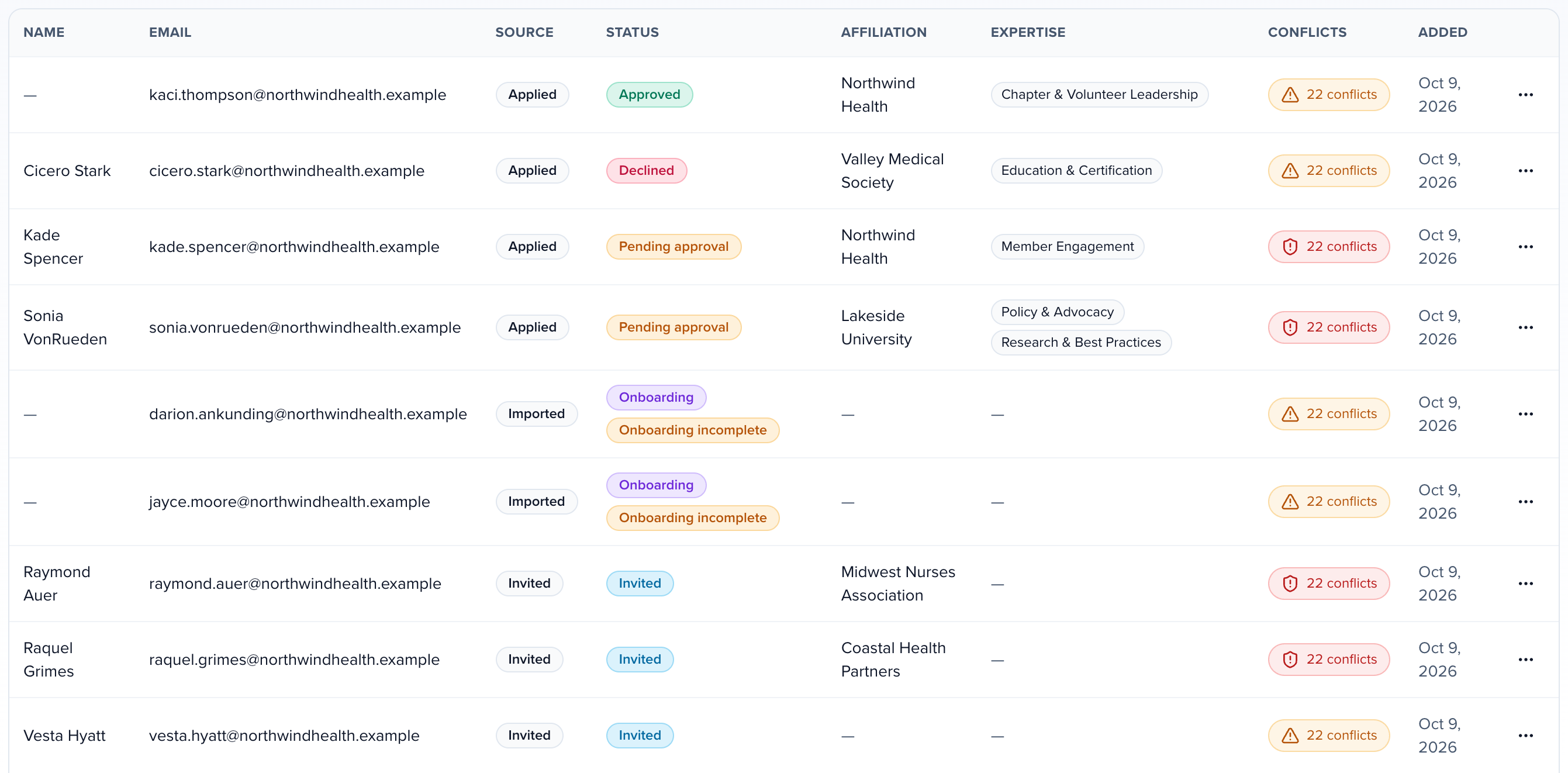
Row actions, when you can manage the call:
- Resend invitation — issues a new magic link to that person only.
- Approve — enrolls a pending applicant and keeps the expertise they submitted. Also shown on someone you declined, so you can change your mind.
- Decline — leaves the roster unchanged. Optionally send a decline email.
- Remove — takes them off the call. Reviewers already enrolled in rounds keep their assignments.
Approving someone who declined. If an organizer declined the person, Approve is still in the row menu and enrolls them with the expertise they picked. If the person declined the invitation themselves, they cannot be approved — they said no, so enrolling them would put them on rounds they turned down. The menu says “Declined their own invitation, so they can’t be approved. To invite them again, remove them first.” Remove them, then Invite people again so they get a fresh invitation they can accept.
Conflicts uses the same detector the rounds use. A shared organization is matched against each session participant’s Company Name (or Educational Affiliation when the company is blank), the same way at call time and when you assign rounds. A flag such as a co-author on sessions in this event, a shared organization, or a declared note is informational — approving or enrolling is never blocked. Click the count to see the conflicts: Certain ones (the person themselves, a co-author, the same organization) are listed first, then Possible ones such as a shared email domain. Up to 10 are named; +N more counts the rest. Round-time conflict rules still enforce flag vs exclude when you assign.
Statuses you will see: Invited, Accepted, Pending approval, Approved, Declined, Onboarding.
Act on many people at once
Section titled “Act on many people at once”Tick the box on each row, or the box in the header to select every person on the page, and a bar above the table shows how many are selected with Approve, Decline, Resend invitation, Remove and Clear selection. Each action works like its row action and asks you to confirm first, with the count it will apply to:
- Approve applies to applicants waiting for a decision and to people an admin declined.
- Decline applies to applicants waiting for a decision. They stay on the list, marked declined, so you can see who applied.
- Resend invitation applies to people with the status Invited.
- Remove applies to everyone selected. Anyone already enrolled in rounds keeps their assignments.
People the action doesn’t apply to are counted in the confirmation and left as they are. If some updates fail, the message says how many went through and how many to try again. Changing the search, a filter or the page clears the selection, so an action never reaches rows you can’t see. Bulk actions work the same on an Awards program’s call.
Close, reopen, or delete
Section titled “Close, reopen, or delete”Close call stops new applications and acceptances, and turns off Invite people and Import reviewers. You can still approve, decline, and remove people already on the call. Reopen call turns intake back on. Once the Closes date has passed, Reopen call is not offered — move the date later in Settings instead. Delete call removes the call and everyone on it. Reviewers already enrolled in rounds keep their assignments. That cannot be undone.
Match expertise when assigning
Section titled “Match expertise when assigning”Expertise collected on the call is what assignment uses.
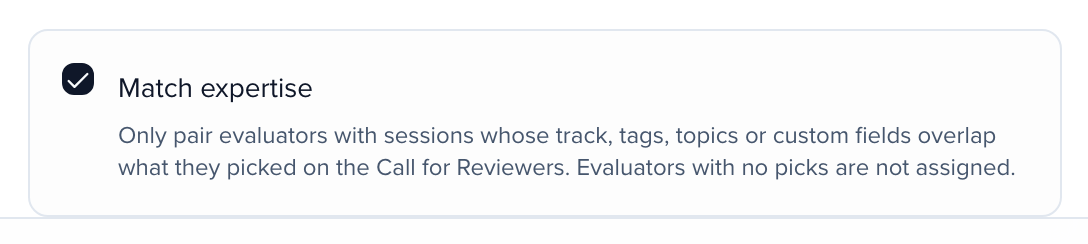
On a plan’s Assignments step, turn on Match expertise. A reviewer is paired with a session only when, on every list the call asks about and the session has values for, at least one of their picks matches. A session with no track, for example, is not judged on tracks. A reviewer who skipped a list the session has values for is not paired with it. Picking a topic also covers its sub-topics. Reviewers with no picks are not assigned by this rule. All to All and hand-picked assignment do not start requiring expertise. Existing conflict-of-interest exclusion still drops pairs after matching.
See Setting up round-based reviews.
What the reviewer sees
Section titled “What the reviewer sees”Invited and imported people open a magic link, sign in, and land on a Reviewer invitation or Finish setting up your reviewer profile page. They confirm their name, enter Organization when the Site collects it, pick expertise from the catalogs you turned on, and can leave a conflict note. Accept invitation or Finish setup enrolls them when approval is off. When it is on, they see “the organizers will review your profile before you are added as a reviewer” and wait as Pending approval: they are not on any round, and their expertise picks reach their reviewer tags only when you Approve them. Editing their profile later, such as changing the organization, keeps the picks they made.
Applicants on the public form see Call for reviewers. After submit they see Thank you — either “We’ve received your application” (pending) or “You’re in” (auto-enrolled). A closed or upcoming call says so with the date when you set one.
Related
Section titled “Related”- Create and manage review plans
- Round-based reviews
- Awards uses the same call on a program: Open a call for awards reviewers