

Share clips
Sharing turns a clip library into posts. You pick clips, pick who gets them, and each person receives a private page with their clips, ready to post to LinkedIn, X and more, with a link back to your event on every post. For one clip you want to drop into your own channels, copy its public link instead.
Why use it
Section titled “Why use it”Speakers, sponsors and teammates post a clip when it takes one click. Emailing files makes each person download, upload and write a caption. A share gives each person a page of their own moments with a suggested post already written, and you see who opened it and what they did with it.
Share clips
Section titled “Share clips”Pick the clips
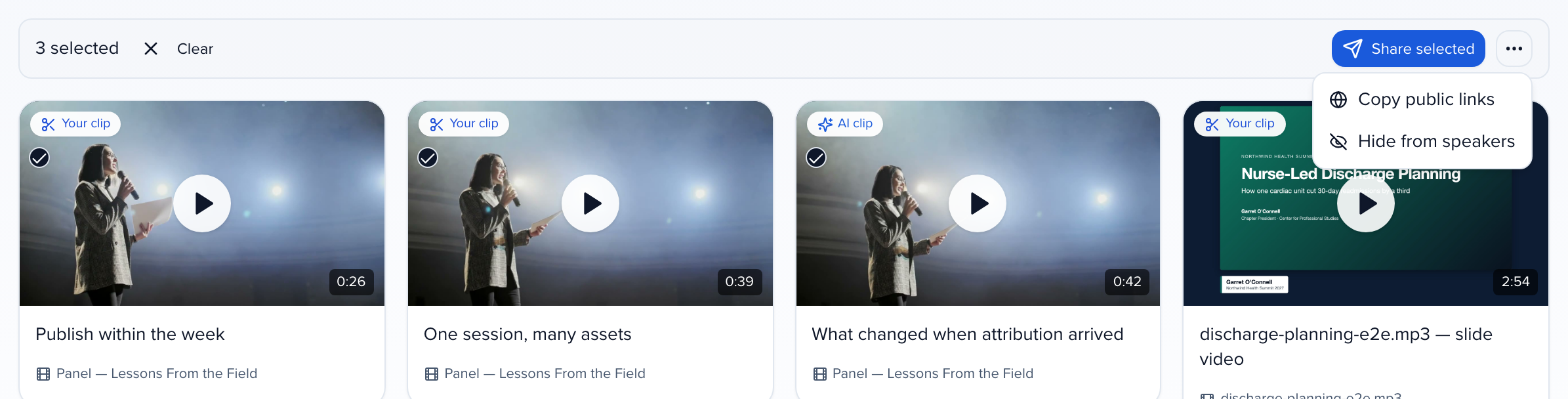
Go to Marketing → Media → Clips on the event. Select Share all to share every clip of the event, or tick the clips you want and select Share selected in the bar that appears.
Choose who gets them
The Share clips window opens on Recipients. Pick people on the four tabs, then select Next. See Choose recipients and sizes.
Choose how it reaches them
On Delivery, choose Email each person, Give me their share links, or both. See Email or share links.
Review and send
Review and send shows the clips, how many people get them and who is skipped. Select the button at the bottom: Send to N people, Create links for N people or Share with N people.
A clip that is hidden from speakers is not shared. To hide or show clips, select them, open the selection bar’s More actions and choose Hide from speakers or Show to speakers. Every size of a hidden moment is hidden together, and its card carries a Hidden from speakers badge.
Choose recipients and sizes
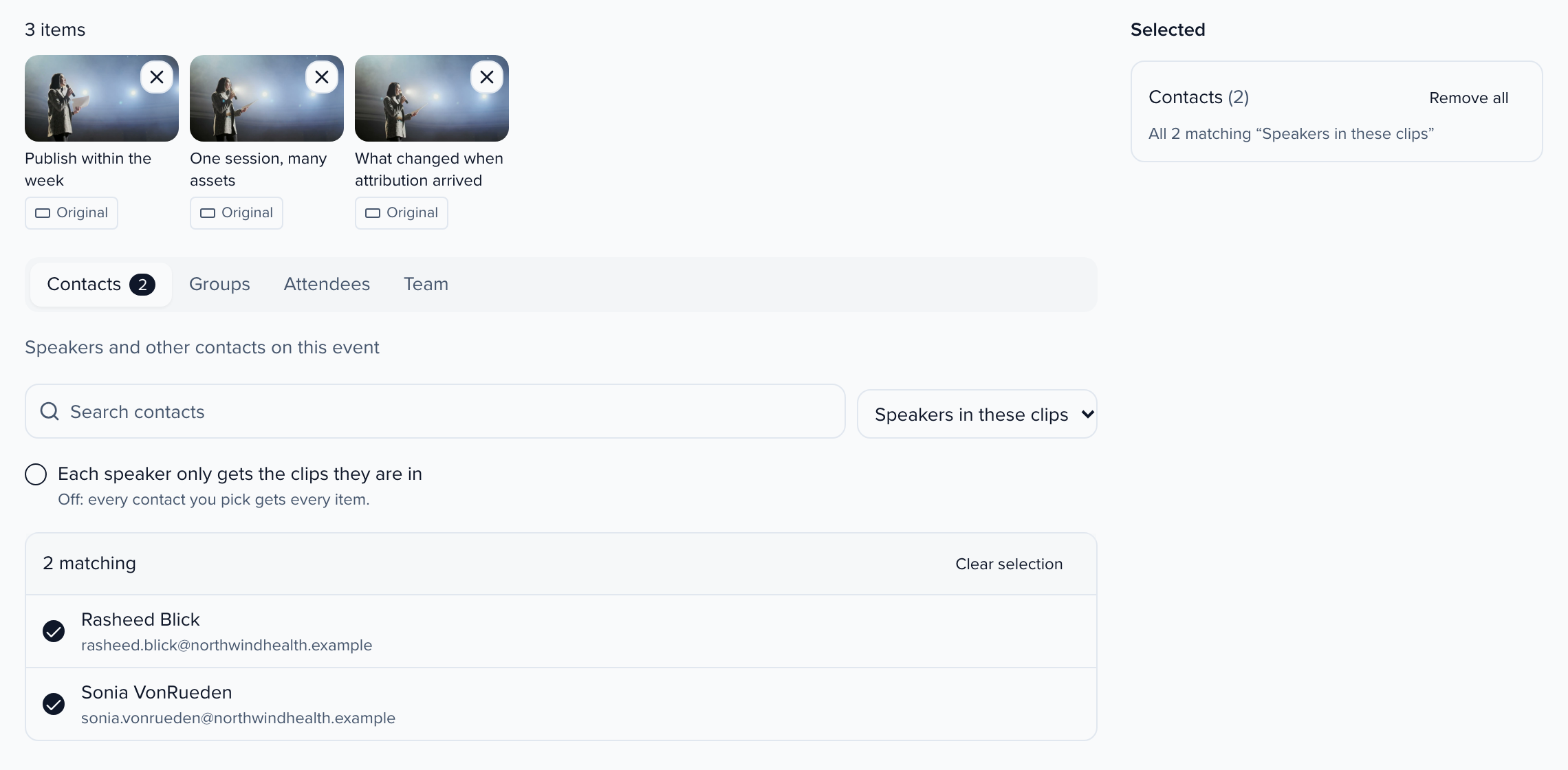
Section titled “Choose recipients and sizes”The clips you are sharing sit at the top as thumbnails. Select the X on a thumbnail to leave that clip out.
When a clip has more than one size, each thumbnail shows one button per size, such as 9:16 and 16:9. Turn a size off to leave it out. A clip always keeps at least one size. All sizes, Vertical only and Horizontal only switch every clip at once. A clip with a single size shows it as a plain label.
The tabs below choose who gets the clips. Each has a search box, and the right side lists everyone you have picked.
| Tab | Who it lists | Filters |
|---|---|---|
| Contacts | Speakers and other contacts on this event | Speakers in these clips, All event contacts |
| Groups | Sponsors and exhibitors. Everyone at the company gets their own link. | All groups, Tagged in these clips, Sponsors, Exhibitors |
| Attendees | People registered for this event | All attendees, Confirmed, Checked in, Waitlisted |
| Team | People on the event team | Whole event team |
Tick people one by one, or select Select all N matching to take everyone the search and filter show.
On Contacts, Each speaker only gets the clips they are in is off by default, so every contact you pick gets every clip. Tick it so each speaker receives only their own moments.
Clips with no event
Section titled “Clips with no event”A clip cut from a recording that is not matched to an event has no event of its own. Share it from Media → Clips at the organization level and the window asks which event the people come from: Pick the event to share from. The event is chosen for you when only one fits, and Next says Pick an event first until one is set.
If the note says the clips are from a recording that is not matched to an event yet, select Match the recording to a session. It opens Speakers to tag → Recordings without a session, where you attach the recording to its session.
Email or share links
Section titled “Email or share links”Delivery asks how the share reaches people. The two choices are independent.

- Email each person. Everyone gets an email with their own private link. You set the Subject, the Sender name, Replies sent to and the Message, shown above the clips exactly as you write it. Send from appears when your organization has a sending domain. A Preview shows the email, and Send me a test sends you a copy with [TEST] in the subject and a working link.
- Give me their share links. After you share, the window stays open on a list of each person’s private link, so you can paste them into your own email tool, a Slack message or a registration platform.
Tick both to email people and keep the links. Tick neither and the clips are added to each person’s page without a message.
Get the links
Section titled “Get the links”When Give me their share links is on, the window lists N share links ready. Each link is private to that person and opens their clips with no password.
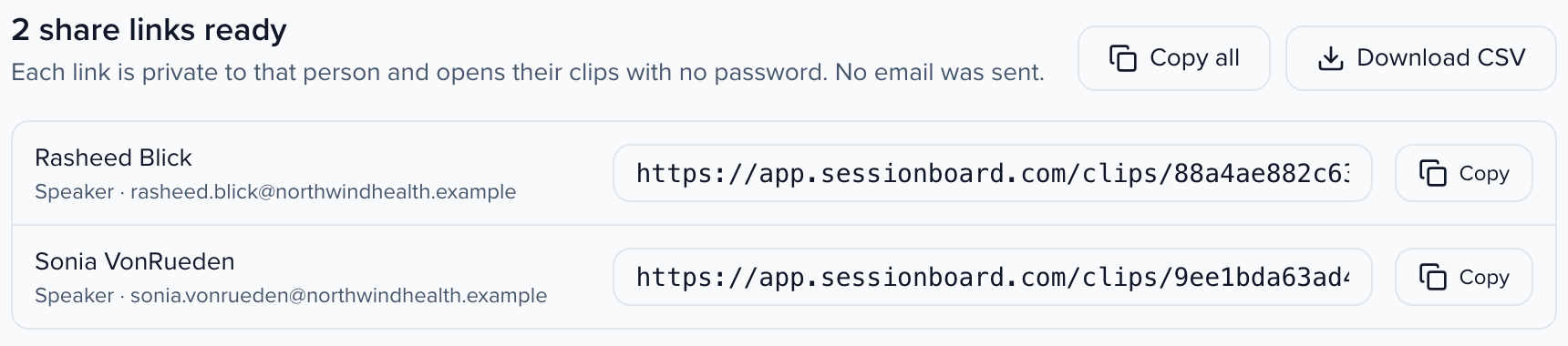
- Copy copies one person’s link.
- Copy all copies every link, one per line, with the person’s name.
- Download CSV saves
clip-share-links.csvwith the columns Name, Email, Type, Organization and Link.
Select Done when you have what you need. The links stay with the share, and anyone with a link sees only what was shared with them.
Who is skipped
Section titled “Who is skipped”Review and send counts the people who will get the clips and names anyone left out, with the reason:
- no email address
- email address not valid
- not in any of these clips
- no people at the company on this event
- same email as someone else picked
No email address and email address not valid matter when you email people. Open Who is skipped to see the names.
What the recipient gets
Section titled “What the recipient gets”The email has a button, See your N clips. The button and the links you copy open the same page, with no sign-in.
The page is a gallery of that person’s clips, under a header in your event’s brand colors.
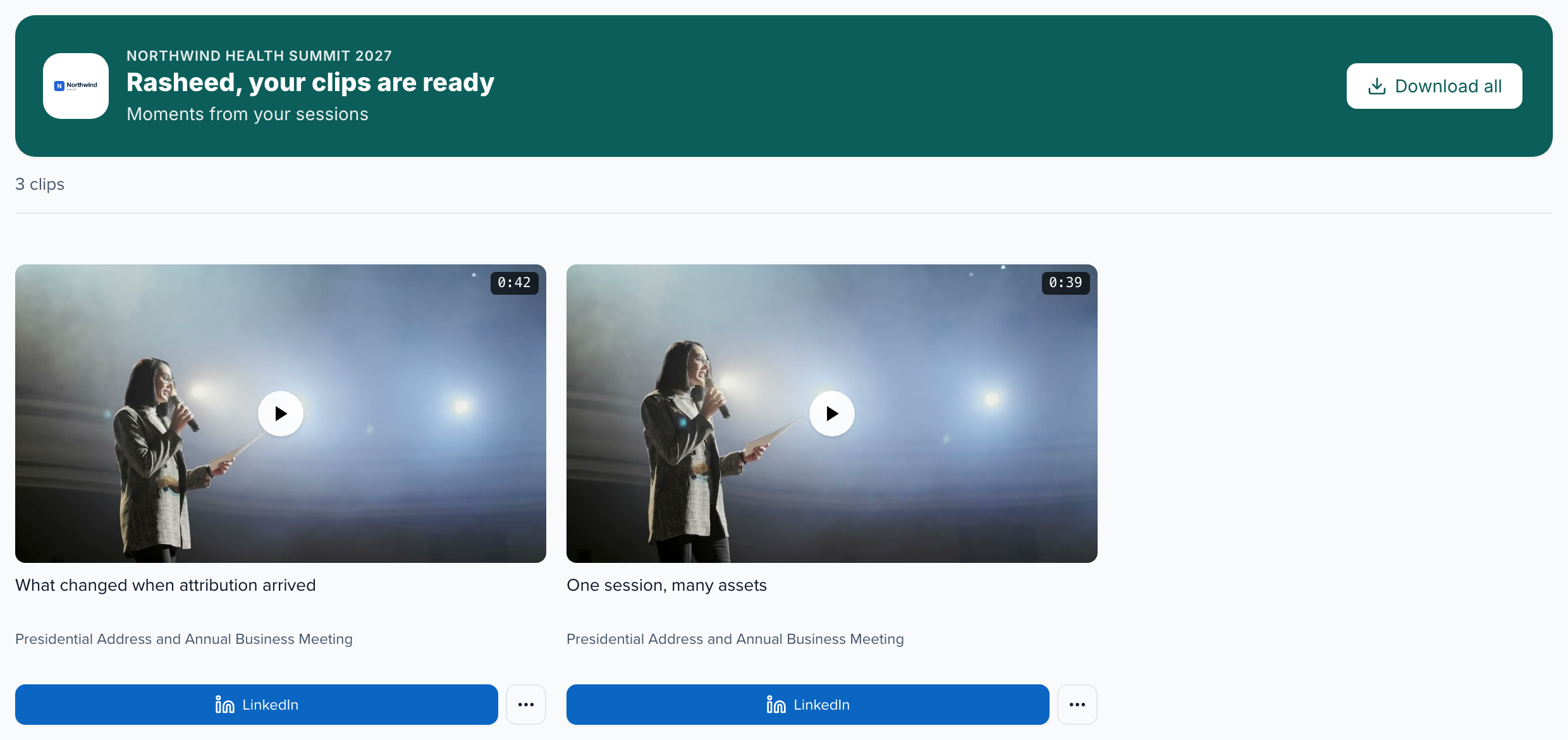
- Cards. One card per moment, with its length and its session. A New badge marks clips from the latest share.
- Vertical or horizontal. When a person was given both shapes, a switch changes the whole gallery between them.
- Group. With clips from more than one session or share, Group offers All together, Session and Date shared.
- Download all. Prepares a zip of the clips in the shape on screen. The button reads Download zip when it is ready, and the person can keep browsing while it builds.
- Show more moments. Loads the next clips of a long list.
Select a card to play the clip and post it.
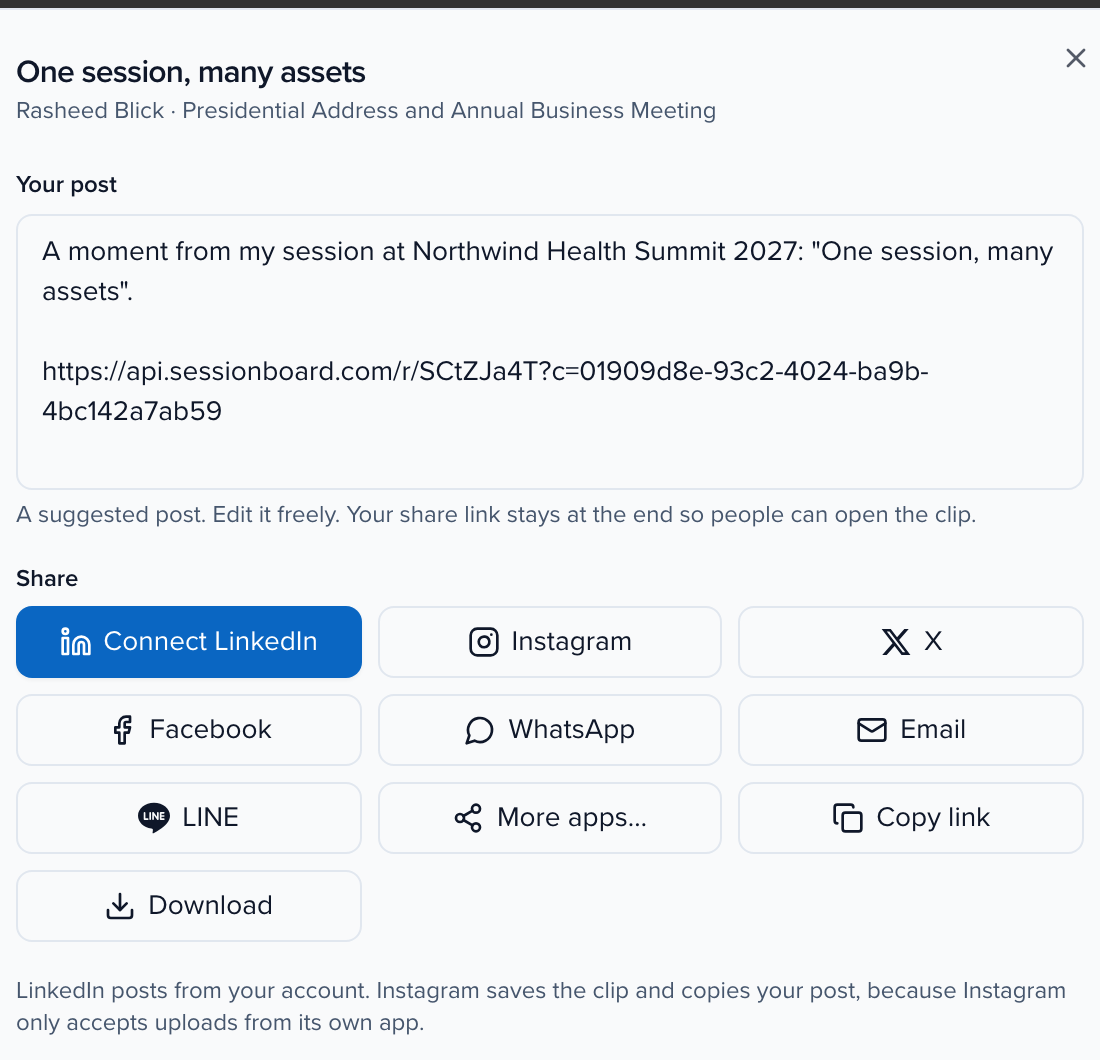
- Your post is a suggested caption the person can edit. It ends with their own share link, on its own line, so people who see the post can open the clip. LinkedIn posts exactly the text in the box.
- Post to LinkedIn publishes from the person’s own account. The first time, the button reads Connect LinkedIn and asks them to allow Sessionboard to post for them.
- X, Facebook, WhatsApp, Email, LINE and More apps… open that app’s own share window with the caption and link. Instagram saves the clip and copies the post, because Instagram accepts uploads only from its own app.
- Copy link and Download copy the person’s link or save the clip.
Every open, view, share, copy and download is recorded against that person.
See what happened
Section titled “See what happened”Go to Media → History → Clip sharing.
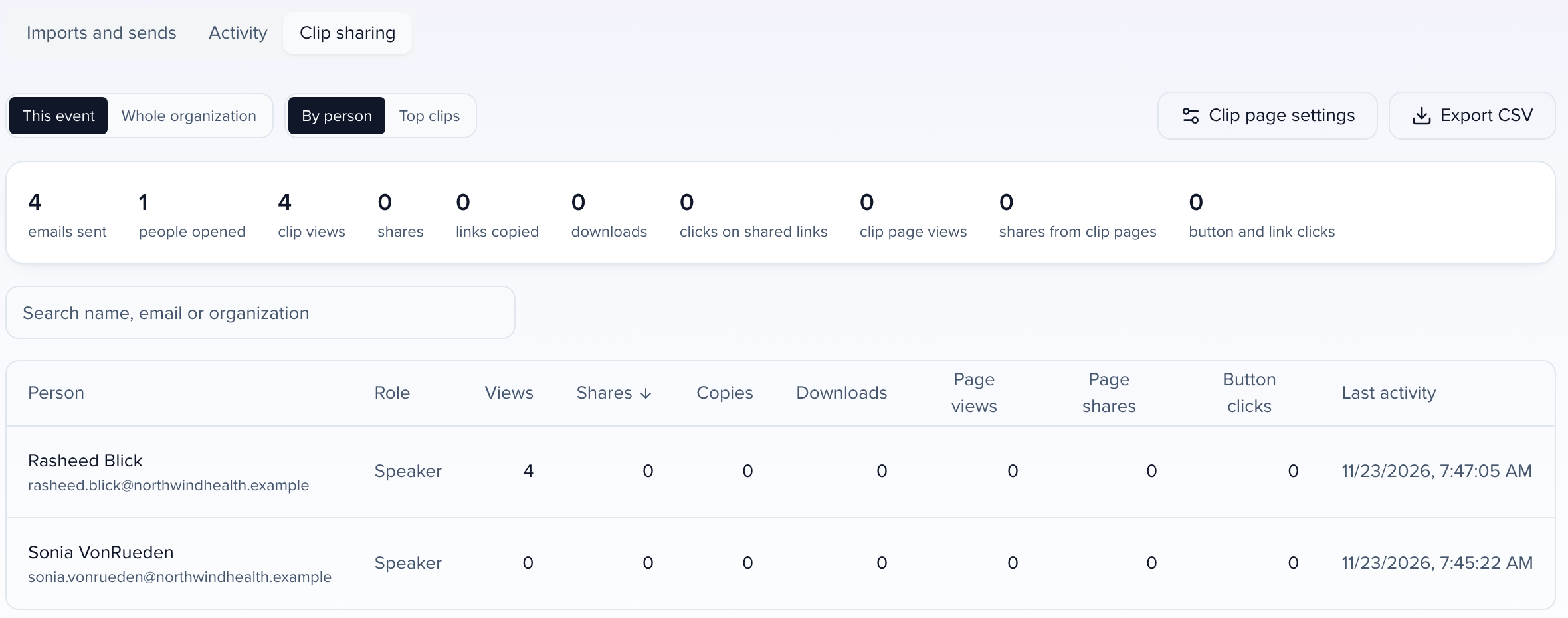
- This event or Whole organization sets the scope. By person lists each recipient. Top clips lists clips in the order they reached the most people.
- The row of totals counts emails sent, people opened, clip views, shares, links copied, downloads, clicks on shared links, clip page views, shares from clip pages and button and link clicks.
- The table adds Role or Event, Views, Shares, Copies, Downloads, Page views, Page shares, Button clicks and Last activity. Top clips also has Clicks. Select a heading to sort, and use the search box to find a person, a clip or an event.
- Export CSV downloads the table. Clip page settings sets the button and search options of the public clip pages.
Copy a public link
Section titled “Copy a public link”A share links a clip to one person. A public link belongs to the event instead, so you can post a clip from your own account or paste it into a newsletter without sending it to anyone first.
- One clip from the library. Open the ⋯ menu on the clip’s card and choose Copy public link.
- One clip from its page. Open the clip, then More actions → Copy public link.
- Several clips. Tick them and choose More actions → Copy public links in the selection bar. You get one link per line. Clips that were left out are listed with the reason.
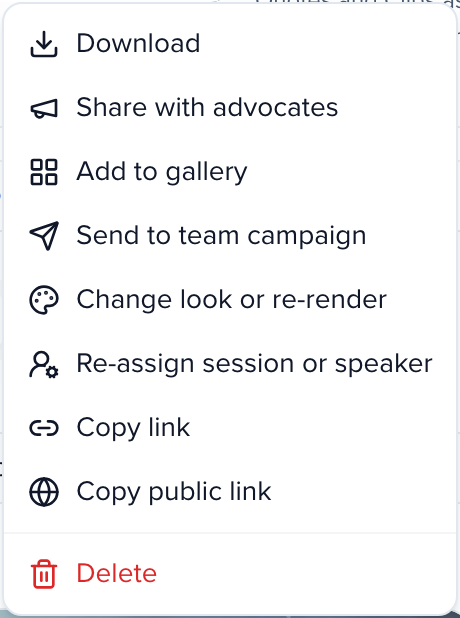
A toast confirms Public link copied. If your browser blocks copying, a window shows the link in a box you can select, with a Copy button.
Anyone with the link can watch the clip on its clip page. Views, shares, downloads and button clicks from this link are counted as Direct link in the clip’s Sharing panel, not credited to a person.
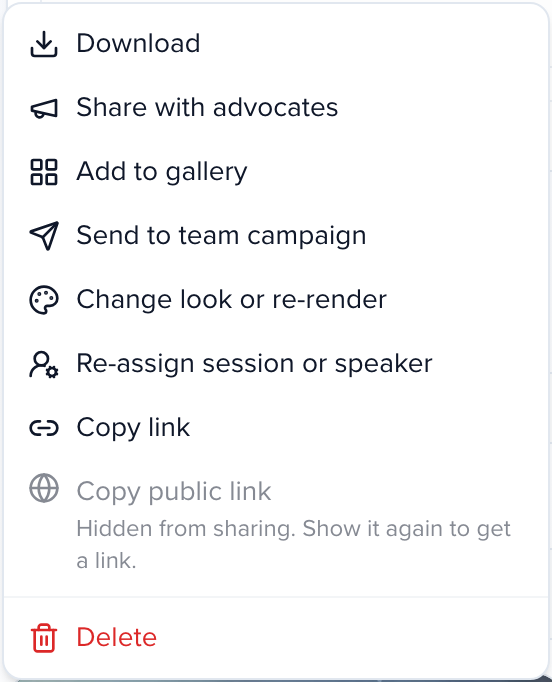
Some clips do not get a link, and the menu says why:
- A hidden clip shows Copy public link greyed out with Hidden from sharing. Show it again to get a link. under it.
- A clip that is still rendering has no Copy public link until the render finishes.
- A clip with no event needs one first: Add this clip to an event to get a public link.
Speakers to tag
Section titled “Speakers to tag”A clip reaches a speaker only when its voice has a name. When voices are untagged, the Clips page says so, in a line that reads N voices have no speaker named, with a Tag speakers link.
Go to Media → Speakers to tag. The Voices tab lists each unnamed voice with a sample of what it says and a suggested speaker. Accept takes the suggestion, Pick chooses a different speaker and Not a speaker marks hosts and audience. Accept all high-confidence suggestions takes every strong suggestion at once. The Recordings without a session tab matches a recording to its session.
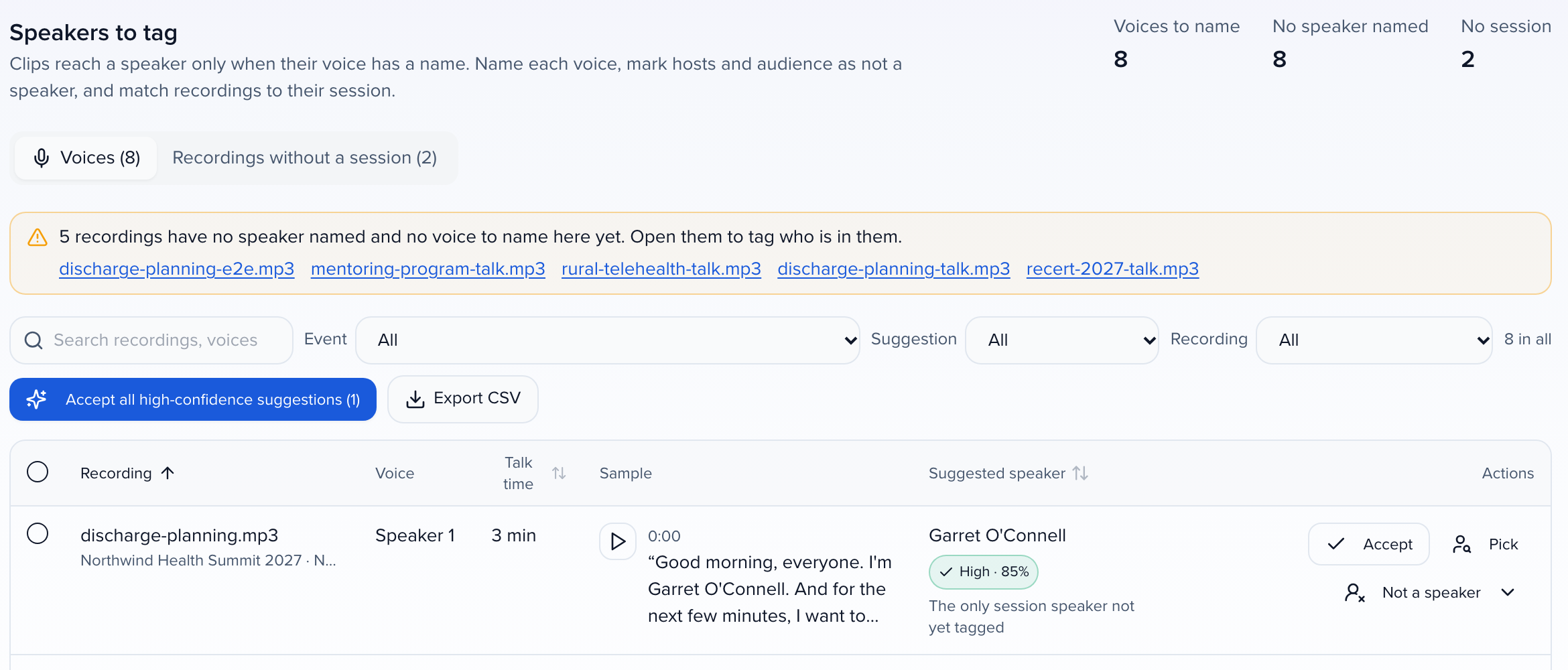
Their clips follow once a voice is named, so share again after tagging to reach the speakers who were missing.
Can I share the same clips twice?
Yes. Share again and each person’s page shows the new clips, marked New. The History table counts everything under the same person.
A speaker says the link does not work.
Check that the clip is not hidden. A hidden clip is taken off the person’s page. If the clip is visible, send the link again from Share clips with Give me their share links ticked.
Do attendees get the clips they are in?
Attendees get every clip you pick. Only Contacts has Each speaker only gets the clips they are in.
Where do I set the button on the clip page?
In Media → History → Clip sharing → Clip page settings. See Clip pages.