

Share your own media through Advocacy
Image and Animated campaigns give every advocate a personalized card. The Media format hands them your own content instead: a session recording, a clip, an audiogram, a slide video or a quote card from your Media library. Everyone gets the same items, each with their own tracked link, so shares, clicks and registrations are credited exactly as for a card.
In pictures 5
Why use it
Section titled “Why use it”Your best promotion is often something you already made: the keynote’s sharpest minute, a quote card from a speaker, a slide video of last year’s session. The Media format puts those in your speakers’, exhibitors’ and attendees’ hands, posted natively as a video or an image rather than as a bare link, and still tells you who brought whom.
What you can share
Section titled “What you can share”| Type | From |
|---|---|
| Videos | Recordings in your Media library, or a video you upload |
| Clips, Audiograms, Slide videos | Clips you made in Media |
| Quote cards | Your Quotes library (posted as a square image) |
An item can be shared once its file is ready and it isn’t archived. A campaign holds up to 50 items.
Start a Media campaign in Quick Launch
Section titled “Start a Media campaign in Quick Launch”Pick the Media format
In Marketing → Advocacy → New campaign → Your event community, choose who’s sharing, then pick Media · From your library under Format. The Designer and card styles step aside: Media isn’t personalized.
Choose media to share
Click Choose from Media, or upload. Choose media to share lists your library: search by title, quote or speaker, filter by Type, switch Library between This event and All your media, sort by Newest, Oldest, Longest or Title A–Z, and Export the list as CSV. Each item shows where it is Shared in already, and warns when it is over a channel’s video limits. Tick as many as you like and click Use N items.
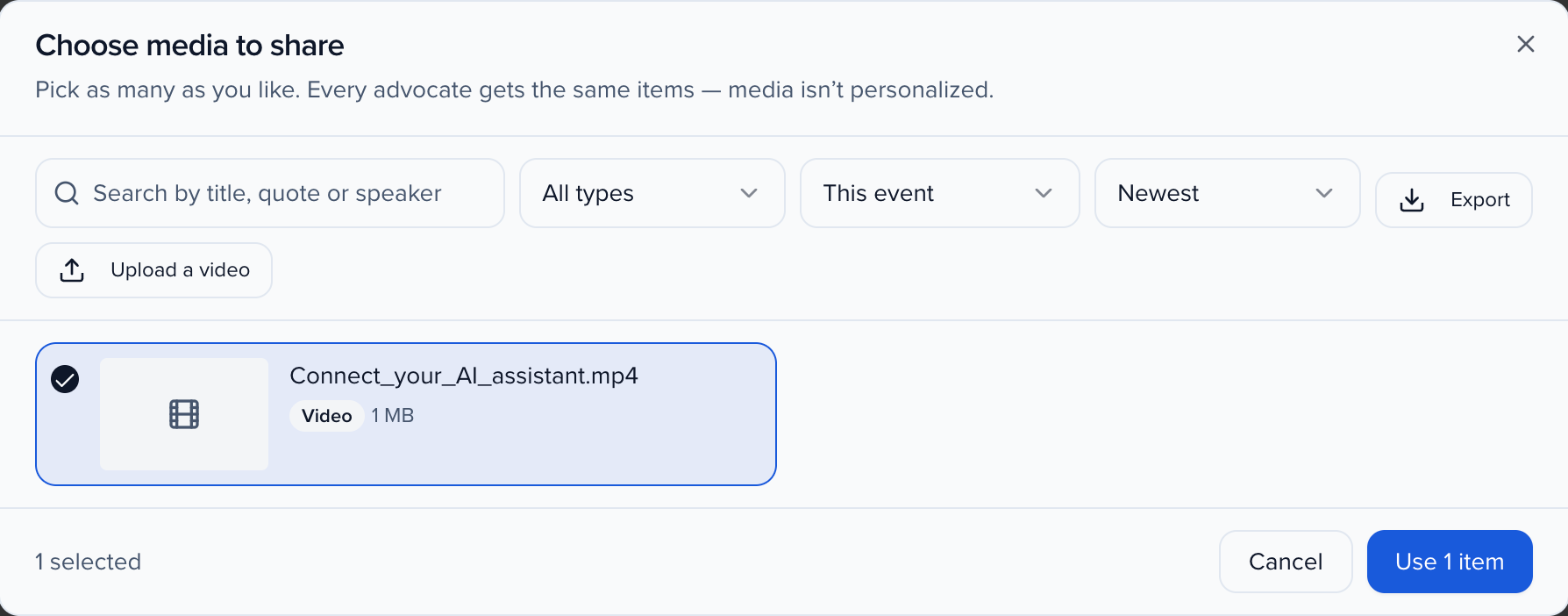
Or upload a video
Upload a video takes an MP4 or MOV up to 500 MB and 3 minutes long; a longer or larger file is refused with the reason before it uploads. Square, 4:5, 9:16 and 16:9 all work. The video goes into your Media library, gets its transcript and captions as usual, and is picked as soon as it’s ready.
Order the items
Media to share lists what you picked, with Add or change media to go back to the picker. Use the up and down arrows to set the order advocates see, and the cross to remove an item (it stays in your Media library). The preview on the right shows What every advocate gets.
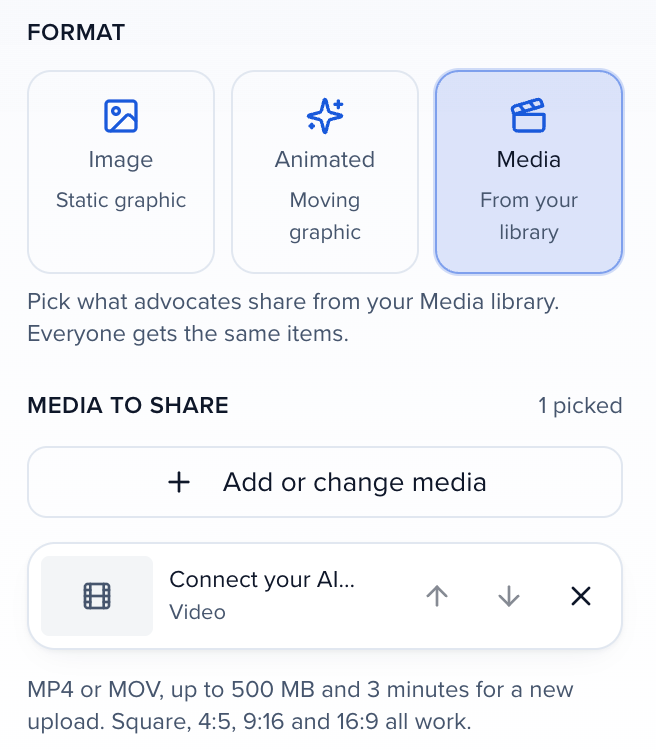
Finish as usual
Recipients, Share page, Landing and Launch work as for any campaign. A Media campaign can’t be activated with nothing picked.
Share with advocates from Media, Clips or Quotes
Section titled “Share with advocates from Media, Clips or Quotes”You can also start from the content. In Media, Clips (audiograms and slide videos included) or Quotes, at the event or organization level, tick the items and click Share with advocates:
- Where should they go? — New campaign creates a Media campaign with these items picked and opens Quick Launch at Recipients, so you confirm who shares and launch. Add to a campaign adds them to a Media campaign already on the event; advocates in it see the new items right away.
- Who shares them? — Participants, Groups or Attendees.
- At the organization level, Pick the event this is for.
- Click Create campaign, or Add N items to add them to the campaign you picked.
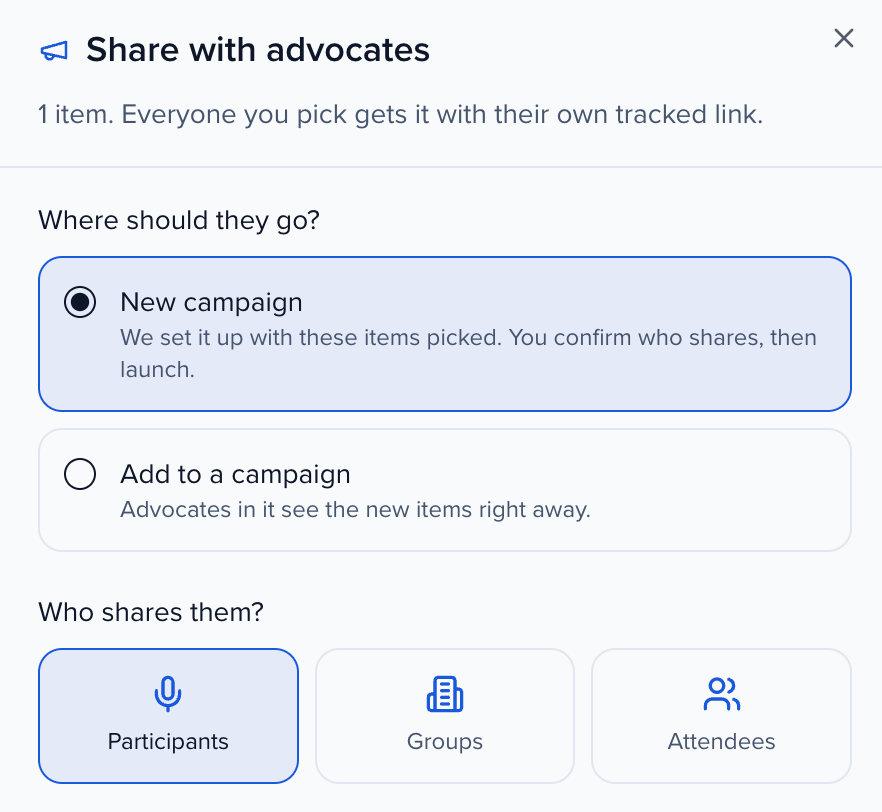
Each item in the library shows Shared in with the campaigns it is part of.
What advocates see
Section titled “What advocates see”On their share page, advocates get Pick something to share: a gallery of the campaign’s items to play or preview. They pick one, edit Your post (their link is already in it), and share:
- Post the video to LinkedIn posts the file natively as a LinkedIn video (up to 200 MB and 10 minutes); a quote card posts as an image (Post the card to LinkedIn). Anything else posts the text with their link. The first time, Connect LinkedIn to post it connects their account; LinkedIn link shares just the link instead. LinkedIn must be one of the campaign’s share channels.
- Share… on a phone opens the share sheet with the file.
- Download saves the file and copies the caption with their link, ready to paste wherever they post it.
- Copy link and the campaign’s other channels share the link. When someone shares an item, its link shows that item’s poster as the preview image.
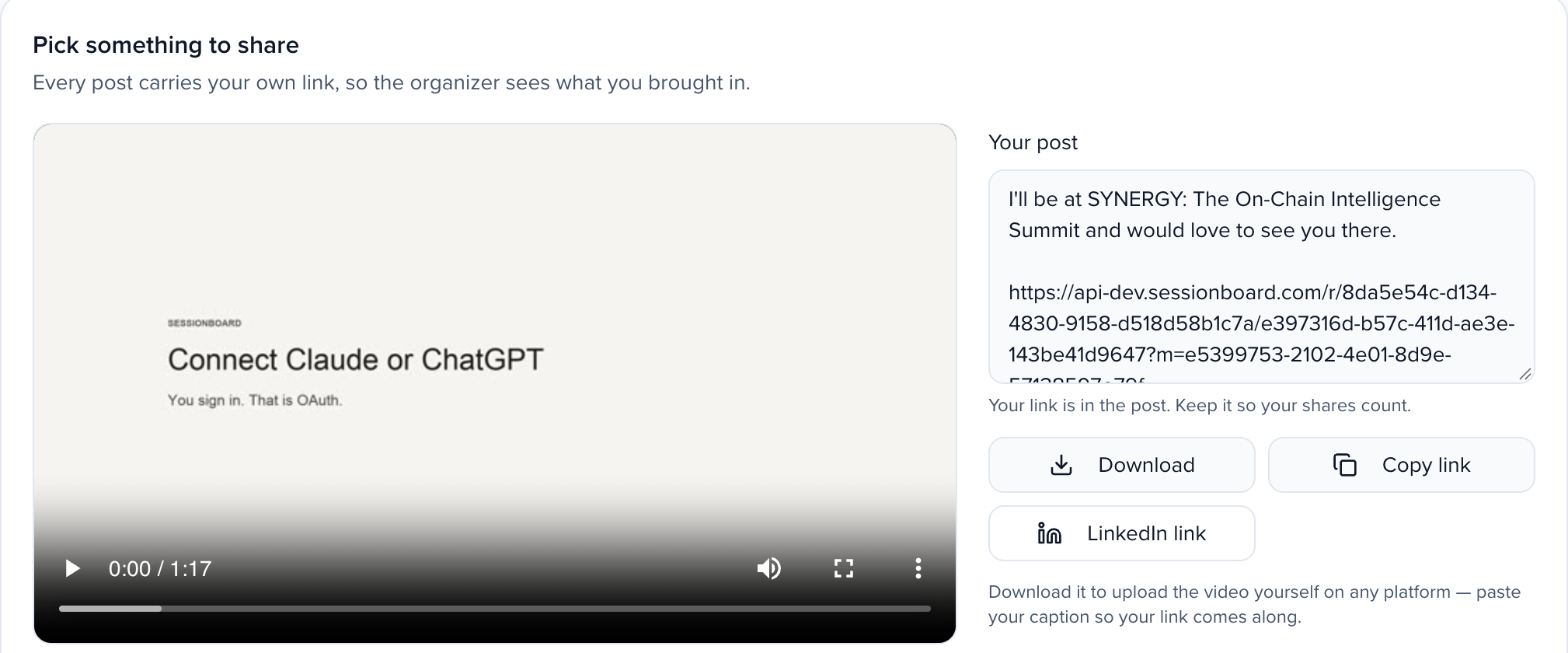
Buttons follow the channels you turned on under Share channels. An item over a channel’s video limit (for example X takes 2 minutes 20 seconds, WhatsApp 16 MB) shows a warning to share the link there instead.
Results land in the campaign’s Analytics like any other share, with each share recorded against the item.
Is the media personalized for each advocate?
No. Everyone shares the same files. What’s personal is the link in their post, so every click and registration is credited to them.
Can I switch an existing card campaign to Media?
Pick the format while you build the campaign. Switching back to Image or Animated in Quick Launch restores your card settings.
Why can't I see all my media in the picker?
This event shows the event’s media; switch Library to All your media. If your role only covers the event, the picker says to ask an organization admin for the rest.