

Clips
Clips turn a long recording into short videos built for social. AI proposes the moments worth cutting, you adjust the boundaries, and export in the aspect ratio and caption style you need.
Why use it
Section titled “Why use it”A 45-minute session has three moments worth a feed, and finding them by scrubbing is the job nobody gets to. Clips reads the transcript, proposes the moments, and renders them vertical or square with burned-in captions, so the recording you already paid for becomes the week’s social content the day after the talk — without a video editor in the loop.
Create a clip
Section titled “Create a clip”Clips are cut from a recording, so start in Media.
Open a recording with a finished transcript
Go to Marketing → Media and open the item. Clip suggestions need a completed transcript.
Open the editor
Click Edit & clip. The recording opens in the Create video editor: the transcript on the left, the player in the middle, and the Chapters & clips panel on the right.
Generate suggestions
Once the transcript is ready, chapters and suggested clips are generated automatically and appear in the panel without a reload. Under Suggested clips, click Generate on a recording that has none (a pasted transcript, for example), or Regenerate to redo them. AI proposes around six moments, each with a title, the quote it is built around and a one-line reason. Copilot opens the clip copilot in the Ask panel if you would rather describe the clips you want.
Preview and adjust
Preview plays the suggested range; Trim opens start and end controls so you can move the boundaries. To cut a video by hand instead, use Edit by transcript on the left: Remove the lines you don’t want (or Remove fillers for the ums and ahs), then Export edited video stitches what is left.
Export
Pick the aspect ratio above the list — Original, Vertical · 9:16 or Square · 1:1 — and the captions: No captions, Clean, Bold, Boxed, or one of the Animated styles (colored, scaling, background). Then click Export on the clip. Rendering runs in the background and the card shows Rendering… until it’s done. The Animated styles also work on a recording whose transcript came from an uploaded SRT or VTT file: those files carry no word timings, so each caption line’s words are spaced evenly across the line.
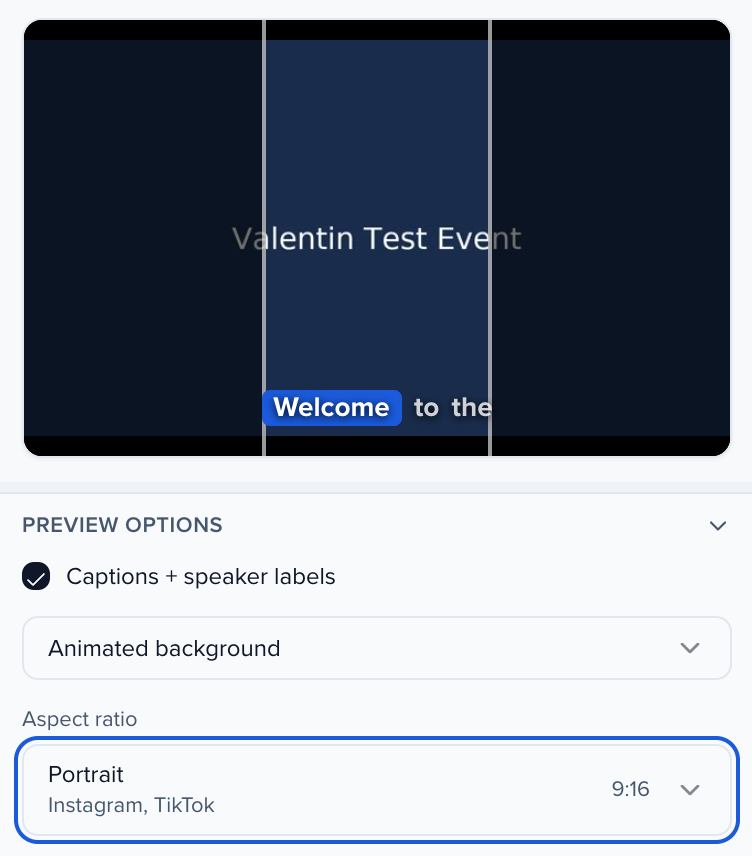
On 9:16 and 1:1, captions are sized to the frame and stay in the bottom band, and a long line splits into two-line captions instead of running up the picture. Captions, 9:16 / 1:1 and the animated styles re-encode the video, and a re-encoded clip is capped at 10 minutes — Export is disabled with the reason when a trimmed window is longer. Original with No captions is a plain trim and has no length limit.
Finished clips appear under Exported clips at the bottom of the panel, on the recording’s AI artifacts tab, and in Media → Clips.
Audiograms
Section titled “Audiograms”An audio recording has no picture to clip, so it gets an audiogram instead: a waveform video with burned-in captions and the speaker’s name over your brand color. Open an audio file you uploaded to Media and click Export audiogram under Actions. Set the Start and End (it starts at the playhead and runs 30 seconds; an audiogram can be up to 10 minutes), then pick a Shape — 1:1, 9:16 or 16:9 — a Look (Brand, Dark or Light) and a Captions style (Clean, Bold or Boxed). Speaker name defaults to the tagged speaker, and Title names the result. Click Export audiogram: it renders in the background and appears in the clips library as Audiogram · recording title, like any other clip.
The clips library
Section titled “The clips library”Media → Clips lists your exported clips as cards with a poster frame, their length and title. The tabs filter by origin — All, AI, Yours, Imported — and Search clips… finds one by title.
The filter bar narrows the list further:
- Speaker — clips where that speaker talks, from the speakers tagged on the source recording’s transcript or attributed to the clip.
- Topic — clips whose recording or session carries that topic: a topic on the recording, one of the session’s taxonomy topics, its Track, or one of its Tags.
- Aspect (the All sizes menu) — Landscape (16:9), Vertical (9:16) or Square (1:1).
- Created from and Created to — the date range the clip was exported in.
The Speaker and Topic lists only offer values your clips actually have. When the filters leave nothing, the page says No clips match these filters; Clear filters resets them.

A clip appears here the moment you click Export: the card reads Rendering… until the file is ready and turns playable on its own, no reload needed, and a render that could not finish shows Export failed with the reason. Each card names the recording it was cut from and links back to it. A suggestion that has never been exported only exists in the editor’s Suggested clips list. Opening a clip shows its own page: the player, the Source recording it was cut from, the speaker, the part of the transcript inside the clip (click a timestamp to jump there), and its Shares and Clicks. Download saves the MP4, and Add to gallery puts it in one of your content galleries. A clip that is still rendering shows Rendering… with Download unavailable, and becomes playable on its own. To adjust the cut and re-export, go back to the source recording’s editor.
The count above the cards is every clip in the library. Clips load 100 at a time, newest first; when there are more, Load more at the bottom of the list brings in the next 100 (it shows how many are loaded so far). The tabs and Search clips… look through the clips already loaded.
Deleting a clip moves it to the same Trash as recordings, under Media → Library; Restore puts it back in the clips library.
Share with advocates
Section titled “Share with advocates”Tick items and click Share with advocates to have participants, exhibitors and sponsors, or attendees share them with their own tracked links: start a new Media campaign with them picked, or add them to one already on the event. Each item shows Shared in with its campaigns. See Share your own media through Advocacy.
How many suggestions do I get?
Around six per run, and you can generate again.
Why can't I generate clips on this recording?
It has no finished transcript. Suggestions are chosen from transcript content, so transcription has to complete first.
Can I add my own captions or branding?
Caption style is chosen at export. Logo watermarking and clip styling come from your brand kit. In the editor, Insert adds an image or logo (Add image / logo), a text callout (Add text / callout), a B-roll cutaway (Add video (B-roll)) and Add background audio. Under B-roll & audio you set where each B-roll starts (Starts from) and each background track’s Volume. All of them are burned into single-window exports, including the Animated caption styles. A video with cuts (lines removed in the transcript) can’t carry these inserts yet: restore the cut lines or remove the inserts before you export. Background audio must be an MP3, M4A, AAC, WAV or OGG file; the editor refuses any other file when you pick it. Export edited video and Clip on a transcript selection use the captions shown under Preview options, including an Animated style. A video with cuts exports with standard captions instead of an animated style, and the editor tells you when that happens. Corrections you make to the transcript in the editor appear in the burned captions and in the caption preview, and the Clean, Bold and Boxed styles use the speaker names you tagged.
How long does export take?
It renders in the background — minutes for a short clip. The card shows Rendering… until it’s ready.
Why was my clip rejected or marked failed?
A clip’s time range must fall inside the recording — a range past the end of the source is rejected with “Clip range is outside the source duration” before anything renders. A render that would produce an empty file fails with a reason on the clip card instead of appearing ready with a broken download.
Is there a maximum clip length?
Only when the clip has to be re-encoded. With captions, a 9:16 or 1:1 crop, an animated style or overlays, a clip can be up to 10 minutes; the Export button tells you when a window is longer. A plain trim — Original aspect with No captions — reuses the source video and can be any length, up to the whole recording. The exception is a WebM recording: an MP4 can’t hold its video format, so a plain trim of a WebM is usually converted to MP4 and the 10-minute cap applies to it; a longer one shows Export failed with the reason. Exporting the whole recording unedited still works at any length.
Related
Section titled “Related”- Media library — where clips are cut from
- Brand kits — caption style and watermarking
- Slide videos — a recording cut to the speaker’s own slides
- Team campaigns — send clips to your team to share