

Event images & dimensions
Every event has two images of its own, set under Settings → Event Details → Image Settings. Sizing them to the recommendations below keeps them sharp and uncropped everywhere they appear.
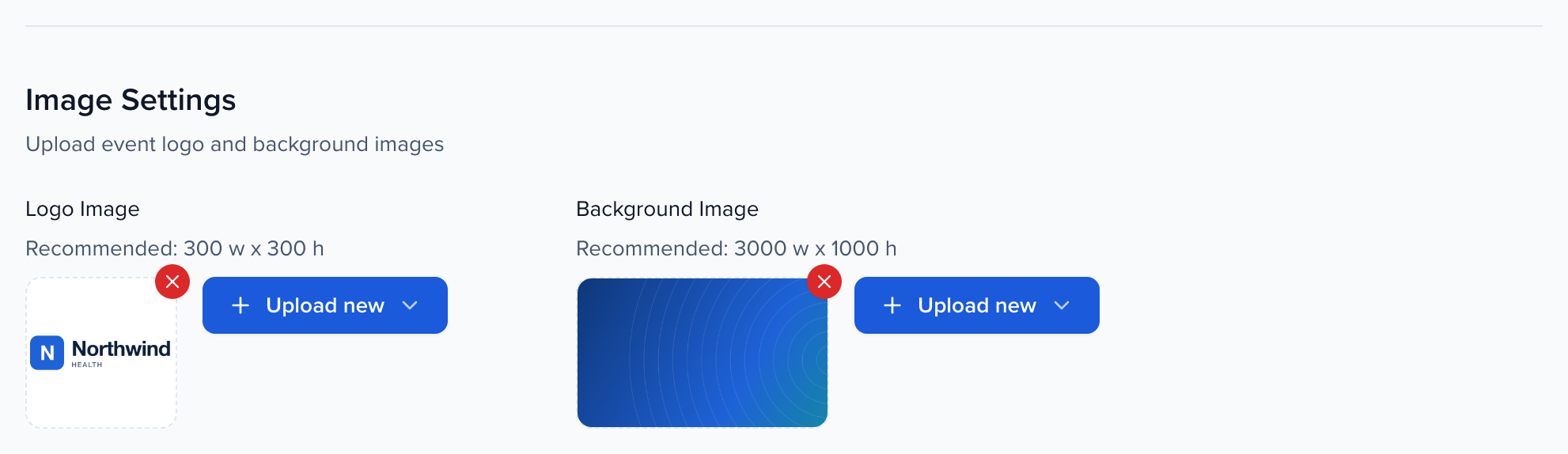
| Image | Recommended size | Where it shows |
|---|---|---|
| Logo Image | 300 × 300 px (square) | The event’s tile on your team’s dashboard, the emails Sessionboard sends for the event, and the default logo wherever the portal or a form has none of its own. |
| Background Image | 3000 × 1000 px (3:1) | The default header background for the portal, portal tasks and intake forms when no portal-specific image is set. |
Add or replace an image
Section titled “Add or replace an image”- Open Settings → Event Details and scroll to Image Settings.
- Click Upload new beside the image you want to change and choose Upload to pick a file from your computer, or Copy from… to reuse an image already in your organization’s library.
- Click Save at the bottom of the page.
To remove an image, use the small × on its thumbnail, then save.
Portal and submission-form images are separate
Section titled “Portal and submission-form images are separate”The portal and each submission form can carry their own logo and background — with their own recommended sizes — under Settings → Portals and Settings → Submission Forms. Set those when a portal or form needs branding that differs from the event’s. Otherwise the Event Details images are used.
- Portal settings — the Portal Login and Portal Appearance images
- Submission form settings — the Appearance tab
Frequently asked questions
Section titled “Frequently asked questions”Can a portal or form show no logo at all?
Yes. A portal or form shows its own logo, or the Logo Image from Event Details when it has none. Remove both with the × and save, and no logo is shown. Removing the event logo also removes it from the dashboard tile and the event’s emails.
The word “Logo” appears where my logo should be
A logo is still saved, but the image can’t load, so the browser shows its label instead. Upload the logo again, or remove it with the × if you want no logo, then save.