Portal settings
Adjust your portal branding — logo, background, colors, fonts — to match your organization and event. Open Settings → Portals in the event; the page has two tabs, Portal Login for the sign-in screen and Portal Appearance for the portal itself.
Why use it
Section titled “Why use it”The portal is the part of Sessionboard your speakers actually see, so it should look like your event: your colours, fonts and logo on the sign-in screen and inside. A portal that matches the event website gets fewer “is this legitimate?” emails and more completed tasks.
Portal Login (the sign-in screen)
Section titled “Portal Login (the sign-in screen)”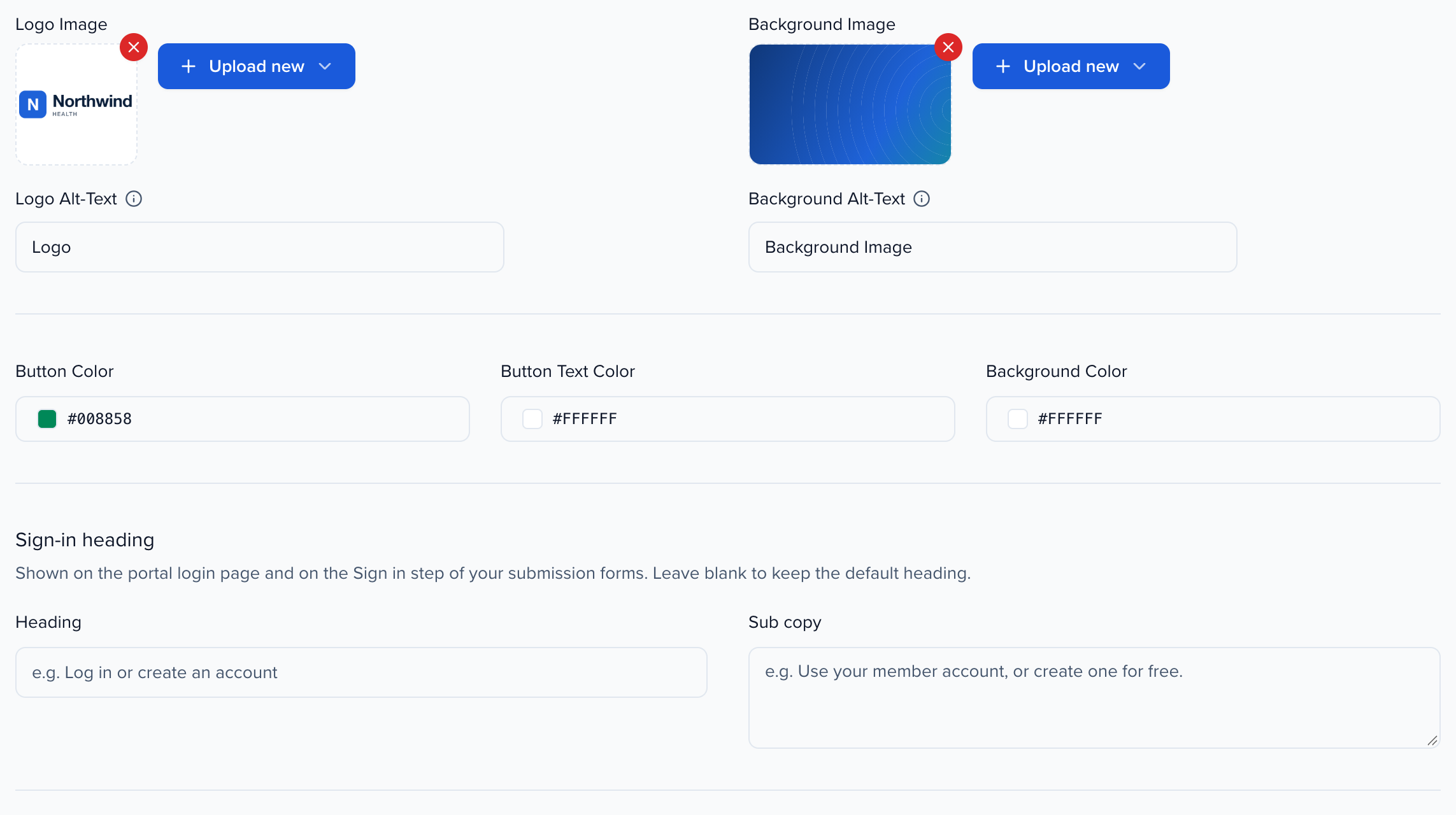
On the Portal Login tab you can set:
- Logo Image and alt text
- Background Image and alt text (recommended 1500 w × 400 h)
- Button Color and Button Text Color
- Background Color
- Welcome Message font, size and color
- Login Message — the rich-text note under the welcome message, for example who to contact for help
- Advanced CSS and Advanced Scripts
The preview on the right updates as you change values. Select Save when you are done.
Sign-in heading
Section titled “Sign-in heading”The Sign-in heading section on the same tab sets the words above the sign-in options, for example Log in or create an account when your submitters sign in with your member account:
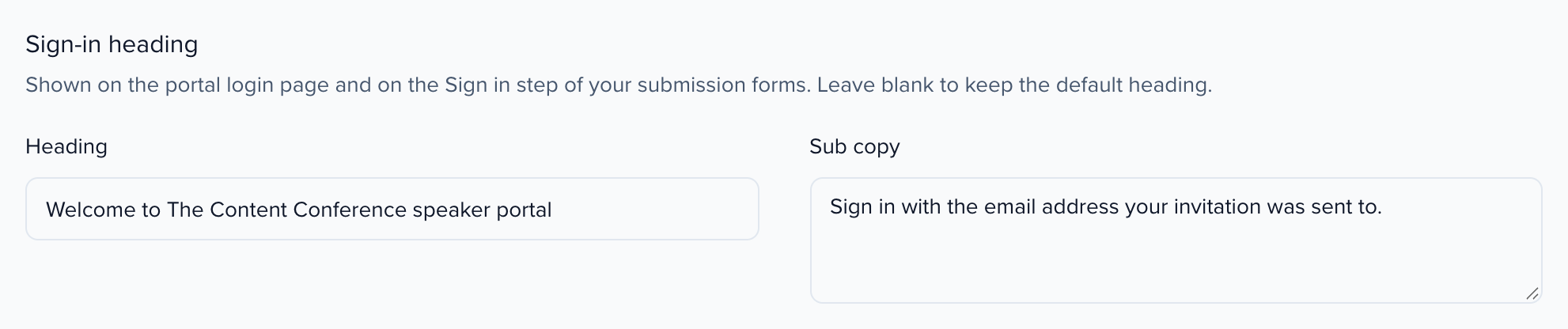
- Heading (up to 200 characters) replaces Get started on the Sign in step of your submission forms, and Welcome to followed by the portal name on the portal login page.
- Sub copy (up to 500 characters) appears under the heading on both.
Both are plain text and optional; leave them blank to keep the default heading. They apply to every portal and every submission form in the event. Once someone has entered their email, the usual Create account or Log in heading takes over.
Portal Appearance (inside the portal)
Section titled “Portal Appearance (inside the portal)”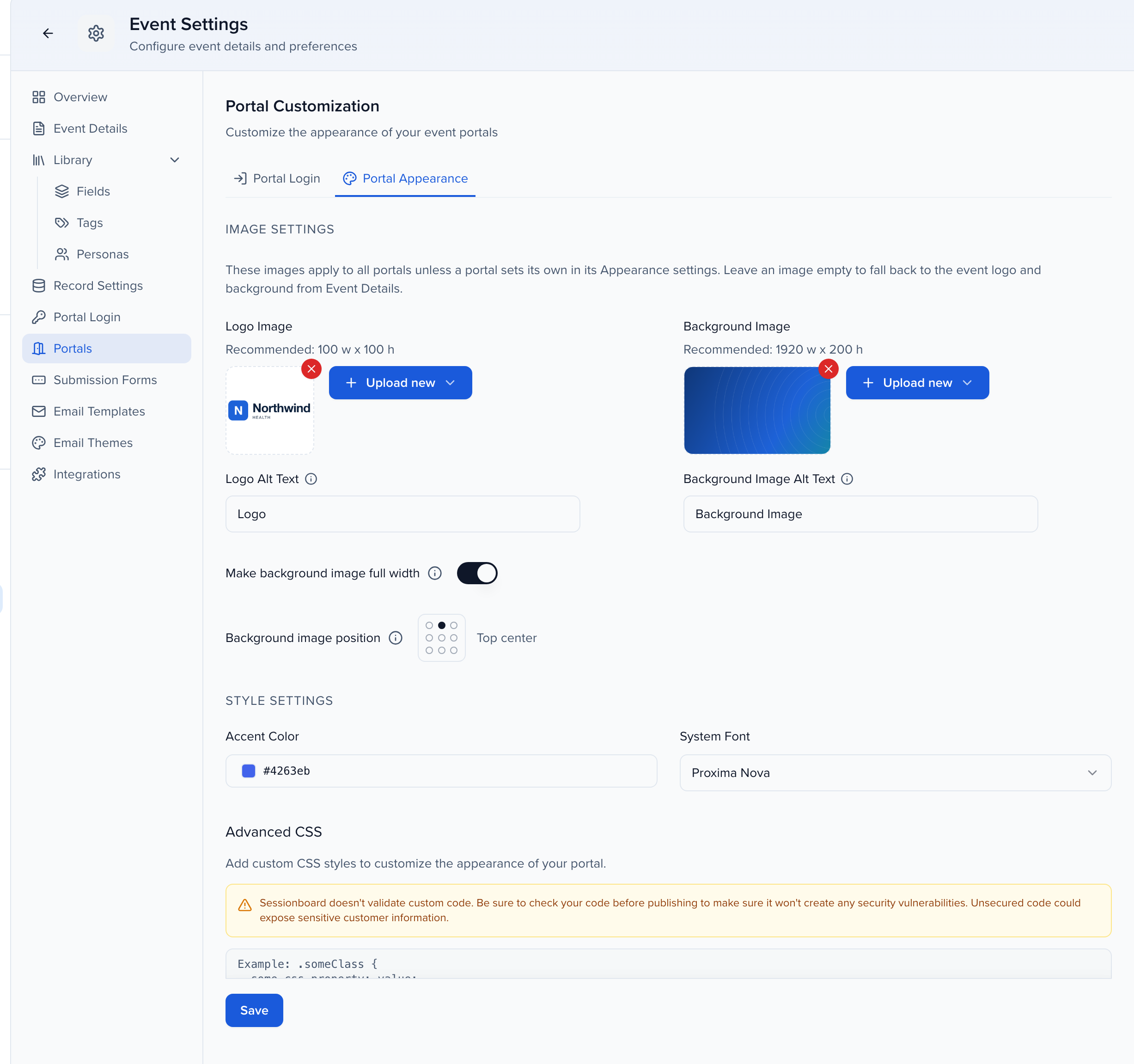
On the Portal Appearance tab you can set:
- Logo Image and alt text (recommended 100 w × 100 h)
- Background Image and alt text (recommended 1920 w × 200 h), whether to Make background image full width, and the Background image position
- Accent Color — buttons, links and highlights throughout the portal
- System Font
- Advanced CSS and Advanced Scripts
Portal Login methods
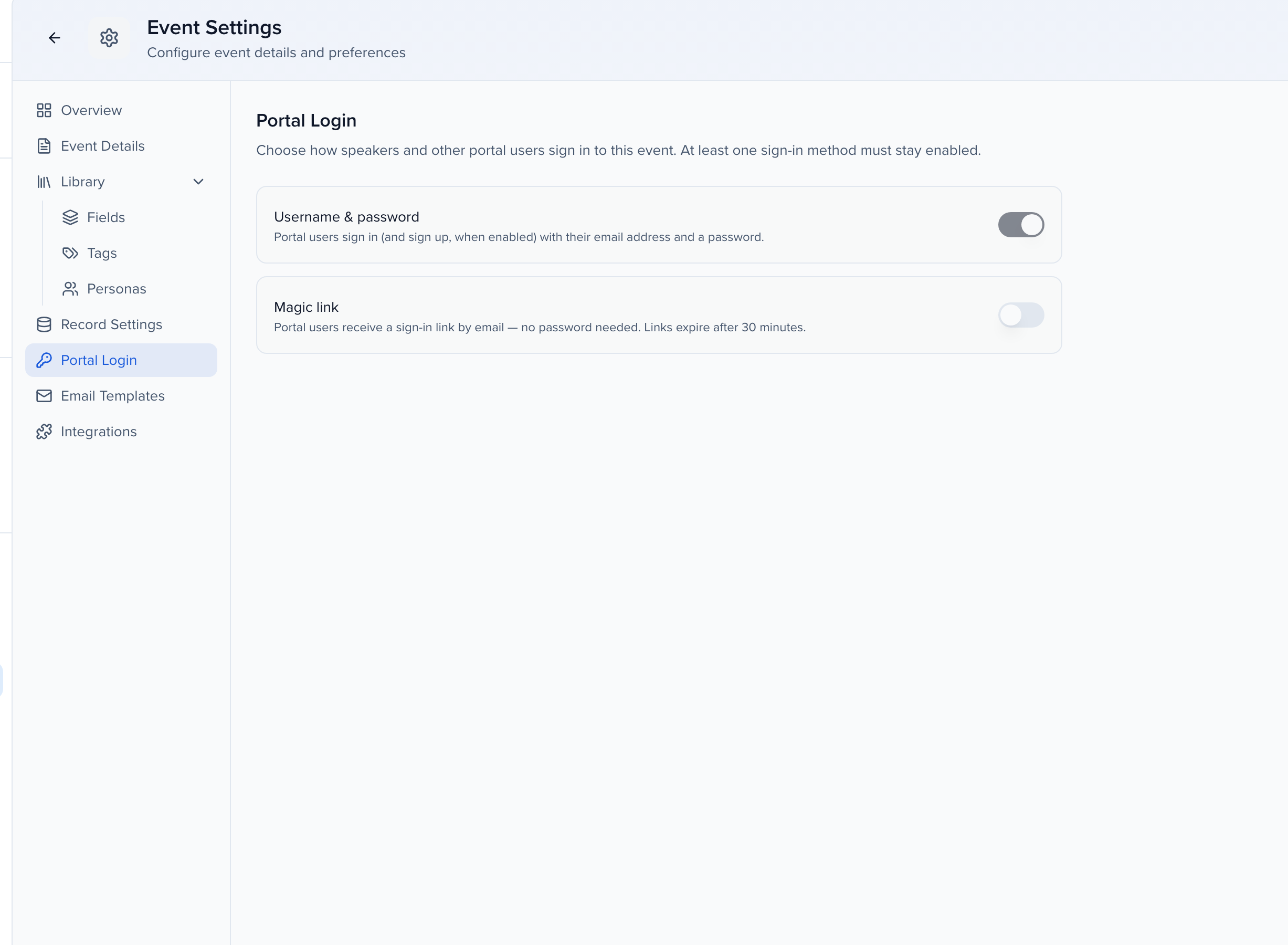
Section titled “Portal Login methods”Settings → Portal Login (a separate page, always available) chooses how speakers and other portal users sign in. At least one method must stay enabled. Username & password lets portal users sign in (and sign up, when enabled) with their email address and a password; Magic link emails them a sign-in link instead — no password needed, and links expire after 30 minutes. Organizations with single sign-on configure it on the same page.