

Single Sign-on (SSO)
Why use it
Section titled “Why use it”With SSO, your staff, reviewers and submitters sign in to Sessionboard with the account they already use at your identity provider, so there is one less password to manage. Access follows your identity provider: when someone leaves your organization they lose Sessionboard access along with everything else, and the policies you enforce there, such as multi-factor authentication, apply here too. You can use a different provider for admin login, portals and submission forms.
What is SSO?
Section titled “What is SSO?”Single Sign-On (SSO) is an authentication process that lets people reach multiple applications with one set of login credentials. Instead of remembering a separate username and password for every system, users sign in once with your central identity provider and gain access to everything connected to it — including Sessionboard.
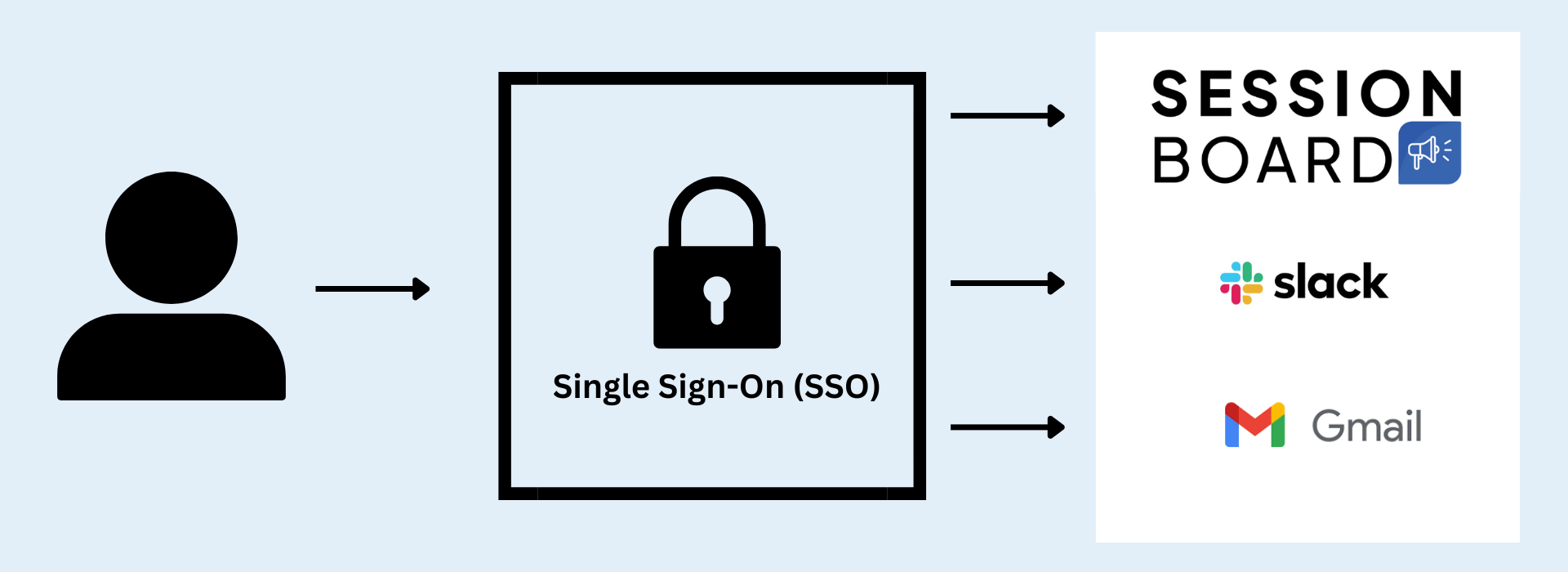
Common identity providers include Okta, Auth0, and Microsoft Entra ID (formerly Azure AD), among many others.
Benefits of SSO
Section titled “Benefits of SSO”- Unified access — one sign-in reaches every connected application.
- Improved security — fewer passwords to remember means fewer weak or reused ones, and central authentication makes strong policies easier to enforce.
- User convenience — a shorter, more familiar login for your staff and reviewers.
- Centralized management — IT grants and revokes access from one place, so someone who leaves your organization loses Sessionboard access with everything else.
- Consistent policy — the rules you already enforce at your identity provider, including multi-factor authentication, apply to Sessionboard too.
What Sessionboard supports
Section titled “What Sessionboard supports”Sessionboard supports three configurations, each on its own tab:
| Protocol | Use it when |
|---|---|
| SAML 2.0 | Your identity provider publishes a SAML application. The most common choice. |
| OIDC | Your identity provider supports OpenID Connect, which wraps OAuth 2.0 for authentication. |
| OAuth 2.0 Password | A provider offers no SAML or OIDC option — only a password grant and a profile endpoint. Common with association management systems such as iMIS. |
You can configure a separate provider for Session Submission Forms, Portals, and Admin login, and enable a given configuration on specific events. Multiple configurations can coexist, so a submission form can use one identity provider while your staff signs in through another.
Configurations live in Org Settings → SSO.
How setup works
Section titled “How setup works”Setting up SSO is a short exchange of values between your identity provider and Sessionboard, so expect to move between the two.
Create an application in your identity provider
Create a new application using the protocol you plan to use (SAML or OIDC), and configure it to send at least these attributes: id, email, firstName, and lastName.
Add the configuration in Sessionboard
In Org Settings → SSO, pick the tab for your protocol and enter the values from your identity provider.
Copy Sessionboard's values back to your provider
Sessionboard generates the URLs your provider needs — the ACS (callback) URL and Issuer URL for SAML, or the Callback URL for OIDC. Copy buttons sit next to each one.
Map any attributes that do not match
If your provider names attributes differently, override the defaults under User Mappings rather than changing anything on your side.
Test with a real user
Use Test Connection from the menu on a saved configuration, then confirm an actual sign-in with a test user before rolling it out.
Let your IT team finish setup with a link
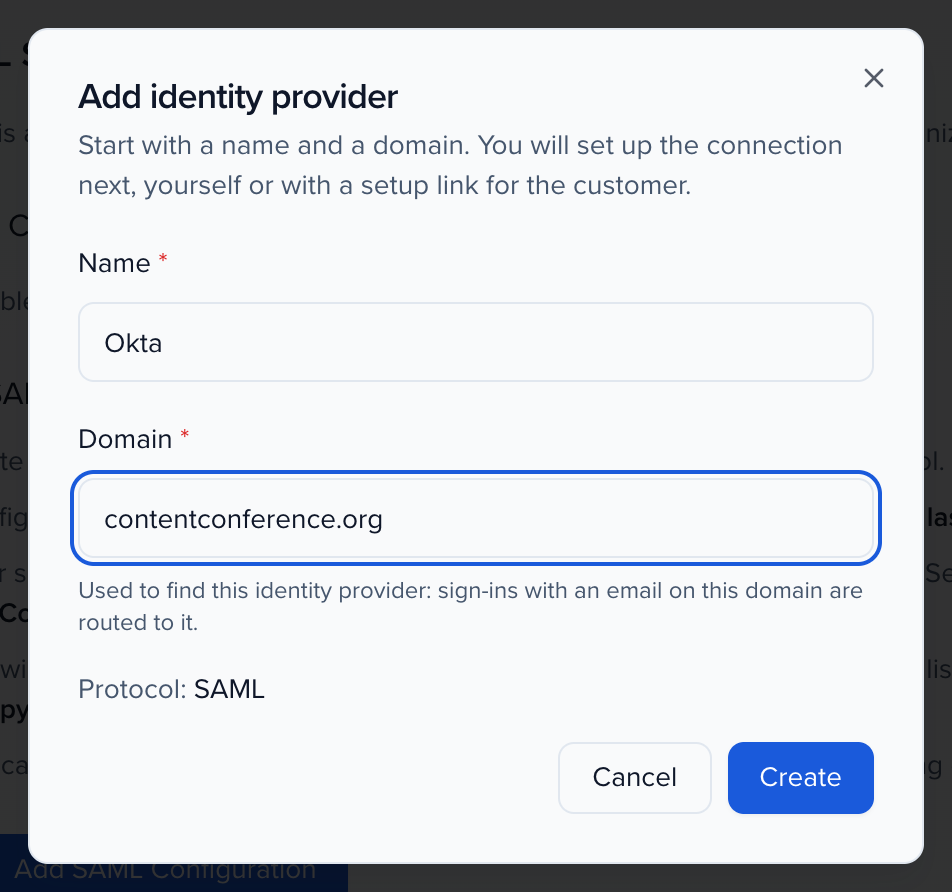
Section titled “Let your IT team finish setup with a link”If someone else manages your identity provider, you do not have to pass values back and forth. In Org Settings → Enterprise SSO, click Add SAML Configuration (or the OIDC equivalent) and give the identity provider a Name and the email Domain it signs in.
The configuration opens with a Share setup link card. Click Generate setup link, then Copy link and send it to your IT team. They open it without a Sessionboard login and walk through a guided setup — identity provider, the application to create, its details, attribute mapping and a test sign-in — and their progress saves at every step. Regenerate link replaces the link and Revoke link turns it off. Under IT contacts, note who manages the identity provider; nobody is emailed when you add them.
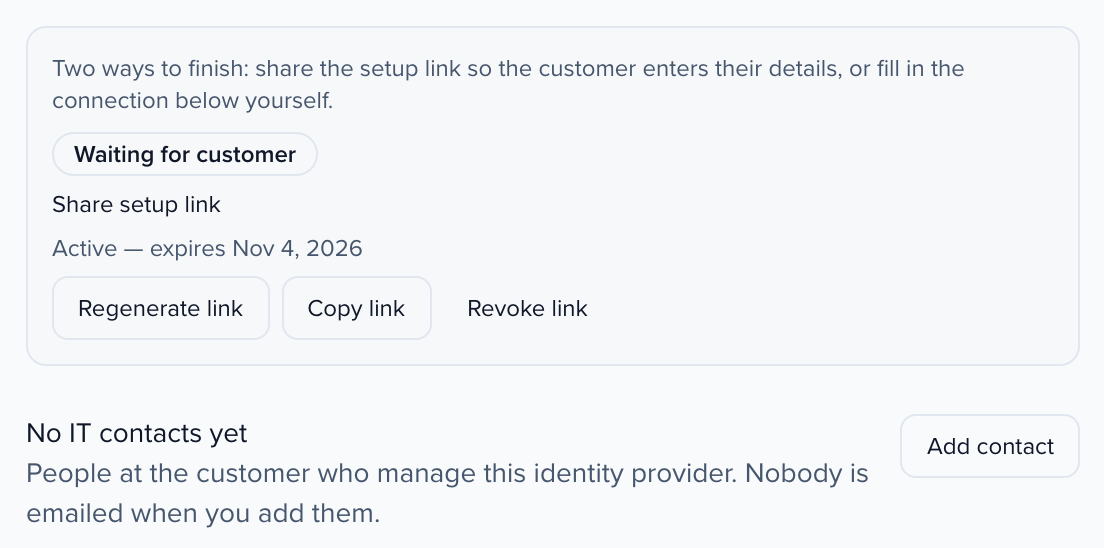
The badge next to each identity provider shows where it stands: Not configured, Waiting for customer, Configured — not tested or Verified. Enforce Login Via SSO can be turned on at any of these stages, including before a test sign-in, for organizations whose security policy rules out sharing test credentials. Run a test first when you can: an enforced configuration with a mistake in it stops people on that domain from signing in with a password until you turn enforcement off.
SAML setup
Section titled “SAML setup”SAML (Security Assertion Markup Language) is an open standard for authentication. It lets one set of credentials work across multiple systems by exchanging assertions between an identity provider (IdP) and a service provider (SP) — Sessionboard being the service provider.
You provide:
- Identity Provider Name — the SAML application you created at your provider.
- x509 Certificate — used to verify that assertions genuinely came from your provider.
- Issuer — identifies your provider’s application uniquely.
- SSO URL — where Sessionboard sends the sign-in request.
- Domain — optional, but required if this configuration is for admin login. Leave it empty, or enter a domain like
example.org; spaces around it are trimmed. - A test user — to confirm the login flow end to end.
Optional settings cover the less common cases: SLO URL for single logout, Audience, Identity Provider Issuer, Want Assertions Signed, Signed Assertion Enabled, and Propagate user updates to related contact records, which keeps the matching contact record in step with profile changes coming from your provider.
Sessionboard provides:
- ACS Endpoint URL — receives the POST from your provider carrying the SAML assertion, checks it against your certificate, and checks that the assertion is addressed to this configuration.
- Issuer URL — identifies Sessionboard as the service provider.
The assertion’s Audience
Section titled “The assertion’s Audience”Each assertion names the service provider it is meant for in its Audience. Sessionboard signs a person in only when that Audience is this configuration’s Issuer URL (its SP entity ID), or the Audience you set under the optional settings. An assertion your provider signed for another application is refused, even with a valid signature. In your identity provider, the field is usually called Audience URI, SP Entity ID or Identifier (Entity ID): set it to the Issuer URL above.
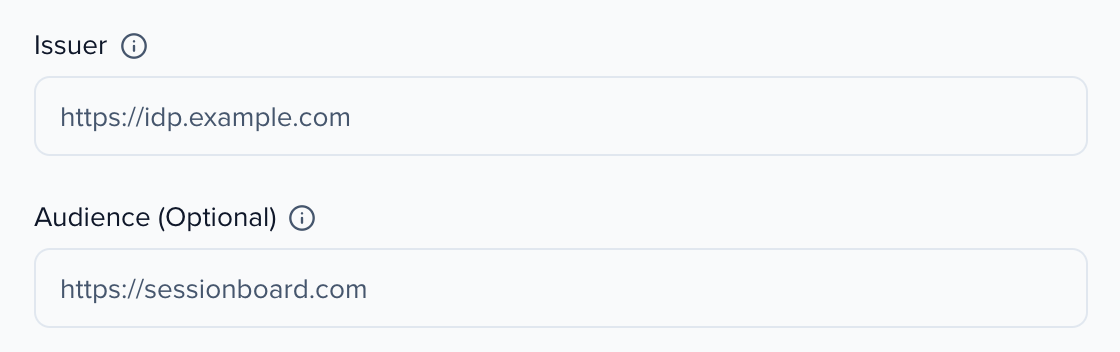
Configurations created from 31 October 2026 check the Audience from the first sign-in. Older configurations keep signing people in while Sessionboard records the Audience your provider sends, and are switched to the check once it matches. If yours does not match, Sessionboard Support will contact you before switching it.
Expected attributes: id (the provider’s user ID), firstName, lastName, email (used to sign in and for account email such as invitations and password resets), and nameID (also the email).
AuthnRequest Binding
Section titled “AuthnRequest Binding”Choose how the sign-in request reaches your SSO URL:
| Binding | Use when |
|---|---|
| HTTP-Redirect | The default. The request travels as query parameters on a redirect. |
| HTTP-POST | Your provider’s endpoint expects a form POST instead. |
Match this to the endpoint type your identity provider publishes. Picking the wrong one usually shows up as your provider rejecting the request, rather than as a Sessionboard error.
OIDC setup
Section titled “OIDC setup”OIDC (OpenID Connect) is a protocol from the OpenID Foundation that wraps OAuth 2.0. Where OAuth 2.0 handles authorization, OIDC’s purpose is authentication, carried out through a series of HTTP requests between the OIDC provider and the relying party.
You provide: Identity Provider Name, Client ID, Client Secret, Authorization URL, Token URL, User Info URL, Issuer, and Scopes. Domain is optional unless this configuration is for admin login.
Sessionboard provides: the Callback URL.
Expected attributes: sub (the provider’s user ID), given_name, family_name, and preferred_username (the email).
Two optional settings are worth knowing:
- Use PKCE adds Proof Key for Code Exchange to the authorization code flow. Enable it if your provider requires or recommends it — some now reject authorization code flows without it.
- Enable Single Logout signs users out of your identity provider when they log out of Sessionboard.
OAuth 2.0 Password setup
Section titled “OAuth 2.0 Password setup”For providers that authenticate with the resource owner password credentials grant. Users enter their credentials on Sessionboard’s own sign-in form instead of being redirected, and Sessionboard exchanges them with your provider server-side, so provider tokens never reach the browser.
You provide: Identity Provider Name, Client ID, Client Secret, Token Endpoint, and User Info Endpoint. Domain is optional unless this is for admin login, and Issuer is optional and informational only.
Both endpoints must use https://, and the User Info Endpoint should have no query string — Sessionboard appends the username itself.
User Mappings
Section titled “User Mappings”Sessionboard expects the default attribute names listed above, but you can override any of them per configuration under User Mappings — useful when your provider sends mail instead of email, for example. Mapping on our side is usually faster than changing the assertion at your provider.
Enforced authentication
Section titled “Enforced authentication”Each configuration has an Enforce Login Via SSO option. With it on, users whose email domain matches the configuration’s Domain can no longer sign in with a Sessionboard password — they must go through your identity provider.
You can enforce a configuration whether or not it has passed a sign-in test. If it hasn’t, check the identity provider details carefully before you turn enforcement on, and keep an admin on another domain or with a password account who can turn it off again.
The Domain field is about discovery and enforcement, not a restriction on who may sign in. Members and affiliates on other email domains can still authenticate through your provider, which matters for associations whose members use institutional addresses.
Two-factor authentication and SSO
Section titled “Two-factor authentication and SSO”Sessionboard does support two-factor authentication — by email code, authenticator app, or passkey — and an organization can require it of every member. See how to set up two-factor authentication.
For people signing in through SSO, your identity provider performs the authentication, and Sessionboard treats a completed SSO sign-in as satisfying the second factor. Enforce MFA at your identity provider for those users, so one policy covers every application they reach rather than only this one.
Frequently asked questions
Section titled “Frequently asked questions”A speaker can't sign in through SSO, even after their emails were made to match
Sign-in follows the email your identity provider sends, not the email typed on the contact. The first time someone signs in through SSO, Sessionboard links their provider account to the Sessionboard account with that email. After that it recognizes them by the provider’s user ID and updates the account’s email to whatever the provider sends.
So if the two emails didn’t match at first, the person can end up with two Sessionboard accounts: the one linked to SSO under the old email, and one under the new email. When the provider then sends the new email, Sessionboard opens a Link your account page instead of signing them in. It shows the provider’s email partly masked and emails a one-time code to it. Entering the code moves the SSO link to the account that owns that email and signs the person in. Nothing is merged or deleted; only the SSO link moves. There is no way to skip the step, and a code that is not used expires after 10 minutes.
If the person never receives the code, or the page says the link is no longer available:
- In your identity provider, check the email it sends for this person (the
emailattribute, or the one you mapped under User Mappings). - In the event, check that the speaker’s contact has that same email and has portal access.
- If sign-in still fails, email support@sessionboard.com with the person’s email, the identity provider name, and roughly when they tried. Support can see the failed sign-in and which account holds the email.
How do I test SSO before rolling it out?
Add the configuration and enable it on a test event first, so your live events are unaffected.
- In Org Settings → SSO, save the configuration with Enforce Login Via SSO off, and run Test Connection from its menu.
- Enable the provider only on a test event under Settings > Portal Login.
- Sign in to that event’s portal with a test user from your identity provider.
- When it works, enable the provider on your live events.
You can keep a separate configuration for testing alongside the one you use in production, since multiple configurations can coexist.
Ready to set up SSO?
Section titled “Ready to set up SSO?”Reach out to support@sessionboard.com and we will be happy to help.