

Set up two-factor authentication (2FA)
Why use it
Section titled “Why use it”Clear inline errors mean you know exactly what to fix without guessing.
What is two-factor authentication?
Section titled “What is two-factor authentication?”Two-factor authentication (2FA) asks for two different proofs of who you are before you get into your account. Even if someone gets hold of your password, they still cannot sign in without the second step.
The two steps are:
- Something you know — your password.
- Something you have or are — a passkey tied to your device (fingerprint, Face ID, security key), a code from an authenticator app, or a code sent to your email.
2FA is required for admin accounts
Section titled “2FA is required for admin accounts”Every Sessionboard admin account — anyone who signs in to manage an organization or event, rather than through a portal — must have 2FA. The first time you sign in without it, a Two-factor authentication required dialog opens over the app and asks you to pick a method and enrol before you continue. It takes about a minute, and the dialog walks you through the same steps described below.
Admins who sign in through their organization’s single sign-on are verified by that identity provider instead and are not asked to enrol separately.
What happens when you sign in
Section titled “What happens when you sign in”After your password, Sessionboard shows a Verify your identity screen with your preferred method first — a passkey prompt, a box for your authenticator code, or a notice that a code has been emailed. Use a different method: switches to another one you have set up, and Use a recovery code takes one of your backup codes instead.
Tick Trust this device for 30 days on a computer that is yours and you will not be asked again on it for a month. The device then appears under Trusted devices in your account settings, where you can Revoke it.
Available verification methods
Section titled “Available verification methods”| Method | How it works | Setup required? |
|---|---|---|
| Passkey | Uses your device’s biometrics (Face ID, Touch ID, Windows Hello) or a hardware security key. No code to type. | Yes (one-time setup) |
| Authenticator app | Generates a 6-digit code every 30 seconds in an app like 1Password, Authy or Google Authenticator. | Yes (one-time setup) |
| Email code | A one-time 6-digit code is sent to your email. Valid for 10 minutes. | No — available to everyone, confirmed once with a test code |
Never share a sign-in code. Sessionboard staff will never ask for your 2FA code; if someone does, it is a phishing attempt.
Where the settings live
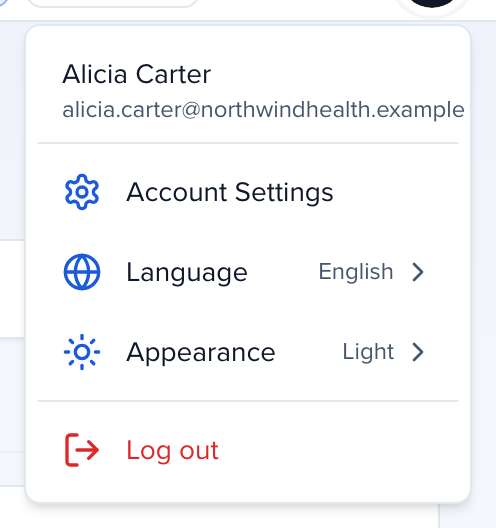
Section titled “Where the settings live”Click your avatar in the top-right corner — the Account menu — and choose Account Settings. Everything on this page is in the Two-Factor Authentication (2FA) card.
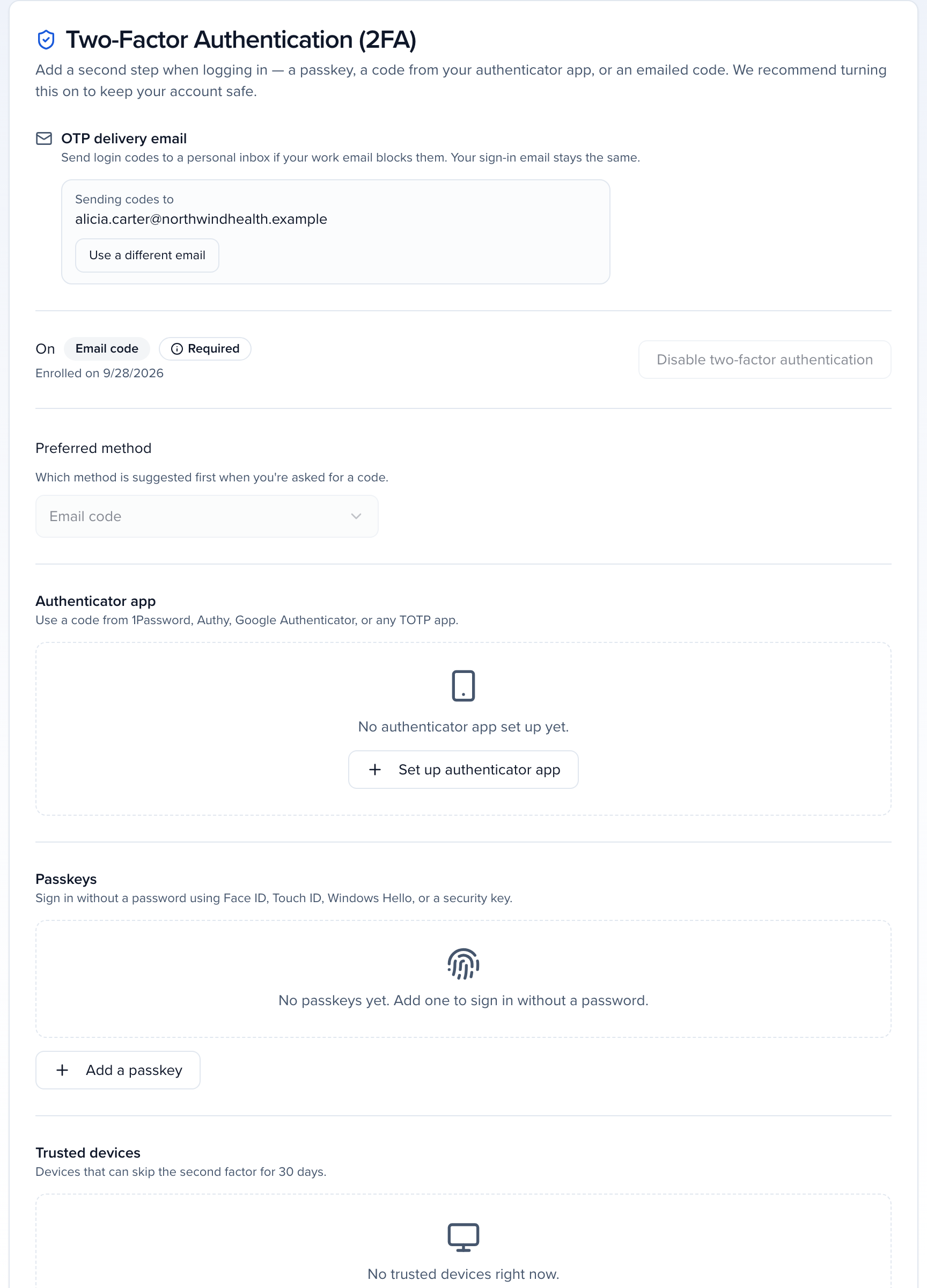
The status line at the top of the card tells you where you stand: On with the method you enrolled with and the date, plus Required when enforcement applies to you.
Add stronger methods
Section titled “Add stronger methods”Email codes get you in, but a passkey is faster and cannot be phished, and an authenticator app works when your inbox is slow. Enrol at least one of them.
Add a passkey (recommended)
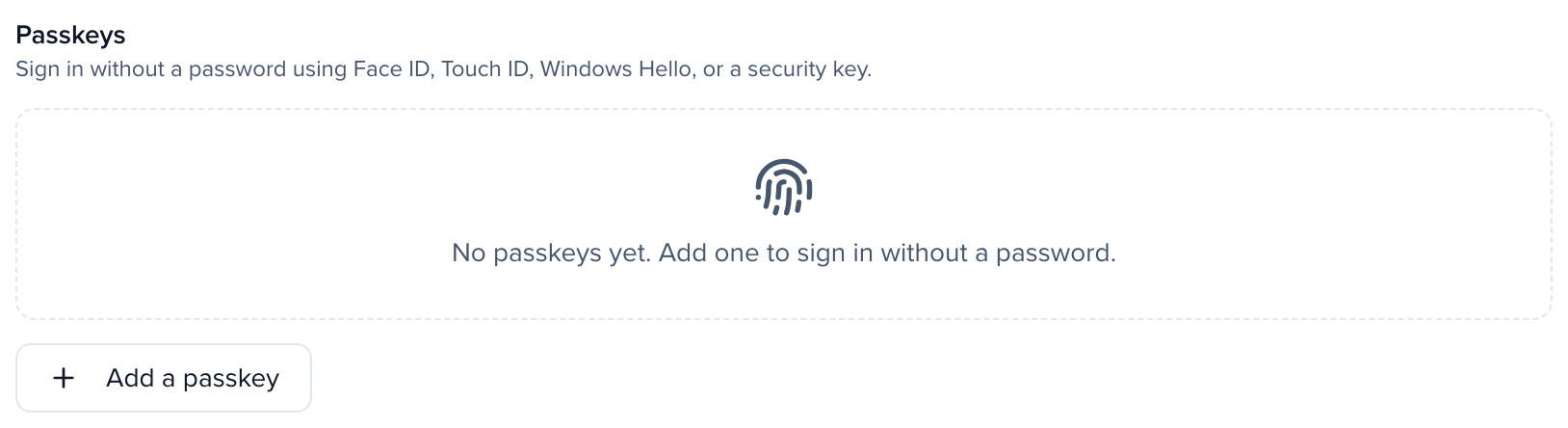
- Scroll to Passkeys.
- Click Add a passkey.
- Give it a name you will recognise later — MacBook, YubiKey, iCloud Keychain — and click Create passkey.
- Follow your device’s prompt (fingerprint, Face ID, Windows Hello, or a security key).
Once enrolled, the passkey appears in the list with its name and last-used date. Add one on each device you sign in from; Remove takes one away.
Add an authenticator app
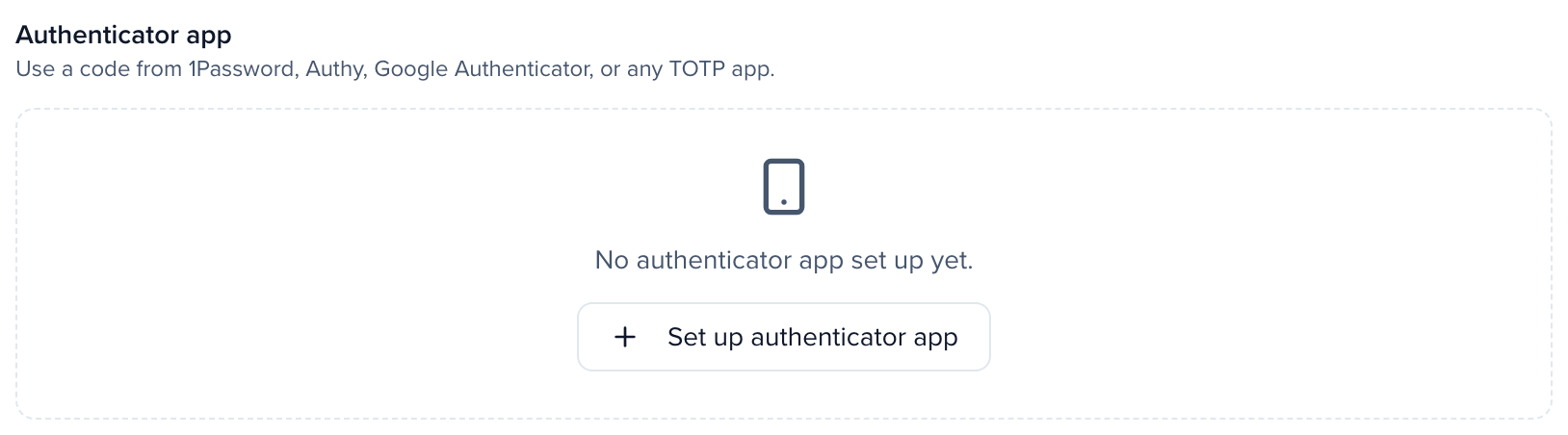
- Scroll to Authenticator app.
- Click Set up authenticator app.
- Scan the QR code with your app, or copy the secret and enter it manually.
- Enter the 6-digit code your app shows to confirm.
Choose your preferred method
Under Preferred method, pick the one you want offered first every time you sign in — Passkey, Authenticator app or Email code. The others stay available behind Use a different method: on the sign-in screen.
Send email codes to a different inbox
Section titled “Send email codes to a different inbox”If your work email filters or delays automated messages, OTP delivery email at the top of the card lets you send sign-in codes to a personal inbox instead. Click Use a different email, enter the address and save. You still sign in with your work email; only the codes move. Change email swaps it for another, and Use login email instead switches back.
Trusted devices
Section titled “Trusted devices”Trusted devices lists every computer or phone where you ticked Trust this device for 30 days, with when it was last used and when the trust expires. Revoke a device and it is asked for a code at its next sign-in.
Recovery codes
Section titled “Recovery codes”Recovery codes are one-time backup codes that get you in if you lose every device you enrolled. Treat them like a spare key: store them somewhere safe and offline.
- Scroll to Recovery codes. The line under the heading shows how many you have left.
- Click Regenerate codes and confirm with a current two-factor code.
- Copy, Download or Print the codes, then tick I’ve saved these codes somewhere safe. and click Done.

Recent security activity
Section titled “Recent security activity”The bottom of the card lists the last 20 security events on your account — when, which method, whether it succeeded, and from which device. It includes every time a password was set or changed: password.set when the account had none, password.changed when it had one, with how it happened (an invitation link, a reset email, a submission form or portal, or a Sessionboard administrator). Something you do not recognise is the moment to change your password, regenerate your recovery codes and revoke any trusted device you cannot place.
Common issues
Section titled “Common issues”I’m not receiving the email code
Section titled “I’m not receiving the email code”Check your spam or junk folder. The code is valid for 10 minutes. If it still does not arrive, sign in again to request a new one, switch to a passkey or authenticator app if you have one, or point OTP delivery email at an inbox that does not filter automated mail.
My authenticator app code isn’t working
Section titled “My authenticator app code isn’t working”Codes change every 30 seconds. Wait for the next one and enter it straight away. Also make sure your phone’s clock is set to automatic (network) time — a clock that has drifted produces codes Sessionboard rejects.
The “Disable two-factor authentication” option is grayed out
Section titled “The “Disable two-factor authentication” option is grayed out”2FA is required for admin accounts, so it cannot be turned off from your settings. You can still change which methods you use and which one is offered first.
I lost access to my phone / authenticator app
Section titled “I lost access to my phone / authenticator app”Use one of your recovery codes to sign in, then enrol a new device. If you have no recovery codes, contact support@sessionboard.com; the team will verify your identity and reset your 2FA so you can enrol again.
Someone on my team is locked out
Section titled “Someone on my team is locked out”Only Sessionboard can reset a team member’s 2FA. Ask them to contact support@sessionboard.com from the email address on their account.
Is 2FA the same as MFA?
Section titled “Is 2FA the same as MFA?”2FA (two-factor authentication) is a type of MFA (multi-factor authentication). MFA can involve two or more factors; 2FA uses exactly two. The terms are used interchangeably, and Sessionboard’s implementation satisfies both.
Still having issues?
Section titled “Still having issues?”Email support@sessionboard.com or use the in-app chat. Include your registered email address and what happens when you try to sign in, so the team can help on the first reply.