Automated/system-generated emails
Some emails leave Sessionboard without anyone on your team pressing Send: a sign-in code, a confirmation that a submission arrived, the Monday digest that reminds a speaker what is still open. This page lists all of them — what triggers each one, whether you can turn it off, and where to change its wording. Session acceptance and decline emails are not on this list; those stay yours to send with the built-in email templates.
Why use it
Section titled “Why use it”Speakers, reviewers and applicants judge your event by the emails they get without asking. Knowing which messages go out on their own — and rewording them in your voice — means nobody gets a confusing default, and your team stops answering “did my submission arrive?” by hand.
Where to see them
Section titled “Where to see them”In the event sidebar, open Settings (under Configure) → Email Templates → System tab. Every automated notification is listed there, grouped by area, with its Channel (email or in-app), When sent, and a Status of Default or Customized. An email that ships off (the File request approved and denied emails) also has an On / Off switch in its Status cell, and the same switch at the top of its editor, so you can see whether it sends and turn it on or off without changing its content. The organization’s Settings → Email Templates → System tab shows the account-level ones — invites, password resets, sign-in codes.
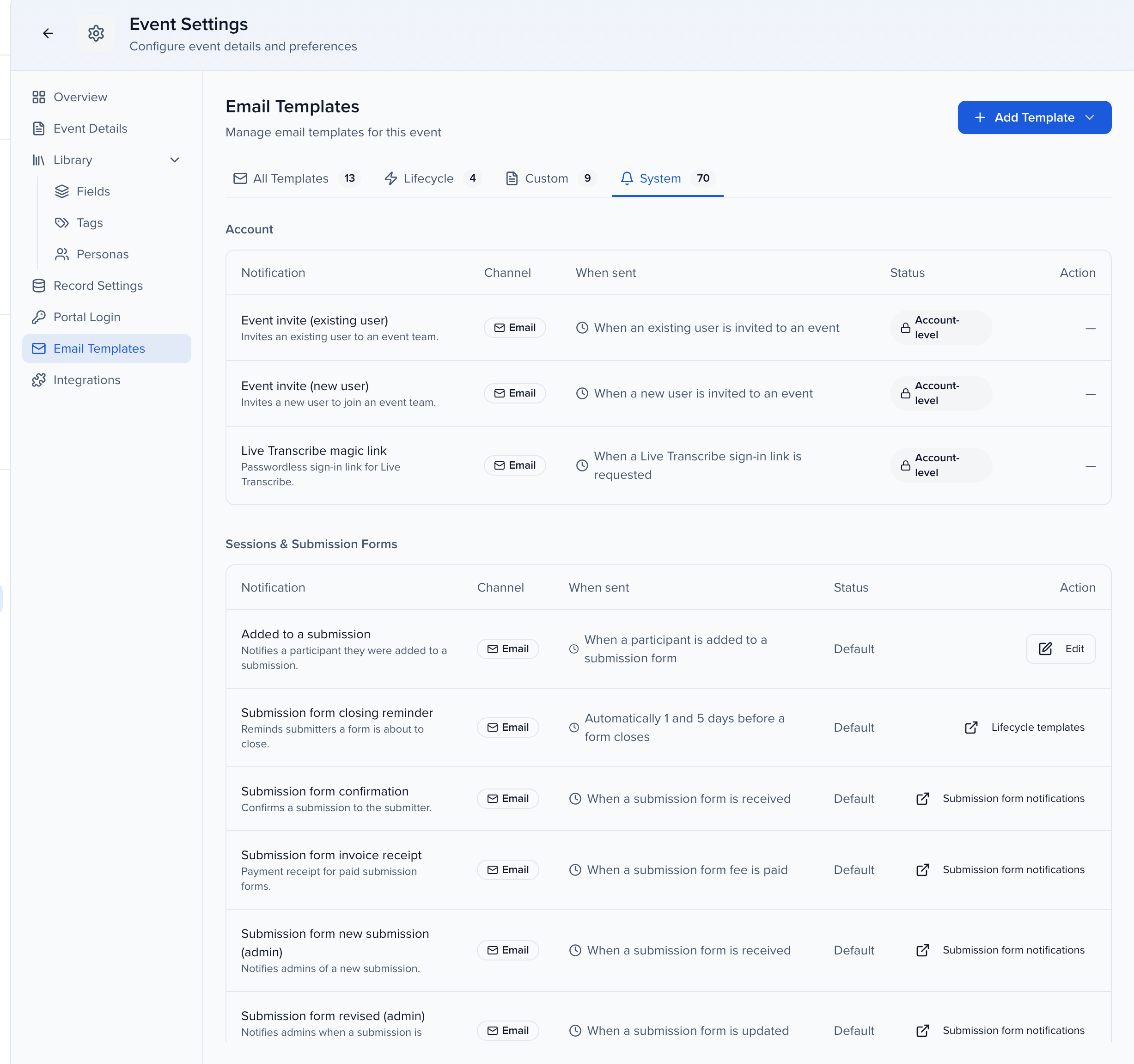
The Action column tells you what you can do with each notification:
| Action | Meaning |
|---|---|
| Edit | Reword it here. Edit notification opens the subject, body, button text, button colour and an optional From name, with Merge tags for the recipient’s details, a live Preview, Send test and Reset to default. |
| A link (for example Submission form notifications or Lifecycle templates) | It is edited somewhere else — a form’s settings, a portal’s notifications, an awards program — and the link takes you there. |
| — with an Account-level status | Password resets, two-factor codes, invitations and sign-in links are shown for transparency and cannot be changed or switched off. |
To send a message you write when a session or person changes, use Automations instead; its delivery history keeps the record even after the automation is deleted.
Every automated email goes out from no-reply@notify.sessionboard.com with your event name as the sender (the event portal sign-in link uses your organization name instead), unless your event has a custom email domain. Each one is recorded per recipient under History → Emails → Sent Emails, with a delivery status — see History.
To see what a recipient gets before you launch, the email previews below show the most common ones.
Complete catalog
Section titled “Complete catalog”Account & sign-in
Section titled “Account & sign-in”Always on. These protect account access and cannot be disabled or reworded.
| When it’s sent | |
|---|---|
| Reset password | A user requests a password reset. |
| Two-factor code | A one-time login or verification code. |
| Two-factor reset by admin | A user’s two-factor sign-in was reset by an admin. |
| Organization invite (new or existing user) | A user is invited to join an organization. |
| Event invite (new or existing user) | A user is invited to join an event team. |
| Event portal sign-in link | A speaker or other portal user asks for a sign-in link on an event’s portal login page. The subject is Sign in to followed by the event name, and the sender name is your organization name. It is not listed on the System tab and cannot be reworded. |
| Org portal magic link | Passwordless sign-in link for the organization portal. |
| Live Transcribe magic link | Passwordless sign-in link for Live Transcribe. |
| Lessons catalog magic link | Passwordless sign-in link for a Lessons catalog. |
| Credit certificate | A learner’s credit certificate is ready. |
Sessions & submission forms
Section titled “Sessions & submission forms”Edited on the form or in Email Templates; the System tab links you there.
| When it’s sent | Edit it in | |
|---|---|---|
| Submission confirmation | Confirms a submission to the submitter. | The form’s Notifications step — submission forms. |
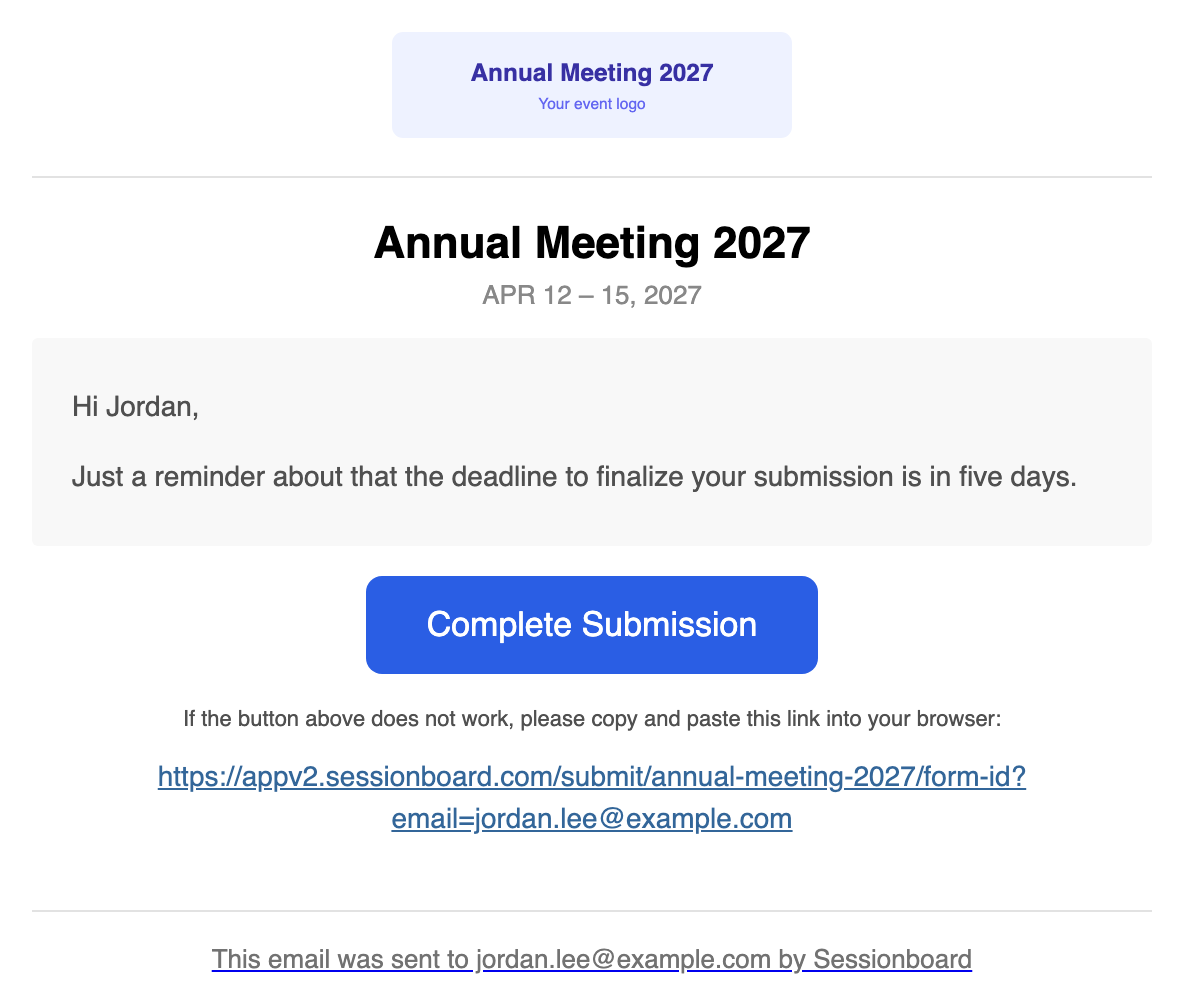
| Submission closing reminder | Sent to submitters with a draft five days and one day before the form closes, when Send Reminder Email is on in the form’s settings. Someone who already submitted is not chased. | Email Templates → Lifecycle: Session Form - Five Days Reminder and Session Form - One Day Reminder. |
| New submission (admin) | Notifies the admins chosen on the form of a new submission. | The form’s Notifications step. |
| Submission revised (admin) | Notifies those admins when a submission is revised. | The form’s Notifications step. |
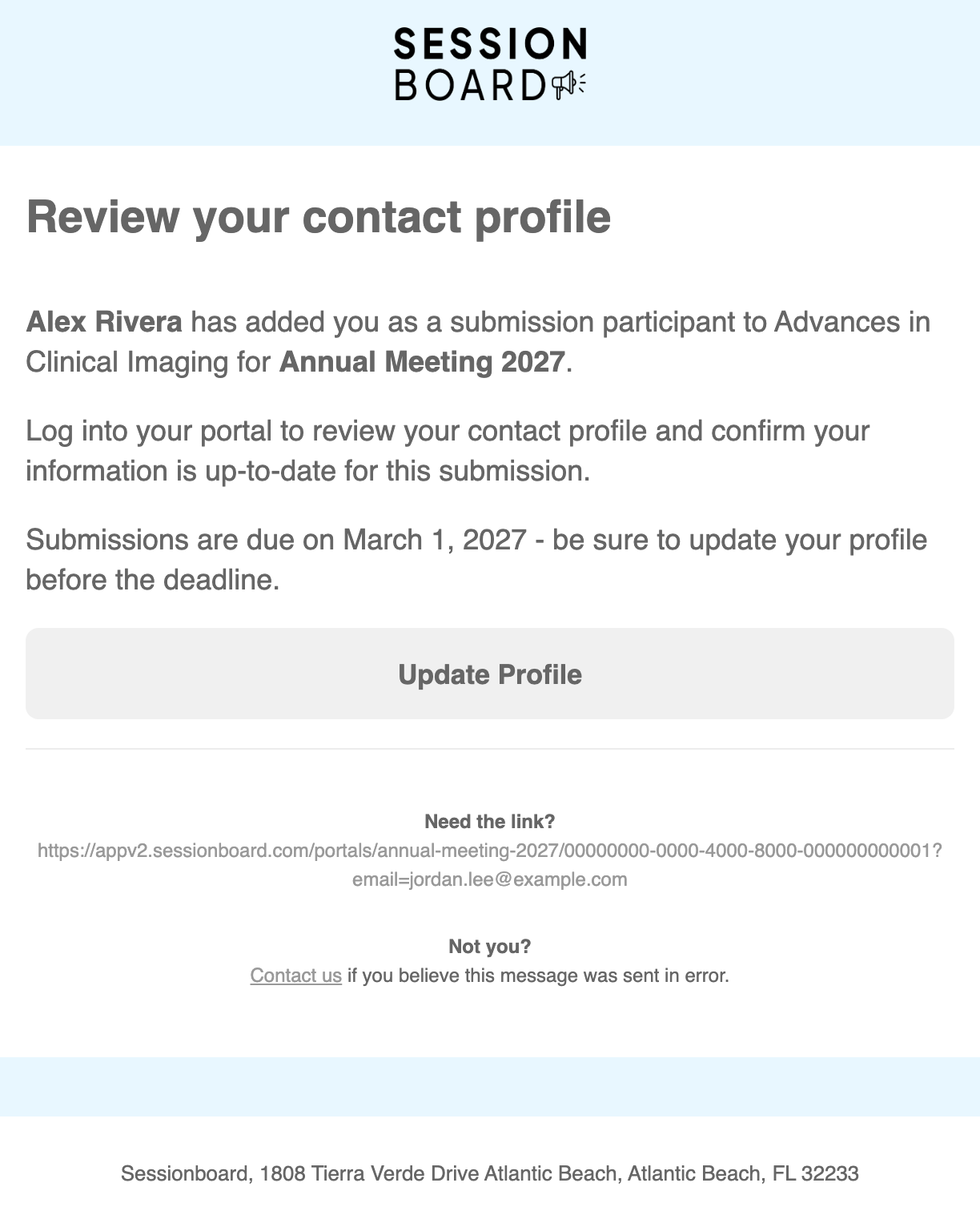
| Existing contact added to a submission | Tells an existing contact they were added as a participant when the submitter names them on a submission form. Sent only when the form has Notify existing contacts that they have been added to a submission on (Form Setup → Participant Information → Unique Contact Settings). Adding someone to a session yourself does not send it. See the note below the table. | System tab (Edit). |
| Participant invitation | An admin chooses Send invitation or Resend invitation for a participant — see participant acceptance. Not sent on its own. | System tab (Edit). |
| Participant invitation reminder | Before the participant’s Accept by date, at the offsets in Days before Accept by, when Send reminders is on. Stops once they answer. | System tab (Edit). |
| Participant invitation overdue | Once, after the Accept by date passes without an answer, when Send reminders is on. | System tab (Edit). |
| Abstract placed into a session | The first invitation to the presenting author of an abstract placed into a session, when an admin sends it. | System tab (Edit). |
| Session withdrawn (admin) | A participant withdraws a session from their portal. Off by default — each admin turns on Email for Session Withdrawn under notification preferences. | System tab (Edit). |
| Session file uploaded (admin) | A participant uploads a file to a session. One email per session until the admin reads the notification. Off by default — each admin turns on Email for Session File Uploaded under notification preferences. | System tab (Edit). |
| Invoice receipt | Payment receipt for paid submission forms. | The form’s payment settings. |
Intake & application forms
Section titled “Intake & application forms”| When it’s sent | |
|---|---|
| Intake / application confirmation | Confirms an intake or application submission to the person who sent it. Edited on the form. |
| New or revised intake / application (admin) | Notifies admins of new or updated submissions. Edited on the form. |
| Follow-up form confirmation | Confirms a follow-up form submitted in a portal. |
Awards
Section titled “Awards”Awards programs have their own notification suite, configured per program: submission confirmation, invoice receipt, deadline reminders (five days and one day before the deadline), winner and non-winner notifications, reviewer invitations, reviewer deadline reminders, and admin notifications for new submissions, updates and completed reviews. See Awards notifications & email templates.
Portal
Section titled “Portal”The first two are switches on each portal, under Portal Notifications in the portal’s Configuration, so your sponsor portal can be quieter than your speaker portal. Portal users only receive them once they have signed in to the portal at least once.
| When it’s sent | Reword it | |
|---|---|---|
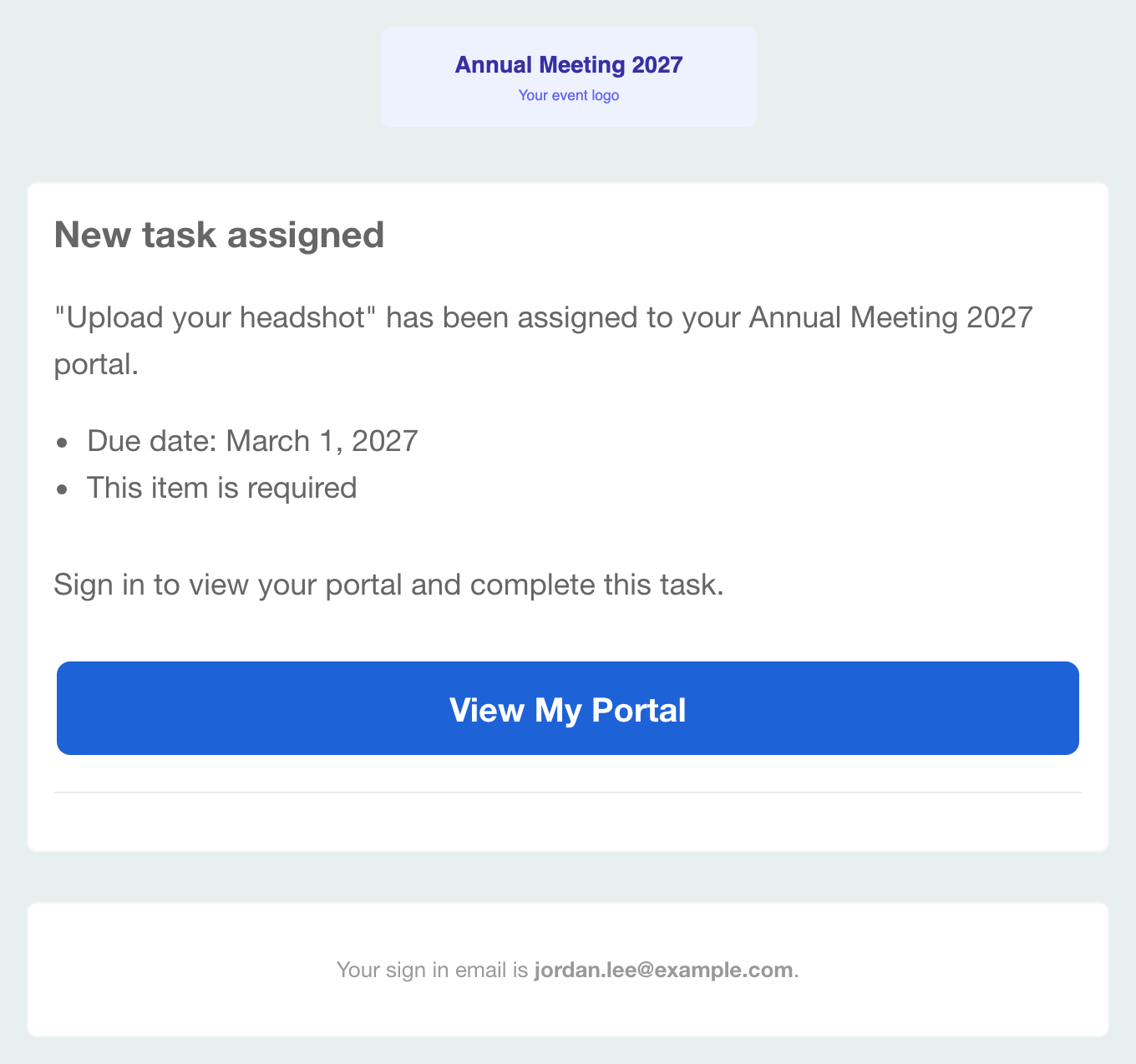
| Portal assignment notification (Email Notifications) | Everyone on the portal — not only primary contacts — is emailed when a task, form, file request or page is added to it, with the item’s name and due date. | System tab (Edit). |
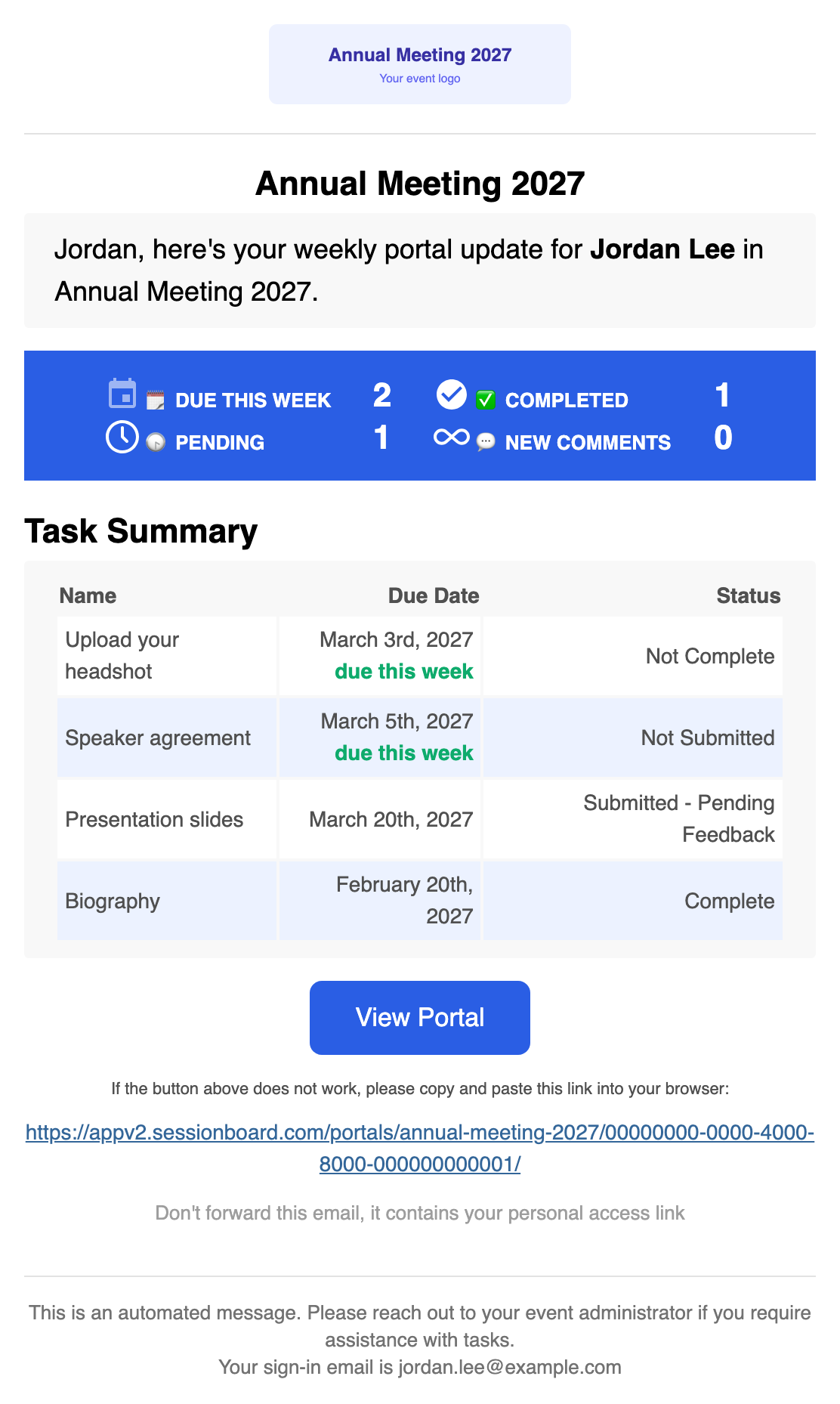
| Weekly portal summary (Weekly Digest Email) | Mondays at 07:00 UTC: each portal user’s open tasks and forms, what is due this week, what is overdue and what was completed. Skipped for anyone with nothing outstanding and no new comments — see who gets it. The day and time cannot be changed, but you can send it on demand — select contacts and choose Send → Send Portal Summary in Contacts. | System tab (Edit). |
| Submission field updated | A field shown on that portal changes, or a session’s start time, end time or location moves (those three always notify). Per portal — see notify speakers of submission changes. | System tab (Edit). |
| Assigned as a participant | A portal user is added as a participant on a submission, when Participants is visible on their portal. Same switch as submission field updated. | System tab (Edit). |
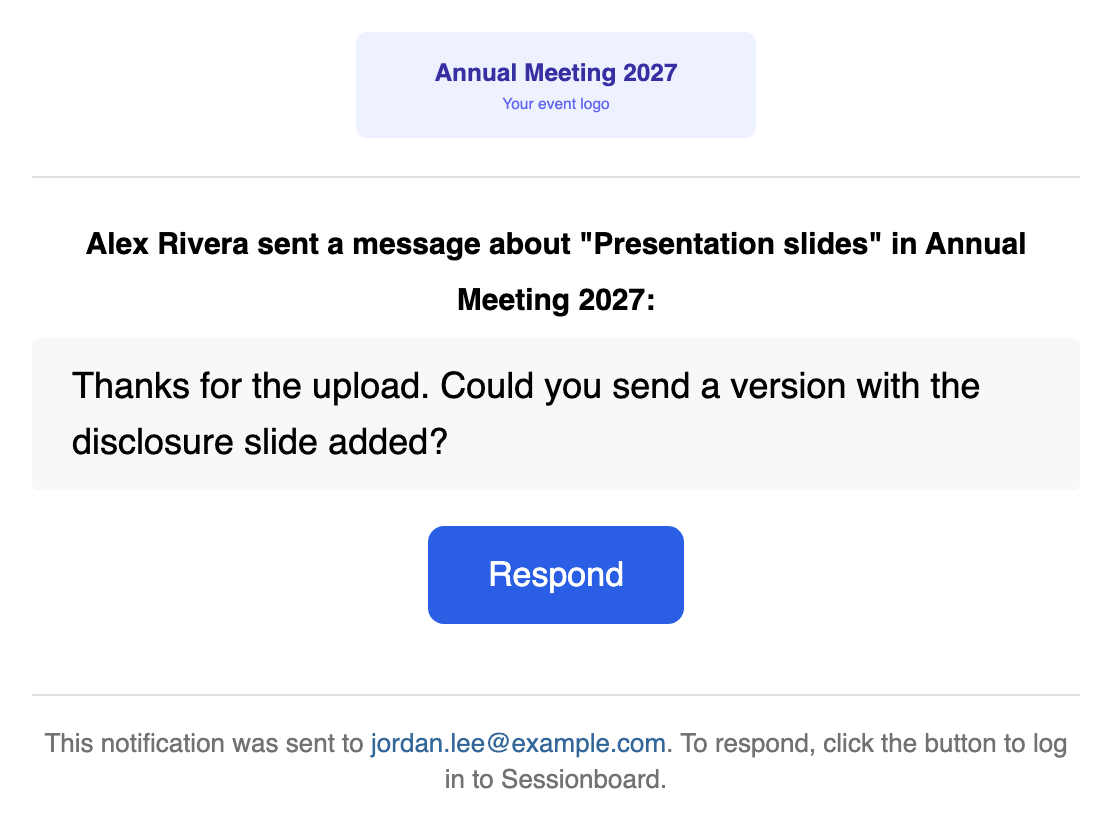
| Document request comment | A comment is added to a record or file request the user is part of. | System tab (Edit). |
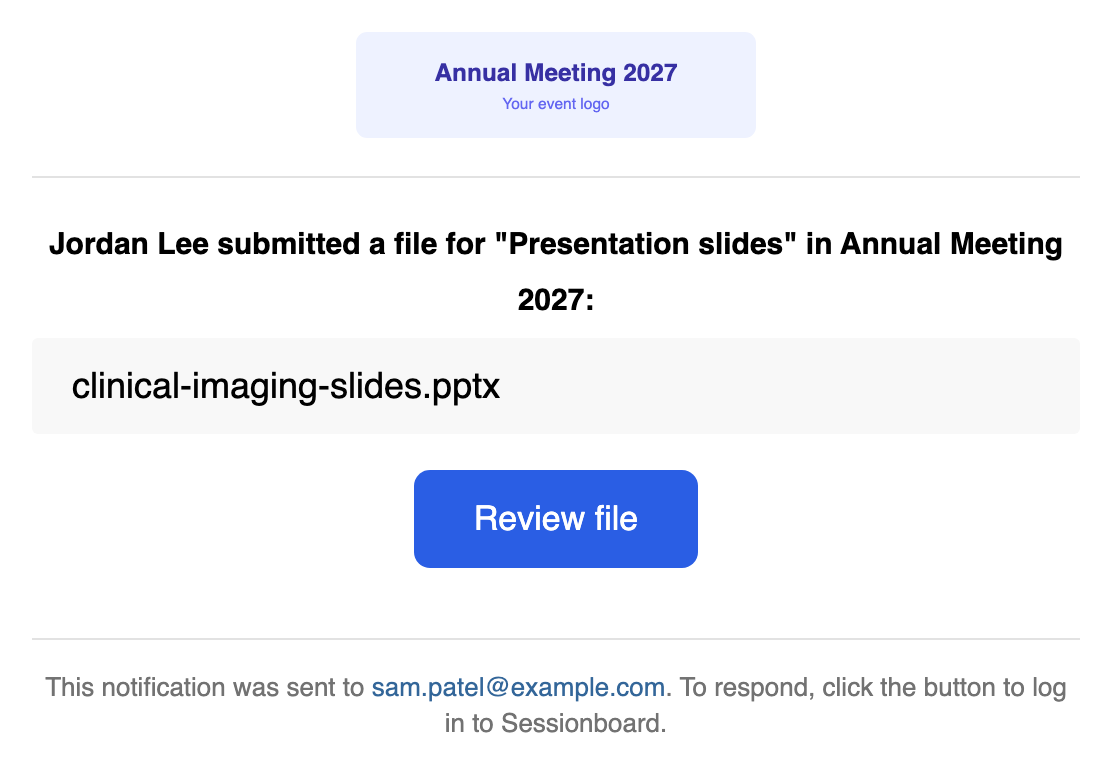
| File request submission | Tells event admins that a participant uploaded a file against a file request. | System tab (Edit). |
| Portal task completed (admin) | Names the participant who completed which task, and the session when the task is about one. Off by default — each admin turns on Email for Portal Task Completed under notification preferences. | System tab (Edit). |
| File request approved | Tells the person who uploaded a file for a file request that it was approved. Off until you turn it on. | System tab: the On / Off switch on its row, or Send this email in its editor. |
| File request denied | Tells the person who uploaded a file for a file request that it was not approved, with a link to upload a new one. Off until you turn it on. | System tab: the On / Off switch on its row, or Send this email in its editor. |
Messages
Section titled “Messages”| When it’s sent | |
|---|---|
| New message | Someone posts a message on a record the user is part of — a session, submission, contact or task. |
| Mentioned in a message | Someone @mentions the user in a message. |
Evaluations
Section titled “Evaluations”| When it’s sent | |
|---|---|
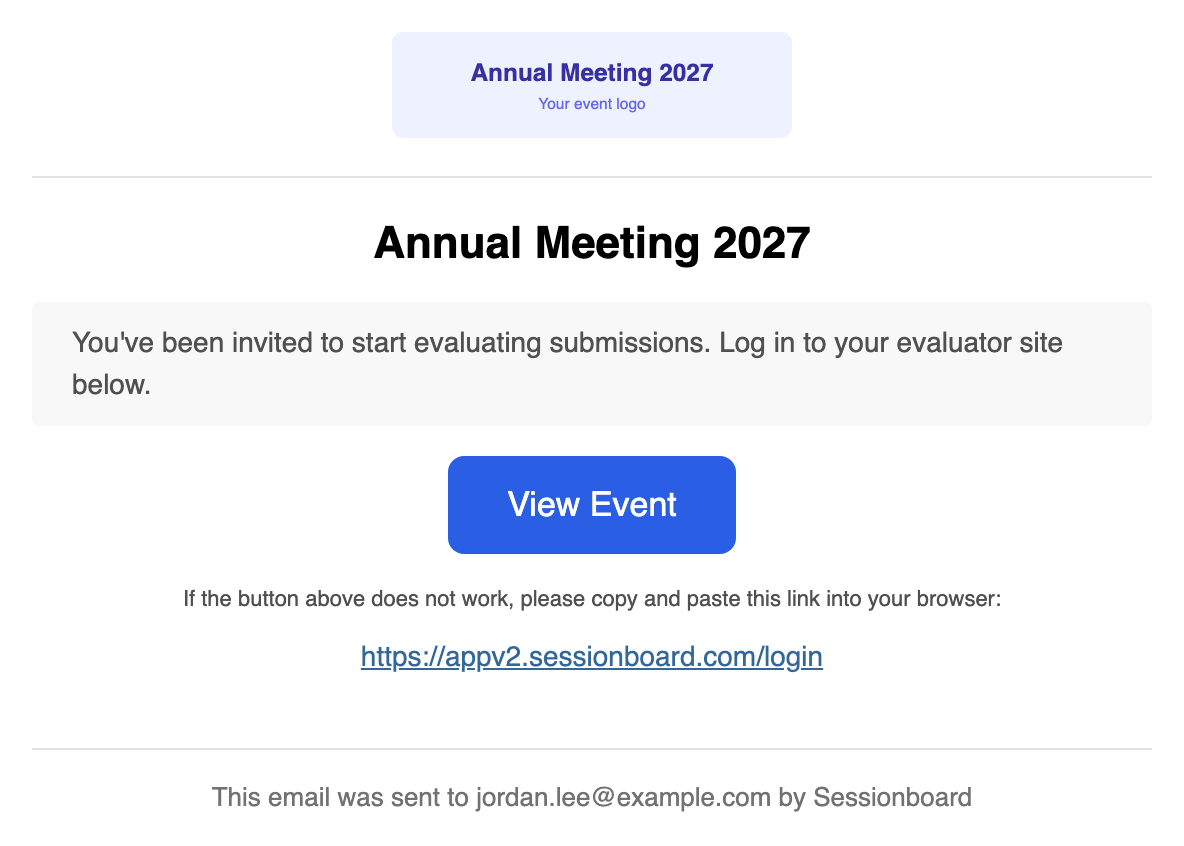
| Evaluation plan opened | Evaluators are told their plan is open, with a link to sign in and start. Sent when you open the plan. Interest-form review plans have their own version. |
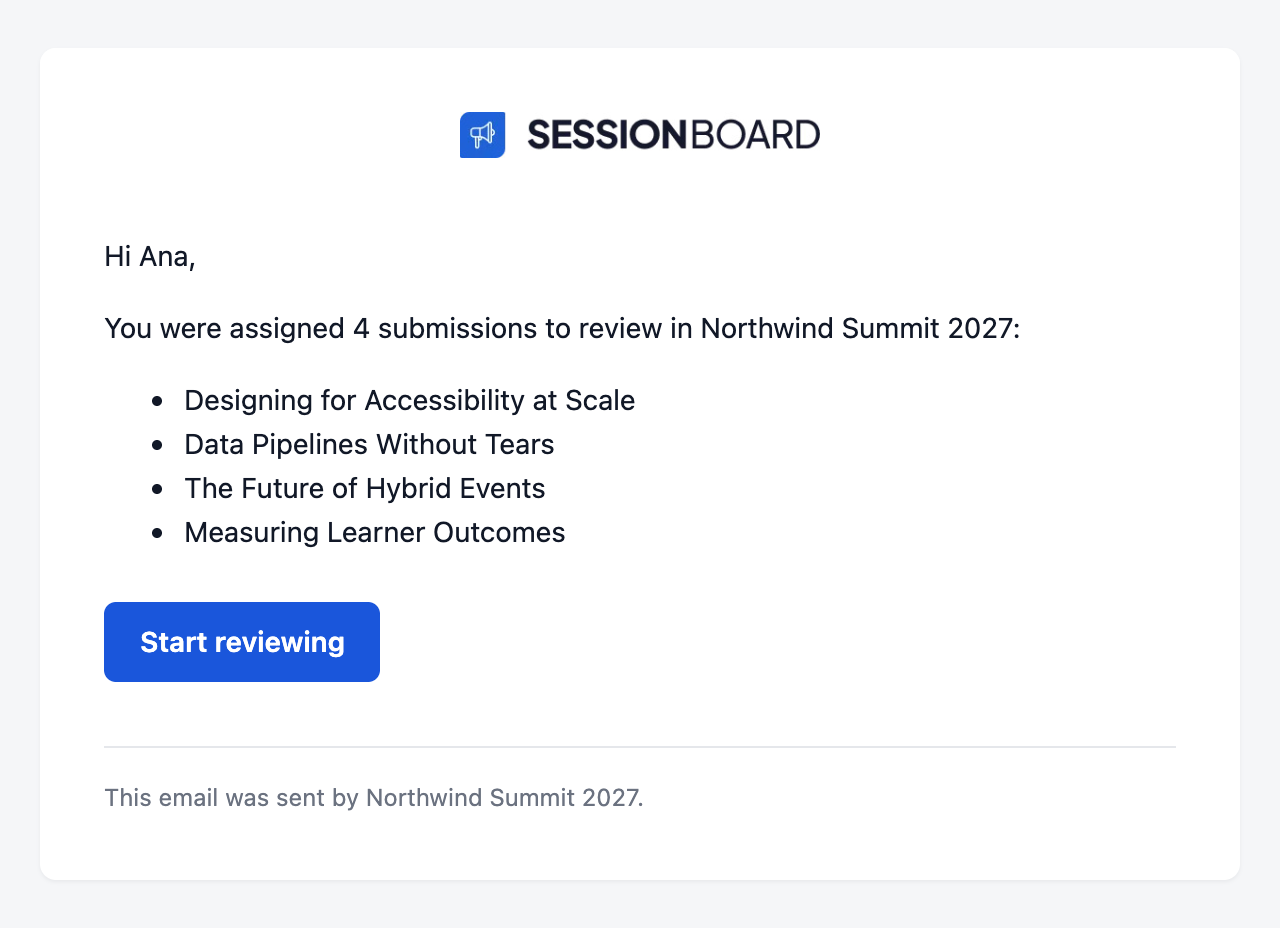
| Evaluator assigned | An evaluator is assigned a submission to review — only while the plan is open. One Assign that gives a reviewer several submissions sends them one email that lists every submission (“New review assigned: 10 submissions”); Start reviewing opens their queue for that round. Assignments made in a closed plan send nothing; the Evaluation plan opened email covers them when you open the plan. |
| Evaluation reminder | An evaluator is reminded to complete outstanding reviews. |
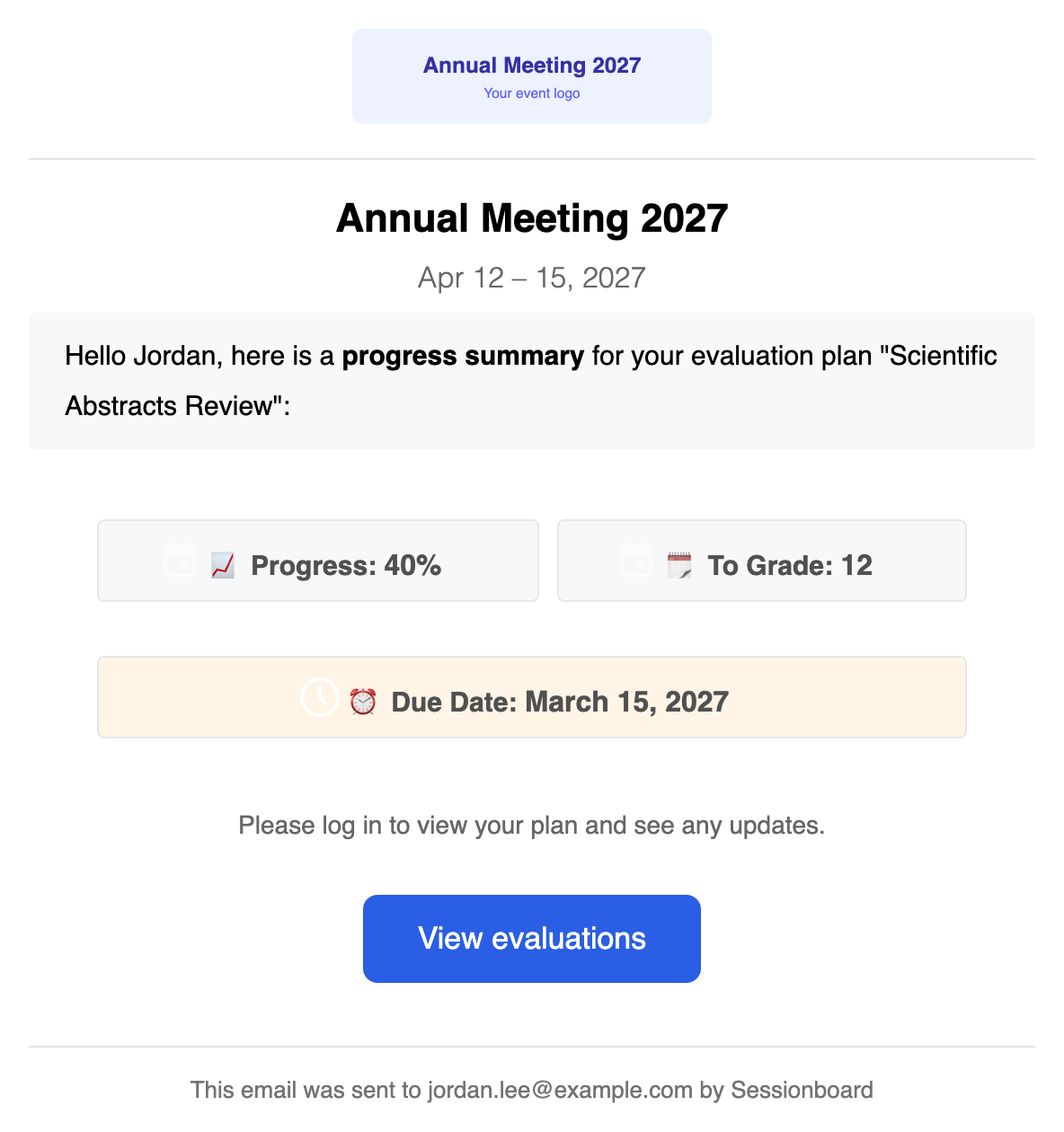
| Evaluation reminder summary | Mondays at 07:00 UTC, when reminders are enabled on the plan: each evaluator’s progress and how many submissions are still unreviewed. |
| Review submitted (admin) | An evaluator submits a scorecard. Off by default — each admin turns it on under notification preferences. |
| Evaluator abstained (admin) | An evaluator abstains from a review. Off by default — each admin turns it on under notification preferences. |
| Call for Reviewers application received | Someone applies, or updates their application, through a Call for Reviewers interest form. Confirms the application arrived; no button. |
| All reviews in (admin) | Every evaluator of a submission, across all of its evaluation plans, has finished or abstained. Once per submission; see Get told when all reviews are in. |
Files, exports & reports
Section titled “Files, exports & reports”| When it’s sent | |
|---|---|
| Report ready | A report export is ready to download. |
| Session content export ready | A session content export is ready. |
| Scheduled report delivery | A scheduled Insights report; its subject and message are set on the schedule itself. |
Email previews
Section titled “Email previews”What the most common automated emails look like in the recipient’s inbox, with their default wording. Each one carries your event’s logo where the placeholder sits here, and your event name and dates. The sign-in links, names and addresses are sample data. Where you have reworded an email in the System tab or on a form, your wording replaces the body shown here — open Edit notification → Preview to see your own version.
Event team invitation
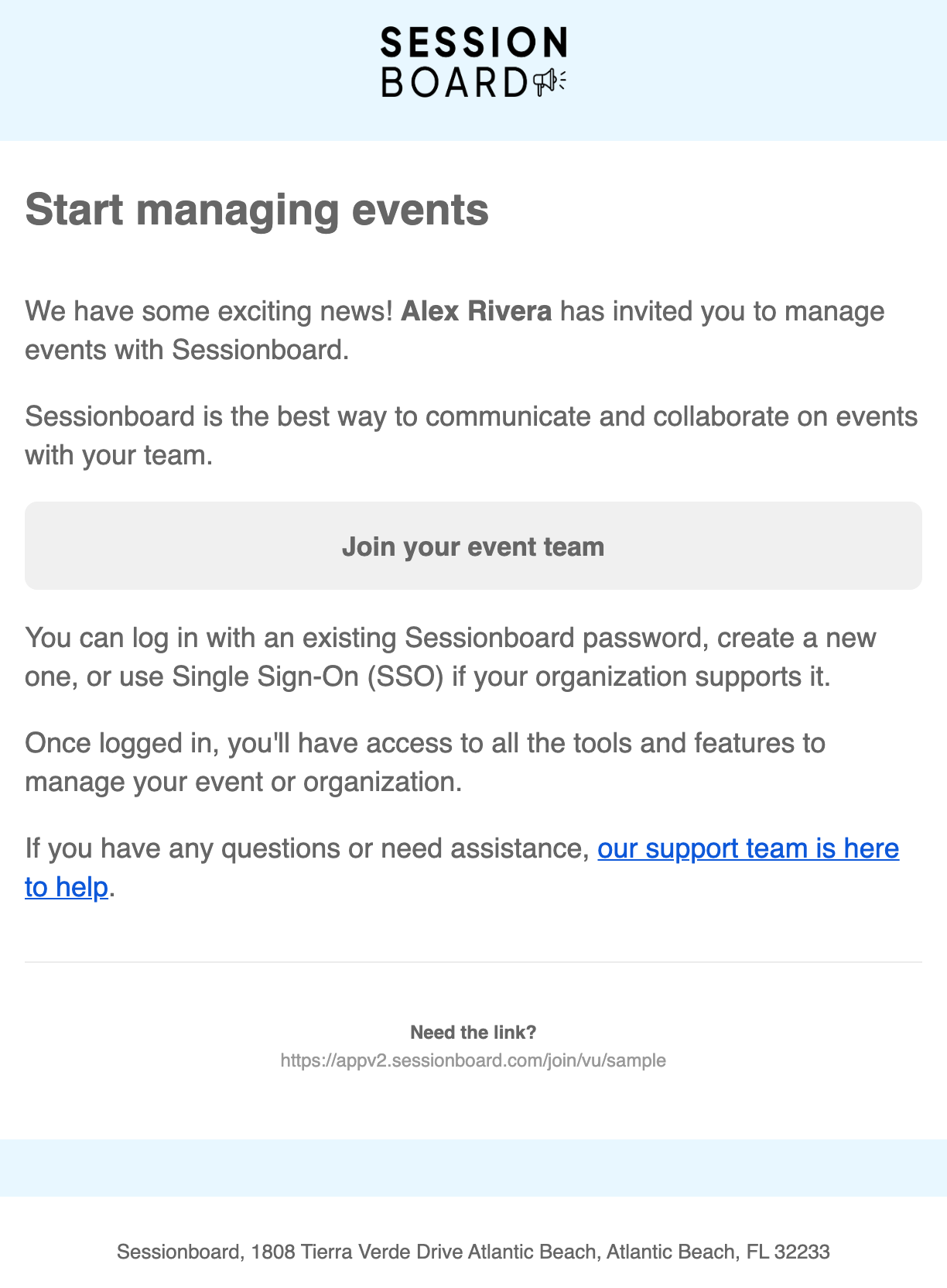
Section titled “Event team invitation”Sent to someone you invite to your event team who does not have a Sessionboard login yet. The subject is [Sessionboard] Join the followed by the event name and Team.
Submission confirmation
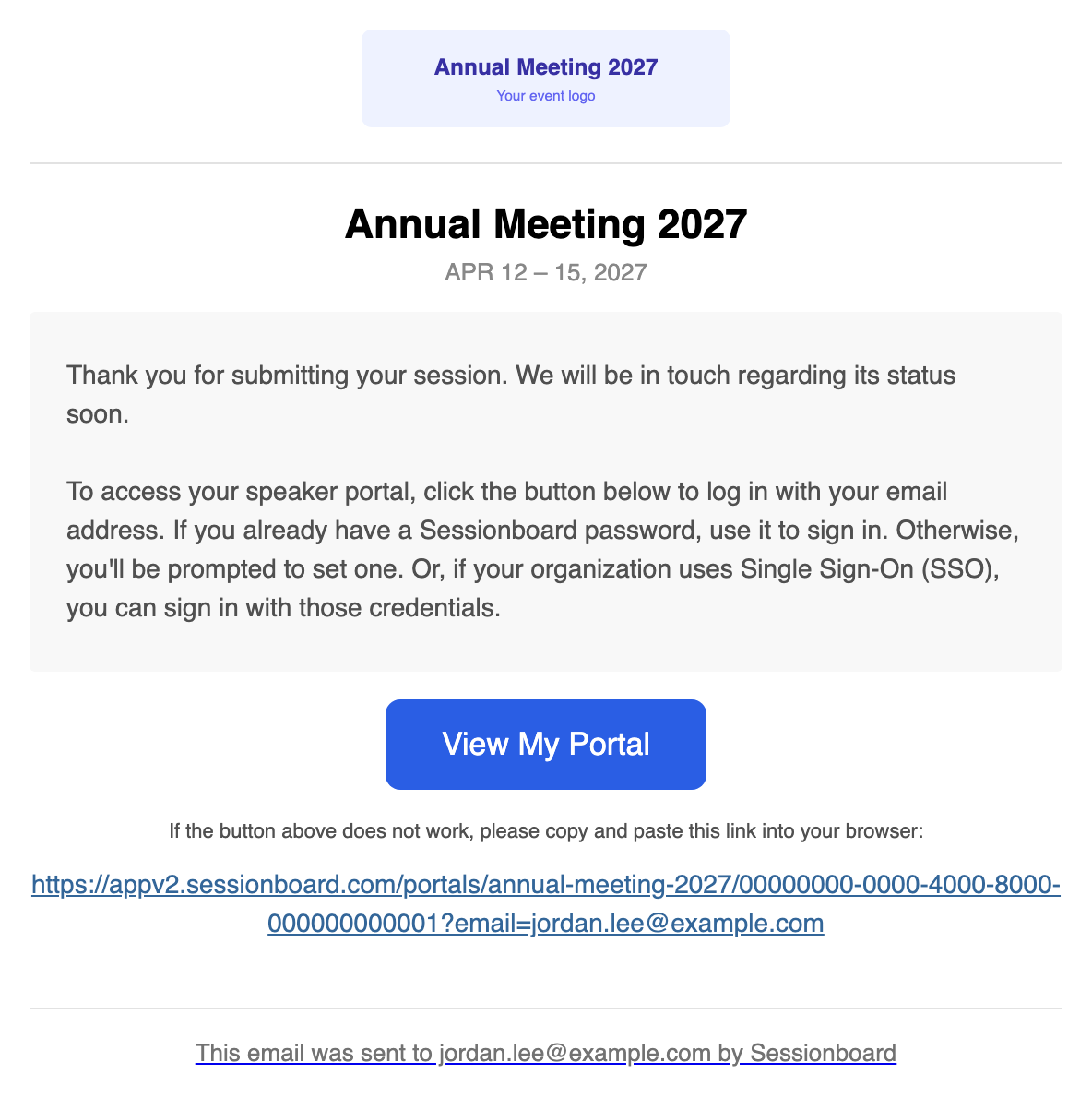
Section titled “Submission confirmation”Sent to the submitter when they submit a session. The body is the confirmation message from the form’s Notifications step; this is the default.
Submission closing reminder
Section titled “Submission closing reminder”Sent to submitters with a draft five days before the form closes (and again one day before). Reworded in Email Templates → Lifecycle.
Existing contact added to a submission
Section titled “Existing contact added to a submission”Sent to an existing contact the submitter names on a submission form, when the form’s Notify existing contacts that they have been added to a submission setting is on. Reword it from the System tab; your version is what goes out. Its merge tags include who added them, the submission title and the submission deadline. Turn the form setting off and nothing is sent.
Application confirmation
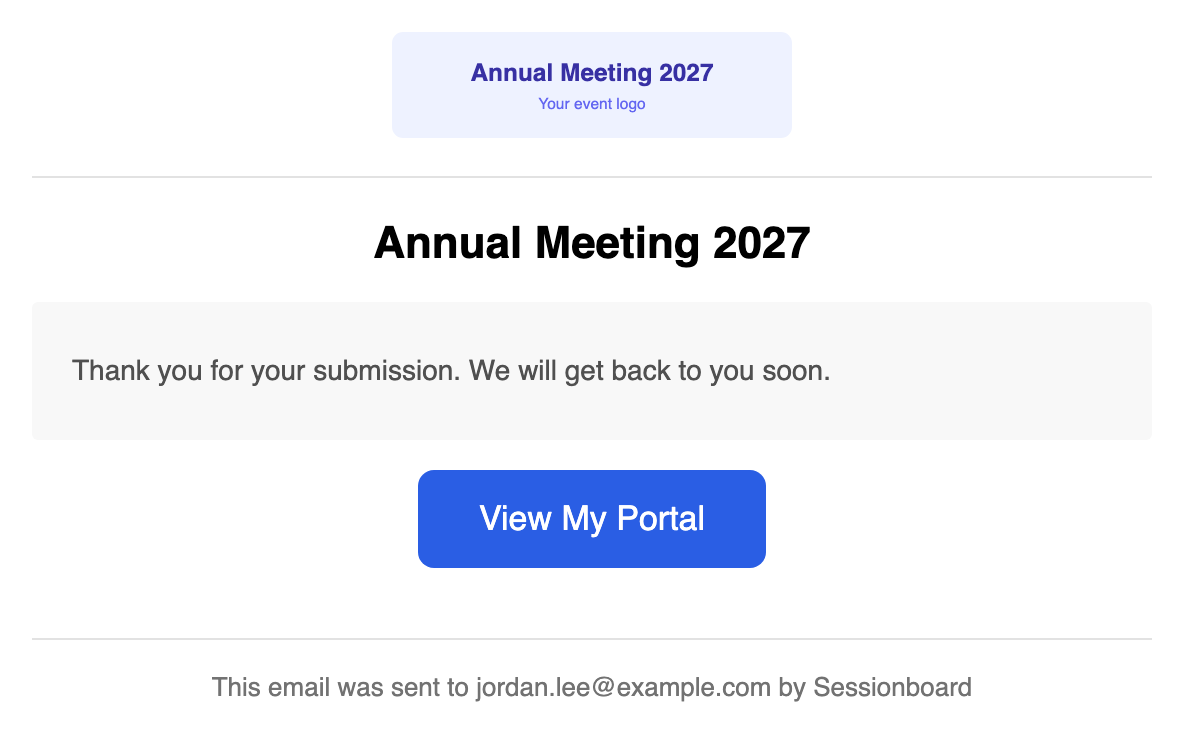
Section titled “Application confirmation”Sent to the applicant when they submit an application form. The body is the form’s confirmation message. Every new form starts with Thank you for your submission. We will get back to you soon., shown here; change it on the form under Form Settings, in the confirmation email message box. The View My Portal button is always added.
Portal assignment notification
Section titled “Portal assignment notification”Sent to everyone on a portal when a task, form, file request or page is added to it.
Weekly portal summary
Section titled “Weekly portal summary”Sent on Mondays to each portal user who has signed in before and still has something to do. A person is skipped that week only when nothing assigned to them is outstanding. An item is outstanding when it is:
- an incomplete task or an unsubmitted form, or
- a file request with nothing uploaded, or whose upload you denied. A file waiting for your review, or already approved, does not count.
Required and optional items count the same way: one open optional item keeps the email coming, even when every Required item is done.
A comment on one of their sessions in the last 7 days still sends the email, whatever their tasks look like, because the summary reports it.
In the email, a file request you denied reads Denied - Please Resubmit, so the person knows to upload again.
When the person’s portal is taking session files right now, the email adds a File uploads block: the event’s file due date, or, on an event with upload slots, each open slot their role on the submission still uses, with its own due date. The block is information only: it never makes the email go to someone who would otherwise be skipped, and it doesn’t appear once uploads have closed.
Send → Send Portal Summary in Contacts always sends, even to someone with nothing outstanding or no accepted session. It goes to people who have a portal login on this event and belong to a portal; anyone else in the selection is skipped, and the confirmation says how many were skipped.
Turn the digest off for one contact
Section titled “Turn the digest off for one contact”To keep one person out of the Monday digest without moving them to another portal, select them in Contacts and choose More → Turn off weekly digest emails. More → Turn on weekly digest emails brings them back. It works on any selection, including every matching contact, and applies to this event only. It needs permission to update contacts. Each change is recorded in the contact’s History.
It stops only the scheduled digest. Send Portal Summary still reaches them, as do every other email you send and the portal’s other notifications. To see who is excluded, add Weekly Digest Emails Off from Columns → Reporting Fields → Status Fields; you can filter on it too.
Document request comment
Section titled “Document request comment”Sent when someone comments on a record or file request the recipient is part of.
File request submission
Section titled “File request submission”Sent to event admins when a participant uploads a file against a file request.
Evaluation plan opened
Section titled “Evaluation plan opened”Sent to evaluators when you open their plan.
Evaluator assigned
Section titled “Evaluator assigned”Sent to a reviewer when an Assign gives them submissions while the plan is open. One Assign sends one email that lists every submission it gave them; Start reviewing opens their queue for that round.
Evaluation reminder summary
Section titled “Evaluation reminder summary”Sent on Mondays to evaluators with reviews outstanding, when reminders are on for the plan.