

History
History sits under the modules in the event sidebar. It is the event’s ledger: every email and SMS that went out — the ones your team sent and the ones Sessionboard sent for you — with a delivery status for each recipient, plus a record of integration sync runs, the exports your team generated, and an audit log of who changed what. When a speaker says they never got an email, this is where you look first.
Why use it
Section titled “Why use it”When something goes wrong, the first questions are “did it actually go out?” and “who changed this?”. History answers both from one place: a delivery status for every recipient, and an audit log of who changed what in your records and your setup — from a session’s start time to a portal, an email campaign schedule or an app connection — so you can answer a speaker, a sponsor or your security team without asking support.
Emails
Section titled “Emails”The Emails tab has three views, each with a count in its label:
| View | What it lists |
|---|---|
| Email Campaigns | One row per send — a composer send to several people, or an email campaign. Columns: Subject Line, Module, Total Recipients, Unique Opens, Sent By, Sent At. |
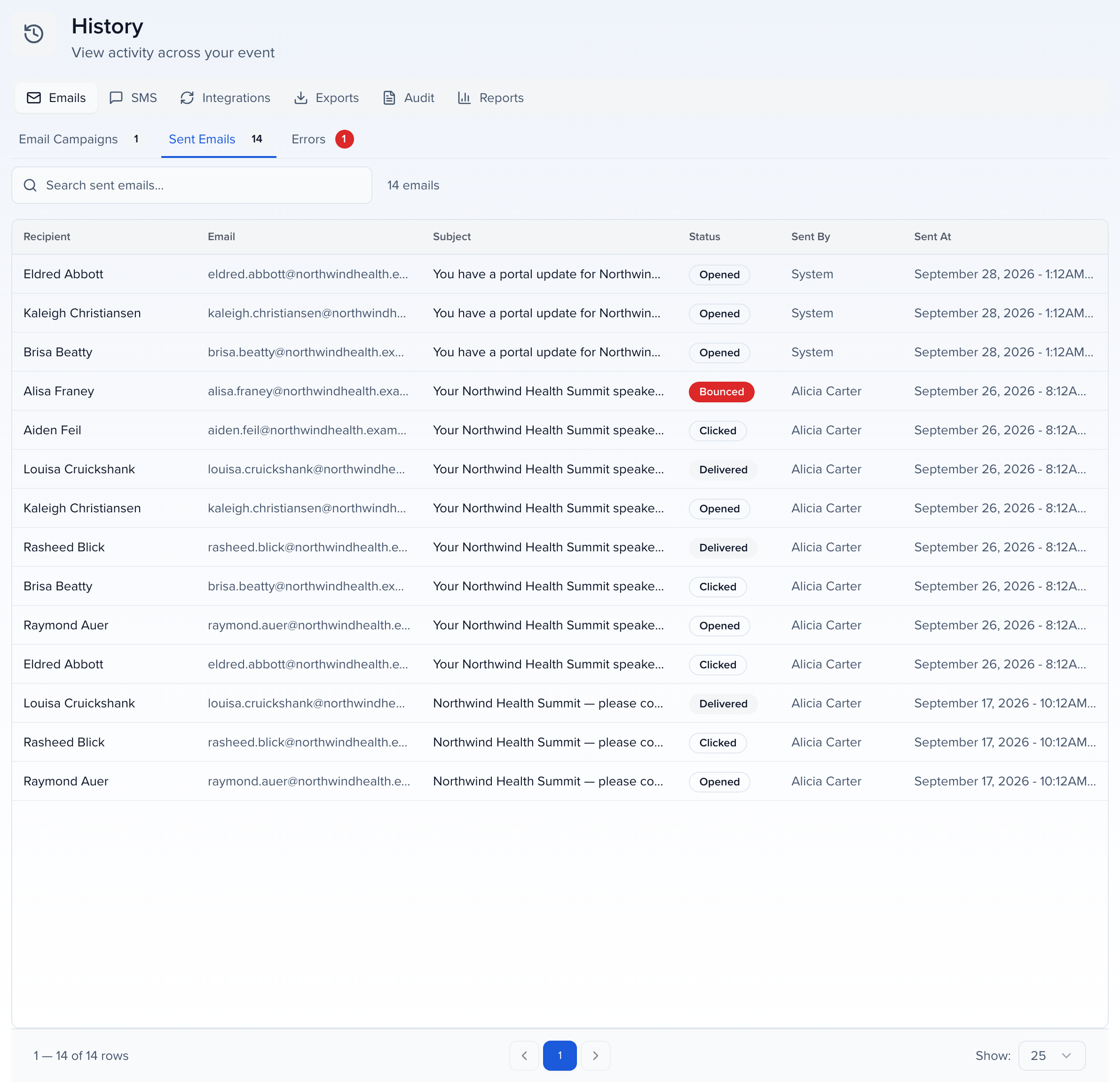
| Sent Emails | One row per recipient, for every email the event sent. Your composer sends and campaigns are here, and so are the emails Sessionboard sends on its own: team invitations, submission confirmations, portal assignment notifications and weekly digests, evaluation reminders, review-assigned and new-message alerts, and every registration email (confirmations, waitlist, approval, cancellation, reminders, know before you go and the buyer’s order confirmation). A registration email shows whether it was sent or refused; its links to the registrant’s portal are removed from the copy you see here. Columns: Recipient, Email, Subject, Status, Sent By, Sent At. |
| Errors | The rows from Sent Emails whose status is a failure — bounced, blocked, dropped or failed (including a registration email the mail provider refused) — so you can work through them without a filter. |
Each view has its own search box; search Sent Emails by recipient name or address, and Email Campaigns by subject.
Campaign details
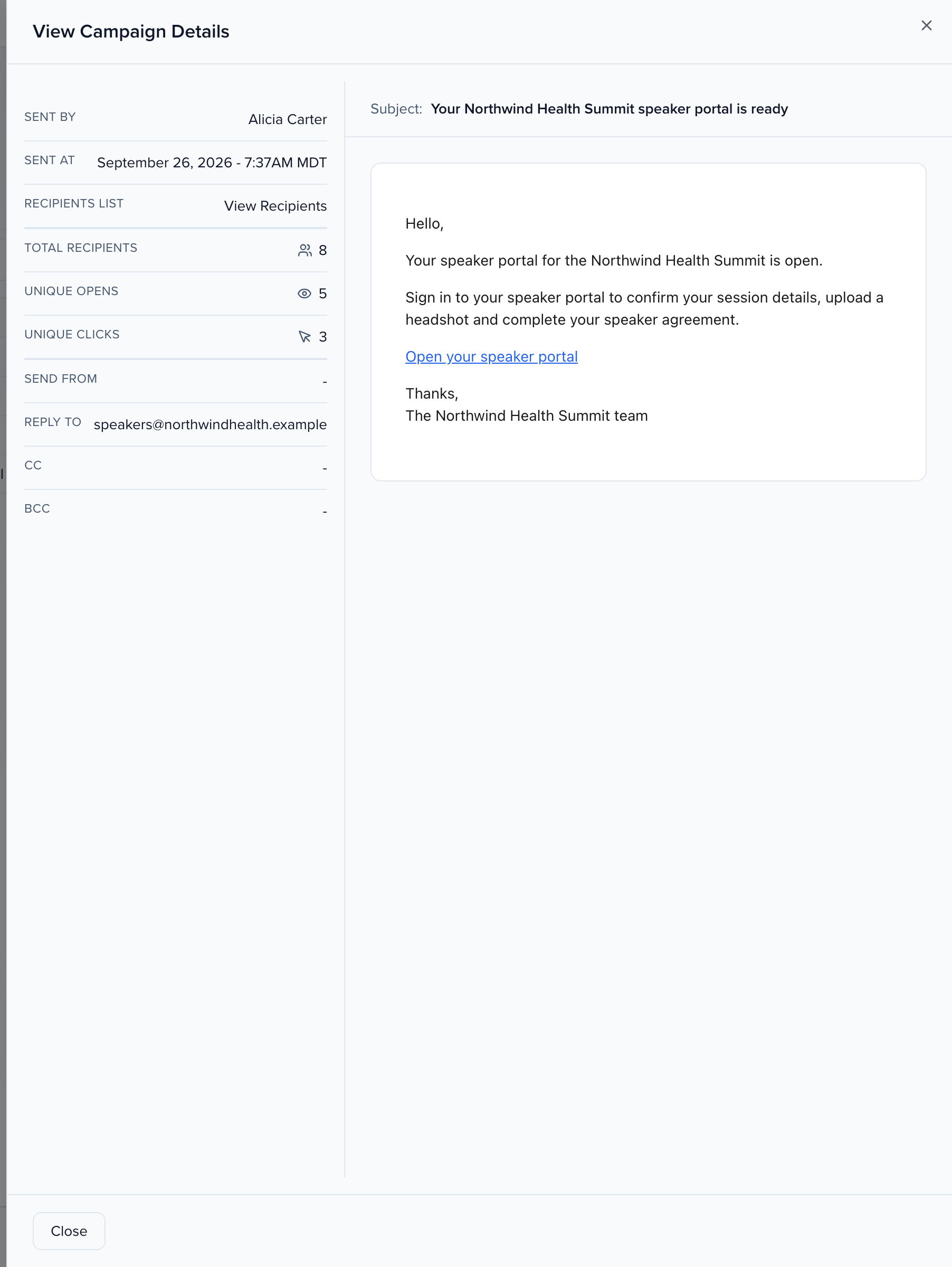
Section titled “Campaign details”Click a subject in Email Campaigns to open the send in a side panel: Sent By, Sent At, a preview of the email, and View Recipients, which lists every recipient with their Status and — when delivery failed — the Reason.
One recipient’s email
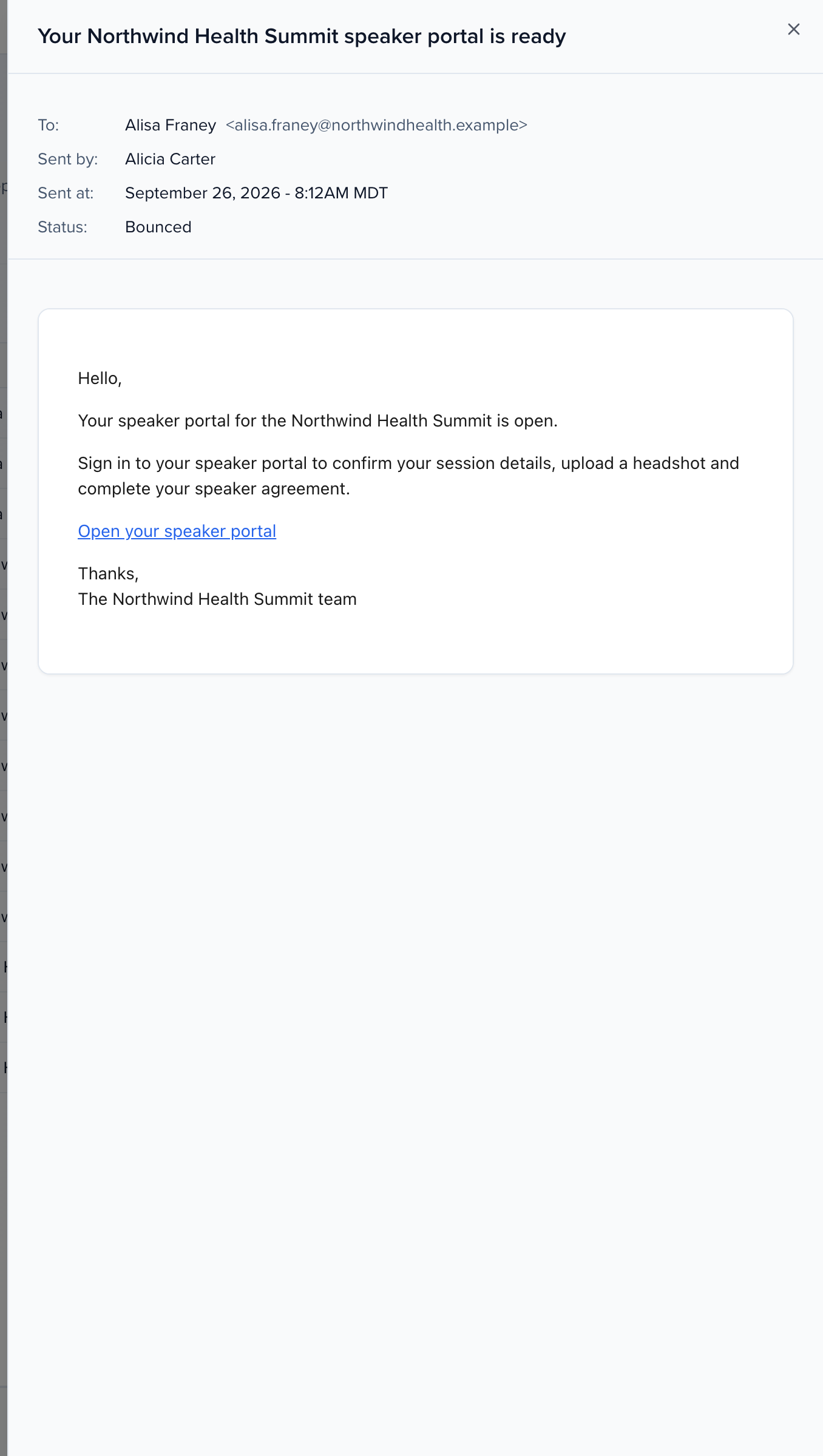
Section titled “One recipient’s email”Click a subject in Sent Emails to open the email exactly as that person received it, merge tags filled in.
Email status definitions
Section titled “Email status definitions”The Status column reflects what we were actually told about that recipient.
| Status | What it means |
|---|---|
| Sent | Handed to our email provider and accepted for delivery. The recipient’s mail server still owes us a delivery report. |
| Processed | The provider has the message queued for delivery. |
| Delivered | The recipient’s mail server accepted the message. This does not mean anyone read it. |
| Opened | The recipient opened the email. |
| Clicked | The recipient clicked at least one link in the email. |
| Deferred | The recipient’s mail server asked us to try again later. Delivery is still being attempted. |
| Bounced | The recipient’s mail server rejected the message. Common causes are a full inbox, an address that does not exist, or a security filter. |
| Blocked | The recipient’s mail server refused the message, usually a reputation or policy rule on their side. |
| Dropped | We did not attempt delivery, because this address previously bounced, unsubscribed, or reported spam. |
| Marked as spam | The recipient reported the message as spam. This also unsubscribes them. |
| Unsubscribed | The recipient opted out through the unsubscribe link. |
| Failed | The send itself was rejected before delivery was attempted. Nothing reached the recipient. |
| No delivery data | We have no report about this recipient yet. Not a failure — just no information. |
On “No delivery data”. Providers report delivery for a while, not forever. A system notification sent before this recording was added can still sit here, because that send was never stamped with an outcome. A new system notification is recorded as Sent once Sessionboard hands it to the provider, and it moves to Delivered, Bounced, or another status when the provider reports back. Where we have no report, we say so rather than assume.
If a recipient tells you they never received something and the row reads No delivery data, check the suppression list first: a blocked address is the most common cause.
What we track, and what we don’t
Section titled “What we track, and what we don’t”Every person addressed by name on an email gets their own row in History, with their own status:
- The To recipient.
- Each session participant on the CC line when a send uses Send one email per session — the session’s primary speaker is on To, their co-presenters and moderator are on CC, and all of them appear in History individually.
- Each additional contact (assistant, coordinator) CC’d through Include additional contacts of recipients (CC).
Two things are delivered but not tracked per person:
- A fixed CC address typed into the composer or template. It is copied onto every message in the send and receives the mail; it does not get History rows or delivery statuses.
- BCC, in all cases. BCC is not tracked at all — no History rows, no delivery status, no open or click attribution, and blocked addresses have no effect on it. If you need a delivery record for someone, address them on To or CC rather than BCC.
Both still appear on the sent message itself, so you can always see who was copied by opening the email preview.
The SMS tab records every text message sent through the platform — see SMS messaging — with Sent and Errors views. Each row shows the Recipient, a masked Phone Number, the Message (click it to read the full text), the Status — sent, delivered, undelivered or failed — Sent By and Sent At. Search by name or phone number.
Integrations
Section titled “Integrations”If your event is connected to a third-party integration (such as Visit, LiveBuzz, Brella, Cvent, Swoogo, Bizzabo, or Swapcard), the Integrations tab shows a history of every sync run so you can confirm data made it across and troubleshoot failures without contacting support.
Each sync record includes:
- Integration: Which connected integration ran the sync.
- External Event: The mapped event in the partner system (the Visit expo ID, LiveBuzz campaign, and so on).
- Sync ID: A unique identifier for the run (useful when working with support).
- Results: Click Click to view results for counts of created, updated, skipped, deleted, and failed records. Skipped rows include the reason (consent not complete, no change since last sync, missing name or email). Failed rows include the vendor error.
- Status: Whether the run completed successfully, completed with errors, or failed.
- Started At / Ended At / Duration: When the sync ran and how long it took.
Visit, LiveBuzz, and Brella write the same history rows as the other integrations. The Results overlay is the event-team view of those counts and reasons.
Exports
Section titled “Exports”The Exports tab keeps a history of data exports generated from your event, so you can re-download a previous export without regenerating it.
Each export entry shows the Export File (click to download), its Type — which table or report it came from — Exported By, Exported At, the number of Rows, the file Size and its Status.
The Audit tab provides a chronological activity log that tracks all significant actions taken within the platform. This serves as a transparent history of updates and changes made to contacts, sessions, evaluation plans, and more.
💡LEARN MORE…
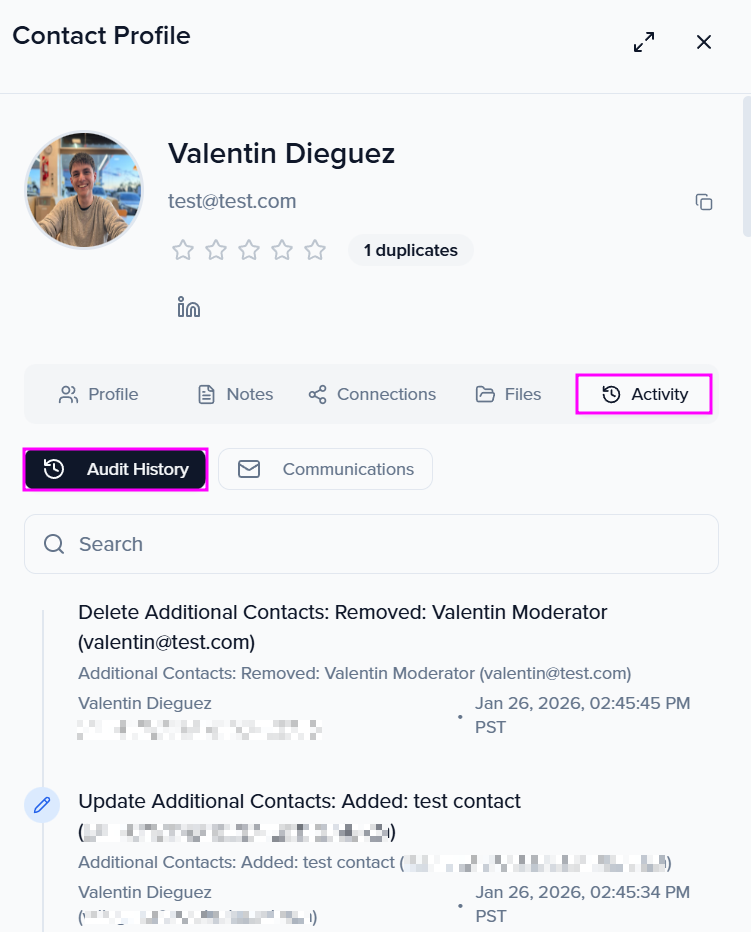
View the audit log for a specific contact through their contact profile.
View the audit log for a specific session through the session page.
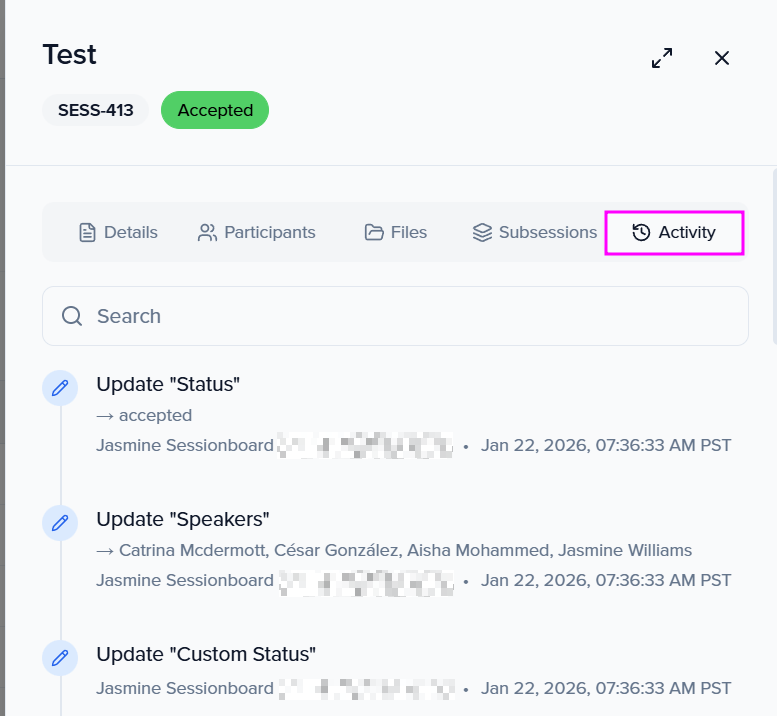
Each audit entry displays:
- Subject: Displays the name of the item (e.g., a session title or contact name) where the change was made.
- Type: Indicates the category of the item being modified (e.g., Session, Contact, Exhibitor, Sponsor).
- User: Shows the name and email of the person who performed the action.
- Action: Specifies what was done, such as Create, Update, or Delete.
- Field: Identifies the specific field within the subject that was changed (e.g., Start Time, Location, Track).
- New Value: Displays the updated value that was entered for the field.
- Occurred At: Provides the exact date and time when the change took place.
Changes to your setup, not just your records
Section titled “Changes to your setup, not just your records”The audit log covers two different kinds of change, and it helps to know which one you are looking for.
Most entries are changes to a record — someone edited a session’s start time, or a contact’s company. The Subject is the record, and the Field and New Value tell you what moved.
Other entries are changes to how your event or organization is set up. These look the same in the table but the Subject is a piece of configuration rather than a record:
- Field — someone renamed a field, changed its type, or added, renamed or removed a dropdown option. This is a change to the field itself, everywhere it appears, as opposed to one record’s answer. Deleting a field is recorded too, and the entry keeps the deleted field’s name so the history still reads properly afterwards.
- Org member — someone was invited to the organization, had their permission role changed, or had their access removed. When an admin resets a member’s two-factor sign-in, the member gets a Two-factor reset entry with the reason the admin gave.
- Permission profile — a profile was renamed, its permission set was changed, or it was deleted. A permission change records how many permissions the profile held before and after rather than listing each one.
- API token — a token was created, edited or revoked. The token value itself is never recorded, here or anywhere else.
- Event — an event was created, renamed, had its dates, URL slug, tags or other settings changed, or was deleted. Deleting several events at once records one entry per event, labelled with its name. Cloning an event is recorded on the source event as Cloned, with the new event’s name.
- Organization — a change to the organization’s general or payment settings, such as its timezone.
- Portal — created, edited (including its filters, profile fields, intake form and notifications), duplicated, reordered or deleted.
- Field rule and Workflow — created, edited or deleted.
- App — an app was installed, updated or uninstalled, a connection or its event mapping changed, a sync was started, or a connection was disconnected. Credentials are never recorded.
- Membership attribute — membership attributes and contact hydration rules. Rule settings that hold credentials show as changed, never the value.
- Event member and Export — event team changes, and every bulk export of contact data, recorded as Export requested and attributed to the person who started it.
- View — a saved view on a module table: created, renamed, changed, shared with the team or made private, or deleted. Columns, filters and sort are recorded as changed, never their contents. Organization portal form submission views appear as Form submission view.
- SSO provider — a SAML or OIDC provider created, edited or deleted, a signing certificate generated or activated, and SSO turned on or off for an event. Certificates and client secrets show as changed, never the value.
- Security setting — requiring two-factor sign-in for the organization turned on (Required two-factor for the organization) or off (Stopped requiring two-factor), and portal sign-in methods switched on or off, one entry per method.
- Webhook — a webhook endpoint added, edited, disabled, enabled or deleted. The signing secret is never recorded, and custom headers show as changed. Changes made in the embedded webhooks portal show System as the user, because Sessionboard is not told who made them.
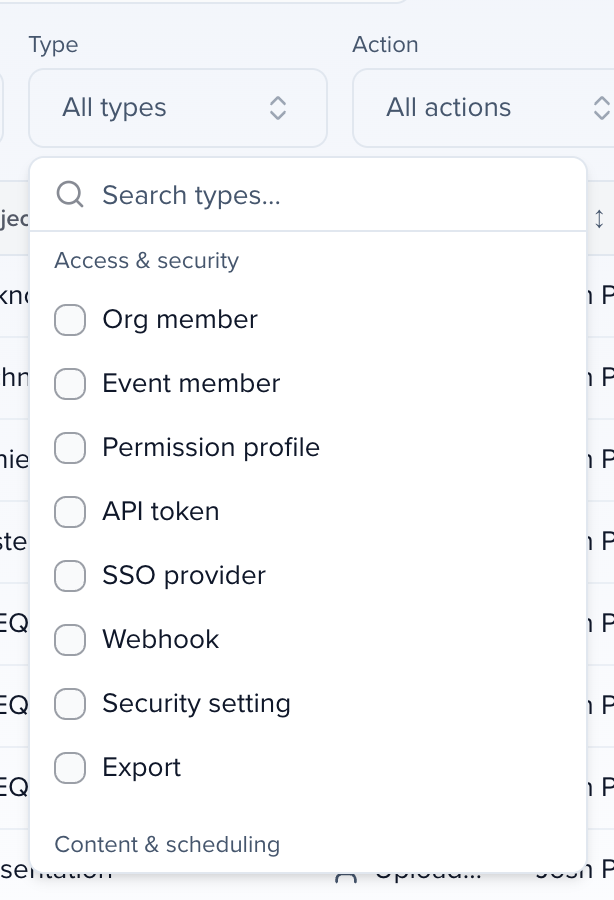
Content and scheduling work is in the log too:
- Room, Track and Agenda — rooms and tracks created, renamed or deleted, and agenda drafts created, duplicated or deleted. Committing a draft is recorded as Published, with how many changes it made to how many sessions.
- CFP form, Application form, Follow-up form and Session form — created, settings changed, duplicated or deleted. Editing a form’s notification email templates is recorded per template, including Reset to default. For organization session forms, question changes, notification settings and the events a form is linked to are recorded as well.
- Email campaign — created, edited, duplicated or deleted, and Test sent, Scheduled, Unscheduled or Sent.
- Email send — a bulk Send Email from a grid, recorded as Sent with how many records it went to and the names and sizes of any attachments. The email body is not copied.
- Email template, Email theme and System notification — created, edited or deleted, a theme set as the default, and a system notification overridden, reset or test-sent.
- Task — created, edited, duplicated or deleted, and its per-assignment options such as the close date. Assigning a task to one record, or removing it, is recorded on that record as Assigned or Unassigned.
- Portal page — a portal Resources page created, edited (title, subtitle, type; the page content shows as changed), duplicated or deleted. A deleted page is also listed on the Deleted tab.
- Document template and File request type — created, edited, duplicated or deleted. Sharing a booklet is recorded as Published and unsharing it as Unpublished.
- Awards program — created, duplicated, edited, archived or deleted, including every step of the program setup: details, pricing, branding, categories, winner types, managers, notifications and rounds.
Email bodies, HTML, custom CSS and secrets are recorded as changed rather than copied into the log. Saving something without changing it writes no entry.
Changes that belong to the organization rather than to one event, such as organization settings, apps, membership, organization session forms and awards programs, are on the Audit tab of the organization’s History.
Changes made through the public API appear alongside the rest, attributed to the user the API token belongs to.
Where a change came from
Section titled “Where a change came from”When a change did not come from someone editing in Sessionboard, the entry says where it came from, after the name of who made it or in place of a name when no person made it:
- via Public API — made through the public API with that user’s token.
- via Bulk edit — part of a bulk edit of contacts.
- Date formula recalculation — the daily recalculation of a formula field that depends on today, such as a
days_untilcount. It is listed only when the result actually changed. - An integration’s name with writeback or sync — for example Visit writeback, when a connected app writes the ID it gave a record Sessionboard sent it back onto that record, or Maritz RTS sync, when an app fills in values it owns. Integration sync means an integration made the change but did not say which app it was. Only values that changed are listed.
A change from either of the last two also moves the record’s last-updated time forward, as an edit by your team would.
Narrowing the log
Section titled “Narrowing the log”Type and Action are grouped, so you can jump to the part of the log you want without reading the whole list.
- Type is grouped into Records, Configuration, Access & security and Content & scheduling.
- Action is grouped into Common (Create, Update, Delete, Merge, Cloned, Reordered), Access (such as Invite sent, Invite resent, Access revoked, Export requested, Two-factor reset, Required two-factor for the organization and Stopped requiring two-factor), Apps (Installed, Uninstalled, Sync started, Disconnected), Content (Published, Unpublished, Assigned, Unassigned) and Email (Test sent, Scheduled, Unscheduled, Sent).
For example, filter Action to Scheduled to see every campaign someone scheduled, Type to Agenda and Action to Published to see when the agenda was last committed, or Type to SSO provider, Webhook or Security setting to review sign-in and integration changes.
Both filters narrow the CSV export as well as what you see on screen, so exporting after filtering gives you just those entries.