

Speaker CRM: advanced search
This guide applies only to organizations that have the Speaker CRM enabled.
Why use it
Section titled “Why use it”Advanced search is how you find the right speakers in a large directory when a name search is not enough, for example every founder in Canada who speaks on a particular topic. Combine facets such as job title, country, topic and past events, see how many contacts match each value, and save the result as a segment you can come back to.
Search by keyword
Section titled “Search by keyword”On CRM > Contacts, the Search people by keywords… box matches names, email addresses, job titles and company names as you type. Use it for a quick lookup of one person or one organization.
Filter with facets
Section titled “Filter with facets”Click Filter to open the Preferences panel on its Filter tab. Fields and attributes are grouped so you can scan them:
- Demographics — Job Title, Pronouns, Gender, Company Name, Highest Level of Education, Global Region, Country, State, Ethnicity, Languages
- Relevance — Audience Type, Target Age Range, Topic / Expertise, Brand, Industry
- Company — Annual Revenue, Headcount, Years in Operation, Organization Structure
- History & Connections — Events, Speaker Score, Speaker Fee, Availability, Preferred Session Format
- Session fields and your Custom contact fields follow
Every value carries a count — Founder & CEO (13) means thirteen contacts have that job title. A facet shows its five most common values; click the Show … more link for the rest, or type into Search or type custom value… to find a value or match on free text.
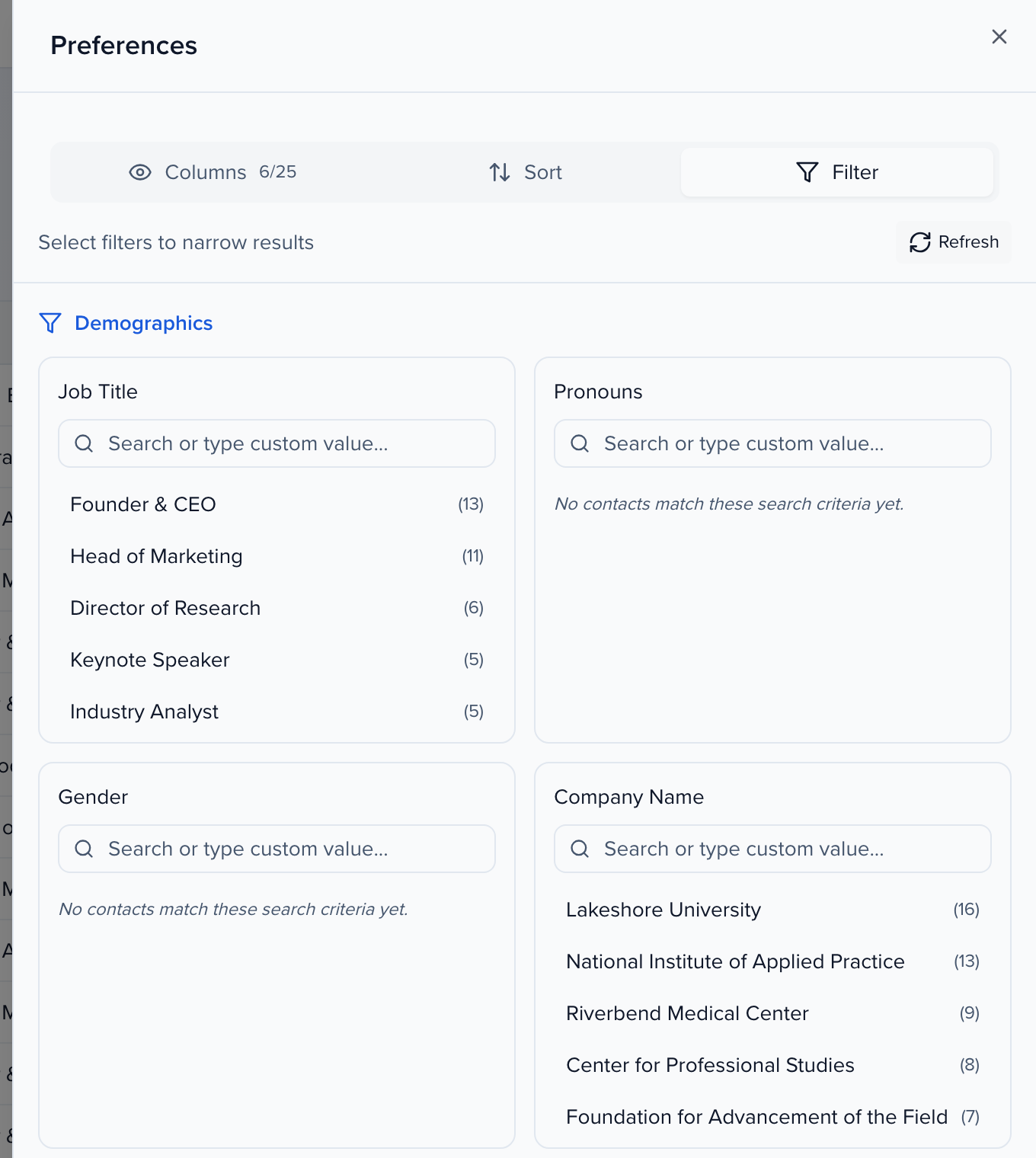
Click a value to select it. When you are done, click Done.
How the filters combine
Section titled “How the filters combine”- Values chosen inside one facet widen the result: Job Title = Founder & CEO or Chief Resident.
- Values chosen in different facets narrow it: Job Title = Founder & CEO and Country = Canada.
The table refreshes with the matching contacts, and the toolbar shows the number of active filters beside Filter, a Clear all button, and Save Segment.
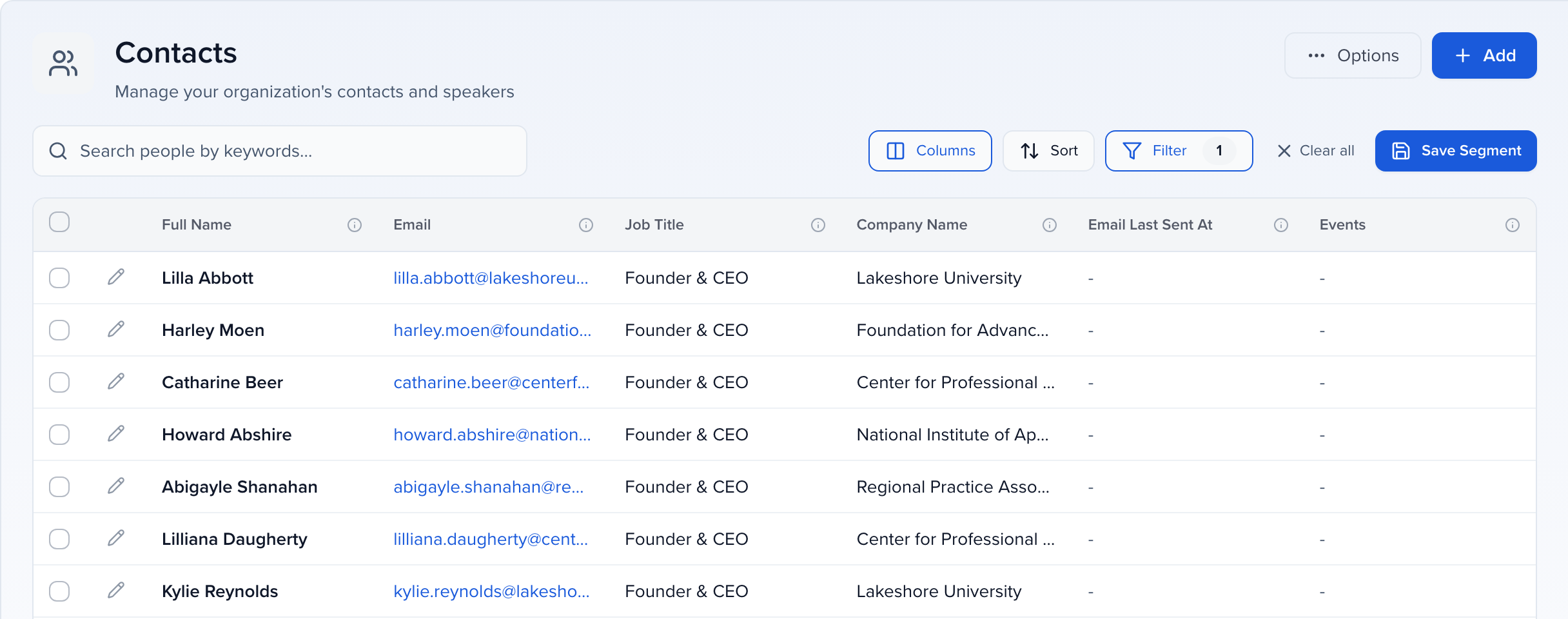
To change the filters, click Filter again. To start over, click Clear all.
Save the result as a segment
Section titled “Save the result as a segment”Click Save Segment to keep the filtered list. You choose between a dynamic segment, which keeps matching the filters, and a curated list, which freezes the people who match today. How to pick, and how to manage the segments afterwards: Speaker CRM: segments.