

Track conversions from Advocacy
Advocacy already shows who shared and who clicked. Conversion tracking shows what happened next: who landed on your page, who clicked your call to action (CTA) and who completed your goal, credited to the advocate and the channel they shared on. Everything is reported inside the campaign’s Analytics tab in Sessionboard; nothing is sent to Google Analytics or another tool.
Why use it
Section titled “Why use it”Clicks show that people were interested; conversions show what advocacy was worth. With one tag on your site, every registration, purchase or booking that follows an advocate’s link is credited to that advocate and the channel they shared on, so you can prove the return on your campaign and reward the people who actually filled the room.
What counts as a conversion
Section titled “What counts as a conversion”A conversion is the goal you want people to reach after they click an advocate’s link, within the attribution window: registering, buying a ticket, booking a meeting. It is counted when:
- someone completes a registration or a sign-up on a Sessionboard page (registration forms, Sites, event and webinar pages);
- someone reaches a page you marked as a conversion page, such as your thank-you page; or
- your page calls
sessionboard.track('conversion', …).
Each order or registration number counts once, so a reloaded thank-you page never counts twice.
A CTA click is a click on a button or link you care about, such as Register or Buy tickets. A landing is a click that reached a page with the website tag (or a Sessionboard page).
How it works
Section titled “How it works”Every share link adds a click id (sb_click) to your page’s address, next to the UTM parameters. The id names the campaign, the advocate and the channel. The Sessionboard website tag on your site keeps the id on your domain for the attribution window and reports the landing, CTA clicks and conversions against it. Sessionboard pages do the same without any code.
Sessionboard pages need nothing
Section titled “Sessionboard pages need nothing”When a campaign’s links go to a Sessionboard Site, or event or webinar page, landings, clicks on Register and completed registrations or sign-ups are recorded automatically. The campaign’s Conversion tracking card says Nothing to install.
Set up conversion tracking on your own website
Section titled “Set up conversion tracking on your own website”Open the campaign and expand Conversion tracking (it is also on the Share page step of Quick Launch).
Add the website tag
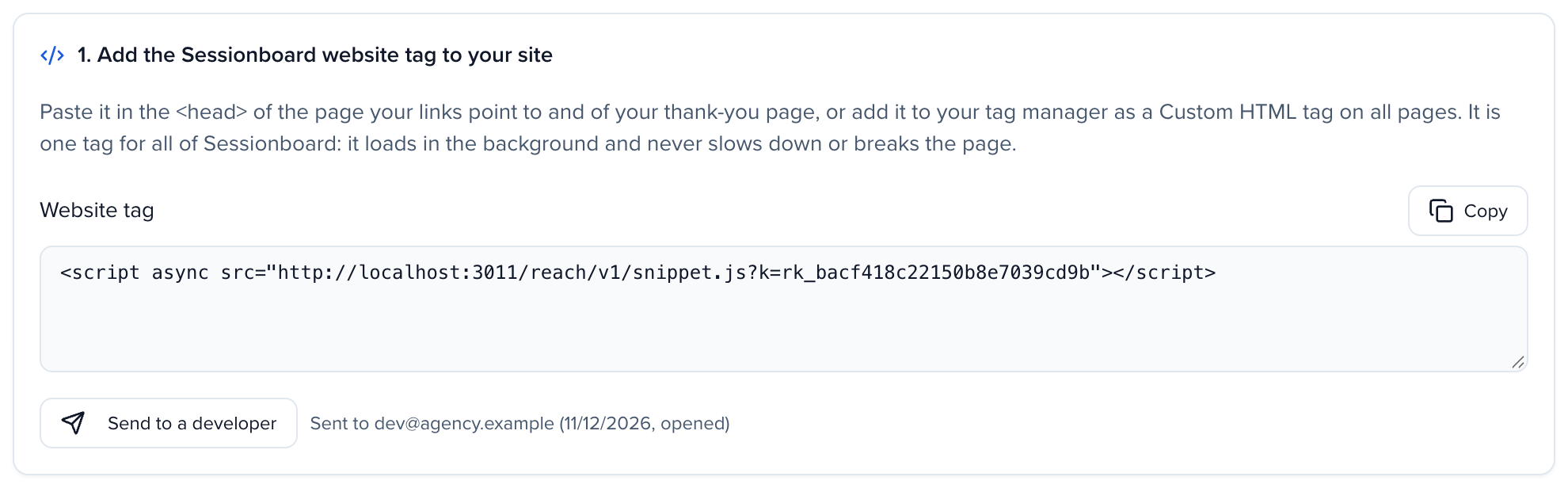
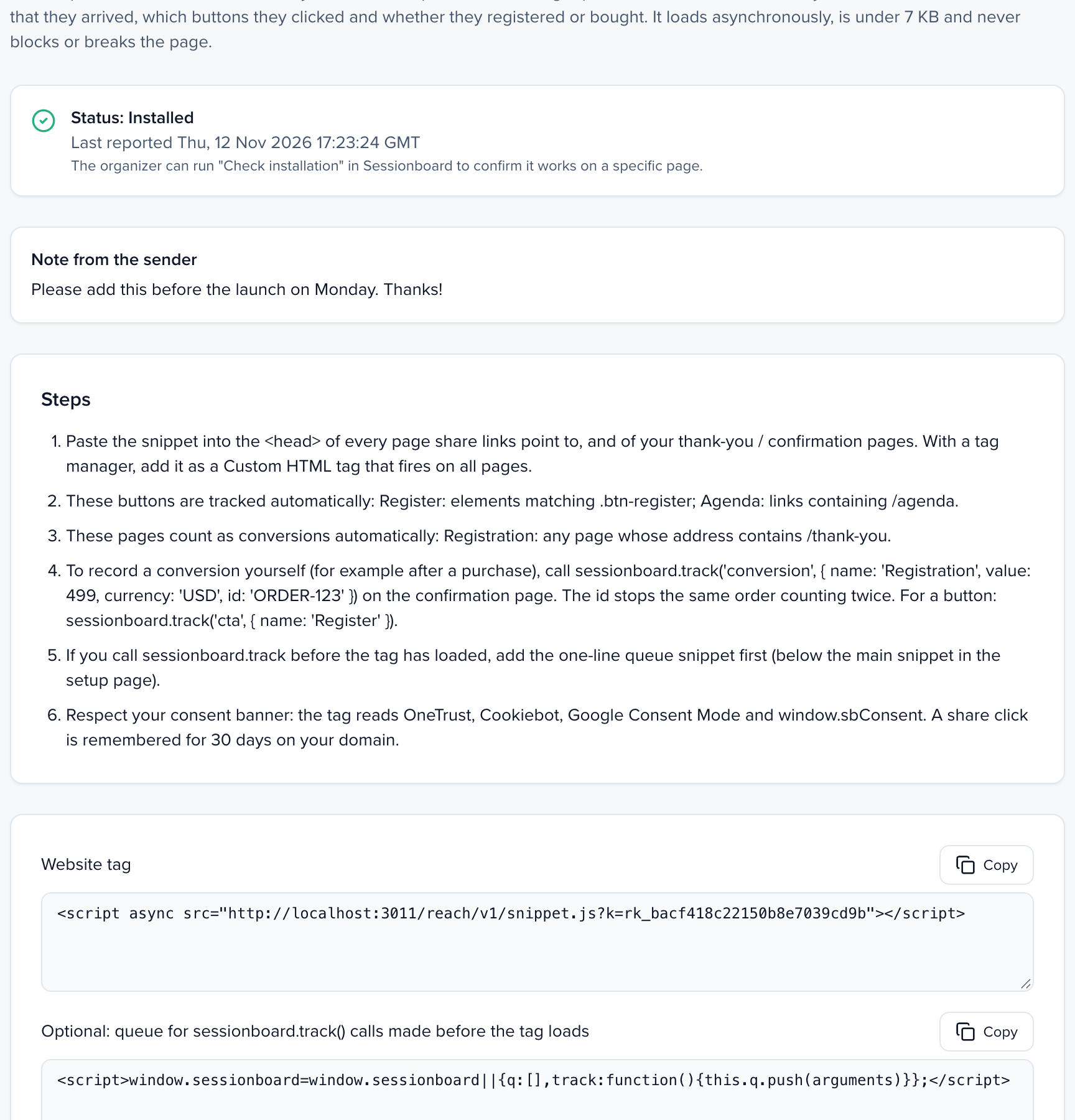
Copy the Website tag and paste it into the <head> of the page your links point to and of your thank-you page. With a tag manager, add it as a Custom HTML tag that fires on all pages. It is one tag for all of Sessionboard: it loads in the background and never slows down or breaks the page. Your organization has one tag; if Marketing’s website tag is already on your site, it is the same line and you do not need a second one.
Tell Sessionboard what to count
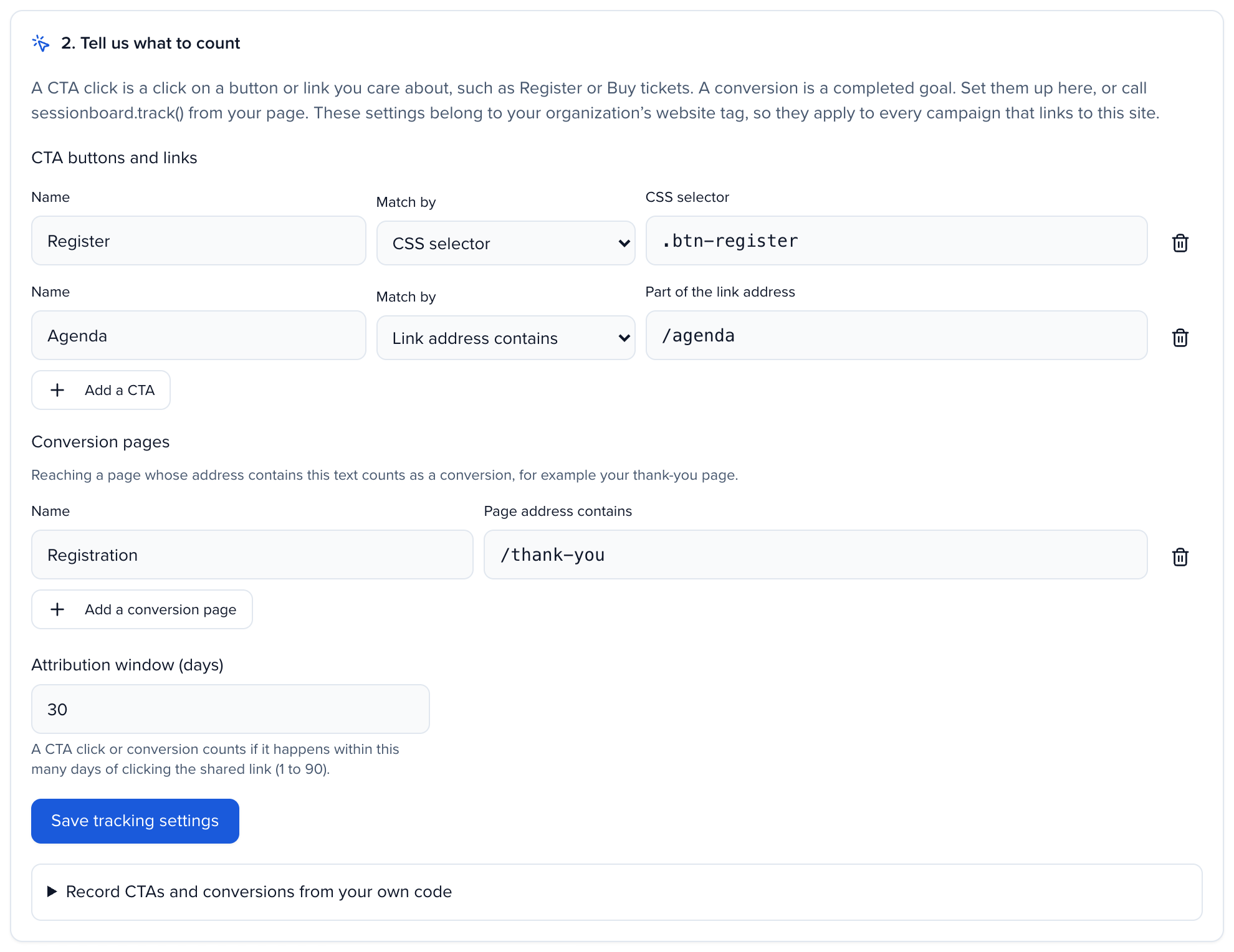
Under CTA buttons and links, name each CTA and match it by CSS selector (for example .btn-register) or by Link address contains (for example /register). Under Conversion pages, name the goal and enter part of the thank-you page’s address. Set the Attribution window (days): a CTA click or conversion counts if it happens within that many days of clicking the shared link (1 to 90, default 30). Click Save tracking settings.
These settings belong to your organization’s website tag, so they apply to every campaign that links to the same site.
Check the installation
See Check installation.
Record CTAs and conversions from your own code
Section titled “Record CTAs and conversions from your own code”When a conversion is not a page (a purchase confirmed in a modal, a booking widget), call this after it succeeds:
sessionboard.track('conversion', { name: 'Registration', // shown in your analytics value: 499, // optional currency: 'USD', // optional, three letters id: 'ORDER-123' // optional: your order or registration number, counted once});For a button: sessionboard.track('cta', { name: 'Register' }).
The tag loads asynchronously. If your page may call sessionboard.track before it has loaded, add the one-line queue snippet shown under Record CTAs and conversions from your own code before the tag; the calls are replayed when it loads.
A conversion named Registration also counts as a referred registration for Advocacy rewards and the Registrations column.
Check installation
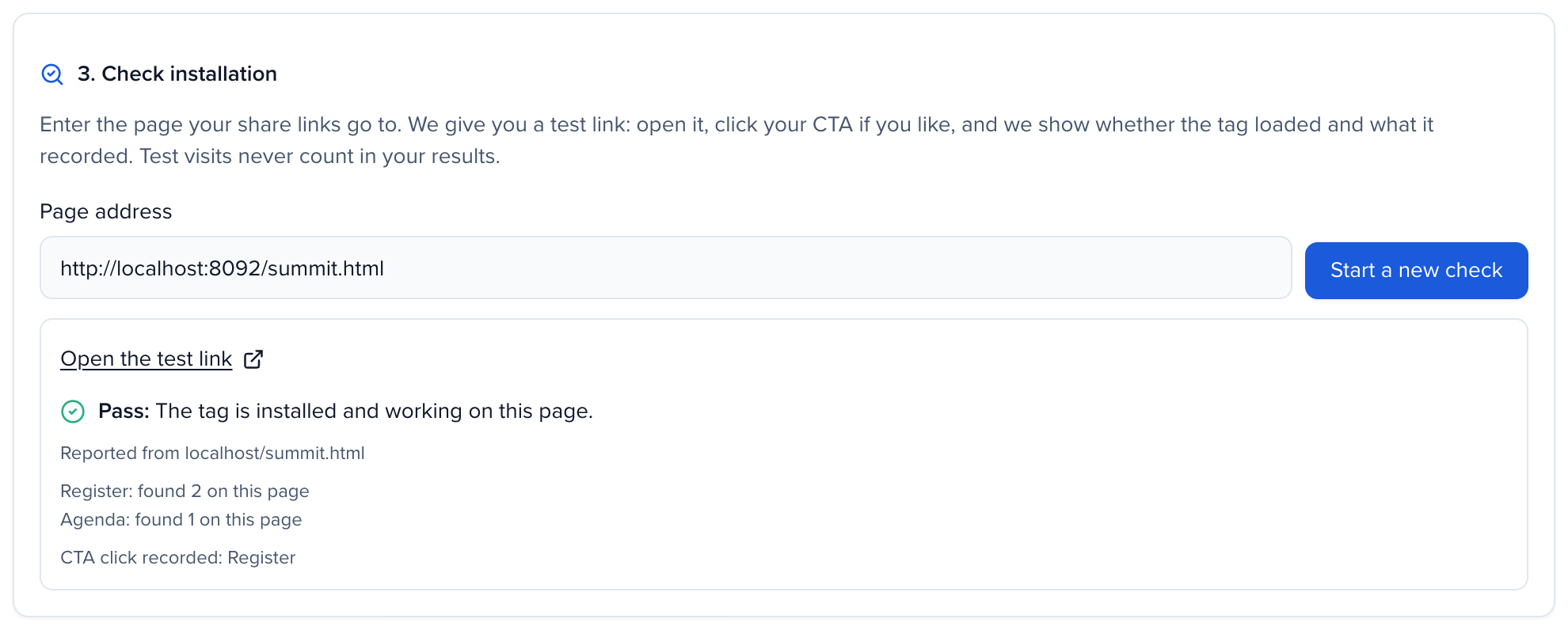
Section titled “Check installation”Under 3. Check installation, enter the page your share links go to and click Check installation. Open the test link: it is your page with ?sb_test= added. The card shows, live:
- Pass — the tag loaded on the page, with how many elements each CTA matched and any CTA clicks or conversions the page sent while the test was open. Click your CTA on the test page to see it arrive.
- Fail — the reason: the tag didn’t report (it is not on the page, the tag manager isn’t published, or an ad blocker stopped it), or a tag from a different Sessionboard account is on the page.
A CTA that is not found on the page is listed so you can check its selector. Test visits never count in your results and set no cookie. The test link works for 30 minutes.
Send to a developer
Section titled “Send to a developer”If someone else edits your website, click Send to a developer and enter up to five addresses and an optional note. Sessionboard emails the snippet, the steps and your CTA and conversion setup, with a link to a setup page that shows whether the tag is working yet. Replies come to you, and the people you send it to are not added to your contacts.
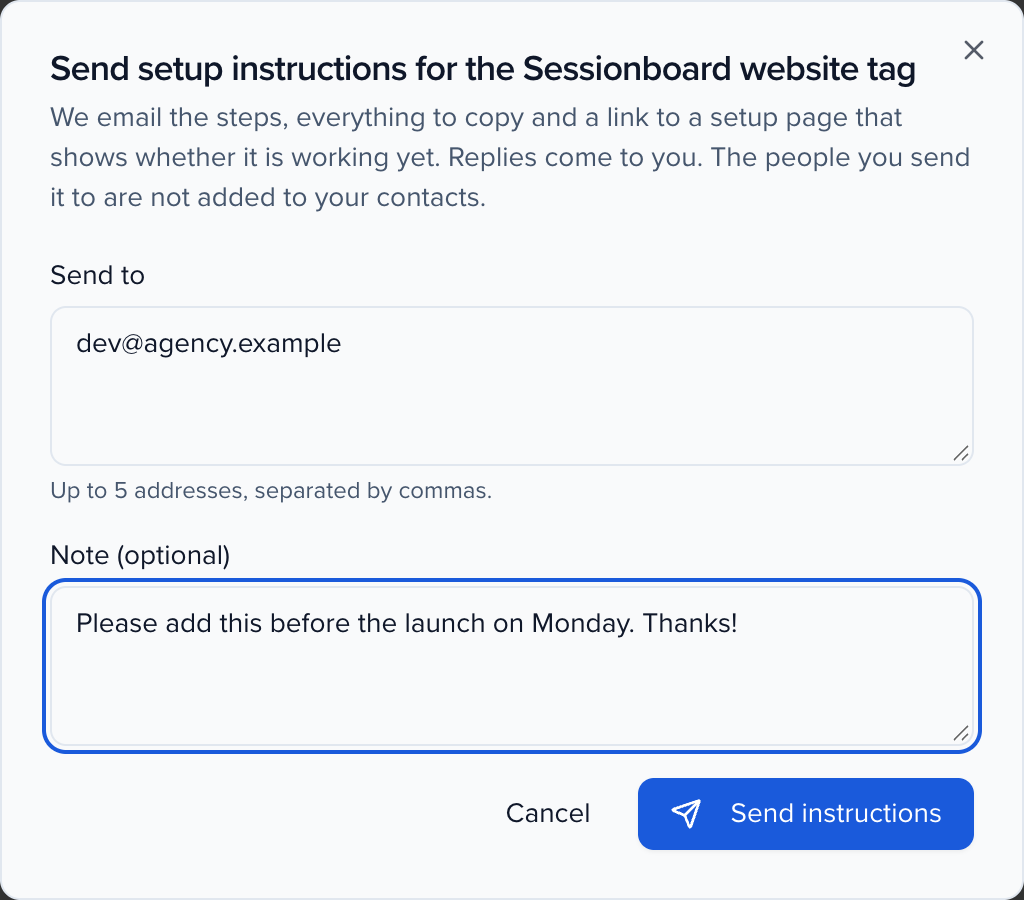
The same Send setup instructions to someone technical action is on every technical setup: custom domains for Sites and pages (Settings → Domains) and email sending domains (SPF and DKIM records). Each email links to a read-only setup page with the records or code, copy buttons and the live status. Setup pages work for 30 days.
Read the Conversions section
Section titled “Read the Conversions section”On the campaign’s Analytics tab, Conversions shows:
-
Conversions, Conversion rate (conversions ÷ clicks) and Value (per currency). What counts as a conversion? explains how they are counted.

-
Funnel — shares → clicks → landings → CTA clicks → conversions, with the rate of each step. Clicks are people, not page loads; bots are left out.

-
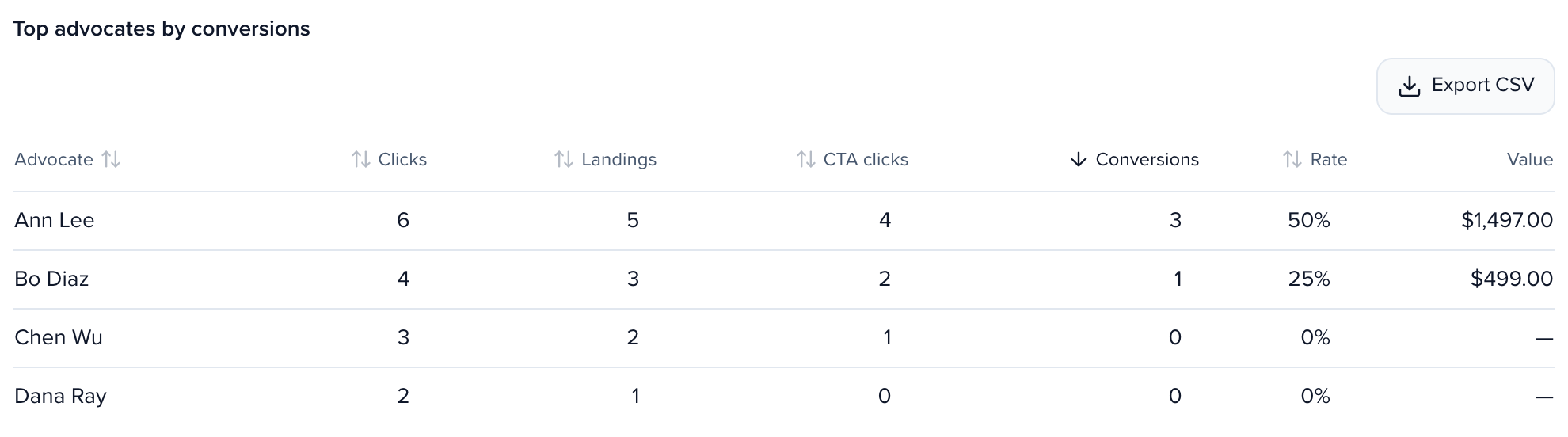
Top advocates by conversions — every advocate’s clicks, landings, CTA clicks, conversions, rate and value. Sort any column and Export CSV.
-
By channel, CTA clicks by name and Conversions by name.
Until anything has been tracked, the section says No conversions tracked yet with a Set up conversion tracking button that opens the setup card.
Privacy
Section titled “Privacy”- The tag stores only the share click’s id on your domain (a first-party
sb_clickcookie), never a name or email address. It reads no form fields. - It follows your consent banner:
window.sbConsent, OneTrust, Cookiebot and Google Consent Mode, and Global Privacy Control / Do Not Track mean no. For organizations hosted in the EU, and for visitors in the EEA, the UK or Switzerland, nothing is stored or sent until the visitor consents. A withdrawal deletes the stored id. - Without a click id from a share link, the tag records nothing for Advocacy.
- An order id that looks like an email address is dropped.
My registrations happen on another platform (Cvent, Swoogo, Eventbrite…)
Add the website tag to the registration platform’s pages through its custom header or tag manager field, and mark its confirmation page as a conversion page (or call sessionboard.track('conversion', …) there). The click id travels in the page address, so the platform must keep query parameters when it loads its pages. If it uses a different domain from your website, the tag keeps the id per domain: put the tag on the page the share link opens, too.
Why is a conversion missing?
It happened after the attribution window, the visitor declined consent, the page didn’t have the tag, or the visitor didn’t arrive from a share link (no click id). Run Check installation on the conversion page.
Can I change the attribution window later?
Yes. The window applies to events received after the change; conversions already counted stay counted.