

Advocacy campaigns
Advocacy gives every participant, sponsor, exhibitor and attendee their own branded share card and tracked link, and gives your own team a schedule of posts to share. Everyone shares from one page, and you see who shared, what got clicked and which advocates bring the most people, without chasing anyone for a screenshot. Both kinds of campaign live in one Campaigns list.
Two ways to share
Section titled “Two ways to share”Every campaign starts with one question, Who’s sharing it? Pick the path by who will do the posting.
| Your event community (the default) | Your team | |
|---|---|---|
| Who shares | People outside your organization: participants (speakers, chairs, moderators, custom roles), sponsor and exhibitor companies, and attendees | Your own staff: sales, membership, marketing |
| What they get | Their own branded share card and tracked link, on a share page they open with a magic link | A schedule of posts, delivered by Slack, Microsoft Teams and email, each opening their personal share kit |
| How it reaches them | All participants, whoever a portal targets, people you select, or I’ll share a link or embed | Slack and Microsoft Teams channels and people, and email addresses |
| What you see | Shares, clicks and click rate, with Top advocates and the channel mix | In tracked mode, clicks, shares and conversions against your goal, with Top performers ranking your team |
| Use it when | You want the people on your program and in your audience to promote the event to their networks | You want your own colleagues to post on a schedule, and to know who did |
| Read more | Launch a campaign | Team campaigns and Post from your team share kit |
I’ll share a link or embed is the event community option for when you don’t want to invite anyone: nobody is emailed, and you hand out one link yourself (in a newsletter or participant packet) or put the card on your website. Anyone who opens it makes their own card with their own tracked link. See Share a link or embed instead of inviting people.
Both paths are part of Advocacy and available to every organization, with nothing to request or switch on. You can’t change who’s sharing after the campaign is created. Team campaigns can go out by Slack, Microsoft Teams or email; any organization can connect Slack and Microsoft Teams, and email needs neither.
Video transcript
Advocacy. Your speakers already tell people they’re speaking. The trouble is you never see it, half of them post a screenshot of the agenda, and you can’t tell which post sent anyone to registration. Advocacy gives every participant, sponsor, exhibitor and attendee their own branded share card and their own tracked link, ready to post in one tap. And it shows you who shared, what got clicked, and who drove the traffic. No chasing anyone for a screenshot.
It lives under Marketing in the event sidebar, and it’s on for every event, you don’t need any extra module for it. Campaigns are always built inside an event. Advocacy in the organization sidebar is the read-only roll-up of every event’s campaigns, handy for reporting across a season.
Three things to have ready. The link you want people to land on, usually registration, and if your event website is set under Settings and Event Details it’s already filled in. The people, participants, sponsors, exhibitors or attendees, with email addresses if you want Sessionboard to notify them, or nobody at all if you’d rather share one link yourself. And your event branding, logo and colours, because the cards build themselves from it.
Advocacy opens on Campaigns, one list for every campaign on the event. All, Your team and Event community narrow it to one kind. Your event community is participants, sponsors, exhibitors and attendees, and your team is your own staff, which has a chapter of its own. Each row shows who’s sharing it, its status, sharers, shares and clicks. Search and the status filter work across both, and the menu on a row pauses, edits or deletes. Let me open the live one.
A campaign page. Up top, the destination every share points at, preview as any advocate, edit the campaign, and the actions menu, notify recipients, export assets, pause, end, delete. Below it, reminders, rewards and conversion tracking, then the numbers. Recipients assigned, shares across channels, clicks on the destination, and the click rate. Top advocates shows what each advocate’s own link brought, and channel mix shows where the shares happened.
Recipients. One row per person, whether they’ve opened their share page yet, their shares, clicks, and last activity. Every recipient has a magic link to their own share page, no login, no account, and you can copy it or view the campaign exactly as they see it. Export gives you a file with everyone’s tracked link and magic link, so treat it like a list of passwords. Message all emails everyone at once, and Add recipient brings in a late one.
Activity is the same story as a feed, opens, shares and clicks in order, with the country on each click, and you can filter it to just one of the three. It answers, did anything happen since yesterday.
The Analytics tab rolls every campaign on the event together, your team’s included. At a glance, then the funnel, assigned, opened, shared, clicked, so you can see where people drop. Channel mix, top advocates across campaigns, geography, and by campaign at the bottom, and both tables export to CSV.
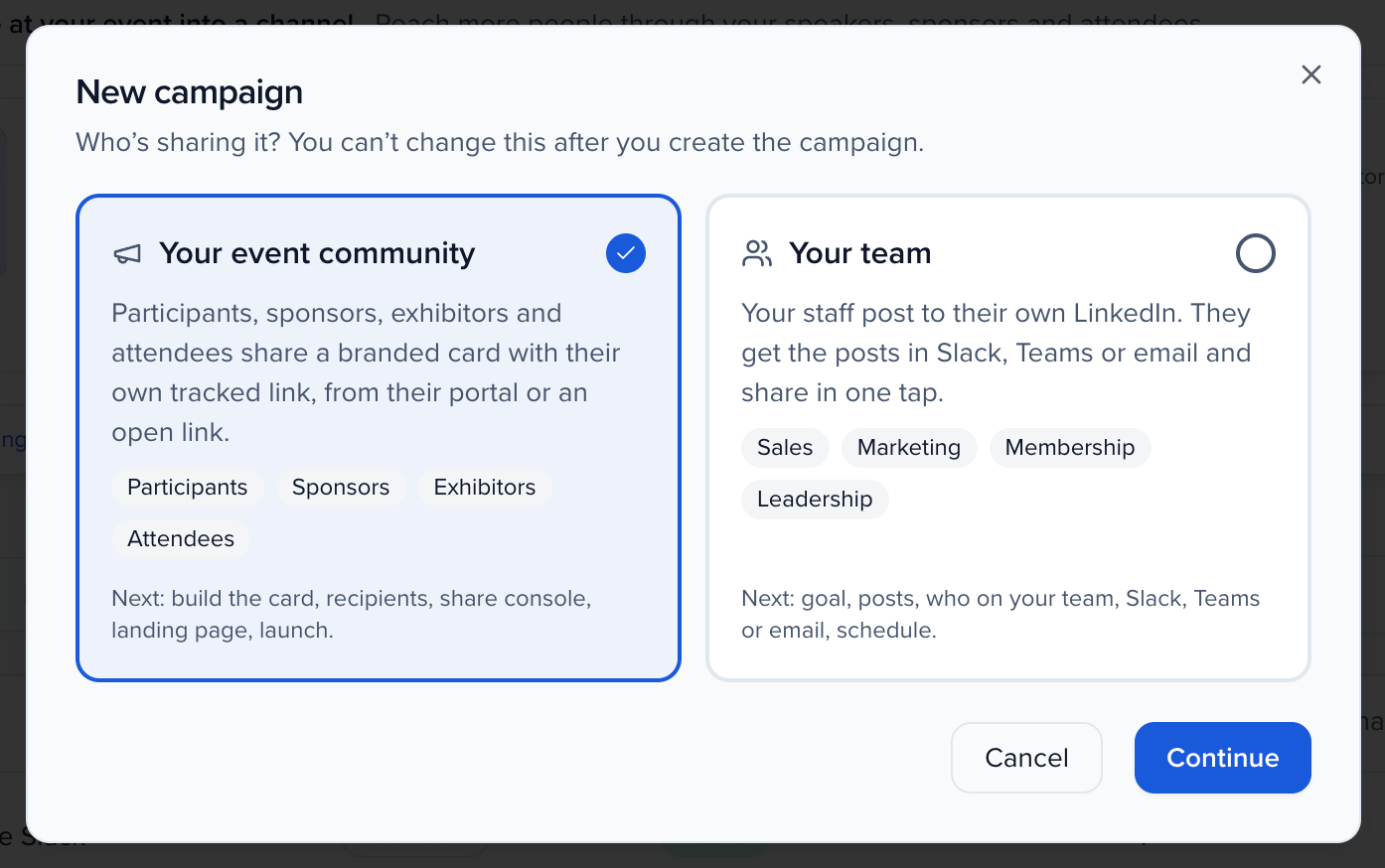
New campaign asks one question first. Who’s sharing it? Your event community is the default, and that’s the one we want. Your team is your own staff, with a schedule of posts delivered by Slack, Microsoft Teams and email, and every organization has both. You can’t change this afterwards. Continue opens Quick Launch, five steps, with a live preview on the right of exactly what one advocate will see.
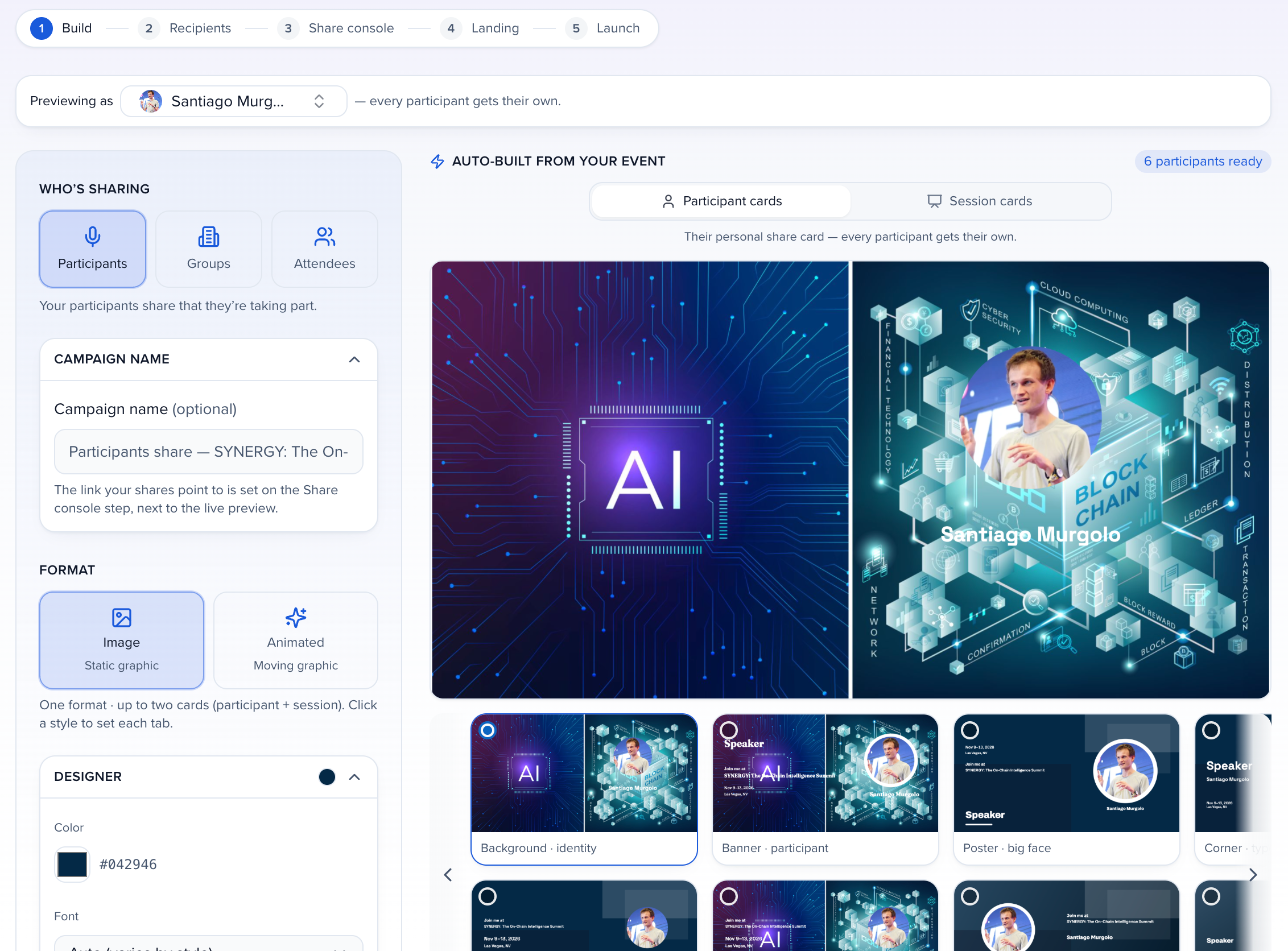
Build is where you decide who’s sharing. Participants is everyone with a participant role on your sessions, speakers, chairs, moderators and any custom role you’ve made. Groups is your sponsor and exhibitor companies, and Attendees is people registered. Then a format. Image for a static card, Animated for a moving one, or Media, which hands advocates your own recordings, clips and quote cards instead. The designer pulls colour, font, logo and background from your event, and the strip on the right is every card style, previewed as a real participant. Nothing here needs a designer.
Recipients is who, exactly. All participants, whoever a portal targets, or select and pick people by hand. Or the fourth one, I’ll share a link or embed. Nobody is invited and no email goes out. You hand out one link yourself, in a newsletter or a participant packet, or put the card on your website, and anyone who opens it makes their own card with their own tracked link. That’s the one I’ll use.
Share page is the important step, because it’s what your advocates will see. The default message, with short, long, professional and casual variants and a generate button, and the link placeholder that becomes each person’s tracked link. The register link, which is required, a promo code if you have one, and the channels they can share to. A new campaign starts with LinkedIn only, so turn on any others you want. With nobody assigned, the preview uses a sample participant from your event.
Landing is the branded page people see for a moment before they’re forwarded on. You can turn it off and send them straight through, or pick a layout, spotlight, banner, editorial or minimal, with the font and colour inherited from the card. Content is the copy, tracking is the analytics settings, and there’s a mobile and desktop preview.
Review and launch. The cards going out, as one participant will see them, and the summary, recipients, templates, channel, audience and destination. Activate campaign makes it live, and the campaign page opens with Campaign launched and what to do now. Here it’s Get the link, because this campaign is an open link. When people are assigned, it’s Send them their links instead, and that’s the step people miss, because activating tells no one until you send it.
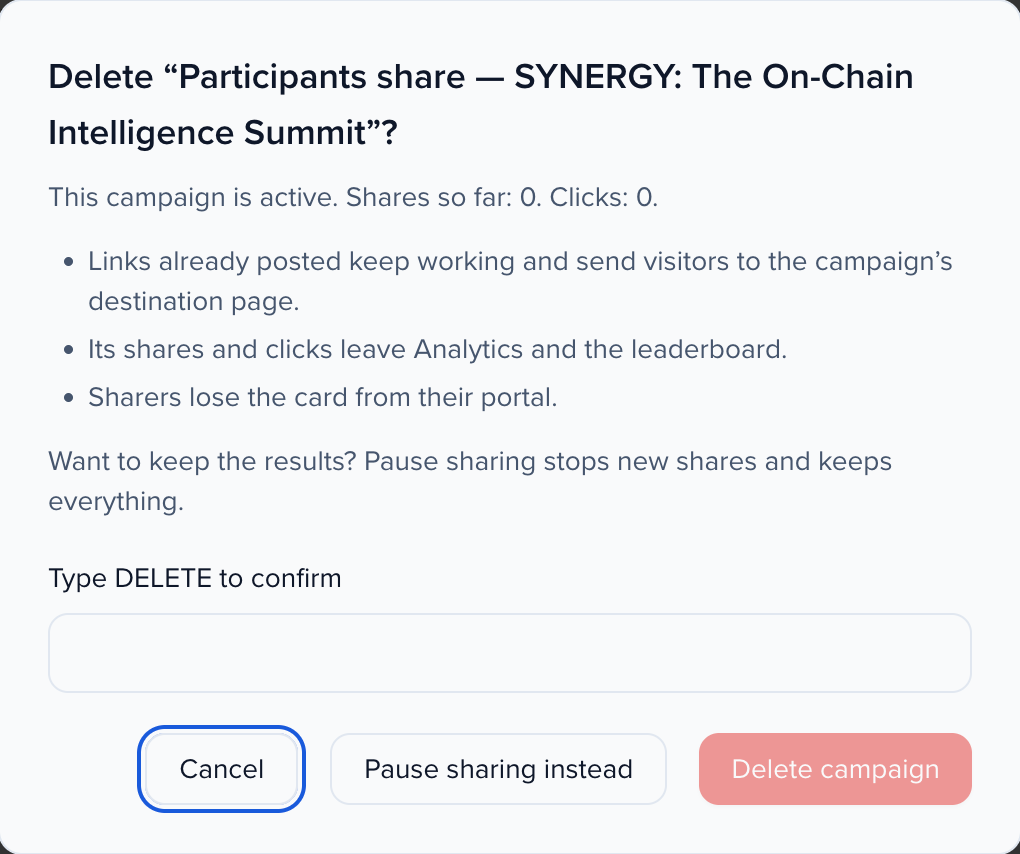
Since this one was a demo, I’ll delete it. Campaign actions, Delete campaign. Deleting tells you exactly what happens. Links already posted keep working, the shares and clicks leave your analytics, and sharers lose the card. For an active campaign you type DELETE to confirm, and Pause sharing instead is right there if you’d rather keep the results. A draft nobody has shared just asks you once.
Every recipient gets a short link, a Sessionboard address ending in slash r and a short code, theirs alone. The address depends on your data region, so copy links from the campaign rather than typing them. A click on it is recorded, your tracking parameters and promo code are applied, and the visitor is forwarded to your destination, through the landing page if it’s on. Because the link is per person, every share and click attributes to the advocate, not just the campaign.
If you take one thing from this, it’s that a campaign is three decisions, who shares, what the card looks like, and where the link goes, and then one email to notify, or one link you share yourself. The Help Center article on Advocacy campaigns has the export formats and the FAQ. Team campaigns covers your own staff as the channel, and Exhibitors and sponsors covers the groups you can invite to share.
Why use it
Section titled “Why use it”Your participants, sponsors and exhibitors reach audiences your own channels can’t, and so does your own team. Advocacy gives each of them a ready-made card and post on the networks they actually use, including LINE, Instagram and WeChat for audiences in Asia and on mobile. Every click is traced back to the person who shared and the channel they shared on, so you can see which advocates fill the room and reward the ones who do.
Before you start
Section titled “Before you start”- A register link — the URL your shares point at. Sessionboard prefills your event website if it’s set under Settings → Event Details.
- Participants, sponsors, exhibitors or attendees on the event, with email addresses if you plan to notify them. With I’ll share a link or embed you don’t need anyone on the campaign at all.
- Your event branding, so the generated share cards carry your logo and colors.
Who can share
Section titled “Who can share”You pick who shares when you create the campaign. You can’t change it afterwards.
| Who | Who it is | Requires |
|---|---|---|
| Participants | Everyone with a participant role on the event’s sessions: speakers, chairs, moderators and any custom role you created, such as Panelists. The Recipients step lists the roles your event uses. | Nothing extra |
| Groups | Sponsor and exhibitor companies, sharing that they’re exhibiting or sponsoring | Nothing extra to email links, export them or use the open link — each company’s contacts on the event get the company’s card (see Advocacy for exhibitors and sponsors). Exhibitor Pro or Sponsor Pro only to target By portal or to show the campaign inside an exhibitor or sponsor portal. |
| Attendees | People registered for the event, sharing that they’re going | Attendees from a registration platform connected in Apps with attendee sync on, or a list you import — or none at all with I’ll share a link or embed. Only confirmed or checked-in attendees who have not opted out of marketing are included. |
| Your team | Your own staff, posting to their own LinkedIn from posts you schedule | Nothing extra. Slack or Microsoft Teams connected to deliver there (any organization can connect them); email works without either. See Team campaigns. |
Participants, sponsors, exhibitors and attendees are your event community. Your own staff are your team.
The Campaigns list
Section titled “The Campaigns list”Go to Marketing → Advocacy. The Campaigns tab lists every campaign on the event, event community and team campaigns together: Name, Shared by, Status, Sharers, Shares, Clicks and Updated. Click a name to open the campaign.
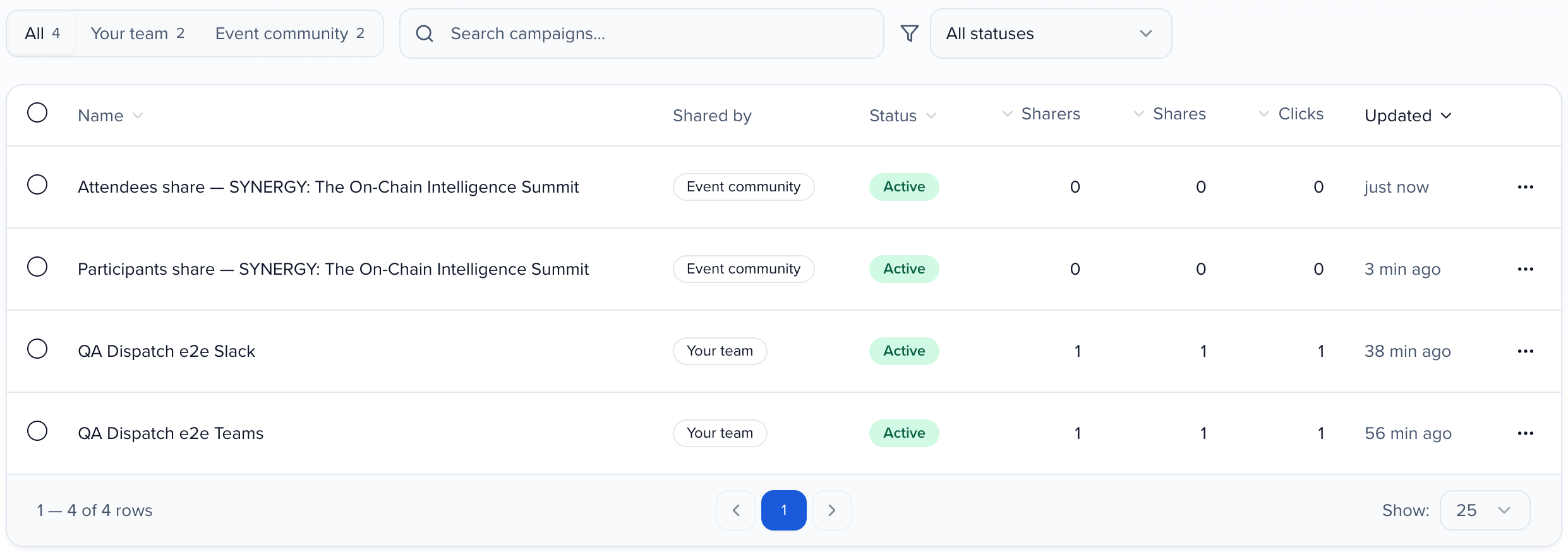
- All, Your team and Event community narrow the list to one kind of campaign. Each shows how many campaigns it holds.
- Search campaigns… and the status filter (Draft, Scheduled, Active, Paused, Ended or completed) work across both kinds.
- The ⋯ menu on a row has Edit, Duplicate (team campaigns), Pause sharing or Resume sharing, and Delete….
- Tick campaigns to act on several at once: Export assets (event community campaigns) or Delete.
At the organization level, Marketing → Advocacy has a Your team section with every team campaign in the organization and New team campaign.
Start a campaign
Section titled “Start a campaign”Click New campaign. Who’s sharing it? asks one question:
- Your event community (the default) opens Quick Launch, described below.
- Your team opens the team campaign builder. See Team campaigns.
Launch a campaign
Section titled “Launch a campaign”Choose Your event community and click Continue. This opens Quick Launch — five steps, with a live preview on the right that shows exactly what one of your advocates will see. Use Previewing as at the top to switch which person the preview follows. The longer campaign editor is for changing a campaign that already exists.
Build
Choose who’s sharing — Participants, Groups (sponsor and exhibitor companies) or Attendees (the tile shows how many are eligible, for example 120 eligible of 150 attendees). With no eligible attendees yet, you can Import an attendee list right there or switch on Open link — anyone with the link can make their own card. Optionally give the campaign a name, then pick a Format: Image for a static graphic, Animated for a moving graphic, or Media to share your own videos, clips, audiograms, slide videos or quote cards from the Media library (see Share your own media through Advocacy).
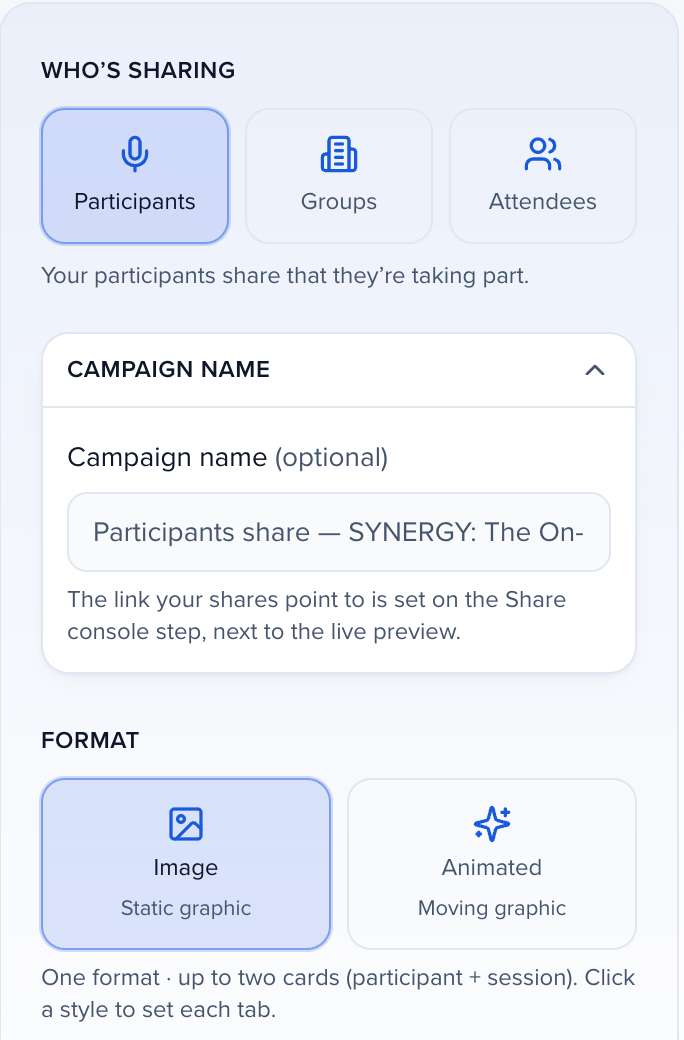
The card builds itself from your event: the Designer section carries your brand color, font, logo and background, and the Background field starts with the background photo from your event’s branding (a brand-color gradient when the event has none) — pick another image there to use a different one on this campaign’s cards. The Card style strip on the right offers a set of looks for Participant cards and, separately, Session cards — click a style to set each tab, or pick Don’t use session cards to give participants their participant card only. Layout and Card options (landscape, square, portrait) are there when you want them, but nothing here is required.
A session card that lists several people prints each person’s role under their name: Speaker, Moderator, Chairperson or the name of your custom role. The person sharing gets their own role too.
To let each advocate pick their own backdrop, add up to five extras under Background choices for advocates in the Designer. Click + for a photo (upload, your event library, or stock photos) or a style. Image cards offer Brand color; animated cards also offer Gradient, Glow, Solid, Dots, Grid and Diagonal. The background you designed stays the default, and hover a tile to remove it. Advocates see a Background row on their share page and their pick carries through to what they post or download.
Recipients
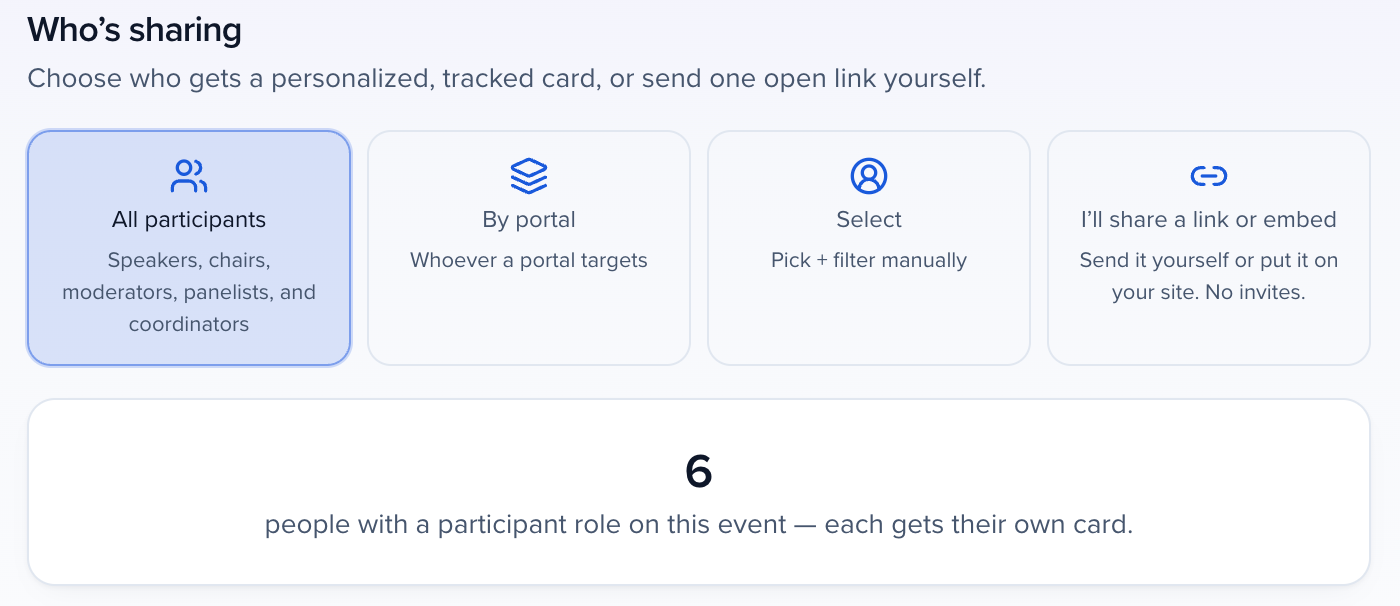
Choose who gets a personalized, tracked card:
- All participants — everyone with a participant role on the event. The tile lists the roles your event uses, custom roles included (for example Speakers, chairs, moderators, panelists, and coordinators). For Groups it is All companies, and for Attendees All attendees.
- By portal — whoever a portal targets.
- Select — pick and filter people yourself. For an Attendees campaign, each row shows the attendee’s name with their email and company underneath, and an attendee with no name is listed by email.
- I’ll share a link or embed — nobody is invited and no email goes out. You send one link yourself, or put the card on your website. See Share a link or embed instead of inviting people.
The count of people who will each get their own card updates underneath. Click Continue to share page. If you come back to this step before launching, it reopens on the people and filters you picked.
Share page
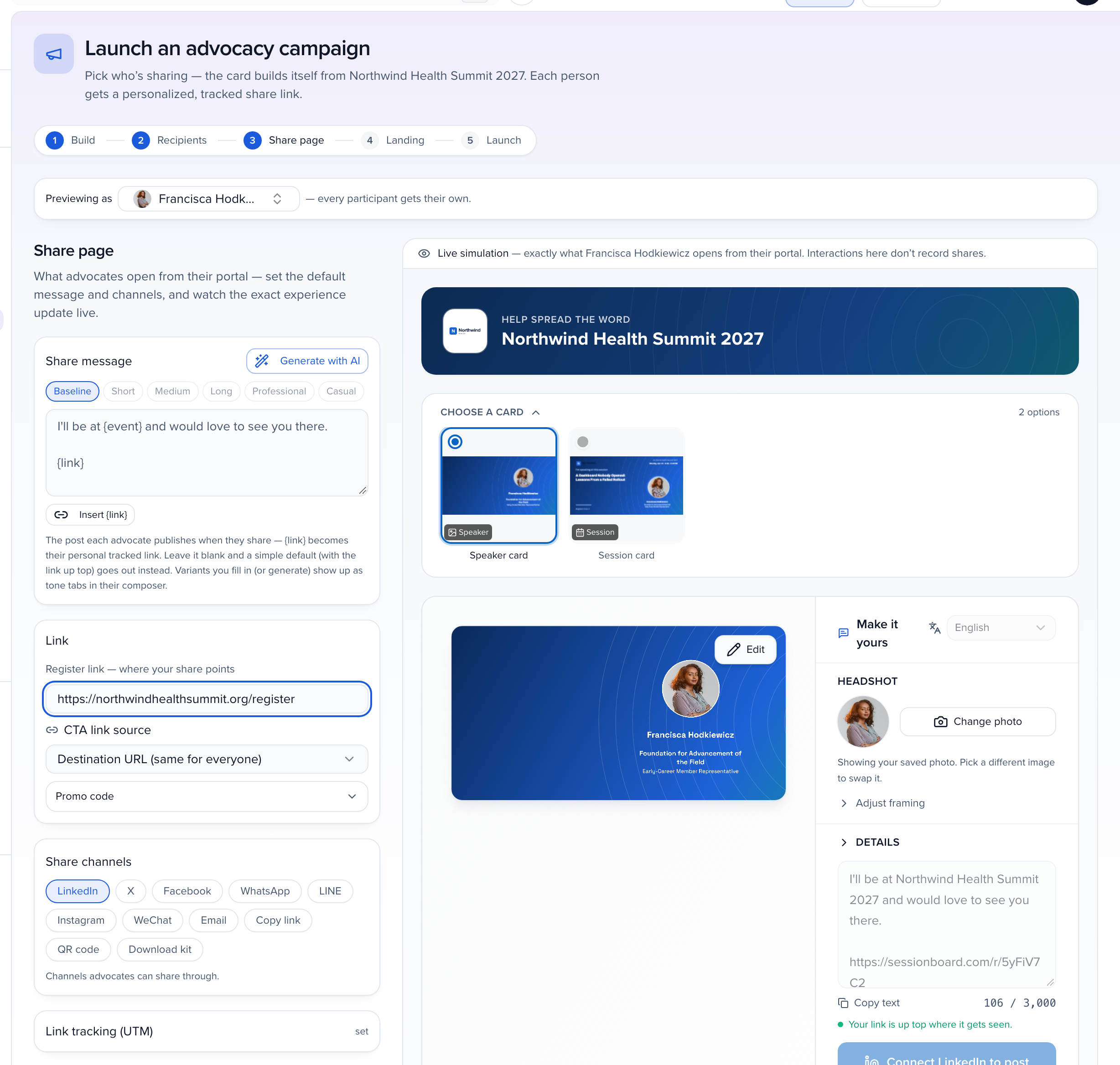
This is what advocates open from their portal, so you set the defaults here and watch the simulation update live:
- Share message — the post each advocate publishes.
{link}becomes their personal tracked link; Generate with AI drafts variants (Short, Medium, Long, Professional, Casual). Leave the variants empty and each advocate gets three drafts of their own to choose from; see Share your event card. - Link — the Register link your shares point to. It must start with
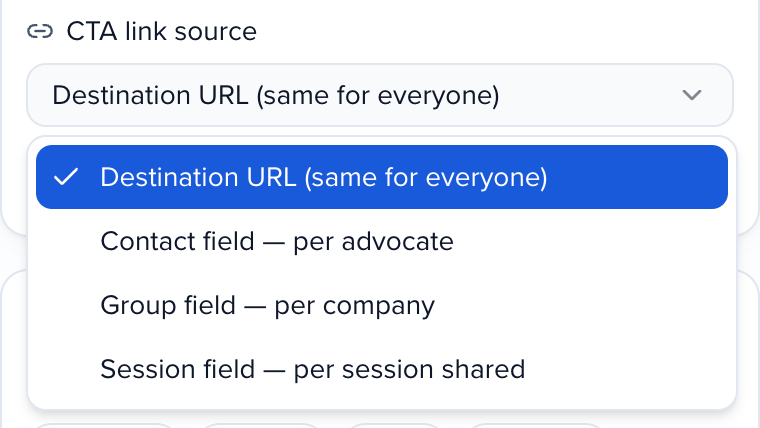
https://; Quick Launch cannot continue without it. CTA link source sets where each share points: Destination URL (same for everyone), Contact field — per advocate, Group field — per company (Groups campaigns, a link field on each company’s record, such as its booth page) or Session field — per session shared. A company whose group field is empty uses the register link. Promo code is optional. - Share channels — LinkedIn, X, Facebook, WhatsApp, LINE, Instagram, WeChat, Email, Copy link, QR code and Download kit. Toggle the ones you want advocates to have. A new campaign starts with LinkedIn only; see How each channel shares.
- Link tracking (UTM) — set by default; open it to change the source, medium and campaign values.
- Conversion tracking — see who registers or buys after clicking. See Track conversions from Advocacy.
With nobody assigned (I’ll share a link or embed), the simulation uses a sample person or company from your event, or made-up details when the event has none yet, and says so above the preview.
Landing
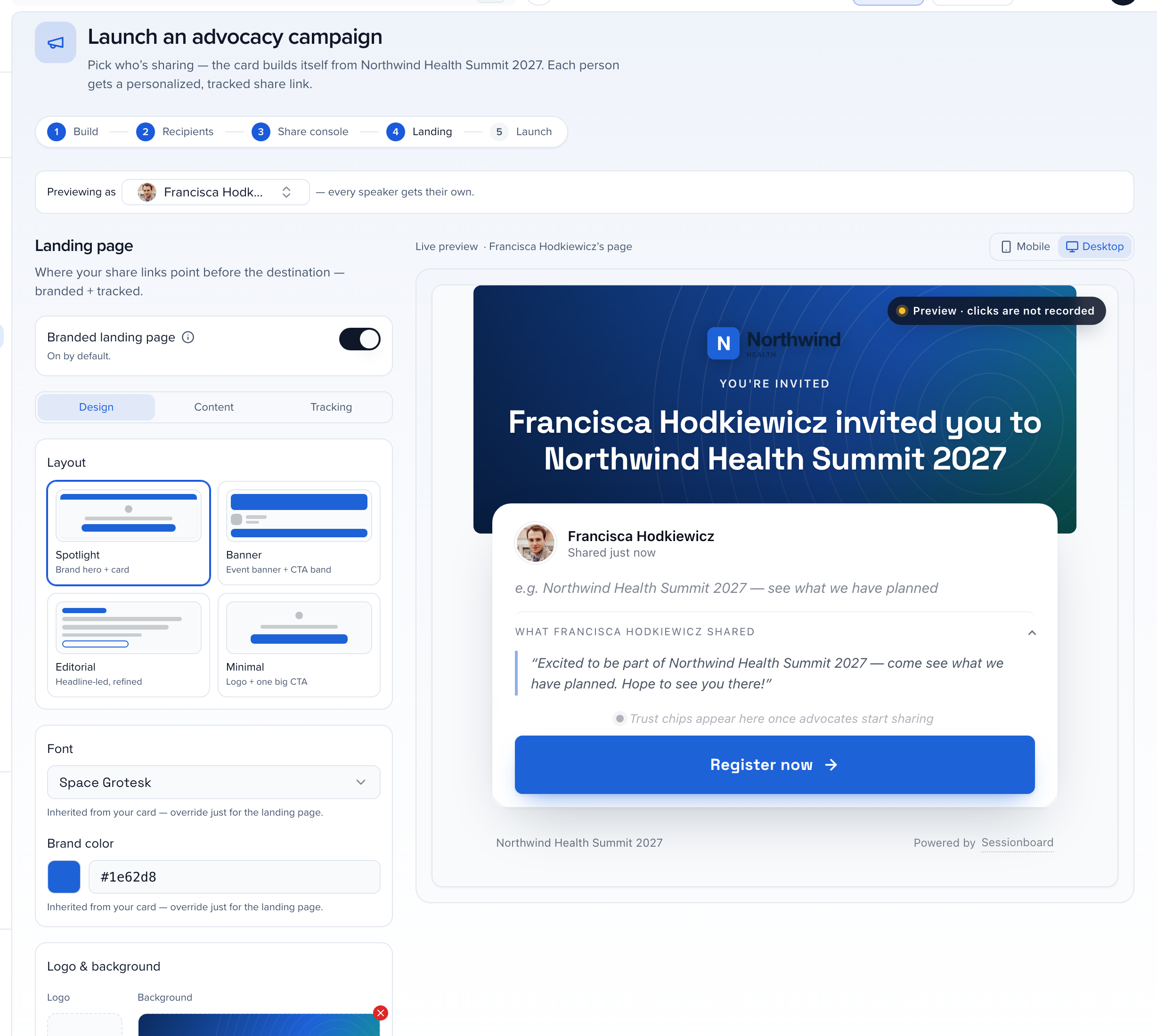
The Branded landing page is on by default: people who click a share see a short branded page before they are forwarded to your destination. Pick a layout — Spotlight, Banner, Editorial or Minimal — and adjust font, brand color, logo and background on the Design tab; Content and Tracking hold the copy and the analytics settings. The preview on the right can be switched between mobile and desktop.
Launch
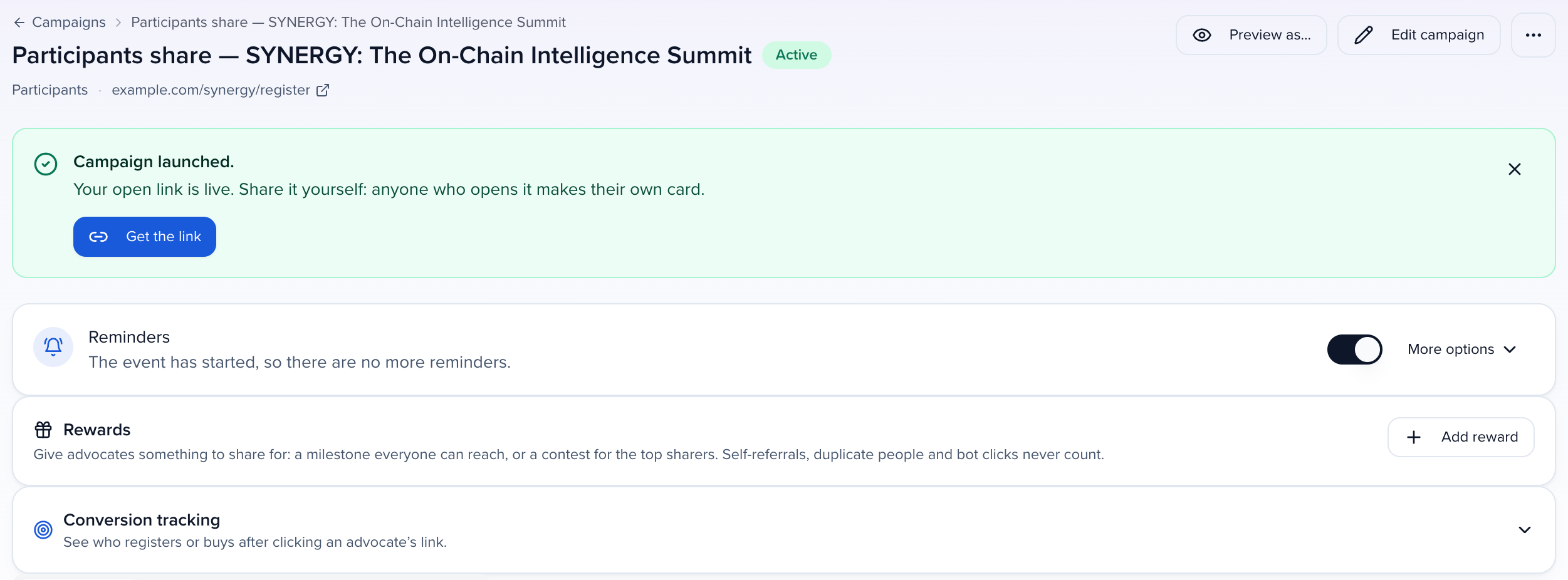
Review & launch shows the cards going out, as one advocate will see them, and the summary — recipients, templates, channel, name, audience and destination. Click Activate campaign.
The campaign page opens with Campaign launched. and the next step: Send them their links when people are assigned, or Get the link when you chose I’ll share a link or embed.
Notify your advocates
Click Send them their links (or Campaign actions → Notify recipients later) to email everyone their personal link to their share page. You can edit the subject and message; the default subject is “Your share card for your event is ready”. The email comes from you via Sessionboard, and replies reach you; see Emails your advocates get. The default message opens Hi {{first_name}},: {{first_name}} becomes each recipient’s first name, and is left out (Hi,) for someone with no first name on file. Once some people have been emailed, the dialog asks who to send to: Everyone, or Only new — the people never successfully emailed for this campaign, including anyone skipped earlier for a missing or invalid address. Each option shows how many people it reaches.
Nothing reaches your assigned advocates until you send this, so don’t skip it. A campaign on I’ll share a link or embed has no one to notify: share its link or embed instead.
Share a link or embed instead of inviting people
Section titled “Share a link or embed instead of inviting people”Choose I’ll share a link or embed on the Recipients step when you’d rather hand out one link yourself — in a newsletter, a participant packet, a Slack message — or put the card on your website. Nobody is invited and no email goes out. Anyone who opens the link or the embed gets their own card and their own tracked link.
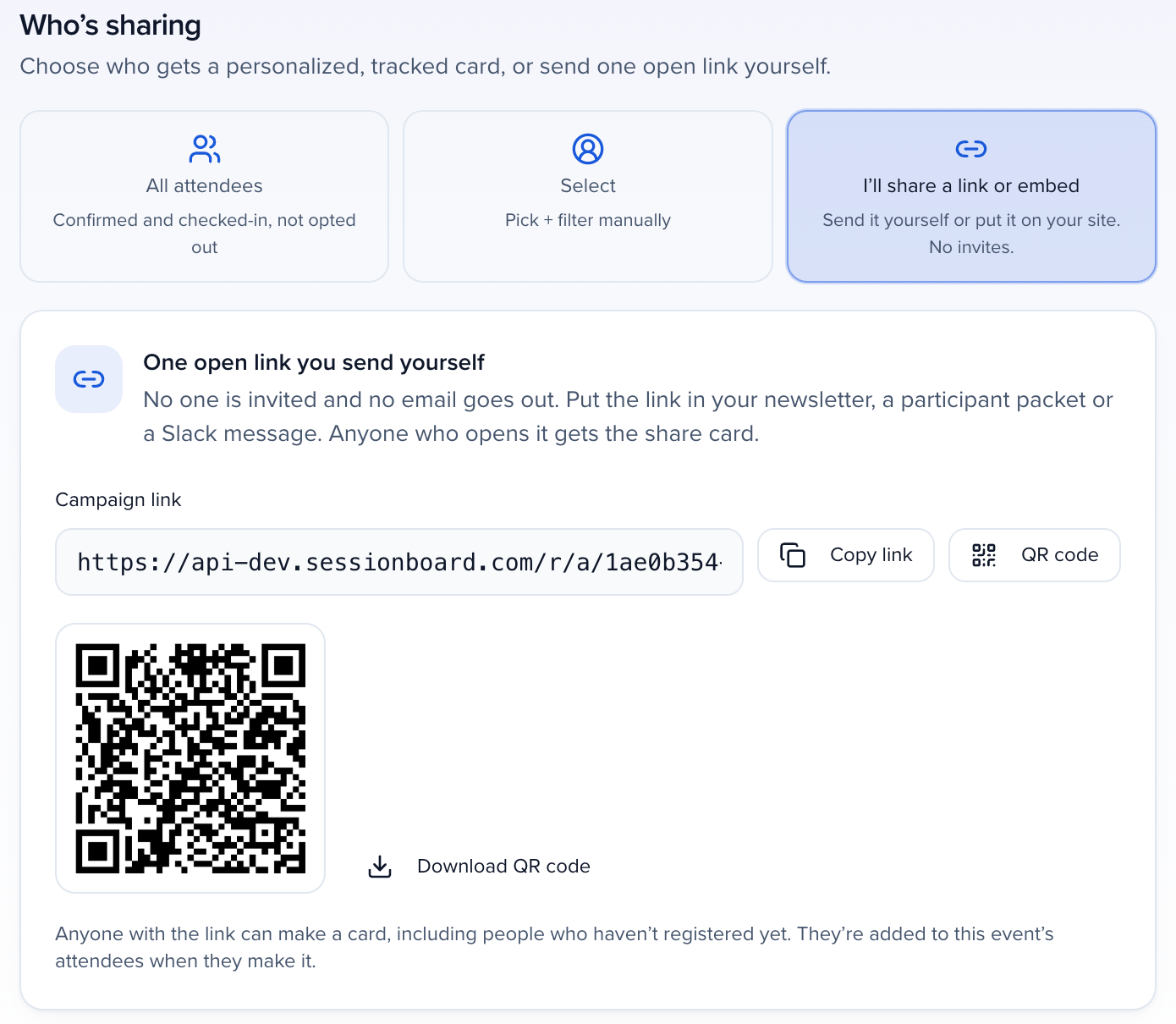
What each audience gets:
- Attendees — the campaign link, with Copy link and a QR code you can download. Anyone with the link can make a card, including people who haven’t registered yet; they’re added to the event’s attendees when they make it.
- Groups — the campaign link and QR code. Every exhibitor and sponsor on the event can sign up through it, not only companies you picked. Underneath, Let companies that aren’t on the event yet sign up decides what happens when someone types a company you don’t have; see Let new companies sign up.
- Participants — participants share through the embed on your page. After you launch, get the embed code from the campaign’s Share tab. Every participant on the event can use it.
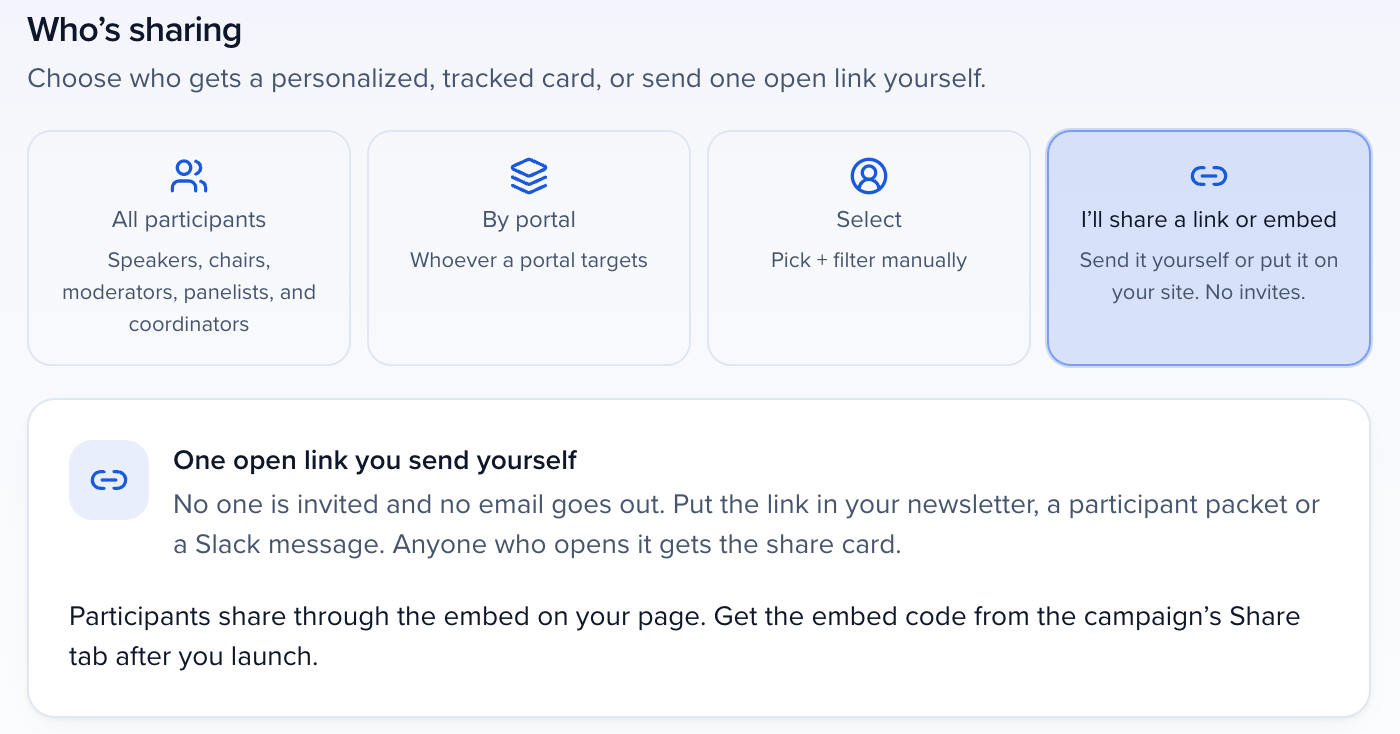
The Share page step still simulates the advocate’s page with a sample person or company, and the campaign launches with nobody assigned.

Bring in your attendees
Section titled “Bring in your attendees”An Attendees campaign reads the event’s attendee list. Fill it any of these ways:
- Sync from your registration platform. Connect Cvent, Swoogo, Swapcard, Visit, LiveBuzz, Bizzabo or Expo Platform in Apps and turn on its attendee sync.
- Import a list. On the event’s Attendees page, click Import attendees (also offered on the campaign’s audience step when nobody is eligible yet). It is the same importer as Importing data: Email is required, and Registrant ID, Registration Status, Marketing Opt-in and Headshot are optional columns. Tick These attendees agreed to receive marketing from us for rows whose opt-in cell is blank.
- Let attendees sign themselves up with the campaign’s open link.
Each attendee’s card shows their first and last name, company and job title, and the headshot they add on their share page — or, until they add one, the Headshot from your import.
Reach your attendees
Section titled “Reach your attendees”Open an Attendees campaign and select the Share tab. Everything you hand to attendees is there, ready to copy.
Open link
Section titled “Open link”Turn on Open link — anyone with the link can make their own card to get one link for the whole campaign. Anyone who opens it enters their name, email, company and job title, ticks the consent box and gets their own card straight away — no attendee list needed. Put it in a newsletter, on the event website or on your registration confirmation page.
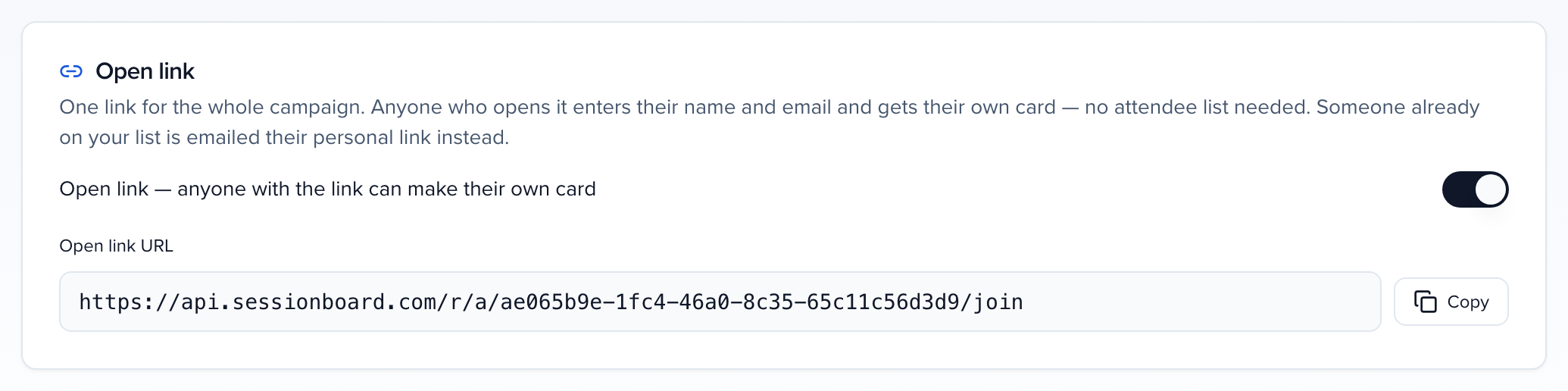
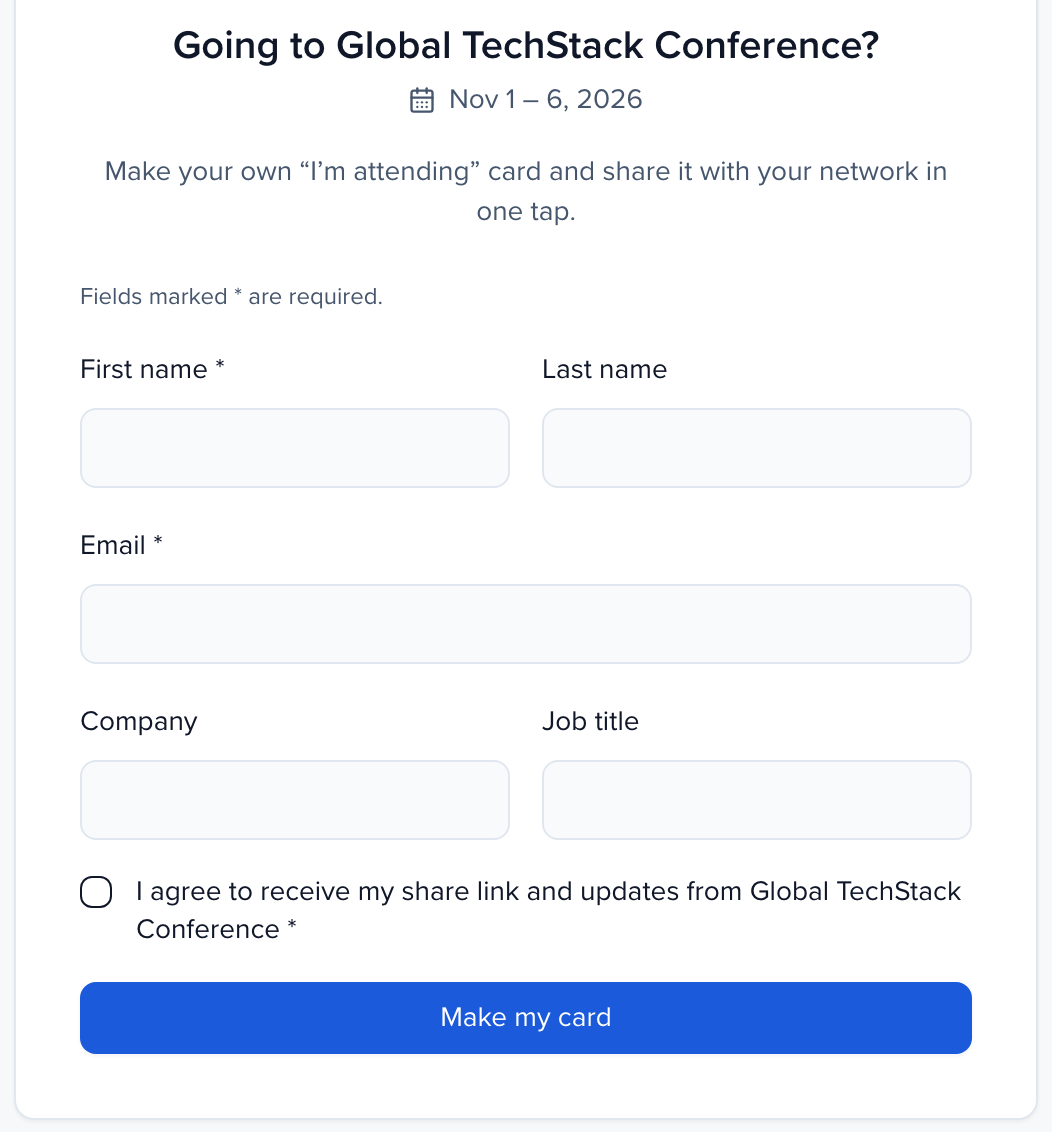
Someone whose email is already on your attendee list is never shown a card on the page: they see Check your inbox, and if they can share, Sessionboard emails them their own personal link. An attendee on your list who is cancelled, waitlisted or opted out of marketing gets no card and no email. The signup page opens in the event’s language, else the visitor’s browser language (English, French, German, Spanish or Arabic).
Personal links in your registration emails
Section titled “Personal links in your registration emails”Put each attendee’s personal link in your registration platform’s confirmation email (or on its confirmation page). The link opens that attendee’s share page with their card ready to share — no login. On the Share tab, pick your registration platform to get the link with your merge fields marked.
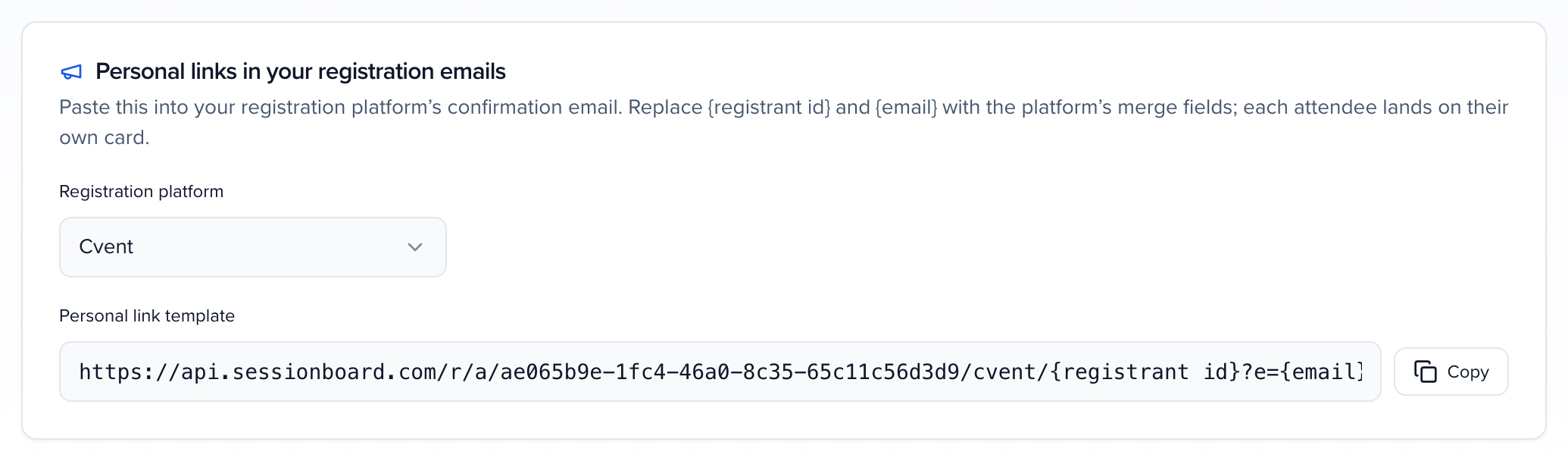
The link has this shape:
https://<share link host>/r/a/<campaign id>/<platform>/<registrant id>?e=<registrant email>- Share link host — copy it from any share link the campaign shows, so the link points at your region.
- Campaign id — the part of the campaign page’s address after
/campaigns/. - Platform —
attend,cvent,swoogo,swapcard,visit,livebuzz,bizzabo,expo_platformorcsv: the platform the attendee registered on. Useattendfor registrations taken in Sessionboard Attend, andcsvfor an imported list — the registrant id is then the row’s Registrant ID, or its email if the row had none. - Registrant id and registrant email — your platform’s merge fields for the registrant’s id and email address.
Add ?e= with the registrant’s email (URL-encoded) for every platform except Attend (an Attend registration id is a random uuid, so it is accepted on its own). For Cvent, always send it as well: a Cvent id is only accepted on its own when it is a random (version 4) uuid. If the id, email or campaign don’t match an eligible attendee on an active Attendees campaign, the link shows a This link isn’t available page. A malformed link (a mistyped id, for example) shows the same page.
What each platform needs:
| Registration platform | <platform> | Registrant id | ?e= email | Registered after the last sync |
|---|---|---|---|---|
| Cvent | cvent | Cvent attendee id | Send it | Looked up in Cvent on click |
| Swoogo | swoogo | Registrant id | Required | Looked up in Swoogo on click |
| Visit | visit | Visitor id | Required | Looked up in Visit on click |
| LiveBuzz | livebuzz | Customer id | Required | Looked up in LiveBuzz on click |
| Swapcard | swapcard | Person id | Required | Sync first |
| Bizzabo | bizzabo | Registrant id | Required | Sync first |
| Expo Platform | expo_platform | Registrant id | Required | Sync first |
| Uploaded list | csv | Registrant ID column, or email | Required | Import first |
“Looked up on click” works only when the event is mapped to that platform’s connection in Apps, its attendee sync is on, and the connection’s access check doesn’t show attendees as blocked. For Cvent, that means the Cvent API client needs the event/attendees:read scope. Grip has no attendee sync yet, so it has no personal links.
Embed on your confirmation page
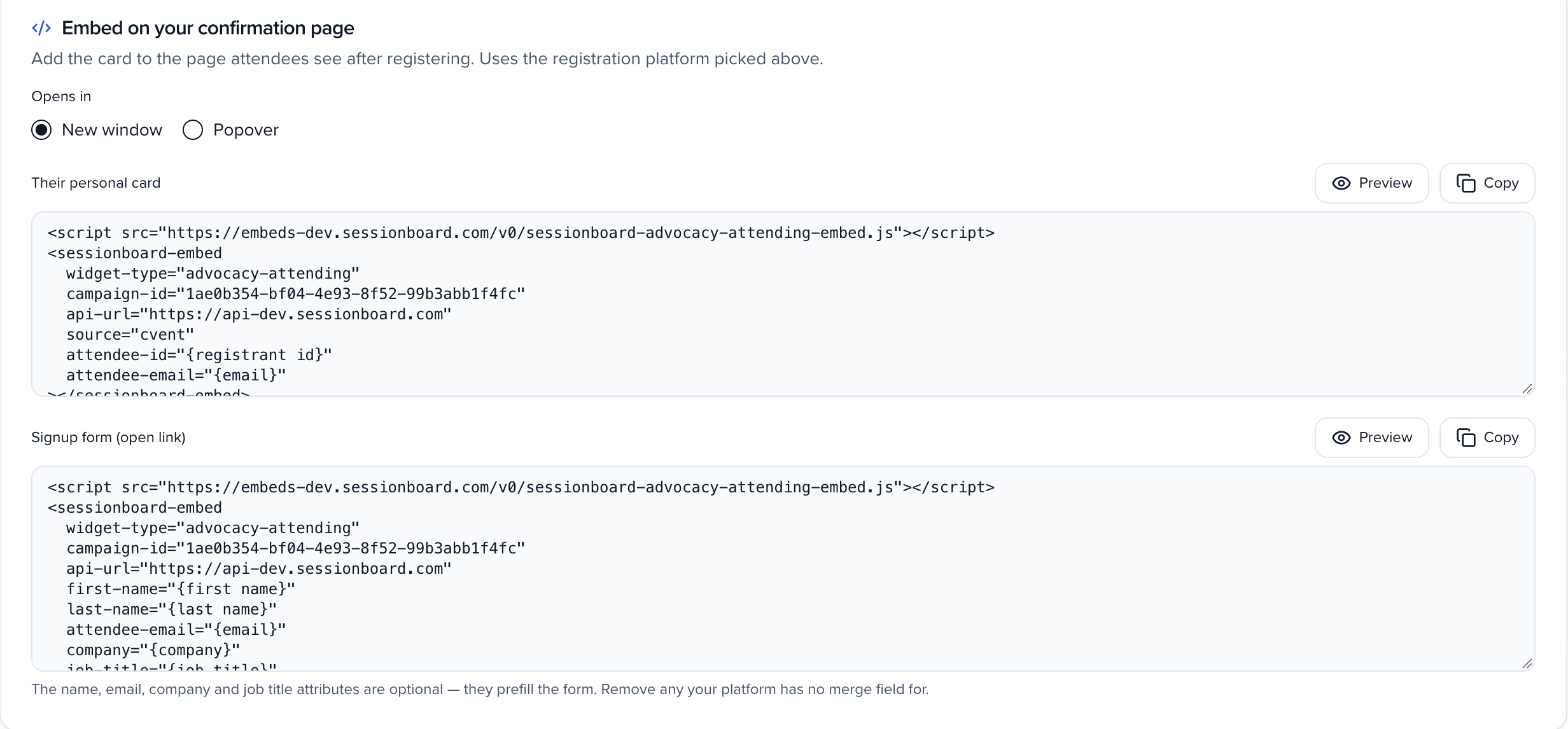
Section titled “Embed on your confirmation page”If your registration platform lets you add HTML with a script to its confirmation page, copy one of the two embeds from the Share tab: Their personal card or Signup form (open link). Preview beside each code runs the real embed with sample values, so you can see it before you paste it. Choose Opens in: New window or Popover above the codes. Everything about the embeds — attributes, the popover, phones, consent and languages — is in Embed Advocacy cards on your website.
Where scripts aren’t allowed, link to the open link instead.
Email your attendees from Sessionboard
Section titled “Email your attendees from Sessionboard”Under Email attendees their links on the Share tab, click Email attendees (or use Campaign actions → Notify recipients) to send every eligible attendee their personal link. The email’s button, link and footer are written in the event’s language; you write the message. Only new skips anyone already emailed for this campaign.
Export personal links
Section titled “Export personal links”Under Export personal links (CSV), click Export CSV for one row per attendee with their personal link, for a mail merge in your own email tool. The file holds live sign-in links, so treat it like a password list.
Advocacy for exhibitors and sponsors
Section titled “Advocacy for exhibitors and sponsors”A Groups campaign gives every exhibitor and sponsor company a branded card and a tracked link. The people who share it are the company’s contacts on the event: the same people listed under the company on its record and in the Exhibitor portal. Each of them gets their own link to the company’s card, and nobody needs a portal login or a Sessionboard account.
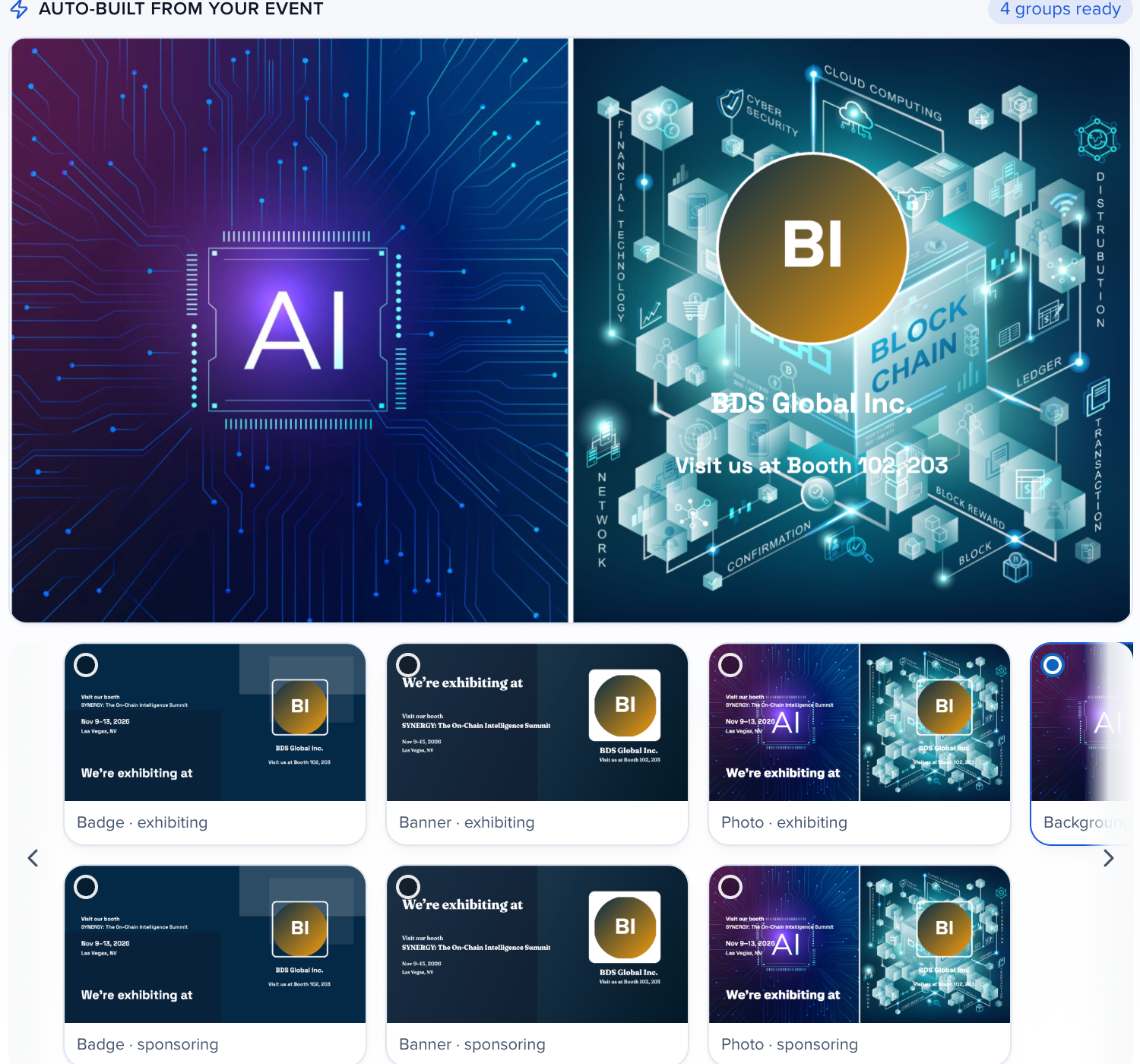
The card styles for Groups come first in the Card style strip: Badge, Banner and Photo, each in an exhibiting and a sponsoring version. Whichever you pick, the card’s role line follows each company’s type: an exhibitor’s card reads “We’re exhibiting at your event” with its booth (“Visit us at Booth 1214”), and a sponsor’s reads “Proud sponsor of your event” with its tier (“Gold Sponsor”). Lines you typed yourself are kept. The company’s name prints once, with the booth or tier under it, and the company logo fills the photo slot.
To start one from an exhibitor or sponsor portal, open the portal’s Assign Items step and click Create campaign under Advocacy campaigns. Quick Launch opens on Groups, with that portal already chosen under By portal.
To point each company’s shares at its own page, such as its booth listing, set CTA link source to Group field — per company on the Share page step and pick a link field on the company record. A company whose field is empty uses the register link.
Open a Groups campaign and select the Share tab. Everything you hand to exhibitors is there.
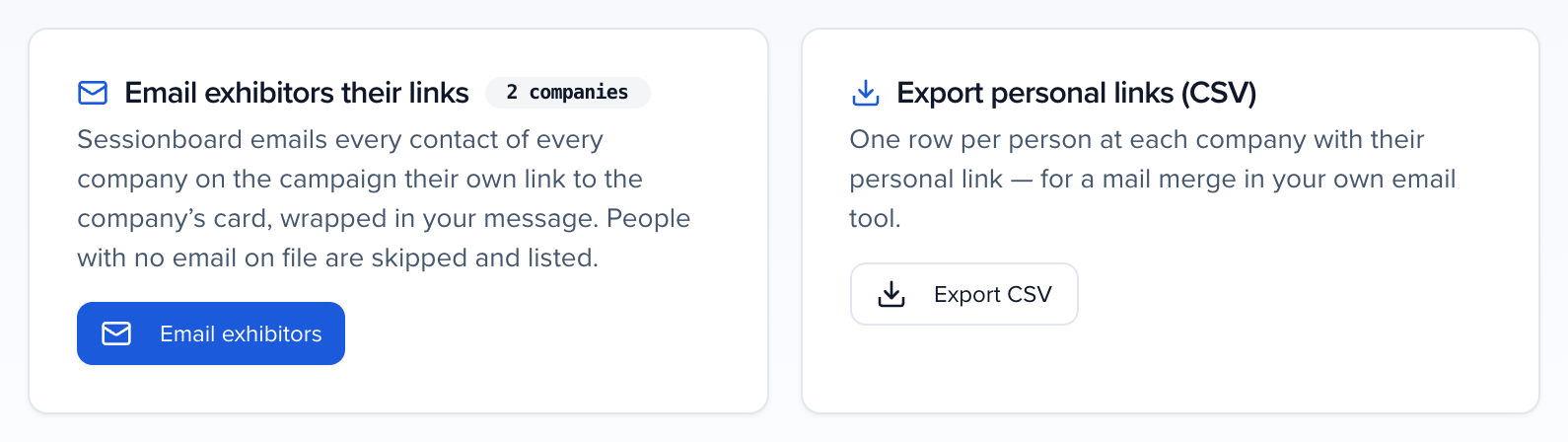
Email exhibitors their links from Sessionboard
Section titled “Email exhibitors their links from Sessionboard”Under Email exhibitors their links, click Email exhibitors (or use Campaign actions → Notify recipients). Sessionboard emails every contact of every company on the campaign their own link to the company’s share page, wrapped in your message; {{first_name}} becomes each person’s first name. The dialog counts people, not companies, and its Recipients tab lists each person with their email and company. Copy or Open on a row gives that person their own link. People with no email address on file are skipped and listed in the result, and a company with no contacts on the event is counted separately so you can add people to it. Only new skips anyone already emailed for this campaign.
On the campaign’s Recipients tab each company row shows how many of its people have been emailed (for example 2 people · 1 notified). Expand the row to see each person and the date they were last emailed. Tick companies to email just those, or use Copy magic link on a company’s row for a link that opens the company’s share page for whoever you hand it to.
Every email and every export creates fresh personal links. Links sent earlier keep working until they expire.
Export personal links
Section titled “Export personal links”Under Export personal links (CSV), click Export CSV for one row per person at each company — Name, Email, Company, Recipient type (Group contact), the engagement columns and their personal Magic link — for a mail merge in your own email tool. A company with no contacts on the event gets a single row with no link. The file holds live sign-in links, so treat it like a password list.
Open link
Section titled “Open link”Turn on Open link — anyone at a company on this campaign can get its card for one link for the whole campaign. Put it in your exhibitor newsletter, the exhibitor manual or on the exhibitor services page. Anyone who opens it enters their name, email and company and gets the company’s card straight away — useful for the booth staff and marketing contacts the organizer never added to Sessionboard.
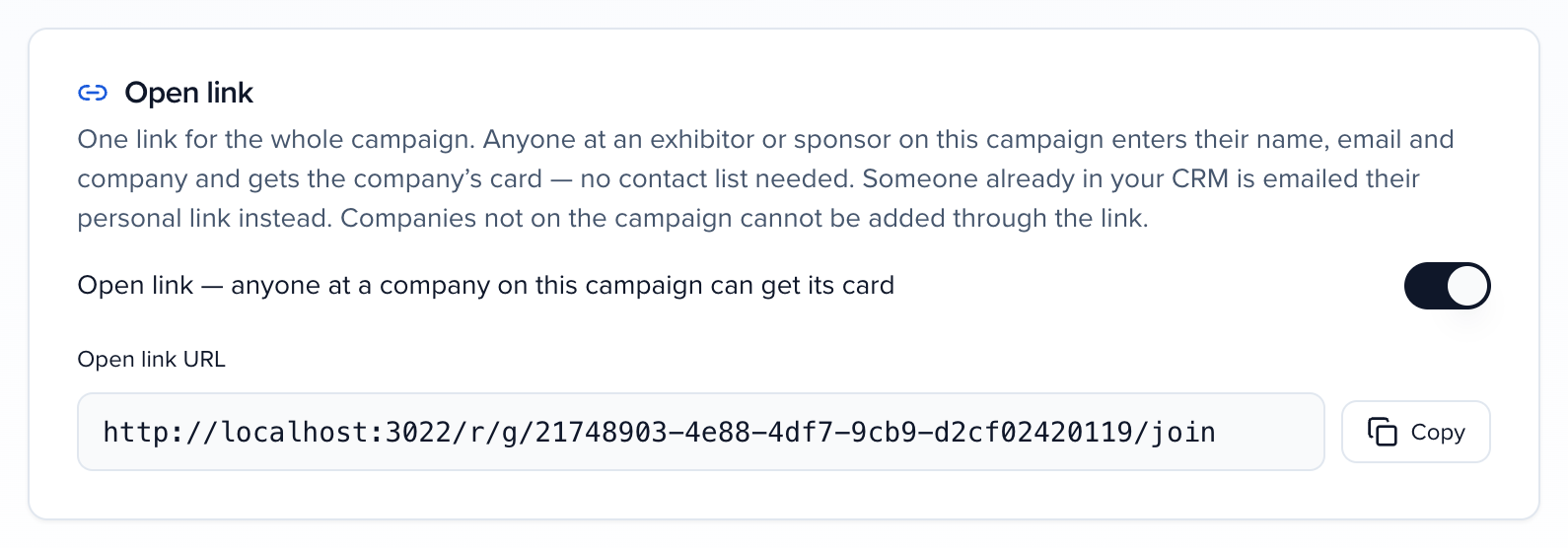
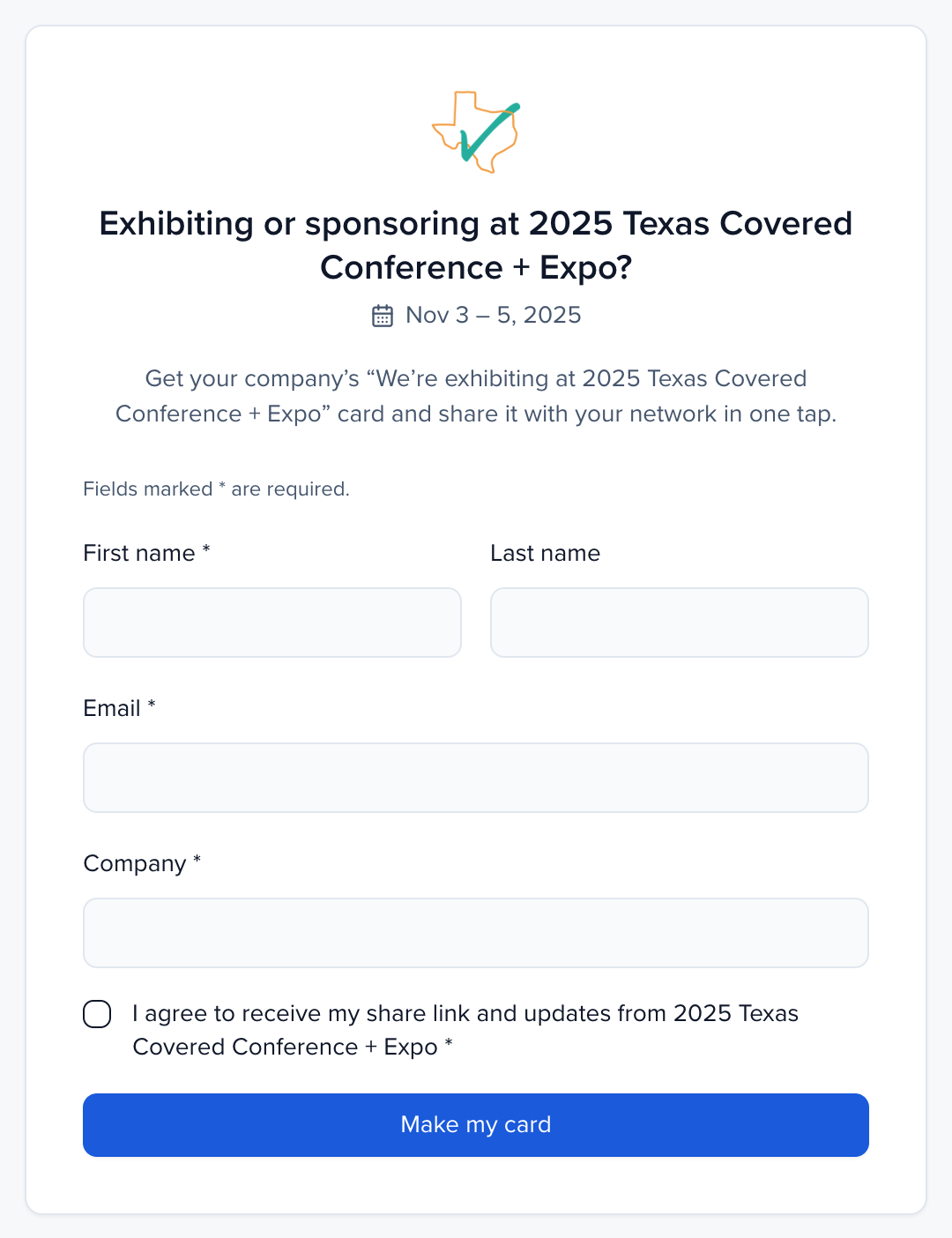
The rules that keep it safe:
- Which companies can sign up. The page suggests the companies on the campaign — on an I’ll share a link or embed campaign, every exhibitor and sponsor on the event. A company that isn’t there is refused, unless you let new companies sign up (below).
- A first-time email becomes a contact of that company on the event, so they appear under the company’s record from then on, and they get the card at once.
- An email already in your CRM is never shown a card on the page. The visitor sees Check your inbox, so nobody can open a colleague’s share page by typing their address. If that person is already a contact of the company, they’re emailed their own personal link. If they aren’t yet, they’re emailed a link to confirm it was them first. They’re added to the company only when they open it, and then their card opens. Until then, nothing changes, so typing someone’s address can’t put them on a company’s contact list. The confirmation link works for 3 days; after that, the page asks them to enter their details again for a new one.
Let new companies sign up
Section titled “Let new companies sign up”Let companies that aren’t on the event yet sign up is on the Recipients step (with I’ll share a link or embed) and under the open link switch on the Share tab. It is on for new campaigns and off for campaigns created before it existed.
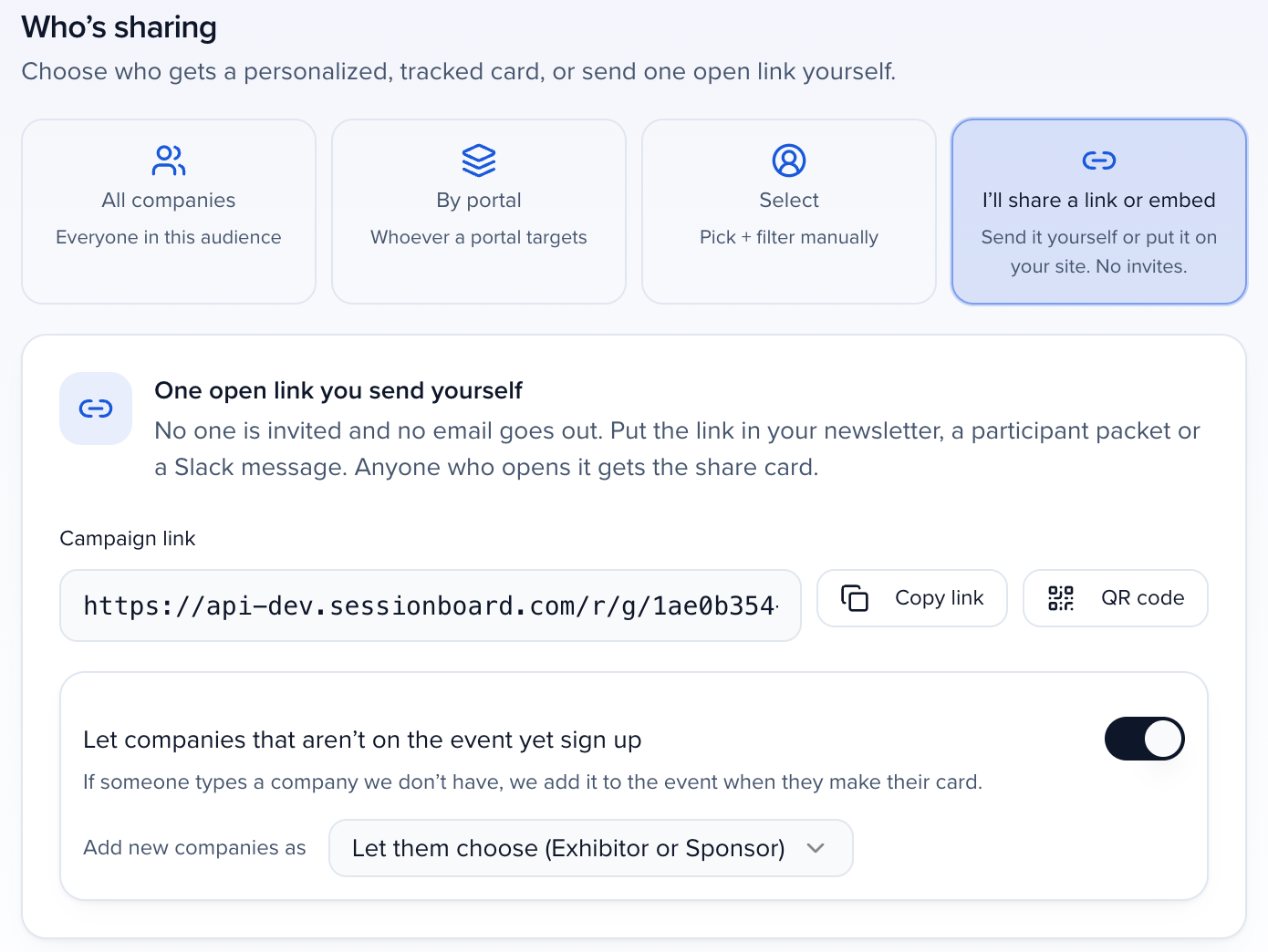
When it’s on and someone types a company you don’t have, the signup page says the company will be added, asks whether they’re Exhibiting or Sponsoring, and offers an optional Company website. When they make their card, the company is added to the event as an exhibitor or sponsor, and they become its contact. A company with the same name already in your organization is reused rather than duplicated. Add new companies as decides the type: Let them choose (Exhibitor or Sponsor), Exhibitor or Sponsor. The number of companies that can be added this way in an hour is limited, to stop misuse.
Embed the company card on your page
Section titled “Embed the company card on your page”Under Embed on your page on the Share tab, copy Their personal card (a company’s card and Make it yours, for the exhibitor portal or manual) or Signup form (open link). The card’s wording follows the company’s type at the event. The attributes and options are in Embed Advocacy cards on your website.
Embed a participant’s card on your page
Section titled “Embed a participant’s card on your page”A Participants campaign has a Share tab too, with Embed on your page: Their personal card, for your speaker portal or a participant landing page, and Email me my link form, which emails participants on the campaign their personal link. A campaign on I’ll share a link or embed admits every participant on the event. The attributes and options are in Embed Advocacy cards on your website.
Manage a live campaign
Section titled “Manage a live campaign”Open a campaign from the Campaigns list. The header has Preview as… (see the share page as any advocate), Edit campaign, and a Campaign actions menu with Notify recipients, Export assets, Pause, End campaign and Delete campaign. Below it are the Reminders, Rewards and Conversion tracking cards, then the Analytics, Recipients, Activity and Share tabs.
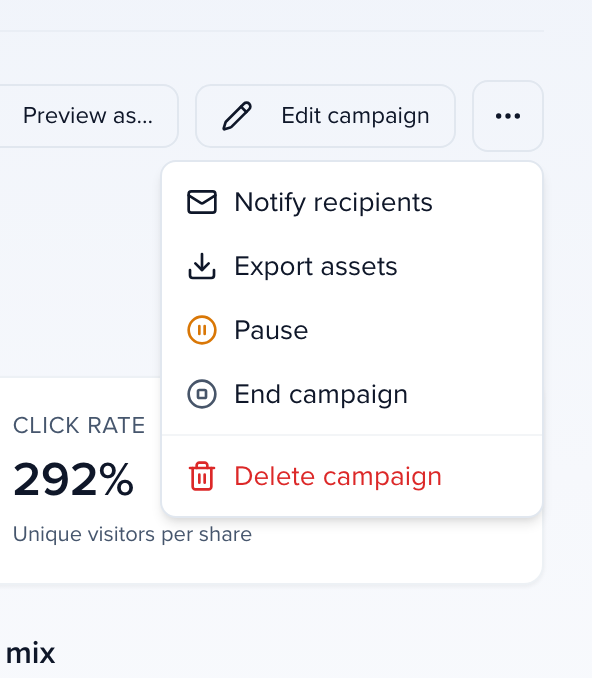
- Pause (or Pause sharing on the list) stops new shares and keeps every result. Links already posted keep working. Resume sharing picks up where you left off.
- Rewards gives advocates a milestone to reach or a contest to win. See Advocacy rewards and results.
Delete a campaign
Section titled “Delete a campaign”Choose Delete… on the campaign’s row, Delete campaign in Campaign actions, or tick several campaigns and click Delete.
- A draft nobody has shared asks Delete draft “name”? and goes on Delete draft.
- A campaign that has been shared lists what happens: links already posted keep working and send visitors to the campaign’s destination page, its shares and clicks leave Analytics and the leaderboard, and sharers lose the card from their portal (team campaigns: your team stops getting its posts). Type
DELETEto turn on Delete campaign. For an active campaign, Pause sharing instead keeps the results and stops new shares.
Emails your advocates get
Section titled “Emails your advocates get”Every email Advocacy sends — Notify, reminders, team campaign posts and nudges, reward unlocks, Email a colleague, and the links people ask for — is built the same way, so it reads as coming from someone they know:
- From a person. The sender name is the person behind it followed by “via Sessionboard”: you for Notify, the campaign owner for reminders and rewards, the teammate who set up a team campaign, the advocate for Email a colleague. Reply-To is that person’s address, so a reply reaches a colleague, not a no-reply mailbox. Links people ask for themselves come from “your organization via Sessionboard” and reply to the campaign owner. The address itself stays on Sessionboard’s sending domain, or your organization’s verified sender.
- A calm, specific subject. For example “Your share card for your event is ready”, “Josh asked you to share a post about your event” or “Reminder from Josh: share a post about your event”. A subject you typed yourself is kept.
- Your branding. The logo and color from your brand kit, or the event or organization logo, with a neutral header when there is none.
- One button, such as Open your share card, Open your share kit or See your results, and under it “If the button doesn’t work, use this link:” with a plain link that names the host.
- A footer that explains itself: why the person got the email (for example, that you added them to the campaign), “Questions? Reply to this email to reach name.”, “Sent by Sessionboard on behalf of your organization.”, and Why am I getting this? and Unsubscribe links. Every email also has a plain-text version.
- The event’s language, including Arabic, right to left.
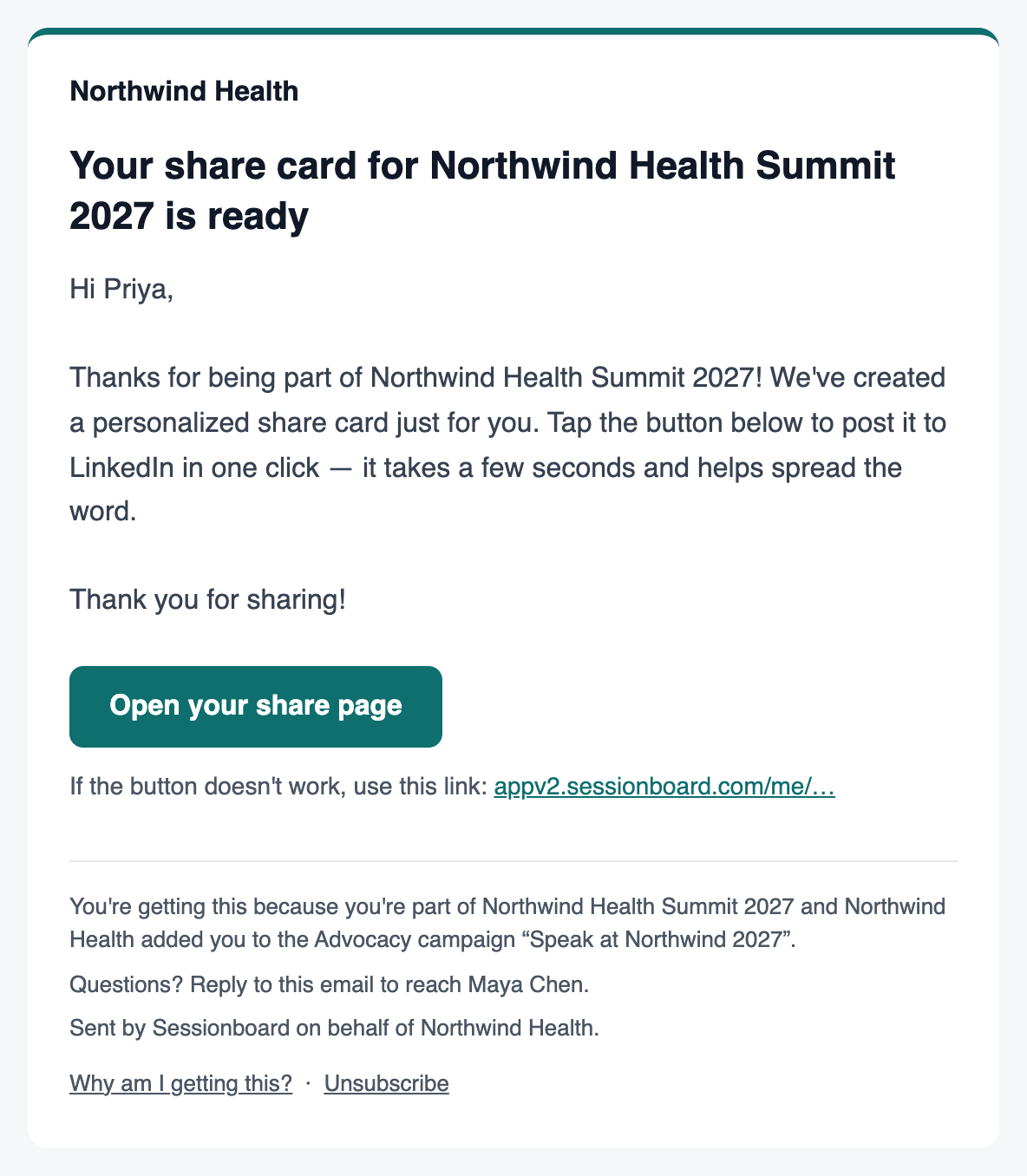
The Notify dialog’s preview shows the same button, link and footer note.
Unsubscribe
Section titled “Unsubscribe”Unsubscribe opens a page that explains who sent the email and why, and changes nothing until the person chooses Stop emails about this campaign or Stop all Advocacy emails from your organization. Mail apps that offer one-click unsubscribe do the same for the campaign. Sessionboard keeps only a fingerprint of the address, not the address itself.
After that, Notify, reminders, team campaign posts, nudges and reward emails skip the person; Notify lists them as skipped, and a team campaign shows them as skipped for each post. Rewards they earn stay earned. Emails a person asks for themselves — their own share link or a confirmation — and setup instructions a colleague sends have no unsubscribe link; they say “If you weren’t expecting this, you can ignore it.” instead.
Change who is on a live campaign
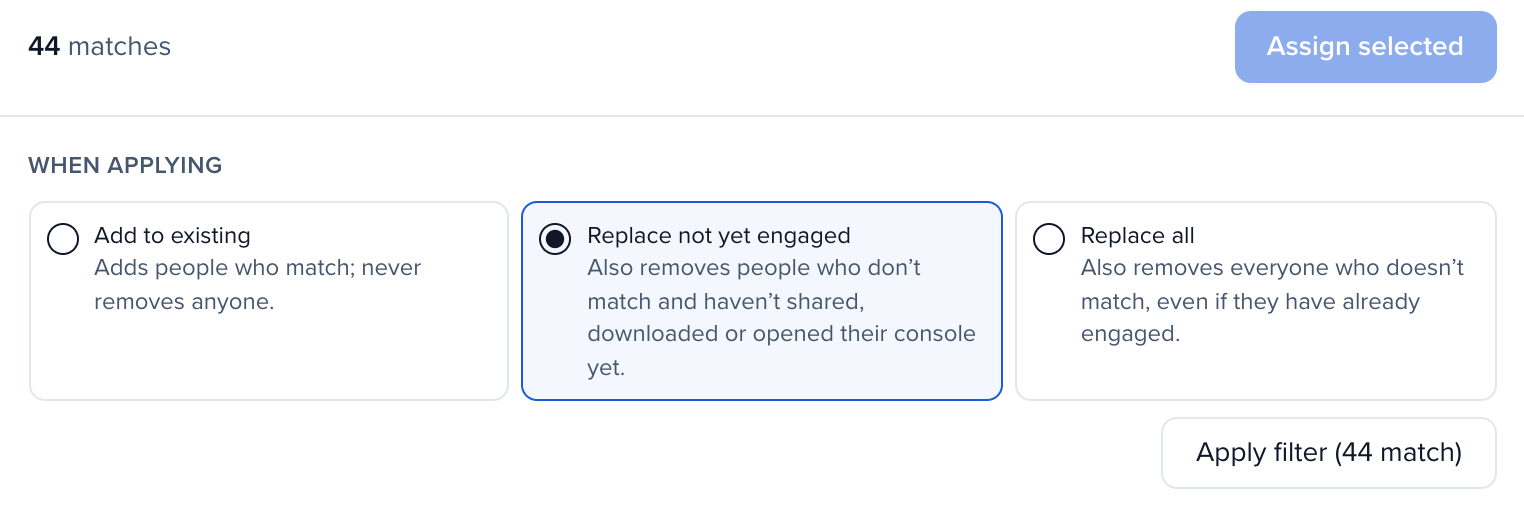
Section titled “Change who is on a live campaign”Open the campaign, click Edit campaign and go to Recipients. In Select mode, set the filters (for example, session status Accepted), then choose When applying:
- Add to existing (default) — adds the people who match. Nobody is removed.
- Replace not yet engaged — also removes people who don’t match and haven’t shared, downloaded their card or opened their share page yet. People who have engaged stay.
- Replace all — also removes everyone who doesn’t match, even if they have engaged.
People who already match are never touched. Before a Replace is applied, a confirmation shows exactly how many people will be removed; Cancel changes nothing. Removed people are not notified. Their share page link stops working and the campaign leaves their portal, but their past shares and clicks stay in your reports. Assigning them again later restores their access.
Moving a campaign from I’ll share a link or embed to Select limits its open link to the people and companies you pick.
How the links work
Section titled “How the links work”Every recipient gets their own short link: a Sessionboard address ending in /r/ and a short code. The host depends on the region your organization’s data is hosted in, so links from an EU-hosted organization start differently from US ones. Copy a link from the campaign rather than typing it. When someone clicks it, Sessionboard records the click, applies your UTM parameters and promo code, and forwards them to your destination — optionally through your branded landing page first. A link opened inside the WeChat, LINE, Instagram, Facebook or LinkedIn app reaches your destination with that app as its utm_medium when your campaign’s medium is a channel name such as linkedin, so your site’s analytics credit the right network; a medium you typed yourself, such as social, is always kept.
Each channel on the share page hands out its own copy of the advocate’s link, marked with the channel (?ch=linkedin, ?ch=qr and so on), so a click is credited to the channel it came from as well as to the advocate. The forward to your destination adds a click id (sb_click) that the Sessionboard website tag uses for conversion tracking.
Because each link is per person, shares and clicks attribute back to the individual advocate rather than to the campaign as a whole.
How each channel shares
Section titled “How each channel shares”Channels are chosen per campaign under Share channels, in Quick Launch or Edit campaign. A new campaign starts with LinkedIn only. Campaigns created before LINE, Instagram and WeChat were added keep the channels they had, so those channels are off until you turn them on. WeChat is never on by default: turn it on for each campaign that should offer it. Advocates only see buttons for the channels you turn on.
Every channel shares the advocate’s tracked link, and each share shows up under its own name in Channel mix, Results by channel and the Activity feed.
| Channel | What the advocate’s button does |
|---|---|
| Asks how to post: Post with your photo (recommended) posts the card as an image with the message, after the advocate connects LinkedIn once and reviews the post; Just share the link opens LinkedIn’s share box. See Share your event card. | |
| LINE | Share on LINE copies the full post, then opens LINE’s share page in a new tab: the LINE app on a phone, LINE’s web picker on a computer. LINE only takes the link, so the advocate pastes the copied message into the chat if they want it. The chat preview shows the campaign’s share card. A post can be up to 5,000 characters. |
| Instagram has no web share link, so Share to Instagram hands over the card itself. It always copies the caption with the tracked link first. On a phone or tablet it opens the device’s share sheet with the card, and the advocate picks Instagram (Feed, Story or a message). On a computer, or if the phone’s browser refuses the share sheet, the card downloads and a message offers Open Instagram. A caption can be up to 2,200 characters. | |
| WeChat has no web share link either, so Share to WeChat opens a dialog instead of posting. See Share to WeChat. | |
| With Email on, advocates also get Email a colleague: up to five addresses and a note. Sessionboard emails each colleague the advocate’s card and link. Addresses aren’t kept or added to any list, and the same address is invited at most once a week per campaign. |
On a phone that has a share menu, advocates also get Share…, which opens the phone’s own share menu with the card attached where the phone allows it. It is reported as Phone share menu.
A few details for Instagram:
- Links in Instagram captions aren’t clickable. The download message reminds advocates to add a link sticker to a Story or put the link in their bio.
- On an animated campaign, the animation renders first. On a phone, a message with a Share now button opens the share sheet when it’s ready. On a computer, it downloads as soon as it’s ready.
- If an advocate closes the share sheet without posting, no share is recorded.
Share to WeChat
Section titled “Share to WeChat”WeChat offers no way for a website to post on someone’s behalf, so advocates share to WeChat from WeChat itself. Share to WeChat opens a dialog with everything they need, on a computer or a phone:
- A QR code of their tracked link. On a computer, they scan it with WeChat on their phone, which opens the link inside WeChat. From there they tap ··· and choose Send to Chat or Share to Moments.
- Download card — the share card as an image, at most 1080 px wide, to post in a chat or on Moments. Moments crops the feed preview to a square, so keep the important part of the card near the center.
- Caption — the post with the tracked link, shown in full. Copy caption copies it to paste beside the card, and Copy link copies just the link.
Already on a phone? The dialog suggests copying the link and sending it to yourself in WeChat’s File Transfer chat, then sharing it from there.
The dialog appears for card, text and animated shares. For a text post it has the QR code and caption without a download, and for an animated card the download button is Download animation (MP4). Opening the dialog counts as one WeChat share in Channel mix and the Activity feed. Captions in Simplified or Traditional Chinese are copied exactly as written.
A WeChat share shows WeChat’s own link preview, not the campaign’s share card, which is why the dialog offers the card as an image to post alongside the link.
Separately, each advocate signs into their share page with a magic link — the link in the notify email, or one you copy from their row on the Recipients tab. A person can hold several magic links at once: copying or exporting a new one doesn’t stop the one you emailed from working. Each lasts 90 days, and every one of a person’s links stops working when you remove them from the campaign or end the campaign.
A share page belongs to the person it was sent to. If you open someone else’s share page while signed in as yourself, it tells you so instead of loading; to see what they see, use Preview as… on the campaign page. When you view a contact’s portal as them, their Advocacy card shows a note to the same effect in place of Share now.
Export recipients with their magic links
Section titled “Export recipients with their magic links”To send the invitations from your own email tool, open the campaign’s Recipients tab and click Export. Tick people first to export just them; with nobody ticked, it exports everyone on the campaign. Confirm, and you get a CSV with one row per recipient: Name, Email, Company, Recipient type, Status, Notified at, Opens, Shares, Clicks, Tracked share link, Magic link and Magic link expires.
On an Attendees campaign, Notified at shows when each attendee was emailed their link from Sessionboard.
Each row’s magic link signs that person straight into their share page, so treat the file like a list of passwords. On a Groups campaign, each company expands to one row per contact on the event, with a Company column and a link each (see Advocacy for exhibitors and sponsors); a company with no contacts gets one row with no link. Exporting needs the same contacts or accounts export permission as Export assets.
Export assets
Section titled “Export assets”Hand your advocates’ rendered cards and tracked links to your marketing team without copying them one at a time. Tick the campaigns you want in the campaign list and choose Export assets, or open one campaign’s Campaign actions menu and choose Export assets there. Then pick an export format:
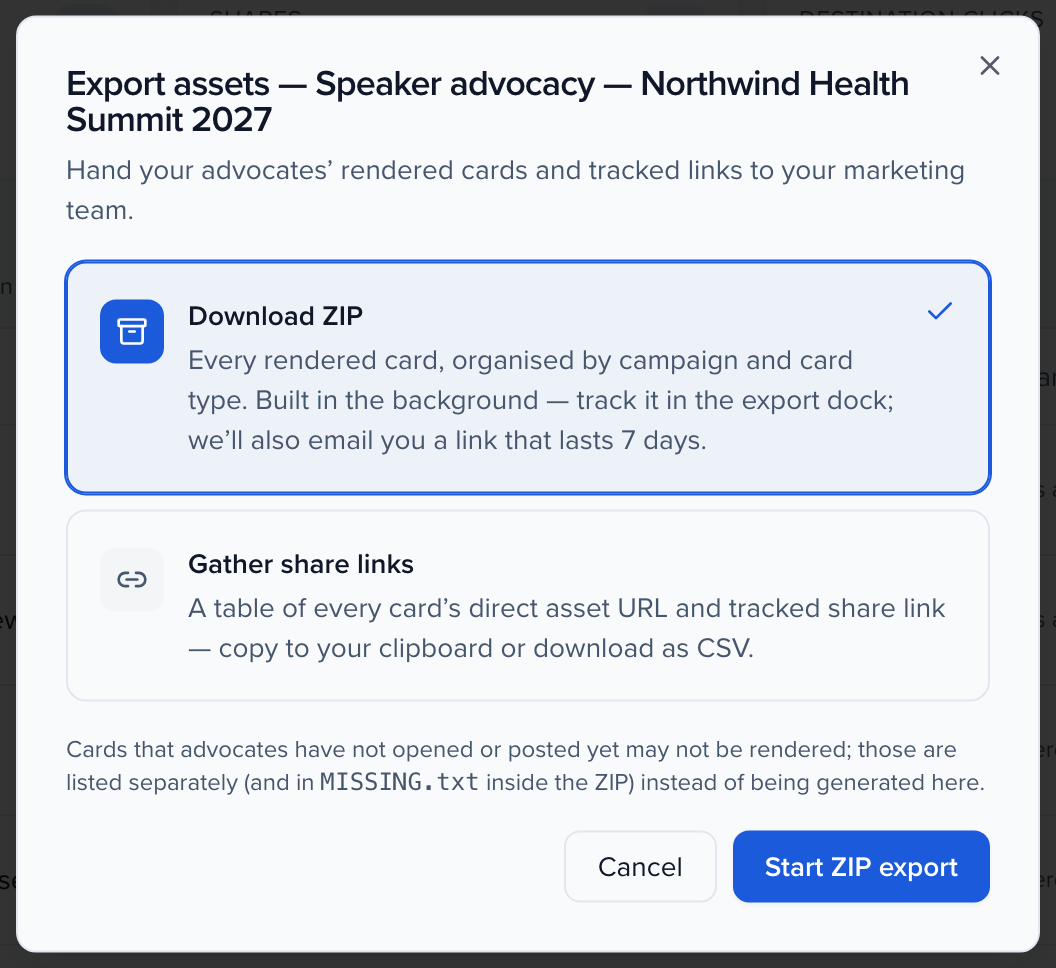
- Gather share links returns a table with one row per card — Campaign, Card type, Subject, Asset URL, and Share link. Use Copy all links to put them on your clipboard or Download CSV to keep the table. Asset URLs expire after 7 days, so re-run the export when you need fresh ones.
- Download ZIP builds every rendered card into a ZIP, organised into a folder per campaign with a folder per card type inside (
/<Campaign>/<Card Type>/, for example Participant Cards and Participant Session Cards). It runs in the background: Sessionboard notifies you in-app and by email when it is ready, with a download link that lasts 7 days.
An Attendees campaign exports one row per attendee advocate, named from the attendee list, in an Attendee Cards folder. Attendees who withdrew consent are left out. Export assets works on event community campaigns.
Draft campaigns are left out unless you tick Include drafts. A card is rendered the first time its advocate opens or posts it, so cards nobody has opened yet are listed as Not rendered yet in the links table and in a MISSING.txt file inside the ZIP rather than generated.
You need the contacts or accounts export permission on the event to export assets. The permission is checked again when the ZIP is built, so if you are removed from the event or lose the permission before the job runs, the export shows as Failed in the history with the reason instead of producing a file.
Read the analytics
Section titled “Read the analytics”Open the Analytics tab for the whole event, or a single campaign for its own numbers. The event’s Analytics and Activity tabs include your team campaigns, and their rows open the team campaign.
- Advocates — how many assigned people have activated, shown as activated over assigned
- Shares — total share actions across channels
- Clicks — total clicks, with unique visitors counted separately by consent cookie
- Advocacy funnel — Assigned, Opened, Shared, Clicked
- Channel mix, Top advocates, Geography, and a per-campaign breakdown
A campaign’s own Analytics tab adds Top advocates for every advocate (searchable, sortable, filterable by activity and top channel, with CSV export) and Results by channel, and with conversion tracking set up, a Conversions section. See Advocacy rewards and results and Track conversions from Advocacy.
Under the Channel mix chart, Clicks opened in the app counts the clicks on advocates’ links that opened inside an app’s built-in browser: WeChat, LINE, Instagram, Facebook or LinkedIn. It is the only way to see clicks from WeChat, where shares happen through a QR code or a downloaded card rather than a share button. A link opened in the phone’s own browser isn’t counted there, because nothing in the visit says where it came from. The list appears once at least one such click is recorded.
The Activity tab is the raw feed, filterable by Opens, Shares, and Clicks.
Across events
Section titled “Across events”Advocacy at the organization level rolls every event’s event community campaigns into one read-only view. Event community campaigns are always created inside an event, so use this view for reporting rather than setup. The page’s Your team section is different: it lists every team campaign in the organization and has New team campaign, which creates an organization-wide team campaign right there (see Team campaigns).
The page reads like a single event’s Analytics tab, summed across events: a line counting how many campaigns are active across how many events, then At a glance (advocates activated of assigned, shares, unique destination clicks, each with a 30-day sparkline), the Advocacy funnel from assigned to clicked with the drop-off between stages, Channel mix, Top advocates across every event sorted by clicks then shares (with Export CSV), Geography, and By campaign — every campaign tagged with its event, with assigned, shared, clicked, converted and status columns.
Languages
Section titled “Languages”Share pages, share cards, the suggested post, the open-link signup page and the emails Sessionboard sends to advocates follow the event’s language. Embeds follow the language of the page they sit on instead, or their language attribute. English, French, German, Spanish and Arabic are supported, and anything else falls back to English. For an Arabic event, set the event’s language to Arabic in the event settings: every advocate page then reads right to left, and the share card uses an Arabic font. Embeds read right to left when their page’s language is Arabic; on a page in another language, add language="ar" to the embed code. Names, emails and links in English keep their own order inside the Arabic text.
Do advocates need a Sessionboard login?
No. They get a magic link to their share page, which needs no account. That includes exhibitors and sponsors: every contact of a company on a Groups campaign gets their own link to the company’s card, with no Exhibitor portal login — see Advocacy for exhibitors and sponsors.
Can I launch a campaign without inviting anyone?
Yes. Choose I’ll share a link or embed on the Recipients step. Nobody is emailed; you share the campaign link or put the embed on your website, and anyone who opens it makes their own card.
Do I need Exhibitor Pro or Sponsor Pro for a Groups campaign?
No. Picking Groups, emailing exhibitors their links, exporting personal links and the open link work on every plan. The Pro modules are needed only to target the campaign By portal and to show it inside an exhibitor or sponsor portal.
Our exhibitors' booth staff aren't in Sessionboard. How do they get the card?
Turn on the campaign’s open link on the Share tab and put it in your exhibitor communications. Anyone at a company on the campaign enters their name, email and company and gets the company’s card; they become a contact of that company on the event at the same time. To let companies that aren’t on the event yet sign up too, turn on Let companies that aren’t on the event yet sign up.
Who counts as a participant?
Everyone with a role on one of the event’s sessions — speakers, chairs, moderators and any custom role your event uses — except submitters. The Recipients step lists the roles.
Which channels can they share to?
LinkedIn, X, Facebook, WhatsApp, LINE, Instagram, WeChat, email, copy link, QR code and the download kit, plus the phone’s own share menu. LinkedIn is the only channel on by default for a new campaign; turn on the others per campaign under Share channels. See How each channel shares.
Can participants share only their participant card, without session cards?
Yes. In the Build step’s Card style strip, open the Session cards tab and choose Don’t use session cards. Participants then get only their participant card. The Session cards tab appears when Participants are the ones sharing.
Can I change a campaign after launching it?
Yes. Open the campaign and click Edit campaign to walk through audience, basics, recipients, templates and copy, landing page, and launch. Who’s sharing — your event community or your team — can’t be changed after you create the campaign.
Why is there no date on some session share cards?
A session that has not been scheduled yet has no date or time to show, so its share card omits the date line rather than printing a placeholder. The line appears automatically once the session is scheduled.
My background image or logo isn't showing on the share card
Cards on photo styles show your uploaded background image edge to edge, with your event logo over it. If a card looks wrong, check that the event’s logo and background are set under your event branding, then contact support.
What size should a share image or background be?
Share cards render at the size of the card option you pick: Landscape (1.91:1) is 1200×627 px (the LinkedIn link-preview size and the default), Square (1:1) is 1080×1080 px and Portrait (4:5) is 1080×1350 px. Upload a background photo at least that large in the same shape — for a landscape card, 1200×627 px (1200×630 px works too). A background in a different shape is scaled to fill the card and cropped at the edges, so keep logos and text you need away from the borders. Advocates can also download their own card in three sizes; see Share your event card.
Can advocates choose their card's background?
Yes, when you offer choices. Add photos or styles under Background choices for advocates in the campaign’s Designer, and each advocate gets a Background row on their share page with your designed background plus the extras. Their pick is saved, and it’s the background on the card they post or download.
If I copy or export a magic link, does the emailed one stop working?
No. A recipient can have several working magic links, so the emailed link, a copied link and an exported link all sign them in until each one expires after 90 days. Removing the person from the campaign, or ending the campaign, turns all of them off.
Why do my advocates show as assigned but never activated?
Assigned means they’re on the campaign; activated means they’ve opened their share page. If nobody has activated, check that you sent the notify email and that recipients have valid email addresses.
Related
Section titled “Related”- Advocacy for attendees — every way to reach attendees
- Embed Advocacy cards on your website — the participant, company and attendee embeds
- Advocacy rewards and results — milestones, contests and results by channel
- Share your own media through Advocacy — the Media format and Share with advocates
- Track conversions from Advocacy — registrations and purchases credited to advocates
- Activate attendees, exhibitors and sponsors from your other systems — system-by-system: Cvent, Swoogo, Swapcard, Bizzabo, Map Your Show, A2Z and more
- Team campaigns — posts for your own team, in the same Campaigns list
- Share your event card — what advocates see
- Content plan — schedule a month of content that can publish into Advocacy
- Marketing overview