

Grant portal access to a contact
A contact can only sign in to a portal once they have portal access. There are two ways to give it.
Automatically, for everyone you add
Section titled “Automatically, for everyone you add”In Settings → Record Settings, turn on Automatically provision contact portal access. From then on every contact you create, import or receive through a form gets portal access without another step. See event details and record settings.
By hand, for the contacts you choose
Section titled “By hand, for the contacts you choose”- Open CRM → All Contacts and tick the contacts who need access.
- In the bar above the table choose More → Manage Portal Access.
- The panel sorts your selection into People without access and People with access. Click Give Portal Access for the first group. Contacts with an invalid email address are listed separately and cannot be granted access until the address is fixed.
- Once access is granted, Share Login Details lets you Send Email — with an optional personal message — or Get Link to copy the login link and send it yourself.
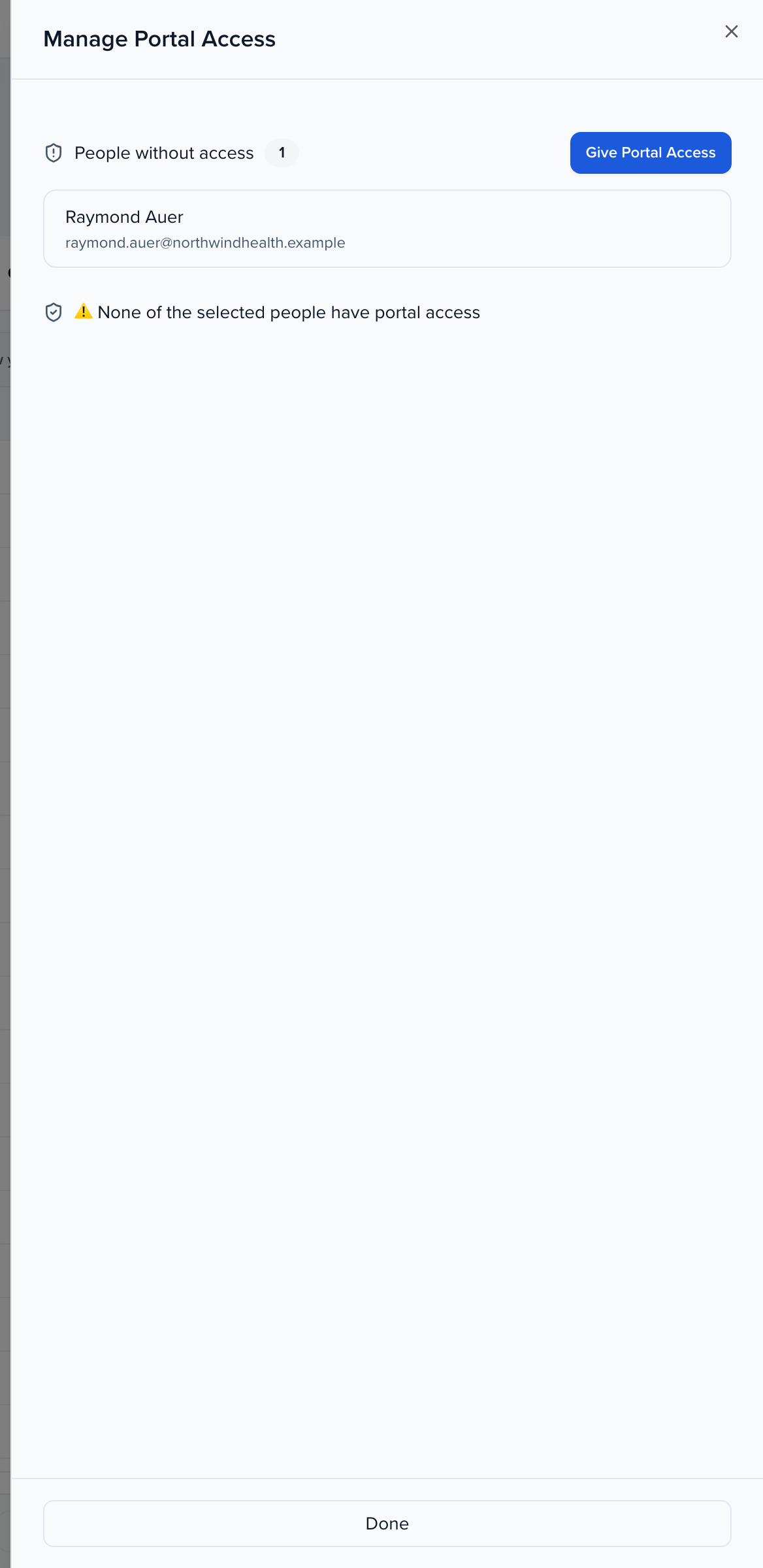
Access is to the event’s portals as a whole; which portal a contact lands in is decided by the portal’s assignment rules. See inviting users to the event portal and Portals 101.
A sponsor’s contact only sees the people portal
Section titled “A sponsor’s contact only sees the people portal”A sponsor or exhibitor contact can open two portals: their own, as a person, and the company’s. After signing in they choose the company name on Select Account. If they went in as themselves, they open the menu in the portal header, choose Switch Portals and pick the company.
To check what they get, use View portal as… and choose the company under Groups. Choosing the person shows only their own portal. See view a portal as an admin.