

Awards notifications & email templates
Why use it
Section titled “Why use it”The Awards workspace chat lets program managers take action on their program — sending reminders, announcing winners, and checking progress — without leaving the Awards module or building email campaigns by hand. Reminders are targeted automatically: only people with outstanding work receive them, and a built-in rate limit ensures no one is emailed more than once per 24-hour window per audience. Preview cards show the full recipient list and any blocked reasons before you approve, keeping you in control of every send.
Where to find notification settings
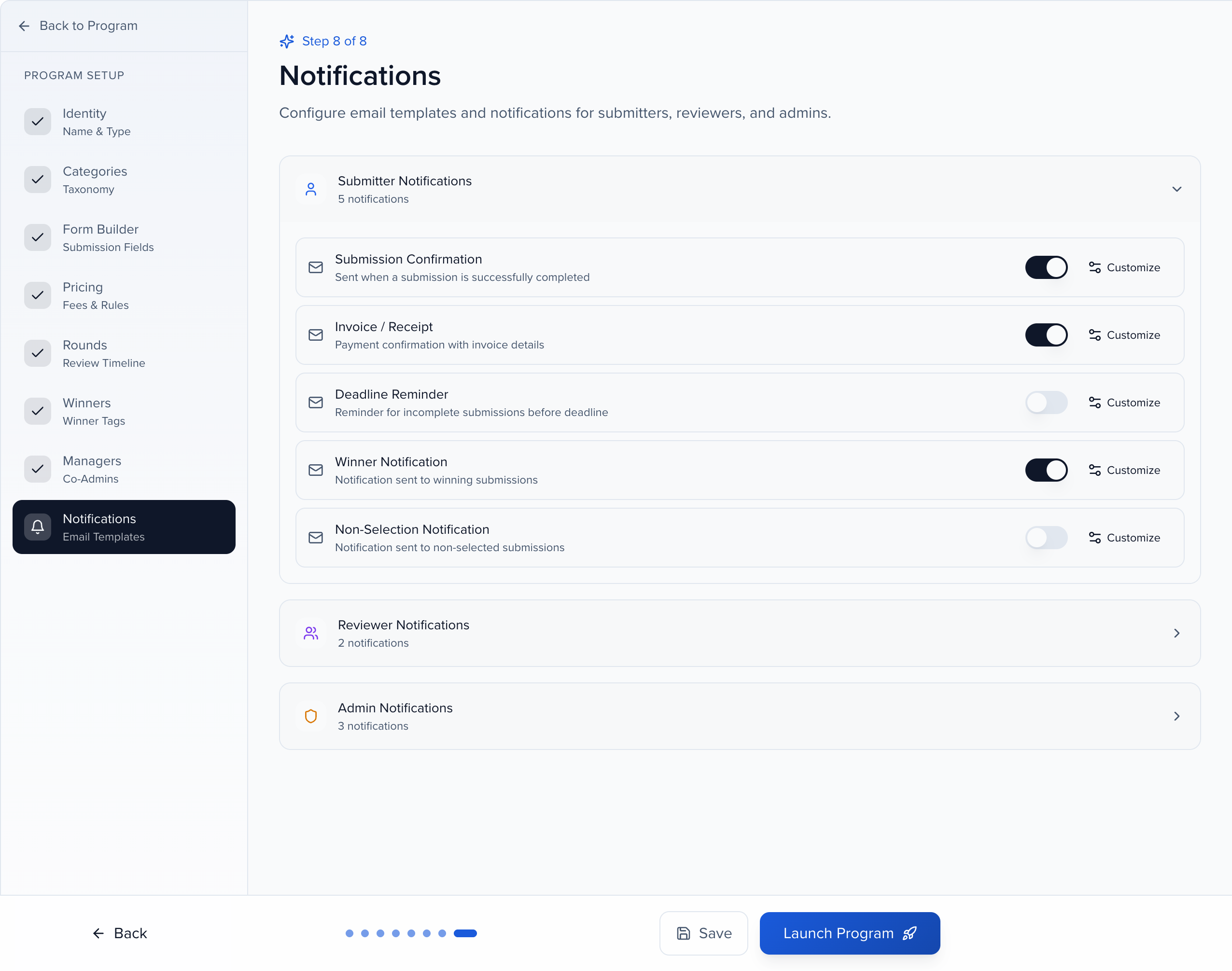
Section titled “Where to find notification settings”Notifications is the last step of the program setup wizard, after Identity, Categories, Form Builder, Pricing, Rounds, Winners, and Managers. To come back to it later, click Edit on the Program Dashboard and choose Notifications in the Program Setup sidebar.
How notifications work
Section titled “How notifications work”Sessionboard Awards sends emails automatically when specific things happen in your program — an entry is submitted, a reviewer is assigned, a winner is tagged. Each notification has:
- A switch to turn it on or off. When off, the email is not sent even if the trigger happens.
- A Customize button that opens the template, where you change the from name, subject, and body.
Notifications are organized in three groups: Submitter Notifications (people who submit entries), Reviewer Notifications (people who review them), and Admin Notifications (program managers).
Submitter notifications
Section titled “Submitter notifications”Submission Confirmation
Section titled “Submission Confirmation”Sent when a submitter completes and submits an entry — their receipt that it arrived. On by default.
When your program collects payment on submission, clicking Submit takes the applicant to payment and the entry waits as Pending Payment; nothing is emailed yet. The confirmation goes out once, when the payment moves the entry to Submitted — paid by card, with a 100% promo code, or through cart checkout — alongside the Invoice / Receipt. Retrying or reloading the payment never sends a second one. Programs with no fee send it as soon as the applicant submits.
Invoice / Receipt
Section titled “Invoice / Receipt”Sent when a payment completes, with the amount charged and the entry it belongs to. Relevant only to programs that charge fees. On by default.
Deadline Reminder
Section titled “Deadline Reminder”Sent to submitters who started an entry but have not completed it, five days and one day before the submission deadline. Completed submissions are not reminded, and people who never started an entry are not emailed.
To write to people with unfinished entries yourself, open the program dashboard’s Submissions tab, switch to Drafts, select the entries, and choose Bulk Actions → Send Email.
Winner Notification
Section titled “Winner Notification”Sent to submitters whose entries you tag as winners. Customize it with next steps, ceremony details, or anything the winner needs to do. On by default.
Non-Selection Notification
Section titled “Non-Selection Notification”Sent to submitters whose entries were not selected. Use it to communicate the outcome, thank participants, and encourage them to apply again. Off by default.
Reviewer notifications
Section titled “Reviewer notifications”Review Invitation
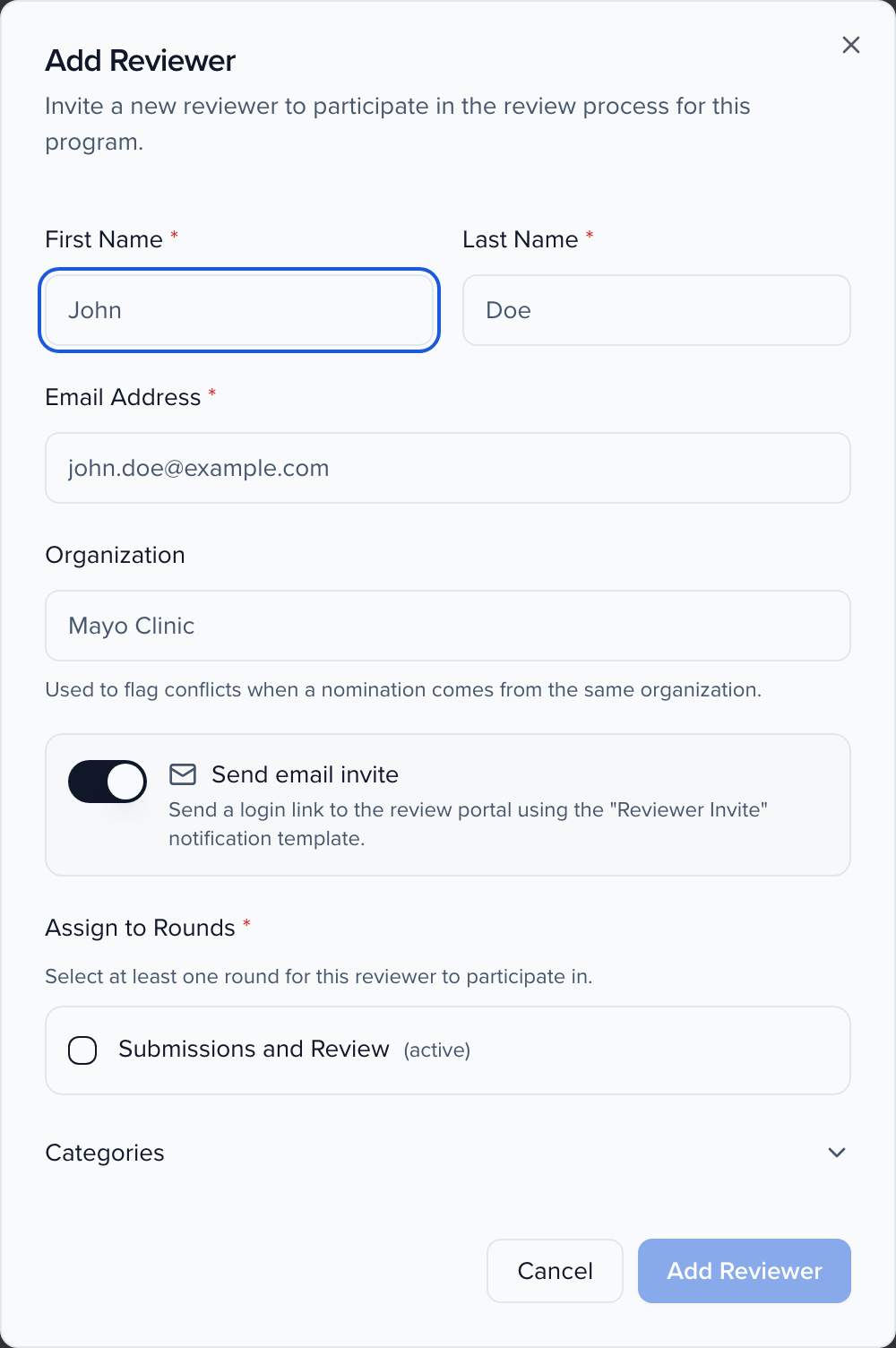
Section titled “Review Invitation”Sent when you add a reviewer with the Send email invite switch on in the Add Reviewer dialog. It gives the reviewer a link to the review portal along with the program and round details. On by default.
Reviewer Deadline Reminder
Section titled “Reviewer Deadline Reminder”Sent to reviewers with outstanding reviews five days and one day before the round’s review period ends. The days cannot be changed — you can only turn the notification on or off and customize the copy. On by default.
Admin notifications
Section titled “Admin notifications”Admin notifications go to the program’s managers, the people listed in the program’s Managers step. A program with no managers sends no admin notifications, so if these alerts stop arriving, check that list first.
New Submission Alert
Section titled “New Submission Alert”Sent when a new submission comes in, so admins know without checking the dashboard. Off by default — turn it on for lower-volume programs where each entry matters.
Submission Updated Alert
Section titled “Submission Updated Alert”Sent when a submitter edits an entry after submitting it. This only applies when the program’s editing policy, or a per-entry override, allows edits after submit. Off by default.
Round Complete Alert
Section titled “Round Complete Alert”Sent when every review in a round is complete — the signal that you can advance finalists, select winners, or close the round. On by default.
Customizing email templates
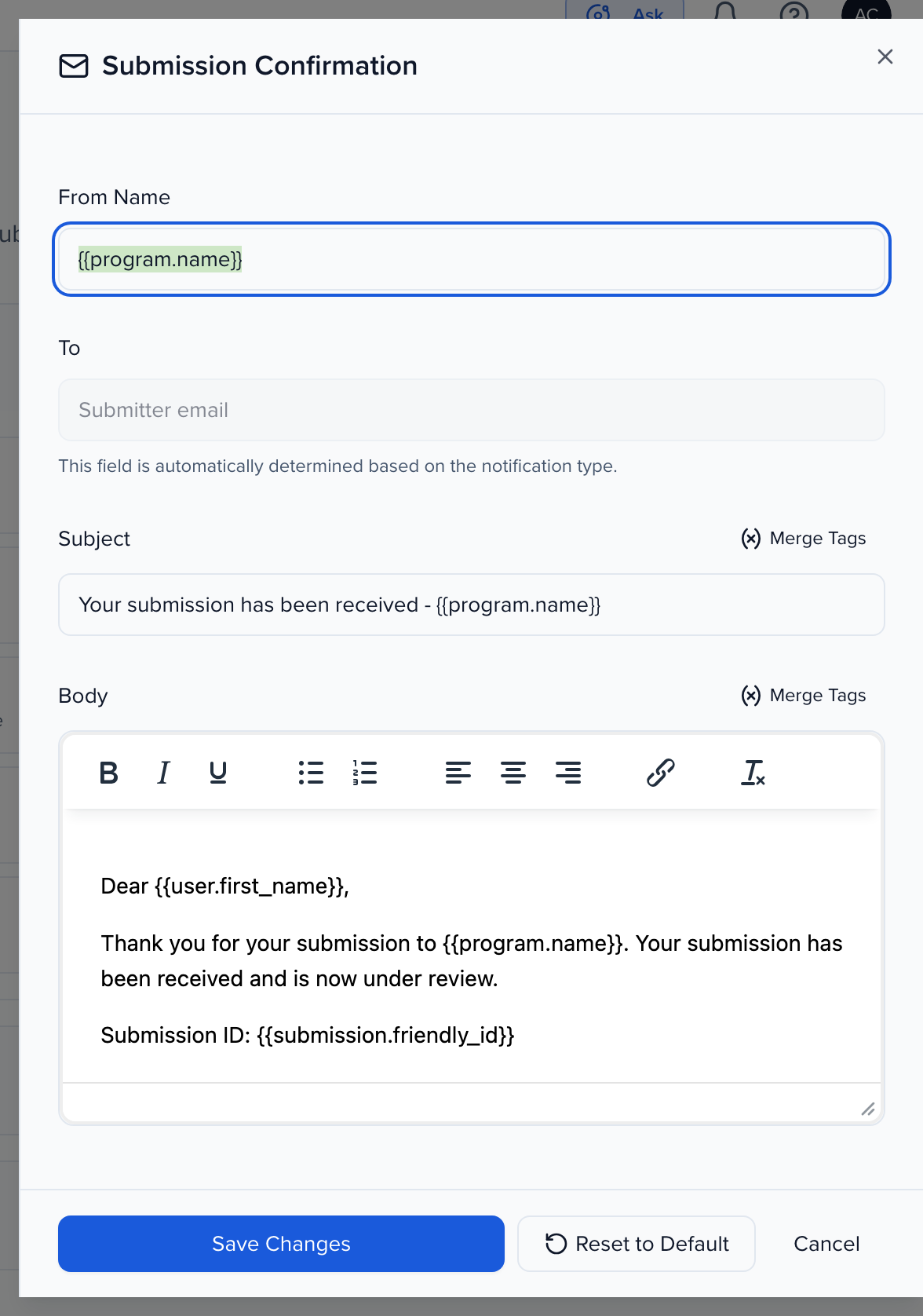
Section titled “Customizing email templates”Click Customize next to any notification to open its template. You can change:
- From Name — Who the email appears to be from. The default is the program name.
- Subject — The subject line.
- Body — The email content, with a formatting toolbar for bold, italics, lists, alignment, and links.
The To field is fixed by the notification type — for example, the submitter’s email or the program’s administrators. The Merge Tags button next to Subject and Body inserts placeholders such as the program name, the submitter’s name, or the round’s review deadline, which are filled in when the email is sent. Reset to Default restores the original template.
Who the emails come from
Section titled “Who the emails come from”If your organization has a system email address configured, each notification also has a From field. Leave it blank — that is the default — and the notification sends from your organization’s system email, the same address your event-level emails use. Fill it in only when a particular notification should come from somewhere else.
An address you type has to be on a sending domain your organization has authorized. Anything else is refused when you save, with a message naming the domain mismatch. If your organization has no system email at all, awards notifications send from a Sessionboard no-reply address.
Turning notifications on and off
Section titled “Turning notifications on and off”Flip a notification’s switch off to stop it sending, even when the trigger happens, and back on at any time. This is useful for pausing communications — for example, holding Winner Notifications until you are ready to announce publicly.
Best practices
Section titled “Best practices”- Review templates before launching: Customize Submission Confirmation and Review Invitation before you publish the program. They are the first emails participants receive.
- Coordinate winner announcements: Keep Winner and Non-Selection notifications off during review. Turn them on when you are ready to announce.
- Use deadline reminders: Turn on the submitter Deadline Reminder and keep the Reviewer Deadline Reminder on. Automated nudges reduce incomplete entries and late reviews.
- Keep admin email manageable: Leave New Submission Alert off for high-volume programs and watch the Program Dashboard instead.
- Test before going live: Submit a test entry to your own program to see the emails as submitters will.
Next steps
Section titled “Next steps”- Managing submissions, reviewers & rounds — Track entries, assign reviewers, configure scoring, and manage rounds.
- Setting up your Sessionboard site — Publish the portal where submitters sign in, submit, and track their status.
- Awards pricing, payments & invoices — Configure fees and review the Invoice / Receipt email alongside your pricing.