

Clip pages
When you share clips with speakers, sponsors or your team, each clip gets a public page of its own. The page plays the clip, names the speakers, prints what was said, and gives visitors a button back to your event. You decide what the button does and whether search engines can find the page.
Why use it
Section titled “Why use it”A clip posted to a feed is seen once and scrolls away. A clip page gives that clip a home: a link that still works next month, a transcript people and search engines can read, and a button that sends the viewer to your event website. You also see what each clip did, so you know which moments to make more of.
What is on a clip page
Section titled “What is on a clip page”- Your event’s look. The header uses the event’s brand kit: logo, header colour and button colour.
- The player. Play, seek, mute, captions and full screen all work with a keyboard. Captions come from the recording’s transcript.
- The speakers. Names, with each speaker’s photo when they have one.
- Share buttons. LinkedIn, X, Facebook, Email and Copy link.
- Your button and links. One button, Visit site by default, and up to six links under it.
- Powered by Sessionboard. A small link at the bottom of the page.
- The transcript. Only the part of the recording the clip covers. Each speaker’s turn has a time you can select to jump the player there.
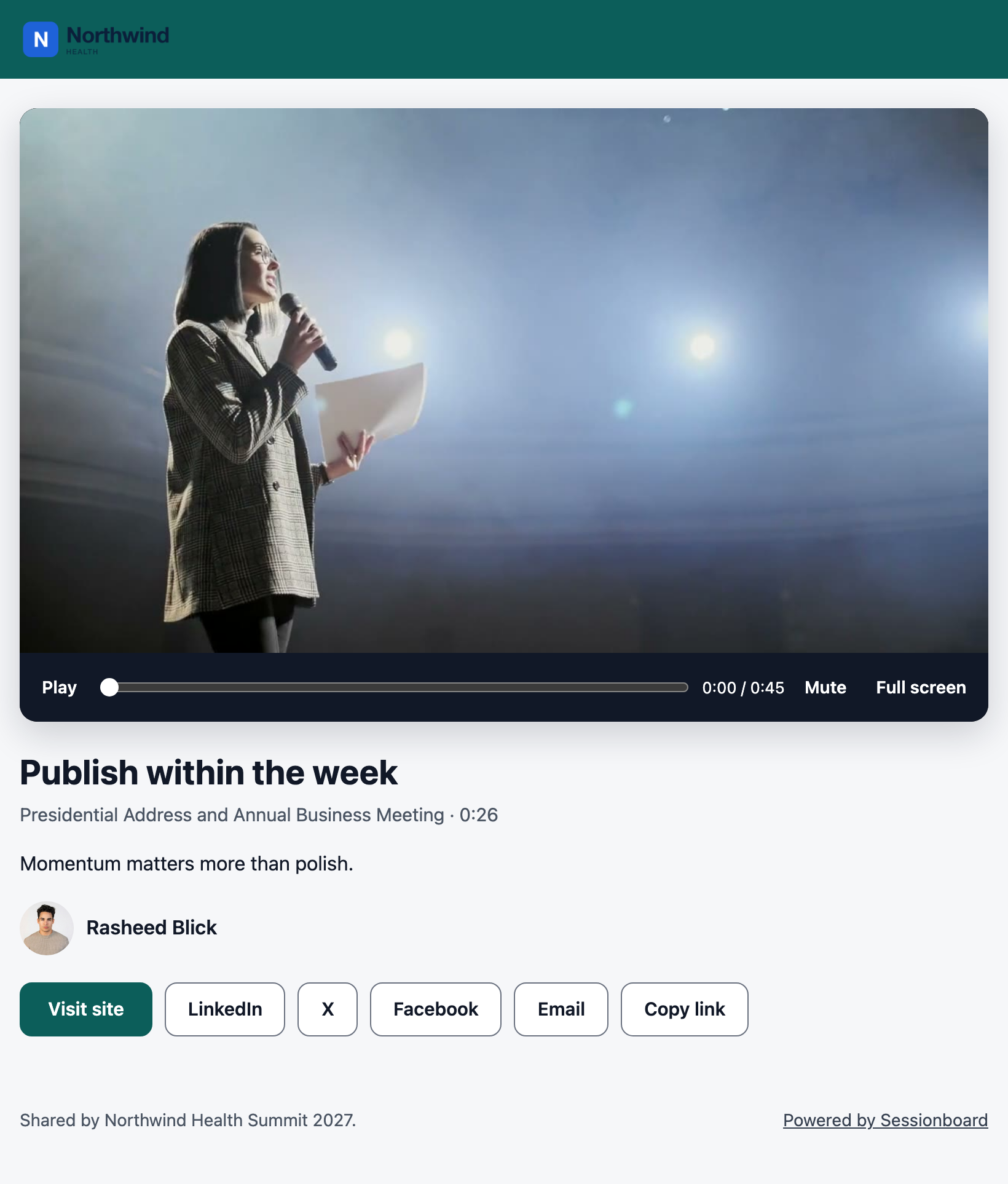
A clip has a page once it has been sent to at least one person with Share on the Clips page, as described in Share clips, or once you copy its public link. A clip you hide from speakers has no page, and its link shows “This clip is not available”.
Set the button, links and download
Section titled “Set the button, links and download”Open Clip page settings
Go to Media → History → Clip sharing and select Clip page settings.
Choose where the settings apply
This event changes one event. Default for every event changes every event in your organization that has no setting of its own.
Set the button
Enter a Label and where it Goes to. Leave both empty to keep Visit site, which opens the event website. If the event has no website and you set no address, the page shows no button.
Add links
Select Add a link for each extra link, such as the agenda or registration. Each needs a label and a full web address starting with https://.
Choose what visitors can do
Turn on Let visitors download the clip to add a Download button. Turn off Let search engines find these clip pages to keep the event’s clip pages out of search results (see below).
Save
Select Save. Pages update within a few minutes.
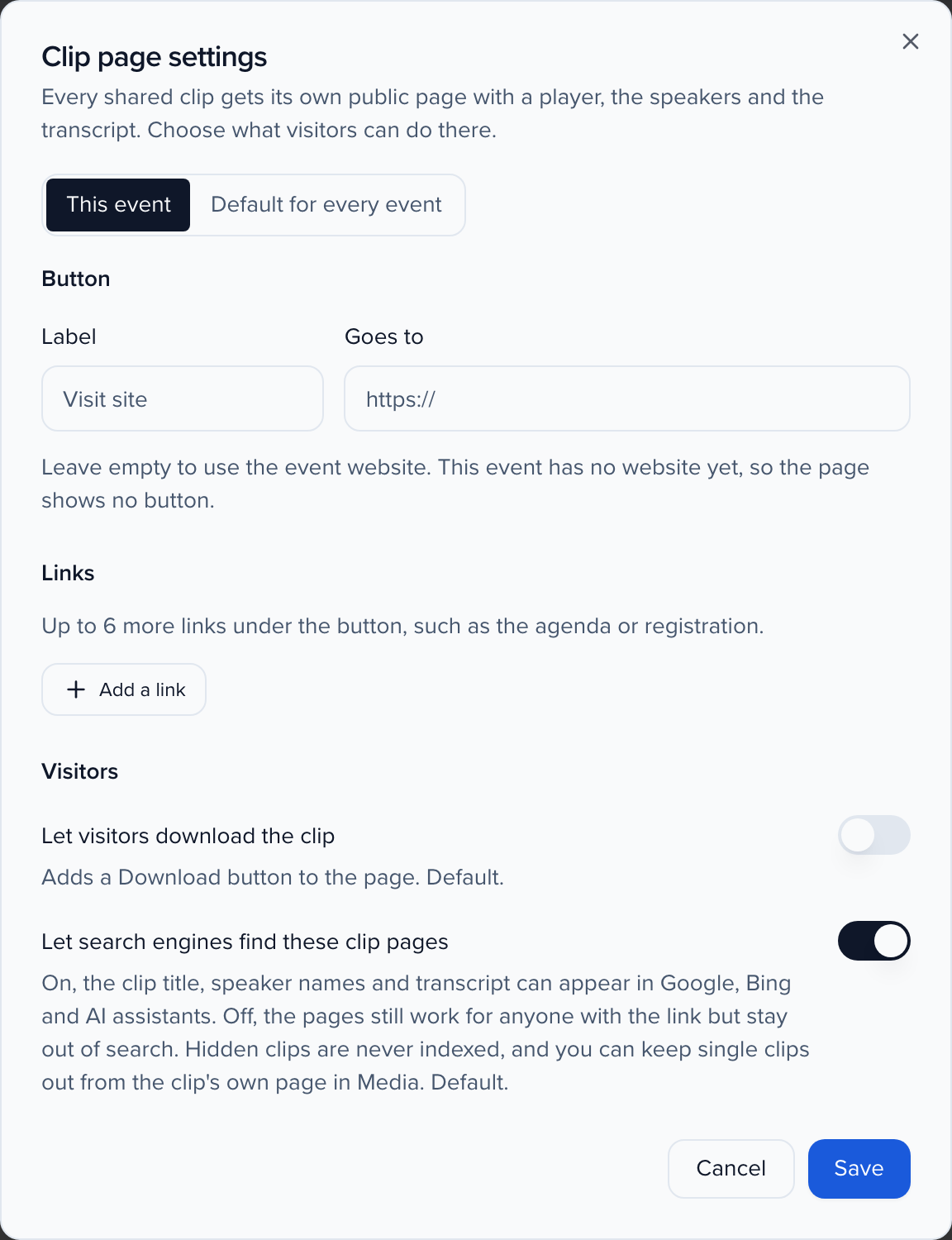
You do not have to set anything. With no settings, a clip page has the Visit site button to the event website, no download, and can be found by search engines.
Let search engines find your clips
Section titled “Let search engines find your clips”Clip pages are built to be read by search engines and AI assistants: the title, speakers and transcript are in the page itself, with a description for link previews and video details in the format search engines ask for.
Search is on unless you turn it off. To keep an event’s clip pages out of search, turn off Let search engines find these clip pages in Clip page settings for that event. To keep every event out unless you say otherwise, turn it off under Default for every event.
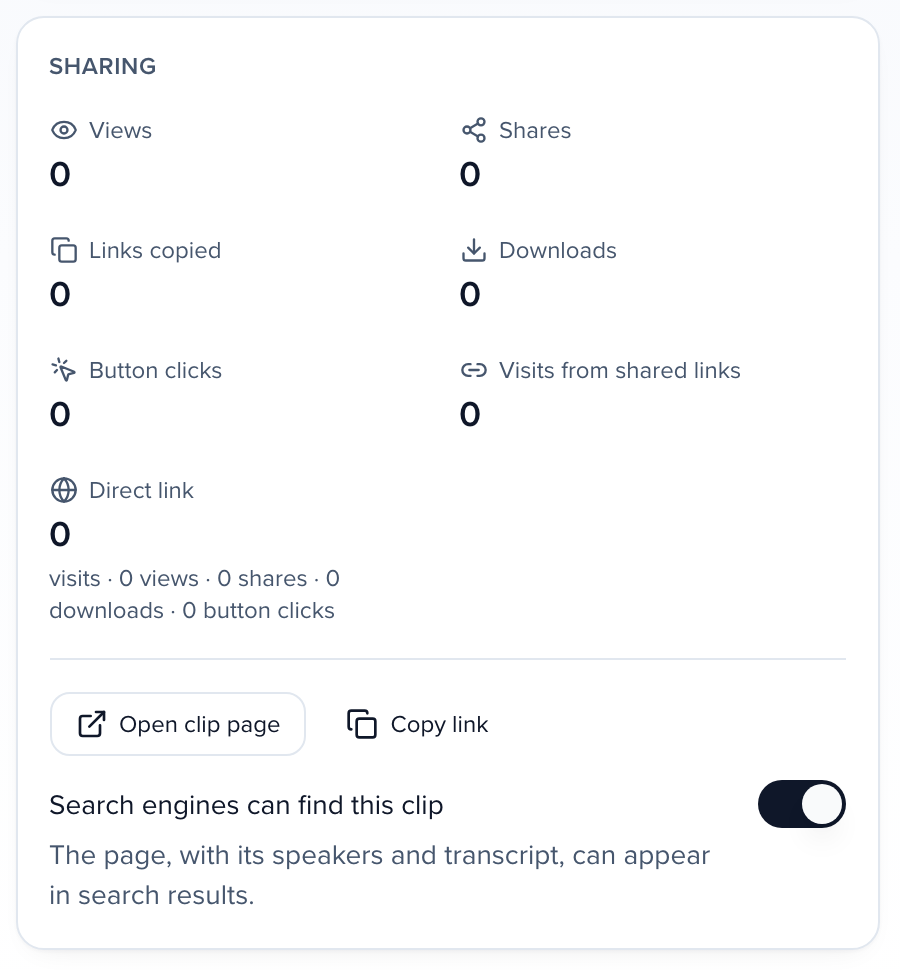
To keep one clip out of search while the rest of the event is indexed, open the clip from the Clips page and, under Sharing, turn off Search engines can find this clip. The page still works for anyone who has the link.
Search engines index pages on their own schedule. A page can take days to appear after a clip is shared, and days to drop out after you turn search off.
See what each clip did
Section titled “See what each clip did”Open a clip from the Clips page. The Sharing panel shows, for that clip:
- Views of the clip, in people’s galleries and on its page.
- Shares, with the count for each channel (LinkedIn, X, Facebook, Email and others).
- Links copied and Downloads.
- Button clicks, with clicks on the links under the button counted separately.
- Visits from shared links: people who arrived through a link a speaker, sponsor or teammate posted.
- Direct link: visits, views, shares, downloads and button clicks that came from the clip’s public link, once you have copied it.
To compare clips, go to Media → History → Clip sharing and choose Top clips. The table adds a Button clicks column and lists the channels each clip was shared to. Export CSV downloads the same numbers.
Who can see a clip page?
Anyone with the link. No sign-in is needed. The page exists only for clips you have shared and not hidden.
How do I take a clip page down?
Hide the clip. On the Clips page, select the clip, open More actions and choose Hide from speakers. The page stops working, and it is never offered to search engines again.
What happens to the page if I remove a person from the share?
The page stays up, because the clip is still shared with others. The removed person’s link no longer credits them.
Why is there no transcript on my clip page?
The page prints the transcript once the recording’s transcript is ready. A clip cut from a recording with no transcript shows the player, speakers and buttons only, and has no captions.
Why does a speaker have initials instead of a photo?
The speaker has no photo on their profile, or the photo was not approved. Add or approve the photo and the page picks it up.
Can I use my own domain for clip pages?
Not yet. Clip pages are served from Sessionboard.