

Review plan Reviewers step: add and enroll reviewers
The Reviewers step decides who can review in this plan and in which rounds. Reviewers only see submissions once they are assigned on the next step.
The Reviewers step (labeled “Select users who can review” in the sidebar) is where you choose who will review submissions for this plan.
To add someone who is already a user on this event:
- Use the Search by name or email… bar to find the user.
- Click on their name to select them.
To add someone new, click Add reviewer and enter their name and email. They’re added to the event and enrolled in the rounds selected on this step. You can also add reviewers to any plan from Program → Review → Reviewers → Add Reviewer.
At the top of the page, the Rounds section shows which rounds new reviewers are enrolled in. New reviewers are enrolled in the rounds you select here. Check or uncheck rounds to control which review stages each reviewer participates in.
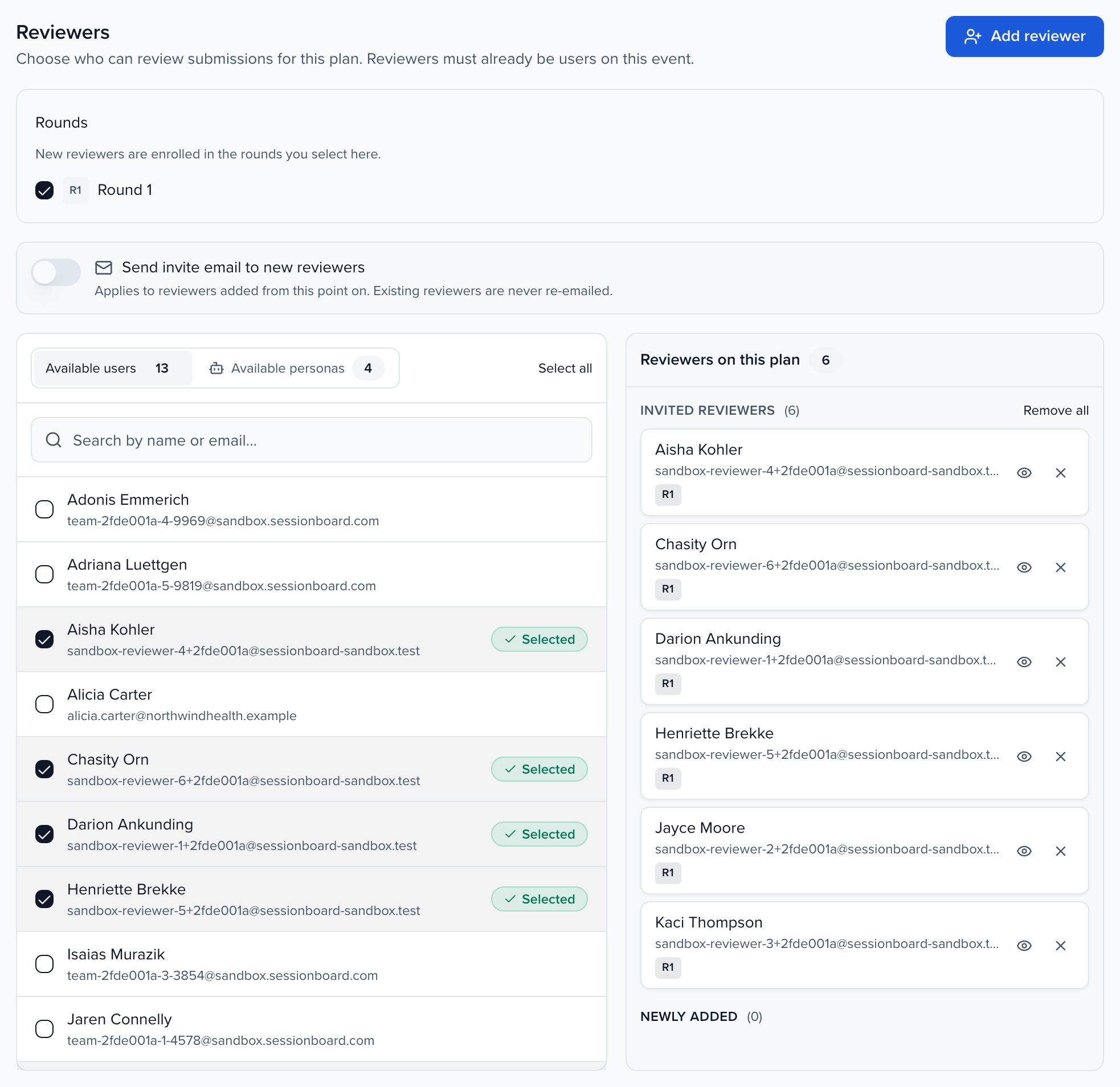
Invite email toggle: A toggle labeled “Send invite email to new reviewers” controls whether reviewers added from this point on receive an invitation email. Note that existing reviewers are never re-emailed through this toggle.
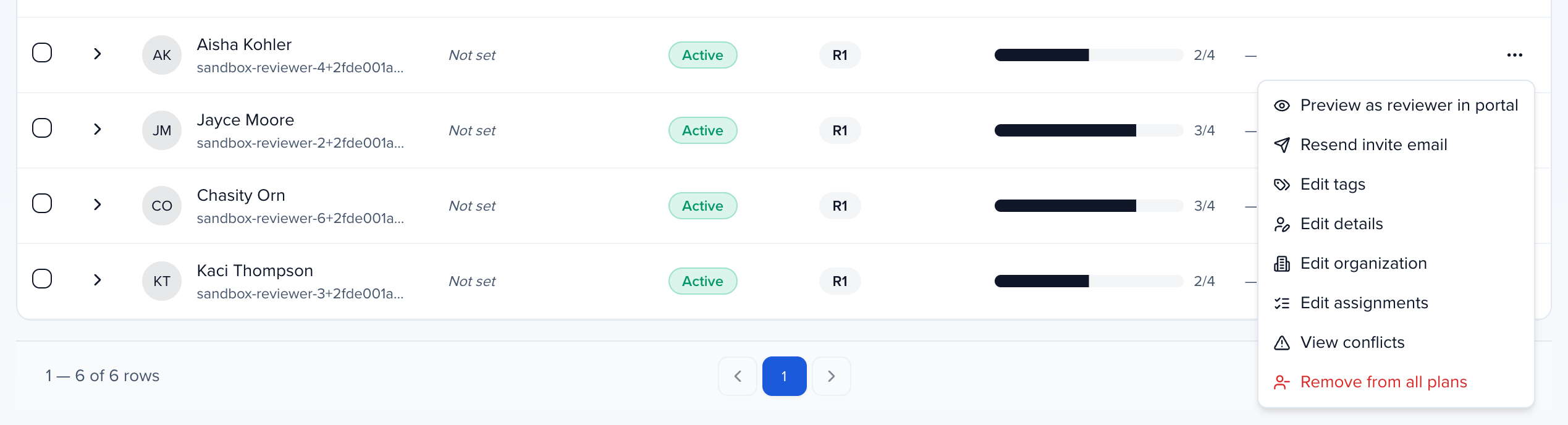
Resending invites to existing reviewers: To resend an invite to a reviewer who has already been added, go to the plan’s deep-dive view → Reviewers tab, click the ⋯ menu next to the reviewer’s name, and select Resend invite email. To email several reviewers at once, check them on the Reviewers tab (or on Program → Review → Reviewers) and click Email in the selection bar: you can send their plan invitation again or a message of your own. See Email selected reviewers.
Why use it
Section titled “Why use it”Reviewers only reach the plan once they are added and enrolled in its rounds. Doing it here, rather than through the event team, gives them access to their review queue and nothing else in the event, and lets you choose which rounds each person reviews.
Add a reviewer who is already on the plan to another round
Section titled “Add a reviewer who is already on the plan to another round”The Rounds checkboxes on the All rounds tab apply only to people you add from that moment on. Clicking someone who is already on the plan does nothing there, because they are already enrolled. To put an existing reviewer into a specific round, work from that round’s tab:
- Open the plan, click Edit, and go to the Reviewers step. When the plan has more than one round, tabs across the top read All rounds and then each round’s name. Click the round you want.
- The banner reads Adding reviewers to that round. On the left, people who aren’t in this round yet are unticked, including reviewers who are already in another round of the plan.
- Tick each person to enroll them. They appear on the right under Reviewers in the round, and keep their other rounds.
- Go to the Assignments step, pick the same round in the round selector, and assign them submissions. Enrolling someone in a round gives them nothing to review until they have assignments there.
You can do the same from Program → Review → Reviewers → Add Reviewer: choose the plan, tick the rounds, pick Existing user, and select one or more people. Sessionboard adds the rounds they are missing and leaves the rest alone.
A spreadsheet import with a Round Name column also enrolls reviewers in that round and assigns them in one step.
Import reviewers
Section titled “Import reviewers”To enroll a whole committee at once, open the plan and choose Plan options → Import reviewers, click Generate Template, fill it in, then Upload File. The file is matched on email, one row per reviewer, and uses the same columns as importing assignments; leave Submission ID blank to enroll someone in the round without assigning them anything yet.
Two columns help you organize reviewers as they arrive and decide what happens to people who are already on the event:
| Column | What goes in it |
|---|---|
Tags | Reviewer tags for this person, separated by pipes: Cardiology|Board. A tag the event doesn’t have yet is created. Tags the reviewer already has are kept; the import only adds. |
Update record if already exists | What to do when the email matches a reviewer who was already on the event before this import. TRUE updates them with the row (affiliation, rounds and tags). FALSE skips the row with an error that names the email, so an import meant for new people never touches an existing reviewer. Leave it blank for the default: add new reviewers and update existing ones. |
The same person on two rows of one file is never treated as a duplicate of themselves. If an import is undone, only the tags it added are removed; tags the reviewers had before stay.
How reviewers sign in
Section titled “How reviewers sign in”Reviewers review on this event’s Program Site, under My Reviews. They sign in however the Site allows (an emailed sign-in link and/or SSO), with the email address you enrolled. Set up the Program Site under Program → Site before you invite anyone; an organization-wide Site can’t host session reviews.
If the event has no Program Site yet, the plan shows This event needs a program site. Click Create program site to create it right there, without leaving the plan, or Customize the site to open it.

The invitation, plan-opened, and assignment emails Sessionboard sends already link to the event’s Program Site, so you don’t need to send a link of your own. To write your own message, use Email on the Reviewers list and choose A custom email (Email selected reviewers): its button and portal-link merge tag are each reviewer’s own sign-in link to their review portal. If you send reviewers an email from anywhere else, link to the Program Site address. Don’t use the Evaluator Login Link merge tag for this: it opens the general Sessionboard sign-in page, not the Program Site.
To see what one reviewer sees, open the plan’s Reviewers tab, click the ⋯ menu next to their name and choose Preview as reviewer in portal. It opens the Program Site in a new tab signed in as that reviewer for two hours. You need permission to view the portal as other users.