

Survey your webinar audience and track attendance
A webinar’s People tab holds everyone who registered, a Pre-webinar survey that asks them what they want to learn, and Attendance & engagement, which fills in after the webinar ends with who came, how long they stayed and what they did. Before the webinar the survey comes first; once it has ended, Attendance & engagement moves to the top.
Why use it
Section titled “Why use it”Registrants tell you what they came for when you ask before the webinar, and the provider tells you what they did during it. Keeping both on each person means the host can answer the questions people actually have, and the follow-up can send each attendee the part of the recording they care about, instead of one generic “thanks for joining”.
Send a pre-webinar survey
Section titled “Send a pre-webinar survey”The pre-webinar survey is a short Pathways pre-event quiz for this webinar. You do not need Pathways turned on to use it.
Create it
On the webinar’s People tab, find Pre-webinar survey and click Create survey. The questions are written from the webinar’s topic, and you see them before anything is sent.
Check the questions
Open Questions to read them. The survey asks:
- Which topics they want covered (up to three), from the webinar’s topics and your organization’s taxonomy.
- Their goals for the webinar (up to two).
- How much they already know.
- What is one question you want answered? as an open answer (up to 500 characters).
Send it
Click Send to registrants. Choose who gets it: Everyone, Not yet sent, Attended, No-shows, Answered the survey or Haven’t answered, or pick people one by one. Click Continue, check the list, then Send.
Each registrant gets their own link by email (Help shape followed by the webinar’s name). Registrants without an email, who already answered or who were already sent the survey are skipped. To share the survey another way, click Copy link.
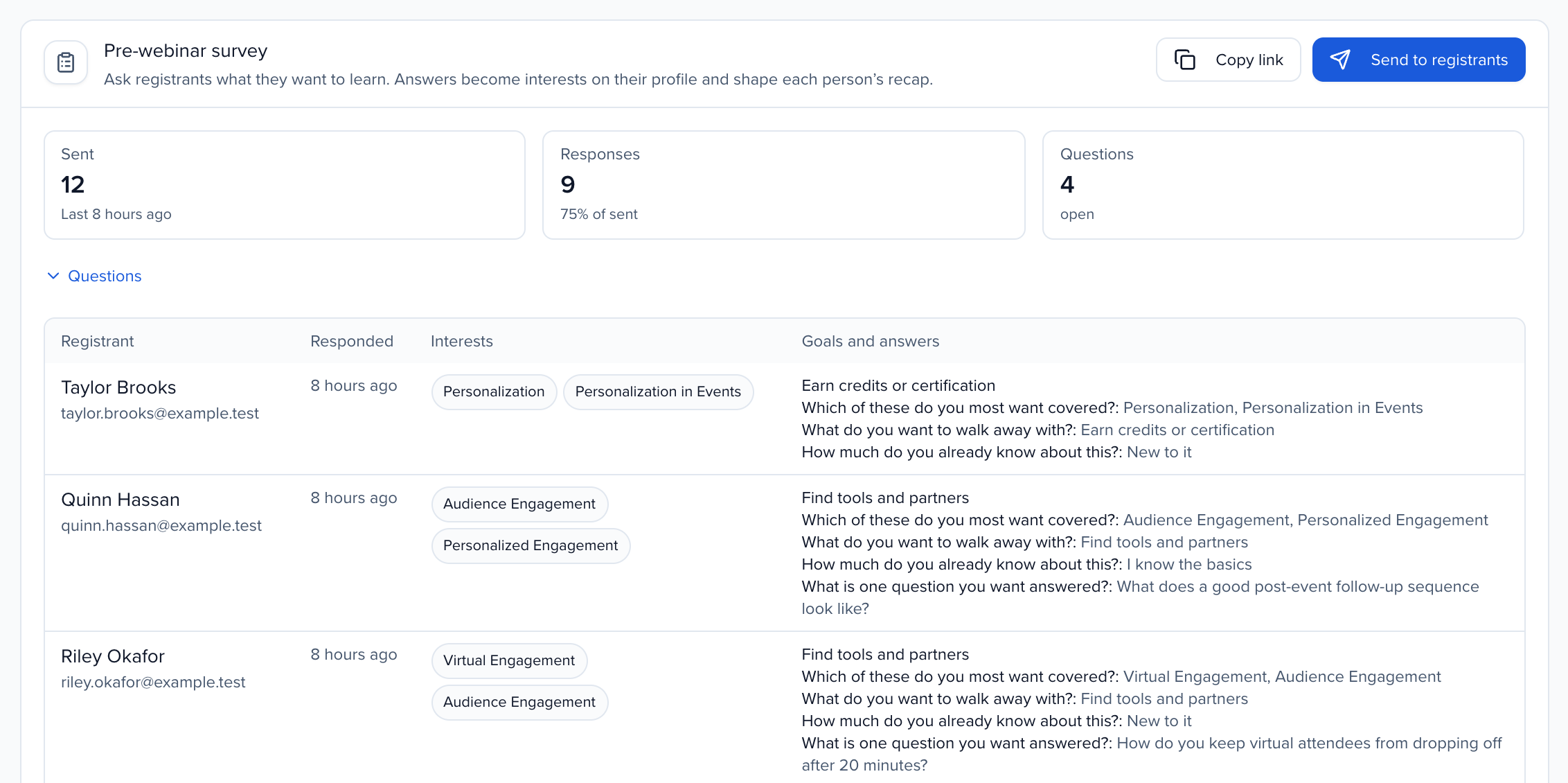
The card shows how many were Sent, the Responses (and the share of those sent), and a row per Registrant with when they Responded, their Interests, and their Goals and answers.
Answers become interests and goals on each person’s profile. They show up in the engagement report, shape each attendee’s recap, and count toward topic interest on the Plan board.
See who attended
Section titled “See who attended”After the webinar ends and the next sync runs, Attendance & engagement on the People tab fills in from the provider’s reports. Until then it says how many people registered.
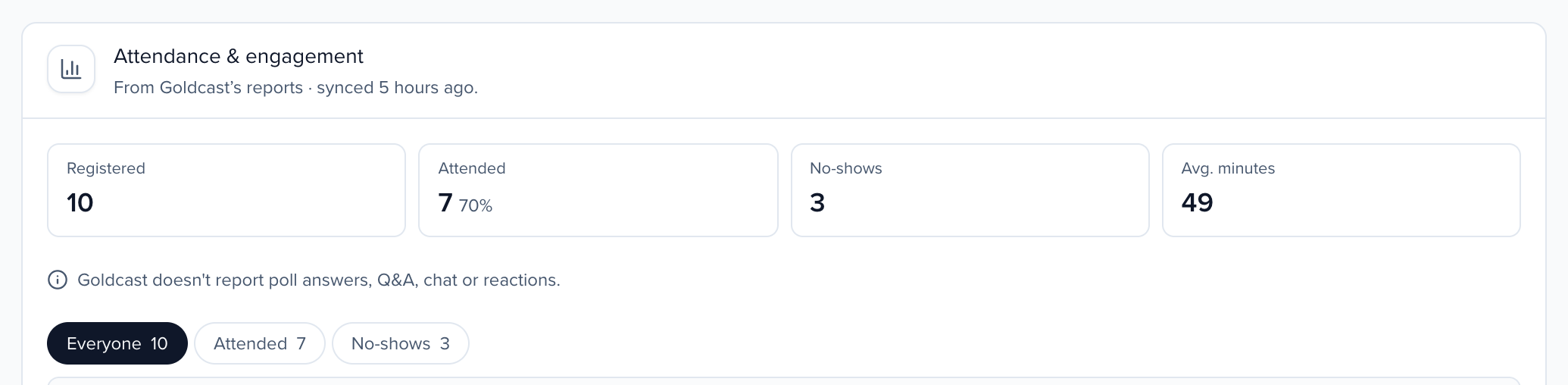
- Registered, Attended (with the share of registrants), No-shows and Avg. minutes.
- A table of every registrant with Attended or No-show, Minutes, Joined – left, their Interests from the survey and their Interactions. Filter it to Everyone, Attended or No-shows.
What people did during the webinar, such as poll answers and questions, is on the same card. See Read webinar engagement.
People who joined the webinar without registering (with an email address, and not the host or a panelist) are added as checked-in registrants, so their attendance and engagement count too.
If attendance never arrives, check the provider card on Overview. When the provider stopped accepting the saved sign-in, the card says so and offers Reconnect.