Create and delete custom fields
Why use it
Section titled “Why use it”Standard fields cover a name and a title; your program needs the rest — CE credits, dietary needs, a LinkedIn URL, a track. Custom fields make that data part of the record so it flows into forms, portals, embeds and reports without a spreadsheet on the side. Options like Require secure links keep what people type consistent so you are not cleaning it up later.
Create a field
Section titled “Create a field”Fields live in two places:
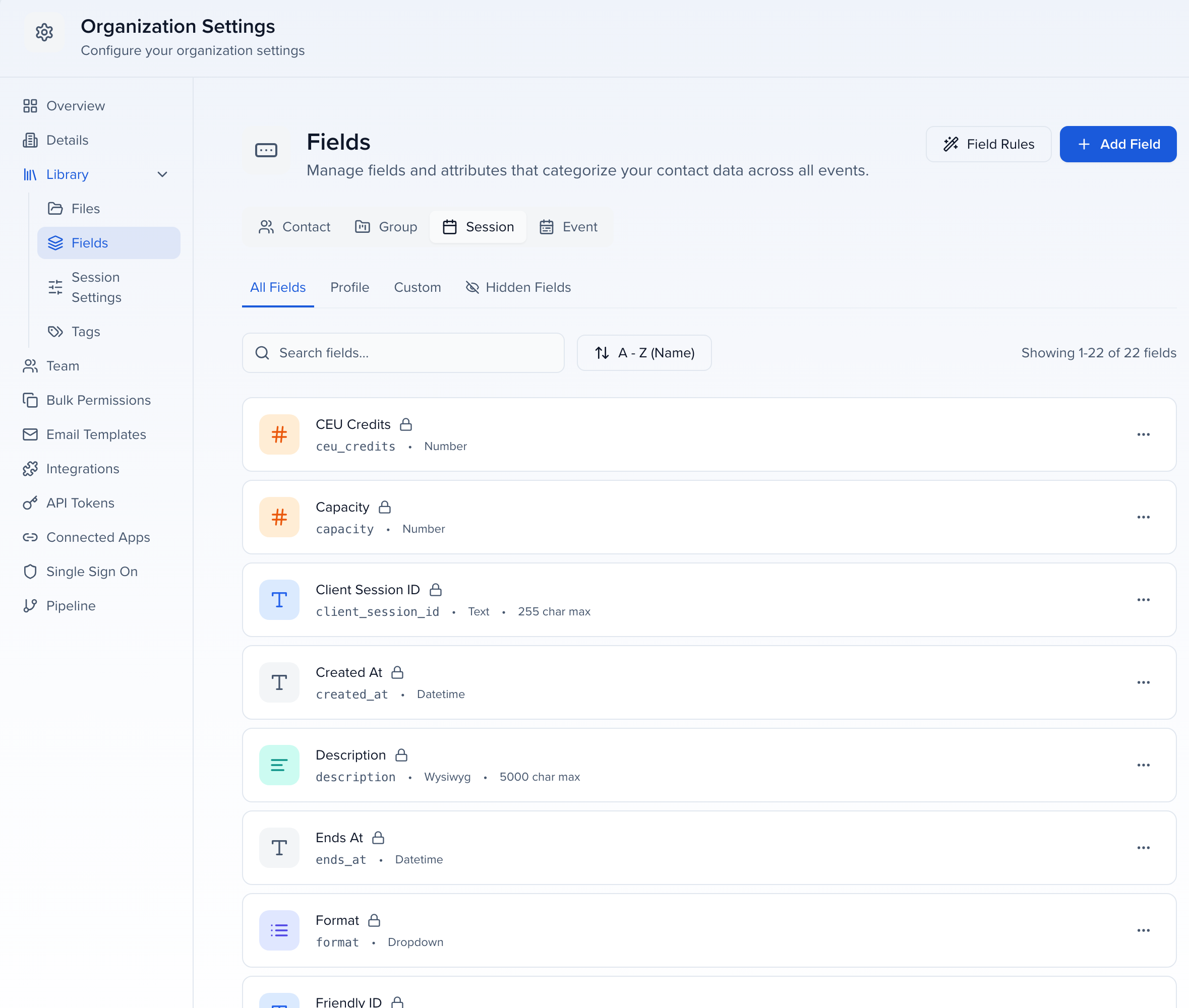
- Settings > Library > Fields in the organization — fields for the whole organization, on the Contact, Group, Session and Event tabs. Fields created here are Global: their data follows the record across every event.
- Settings > Library > Fields in an event — the fields this event uses, on the Contact, Group and Submission tabs. Fields created here belong to this event unless you set Field Level to Global Field.
-
Open the page and select the tab for the kind of record the field belongs to. Within a tab, Profile, Communication, Attribute and Custom narrow the list, and Hidden Fields holds anything archived.
-
Select Add Field in the top-right corner.
-
In the Create … Field panel, enter a Name, choose the Field Type — Text, Text Area, Rich Text, Number, Currency, Percent, Date, Date & Time, Time, Dropdown, Checkbox, Tree, Countries, Email, Phone, URL, File, Signature or Formula — and fill in the settings that type offers — a Maximum Length for text, the options for a dropdown (turn on Allow users to create new options to let submitters add values that are not in the list; new values are added for everyone). A URL field offers Require secure links (https://): when it is on, a link entered with
http://is saved ashttps://wherever the field is filled in — the record itself, a submission form, or an Awards application. Links already saved keep their address until someone edits them, and the setting is off for new fields. The standard contact fields LinkedIn URL, X (Twitter) URL, Facebook URL and Website offer the same option in Edit Contact Field, though their type stays Text. On an event’s Fields page, Field Level chooses between an Event Field, which exists only on this event, and a Global Field, whose data follows the record across every event in the organization; at the organization level every field is global. A Formula field calculates a number from other fields on the same record and cannot be saved until the expression is valid; see Create a formula field for the builder, the Write editor, and the limits. To format text, calculate into an editable field, or set fields when values match, see Create a field rule. Turn on Contains Personal Data to mask the field’s values in AI queries and shared reports.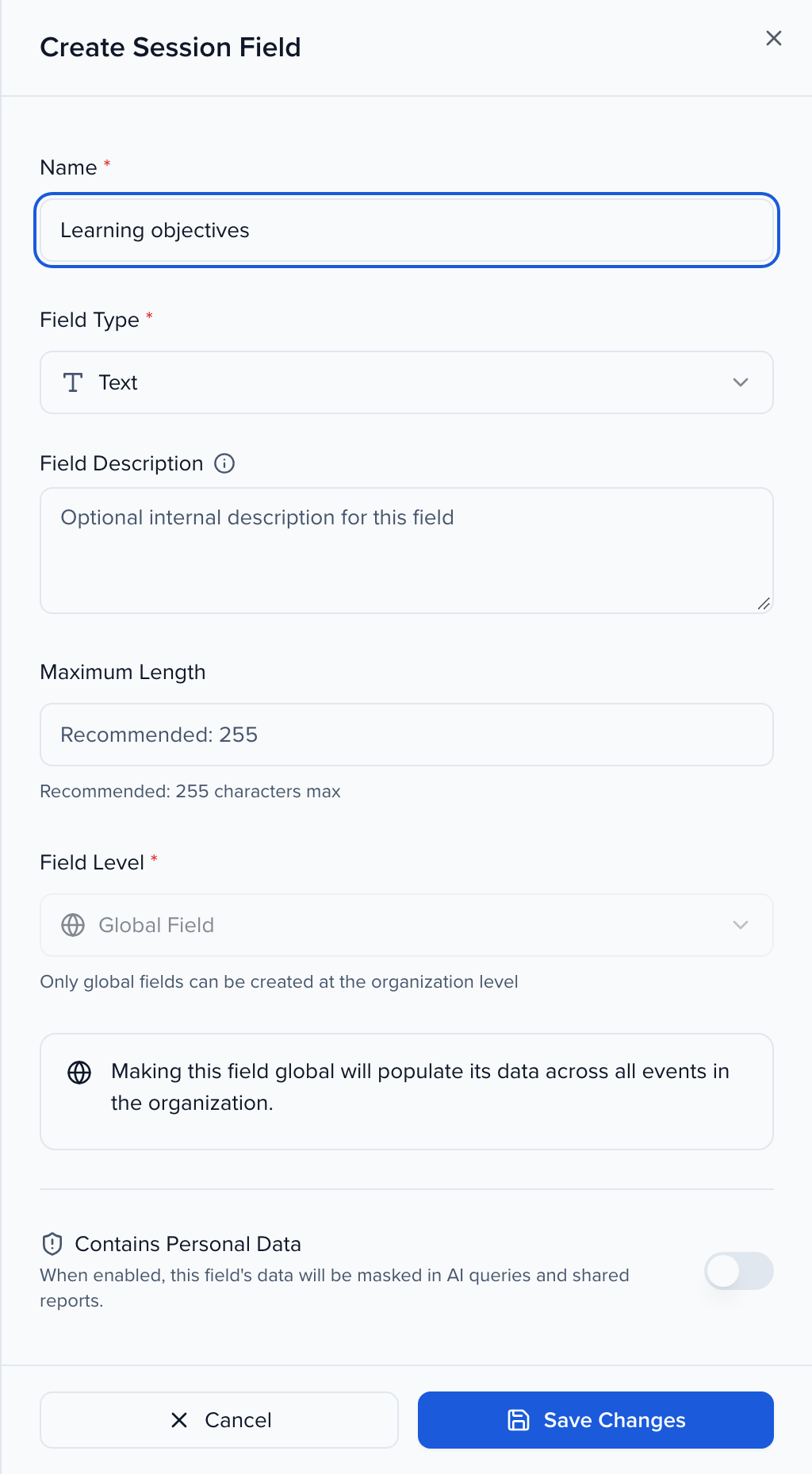
-
Select Save Changes. The field appears in the list under the tab you chose and is ready to add to forms, tables and portals.
Archive a field
Section titled “Archive a field”When a field is no longer needed, archive it rather than deleting it. An archived field is hidden from form builders, field pickers, column pickers, and public forms, but nothing stored in it is lost: existing values stay visible read-only on each record, and you can bring the field back at any time.
- Open Settings > Library > Fields in the organization or the event and find the field — the Custom filter and the search box narrow the list.
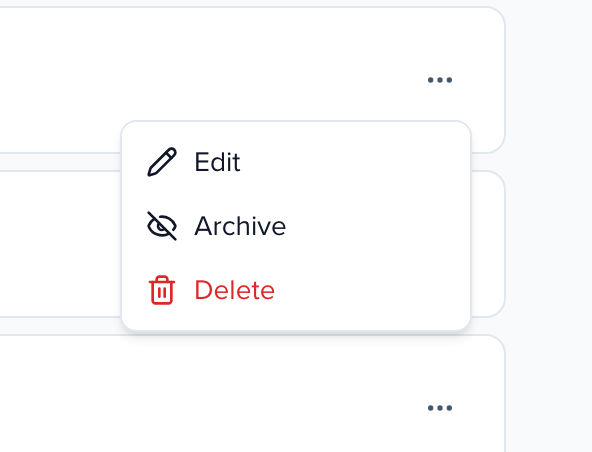
- Open the row’s ⋯ menu and select Archive.
- Confirm in the Archive this field? dialog.
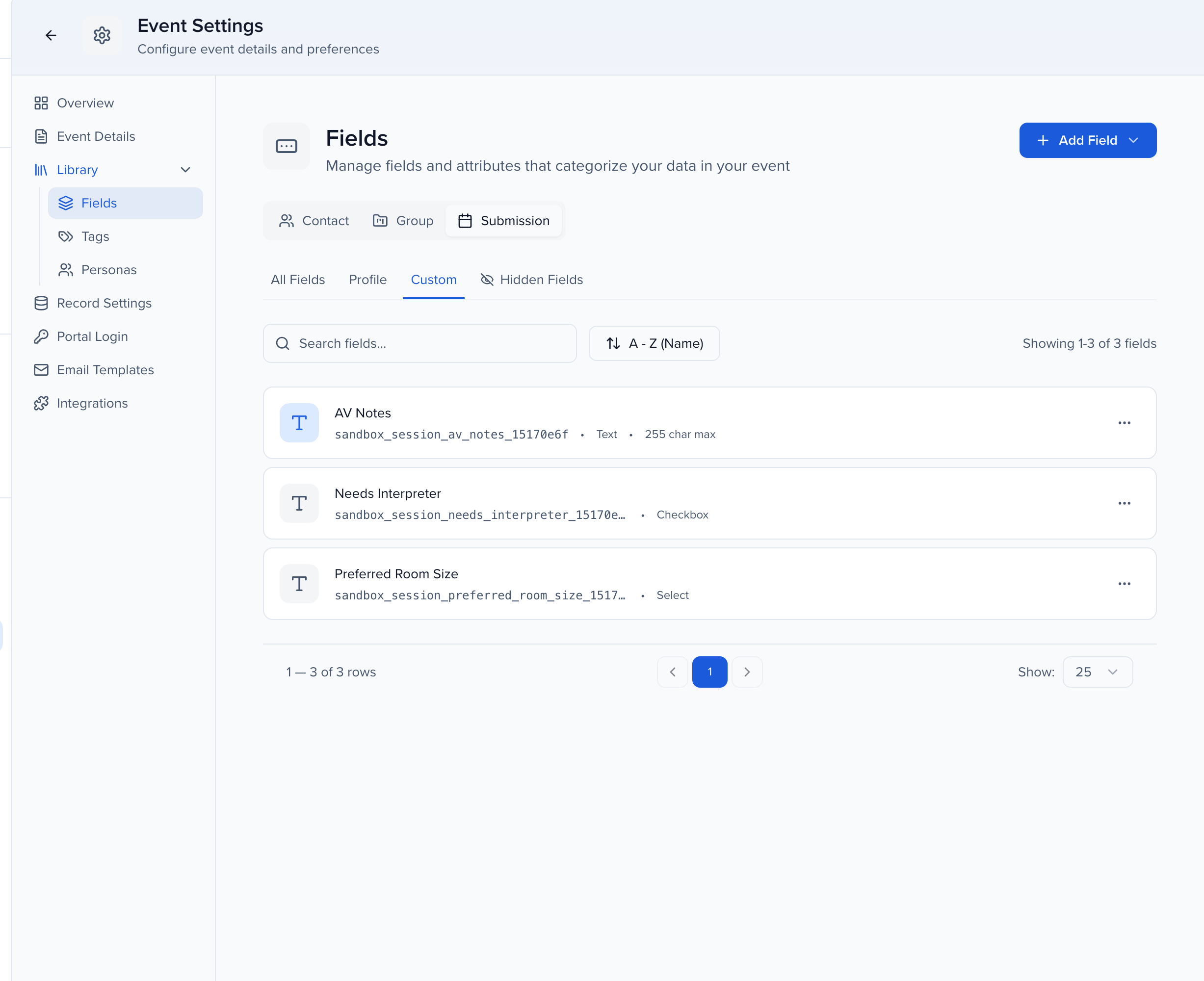
Archiving from the organization’s Settings > Library > Fields hides the field across the whole organization. To hide a field for one event only, archive it from that event’s Settings > Library > Fields instead; it stays available on your other events.
Archived fields are listed on the Hidden Fields tab of the same page, with who archived them and when. Select Restore on a row to make the field available again. A field archived organization-wide is restored from the organization’s Settings > Library > Fields, not from an event. You need the permission to manage fields for that module and level to archive, restore, or see the Hidden Fields tab — Can manage event-level contact fields for an event’s own fields, Can manage global contact fields for global and system fields. See who can create and edit fields.
What an archived field looks like
Section titled “What an archived field looks like”- Lists: the Columns picker on the Contacts and Sessions lists no longer offers the field, and neither do the filter and sort pickers. Translated copies of the field go with it. A saved view that already shows the column still loads.
- Contact profiles: an archived field that holds a value shows it read-only, with no inline editor. An archived custom field with no value is hidden.
- Saving: Sessionboard refuses a new value for an archived field on any record. When a save changes several fields at once, the other fields still save and the archived one is skipped.
- Scope: a field archived from the organization’s Settings > Library > Fields is read-only in every event. A field archived from an event’s Settings > Library > Fields is read-only in that event only.
Restore the field and it comes back to the pickers and is editable again.
System fields can be archived too, but not deleted. Five fields can never be archived, because Sessionboard relies on them — session Title and Description, and contact First name, Last name, and Email. You can still rename them: open the field, change Name, and save; the other settings stay locked. The dropdown options on Annual revenue and Organization structure are editable as well.
Delete a field
Section titled “Delete a field”Deleting removes a custom field and everything stored in it. Prefer archiving unless the field was created by mistake. System fields cannot be deleted.
Open the field first. If it is used in a formula or a Field Rule, the sidebar shows Used in formulas and Field Rules. Replace that field in those expressions or rules before you delete it. After you delete a source, the last stored result stays on the record and the math does not run again until you fix the expression.
Find the field, open its ⋯ menu and select Delete.