

Adding existing contacts to a new event
Speakers come back. A contact created for one event belongs to your whole organization, so when the same person is invited to the next event you add the existing record rather than creating a new one — their profile, headshot, bio and history come with them, and you never end up with two of the same person.
From the event: one or a few contacts
Section titled “From the event: one or a few contacts”- In the event, open CRM > All Contacts and click Add Contact.
- Search by name or email. Results are split into contacts already in event and contacts elsewhere in organization.
- Tick the contacts you want under in organization and click Add to Event at the bottom of the panel. The button shows how many you have selected.
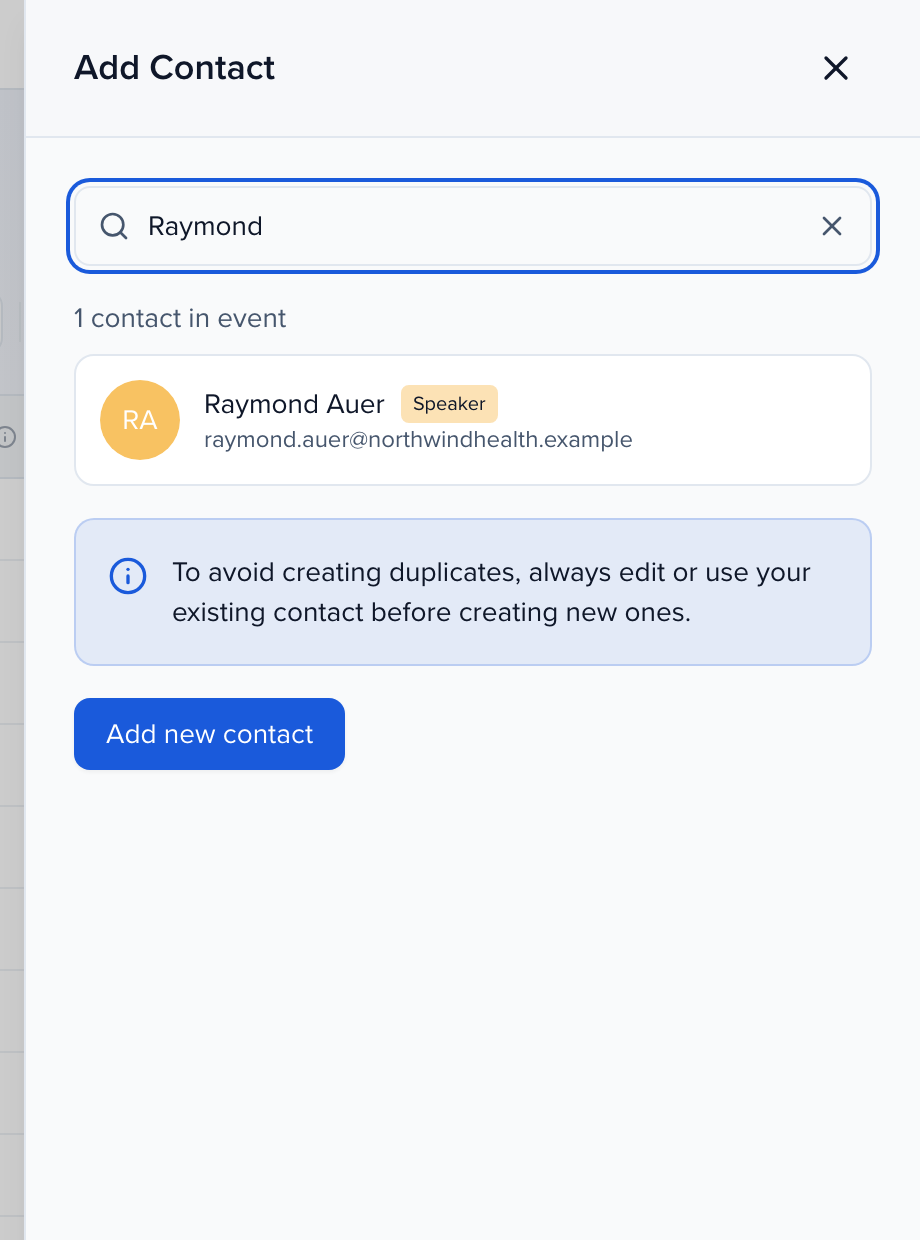
They appear in All Contacts at once, with their organization-level profile — bio, photo, company, social links — already filled in. Event-specific fields (their session, portal tasks, this event’s custom fields) start empty, because those belong to the new event.
From the organization: many contacts at once
Section titled “From the organization: many contacts at once”The organization’s CRM > Contacts directory lists every contact across all your events. Use it when you are bringing a whole cohort forward — every speaker from last year’s program, or everyone in a segment.
- Open the organization (your organization’s name at the top of the sidebar, then CRM > Contacts).
- Filter or search the directory down to the people you want — for example Events = last year’s event — and tick them, or tick Select all.
- In the bulk bar, click Add To Event and pick the event from the list — the footer confirms how many contacts you are adding.

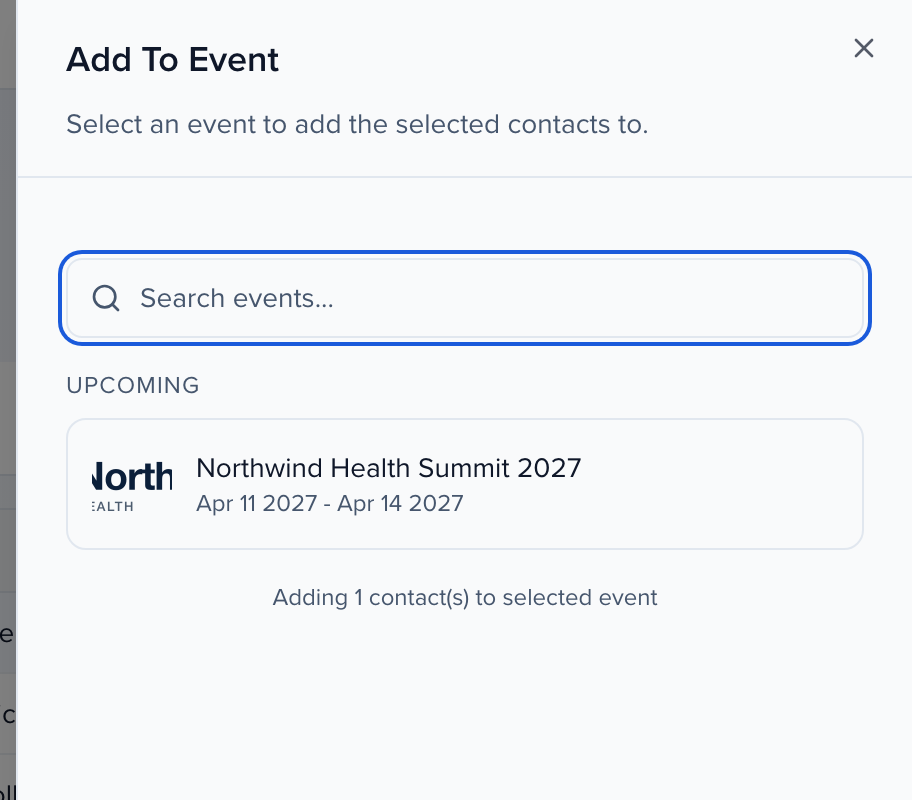
The same bar offers two ways to email the selection without adding them to anything: Communicate opens a blank email, and Invite To Event opens the same composer pre-filled with an Invitation To Apply — a short note that speaker applications are open, which you edit and send. Neither changes who is in an event.
Related
Section titled “Related”- Add & delete a contact
- Speaker CRM: your organization’s contacts
- Importing data — when the people are in a spreadsheet rather than in Sessionboard