

Swapcard

Swapcard is an AI-powered event and matchmaking platform that runs successful in-person, virtual, and hybrid events. AI is used to boost matchmaking, connecting users with the most relevant people based on their profiles and custom event journeys.
Sessionboard users can connect their events with Swapcard and sync session, content, and speaker data from Sessionboard to Swapcard. This one-way integration is a user-friendly process that facilitates data transfer to Swapcard once users have approved and scheduled their sessions in Sessionboard:
Why use it
Section titled “Why use it”Swapcard is where attendees browse your program, so it needs the same sessions, speakers and topics you built in Sessionboard without anyone retyping them. The integration pushes them for you on a schedule or on demand, and when you maintain your tracks and topics in Sessionboard it can keep the Swapcard tree in step too, with a preview before anything changes.
Connect integration
Section titled “Connect integration”Integrations are connected on the organization level in Sessionboard.
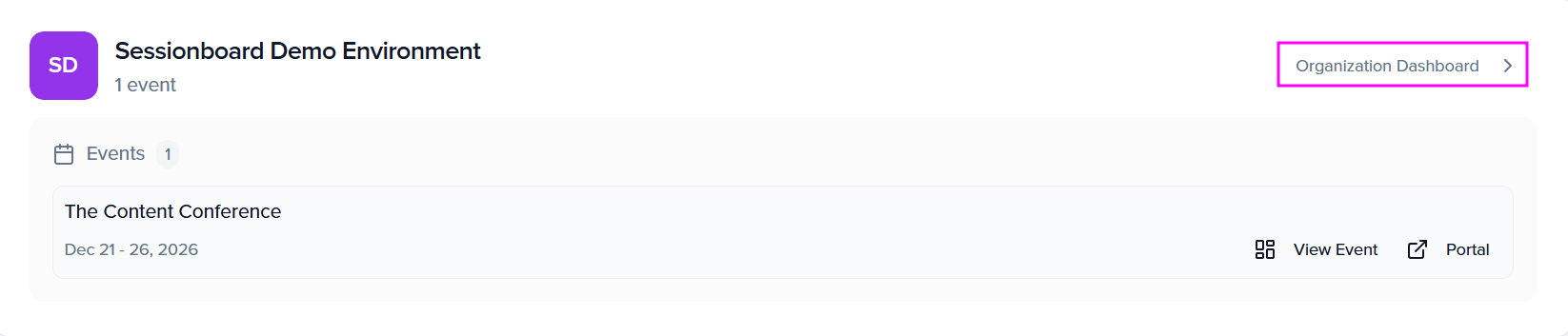
After logging in, click “Organization Dashboard” to access your event’s organization:
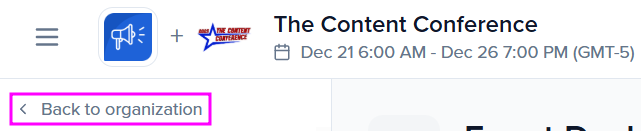
Or, from your event, you can click Back to organization:
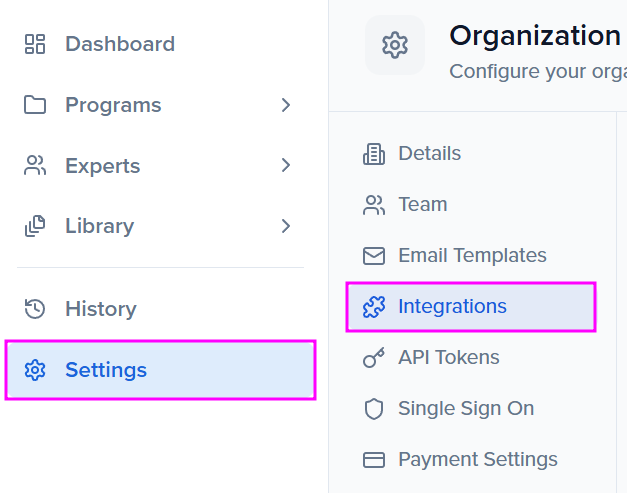
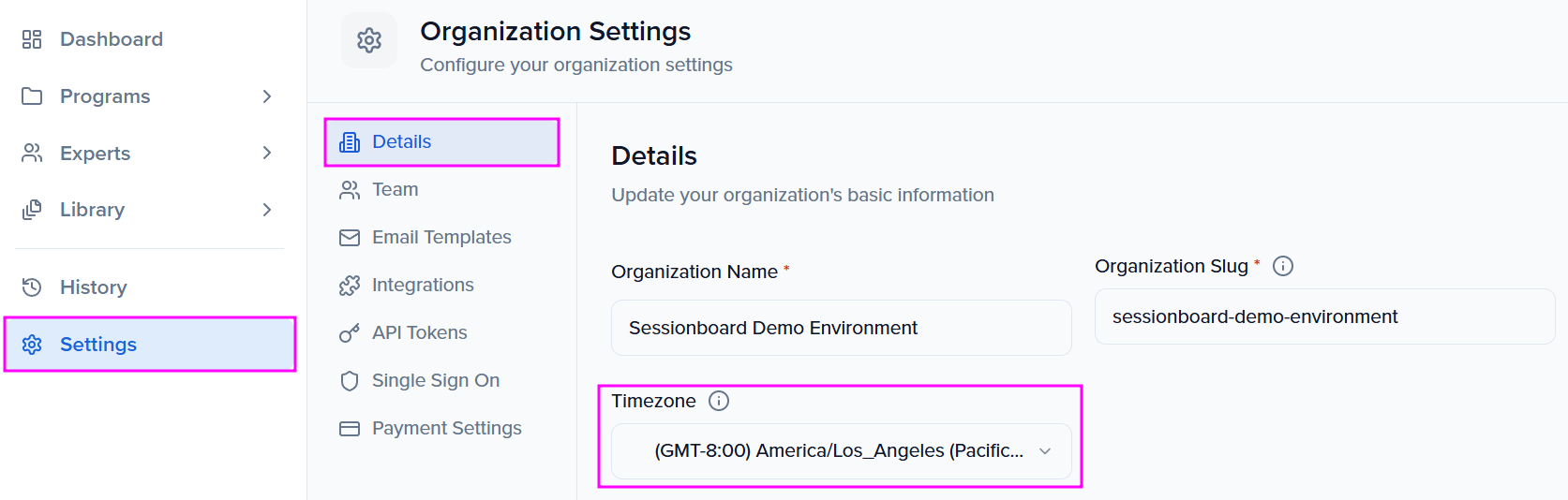
Select the ‘Settings’ module to locate ‘Integrations’.
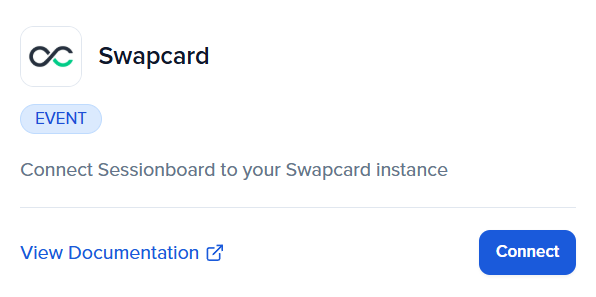
There, you can connect new or manage existing integrations. To connect a new integration, click the “Connect” button below the integration.
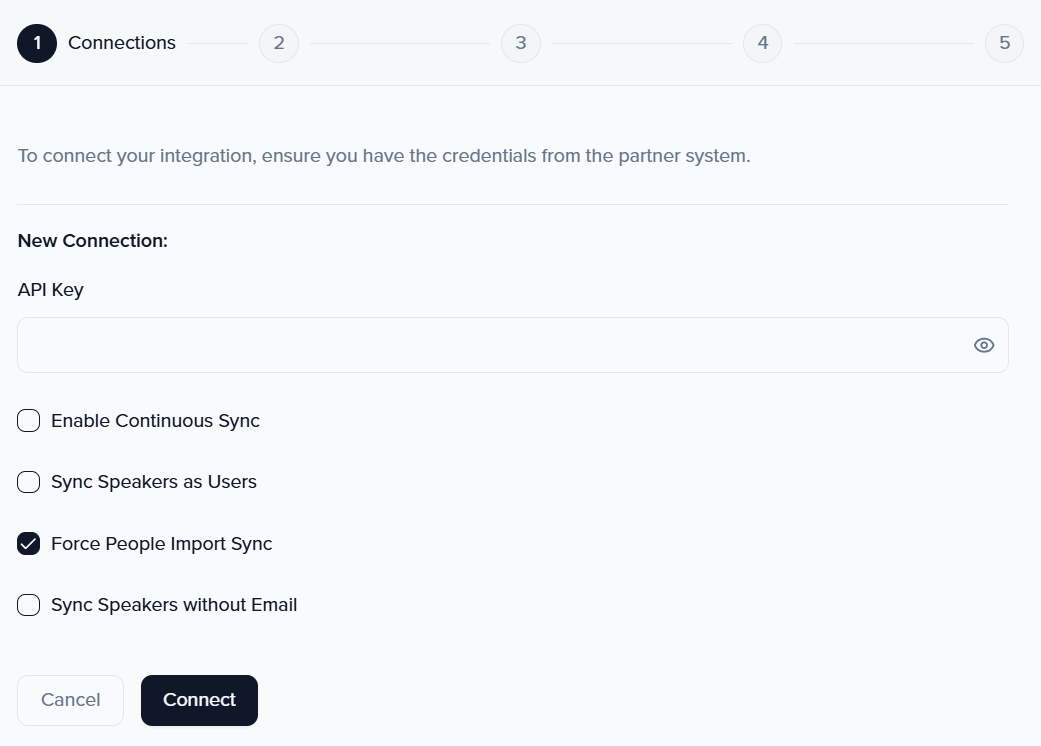
For Swapcard, enter the API key associated with your event.
Your Swapcard API key
Section titled “Your Swapcard API key”Swapcard creates the API key, not Sessionboard. Before you connect:
- Ask the Swapcard administrator of your community, or your Swapcard contact, for an API key for the community that holds your events.
- Make sure the key can see every Swapcard event you plan to map. Events that need a different key go in a second connection (see Map events).
- Keep in mind that the key belongs to a Swapcard user. If that user is removed from Swapcard, the key stops working in Sessionboard and syncs fail until you enter a new one.
Connection settings
Section titled “Connection settings”Once you enter the API key, these settings apply to every event on the connection:
- Enable Continuous Sync — Creates and updates records about every 30 minutes, so nobody has to start a sync. You can still sync by hand between runs.
- Sync Speakers as Users — Creates speakers as Swapcard users, so they get an account and can sign in to the event.
- Force People Import Sync — Use it when a contact has more than one Client ID in your Swapcard community, or when you are switching the user in your community. Swapcard’s documentation on the Force Import explains when to use it.
- Sync Speakers without Email — Creates speakers in Swapcard without their email address. This is often used when registration data is also imported into Swapcard from another system.
Map events
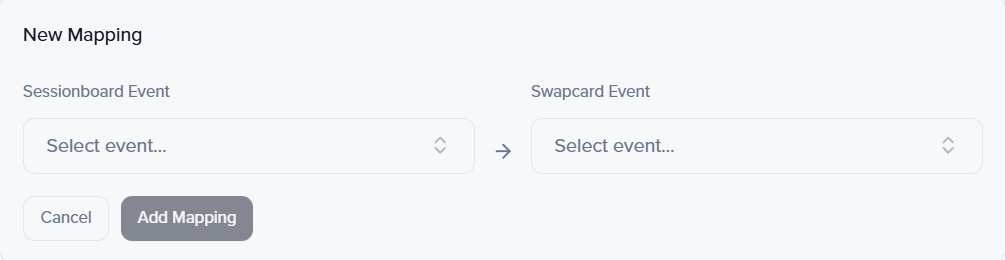
Section titled “Map events”Once the integration is connected, a window will appear prompting you to map your Sessionboard events with Swapcard ones. Select the SB event from the dropdown list, then choose the Swapcard event in the right-hand dropdown.
Click “Add Mapping” to complete the mapping process.
Configure event settings
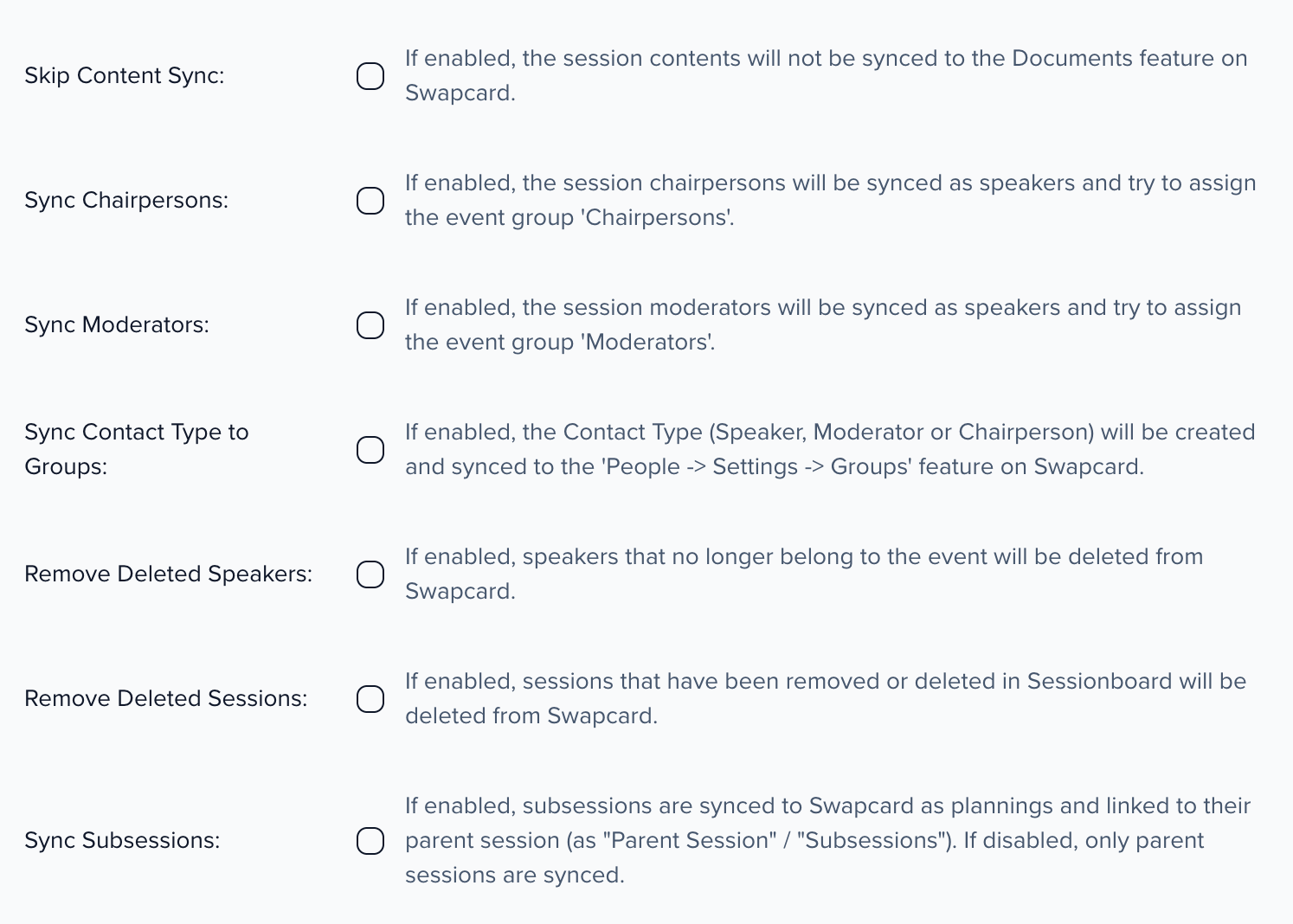
Section titled “Configure event settings”The next step, Configure event settings, holds the settings for each event mapping. Pick the mapping at the top, then set:
- Skip Content Sync — Collect session content files without syncing them to Swapcard’s Documents.
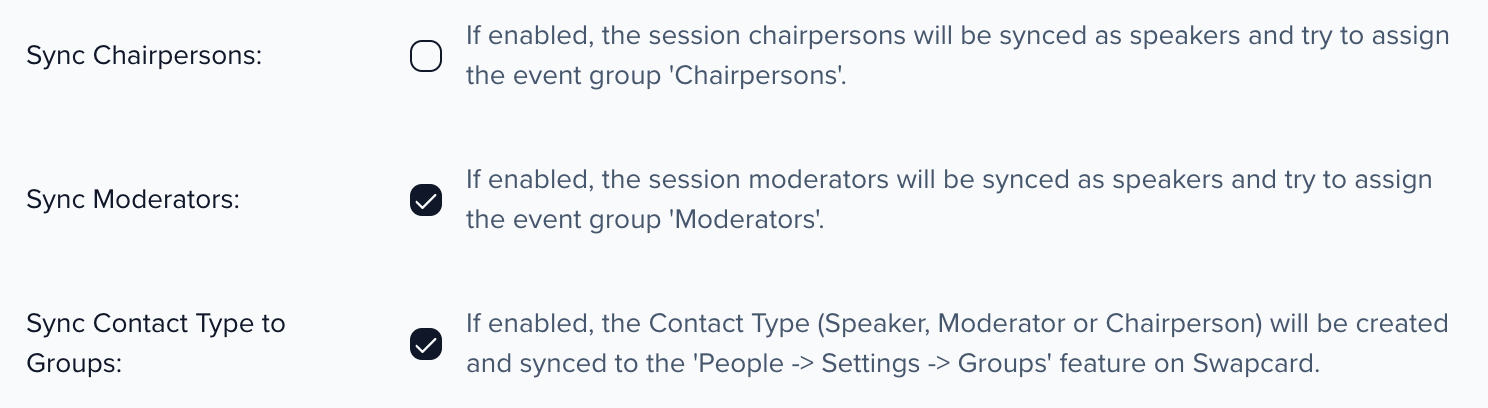
- Sync Chairpersons — Sync chairpersons as speakers. See Roles and groups in Swapcard.
- Sync Moderators — Sync moderators as speakers.
- Sync Contact Type to Groups — Place each person in the Swapcard group for their role, under People > Settings > Groups.
- Remove Deleted Speakers — Delete speakers from Swapcard when they no longer belong to the event in Sessionboard.
- Remove Deleted Sessions — Delete sessions from Swapcard when they are deleted in Sessionboard or are no longer accepted.
- Sync Subsessions — Sync subsessions as Swapcard plannings linked to their parent session. When it’s off, only parent sessions sync.
- Sync Language Variants — Shown only when the event has language variants. Syncs fields that have language variants in each of the event’s languages, not just the default one.
Speakers always sync. Click Save after you change a mapping’s settings.
Mapping Criteria
- More than one event can be mapped per Sessionboard organization.
- NOTE: Each connection uses one API key, and the Swapcard events you map must be reachable with that key. If some of your Swapcard events use a different API key, add a second connection for them with Add New Connection.
- At least one Sessionboard event must be mapped to Swapcard for the sync option to appear in the UI.
- Once a Swapcard event has been mapped to a Sessionboard event, neither can be remapped to another event.
Roles and groups in Swapcard
Section titled “Roles and groups in Swapcard”Everyone Sessionboard sends to Swapcard is created as a speaker. Speakers always sync; moderators and chairpersons sync only when Sync Moderators or Sync Chairpersons is on for the event mapping.
- Roles: each person gets their role at the session level in Swapcard, matching their role on that session in Sessionboard: Speaker, Moderator, Chairperson, or a custom role such as Panelist. Swapcard doesn’t let other systems create session roles, so add each role you use, custom roles included, in your Swapcard event once, with the same name as in Sessionboard. A person whose role has no match in Swapcard isn’t added to that session, and the run’s results in History > Integrations > Sync History name the missing role.
- Groups: with Sync Contact Type to Groups on, each person is also placed in the Swapcard group for their role (under People > Settings > Groups in Swapcard), as well as in the default Speakers group. If a group doesn’t exist yet, Sessionboard creates it, so you don’t need to create groups in Swapcard first.
| Role on a session in Sessionboard | Swapcard groups |
|---|---|
| Speaker | Speakers |
| Moderator | Moderators and Speakers |
| Chairperson | Chairpersons and Speakers |
| A custom role (for example Panelist or Expert) | A group named after the role’s plural name, such as Panelists, and Speakers |
| Several of these roles | Every matching group |
With Sync Contact Type to Groups on, everyone synced is in the Speakers group as well, so a count of that group includes moderators, chairpersons and custom roles. Someone who loses a role leaves that role’s group on the next sync. Groups with any other name — for example ones a registration import adds — are kept when Sessionboard updates a person’s groups.
With Sync Contact Type to Groups off, Sessionboard adds people it creates in Swapcard to the Speakers group, so they don’t land in Swapcard’s default Attendees group, and leaves the groups of people already in Swapcard as they are. Role groups such as Moderators are not created or assigned. Turn the setting on if you rely on groups for speaker access or networking in Swapcard.
Mapping session fields
Section titled “Mapping session fields”Once your events have been connected, your next window will allow you to map your designated session fields. Within the dropdown, be sure you have selected the correct event that you wish to map the session fields for.
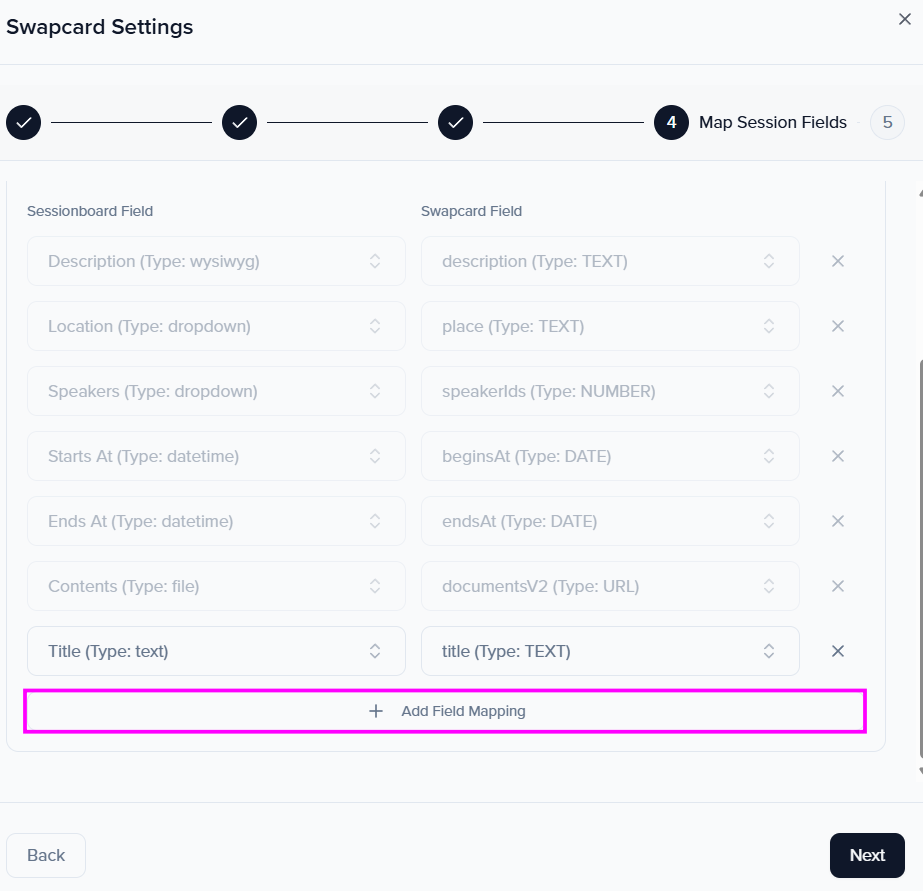
The default fields will populate within the session field mapper. You will be able to map additional fields by selecting “Add Field Mapping”. You will then be able to select the Sessionboard field and the destination field in Swapcard that you wish to be mapped to.
Make sessions private in Swapcard
Section titled “Make sessions private in Swapcard”Swapcard’s Make the session private setting is a destination you can map in the session field mapper. Map one Sessionboard checkbox, dropdown or text field to it:
- A checked checkbox, or a value of Yes, True, Private or 1, makes the session private in Swapcard.
- An unchecked checkbox, or a value of No, False, Public or 0, makes it public.
- An empty or unrecognized dropdown or text value leaves the session as it is in Swapcard.
Values are not case-sensitive. Only one field can be mapped to Make the session private, and other field types can’t be saved to it.
If nothing is mapped to it, syncs never change the setting: new sessions are created public, and sessions already in Swapcard keep whatever you set in Swapcard.
Mapping speaker fields
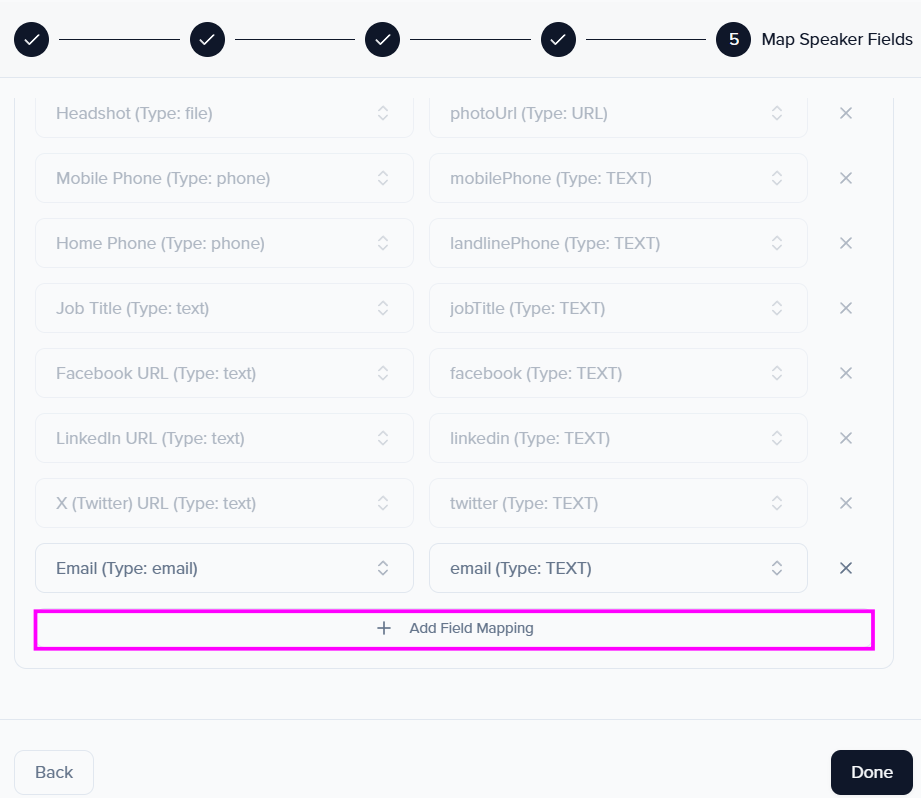
Section titled “Mapping speaker fields”Once your session fields are mapped, you will then be prompted to map your speaker fields. The default fields will populate within the speaker field mapper. You will be able to map additional fields by selecting “Add Field Mapping”. You will then be able to select the Sessionboard field and the destination field in Swapcard that you wish to be mapped to.
Tree structure in Swapcard
Section titled “Tree structure in Swapcard”When you map a Sessionboard tree field (a hierarchy of values, such as tracks with sub-tracks) on the session or speaker field mappings, the Tree structure in Swapcard panel below the mappings lists each mapped tree with a status: In sync, Missing in Swapcard, or the number of differences between the two trees.
Each mapped tree has a Tree owner:
- Owned in Swapcard Studio (default) — You build and edit the tree in Swapcard Studio. Sessionboard only sends each session’s or speaker’s values and never changes the tree itself. This is how the integration has always worked.
- Owned by Sessionboard — Sessionboard creates and updates the Swapcard tree to match yours before each sync. Choose this when you maintain the tree in Sessionboard.
With Owned by Sessionboard, click Push tree now to update Swapcard straight away. A Review the changes to Swapcard dialog lists every change first — values to add, rename, move, hide or delete — and nothing is sent until you click Push to Swapcard. The panel shows Pushing the tree to Swapcard… until it finishes.
- A renamed value is renamed in Swapcard and keeps its Swapcard ID, so sessions and speakers stay attached to it.
- A value that sessions or speakers still use, or that was added in Swapcard Studio, is hidden instead of deleted. Sessionboard only deletes values it created that nothing uses.
- If a Sessionboard tree field is not in Swapcard yet, click Create in Swapcard to preview and create a new Swapcard tree field, which is then mapped for you.
Remove mapping
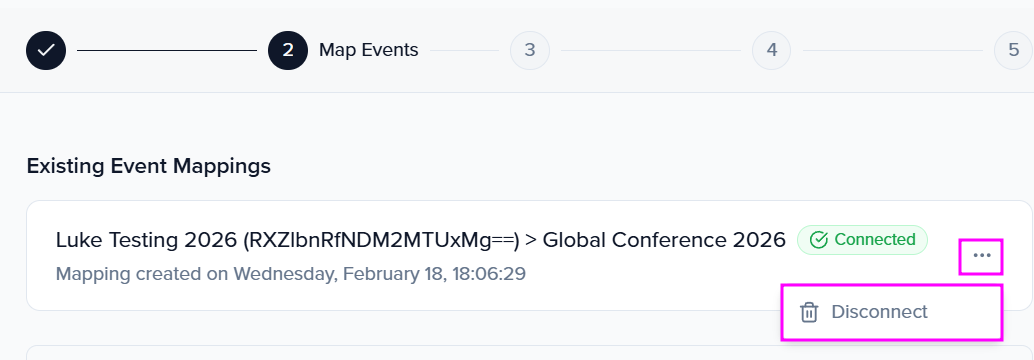
Section titled “Remove mapping”To remove event mappings, go to your Organization > Settings > Integrations and click Settings.
This will open the mapping window. A list of existing mappings will be displayed. Click “Disconnect“ to disconnect specific mapped events.
Syncing sessions and speakers
Section titled “Syncing sessions and speakers”Before initiating a sync, ensure that you have reviewed and accepted the sessions that you want to sync to Swapcard. Sessions must have a date and time to be synced.
You’ll also want to ensure that sessions have rooms (locations) and are assigned if you want those to sync with the associated session.
Synced Fields
Section titled “Synced Fields”Sessionboard will endeavor to sync as much data between systems as possible. It is important to use system fields when possible to collect information about your sessions and speakers to ensure they will be successfully matched.
Below is a list of standard fields that will be synced. Fields with an asterisk (*) are required.
Mapped dropdown and multi-select fields send the option names. If an option doesn’t exist on the Swapcard field yet, Swapcard creates it on the sync, so you don’t need to create the options in Swapcard first.
Sessions
Section titled “Sessions”Sessions will be synced as Plannings in Swapcard. Speakers will be associated with their sessions.
- Title*
- NOTE: Standard UTF-8 characters are supported; however, emojis are not supported in Swapcard.
- Starts At datetime*
- Ends At datetime*
- Sessions that span multiple dates are not supported in Swapcard and will be synced as the same calendar day
- Sessions that have passed will not sync.
- Description
- NOTE: Standard UTF-8 characters are supported; however, emojis are not supported in Swapcard.
- Locations (Rooms)
- Field names can not be edited once you have begun syncing to a partner system. To edit a field name, we recommend creating a new field name and associating it with the session before re-syncing.
- Speakers
- Content
- Content uploaded to a session will be synced to the session and content library in Swapcard
- Make the session private (only when you map a field to it; see Make sessions private in Swapcard)
Speakers
Section titled “Speakers”If you wish for the speakers to be created as users, please be sure to enable that feature when connecting your integration.
People can be listed in the Swapcard apps and used to print badges. However, people need to be users to log into the app, schedule meetings, receive emails, or use other platform functions. You will need to make that change in Swapcard.
- First Name *
- Last Name *
- Email *
- Job Title
- Company Name
- Website
- Mobile Phone
- Phone
- Biography
- Address
- Zip (Postcode)
- Headshot
It is important to take into consideration all sources of data that you are syncing to Swapcard. If a registration source is also sending data to Swapcard, you will want to be sure that they are not overwriting your speaker data and only syncing information that you wish them to
If your speaker exists in Swapcard, we will match the profiles via email. Please note that we cannot update/change a speaker’s email once synced. A new speaker will need to be created to allow for the new speaker mapping to be established
How to Initiate a Sync
Section titled “How to Initiate a Sync”-
Go to Program > Collect & Review > Agenda.
-
Click Options, then Sync to Swapcard (event: …). The ID is the Swapcard event the sync writes to.
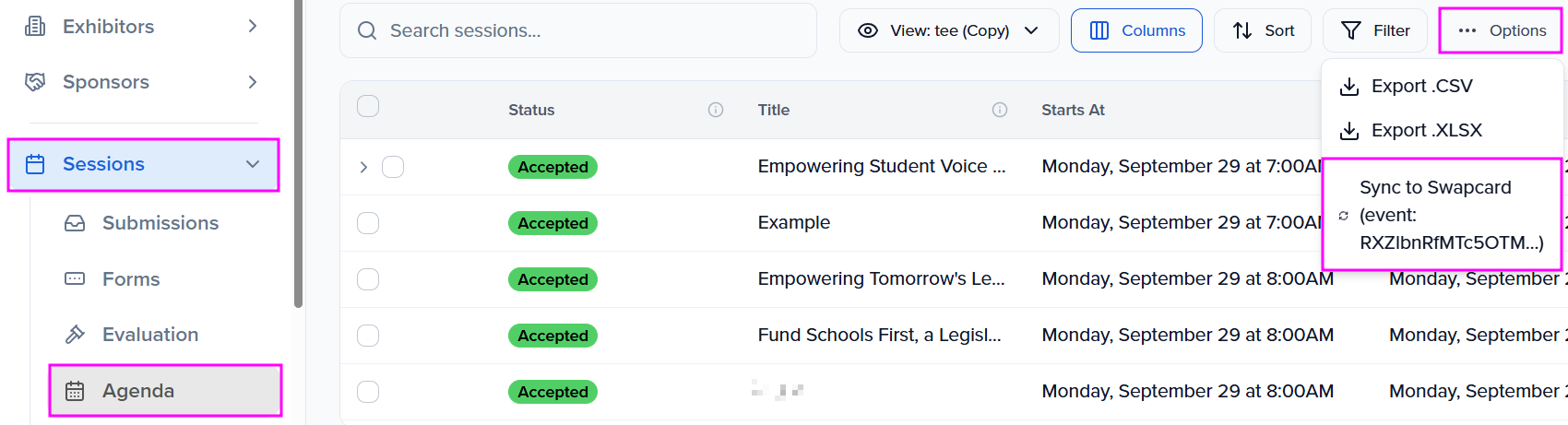
- A message will flash at the bottom of the screen confirming that the sync has started.
- When the sync is complete, another message will flash confirming that data has been synced.
- If there is an issue, a message will appear verifying the number of sessions and speakers that were attempted to sync and that were successfully synced. Please check that your sessions have all the required fields, and contact us if your issue persists.
Resync Behavior
Section titled “Resync Behavior”On resync, new sessions and speakers that have been added to the agenda in Sessionboard will be sent to Swapcard. Any updates that are made to previously synced fields (such as correcting a speaker’s title or changing a session time) will also be applied.
In addition to syncing all sessions and their speakers, you have the ability to choose individual sessions to sync. Go to Program > Collect & Review > Agenda, select the sessions you wish to sync, then click More > Sync to Swapcard (event: …).
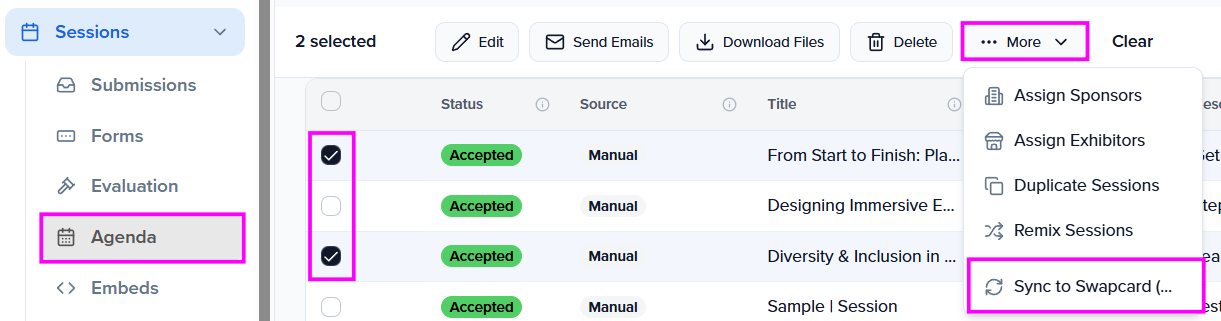
Every run is listed in History > Integrations > Sync History with its Sync ID, status, error count and duration. Click the results link on a row for counts of sessions and speakers synced and the error summary.
Session attendance and door scans
Section titled “Session attendance and door scans”Turn on Pull session attendee lists & door scans in the event mapping’s Event Settings to bring session activity back from Swapcard. It is off by default. On each sync, Sessionboard reads which sessions each person added in Swapcard and the session access-code scans. Door scans are recorded as session attendance, which Credit Claiming uses to list and verify the sessions each attendee attended. Sync the program first, because scans are matched to the sessions Sessionboard already sent to Swapcard.
Frequently asked questions
Section titled “Frequently asked questions”Why is a session missing in Swapcard?
Only sessions that meet every sync condition are sent. Check the session against this list, then sync it again.
- Its status is accepted.
- It has a date, start time and end time, and it hasn’t already ended.
- A sync has run since the session was accepted or changed. With Enable Continuous Sync on, that happens about every 30 minutes; otherwise, go to Program > Collect & Review > Agenda, select the session and click More > Sync to Swapcard (event: …).
- The latest run in History > Integrations > Sync History shows no error for it.
A speaker keeps disappearing from a session in Swapcard
Sessionboard decides who speaks on a synced session. Each sync sends the session’s speakers from Sessionboard, so a speaker you add to the session only in Swapcard can be removed by the next sync.
- Add the person to the session in Sessionboard, not in Swapcard.
- Make sure their email address is valid and unique. Swapcard matches people by email and rejects a speaker it can’t accept, and a rejected speaker isn’t attached to the session.
- Sync, then open the run’s results in History > Integrations > Sync History to confirm the speaker synced without an error.
Can one Sessionboard event sync to two Swapcard events?
Not as a split. Each sync sends all of the event’s accepted sessions to the Swapcard event it is mapped to, so one Sessionboard event can’t send some sessions to one Swapcard event and the rest to another. For two co-located conferences that each have their own Swapcard event, keep each conference’s sessions in its own Sessionboard event and map each one to its Swapcard event.
The sync failed, but I don't see an error
Send the run’s details to support so they can look it up.
- Go to History > Integrations > Sync History and find the run.
- Note its Sync ID, status and start time, and open the results to copy any counts or messages.
- Email support@sessionboard.com with the event name and those details.
Disconnect Integration
Section titled “Disconnect Integration”To disconnect from the integration, go to your Organization > Settings > Integrations
- Locate your connected integration and click the three-dot icon beside Settings
- Click “Disconnect Integration.”
- Confirm that you are sure before deleting the integration.
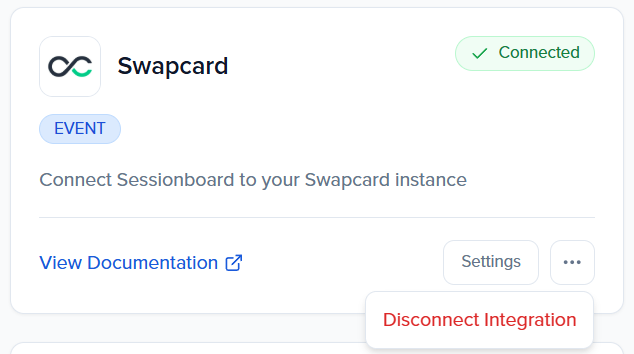
Once the integration is disconnected, you can reconnect using a separate API key or reuse the same credentials.
Disconnecting the integration will disconnect all mapped events. Previously-synced sessions cannot be able to be resynced even if you remap the same events. The integration should only be disconnected if you intend to sync to a new organization.