

Swoogo

Swoogo is a conference management system that facilitates registration, attendee tracking, and automated marketing tools.
Sessionboard users can connect their events with Swoogo and sync session and speaker data from Sessionboard to Swoogo. This one-way integration is a user-friendly process that facilitates data transfer to Swoogo once users have approved and scheduled their sessions in Sessionboard.
Connect integration
Section titled “Connect integration”Integrations are connected on the organization level in Sessionboard.
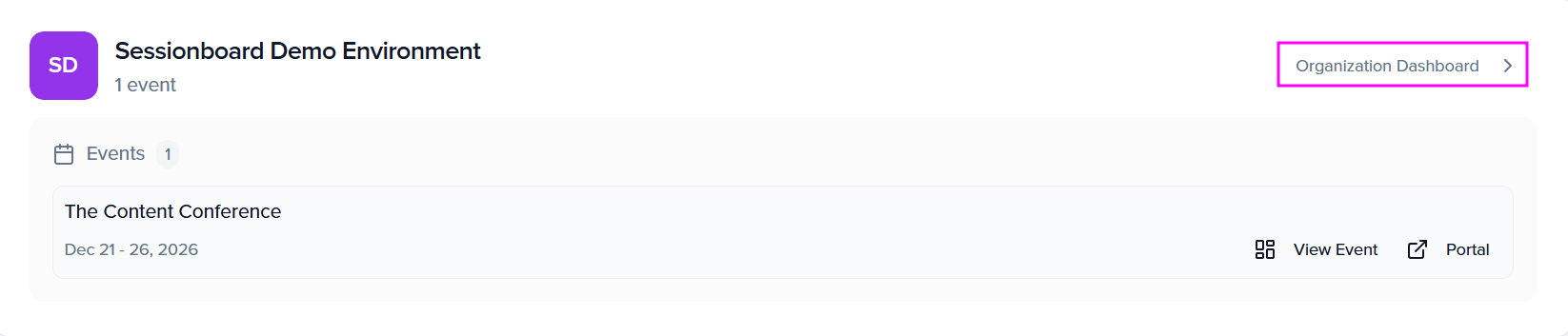
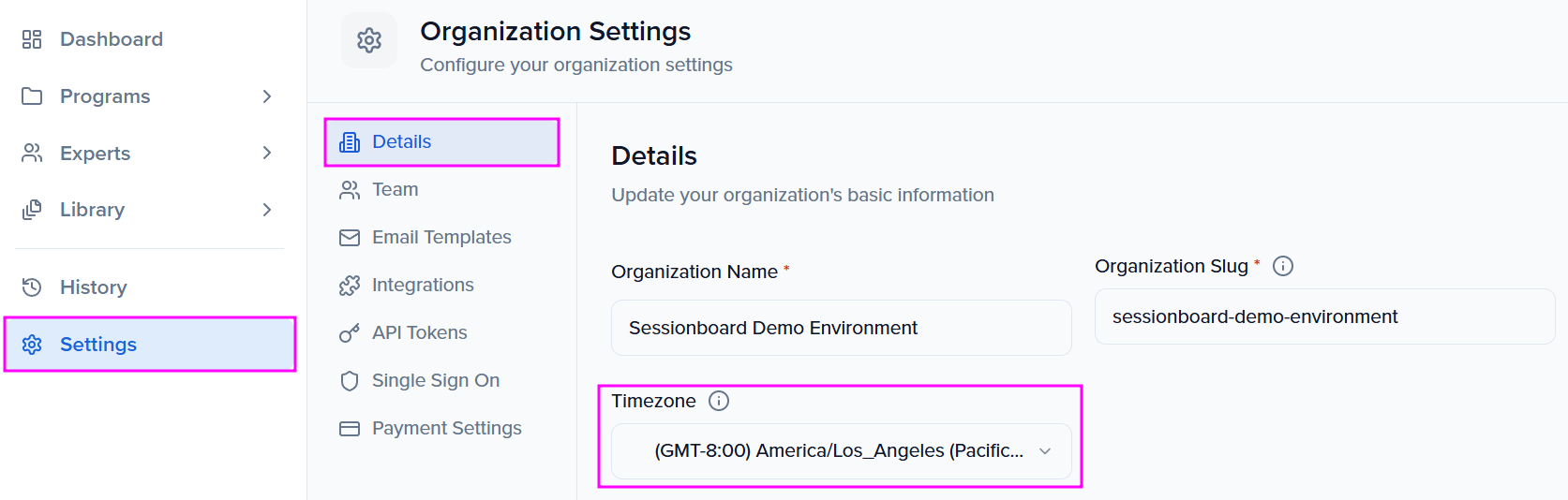
After logging in, click “Organization Dashboard” to access your event’s organization:
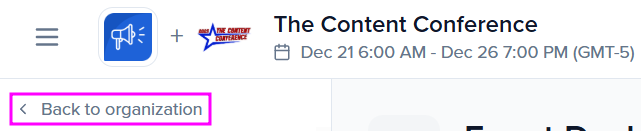
Or, from your event, you can click Back to organization:
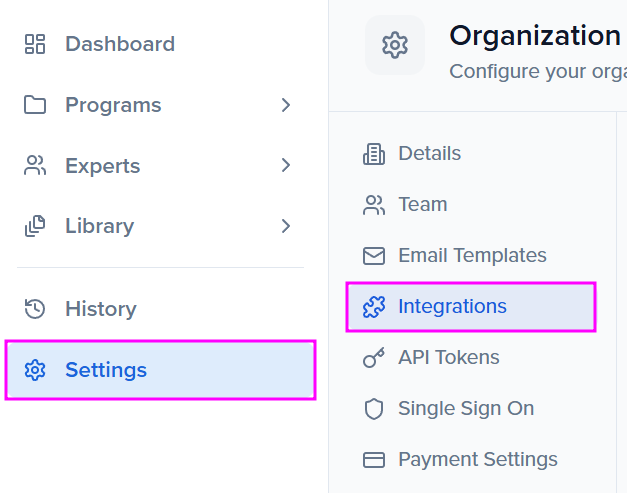
Select the ‘Settings’ module to locate ‘Integrations’.
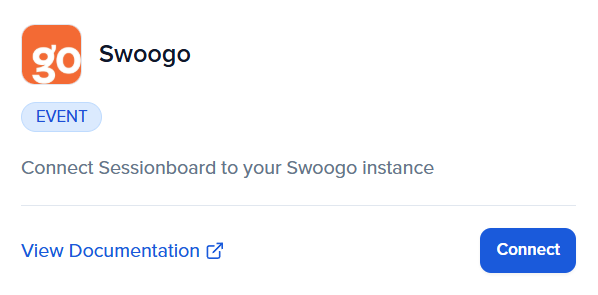
There, you can connect new or manage existing integrations. To connect a new integration, click the “Connect” button below the integration.
For Swoogo, enter the Consumer API Key and Consumer Secret associated with your Swoogo instance.
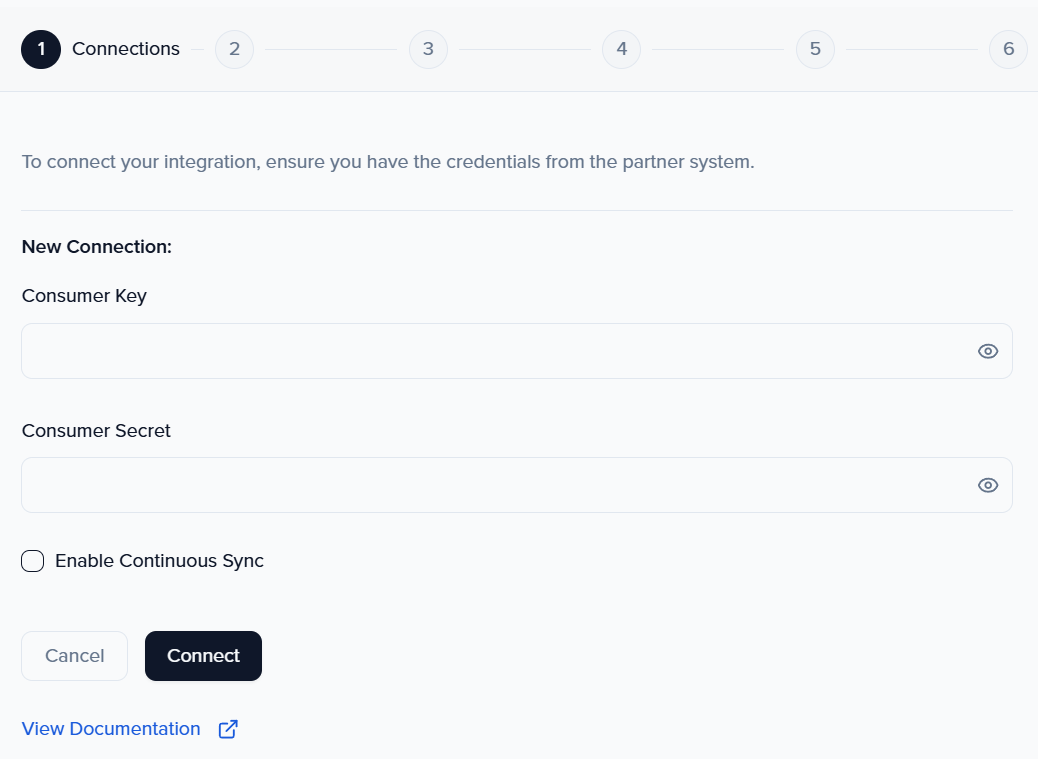
Enable continuous sync to create/update records on a regular interval (approx. 30 minutes) so that admins don’t have to force sync them. The admin can still manually push a sync if they want to update between the sync intervals.
Map events
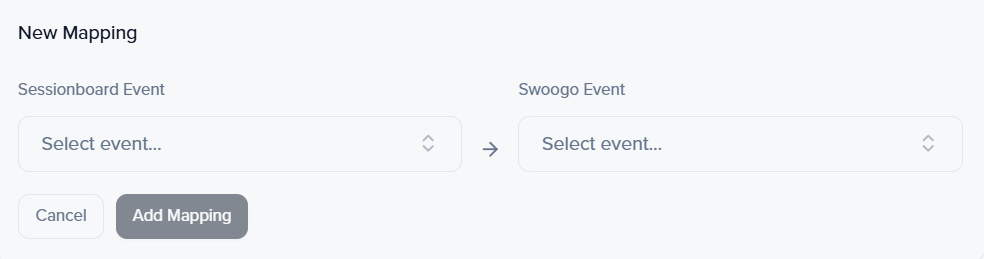
Section titled “Map events”Once the integration is connected, a window will appear prompting you to map your Sessionboard events with Swoogo ones. Select the Sessionboard event from the dropdown list, then choose the Swoogo event in the right-hand dropdown.
Click “Add Mapping” to complete the mapping process.
Mapping Criteria
- More than one event can be mapped per Sessionboard organization.
- NOTE: Within your Sessionboard organization, only one Consumer Key & Secret can be utilized. If you would like to map more than one event from Sessionboard into Swoogo, please ensure that every event in Swoogo is associated with the same Consumer Key & Secret.
- At least one Sessionboard event must be mapped to Swoogo for the sync option to appear in the UI.
- Once an Swoogo event has been mapped to a Sessionboard event, neither can be re-mapped to another event.
Event Settings
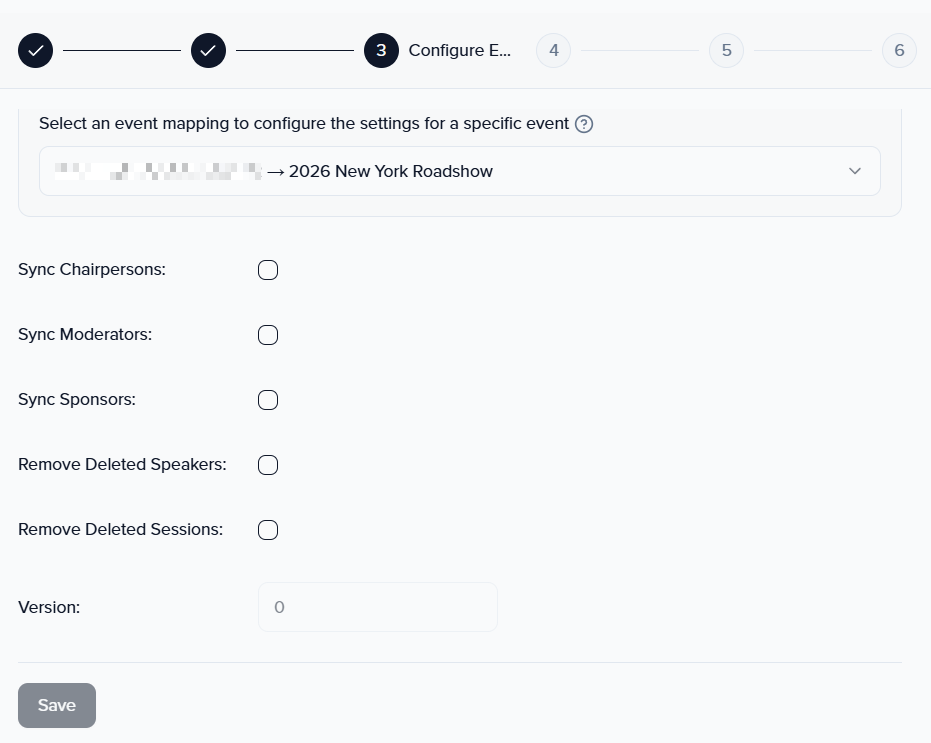
Section titled “Event Settings”Once you have selected your event mapping, you’ll be able to choose if you want to Sync Chairpersons, Moderators & Sponsors.
Also, you can toggle Remove Deleted Speakers & Remove Deleted Sessions. When enabled, these would be removed if they are deleted from Sessionboard or if the session status is changed to any status that is not Accepted. For us to enable V2 of the integration, please reach out to support@sessionboard.com.
Mapping session fields
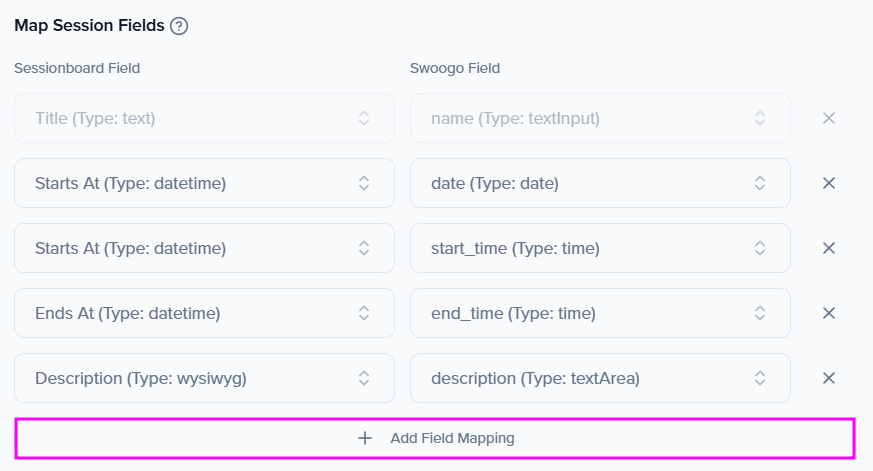
Section titled “Mapping session fields”Once your events have been connected, your next window will allow you to map your designated session fields. Within the dropdown, be sure you have selected the correct event that you wish to map the session fields for.
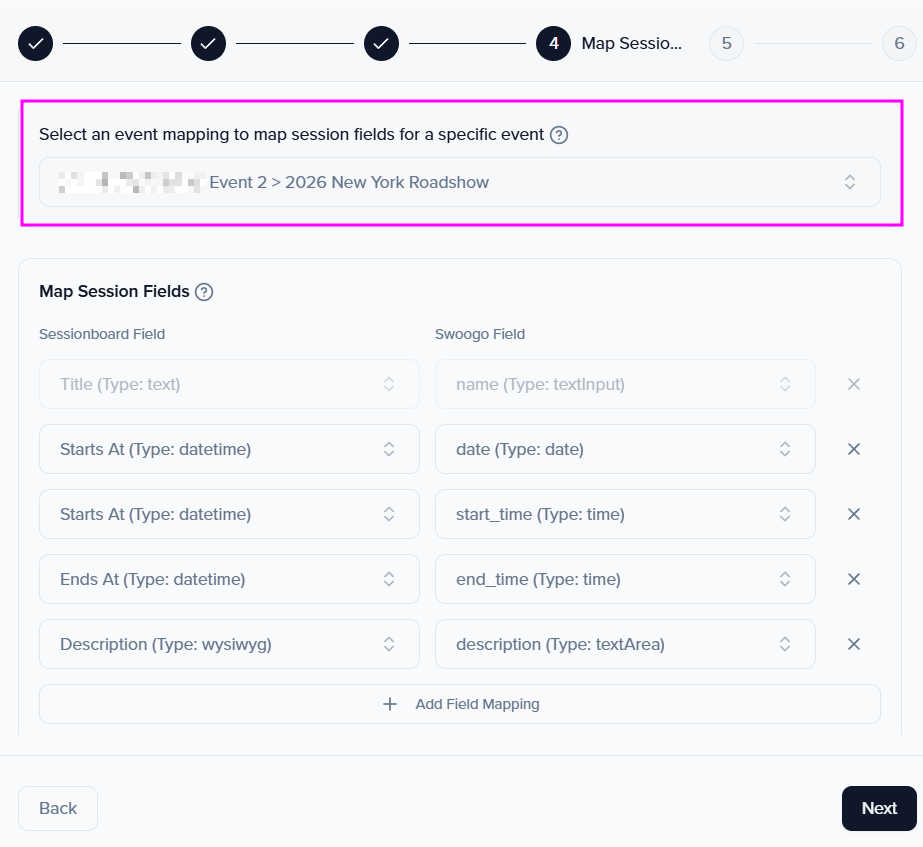
The default fields will populate within the session field mapper. You will be able to map additional fields by selecting “Add Field Mapping”. You will then be able to select the Sessionboard field and the destination field in Swoogo that you wish to be mapped to.
Mapping speaker fields
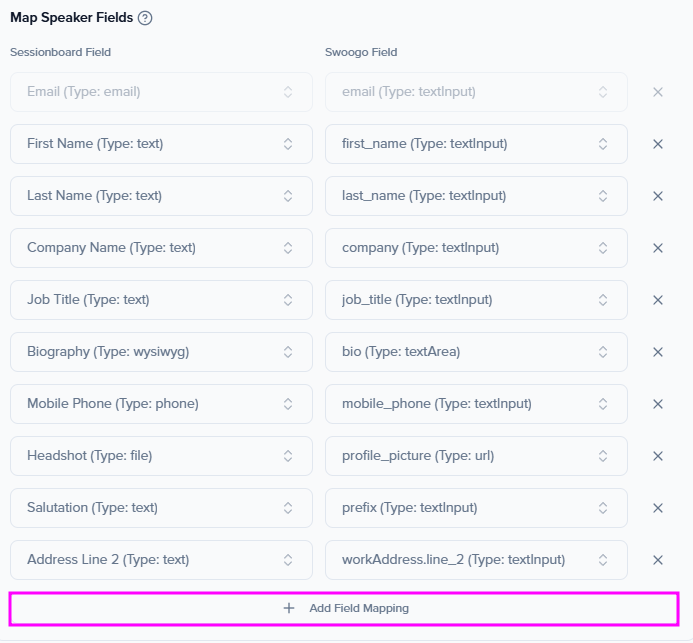
Section titled “Mapping speaker fields”Once your session fields are mapped, you will then be prompted to map your speaker fields. The default fields will populate within the speaker field mapper. You will be able to map additional fields by selecting “Add Field Mapping”. You will then be able to select the Sessionboard field and the destination field in Swoogo that you wish to be mapped to.
Remove mapping
Section titled “Remove mapping”To remove event mappings, go to your Organization > Settings > Integrations and click Settings.
This will open the mapping window. A list of existing mappings will be displayed. Click “Disconnect“ to disconnect specific mapped events.

Syncing sessions, speakers, and sponsors
Section titled “Syncing sessions, speakers, and sponsors”Before initiating a sync, ensure that you have reviewed and accepted the sessions that you want to sync to Swoogo.
You’ll also want to ensure that sessions have rooms (locations) and tracks assigned if you want those to sync with the associated session.
Synced Fields
Section titled “Synced Fields”Sessionboard will endeavor to sync as much data between systems as possible. It is important to use system fields when possible to collect information about your sessions and speakers to ensure they will be successfully matched.
Below is a list of standard fields that will be synced. Fields with an asterisk (*) are required.
Sessions
Sessions will be synced as sessions in Swoogo. Speakers will be associated with their sessions.
- Title (Name in Swoogo) *
- Starts At date and time
- Ends At date and time
- Sessions that span multiple dates are not supported in Swoogo and will be synced as the same calendar day as the start date
- Sessions that have passed will not sync.
- Description
- Locations (Rooms)
- Field names can not be edited once you have begun syncing to a partner system. To edit a field name, we recommend creating a new field name and associating it with the session before re-syncing.
- Tracks
- Field names can not be edited once you have begun syncing to a partner system. To edit a field name, we recommend creating a new field name and associating it with the session before re-syncing.
If mapping ‘Capacity’ to Swoogo, there will be logic supported. If your session capacity has a value, it will sync to Swoogo as such. If your session capacity is null, then the capacity you have set at the room level will sync to Swoogo to ensure a value is syncing.
Speakers
Speakers will be synced to Swoogo as speakers.
- First Name *
- Last Name *
- Email * (Please ensure all emails are unique to ensure data syncs as desired)
- Job Title
- Company Name
- Biography
- Headshot
- NOTE: Max 2 MB size due to Swoogo file size requirement. If your image is larger, we will attempt to downscale it.
Sponsors
Sponsors will not be connected to their sessions in Swoogo.
- Name*
- Description
- Website
- Tier (Sponsorship Level in Swoogo)
- Logo
- NOTE: Max 2 MB size due to Swoogo file size requirement. If your image is larger, we will attempt to downscale it.
Initiate sync
Section titled “Initiate sync”-
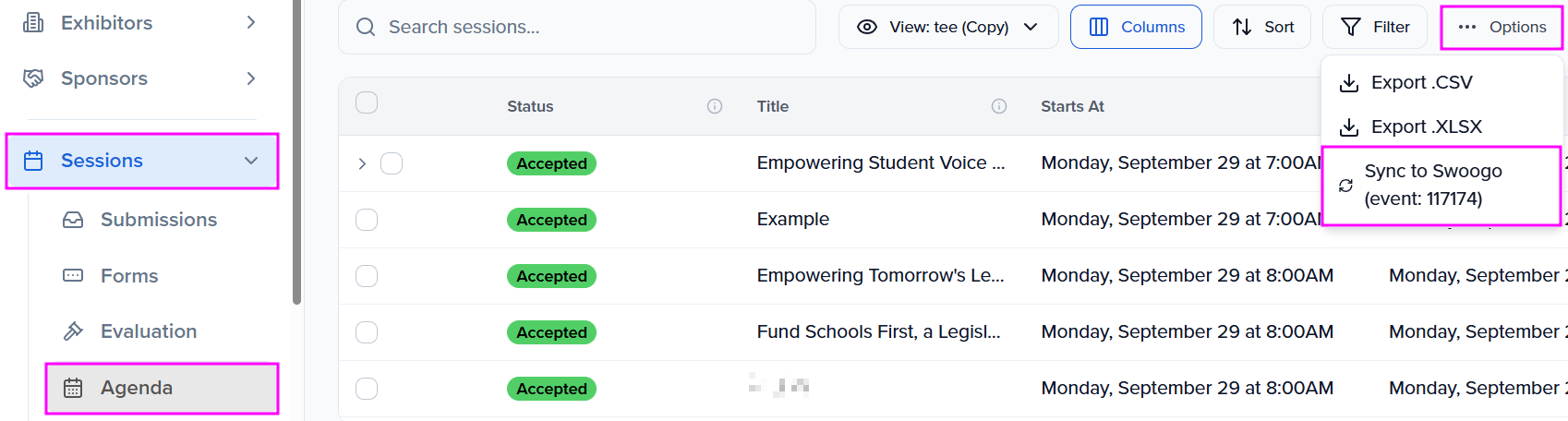
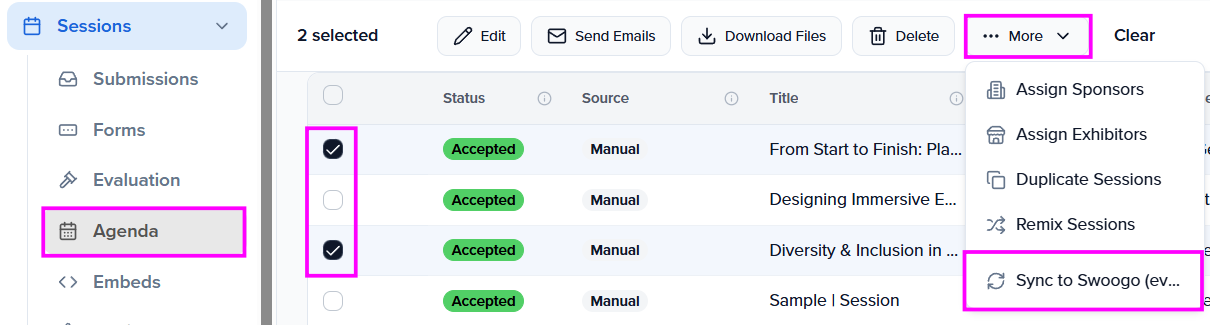
Go to Program > Collect & Review > Agenda.
-
Click Options, then Sync to Swoogo (event: …). The ID is the Swoogo event the sync writes to.
- A message will flash at the bottom of the screen confirming that the sync has started.
- When the sync is complete, another message will flash confirming that data has been synced.
- If there is an issue, a message will appear verifying the number of sessions and speakers that were attempted to sync and that were successfully synced. Please check that your sessions have all the required fields, and contact us if your issue persists.
This will sync all accepted sessions and their associated speakers.
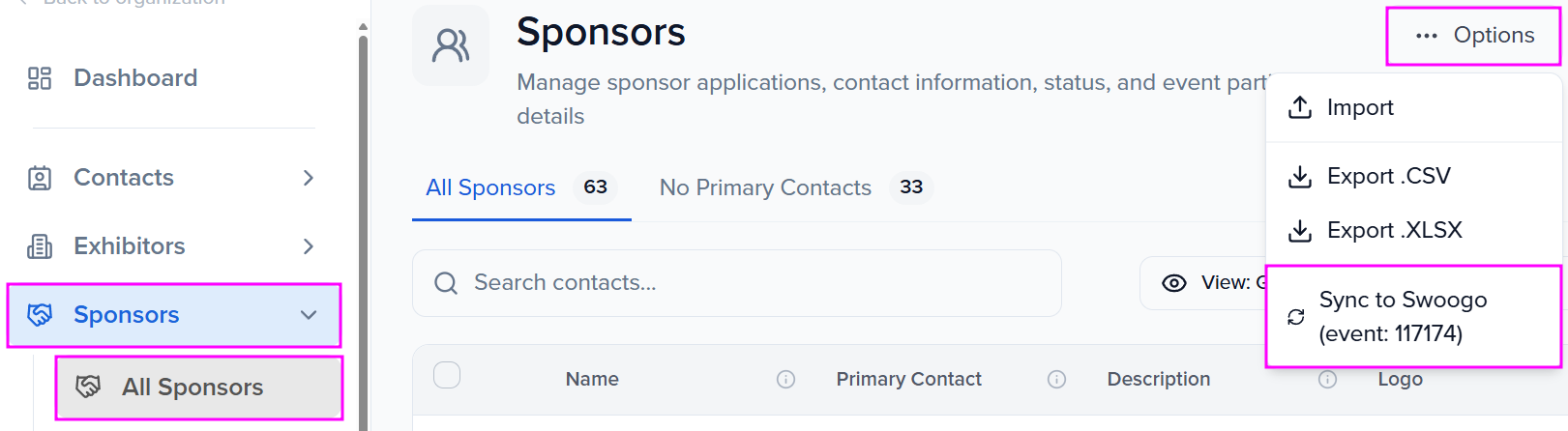
Syncing Specific Sessions: Go to Program > Collect & Review > Agenda, select the sessions you want, then click More > Sync to Swoogo (event: …). Sessions must be accepted.
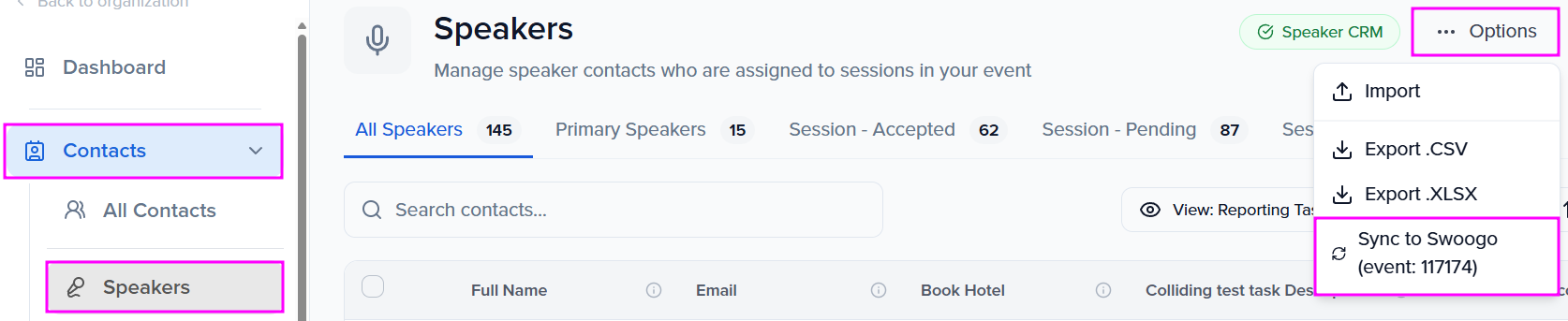
Syncing Specific Speakers:
Go to CRM > People > Speakers. Click Options > Sync to Swoogo (event: …) to sync every speaker, or select speakers and click More to sync only those.
Resync Behavior
Section titled “Resync Behavior”On resync, new sessions and speakers that have been added to the agenda in Sessionboard will be sent to Swoogo. Any updates that are made to previously synced fields (such as correcting a speaker’s title or changing a session time) will also be applied.
Every run is listed in History > Integrations > Sync History with its Sync ID, status, error count and duration. Click the results link on a row for the counts and the error summary.
Frequently asked questions
Section titled “Frequently asked questions”Why does Swoogo have more speakers than my accepted sessions in Sessionboard?
The sync adds and updates speakers in Swoogo, but it only removes them when Remove Deleted Speakers is on for the event mapping. So Swoogo keeps:
- speakers you synced earlier whose sessions were later declined or deleted in Sessionboard;
- speakers created directly in Swoogo or by another source;
- chairpersons and moderators, when those settings are on, because they sync as speakers.
To have the sync remove speakers who no longer belong to an accepted session, turn on Remove Deleted Speakers. To see what each run did, open History > Integrations > Sync History and click the results link on the row.
A speaker's profile in Swoogo shows someone else's name
Sessionboard and Swoogo identify a speaker by email. Each Sessionboard speaker is linked to the Swoogo speaker with the same email, and every sync then writes the Sessionboard name, title and other mapped fields onto that record. If a speaker’s record uses an assistant’s email, or two people share one address, their profiles get mixed.
- Give every speaker their own email address in Sessionboard.
- An existing link doesn’t follow an email change. Delete the wrongly linked speaker in Swoogo so the link is dropped.
- Sync again. Sessionboard links the speaker to the Swoogo speaker with the new email, or creates one.
Disconnect Integration
Section titled “Disconnect Integration”To disconnect from the integration, go to your Organization > Settings > Integrations
- Locate your connected integration and click the three-dot icon beside Settings
- Click “Disconnect Integration.”
- Confirm that you are sure before deleting the integration.
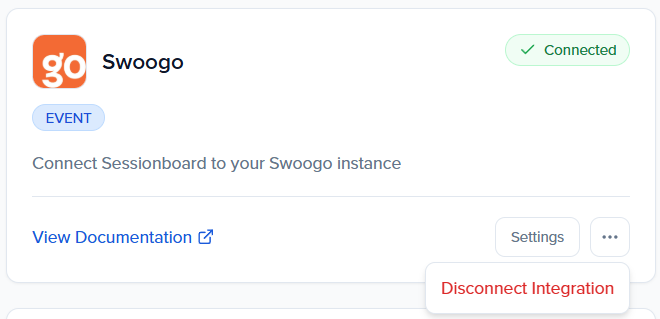
Once the integration is disconnected, you can reconnect using a separate API key or reuse the same credentials.
Disconnecting the integration will disconnect all mapped events. Previously-synced sessions will not be able to be resynced even if you remap the same events. The integration should only be disconnected if you intend to sync to a new organization.