

Brella

Brella is an event networking and content platform. Connect Sessionboard to Brella once, map each Sessionboard event to a Brella event, and Sessionboard pushes speakers and content timeslots. Turn on Enable Continuous Sync if you want Sessionboard to keep them aligned about every 30 minutes.
Video transcript
Here’s how to send your accepted speakers and sessions from Sessionboard to Brella. You connect once for the organization, then point each Sessionboard event at a Brella event.
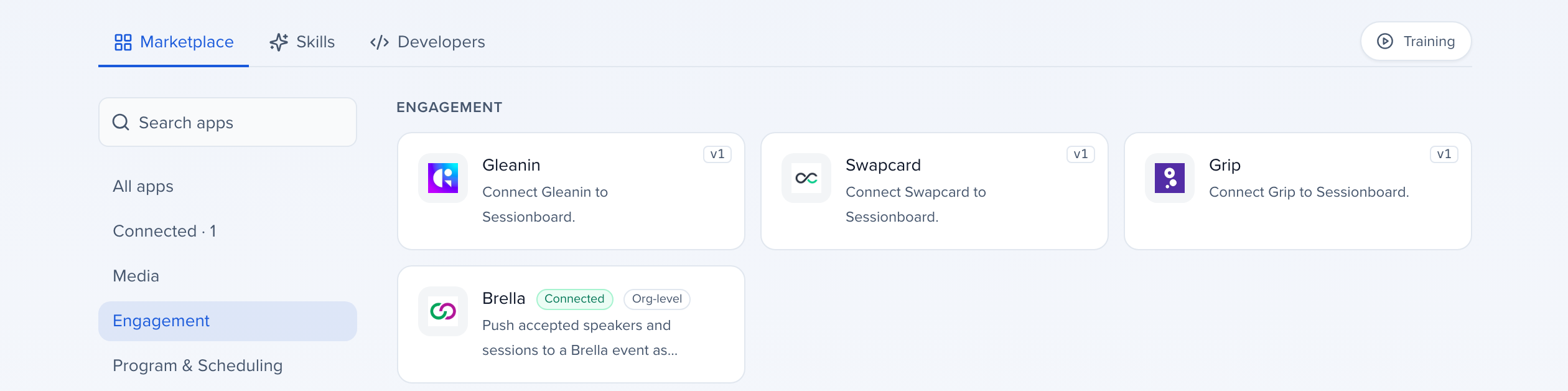
Open Apps from the left sidebar. Brella is under Engagement.
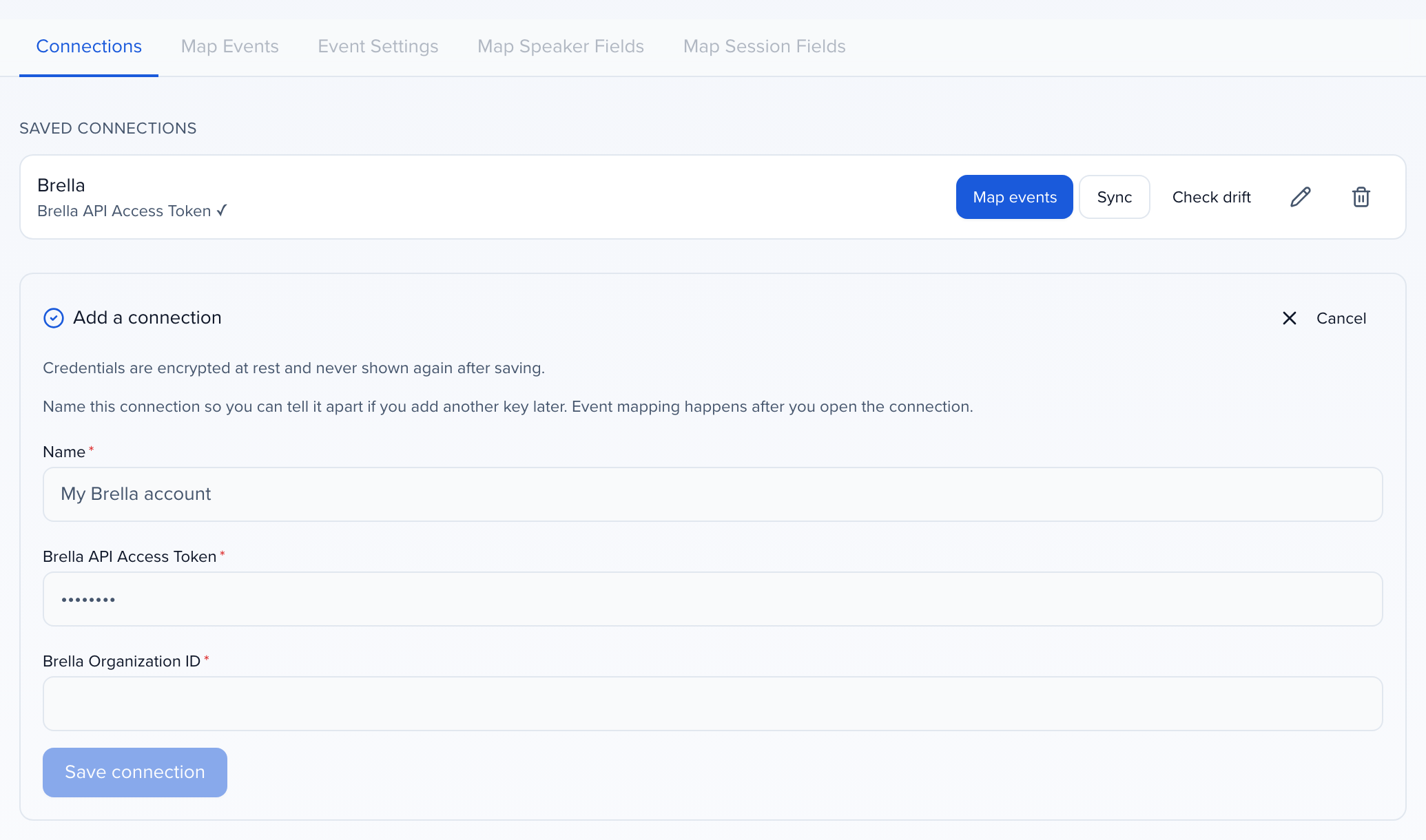
Click Add a connection, paste your Brella API access token and your Brella organization ID, and save. The connection is named after the app; rename it from its row if you add another. The token is encrypted, and you won’t see it again.
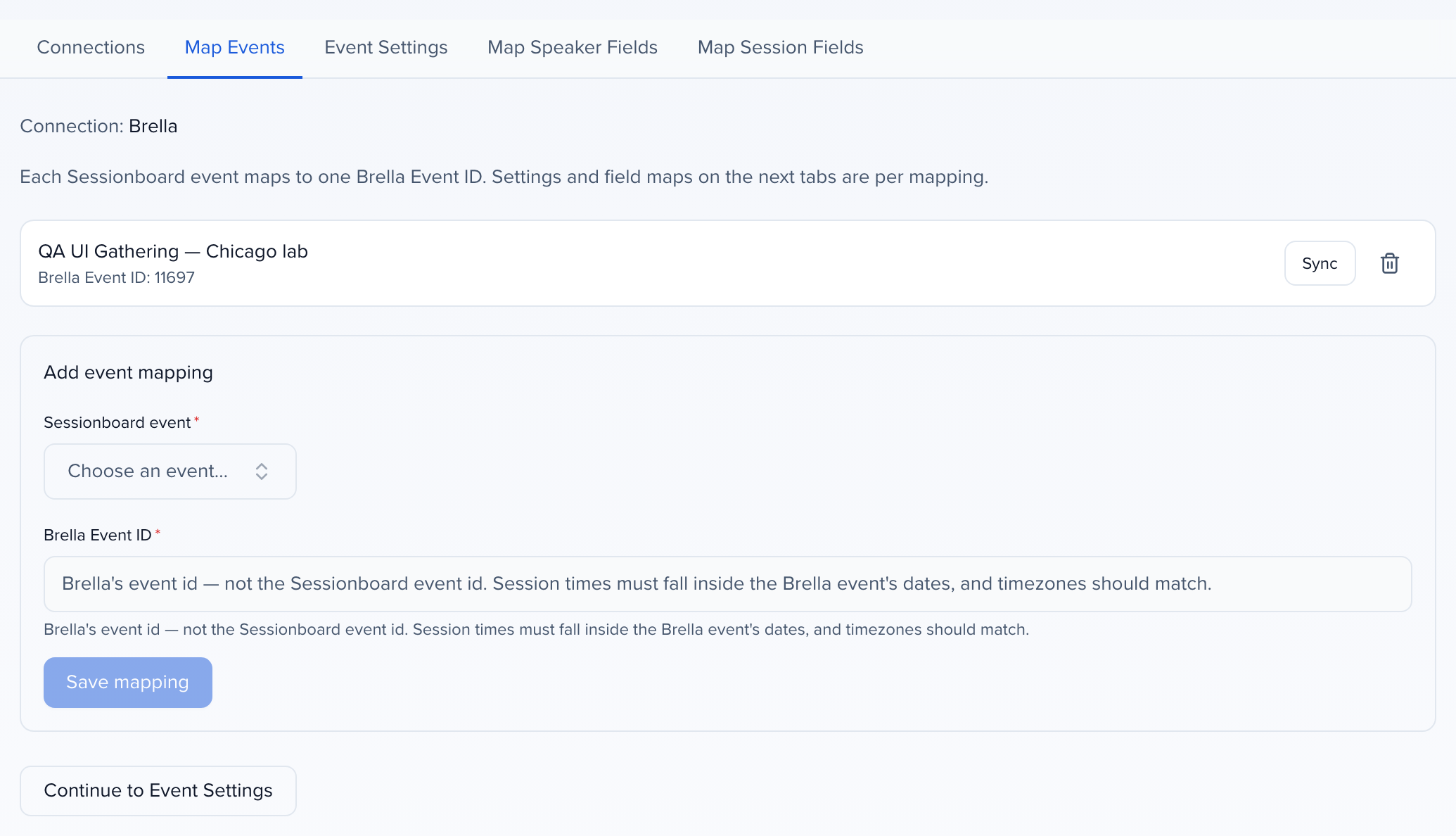
Next, Map events. Pick the Sessionboard event and type the Brella event ID. That’s Brella’s ID, not ours. Your session times need to fall inside the Brella event’s dates.
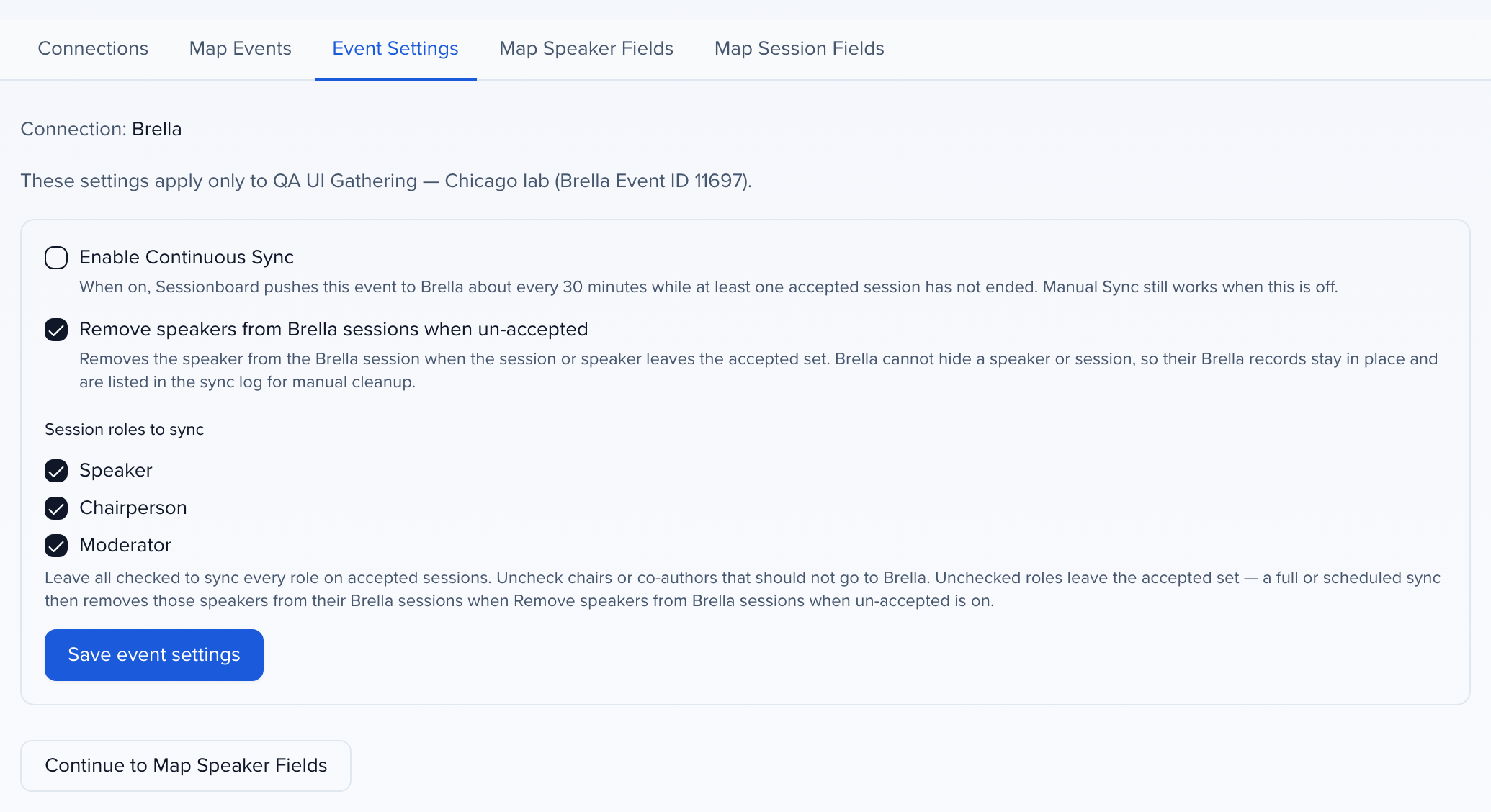
On Event Settings, turn on continuous sync if you want updates about every thirty minutes. Choose which session roles become Brella speakers, and save.
Map Speaker Fields and Map Session Fields decide what goes where. Title, start, and end are required. To fill a Brella custom field, type its key in the box at the bottom and click Add.
Then click Sync on the mapping, or let continuous sync handle it. Only accepted sessions and the people on them go to Brella, and nothing is ever deleted there.
The API token and organization ID are saved on the connection. Each Sessionboard event maps to one Brella event. Sessionboard updates the same speaker or timeslot on the next sync instead of creating a duplicate.
Why use it
Section titled “Why use it”The Brella integration lets you push session and speaker data from Sessionboard into Brella so attendees see up-to-date content in the networking app. Field mappings give you control over exactly which Sessionboard fields flow into Brella, including custom fields your Brella event uses that are not exposed through a standard catalog endpoint.
Connect Brella
Section titled “Connect Brella”Brella is set up at the organization, from Apps in the left sidebar (under Engagement). Anyone who can view integrations for the organization can connect it. Settings > Integrations now opens Apps.
Open Brella
Open Apps from the left sidebar and click Brella.
Save the connection
On the Connections tab, click Add a connection. Enter the Brella API Access Token and the Brella Organization ID. Click Save connection. The connection is named Brella (a second one Brella 2); rename it from the pencil icon on its row.
Map a Sessionboard event
Click Map events on the connection. Choose the Sessionboard event and enter the Brella Event ID — Brella’s event ID, not the Sessionboard event ID. Already mapped events are hidden. Click Save mapping.
Choose event settings
On Event Settings, turn on Enable Continuous Sync if you want Sessionboard to push this event to Brella about every 30 minutes. Leave it off to sync only when you click Sync. Continuous sync still requires at least one accepted session that has not ended.
Leave Remove speakers from Brella sessions when un-accepted on unless you want people to stay on a Brella session after they leave the accepted set.
Session roles to sync defaults to every role on accepted sessions. Uncheck chairs, co-authors, or any custom role that should not become a Brella speaker. Click Save event settings.
Map fields
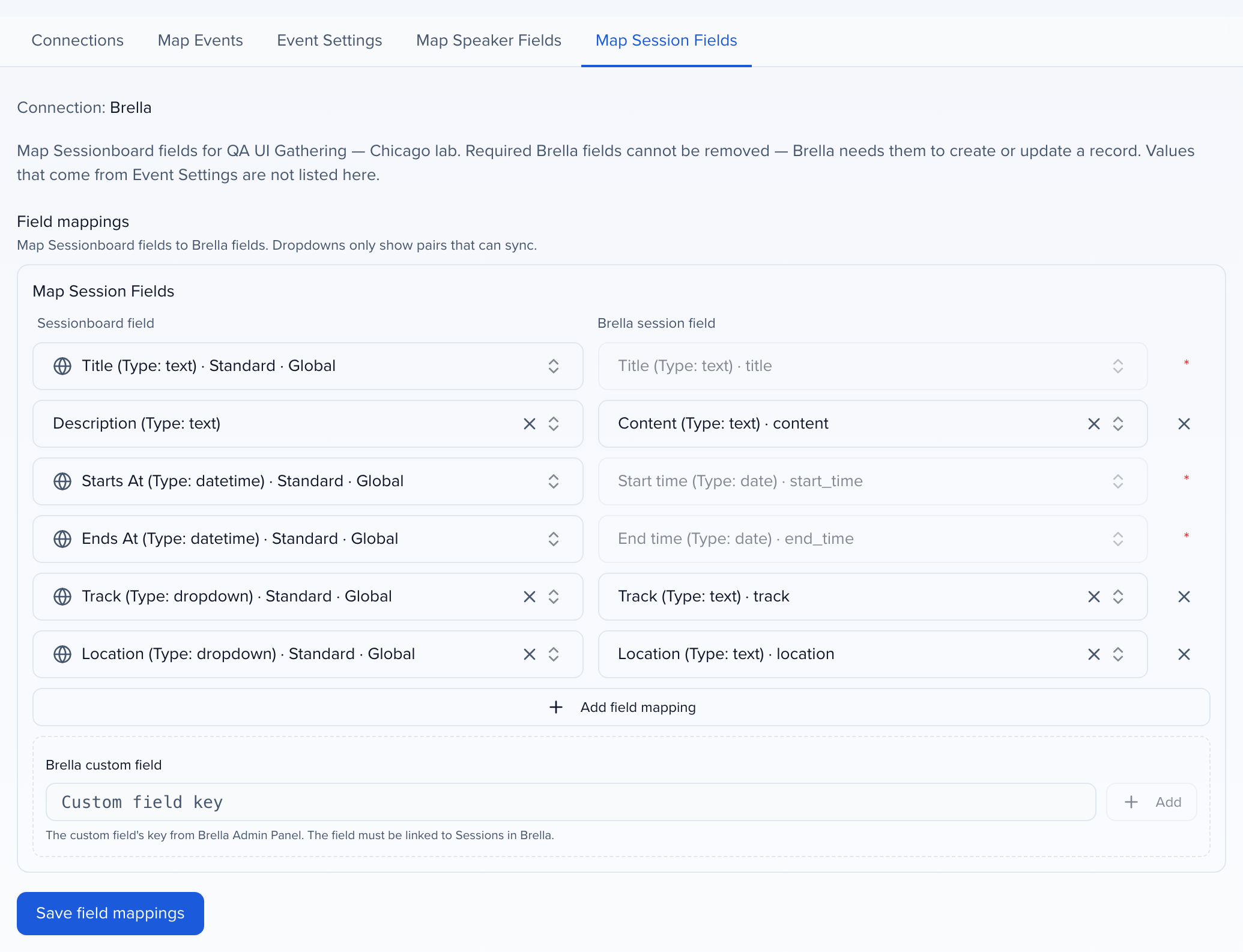
Use Map Speaker Fields and Map Session Fields to choose which Sessionboard fields write to Brella for that mapping. First name and last name are required for speakers. Title, start, and end are required for timeslots. You cannot save until those are mapped.
What syncs
Section titled “What syncs”Only accepted sessions and the people on those sessions sync. Every session role you selected becomes a Brella speaker. On the timeslot, moderators are added as Moderator, chairpersons as Chairman, and everyone else as Speaker.
If the event has speaker acceptance on, a speaker is not pushed until they have accepted. Other roles are not gated by acceptance.
A person needs a first name, last name, and email in Sessionboard. Anyone missing those is skipped. Brella speakers have no email field, so the email is not sent.
| Sessionboard | Brella |
|---|---|
| Person on an accepted session | Speaker (name, company, job title, bio, headshot) |
| Accepted session | Content timeslot (title, description, start, end, track, location) |
| Person assigned to a session | Speaker attached to that timeslot, with their role |
Sessionboard finds the Brella speaker it created before by the Sessionboard ID. A speaker you added in Brella yourself is reused only when exactly one Brella speaker has the same first and last name and is not already linked to Sessionboard; otherwise Sessionboard creates a new speaker.
When a session or participant leaves the accepted set, Sessionboard takes the speaker off that Brella timeslot, unless you turned Remove speakers from Brella sessions when un-accepted off. Brella cannot hide a speaker or a timeslot, so both stay in Brella. The sync log lists them, and you can delete them in Brella if they should not show.
Brella refuses a timeslot whose start or end is outside the Brella event dates. That session shows as an error in the sync log with Brella’s message, and the rest of the sync carries on.
Field mappings
Section titled “Field mappings”Map Speaker Fields and Map Session Fields apply only to the event mapping you have selected. Defaults cover name, company, job title, bio, headshot, title, description, times, track, and location. Add rows for other Brella fields, such as honorific or session tags.
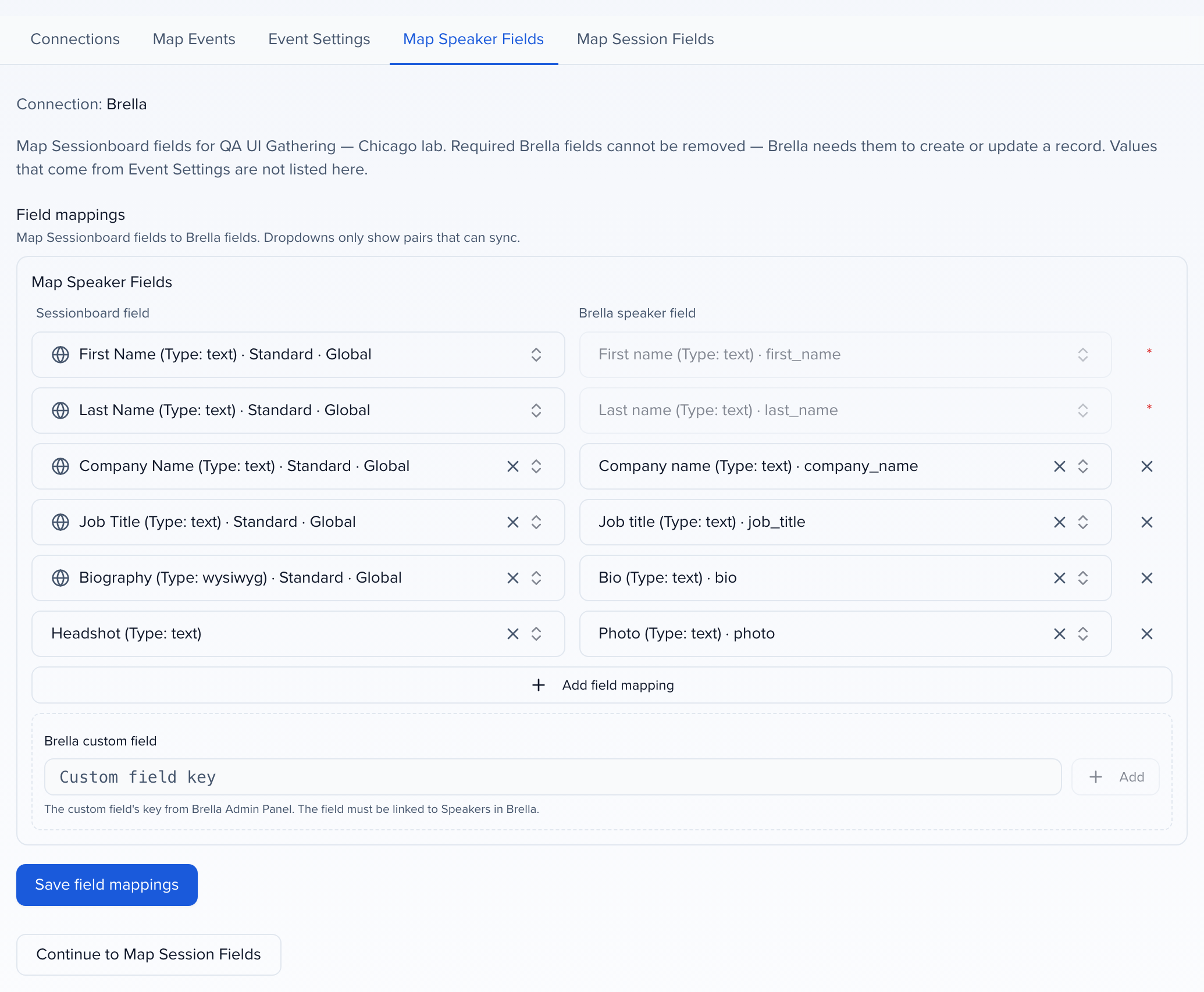
Brella needs a first name and last name to create a speaker, and a title, start, and end to create a timeslot. Those rows stay on the mapping and cannot be removed.
To fill a Brella custom field, type its key under Brella custom field below the speaker or session rows and click Add, then pick the Sessionboard field. Use the key exactly as it is set up in Brella. Brella silently ignores a key it does not have, so Sessionboard checks what Brella kept after each sync and adds a warning to Sync History naming any key it did not find.
Run a sync
Section titled “Run a sync”If Enable Continuous Sync is on for that mapping, Sessionboard runs a full sync about every 30 minutes while the event has at least one accepted session that has not ended. When the checkbox is off, click Sync when you need an update.
To push immediately, click Sync on Map Events, or use Sync to Brella from Agenda, Sessions, or Speakers. Brella has no way to read a single record back, so the Brella connection has no Check drift; use Sync History to see what each sync sent and any warnings.
Sync on Map Events, or Sync to Brella from Agenda Options with nothing selected, is a full sync — the same accepted set as a scheduled run, including removing un-accepted speakers from sessions when Remove speakers from Brella sessions when un-accepted is on. If you select rows on Sessions or Speakers and click Sync to Brella, only those records update. Sessionboard will not remove anyone else from their sessions.
Add or remove a mapping
Section titled “Add or remove a mapping”Use Add event mapping to point another Sessionboard event at another Brella event on the same connection. You can also add a second connection if you have a different Brella organization or token.
To remove a mapping, use the trash control on that row. Previously synced Brella records stay in Brella; Sessionboard stops updating them.
Still having issues?
Section titled “Still having issues?”Email support@sessionboard.com and include the connection name, the Brella organization and event ID, and the session or contact that did not sync. Do not send the API token.