Grip

Grip is the leading AI-powered event networking solution for Virtual, Hybrid, and In-person events.
Why use it
Section titled “Why use it”Attendees plan their day in the Grip app, so the sessions and speakers there have to match your program. The integration sends your approved, scheduled sessions and their speakers from Sessionboard to Grip when you sync, so a room change or a new speaker reaches the app without anyone re-keying it — and a Summary URL field can link each Grip session back to its recording and recap.
Sessionboard users can connect their events with Grip and sync session and speaker data from Sessionboard to Grip. This one-way integration is a user-friendly process that facilitates data transfer to Grip once users have approved and scheduled their sessions in Sessionboard:
Connect integration
Section titled “Connect integration”Integrations are connected on the organization level in Sessionboard.
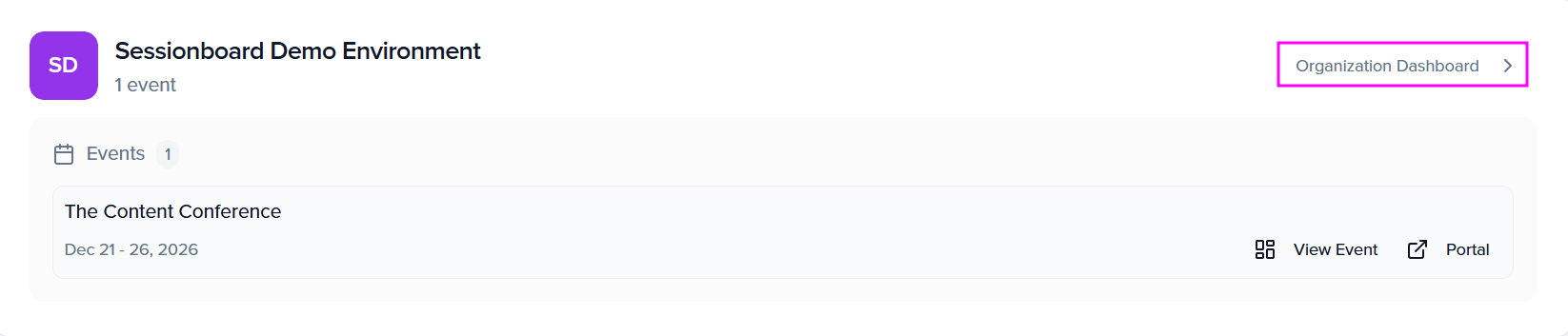
After logging in, click “Organization Dashboard” to access your event’s organization:
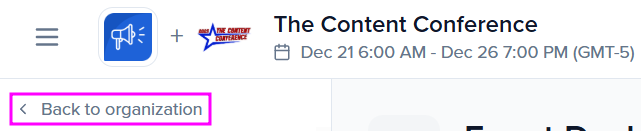
Or, from your event, you can click Back to organization:
Select the ‘Settings’ module to locate ‘Integrations’.
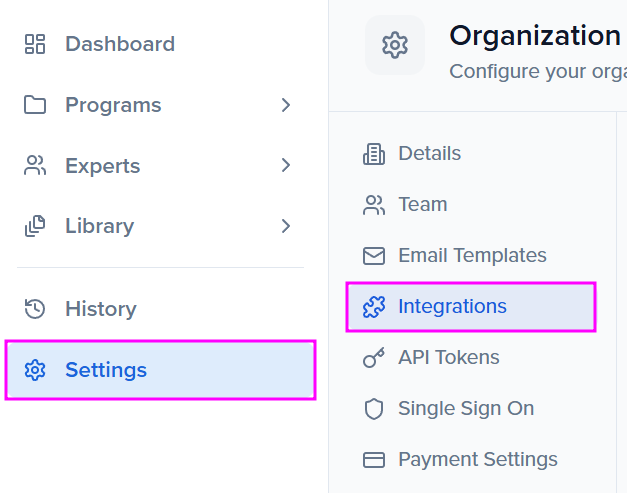
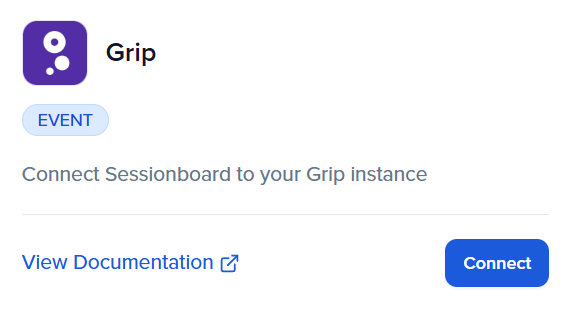
There, you can connect new or manage existing integrations. To connect a new integration, click the “Connect” button below the integration.
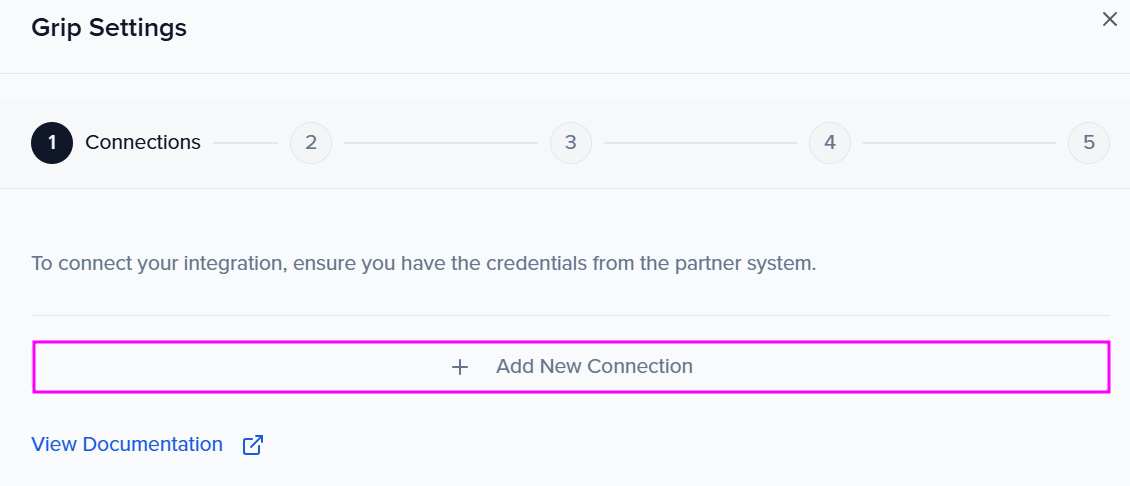
 You will want to “Add New Connection”
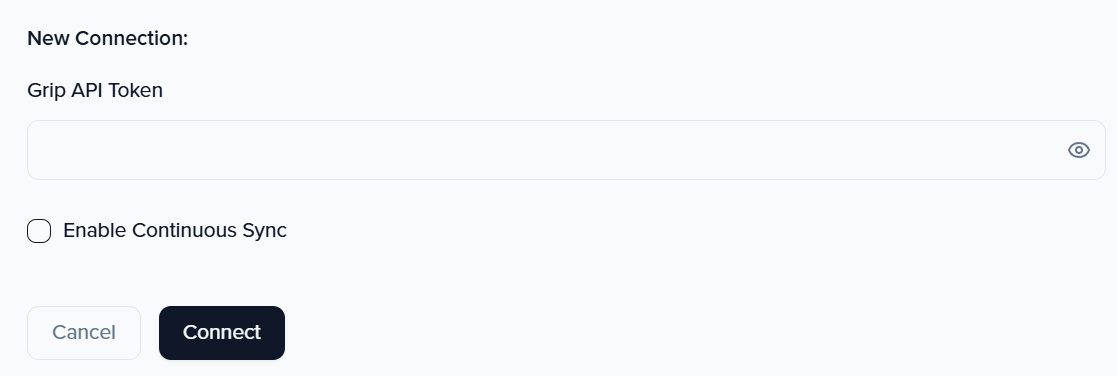
Enter the API token associated with your Grip event.
Helpful Tip
Section titled “Helpful Tip”Enable continuous sync to create/update records on a regular interval (approx. 30 minutes) so that admins don’t have to force sync them. The admin can still manually push a sync if they want to update between the sync intervals.
Map events
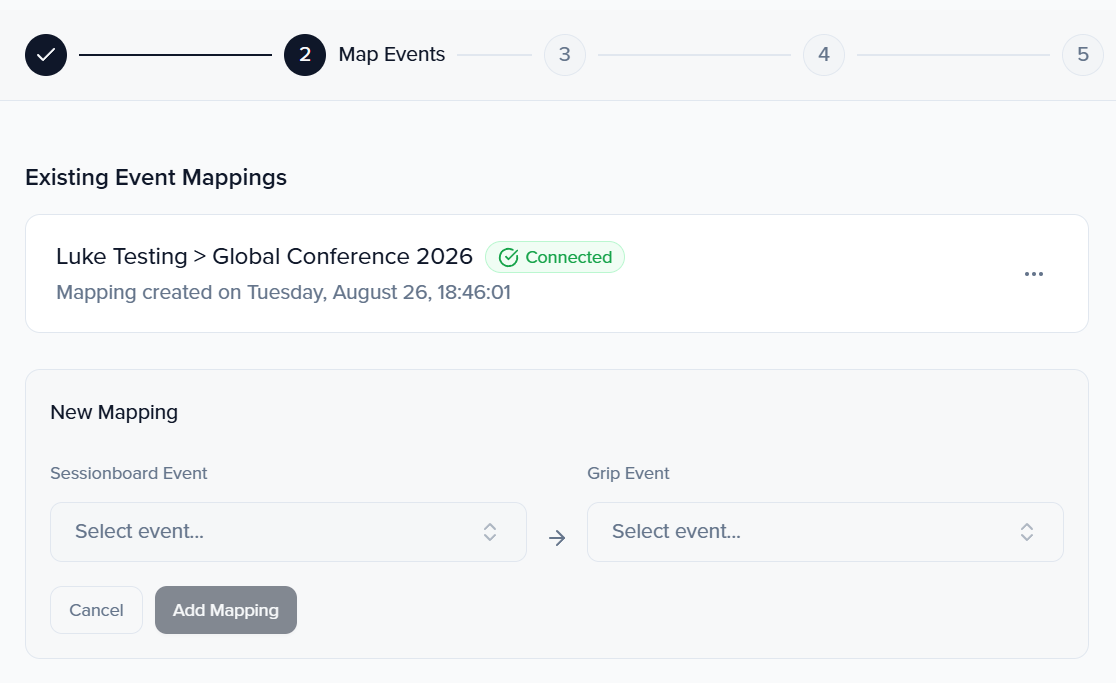
Section titled “Map events”Once the integration is connected, a window will appear prompting you to map your Grip containers with Sessionboard events. Select the Sessionboard Event from the dropdown list, then choose the Grip event in the right-hand dropdown.Click “Add Mapping” once selected.
Event Settings
Section titled “Event Settings”Once you have selected your event mapping you will be required to enter your Speaker Data Type ID*, which is required to proceed. This will allow for all net new speakers that are created from Sessionboard to have the correct Data Type. Groups and Session Roles are all optional fields and if you wish to use those within Grip you can also provide that information at this time.
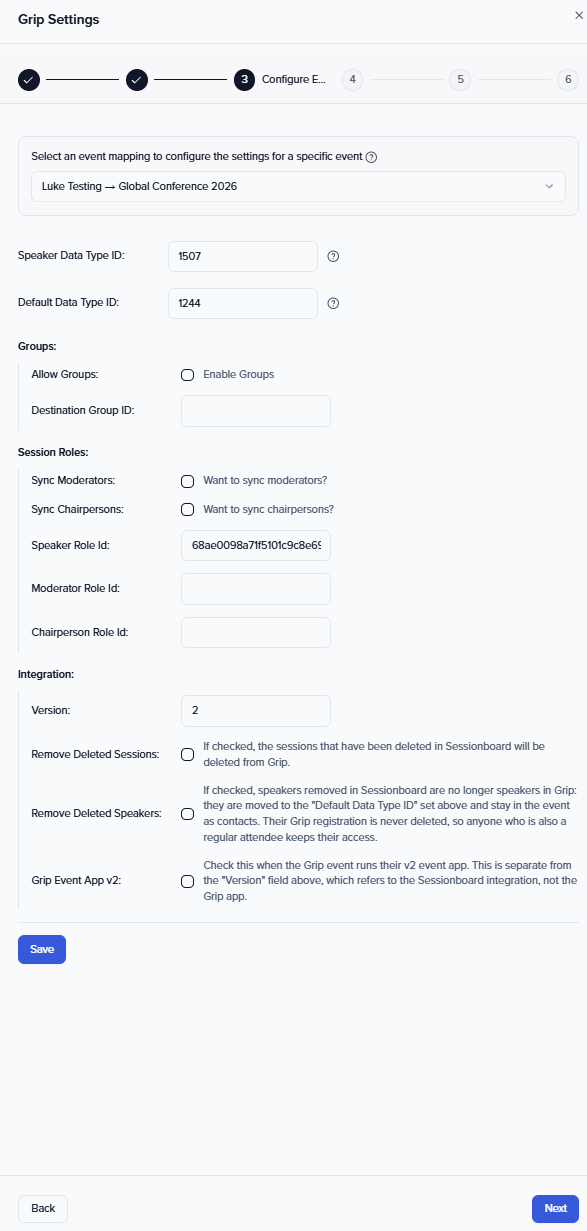
If you would like to leverage Session Roles you must include a Speaker Role ID in order to sync your Moderator and Chairpersons
Default Data Type ID sits directly under Speaker Data Type ID, and the Integration section at the bottom of the step holds the remaining options described below.
Remove deleted sessions and speakers
Section titled “Remove deleted sessions and speakers”The Integration section of the event settings includes two options that let Sessionboard handle removals in Grip for you:
- Remove Deleted Sessions — sessions that have been deleted in Sessionboard are deleted from Grip on the next sync.
- Remove Deleted Speakers — speakers who no longer hold an accepted session in Sessionboard are no longer speakers in Grip. Their Grip registration is never deleted: they are moved to the data type you set in Default Data Type ID (for example, the event’s Attendee type) and stay in the Grip event as contacts, so anyone who is also a regular attendee keeps their access. If they are later re-added to an accepted session, they are restored as speakers on the next sync.
Default Data Type ID is required when Remove Deleted Speakers is enabled. If it is missing, the removal is skipped and retried on a later sync.
Grip Event App v2
Section titled “Grip Event App v2”Grip Event App v2 sits in the same Integration section and decides how much formatting survives in the session description Sessionboard sends to Grip.
- Off — descriptions are flattened to plain text. Any formatting you authored in Sessionboard is removed before the sync.
- On — basic formatting is kept: headings, bold, italic, underline, paragraphs, line breaks, and bulleted or numbered lists.
Turn it on when your Grip event runs Grip’s v2 event app. This is a different setting from the Version field above it, which refers to the Sessionboard integration rather than the Grip app.
Hyperlinks never sync either way — Grip rejects them in this field, so the link text is kept and the link itself is dropped. Colors, fonts, and images are dropped too.
Map session fields
Section titled “Map session fields”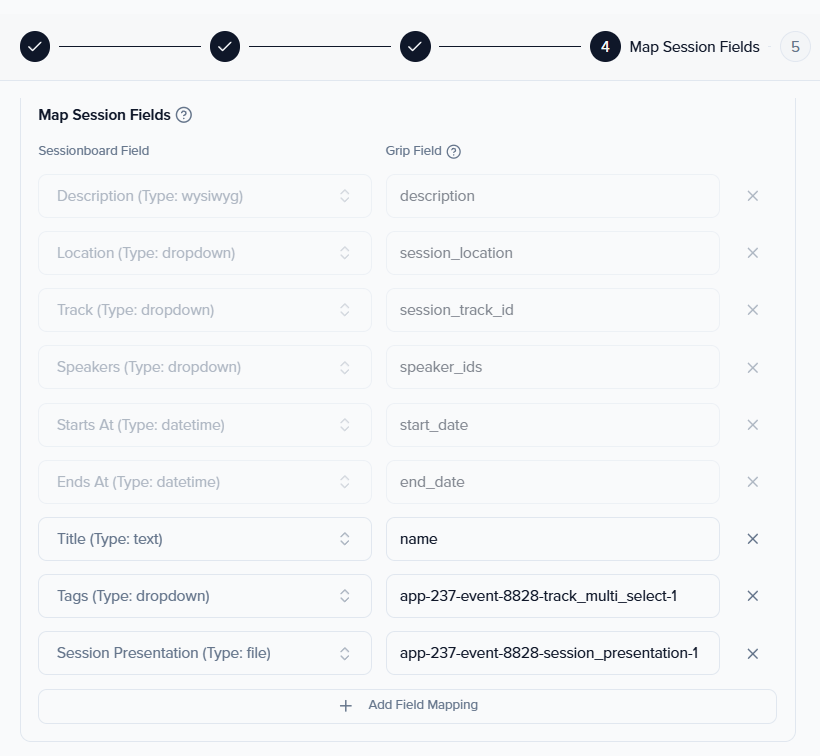
Sessionboard will endeavor to sync as much data between systems as possible. It is important to use system fields when possible to collect information about your sessions and speakers to ensure they will be successfully matched.
Below is a list of standard fields that will be synced for your sessions. Field(s) with an asterisk* are required.
- Title *
- Starts At datetime *
- Ends At datetime *
- Sessions that span multiple dates are not supported in Grip and will be synced as the same calendar day
- Sessions that have passed will not sync.
- Tracks*
- Field names can not be edited once you have begun syncing to a partner system. To edit a field name, we recommend creating a new field name and associating it with the session before re-syncing.
- Location (Room)*
- Field names can not be edited once you have begun syncing to a partner system. To edit a field name, we recommend creating a new field name and associating it with the session before re-syncing.
- Description
When mapping any custom fields you will want to use the Grip “Field System Name” eg. ‘app-237-event-6863-format-2’
Grip fields with predefined values. When the Grip field you map to is a dropdown with predefined values (for example a “Hub or Stage” field fed by the session’s room), every value Sessionboard sends must already exist as an option in that Grip field, spelled exactly the same — same words, spaces, capitals and punctuation. A value with no identical option is not set in Grip, and you can’t pick it by hand there either because it is not in the list. Before you sync, add every room, track or other value you use in Sessionboard as an option in Grip, or rename it in one system so the two match.
Link to the session’s page. Grip shows a clickable link only from a link-type custom field; links typed into the description are removed. To give each Grip session a link back to its recording and summary, create a link custom field in Grip, then map Summary URL to it. Summary URL is the session’s public page: its item in a published Content Gallery, or, when the session is not in a gallery, its page on your published Attendee Hub. When the session has neither, the link is cleared on the next sync. Any URL-type session field you created can be mapped to a Grip link field the same way.
Map speaker fields
Section titled “Map speaker fields”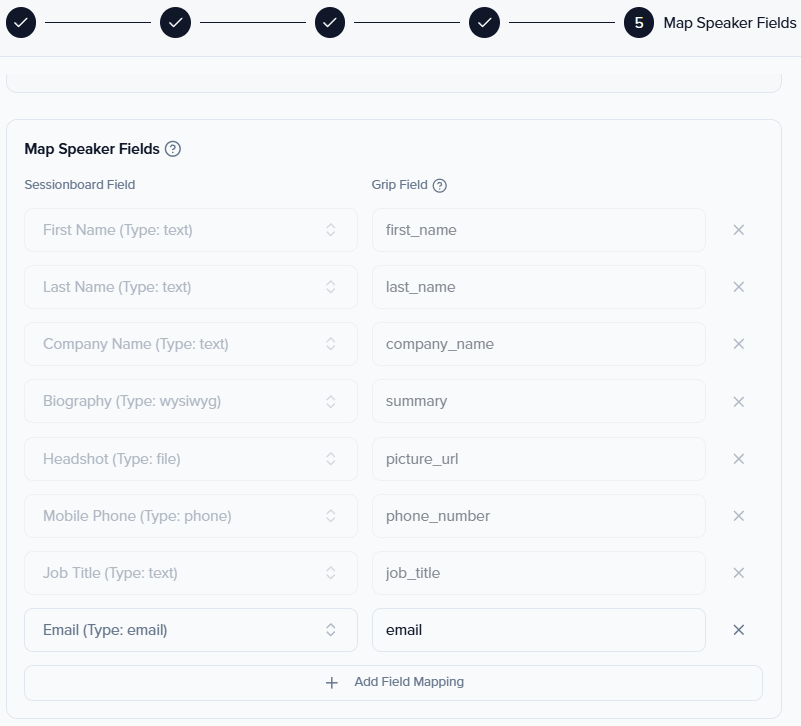
Below is a list of standard fields that will be synced. Field(s) with an asterisk* are required.
- First Name *
- Last Name *
- Email *
- Job Title
- Company Name
- Mobile Phone
- Biography
- Headshot
Drop a standard speaker field for one event
Section titled “Drop a standard speaker field for one event”Three of the standard speaker rows can be removed per event, so the field is left out of what Sessionboard sends to Grip entirely:
- Mobile Phone (Grip’s
phone_number) - Headshot (Grip’s
picture_url) - Biography (Grip’s
summary)
Click the × at the end of one of those rows in the speaker field mapping and save. Removing a field is per event mapping, so one event can keep speakers’ mobile numbers out of Grip while another still sends them. This is what to use when speakers have not agreed to their personal mobile number leaving Sessionboard.
Removing a field stops Sessionboard from sending it; it does not clear a value already in Grip. A value someone set in Grip directly stays as it is. To bring the field back, add the row again in the mapping and save.
First Name, Last Name, and Email cannot be removed — Grip rejects a speaker without them. Job Title and Company Name cannot be removed either, because Grip’s headline is built from both.
Syncing sessions and speakers IMPORTANT INFORMATION
Section titled “Syncing sessions and speakers IMPORTANT INFORMATION”Before syncing your event, please review the following important notes:
- By default, sessions and speakers are not removed from Grip if speaker and/or session statuses are changed in Sessionboard — admins have to manually delete the session/speaker record in Grip. To have Sessionboard handle removals automatically, enable Remove Deleted Sessions and Remove Deleted Speakers in the event settings.
- Speakers that are pre-existing in Grip will be updated
- Only accepted sessions, and their associated speakers, will sync to Grip.
- Sessions must have a date, time, track and location to be synced.
- Speakers in your database must have a unique email address to sync to Grip. Check your data closely for duplicates before syncing.
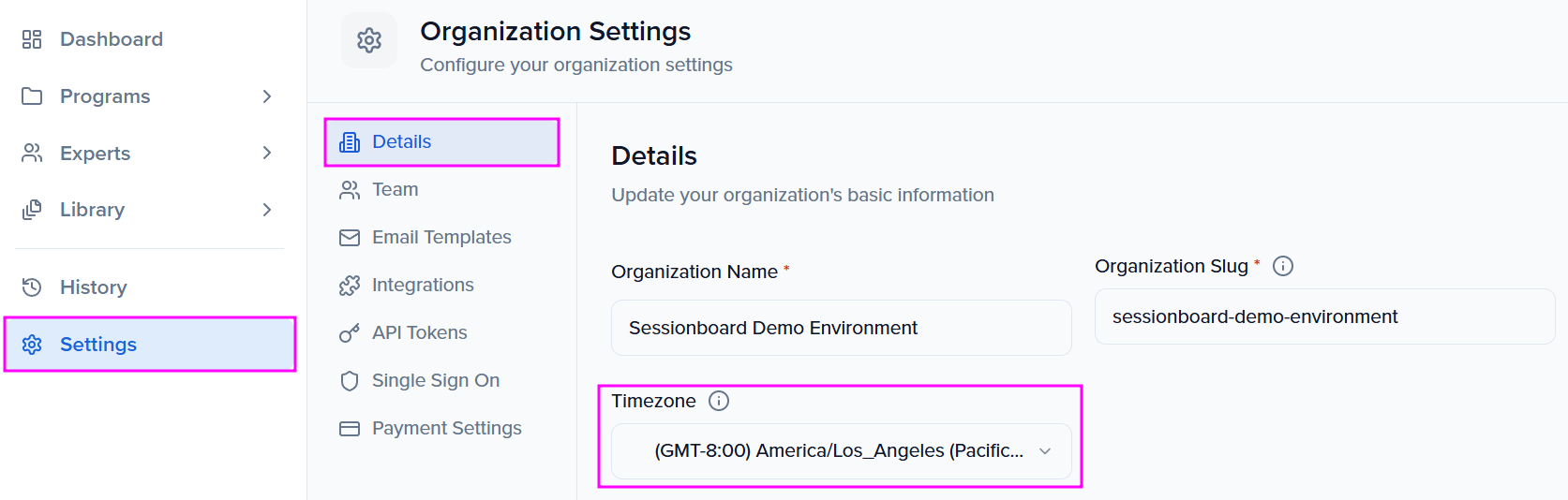
- Verify that the timezone in both Sessionboard and Grip matches your event. To do this in Sessionboard, go to Settings > Details.
How To Initiate A Sync
Section titled “How To Initiate A Sync”-
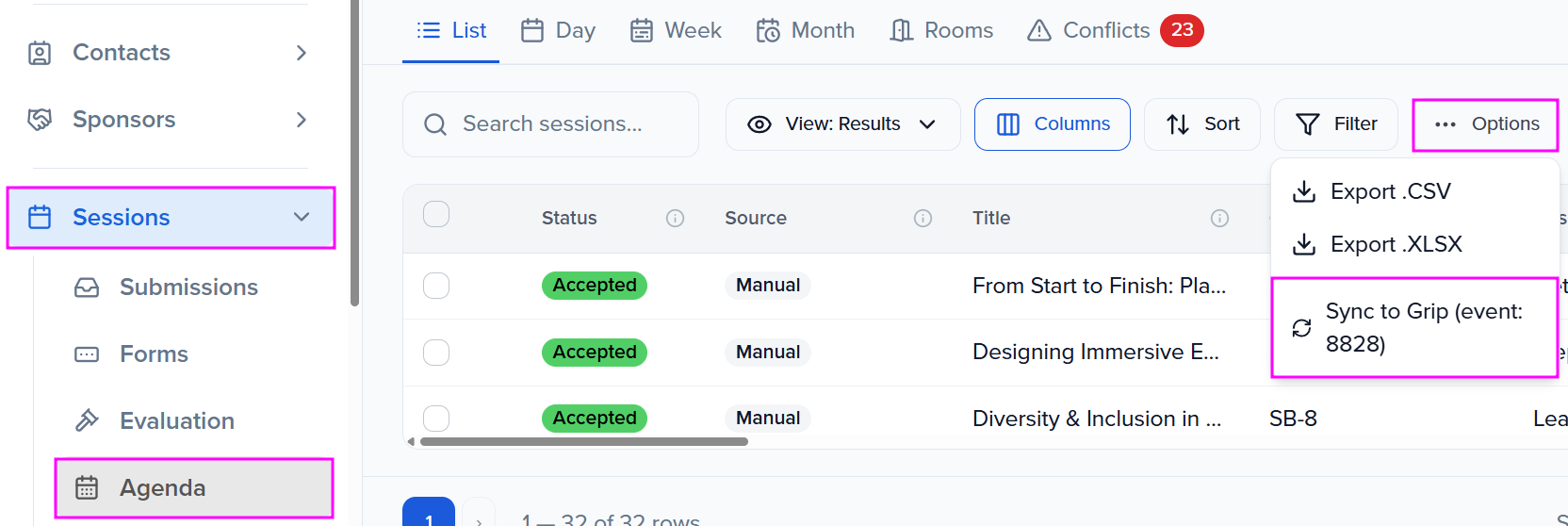
Go to Program > Collect & Review > Agenda.
- Reminder: Only “Accepted” sessions and their associated “Accepted” speakers will be synced.
-
Click Options, then Sync to Grip (event: …). The ID is the Grip event the sync writes to.
- A message will flash at the bottom of the screen confirming that the sync has started.
- When the sync is complete, another message will flash confirming that data has been synced.
- If there is an issue, a message will appear verifying the number of sessions and speakers that were attempted to sync and that were successfully synced. Please check that your sessions have all the required fields and contact support@sessionboard.com if you need additional assistance.
Resync Behavior
Section titled “Resync Behavior”On resync, new sessions and speakers that have been added to the agenda in Sessionboard will be sent to Grip. Any updates that are made to previously synced fields (such as correcting a speaker’s title or changing a session time) will also be applied.
Changing a track — its name or its colour — re-sends the track and every session in it on the next sync, so the Grip app picks up the new colour on session titles and buttons without you editing each session.
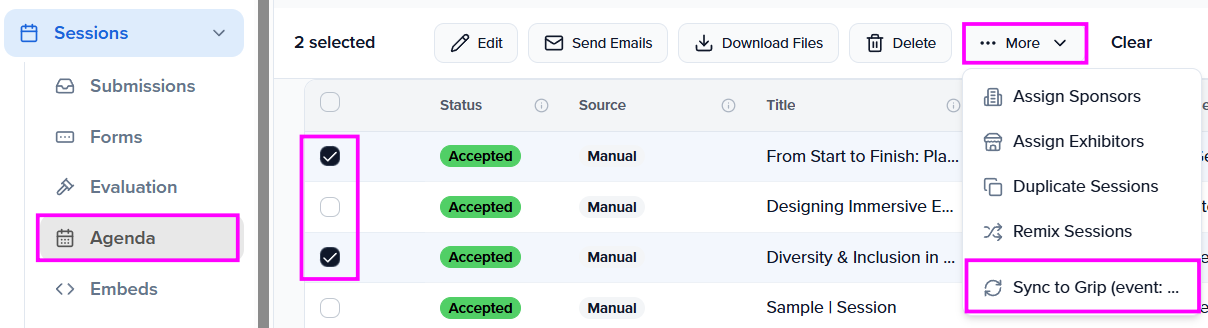
In addition to syncing all sessions and their speakers you do have the ability to choose individual sessions to sync. Go to Program > Collect & Review > Agenda, select the sessions you wish to sync, then click More > Sync to Grip (event: …).
To review a run, go to History > Integrations > Sync History. Each row shows the Grip event, the Sync ID, the status, and any errors.
Disconnect Integration
Section titled “Disconnect Integration”To disconnect from the integration, go to your Organization > Settings > Integrations
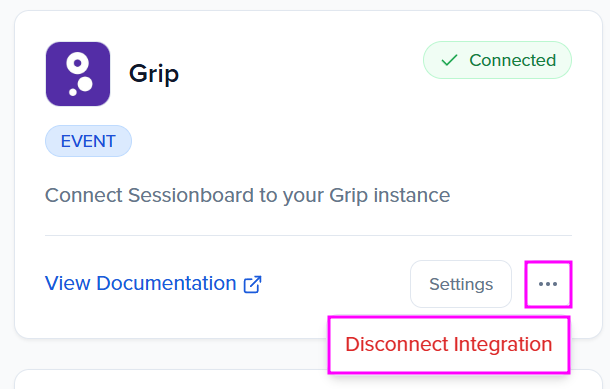
- Locate your connected integration and click the three-dot icon beside Settings
- Click “Disconnect Integration.”
- Confirm that you are sure before deleting the integration.
Once the integration is disconnected, you can reconnect using a separate API token, or reuse the same credentials.
Disconnecting the integration will disconnect all mapped events. Previously-synced sessions will not be able to be resynced even if you remap the same events. The integration should only be disconnected if you intend to sync to a new organization.
Remove mapped event
Section titled “Remove mapped event”To remove event mappings, go to your Organization > Settings > Integrations and click Settings underneath the integration partner you are utilizing.
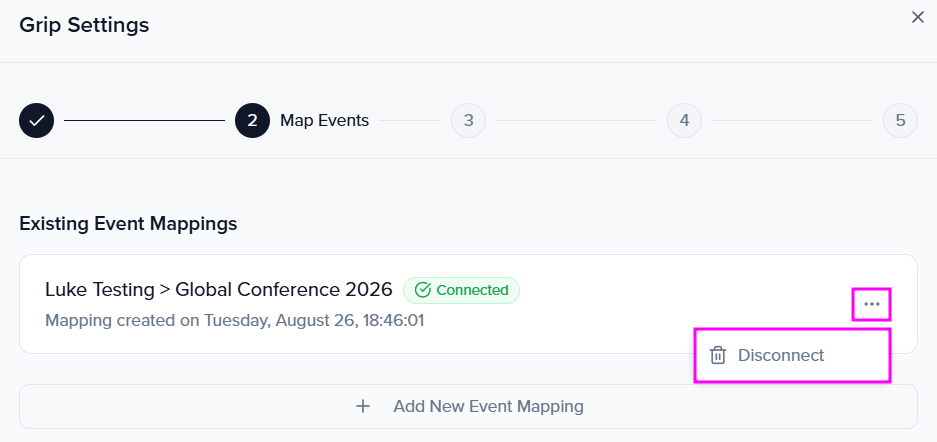
This will open the mapping window. A list of existing mappings will be displayed. Click “Disconnect” to disconnect specific mapped events.
❗ Removing a mapping will not disconnect the integration. Other mapped events will continue to sync on request.
Which direction does data sync?
One way, from Sessionboard to Grip. Sessions and speakers you approve and schedule in Sessionboard are pushed to Grip; changes made in Grip are not brought back into Sessionboard.
How often does the sync run?
With continuous sync enabled, records are created and updated on a regular interval of approximately 30 minutes. You can also push a manual sync at any time from Program > Collect & Review > Agenda > Options > Sync to Grip (event: …).
Which sessions and speakers sync to Grip?
Only accepted sessions and their accepted speakers. Sessions must have a date, time, track, and location, and sessions that have already passed will not sync. Each speaker needs a unique email address.
What happens in Grip when I remove a session or speaker in Sessionboard?
That depends on your event settings. With Remove Deleted Sessions enabled, deleted sessions are deleted from Grip on the next sync. With Remove Deleted Speakers enabled, speakers with no remaining accepted session are moved to your Default Data Type ID and stay in the Grip event as contacts. With both options off, nothing is removed from Grip and you delete the records there manually.
Where do I enter the Grip API token?
At the organization level, under Organization > Settings > Integrations. Connect the Grip integration, add a new connection, and enter the API token associated with your Grip event.
What happens in Grip when a field is blank in Sessionboard?
A session description you empty in Sessionboard is cleared in Grip on the next sync. Optional speaker fields work differently. When a speaker has no job title, company, mobile phone, biography or headshot saved in Sessionboard, that field isn’t sent, so Grip keeps the value it already has. Edit or delete that value in Grip directly.
Why doesn't a room or other dropdown value show up in Grip?
The Grip field it is mapped to has predefined values, and the value Sessionboard sends is not one of them. Grip only accepts a value that matches an existing option exactly, including spaces, capitals and punctuation. Add the value as an option in that Grip field (or make the names match), then sync again. See Map session fields.
I changed a track colour. Do I need to edit every session?
No. The next sync sends the new colour to the Grip track and re-sends the sessions in that track, which is where the Grip app reads the colour for session titles and buttons.
Can I sync individual sessions instead of the whole agenda?
Yes. In Program > Collect & Review > Agenda, select the sessions you want to sync, then click More > Sync to Grip (event: …).
Integration Support
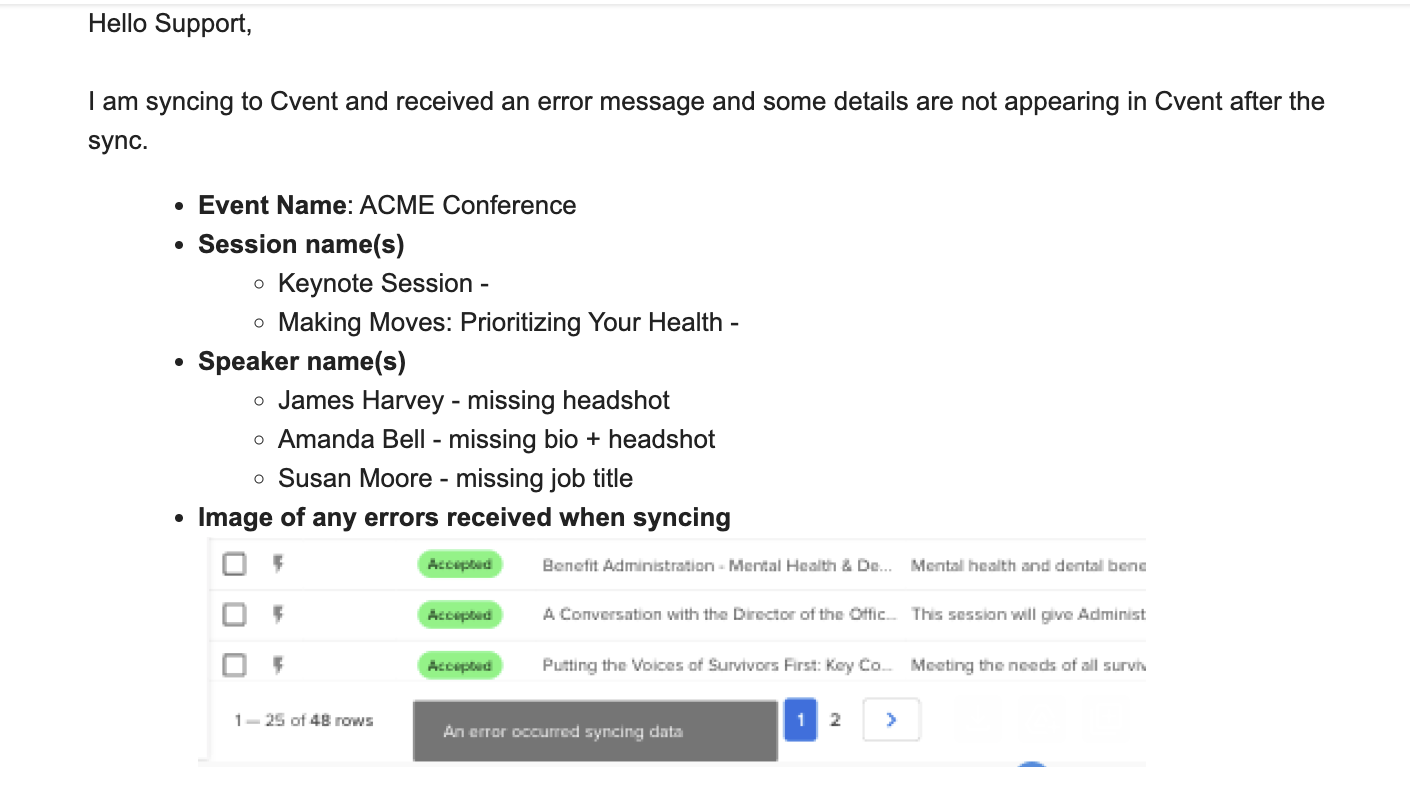
Section titled “Integration Support”If you are experiencing problems with syncing (i.e. error messages or data not appearing in Grip), email support@sessionboard.com with the following information:
- Event Name
- Session name(s)
- fields not appearing
- Speaker name(s)
- fields not appearing
- Image of any errors received when syncing (if applicable) Example Email: