

Upload, narrate and share your poster
If your event publishes an online poster hall, the poster you upload in your portal is the one visitors see. This page covers everything you can do with it: upload it, replace it, record a narration, answer the organizer, and share it once it is live.
Why use it
Section titled “Why use it”Your poster is read for an afternoon at the board and for months afterwards in the online hall, by people who were never in the room. The few minutes you spend here — uploading the corrected version rather than the first one, recording two minutes of narration, answering the organizer where they asked — are what those later readers get instead of a PDF with no voice attached to it.
Find your poster card
Section titled “Find your poster card”Open My Participation
Sign in to your portal and open My Participation. Your poster appears under its poster session — the session in capitals is the parent; yours is the row beneath it.
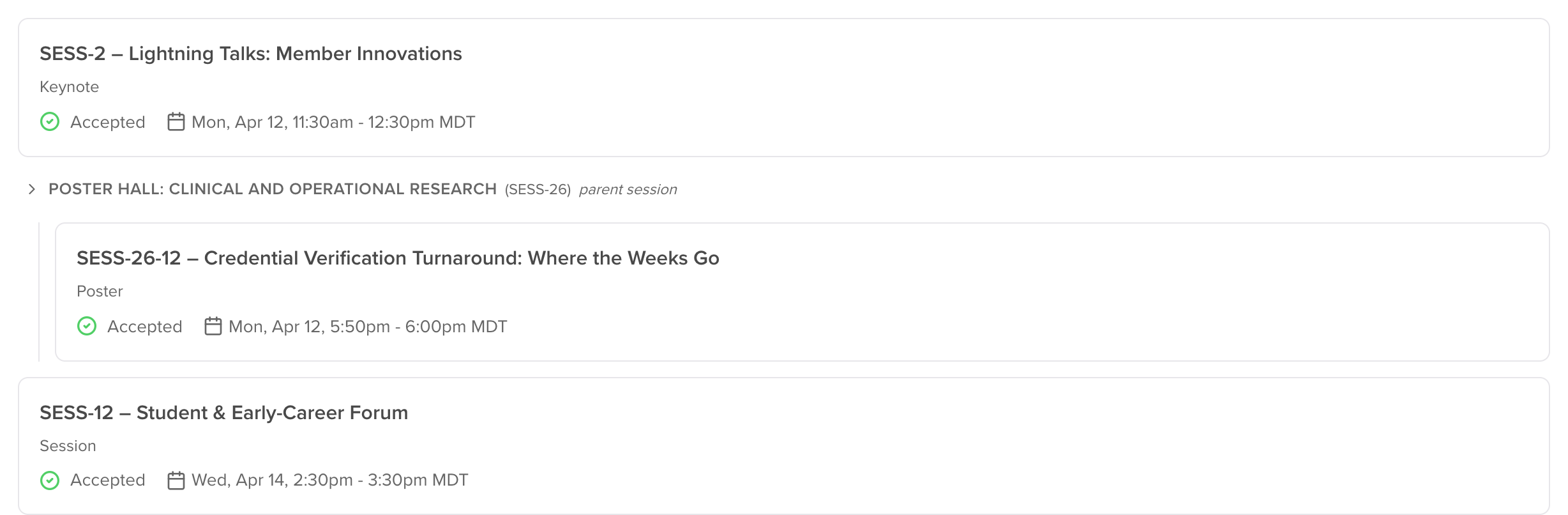
Open the session, then the Files tab
Click your poster’s row and choose Files. The Poster card is the organizer’s ask: what they want, what they accept, and when it is due.
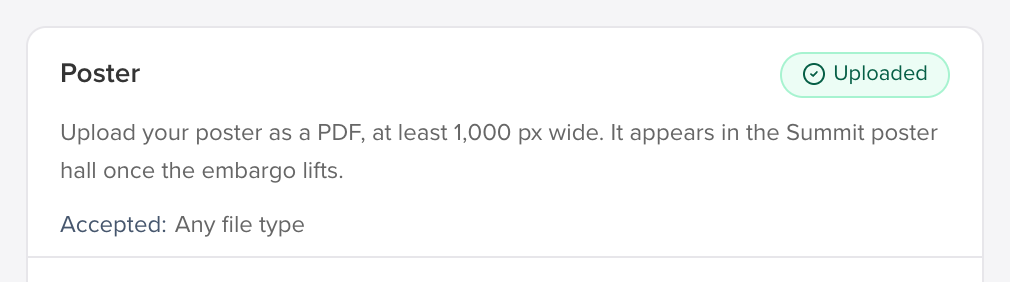
Upload your poster
Section titled “Upload your poster”Drag your file onto Upload to Poster, or click it to browse.
A file of a type the organizer does not accept is refused with the reason, so you find out immediately rather than after the deadline.
Once it is uploaded, the card shows the file, when it arrived, and that it is the latest version.
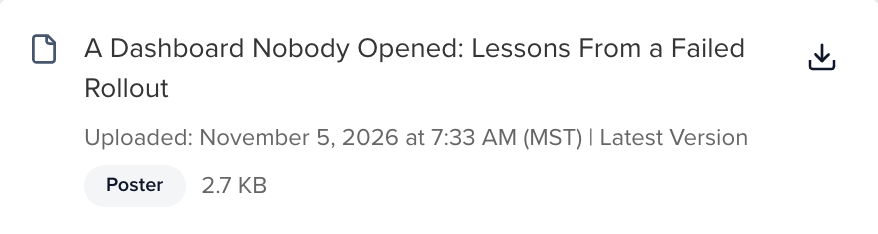
Replacing it
Section titled “Replacing it”Upload again and the new file becomes the current poster. The old one is not deleted — it becomes a revision, and the control on the file row opens the history. The poster hall, your organizer’s coverage view and this card always agree on which version is current.
Read and answer the organizer’s comments
Section titled “Read and answer the organizer’s comments”Comments on the poster are a conversation with the event team, kept with the file rather than in your inbox.
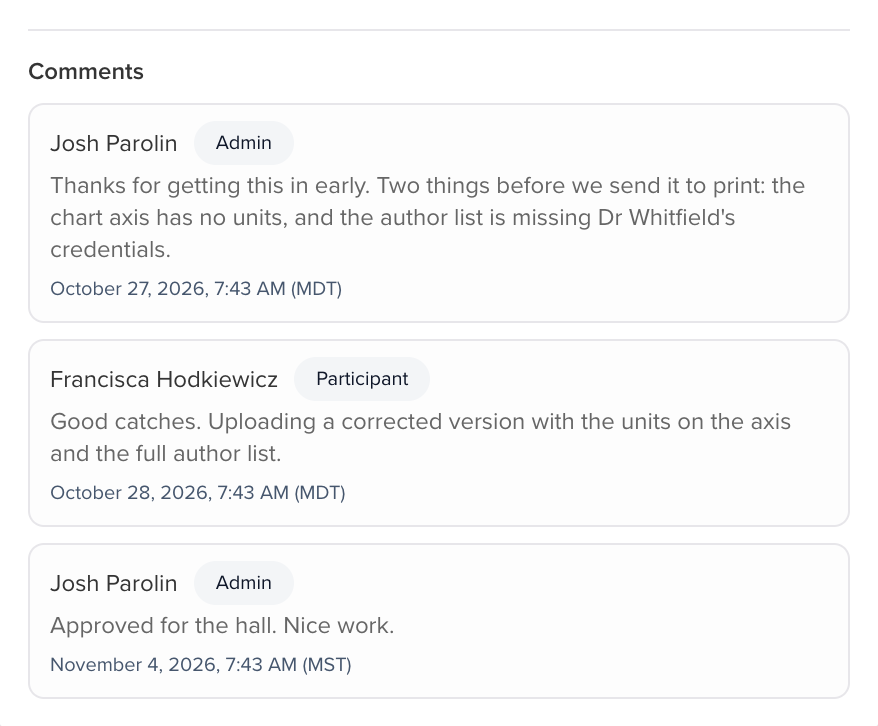
Write back with Post comment. If the organizer asks for a change, reply there and upload the new version — they will see both.
Record a narration
Section titled “Record a narration”A narration is a short walkthrough visitors hear next to your poster. You can record one in the browser; no software, no file to export.
Open Narrate your poster
The card sits under your poster on the same Files tab.
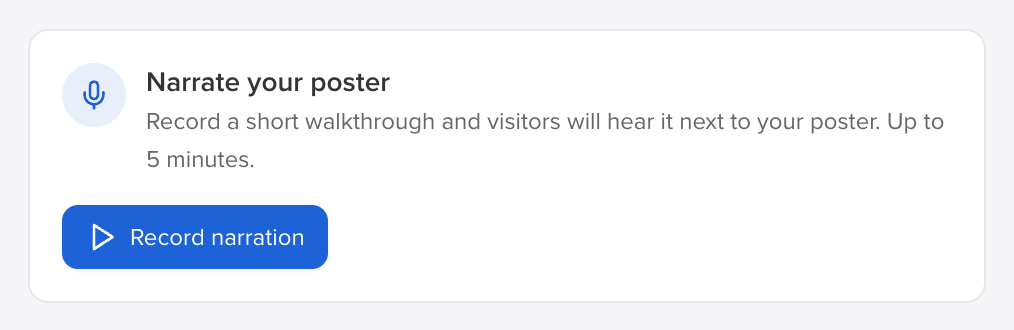
Record
Click Record narration and allow your browser to use the microphone. The timer runs while you talk, up to five minutes.
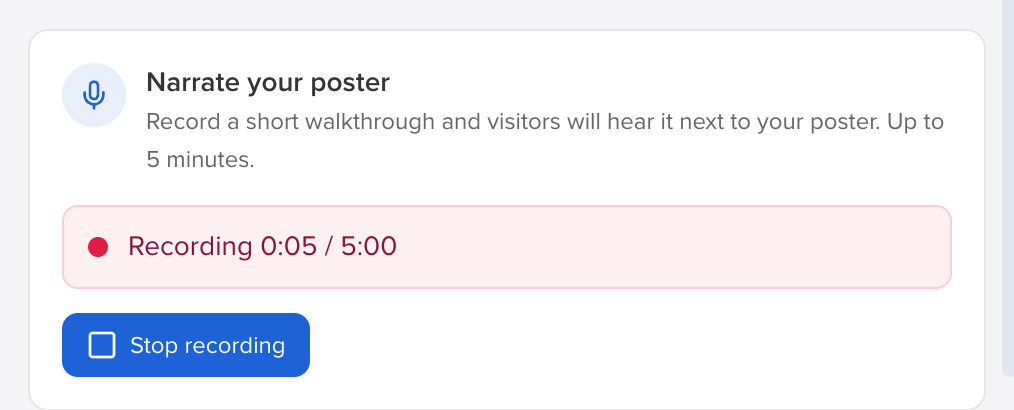
Listen back, then save or start again
Stop recording gives you the take to play back. Save narration publishes it; Discard and record again throws it away and starts over.
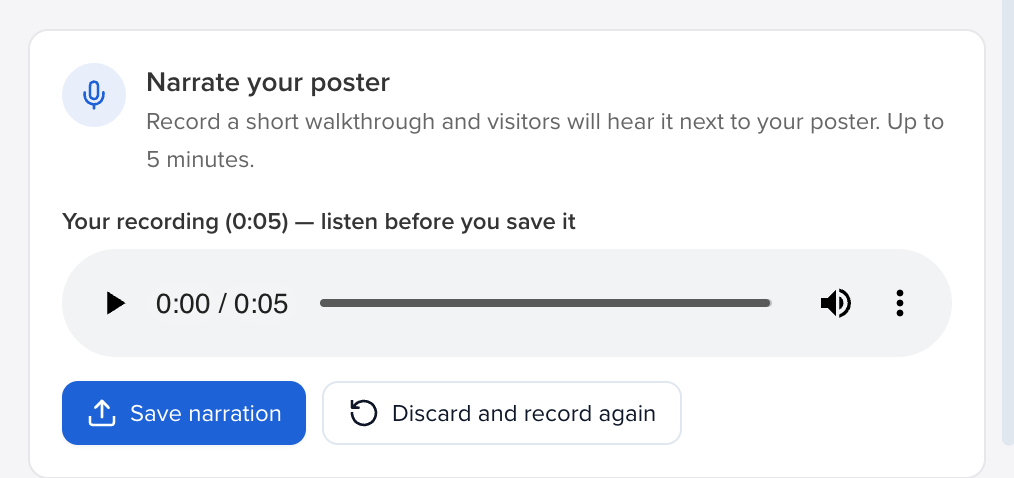
Recording again later replaces the previous narration — visitors only ever hear the newest one. You can also upload an audio file instead; it appears on the card the same way.
If your narration is being held back, the card says why: the hall has not opened yet (with the date it opens), it is waiting for your organizer’s approval, or it was declined. Only a declined narration needs recording again.
Open your poster
Section titled “Open your poster”Once your poster is uploaded, Open poster opens it in one place:
- On the left, what you can do with this file: its versions, upload a new version, download it, the organizer’s template if they shared one, and the narration. A video poster brings its own sound, so it is not offered a narration.
- In the middle, your poster exactly as visitors will see it in the gallery.
- On the right, the comment thread with your organizer.
A new version replaces the current poster straight away; the earlier ones stay in the version list.
Share it once it is live
Section titled “Share it once it is live”When your poster is in the hall, the card says so and gives you what you need to point people at it.
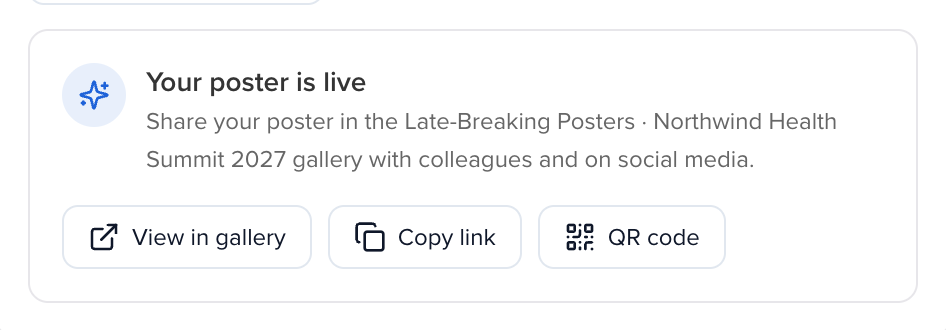
- View in gallery opens your poster as a visitor sees it.
- Copy link is the direct URL to your poster, for email and social posts.
- QR code is yours to put on a slide, a handout or a business card.
Related
Section titled “Related”- Upload files & make comments — the general file upload flow
- Access your portal — signing in