

Poster galleries
A poster gallery turns the posters already uploaded to your sessions into a public, searchable page you can hand out as one link. Visitors browse by track or format, open a poster in the browser — PDF, image, video and audio all render inline — and see it attributed to its session and authors.
Why use it
Section titled “Why use it”A poster session is over in an afternoon; a gallery keeps the work findable for the rest of the year, under one link you can put in the app, the programme and the post-event email. Because it draws from the Poster upload slot your speakers already fill, there is nothing to collect twice — a presenter uploads once, and the gallery, the coverage view and the speaker’s portal all agree on which poster is current. Access modes, an opening window and author consent mean you can set it up before the meeting without surprising an author or a journal.
Before you start: collect posters in a Poster slot
Section titled “Before you start: collect posters in a Poster slot”A gallery does not hold its own uploads. It collects the files speakers upload — or build — into one upload slot, from the sessions you select.
Define that ask under Program → Settings → Files. Turn on Use upload slots, then add a slot whose File kind is Poster. The kind is what the gallery reads, so a poster ask must be of kind Poster whatever you name it.
A Poster slot carries its own:
- Deadline — the date the ask closes. Past it, the speaker sees the deadline and the reason rather than a drop zone.
- Accepted file types and size — refuse the wrong format at upload instead of chasing it later.
- Sessions it applies to — add Session filters such as Format is Poster so your keynotes are never counted as owing a poster.
Full setup, including reminders and the Slot coverage view that shows who still owes a file, is in Enable, upload & download files.
If your event still uses a single file request for every session, the Posters page says so and offers to switch:

Turn on upload slots does it for you: your current due date and file types become the first slot, nothing else changes, and you can then add a Poster slot from the Files page.
Create a gallery
Section titled “Create a gallery”Open Publish → Posters
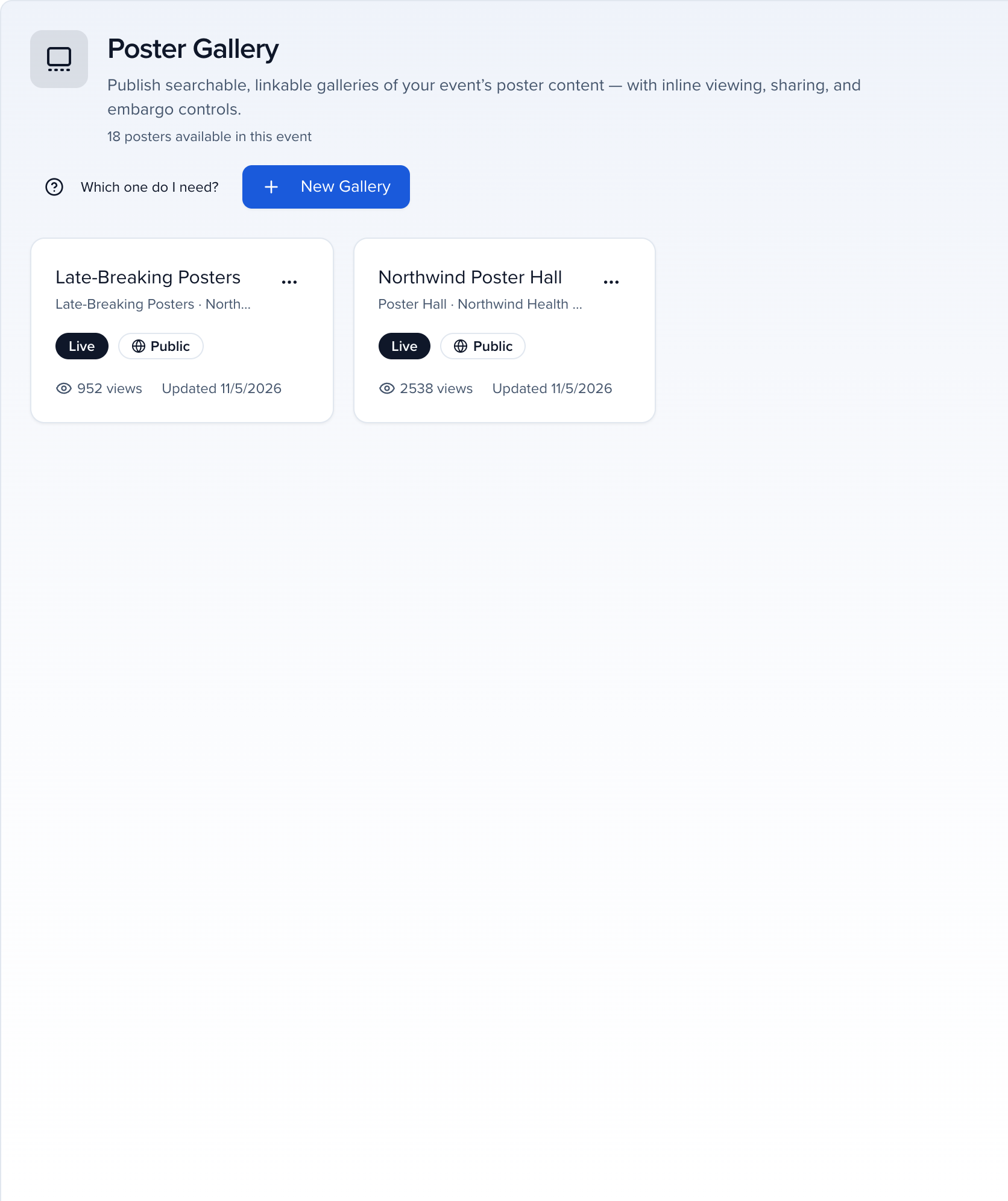
The page lists the galleries this event already has and counts the posters available to them. Click New Gallery to create one and open the builder.
Choose which files count as posters
On the Content tab, Upload slot decides what the gallery collects: whatever speakers upload — or build — into that slot. New galleries pick your Poster slot for you; if you run more than one poster ask, choose the right one here.
Posters by file type (legacy) instead takes any session file marked as a poster, whatever slot it is in — for events that collected posters before slots existed.

Pick the sessions that feed it
Which sessions narrows the gallery with the same filters you use on the sessions list — for example Track is Clinical and Status is Accepted. A dropdown row can hold several values, so Track is A or B is one row. Leave it empty to include every session on the event.
Include chooses what kind of session counts:
- All — sessions, subsessions and abstracts.
- Sessions only.
- Subsessions only.
- Abstracts only — an accepted abstract is a session in Sessionboard, so this is the sessions marked as abstracts.
When subsessions can be in the gallery, Group by parent session lists each parent session once with its posters beneath it, instead of a flat grid.
A gallery created before these filters existed may still show the older Session formats and Tracks checkboxes. They keep working alongside Which sessions; new galleries only have the filters.
Check what you will get, and what is missing
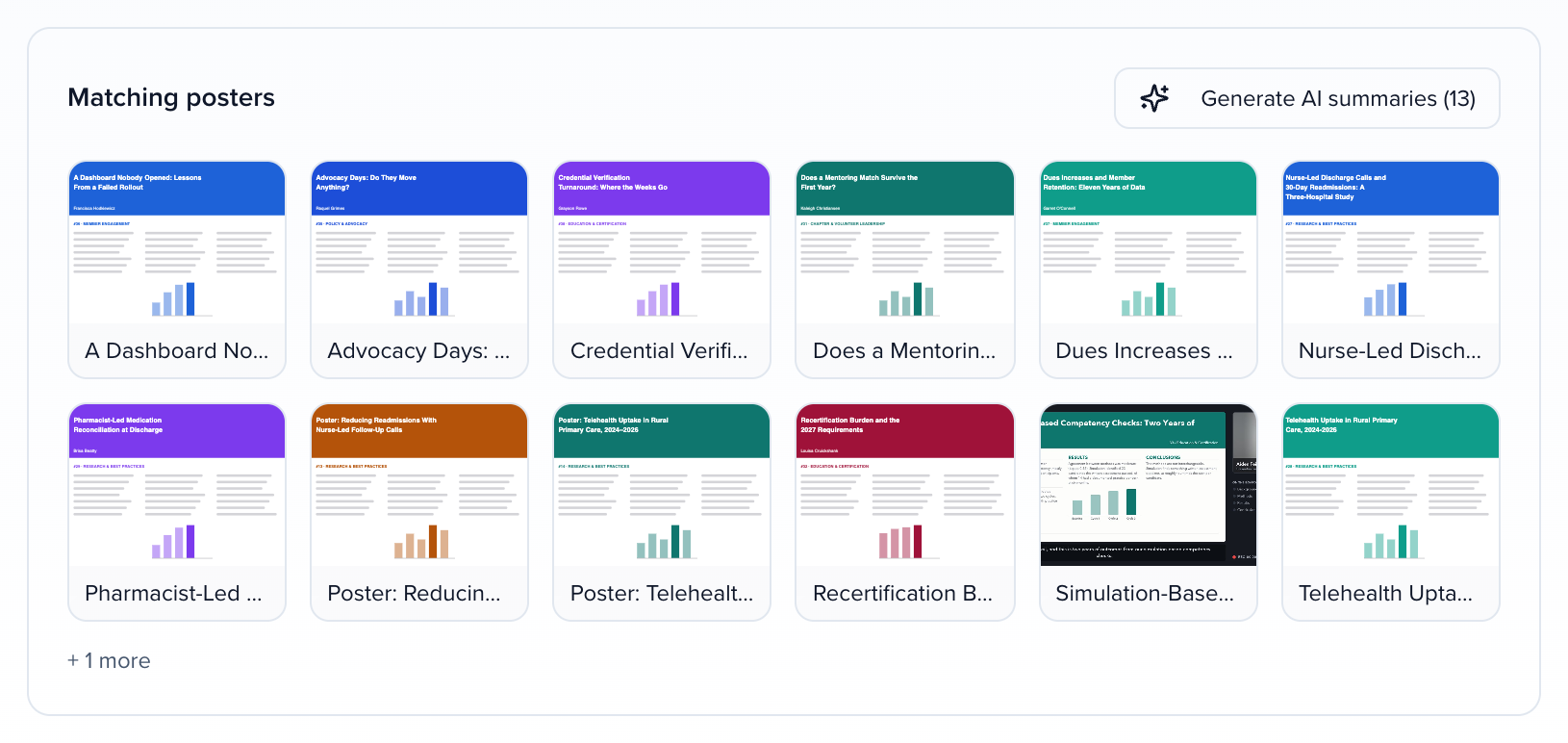
Matching posters previews exactly what a visitor will see — every poster the filters above let through.
Poster coverage splits the sessions in the gallery’s scope into Uploaded and Missing, so you can chase the gaps from one list. It counts only the sessions the slot applies to, subsessions included, and the slot’s reminders go to the speakers on each of them.
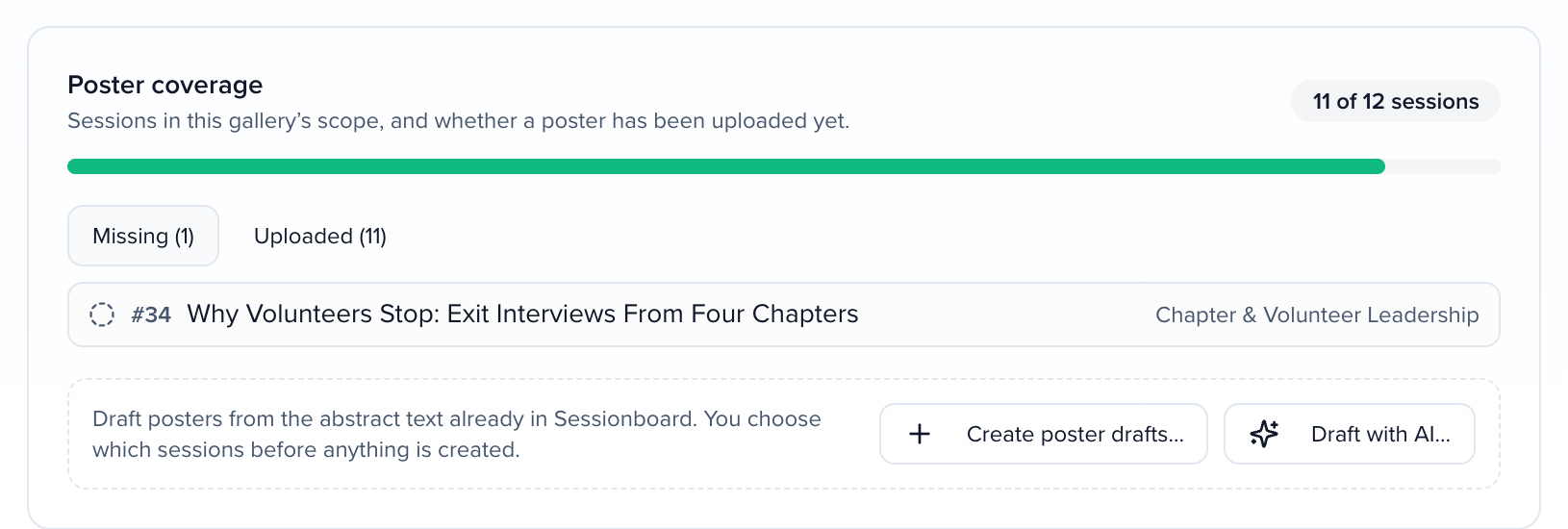
The same numbers, for every slot at once, are on Program → Submissions → Files → Slot coverage — see Who still owes what.
Name it and brand it
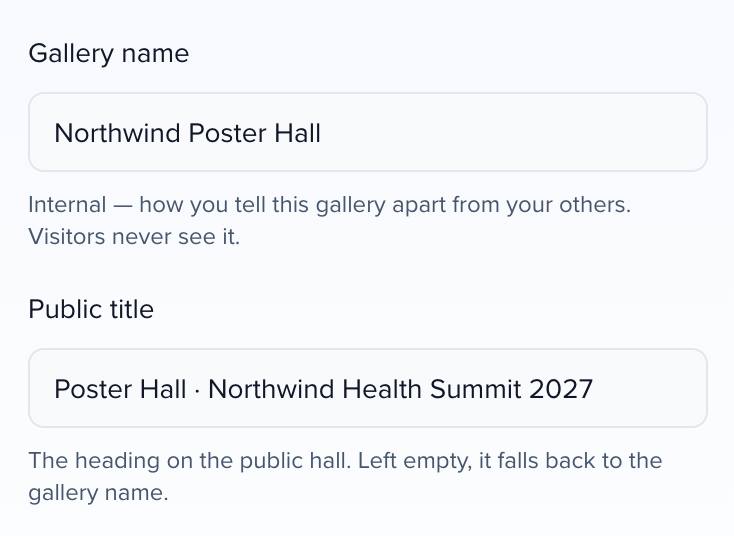
On Appearance, two fields do different jobs and sit next to each other:
- Gallery name is internal — how you tell this gallery apart from your others. Visitors never see it.
- Public title is the heading on the hall. Left empty, it falls back to the gallery name.
The Brand card names the brand kit the hall follows: the kit assigned to the event, or your organization’s default kit. The hall takes its colour, logo, type and background from it, and anything you set below overrides the kit for this gallery only. Pick another kit under Brand kit, or Inherit from the event to go back. A value that comes from the kit is marked From the brand kit; one you changed offers Use the brand kit to follow the kit again.
Below it set the Description, a Theme (visitors can still switch it on the page), an Accent color and a Heading font (a Google Fonts family name), and add a Logo and Banner — Use the event logo and Use the event background image reuse what the event already has. Page background is Inherit from the brand kit, Plain, Accent wash (a soft wash of the accent colour) or Image; an image sits behind the posters under a scrim so the cards stay readable in light and dark mode. A Gallery sponsor block (label, logo, link) is there if a sponsor paid for the wall; Choose an event sponsor reuses a sponsor’s logo and website from their account record.
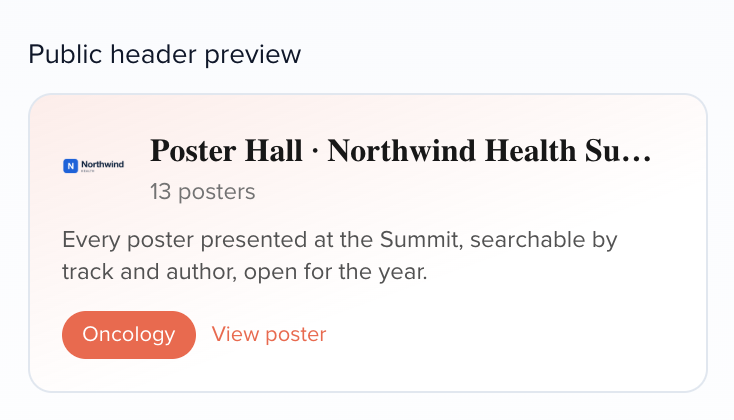
Public header preview shows the result as you type.
Decide what visitors can do
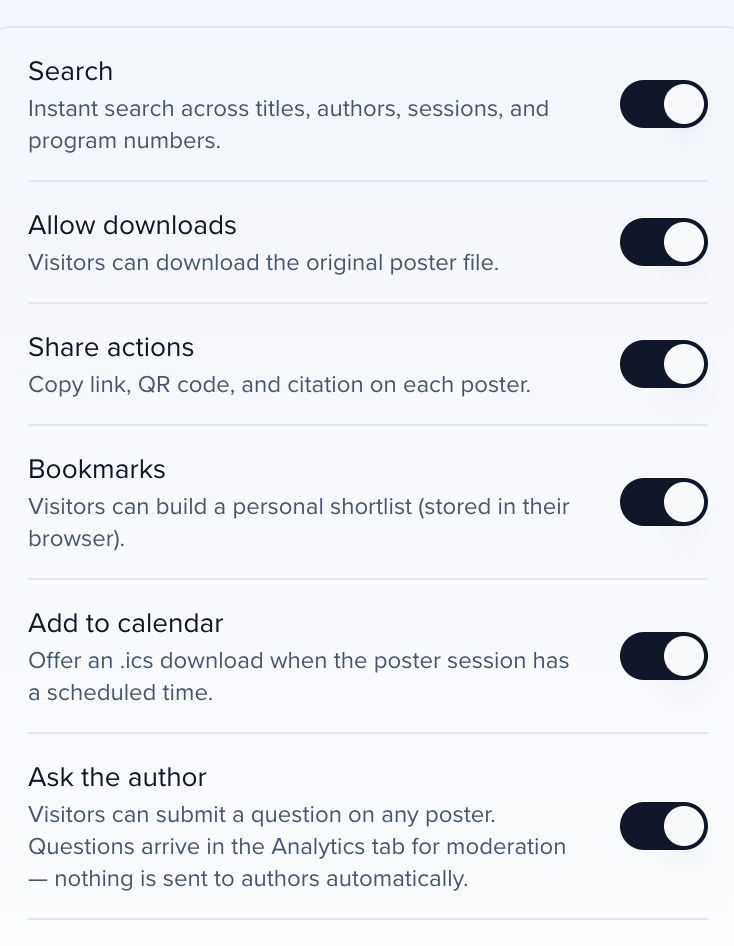
Behavior holds the visitor-facing switches: Search, Allow downloads, Share actions, Bookmarks, Add to calendar and Ask the author.
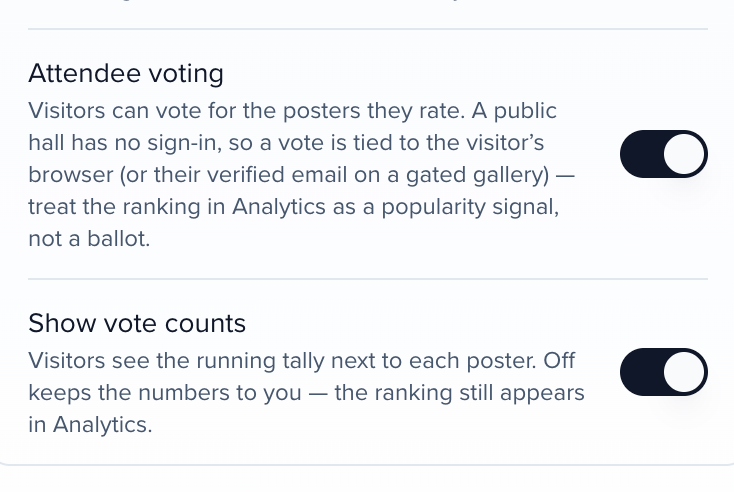
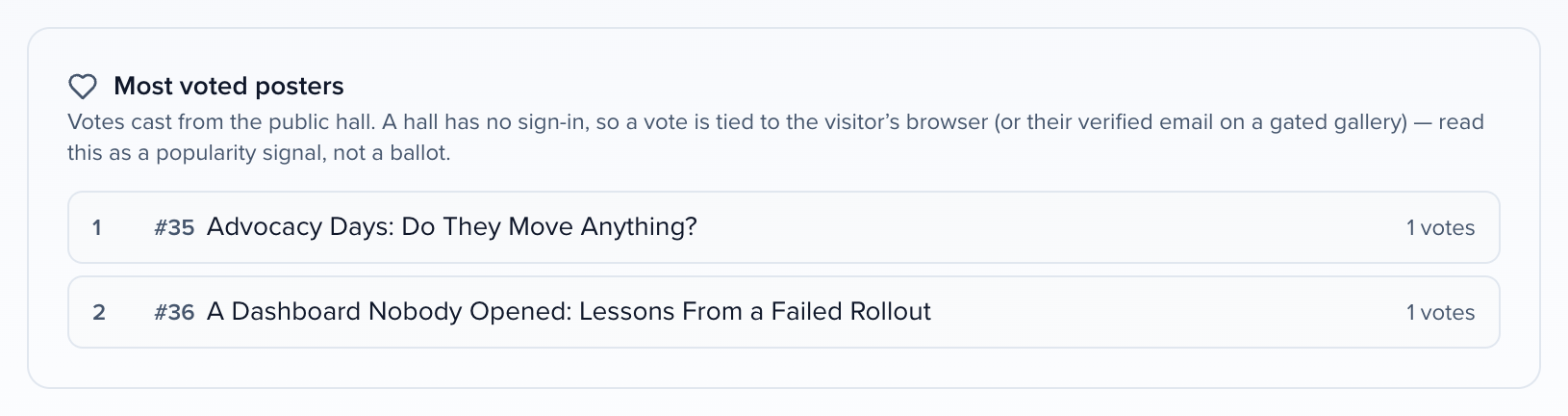
Attendee voting lets visitors vote for the posters they rate, and Show vote counts decides whether they see the running tally. A public hall has no sign-in, so a vote is tied to the visitor’s browser — or to their verified email on a gated gallery. Treat the ranking as a popularity signal, not a ballot.
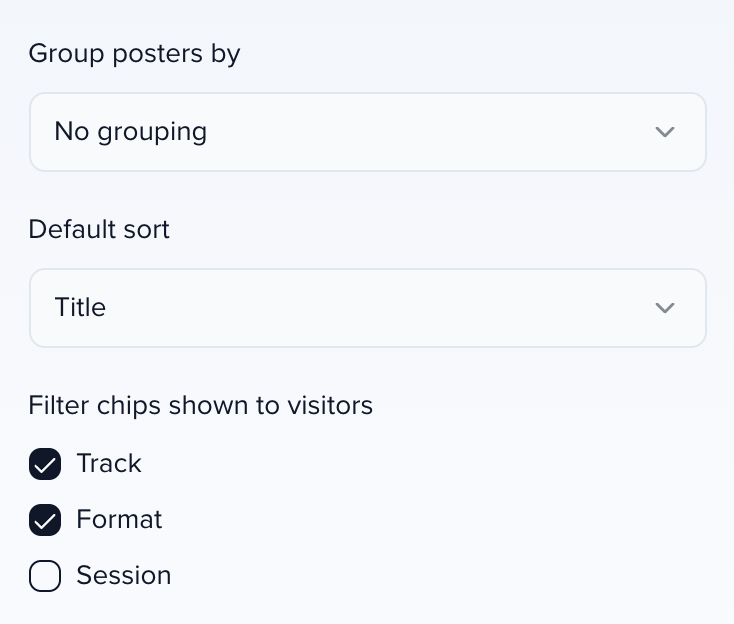
Further down, Group posters by (Track, Session or no grouping), Default sort and Filter chips shown to visitors set how the wall is arranged, and How visitors see it sums up the result in a sentence.
Set access, then go Live
On Access & Compliance, choose who can view the gallery (see below), then flip the Live switch in the header. Copy public link gives you the URL to publish; Preview opens the gallery as a visitor sees it.

Who can view it
Section titled “Who can view it”Who can view this gallery on Access & Compliance offers three modes:
| Access mode | Who gets in |
|---|---|
| Public | Anyone with the link. Share links still work alongside it for scoped or password-protected access. |
| Share link | The public URL is off; only the share links you create work. |
| Gated | Visitors verify their email first; optionally restrict to allowed email domains. |
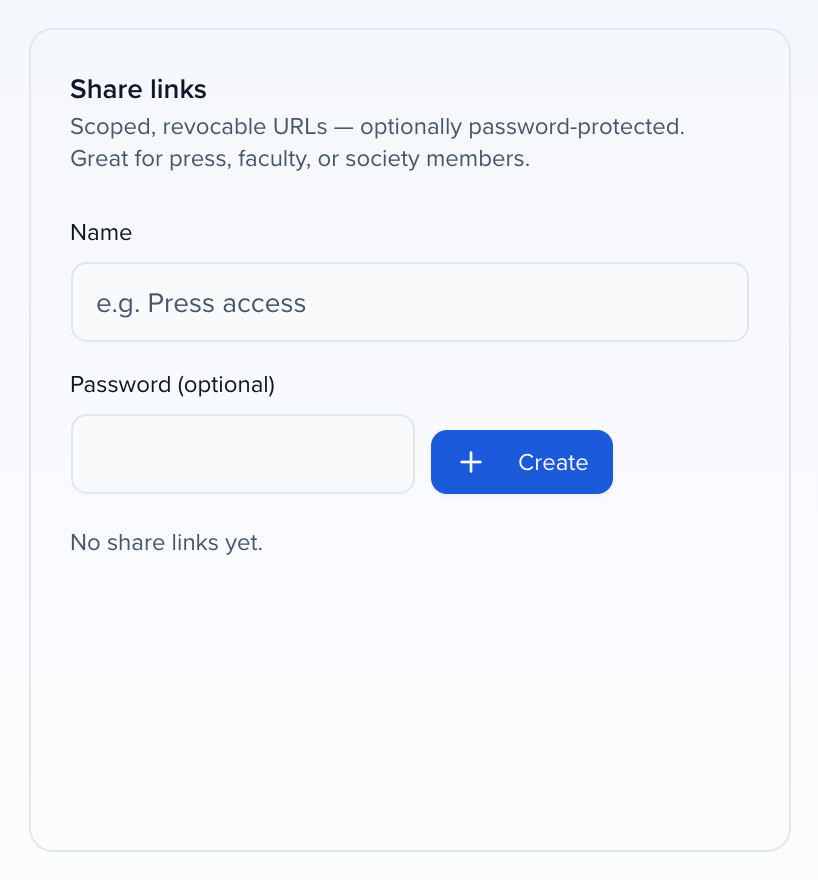
Share links are scoped, revocable URLs, each with a name and an optional password — useful for press, faculty or society members. Deactivate one without touching the others.
Hold posters back until you are ready
Section titled “Hold posters back until you are ready”Two settings on the same tab decide what is visible and when:
- When the hall is open sets an optional Opens and Closes date and time, in the event’s timezone. Leave both empty and the hall is open the whole time it is live. While the hall is shut, visitors see decides what shows before it opens and after it closes: Titles only, with a countdown, or Nothing at all. The header sums up the state, for example Live · Public · titles only until ….
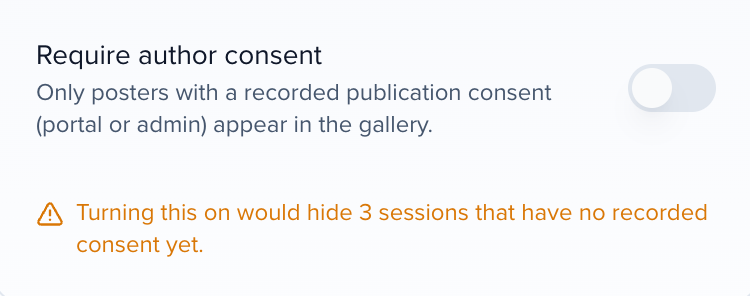
- Require author consent publishes only posters whose author accepted your consent statement — presented as a required checkbox when they upload a poster in the portal. Before you turn it on, the card tells you how many sessions it would hide.
See what visitors did
Section titled “See what visitors did”The Analytics tab covers the last 30 days and exports to CSV.
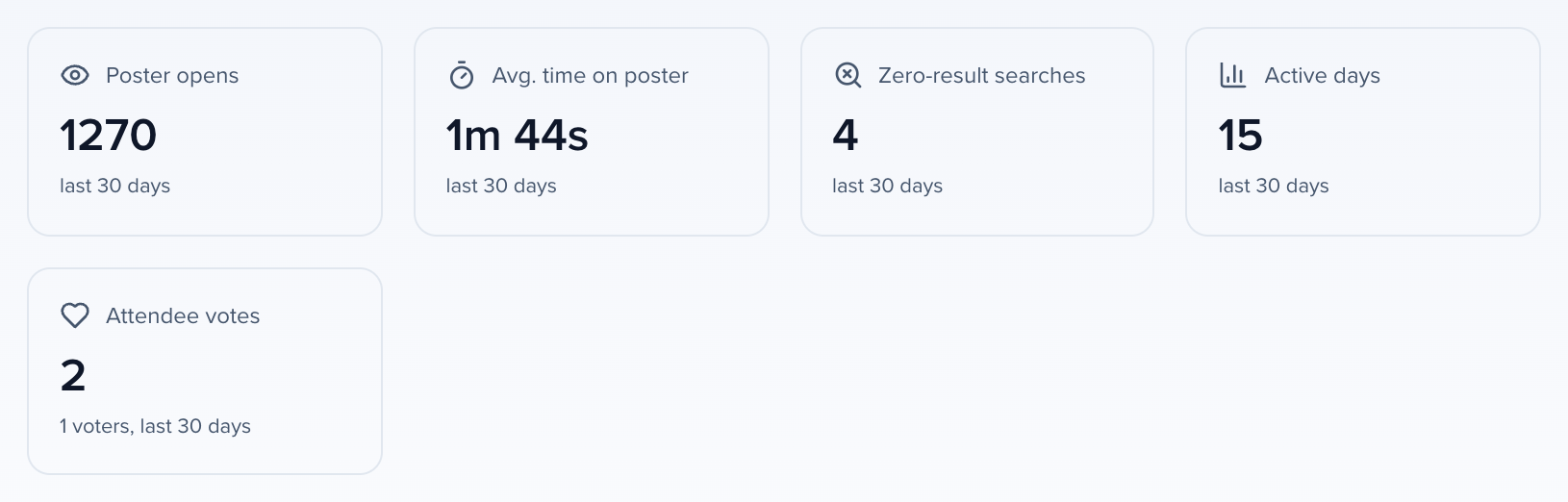
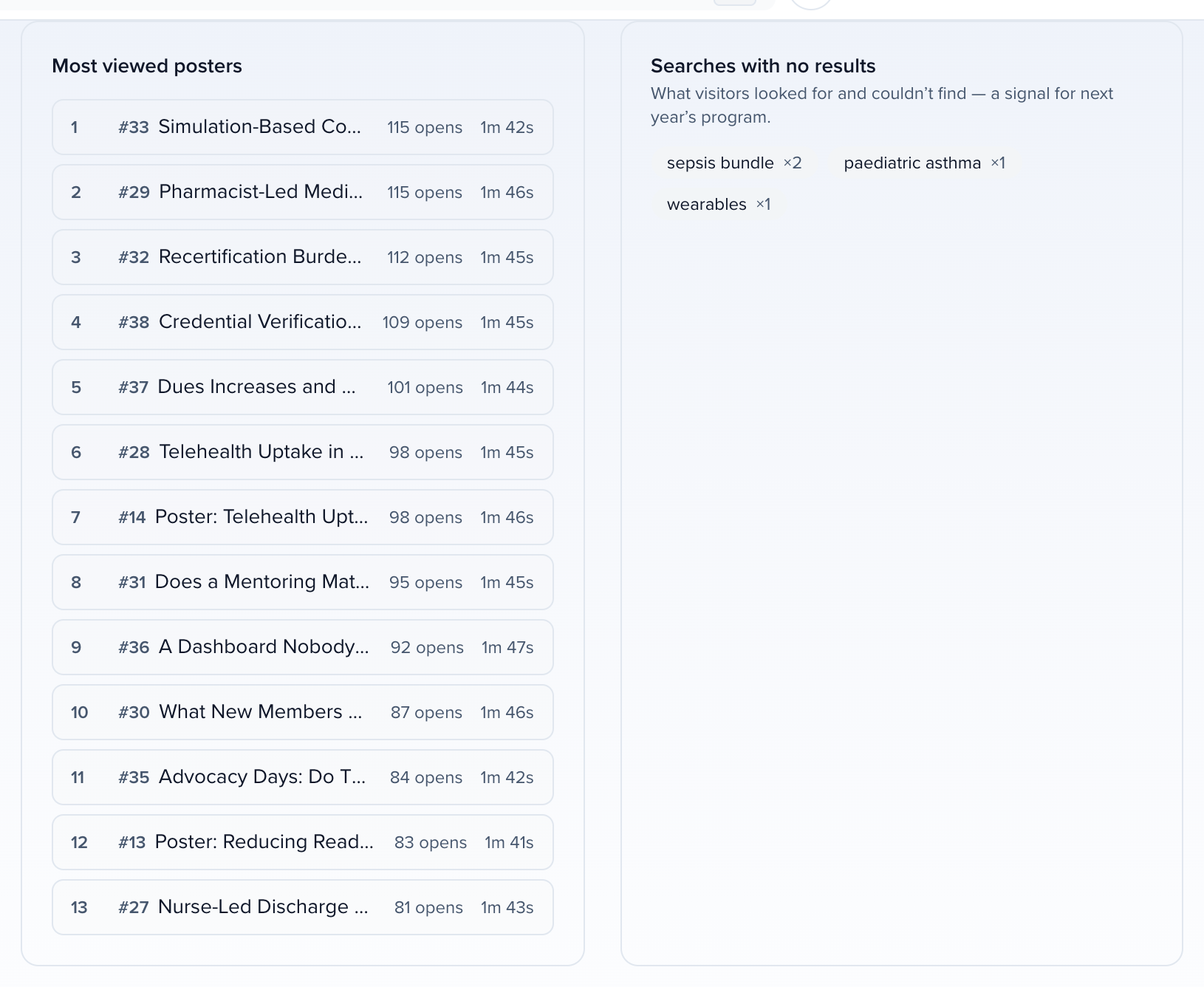
Zero-result searches is the fastest read on which topics your audience wanted and could not find. Under the charts, Most viewed posters ranks by opens and dwell time, and Most voted posters ranks by votes when voting is on.
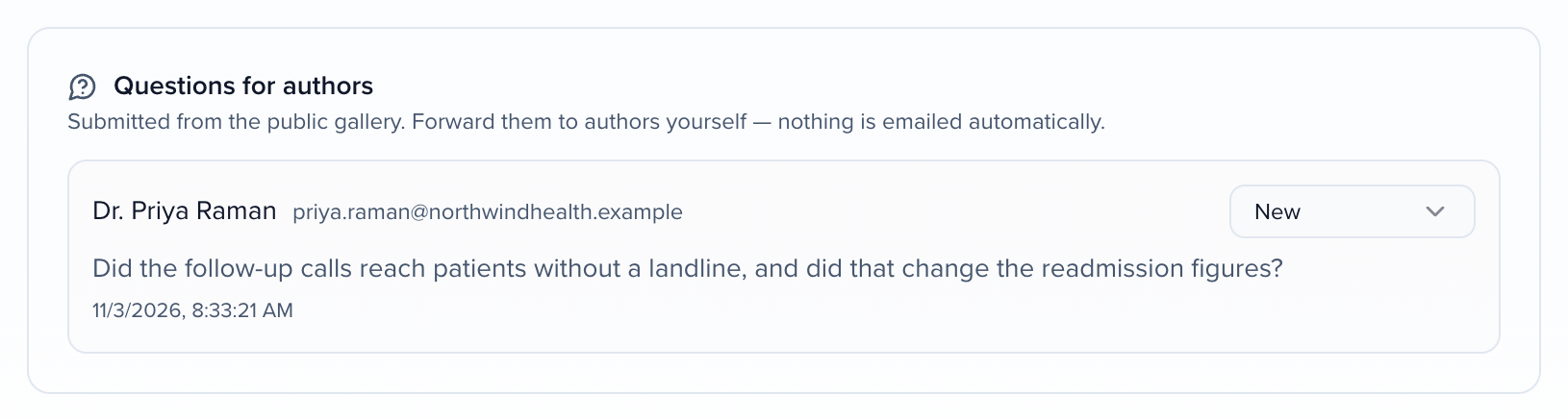
Questions for authors collects everything submitted from the hall. Nothing is emailed automatically — forward them yourself.
Author engagement reports emails every author whose poster was viewed with their views, average time spent and questions received. Preview send shows what one author would get before anything goes out.

Draft posters from abstracts
Section titled “Draft posters from abstracts”For sessions with no poster file, the Content tab can build one from the abstract text already in Sessionboard. You choose the sessions before anything is created.

Both open the poster builder — a block editor with sections, key findings, charts and figures, a two- or three-column layout and an accent colour. Publishing renders the poster to PDF, files it in the session’s Poster slot and adds it to the same pool as uploaded posters.
A session has one current poster. Publishing from the builder replaces an uploaded poster as the current one, and a speaker uploading afterwards replaces the built one; the earlier file stays in the session’s version history. Authors work with their poster from the portal — uploading new versions, recording a narration, reading your comments — see Upload, narrate and share your poster.
Related
Section titled “Related”- What visitors see in a poster gallery — the hall from the other side
- Upload, narrate and share your poster — what your authors do
- Enable, upload & download files — upload slots, deadlines and coverage
- Early Access — request Poster Gallery for your event