

Speaker CRM: contact fields
This guide applies only to organizations that have the Speaker CRM enabled.
Video transcript
Every form question, profile detail and table column in Sessionboard is a field, and fields live at two levels. Organization fields are shared by every event, so a label or a dropdown option changed once shows up everywhere. Event fields belong to this event alone. Both sit under Settings, Library, Fields. The rows with a lock are standard fields Sessionboard provides. The rest are custom, the ones your team made. Each row shows the name, the internal name, the type, and any limit, like a character maximum.
Three tabs, one per kind of record. Contact fields describe a person, a speaker’s name, email, bio and headshot, and their data lands in Contacts. Group fields describe a sponsor or exhibitor organization. And Submission fields are about the session itself, its title, description and tracks, and those you’ll find in the Sessions module. Under each, the sub-tabs narrow the list, Profile, Communication, Attribute, Custom for the fields you created, and Hidden Fields for anything you’ve archived. Search, or sort by name or by what changed most recently.
To add one, Add Field. Give it a name, then pick a type. Text and text area, rich text, number, currency, percent, date and time, dropdown, tree, checkbox, countries, email, phone, URL, file, signature, and formula, which calculates a number, or a date some days after another date. The description is for your team only. Field Level decides the reach, event field for this event only, or global, available in every event. And Contains Personal Data masks the values in AI queries and shared reports. Save Changes when you’re happy. I’ll leave this one.
Same menu, Copy from. Rather than rebuilding the same custom fields every year, pick them from another event you have access to, filter by the source event or search by name, select the ones you want, and Import. They land as event fields here. If a field with the same name and type already exists, Sessionboard reuses it instead of making a duplicate, and one with the same name but a different type is skipped, with a note telling you why.
To change a field, open its row, or choose Edit from the menu at the end. Rename it here, and every form, profile and table that uses it follows. For a dropdown, add, rename or reorder the options, drag the handle to move one. Add a Field Description so a colleague knows what belongs in it. What’s fixed is the type and the level, a dropdown can’t become a text field, so if you need a different shape, create a new field and archive the old one. Save Changes, or Cancel.
Standard fields can’t be deleted, but any of them can be archived. On a standard row the menu offers Edit and Archive. Archive hides the field from forms, pickers and column pickers, for this event from here, or for the whole organization from the organization library, and stored values stay on each record, read only. It moves to Hidden Fields, where you can restore it. The exceptions are first name, last name and email, and a session’s title and description, which Sessionboard needs, so they can’t be archived, though their labels can still be edited.
Now the organization level. Organization Settings, Library, Fields. Contact, Group and Session, plus an Event tab for the details you record about each event. These are the global fields, shared by every event you run, so look here before creating anything. Most of what you want to record about a speaker already has a field under Profile, Communication or Attribute, and reusing it keeps imports, exports and reports consistent. A field made here can only be global. Open one, and the sidebar says it’s a system field, and that constraint changes may apply across events.
Beside Add Field is Field Rules. Rules run when someone saves a value, on a record, a form or an import. Add Rule, name it, choose a type. Formatting changes the case of a text field as it’s written. Calculation writes a number from other fields on the same record, a fee minus what’s been paid. Assignment sets other fields when every condition matches. One rule can use Contact, Group and Session fields together. And the formula type is the read-only cousin, the field itself is the maths, and nobody types into it.
And here’s a field doing its job. In the Contacts directory, Columns opens the picker, and the custom field we looked at is right there to add as a column, beside the standard ones. You can show up to twenty-five at once, and if it’s a set of people you want to come back to rather than a set of columns, save a segment. The Help Center has this under Speaker CRM, contact fields. For turning these columns into the charts your team opens every morning, that’s the Custom dashboards chapter.
Every contact in the Speaker CRM is described by the same set of fields, and those fields are shared by every event in the organization. Change a label or add a dropdown option once and each event’s forms, profiles and tables pick it up.
Where the fields live
Section titled “Where the fields live”Open Organization Settings, then Library > Fields. The Contact tab is selected; Group, Session and Event hold the other modules’ fields. Search, or sort with the A - Z (Name) button, and use the sub-tabs to narrow the list:
| Sub-tab | What it lists |
|---|---|
| All Fields | Everything below, in one list. |
| Profile | Who the person is — name, pronouns, job title, company, headshot, bio. |
| Communication | How to reach them — email, phone, address, social links. |
| Attribute | What describes them — audience type, languages, speaker fee, industry. |
| Custom | Fields your team created. |
| Hidden Fields | Fields that have been archived, with a Restore action on each. |
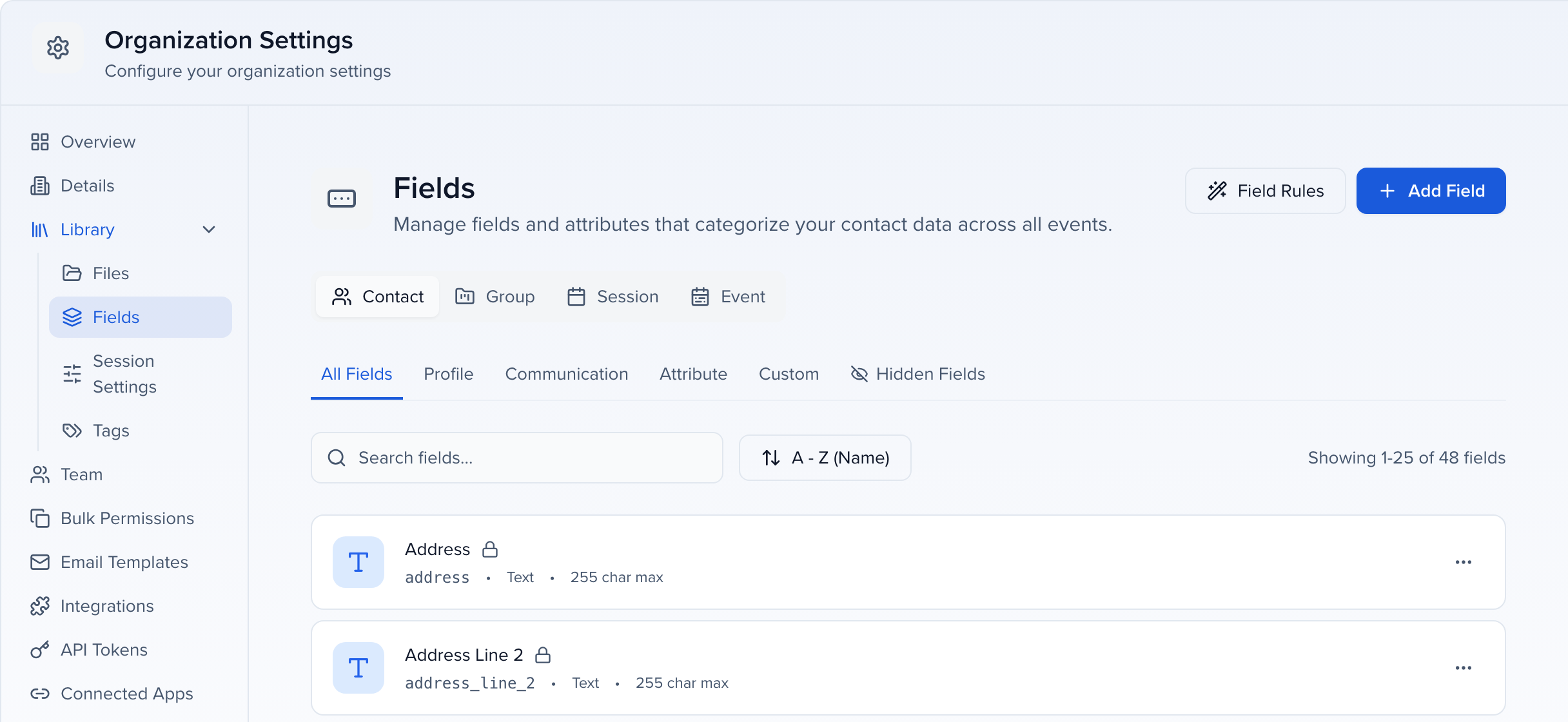
A lock icon marks a system field that Sessionboard provides. Each row shows the field’s name, its internal name, its type and any limit such as a character maximum.
Rename a field or change its options
Section titled “Rename a field or change its options”Click the … menu at the end of a row and choose Edit. Change the Name, add a Field Description for your team, and for a Dropdown field add, rename or reorder the Options. Click Save Changes.
Because these are global fields, the change appears in every event in the organization straight away. System fields such as Pronouns, Website and Speaker Fee can be renamed and, where they have options, have those options edited. First Name, Last Name and Email are the fields Sessionboard itself relies on, so only their label opens for editing.
The Field Type and Field Level are fixed once a field exists — a dropdown cannot become a text field. If you need a different type, create a new field and archive the old one.
Create a custom field
Section titled “Create a custom field”- On the Contact tab, click Add Field.
- Give the field a Name and choose a Field Type — Text, Text Area, Rich Text, Number, Currency, Percent, Date, Date & Time, Time, Dropdown, Tree, Checkbox, Countries, Email, Phone, URL, File, Signature or Formula.
- Add a Field Description if the name alone will not tell a colleague what to enter. Text types also take a Maximum Length.
- Field Level is set to Global Field — only global fields can be created here, and the data is available in every event.
- Turn on Contains Personal Data when the field holds information you would not want surfaced in AI queries or shared reports; Sessionboard masks it there.
- Click Save Changes.
A Formula field calculates a number from other contact fields — see Create a formula field. To set one field automatically when another matches a value, such as Country filling in a point of contact, use Field Rules, which sits beside Add Field.
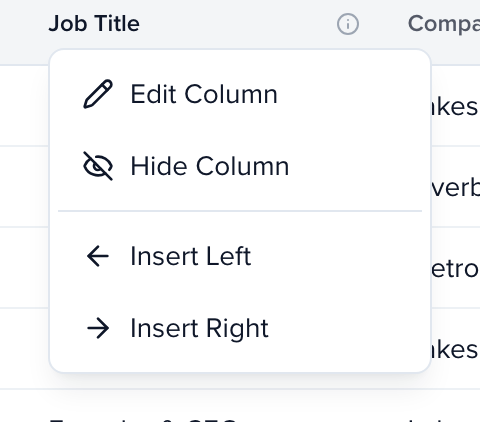
You can also create a field without leaving the directory. In CRM > Contacts, click a column heading and choose Insert Left or Insert Right; the same form opens and the new field is added to your view in that position. Hide Column removes a column from your view without touching the field.
Hide a field you no longer use
Section titled “Hide a field you no longer use”Choose Archive from a field’s … menu and confirm. The field leaves form builders, field pickers, column pickers and public forms in every event, while values already stored stay read-only on each contact, with no inline editor (see What an archived field looks like). It moves to the Hidden Fields sub-tab, where Restore brings it back. System fields can be archived but not deleted; First Name, Last Name and Email cannot be archived. These are organization (global) fields, so you need the Can manage global contact fields permission for either action — see Archive a field.
Using fields in the directory
Section titled “Using fields in the directory”Preferences in CRM > Contacts opens the table settings, and its Columns tab lists every field in one searchable list, each with an icon for its type — search for the field rather than looking for its category. Up to 25 columns can be shown at once. To return to a particular set of people rather than a particular set of columns, save a segment.