

Disclosures
A disclosure is a dated statement from a person about their financial relationships and conflicts of interest — the form accredited CE providers collect from every faculty member, and the shorter conflict-of-interest check many associations ask of speakers, abstract reviewers and award judges. Disclosures lets you build that form once, send it to people as a private link they complete without logging in, and see on every contact’s profile whether their disclosure is current, expiring, expired or missing.
Why use it
Section titled “Why use it”- One record per person, not per event. A disclosure lives on the contact, with a rolling window (24 months by default). A speaker who disclosed for your spring meeting is still current for the autumn one — Sessionboard tells you, and you do not ask twice.
- A link, not a login. The request email carries a private, single-use link. The person opens it, answers, attests and is done. They are never asked to create an account.
- Nothing on file is revealed. The form shows questions only. It never prefills what the person said last time and never shows what staff recorded, so a forwarded email cannot leak anyone’s relationships.
- The status follows the person everywhere. Contact lists get a Disclosure column, session participant lists get a chip, and the contact profile shows the full history — so the question “who still owes us a disclosure?” is a glance, not a spreadsheet.
Set up a form
Section titled “Set up a form”Forms live on the Forms tab of Disclosures, at the organization level, where every event can use them.
Open Disclosures
In the organization sidebar, open CRM → Disclosures.
Create from a template
Click New form and pick a template. Each one is a complete, working form you can edit:
| Template | Window | Use it for |
|---|---|---|
| ACCME standard financial disclosure (recommended) | 24 months | Accredited CE: relationships with ineligible companies over the past 24 months, off-label discussion, attestation. |
| Simple conflict of interest | 12 months | Speakers at non-accredited events: do you have a conflict, tell us about it, attest. |
| Reviewer / committee conflict of interest | 12 months | Abstract reviewers, judges and committee members: relationships with applicants or institutions, and what they should be recused from. |
A form created from a template is active right away. Start blank, below the templates, creates a form with just the attestation; it opens as a draft until you publish it.
Edit the questions
The editor works like the submission form and survey builders: add, reorder and remove questions, set each one required or optional, and show a question only when an earlier answer matches (for example, the relationships table only when Any relationships to disclose? is Yes).
Two question types are specific to disclosures:
- Financial relationships — a table where the person lists each company, the nature of the relationship (consultant, speaker’s bureau, research grant, stock, employment and so on), an optional amount range and dates. It can offer an I have no financial relationships to disclose checkbox instead of rows.
- Attestation — the statement the person must tick before submitting. Every form has exactly one; its wording is yours.
The Introduction at the top explains why you are asking, Attestation text is the statement they tick, and the Look-back window (months) sets how long a submission stays current. A live preview on the right shows what the person will see.
Editing a form does not change requests already sent: each request keeps the form as it was when it was sent. Resend on a request sends the current version.
Set a default
On the Forms list, open the ⋯ menu on the form you send most and choose Make default. The default is what a request uses when nobody picks a form, and what the Send disclosure request dialog preselects. With Default form set to No default — always choose when sending, the dialog asks you to pick a form each time.
Duplicate makes a copy to edit; Archive retires a form without touching the disclosures already collected with it.
Send a request
Section titled “Send a request”A request is an email with a private link to one form. Send one from a single contact or to many at once.
From a contact. Open the contact’s profile and the Disclosure tab, then Send request (it reads Send again while a request is already out). In the event contact sidebar, Send Disclosure Request is also in the actions menu.
In bulk. Select contacts in the event Contacts list or the organization directory, then choose Send Disclosure Request from the bulk actions (in the organization directory the button is Send disclosure). The dialog shows how many people it will go to.
From the Requests tab. On Disclosures → Requests, Send request opens a picker: search people by name or email, tick the recipients, and Continue to the same dialog. People without an email address are listed but cannot be selected — the request is an emailed link.
In the dialog:
- Form — the organization default is preselected when one is set (No default set — choose a form otherwise). Change it to any other active form.
- Note to include — optional text added to the email, such as a deadline.
- Skip anyone whose disclosure is current — shown when you selected more than one person. Leave it on and only people with no disclosure, or an expired one, get the email; the confirmation tells you how many were sent and how many skipped.
Each link is single-use and expires after the period in Settings (30 days by default). The Requests tab lists every request with its status — pending, completed, expired, revoked — and lets you Resend (which issues a fresh link and retires the old one) or Revoke a link you no longer want to work.
What the person sees
Section titled “What the person sees”The email, branded for your organization, explains who is asking and carries one button. The link opens a page with your introduction, the questions, and the attestation. Conditional questions appear as the person answers. When they submit, the page confirms it and the link stops working.
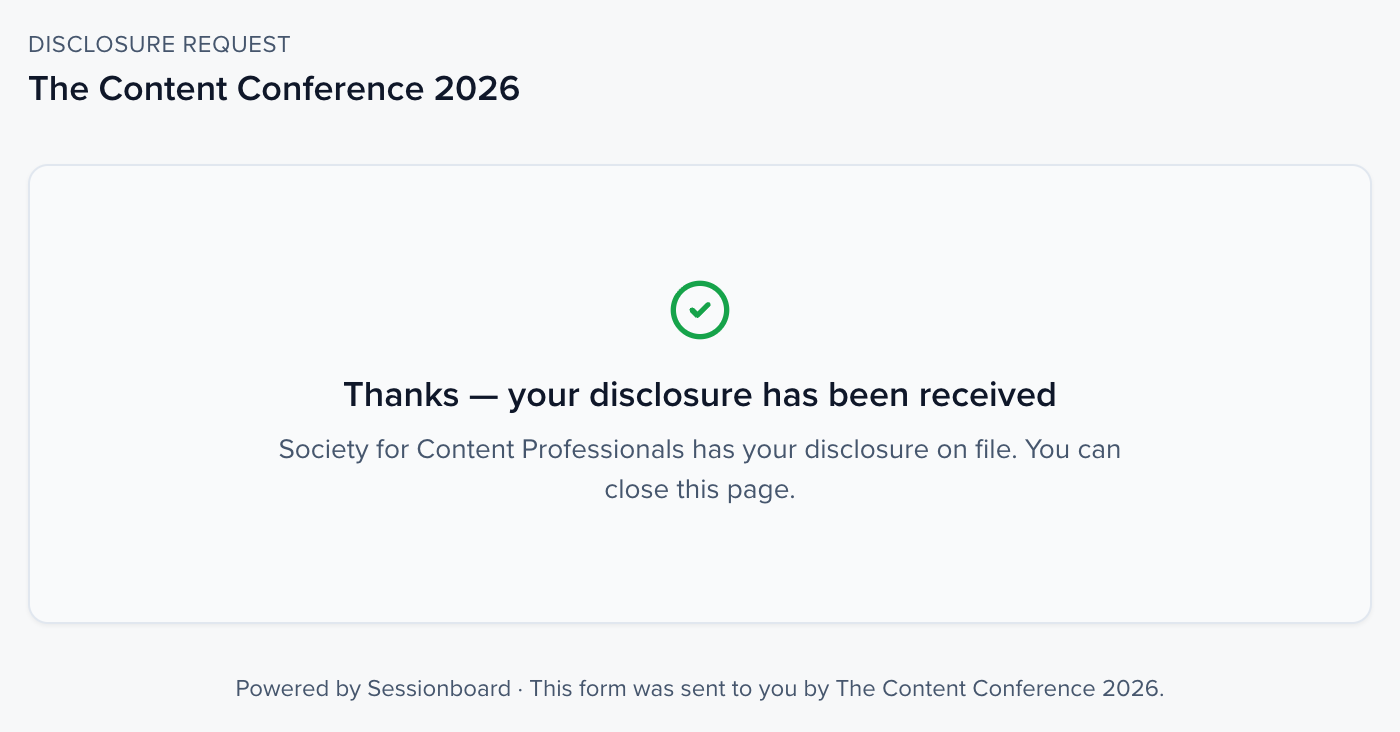
Opening a link that has already been used shows Thanks — your disclosure has been received, naming your organization as the one that has it on file; an expired one shows This link has expired and to ask the organizer for a new request; a revoked one shows This link isn’t valid.
Read a contact’s status
Section titled “Read a contact’s status”Every contact in an organization with Disclosures on has one of four states, computed from their most recent attestation and the form’s window:
| State | Meaning |
|---|---|
| Current | Attested within the window. |
| Expiring soon | Current, but the window ends within 60 days. |
| Expired | The window has passed. |
| No disclosure | Never attested. |
A Requested marker on top of any state means a request is out and unanswered.
On the profile. The Disclosure tab shows the state, the open request (with Resend and Revoke), the relationships currently on file, and a History of every submission with its date, form and how it was made — by link, from the portal, inside a submission form, or recorded by staff.
In lists. The event Contacts list and the organization directory show a Disclosure column with a Disclosure (this page) filter above the table — Needed, Expiring soon, Current, None on file. It narrows the rows loaded on the current page, so page through or raise the page size to cover everyone; the participants list on a session shows a chip beside each name. Use the Requests tab’s status filter to find everyone with an open or expired request.
Record one yourself. When a disclosure arrives on paper or by email, click Record on the Disclosure tab, pick the form and enter the answers. It is stored as a submission made by staff, with your name on it, and counts toward the contact’s state like any other. Recording also completes any open request for that person, so their old link stops working.
When a disclosure is needed
Section titled “When a disclosure is needed”An expired or missing disclosure is not, by itself, a problem — a contact you never put on a program does not owe you one. The badge reads Needed only when the disclosure is stale and something currently asks for it. Hover the badge (or read the Disclosure tab) and it says why:
| Reason | Who it covers |
|---|---|
| On a session that offers credit | Any participant on a session with a credit designation (Learning). |
| All participants must disclose | Every participant on every session, when Require a disclosure from every session participant is on in Settings. |
| Submitted to a Call for Papers that collects disclosures | Submitters and participants on a submission form with Collect disclosures on. |
| Reviews on a plan that requires one | Reviewers on an evaluation plan with Require a disclosure from reviewers on. |
| Judges a round that requires one | Judges on an Awards round with Require a disclosure from judges on. |
| A request is open | Anyone you have sent a request to and who has not answered. |
A contact whose disclosure has lapsed but who none of these apply to shows Expired or No disclosure with the note Not required right now — nobody is chased, nothing is flagged.
Automatic requests and reminders
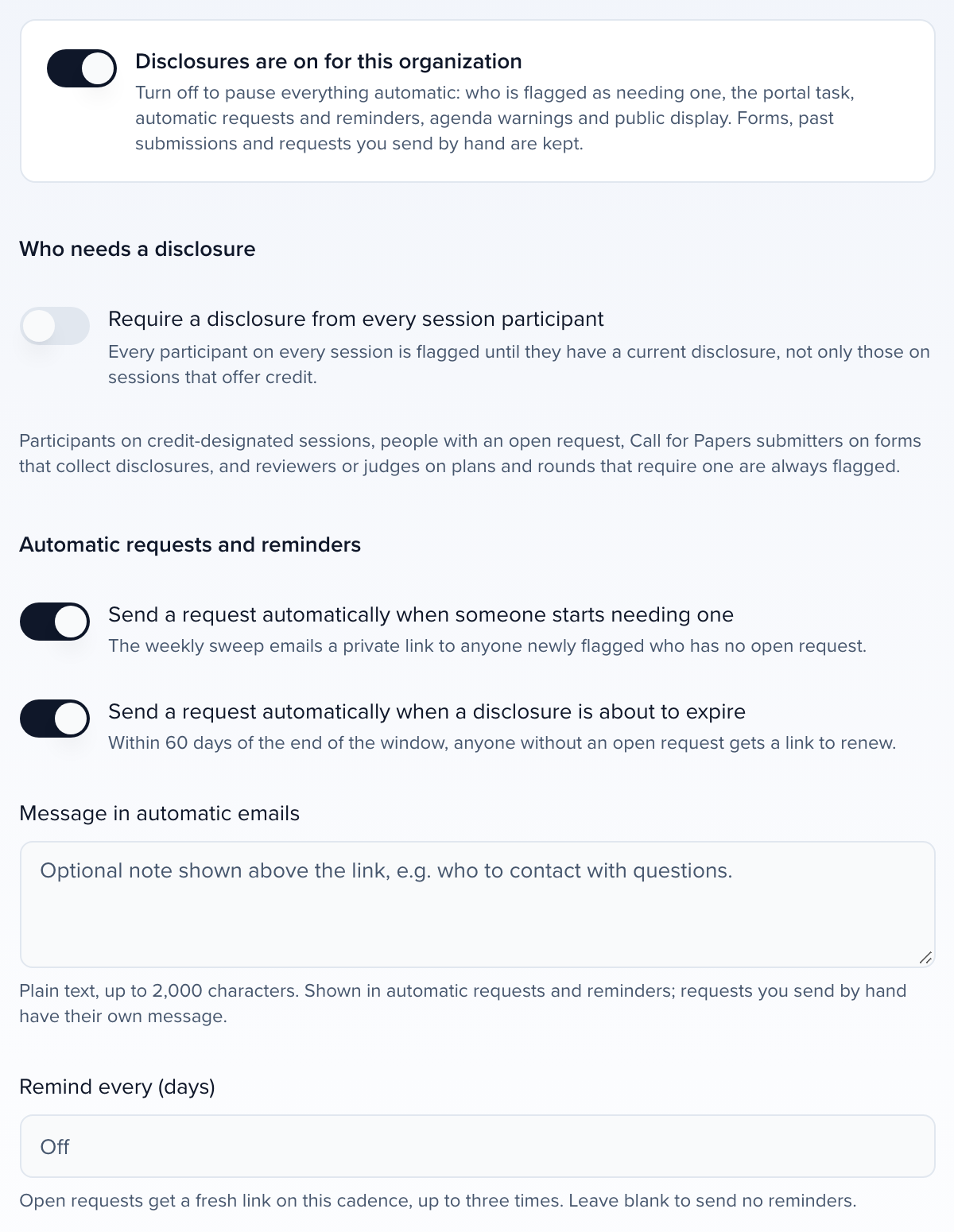
Section titled “Automatic requests and reminders”Once you say who needs one, Sessionboard can do the asking.
- Send a request automatically when someone starts needing one — every Monday, anyone newly flagged Needed with no open request gets a private link to your default form by email.
- Send a request automatically when a disclosure is about to expire — inside the last 60 days of the window, anyone without an open request gets a link to renew.
- Remind every (days) — an open request gets a fresh link on this cadence, up to three times, then is left alone. Reminders go out once a day, so 1 reminds every day. Leave it blank to send no reminders.
- Message in automatic emails — plain text shown above the link in every automatic request and reminder, such as who to contact with questions. Requests you send by hand keep their own note.
Automatic requests appear on the Requests tab with the source Automatic, and the Reminders column shows how many went out and when the last one did. Nobody is asked twice for the same reason inside 30 days, and nobody with a current disclosure is asked at all.
The Disclosures tile on the organization and event dashboards keeps the running count — Needed first, then Expiring soon, Open requests and Completed (30 days) — with the time of the last check. It appears only while Disclosures is on.
In the speaker portal
Section titled “In the speaker portal”A participant who needs a disclosure sees it in their portal: a banner on Home — A disclosure is needed or Your disclosure is about to expire — and a Disclosure task alongside their other tasks. Complete disclosure opens the form in a panel; they answer, attest and submit without leaving the portal, and the task clears. The participant-side walkthrough is Complete a disclosure.
The portal never shows what is already on file: a renewal is a fresh form, the same as a link. A submission from the portal shows on the contact’s History as made from the portal.
Reviewers and judges
Section titled “Reviewers and judges”Reviewers and judges can owe a conflict-of-interest disclosure too.
- Evaluation plans — under Conflict moderation, turn on Require a disclosure from reviewers. Every reviewer on the plan is flagged Needed until they have a current one.
- Awards rounds — on the round’s settings, the Disclosures card has Require a disclosure from judges.
Both switches appear only when Disclosures is on. Flagged reviewers and judges are asked automatically like everyone else when automatic requests are on, and the Reviewer / committee conflict of interest template is the form made for them.

Warnings on the agenda
Section titled “Warnings on the agenda”A session with a participant who still needs a disclosure shows an orange warning in the agenda’s Conflicts tab, tagged Disclosure, naming the participant and the reason. It is a warning, never a conflict: it does not stop you publishing the agenda, and it clears on its own once the disclosure comes in.
Mitigations
Section titled “Mitigations”When a participant on a credit-designated session does report financial relationships, accreditors expect you to record how the conflict was handled. The Mitigations tab on Disclosures (organization and event) appears when Lessons & Credits is on for your organization with Credits turned on. It lists every such participant, those still needing a decision first, with the number of relationships on file and the decision recorded for that session.
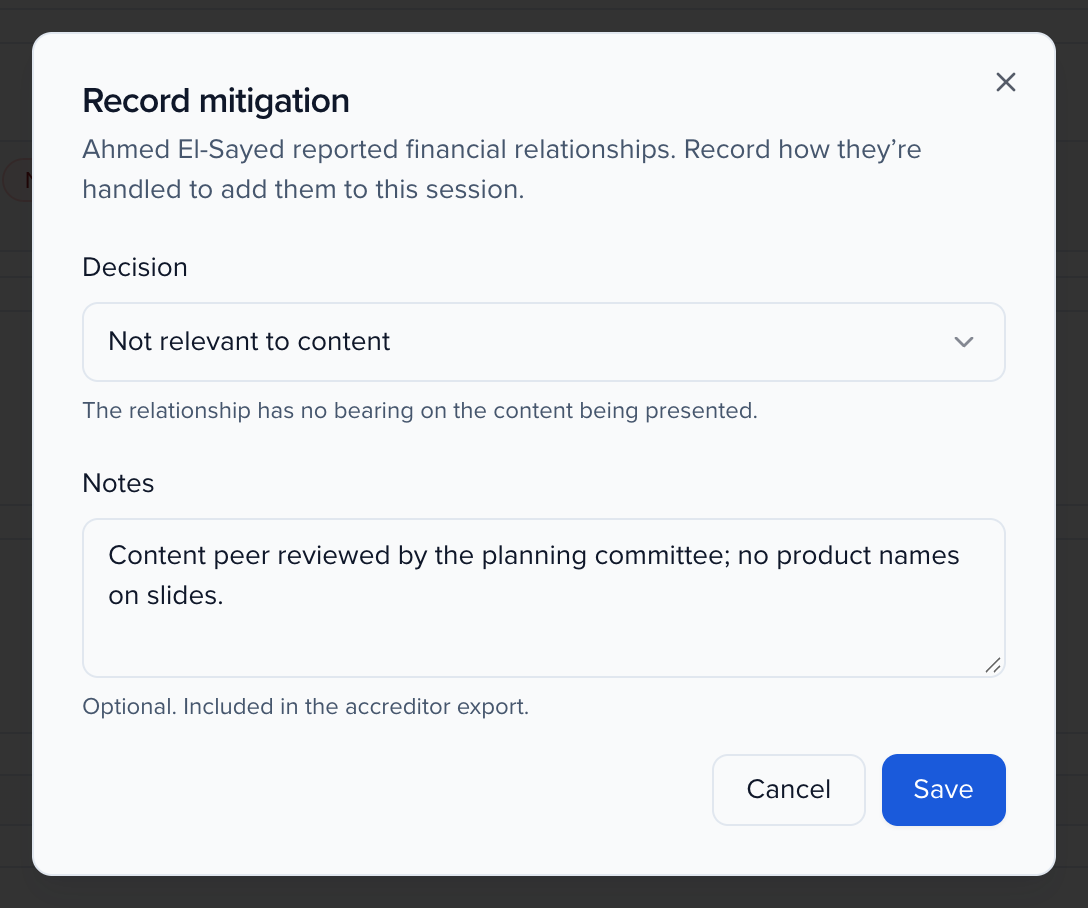
Record decision opens the Record mitigation dialog with the decisions accreditors recognise — Not relevant to content, Divested, Recused from topic, Peer review of content, Attested no influence, Other (which needs notes) — and a notes field that goes into the accreditor export. Revise re-opens a recorded decision; the export shows who last changed it and when.
If you add one participant with relationships and no decision to a credit-designated session, the Record mitigation dialog opens straight away: pick the decision, add notes, and save, and the participant is added with that decision on the Mitigations tab. Adding several people at once from the directory refuses the ones that need a decision with Mitigation needed first and a link to the tab. A participant with no current disclosure gets Disclosure needed first and a link to Requests; send the request, then add them.
Export for your accreditor
Section titled “Export for your accreditor”Export on the Requests and Mitigations tabs produces one file — CSV or Excel — for the organization or for the current event: every participant on a credit-designated session with their role, disclosure state and why it is needed, the date attested and when it expires, each current relationship (company and nature, never amounts), the mitigation decision with notes and who recorded it, and any open request with its reminder count. It runs as an export job and lands in the task dock like every other export. The mitigation columns are included only when your role can open the Mitigations tab, which needs the Credits permission; anyone else gets the same file without them.
Show disclosures on your website
Section titled “Show disclosures on your website”Turn on Show current disclosures on your website and widgets under Public display in Settings and the session pages in your embeds, the speakers feed (speakers.json) and the speaker and gallery widgets list each participant’s disclosed relationships beneath their name — the company and the nature of the relationship only, never an amount range or free text. It reads No financial relationships disclosed for a participant with a current disclosure and nothing to report, and shows nothing at all for anyone without a current disclosure, so nobody is singled out. It is off until you turn it on.
Collect disclosures in a submission form
Section titled “Collect disclosures in a submission form”A submission form can collect disclosures from the people it adds to a session, so a speaker discloses as part of proposing a talk.
On the form’s Participants step, turn on Collect disclosures and pick the form. Two things then happen:
- The submitter completes their own disclosure inline, as a section at the end of the Participants step — when they are listed as a participant themselves. The section is required: if they try to submit without it, the form takes them back to it. Leave Ask the submitter inline when they are a participant off to send them a request like everyone else instead.
- Every other participant gets a request email after the submission goes in, with the link to the same form.
Anyone whose disclosure is already current is not asked again.
Settings
Section titled “Settings”The Settings tab (organization level) starts with the master switch — Disclosures are on for this organization — and groups everything else beneath it. While the switch is off the groups are greyed out and nothing automatic runs.
Who needs a disclosure
- Require a disclosure from every session participant — flag every participant on every session, not only those on sessions that offer credit. Participants on credit-designated sessions, people with an open request, Call for Papers submitters on forms that collect disclosures, and reviewers or judges on plans and rounds that require one are always flagged.
Automatic requests and reminders
- Send a request automatically when someone starts needing one and Send a request automatically when a disclosure is about to expire — the weekly sweep described in Automatic requests and reminders.
- Message in automatic emails — the plain-text note above the link in automatic requests and reminders.
- Remind every (days) — the reminder cadence for open requests, up to three reminders; blank for none.
Requests you send
- Default form — used by automatic requests, by requests sent without picking a form, and by Call for Papers forms that collect disclosures without naming one.
- Disclosure valid for (months) — how long a disclosure stays current on forms that do not set their own window.
- Links expire after (days) — how long a request link works (30 by default).
- Skip people whose disclosure is current — the default position of the bulk-send toggle, also applied to submission-form requests.
Public display
- Show current disclosures on your website and widgets — see Show disclosures on your website.
Permissions
Section titled “Permissions”Seeing and sending disclosures follows the Contacts permissions: anyone who can view contacts sees the Disclosure tab, status column and Requests tab; creating and editing forms, sending requests and recording disclosures need the matching Disclosures permissions on the organization role. The Mitigations tab, and the mitigation columns in the export, need the Credits permission as well. Only Sessionboard can turn Disclosures on or off for your organization.